
Introduction
You can connect to your Mailchimp data from SSIS via the high-performance Mailchimp SSIS Connector. We'll walk you through the entire setup.
Let's not waste time and get started!
Video tutorial
Watch this quick video to see the integration in action. It walks you through the end-to-end setup, including:
- Installing the SSIS PowerPack
- Configuring a secure connection to Mailchimp
- Working with Mailchimp data directly inside SSIS
- Exploring advanced API Source features
Ready to dive in? Download the product to jump right in, or follow the step-by-step guide below to see how it works.
Prerequisites
Before we begin, make sure the following prerequisites are met:
- SQL Server Data Tools (SSDT) designer installed for Visual Studio.
- SQL Server Integration Services Projects 2022+ Visual Studio extension installed.
- SSIS PowerPack is installed.
Read data from Mailchimp in SSIS (Export data)
In this section we will learn how to configure and use Mailchimp Connector in API Source to extract data from Mailchimp.
-
Open Visual Studio and click Create a new project.
-
Select Integration Services Project. Enter a name and location for your project, then click OK.
-
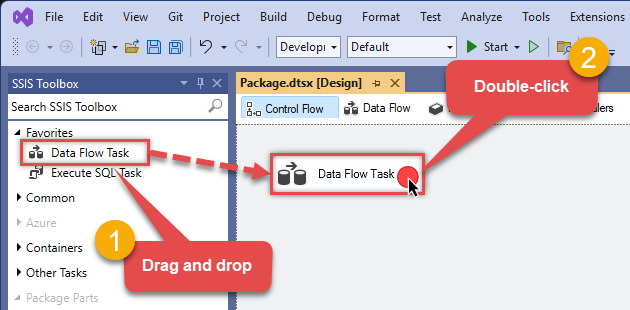
From the SSIS Toolbox, drag and drop a Data Flow Task onto the Control Flow surface, and double-click it:
-
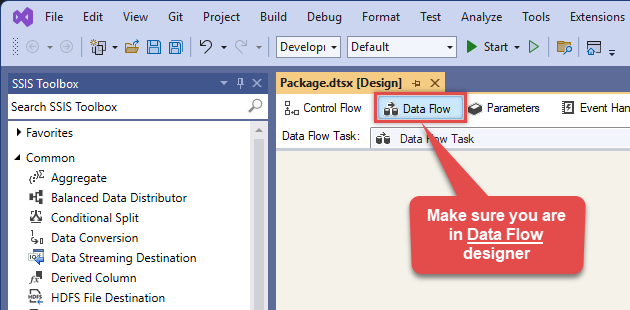
Make sure you are in the Data Flow Task designer:
-
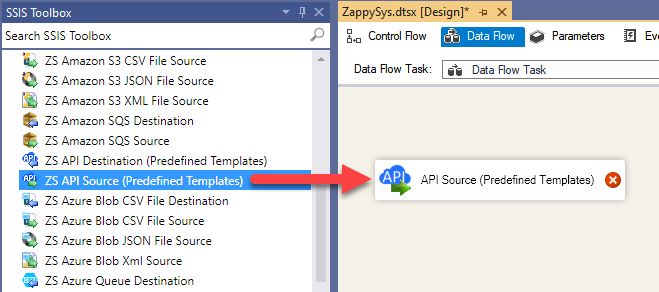
From the SSIS toolbox drag and API Source (Predefined Templates) on the data flow designer surface, and double click on it to edit it:
-
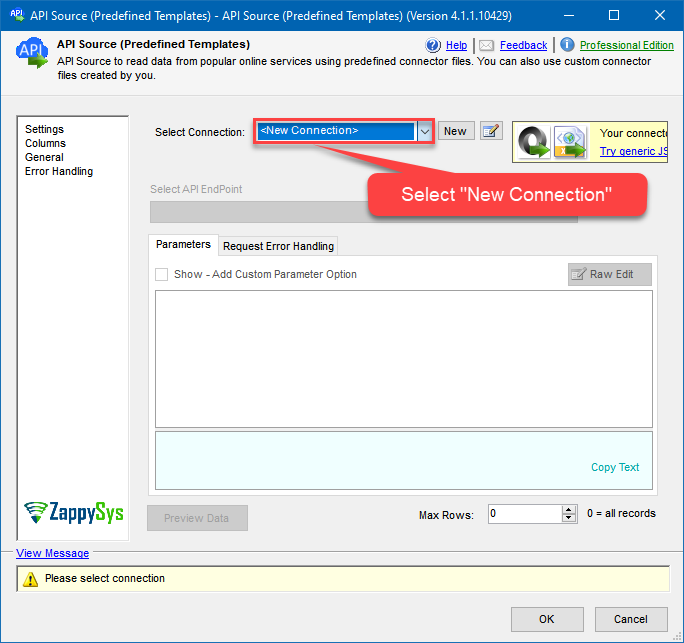
Select New Connection to create a new connection:
-
Use a preinstalled Mailchimp Connector from Popular Connector List or press Search Online radio button to download Mailchimp Connector. Once downloaded simply use it in the configuration:
Mailchimp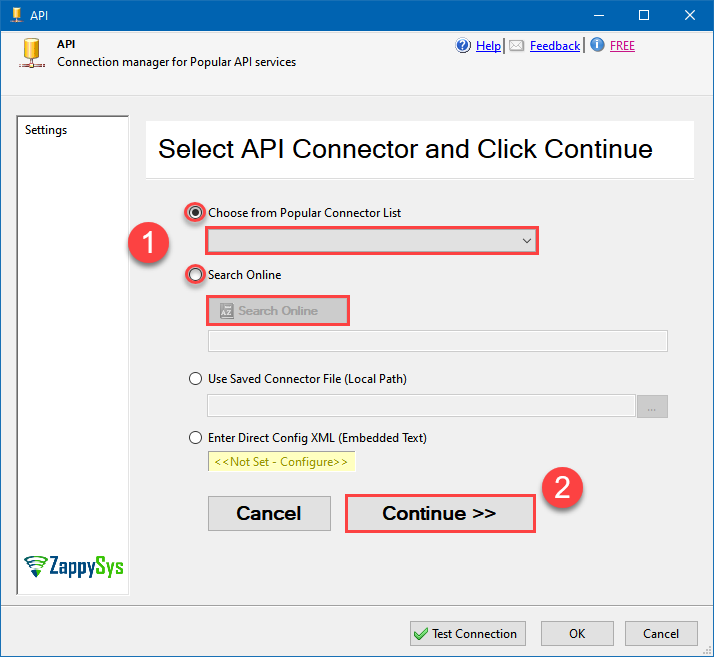
-
Select your authentication scenario below to expand connection configuration steps to:
- Configure the authentication in Mailchimp.
- Enter those details into the API Connection Manager configuration.
OAuth
Mailchimp authentication
To get the credentials you need in order to set up your OAuth workflow, you'll first need to register your application with Mailchimp:-
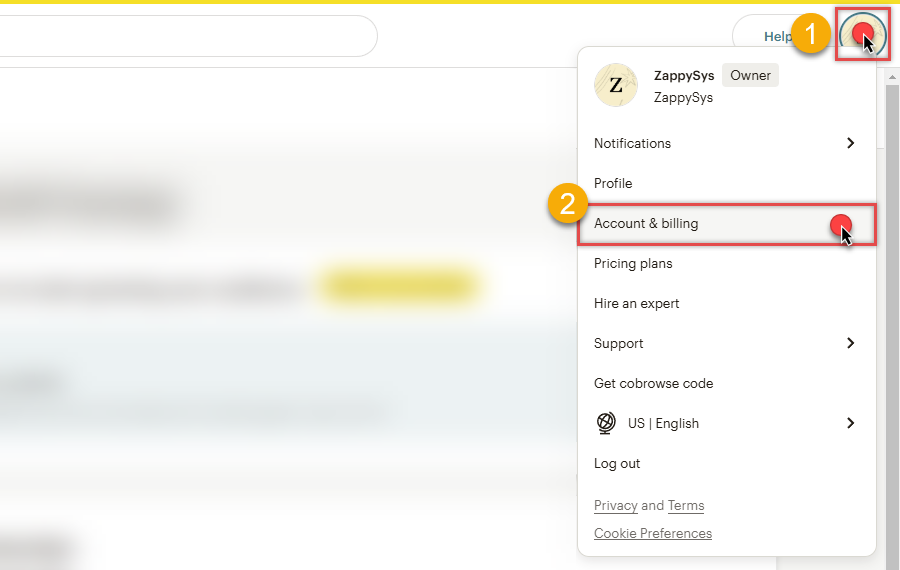
Login into your Mailchimp account, click on your Profile Icon, and hit Account & billing:
-
Navigate to the Registered Apps page in your Mailchimp account:
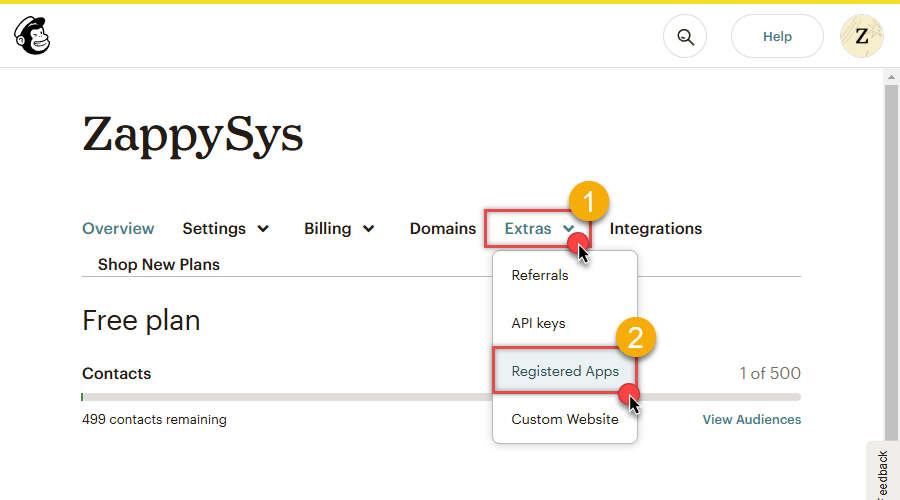
-
Click Register An App button:
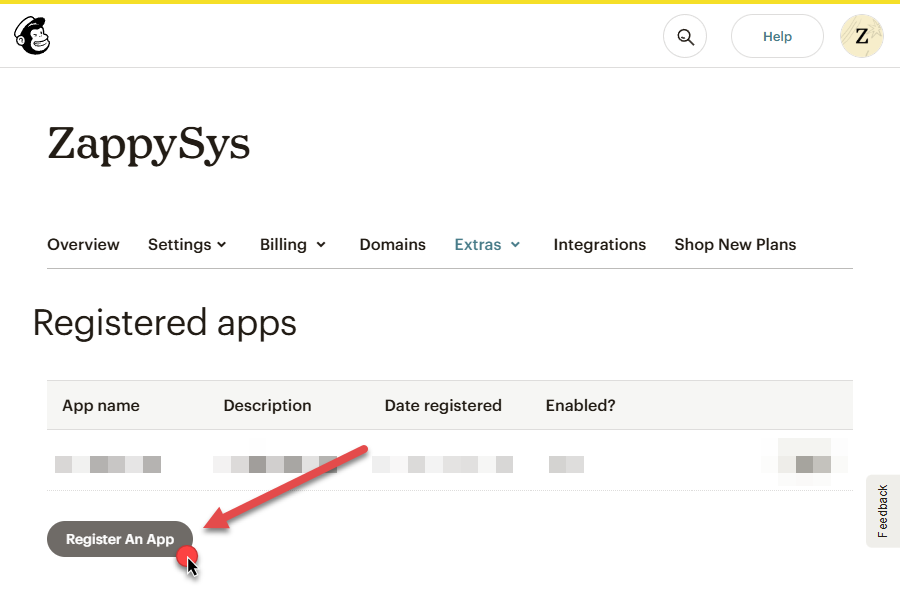
-
Fill-in the Register An App form and click Create button:
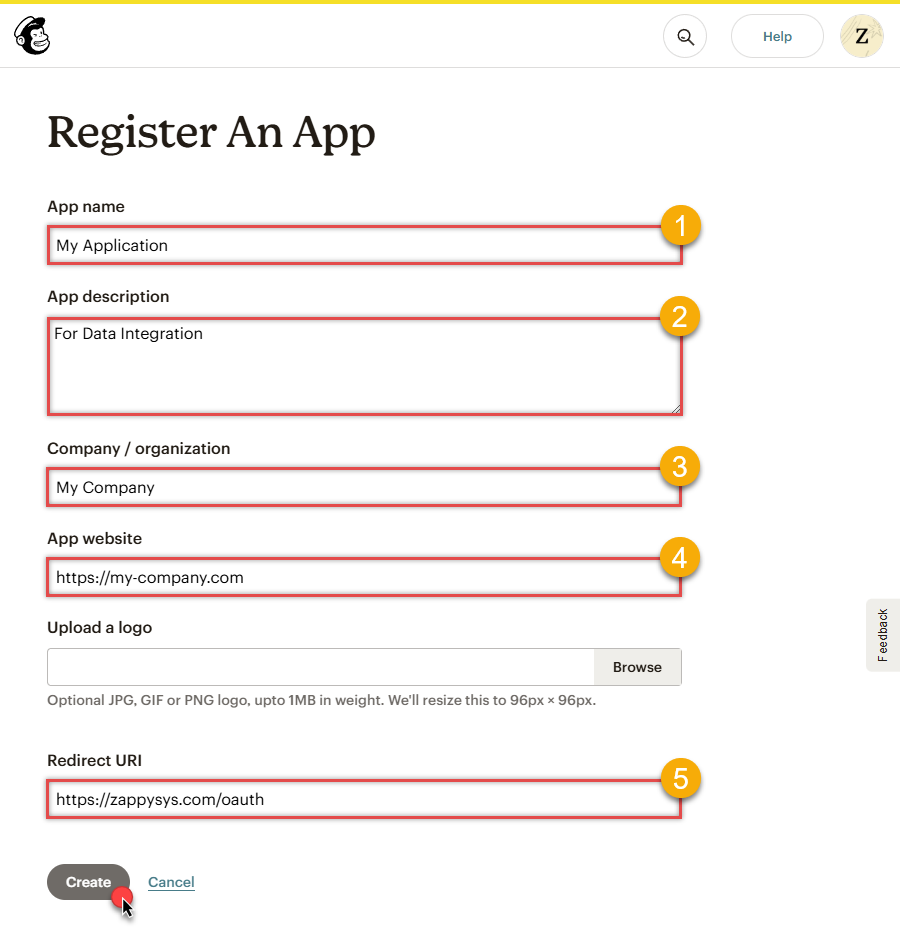 NOTE: For Redirect URI use Redirect URI (also called "Redirect URL" or "Callback URL") given by your IT administrator or just use
https://zappysys.com/oauth, if you don't have one. -
After successfully registering your application,
you'll see the Client ID and Client Secret,
record these values and store them securely:
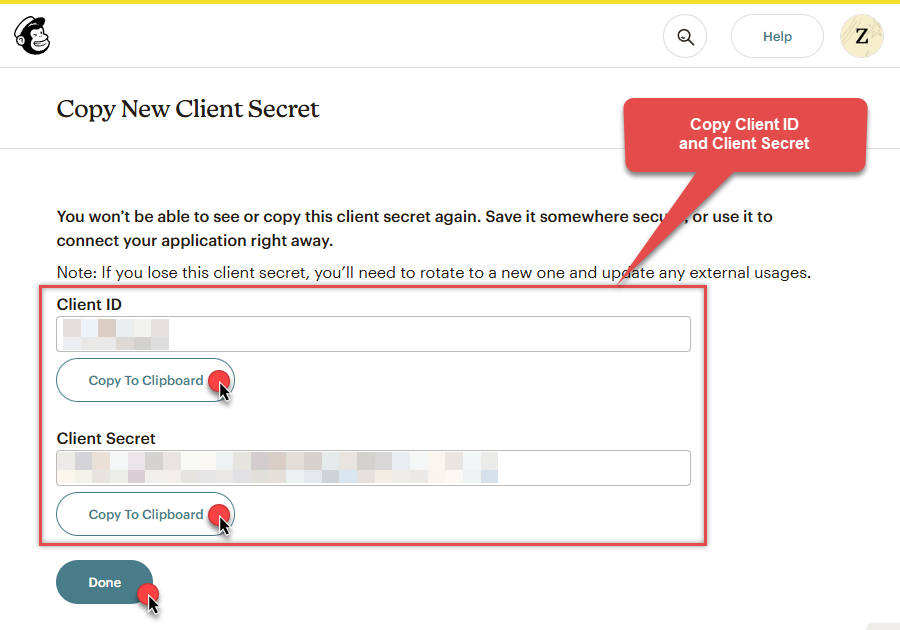
-
Record your Mailchimp data center, since we will need it later.
The data center is located in your browser's address bar URL.
If the URL is
https://us21.admin.mailchimp.com/account/api, then your data center isus21. - Now go to SSIS package or ODBC data source OAuth authentication configuration.
- Proceed by entering the data center into the Data Center field that was recorded in the previous step.
- Then enter the Client ID value into the Client ID field that you recorded in the previous step.
- Enter the Client Secret value into the Client Secret field that was recorded in the previous step.
- Click Generate Token. If proper authentication occurs, you will see a confirmation notice. If you get an error, click Yes on the dialog box and then a large browser window will launch. Then log into your Mailchimp account and approve the use of the application.
- Finally, hit the Test Connection button at the bottom of the window to verify proper connectivity with your Mailchimp account.
- If the connection test succeeds, select OK.
- Done! Now you can use Mailchimp Connector!
API Connection Manager configuration
Just perform these simple steps to finish authentication configuration:
-
Set Authentication Type to
OAuth [OAuth] - Optional step. Modify API Base URL if needed (in most cases default will work).
- Fill in all the required parameters and set optional parameters if needed.
- Press Generate Token button to generate the tokens.
- Finally, hit OK button:
MailchimpOAuth [OAuth]https://[$DataCenter$].api.mailchimp.comRequired Parameters Data Center Fill-in the parameter... Client Id Fill-in the parameter... Client Secret Fill-in the parameter... Default List Id Fill-in the parameter... Optional Parameters RetryMode RetryWhenStatusCodeMatch RetryStatusCodeList 429 RetryCountMax 5 RetryMultiplyWaitTime True 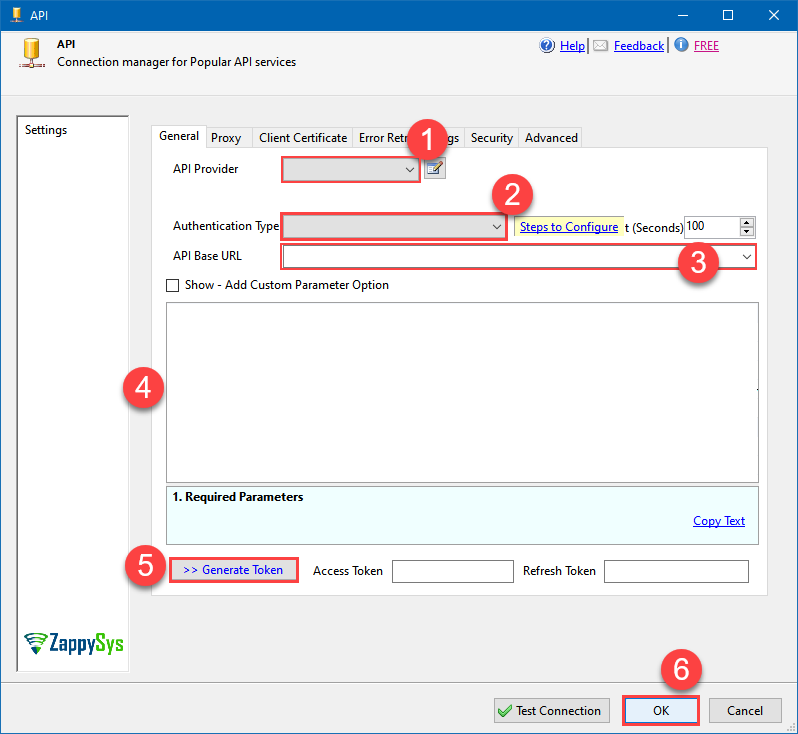 Find full details in the Mailchimp Connector authentication reference.
ApiKey Auth
Mailchimp authentication
The simplest way to authenticate a request to the Mailchimp Marketing API is by using an API key (If you require access to Mailchimp on behalf of other Mailchimp users, you'll want to set up OAuth authentication instead)::-
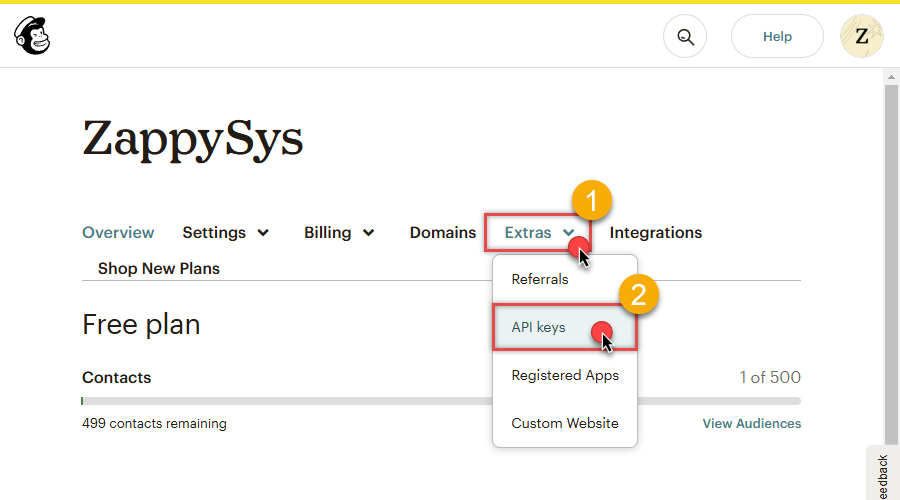
Login into your Mailchimp account, click on your Profile Icon, and hit Account & billing:
-
Navigate to the API keys page in your Mailchimp account:
-
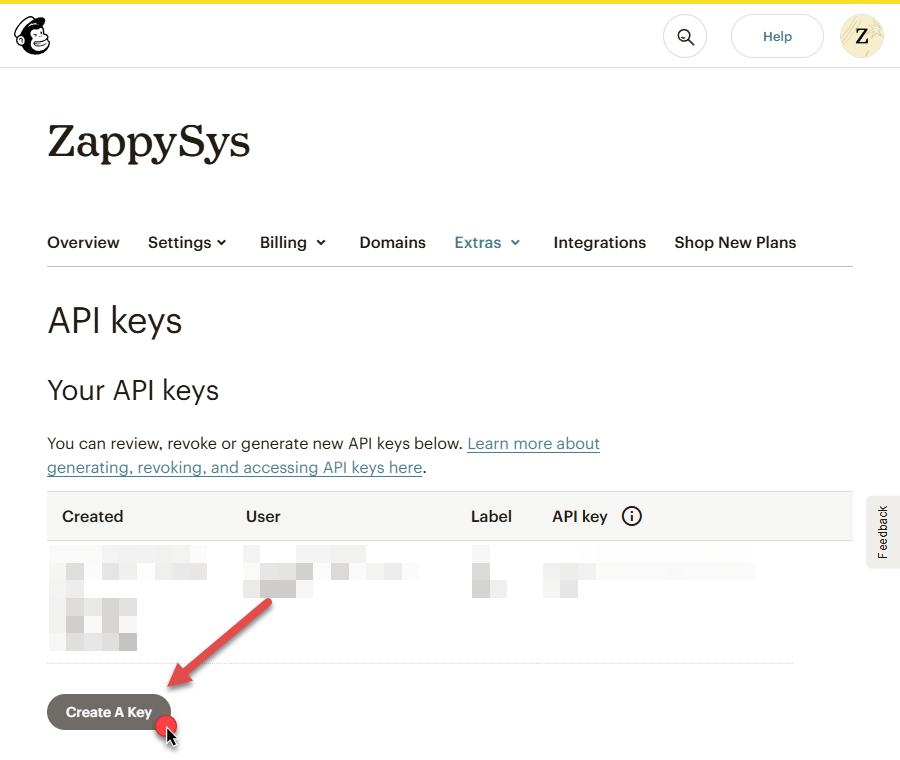
In the Your API keys section of the page, click Create A Key button:
-
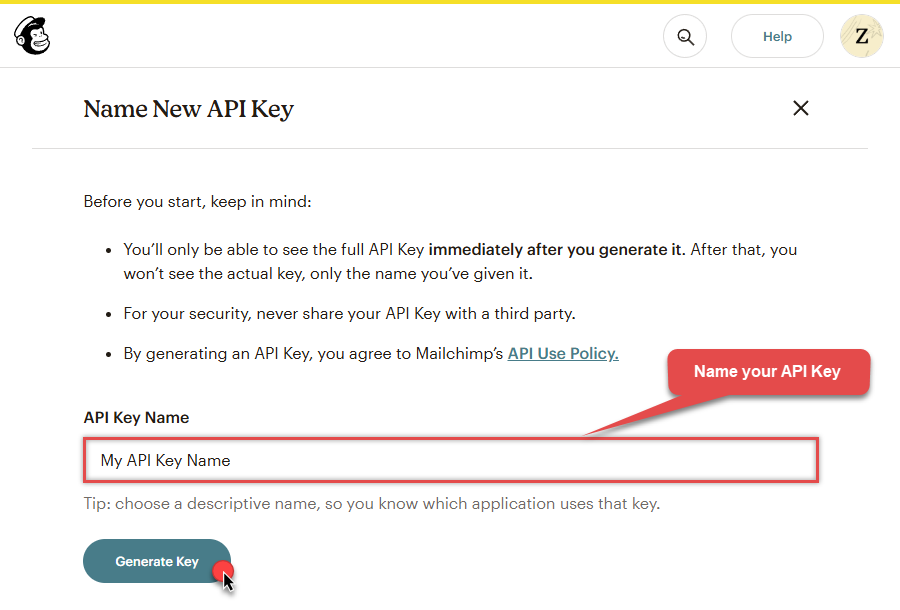
Give your new key a descriptive name that will remind you which application it's used for:
-
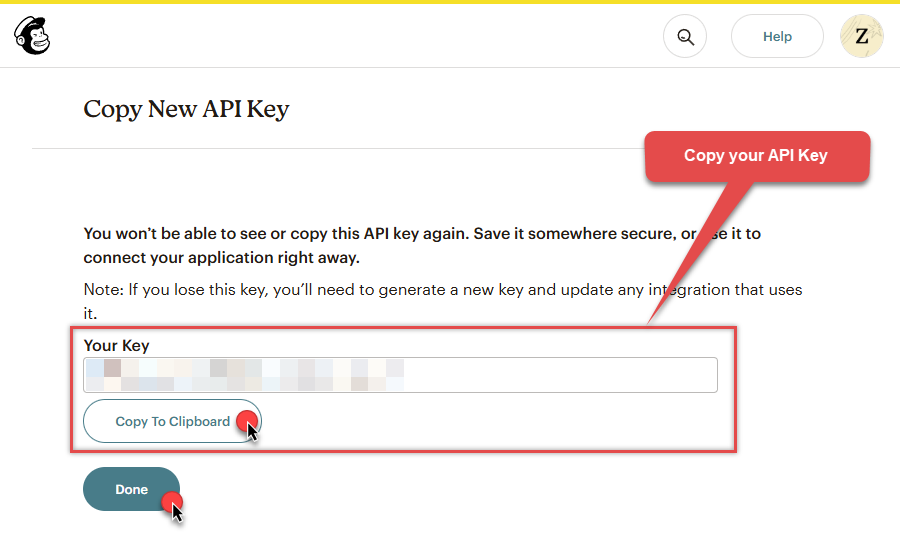
Copy the API key immediately and store it in a secure location (you won't be able to see or copy the key once you finish generating it):
-
Record your Mailchimp data center, since we will need it later.
The data center is located in your browser's address bar URL.
If the URL is
https://us21.admin.mailchimp.com/account/api, then your data center isus21. - Now go to SSIS package or ODBC data source ApiKey Auth authentication configuration.
- Proceed by entering the data center into the Data Center field that was recorded in the previous step.
- Then enter the API key into the Api Key field that you copied earlier.
- Finally, click the Test Connection button at the bottom of the window to verify proper connectivity with your Mailchimp account.
- Done! Now you can use Mailchimp Connector!
API Connection Manager configuration
Just perform these simple steps to finish authentication configuration:
-
Set Authentication Type to
ApiKey Auth [Http] - Optional step. Modify API Base URL if needed (in most cases default will work).
- Fill in all the required parameters and set optional parameters if needed.
- Finally, hit OK button:
MailchimpApiKey Auth [Http]https://[$DataCenter$].api.mailchimp.comRequired Parameters Api Key Fill-in the parameter... Default List Id Fill-in the parameter... Optional Parameters Data Center RetryMode RetryWhenStatusCodeMatch RetryStatusCodeList 429 RetryCountMax 5 RetryMultiplyWaitTime True 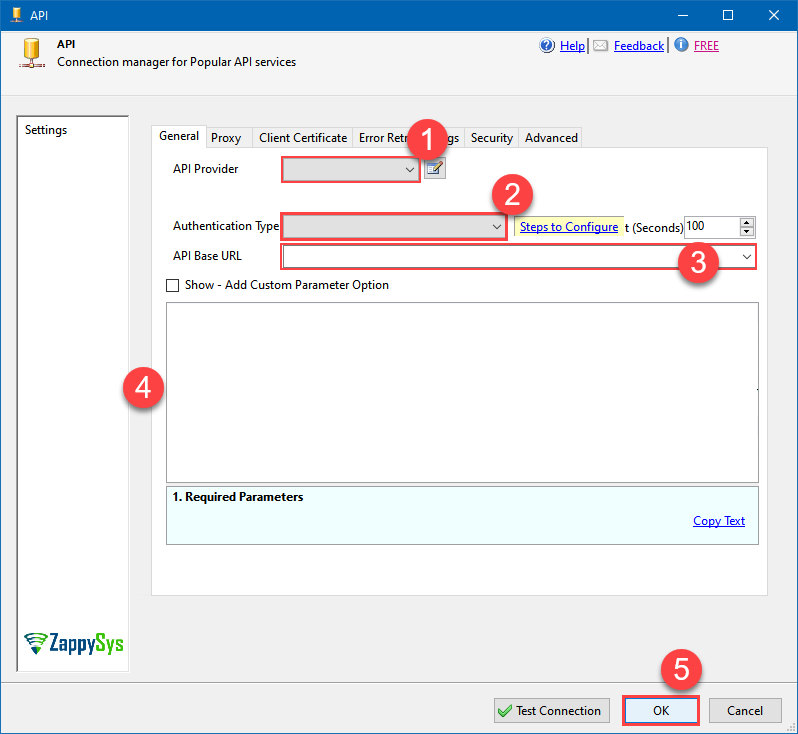 Find full details in the Mailchimp Connector authentication reference.
 -
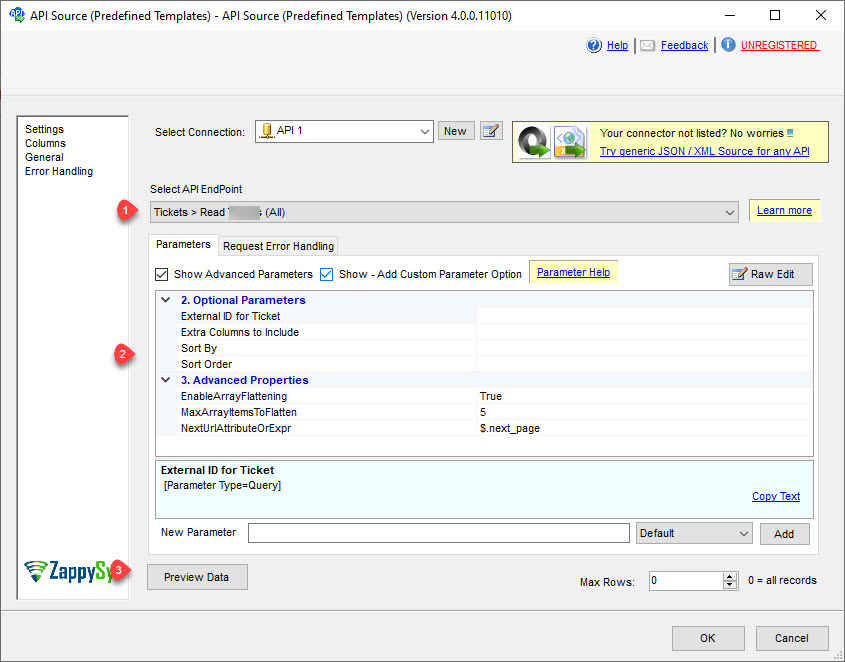
Select the desired endpoint, change/pass the properties values, and click on Preview Data button to make the API call.
API Source - MailchimpRead and write Mailchimp data effortlessly. Integrate, manage, and automate campaigns, lists, members, and reports — almost no coding required.
-
That's it! We are done! Just in a few clicks we configured the call to Mailchimp using Mailchimp Connector.
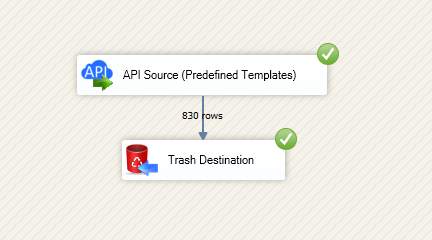
You can load the source data into your desired destination using the Upsert Destination , which supports SQL Server, PostgreSQL, and Amazon Redshift. We also offer other destinations such as CSV , Excel , Azure Table , Salesforce , and more . You can check out our SSIS PowerPack Tasks and components for more options. (*loaded in Trash Destination)
Write data to Mailchimp using SSIS (Import data)
In this section we will learn how to configure and use Mailchimp Connector in the API Destination to write data to Mailchimp.
Video tutorial
This video covers following and more so watch carefully. After watching this video follow the steps described in this article.
- How to download SSIS PowerPack for Mailchimp integration in SSIS
- How to configure connection for Mailchimp
- How to write or lookup data to Mailchimp
- Features about SSIS API Destination
- Using Mailchimp Connector in SSIS
Step-by-step instructions
In upper section we learned how to read data, now in this section we will learn how to configure Mailchimp in the API Source to POST data to the Mailchimp.
-
Open Visual Studio and click Create a new project.
-
Select Integration Services Project. Enter a name and location for your project, then click OK.
-
From the SSIS Toolbox, drag and drop a Data Flow Task onto the Control Flow surface, and double-click it:
-
Make sure you are in the Data Flow Task designer:
-
Read the data from the source, using any desired source component. You can even make an API call using the ZappySys JSON/XML/API Source and read data from there. In this example, we will use an OLE DB Source component to read real-time data from a SQL Server database.
-
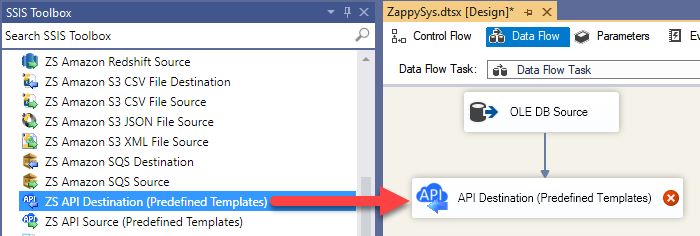
From the SSIS Toolbox drag and drop API Destination (Predefined Templates) on the Data Flow Designer surface and connect source component with it, and double click to edit it.
-
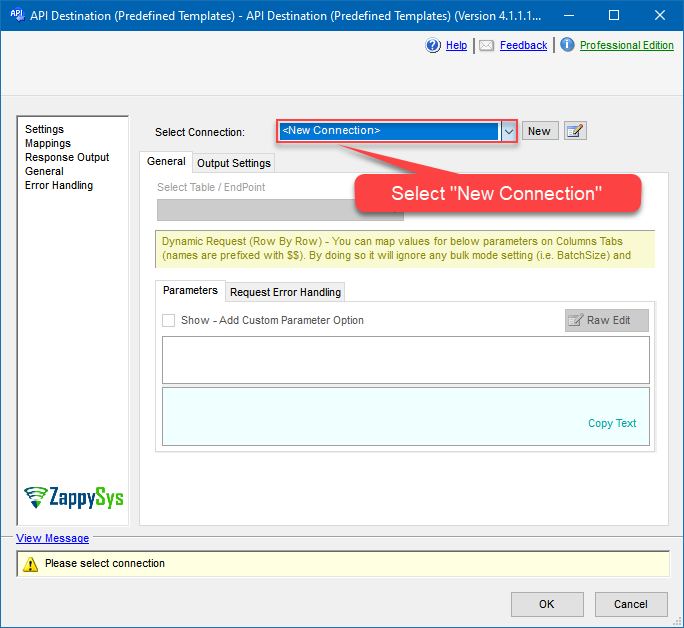
Select New Connection to create a new connection:
API Destination - MailchimpRead and write Mailchimp data effortlessly. Integrate, manage, and automate campaigns, lists, members, and reports — almost no coding required.
-
To configure the Mailchimp connector, choose one of the following methods:
- Choose from Popular Connector List: Select a pre-installed service directly from the dropdown menu.
- Search Online: Use this to find and download a new connector file to your computer.
- Use Saved/Downloaded File: Once the file is downloaded, browse your local drive to load it into the configuration.
After that, just click Continue >>:
Mailchimp
-
Proceed with selecting the desired Authentication Type. Then select API Base URL (in most cases default one is the right one). Finally, fill in all the required parameters and set optional parameters if needed. You may press a link Steps to Configure which will help set certain parameters. More info is available in Authentication section.
OAuth
Mailchimp authentication
To get the credentials you need in order to set up your OAuth workflow, you'll first need to register your application with Mailchimp:-
Login into your Mailchimp account, click on your Profile Icon, and hit Account & billing:
-
Navigate to the Registered Apps page in your Mailchimp account:
-
Click Register An App button:
-
Fill-in the Register An App form and click Create button:
NOTE: For Redirect URI use Redirect URI (also called "Redirect URL" or "Callback URL") given by your IT administrator or just use
https://zappysys.com/oauth, if you don't have one. -
After successfully registering your application,
you'll see the Client ID and Client Secret,
record these values and store them securely:
-
Record your Mailchimp data center, since we will need it later.
The data center is located in your browser's address bar URL.
If the URL is
https://us21.admin.mailchimp.com/account/api, then your data center isus21. - Now go to SSIS package or ODBC data source OAuth authentication configuration.
- Proceed by entering the data center into the Data Center field that was recorded in the previous step.
- Then enter the Client ID value into the Client ID field that you recorded in the previous step.
- Enter the Client Secret value into the Client Secret field that was recorded in the previous step.
- Click Generate Token. If proper authentication occurs, you will see a confirmation notice. If you get an error, click Yes on the dialog box and then a large browser window will launch. Then log into your Mailchimp account and approve the use of the application.
- Finally, hit the Test Connection button at the bottom of the window to verify proper connectivity with your Mailchimp account.
- If the connection test succeeds, select OK.
- Done! Now you can use Mailchimp Connector!
API Connection Manager configuration
Just perform these simple steps to finish authentication configuration:
-
Set Authentication Type to
OAuth [OAuth] - Optional step. Modify API Base URL if needed (in most cases default will work).
- Fill in all the required parameters and set optional parameters if needed.
- Press Generate Token button to generate the tokens.
- Finally, hit OK button:
MailchimpOAuth [OAuth]https://[$DataCenter$].api.mailchimp.comRequired Parameters Data Center Fill-in the parameter... Client Id Fill-in the parameter... Client Secret Fill-in the parameter... Default List Id Fill-in the parameter... Optional Parameters RetryMode RetryWhenStatusCodeMatch RetryStatusCodeList 429 RetryCountMax 5 RetryMultiplyWaitTime True
Find full details in the Mailchimp Connector authentication reference.ApiKey Auth
Mailchimp authentication
The simplest way to authenticate a request to the Mailchimp Marketing API is by using an API key (If you require access to Mailchimp on behalf of other Mailchimp users, you'll want to set up OAuth authentication instead)::-
Login into your Mailchimp account, click on your Profile Icon, and hit Account & billing:
-
Navigate to the API keys page in your Mailchimp account:
-
In the Your API keys section of the page, click Create A Key button:
-
Give your new key a descriptive name that will remind you which application it's used for:
-
Copy the API key immediately and store it in a secure location (you won't be able to see or copy the key once you finish generating it):
-
Record your Mailchimp data center, since we will need it later.
The data center is located in your browser's address bar URL.
If the URL is
https://us21.admin.mailchimp.com/account/api, then your data center isus21. - Now go to SSIS package or ODBC data source ApiKey Auth authentication configuration.
- Proceed by entering the data center into the Data Center field that was recorded in the previous step.
- Then enter the API key into the Api Key field that you copied earlier.
- Finally, click the Test Connection button at the bottom of the window to verify proper connectivity with your Mailchimp account.
- Done! Now you can use Mailchimp Connector!
API Connection Manager configuration
Just perform these simple steps to finish authentication configuration:
-
Set Authentication Type to
ApiKey Auth [Http] - Optional step. Modify API Base URL if needed (in most cases default will work).
- Fill in all the required parameters and set optional parameters if needed.
- Finally, hit OK button:
MailchimpApiKey Auth [Http]https://[$DataCenter$].api.mailchimp.comRequired Parameters Api Key Fill-in the parameter... Default List Id Fill-in the parameter... Optional Parameters Data Center RetryMode RetryWhenStatusCodeMatch RetryStatusCodeList 429 RetryCountMax 5 RetryMultiplyWaitTime True
Find full details in the Mailchimp Connector authentication reference. -
Login into your Mailchimp account, click on your Profile Icon, and hit Account & billing:
-
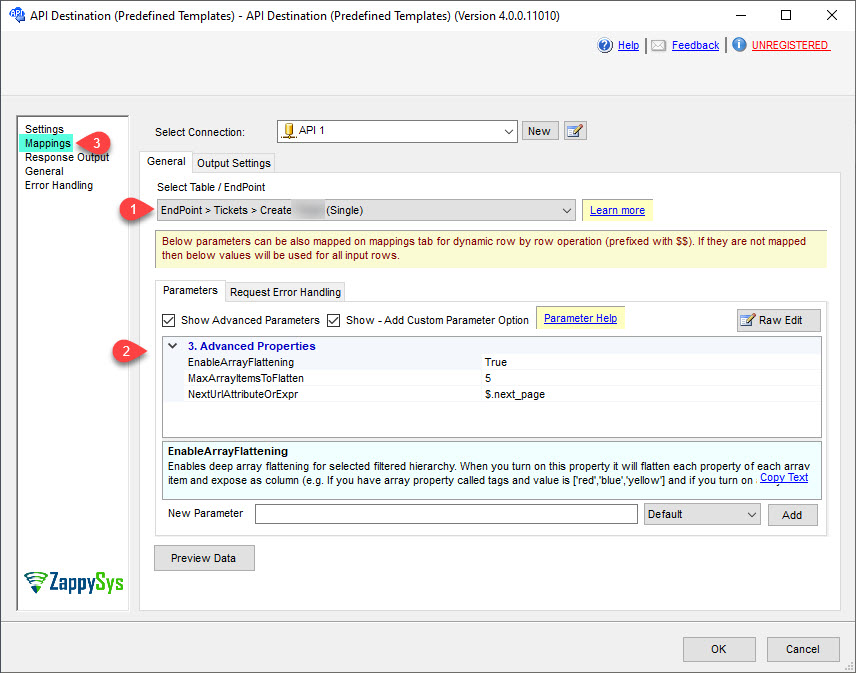
Select the desired endpoint, change/pass the properties values, and go to the Mappings tab to map the columns.
API Destination - MailchimpRead and write Mailchimp data effortlessly. Integrate, manage, and automate campaigns, lists, members, and reports — almost no coding required.
-
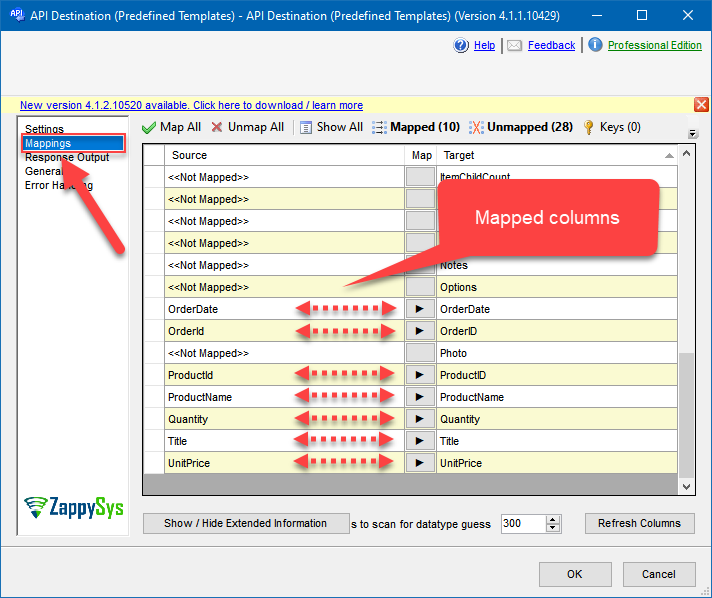
Finally, map the desired columns:
API Destination - MailchimpRead and write Mailchimp data effortlessly. Integrate, manage, and automate campaigns, lists, members, and reports — almost no coding required.
-
That's it; we successfully configured the POST API Call. In a few clicks we configured the Mailchimp API call using ZappySys Mailchimp Connector
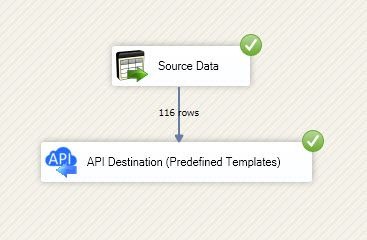
Load Mailchimp data into SQL Server using Upsert Destination (Insert or Update)
Once you configured the data source, you can load Mailchimp data into SQL Server using Upsert Destination.
Upsert Destination can merge or synchronize source data with the target table.
It supports Microsoft SQL Server, PostgreSQL, and Redshift databases as targets.
Upsert Destination also supports very fast bulk upsert operation along with bulk delete.
Upsert operation
- a database operation which performs INSERT or UPDATE SQL commands
based on record's existence condition in the target table.
It
Upsert Destination supports INSERT, UPDATE, and DELETE operations,
so it is similar to SQL Server's MERGE command, except it can be used directly in SSIS package.
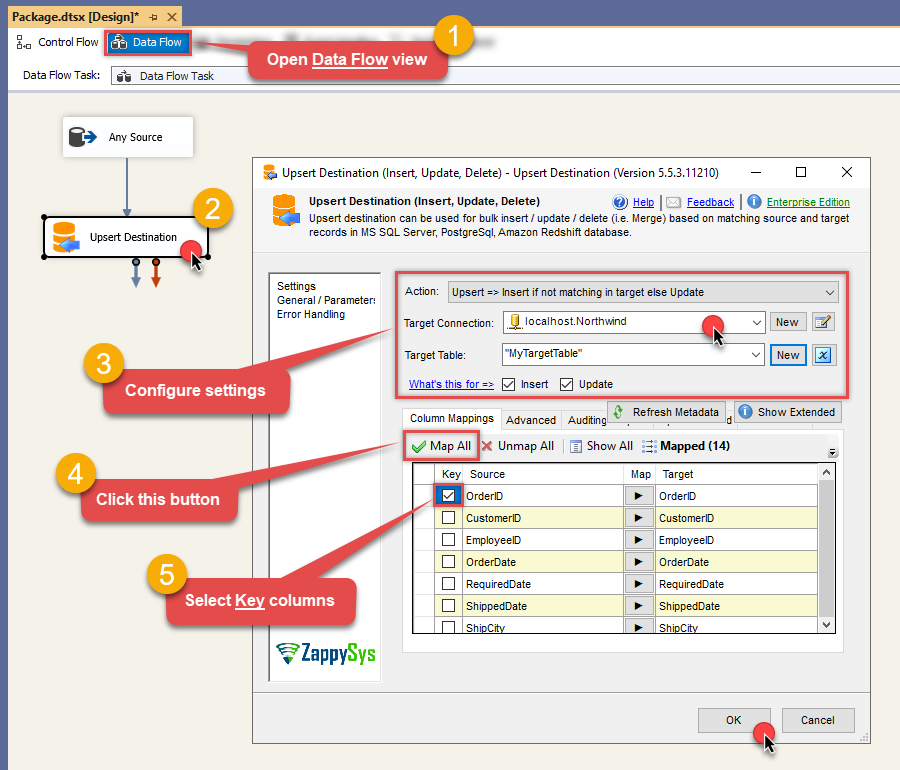
-
From the SSIS Toolbox drag-and-drop Upsert Destination component onto the Data Flow designer background.
-
Connect your SSIS source component to Upsert Destination.
-
Double-click on Upsert Destination component to open configuration window.
-
Start by selecting the Action from the list.
-
Next, select the desired target connection or create one by clicking <New [provider] Connection> menu item from the Target Connection dropdown.
-
Then select a table from the Target Table list or click New button to create a new table based on the source columns.
-
Continue by checking Insert and Update options according to your scenario (e.g. if Update option is unchecked, no updates will be made).
-
Finally, click Map All button to map all columns and then select the Key columns to match the columns on:
-
Click OK to save the configuration.
-
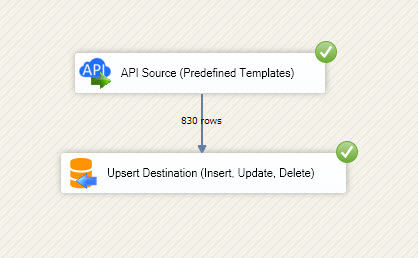
Run the package and Mailchimp data will be merged with the target table in SQL Server, PostgreSQL, or Redshift:
-
Done!
Deploy and schedule SSIS package
After you are done creating SSIS package, most likely, you want to deploy it to SQL Server Catalog and run it periodically. Just follow the instructions in this article:
Running SSIS package in Azure Data Factory (ADF)
To use SSIS PowerPack in ADF, you must first prepare Azure-SSIS Integration Runtime. Follow this link for detailed instructions:
Mailchimp Connector actions
Got a specific use case in mind? We've mapped out exactly how to perform a variety of essential Mailchimp operations directly in SSIS, so you don't have to figure out the setup from scratch. Check out the step-by-step guides below:
- Get User Details
- Get List of Campaigns
- Get Campaign Details
- Add New List
- Get Lists
- Get List Details
- Delete List
- Update List Details
- Add New List Member
- Add or Update Upsert List Members (Bulk Subscribe or Unsubscribe)
- Add New List Members in Bulk
- Get List Members
- Get All Members in All Lists
- Get a Specific Member From All Lists
- Get List Member Details
- Delete List Member (Archive)
- Delete List Member (Permanent delete)
- Update List Member Details
- Make Generic REST API Request
- Make Generic REST API Request (Bulk Write)
Conclusion
In this guide, we demonstrated how to connect to Mailchimp in SSIS and integrate your data — all without writing complex code.
Ready to get started? Download SSIS PowerPack now or ping us via chat if you still need help: