SSIS Azure Table Storage Destination
Bulk insert large numbers of records into Azure Table Storage from any SSIS data source.
Azure Table Storage Destination bulk inserts large numbers of records into Azure Table Storage, Microsoft’s cloud-based NoSQL data store, from any SSIS data source. You write to it like a normal table, with no need to learn complex APIs.
The trial includes Azure Table Storage Destination and every other PowerPack component
- Data Flow Destination in SSIS
- Runs in your environment
- Also runs in Azure Data Factory
- Fully functional 30-day trial
















At a glance
What Azure Table Storage Destination can do
Azure Table Storage Destination can be used to bulk insert large amount of records to Azure Table Storage from any data source using SSIS. Azure Table Storage is a cloud based NoSQL data storage service from Microsoft Azure
Bulk write to Table Storage
Bulk insert a large amount of records to Azure Table Storage from any data source.
- Write data like a normal table, with no need to learn complex APIs
Batch size control
Set how many records are written to the target in a single request.
BatchSizeproperty; 0 tries to send all records in one request (not recommended)
Table picker & auto-mapping
Set AccessMode to Table and pick the destination table from the Tables dropdown.
- New, empty table: input columns are mapped automatically (except PartitionKey and RowKey)
- Existing table: drag columns from the source list to the target list
Partition key performance
Get the highest load performance by choosing and sorting by the partition key carefully.
- Sort records by partition key when reading from the source
- Avoid a highly unique PartitionKey (e.g. CustomerID as RowKey, Country as PartitionKey)
Error output
Capture bad rows along with the exact reason of the error.
- Redirect rows on error or truncation from the error handling tab
Azure Storage connection
Connect through the Azure Storage Connection Manager with an account name and access key, a SAS URL or token, a connection string, or the local Azure Storage Emulator.
- Custom Blob, Table and Queue endpoints
- Proxy settings, plus
Timeout,MaxRetryOnErrorandRetryInterval
SQL Server 2012–2025 & ADF
Runs in your environment on SQL Server 2012–2025 and Azure-SSIS.
- SQL Server 2025, 2022, 2019, 2017, 2016, 2014, 2012 (32/64-bit)
- Azure Data Factory (SSIS IR)
- Design packages in Visual Studio 2017, 2019, 2022, or 2026
- Windows only (64-bit OS): Windows 7–11 or Windows Server 2012–2025
See all features
- Bulk load/write data to an Azure Table Storage table from the SSIS data flow
- Interact and write data like a normal table, no need to learn complex APIs
- Batch size setting for records written in a single request
- Pick the destination table from a dropdown
- Automatic mapping of input columns for a new, empty table
- Performance tuning guidance for PartitionKey and RowKey
- Error output to redirect bad rows on error or truncation
- Connect with access key, SAS URL/token, connection string or the Azure Storage Emulator
Support for SQL Server 2025, 2022, 2019, 2017, 2016, 2014, 2012 (32/64-bit) and Azure Data Factory
SQL Server 2012–2025
How it works
From the toolbox to your first run.
Key steps from the Azure Table Storage Destination page and help file, with the screens you will see in SSDT.
Create an Azure Storage connection.
Right-click the Connection Managers panel, choose New Connection and pick the ZappySys Azure Storage connection type. Enter your account name and access key, or pick the development storage option for the local emulator, then click Test Connection.
- Account key, SAS URL/token or connection string
- Local storage emulator for testing

Choose the target table and batch size.
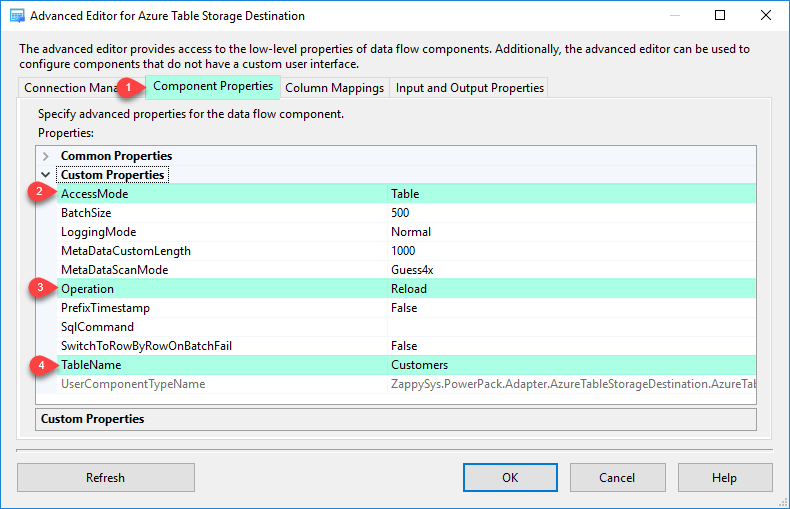
On the Component Properties tab, set AccessMode to Table and pick the destination table from the Tables dropdown. BatchSize controls how many records are written in a single request.
- Table picked from a dropdown
BatchSizeper request (0 = one big request, not recommended)
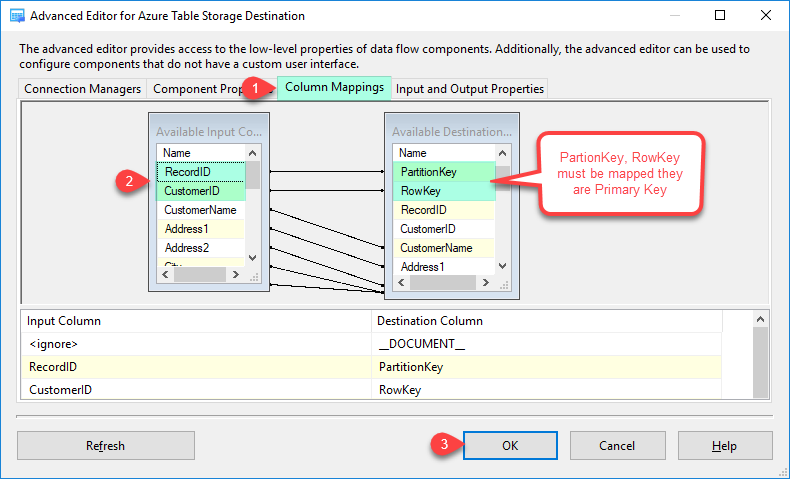
Map input columns, including PartitionKey and RowKey.
On the Mappings tab, a new empty table gets all input columns mapped automatically except PartitionKey and RowKey, so map those key columns yourself. For an existing table with data, drag columns from the source list to the target list.
- Automatic mapping for new tables
- Map PartitionKey and RowKey explicitly
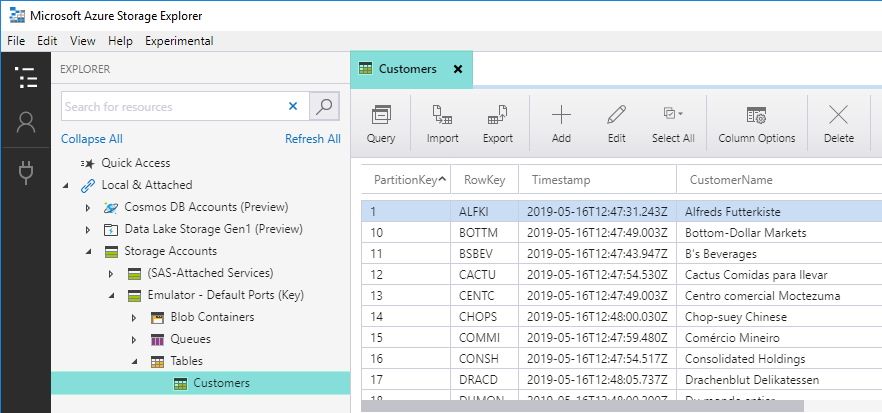
Load the data and check the record count.
Run the package, then verify the rows in your Azure table, for example with Microsoft Azure Storage Explorer. For best speed, sort source records by partition key.
- Error output captures bad rows with the reason
Inside the UI
Key settings, as they appear in SSDT.
Real screens from the Azure Table Storage Destination product page. Step through them, or open any shot at full size.
Create Azure Storage Connection – Choose Type
Right-click the Connection Managers panel, choose New Connection and pick the ZappySys Azure Storage connection type.
Articles
Worked examples that use Azure Table Storage Destination.
Compatibility and requirements
Designed to stay inside your SSIS runtime.
- SQL Server 2012 through 2025, 32-bit and 64-bit
- Windows only, 64-bit OS required. SQL Server Express and Web editions do not include SSIS
- Azure Data Factory SSIS Integration Runtime
- Self-hosted: credentials and data stay in your environment (external API calls still reach that service)
- Fully functional 30-day trial of SSIS PowerPack
FAQ
Questions teams ask before they drop Azure Table Storage Destination on the canvas.
What is Azure Table Storage Destination?
A Data Flow destination that bulk inserts records into Azure Table Storage, Microsoft’s cloud-based NoSQL data store, from any SSIS data source. You write to it like a normal table, without learning complex APIs.
How are PartitionKey and RowKey mapped?
For a new, empty table all input columns are mapped automatically except PartitionKey and RowKey, so map your key columns to them on the Mappings tab. For an existing table, drag columns from the source list to the target list.
How do I get the best load performance?
Sort records by partition key when you read from the source, and do not pick a highly unique key as the PartitionKey. For customers, for example, use CustomerID as RowKey and country as PartitionKey. Tune BatchSize for the number of records sent per request. See the help file.
What happens to rows that fail?
By default the component fails on any data error or truncation. Attach the error output with RedirectRow on Error and Truncation to capture bad rows along with the exact reason.
Which SQL Server versions can I run it on?
SQL Server 2025, 2022, 2019, 2017, 2016, 2014, and 2012 (32- and 64-bit), plus Azure Data Factory with an SSIS Integration Runtime (packages must target SQL Server 2017). See Compatibility and requirements.



What customers say
Start your free trial today
Install SSIS PowerPack and drag Azure Table Storage Destination onto the Data Flow.
Bulk insert large numbers of records into Azure Table Storage from any SSIS data source.
- Data Flow Destination in SSISAzure Table Storage Destination appears in the toolbox after you install PowerPack.
- Fully functional 30-day trialSSIS PowerPack, running in your environment.
- Live supportHelp during your trial and after purchase.
Open Help FileBrowse all SSIS PowerPack tasks
New purchases may be eligible for refund review within 30 days. See the refund policy.
Talk to an engineer before or during your trial.