Google Analytics Connector for SSIS
Google Analytics Connector can be used to read data from Google Analytics Service without learning complex API. Easy to use interface allows you extract large amount of data adjusting parameters such as dimensions, metrics, filters, sortby, date range etc. You can also use inbuilt reports or specify direct query URL to get desired data.
In this article you will learn how to quickly and efficiently integrate Google Analytics data in SSIS without coding. We will use high-performance Google Analytics Connector to easily connect to Google Analytics and then access the data inside SSIS.
Let's follow the steps below to see how we can accomplish that!
Google Analytics Connector for SSIS is based on ZappySys Native SSIS Connector Framework which is a part of SSIS PowerPack. It is a collection of high-performance SSIS connectors that enable you to integrate data with virtually any data provider supported by SSIS, including SQL Server. SSIS PowerPack supports various file formats, sources and destinations, including REST/SOAP API, SFTP/FTP, storage services, and plain files, to mention a few (if you are new to SSIS and SSIS PowerPack, find out more on how to use them).
Video Tutorial - Integrate Google Analytics data in SSIS
This video covers the following topics and more, so please watch carefully. After watching the video, follow the steps outlined in this article:
- How to download and install the required PowerPack for Google Analytics integration in SSIS
- How to configure the connection for Google Analytics
- Features of the Source (Authentication / Query Language / Examples / Driver UI)
- How to use the Google Analytics in SSIS
Prerequisites
Before we begin, make sure the following prerequisites are met:
- SSIS designer installed. Sometimes it is referred as BIDS or SSDT (download it from Microsoft).
- Basic knowledge of SSIS package development using Microsoft SQL Server Integration Services.
- SSIS PowerPack is installed (if you are new to SSIS PowerPack, then get started!).
Read data from Google Analytics in SSIS using Google Analytics Source
This section provides a practical guide on how to extract data from Google Analytics using the Google Analytics Source component within SSIS (SQL Server Integration Services) via the ZappySys PowerPack.
-
Begin with opening Visual Studio and Create a New Project.
-
Select Integration Service Project and in new project window set the appropriate name and location for project. And click OK.
In the new SSIS project screen you will find the following:
- SSIS ToolBox on left side bar
- Solution Explorer and Property Window on right bar
- Control flow, data flow, event Handlers, Package Explorer in tab windows
- Connection Manager Window in the bottom
Note: If you don't see ZappySys SSIS PowerPack Task or Components in SSIS Toolbox, please refer to this help link. -
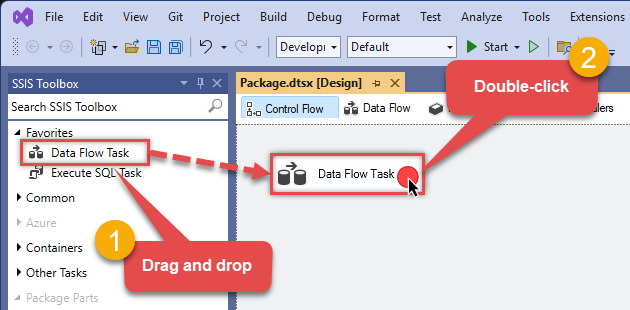
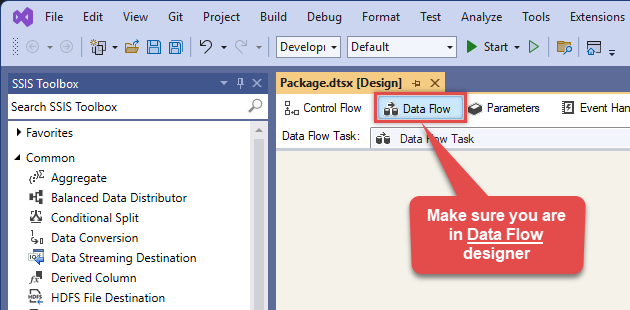
Now, Drag and Drop SSIS Data Flow Task from SSIS Toolbox. Double click on the Data Flow Task to see Data Flow designer.
-
From the SSIS toolbox drag and drop Google Analytics Source on the dataflow designer surface

-
Double click on Google Analytics Source component to configure it.
-
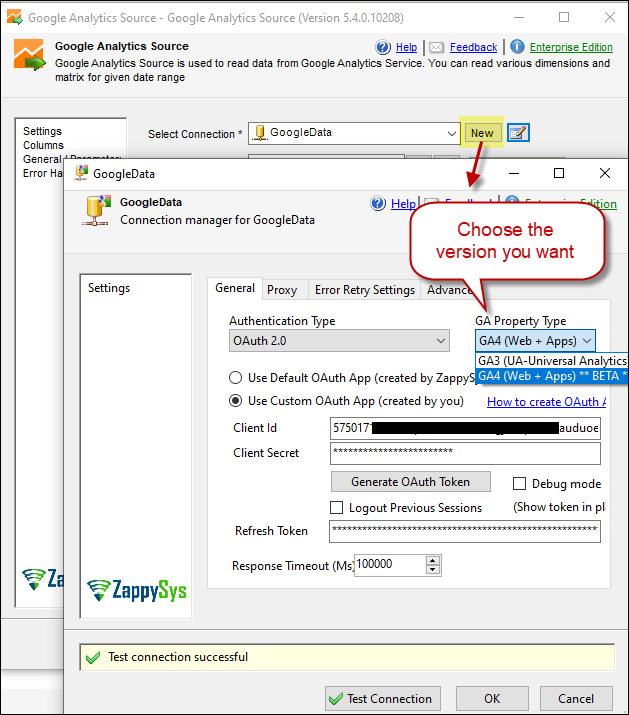
Next, set up the Google Analytics Source Connection. For detailed instructions, visit Google Data Connection documentation.
-
Configuring the Google Analytics Source:
-
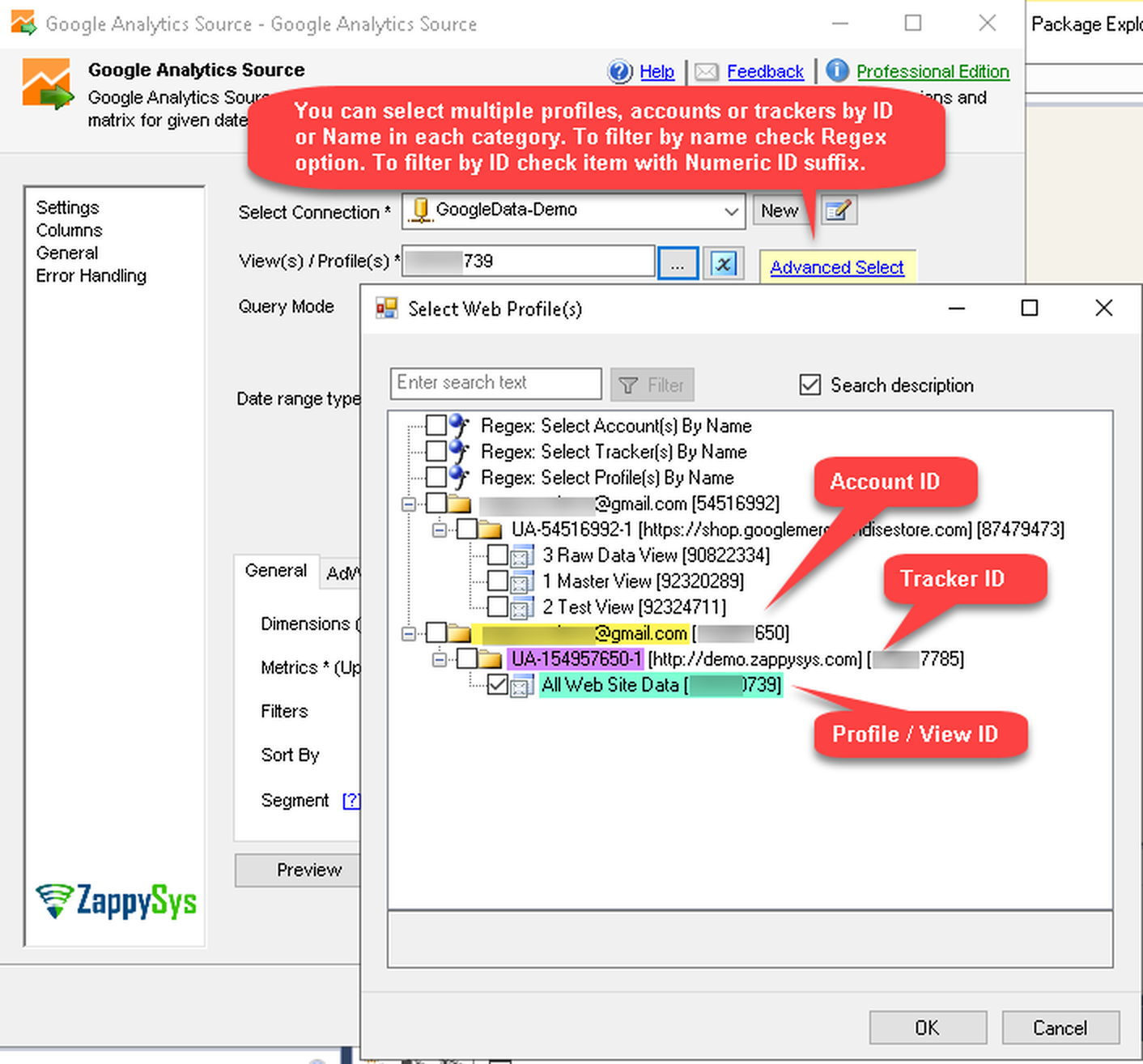
Select View(s) or Profile(s):
- Select the created Google Analytics Source Connection.
-
Choose the specific View(s) or Profile(s) from which you want to extract data.
-
Query Mode: Set the Query Mode to
Automatic - Build your own URL. This mode allows for granular control over the data retrieval using URL query parameters. -
Date Range:
- Set the Date range type to
Custom date range. -
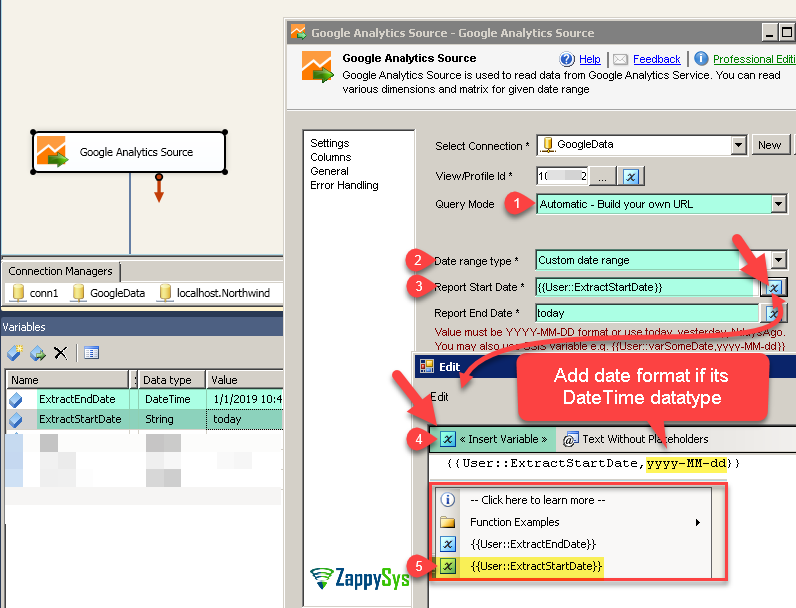
Specify the start and end dates for your report. You can use variables for dynamic date ranges, which is very useful for automation.
Example: You can use SSIS variables named ReportStartDate and ReportEndDate.
- Set the Date range type to
-
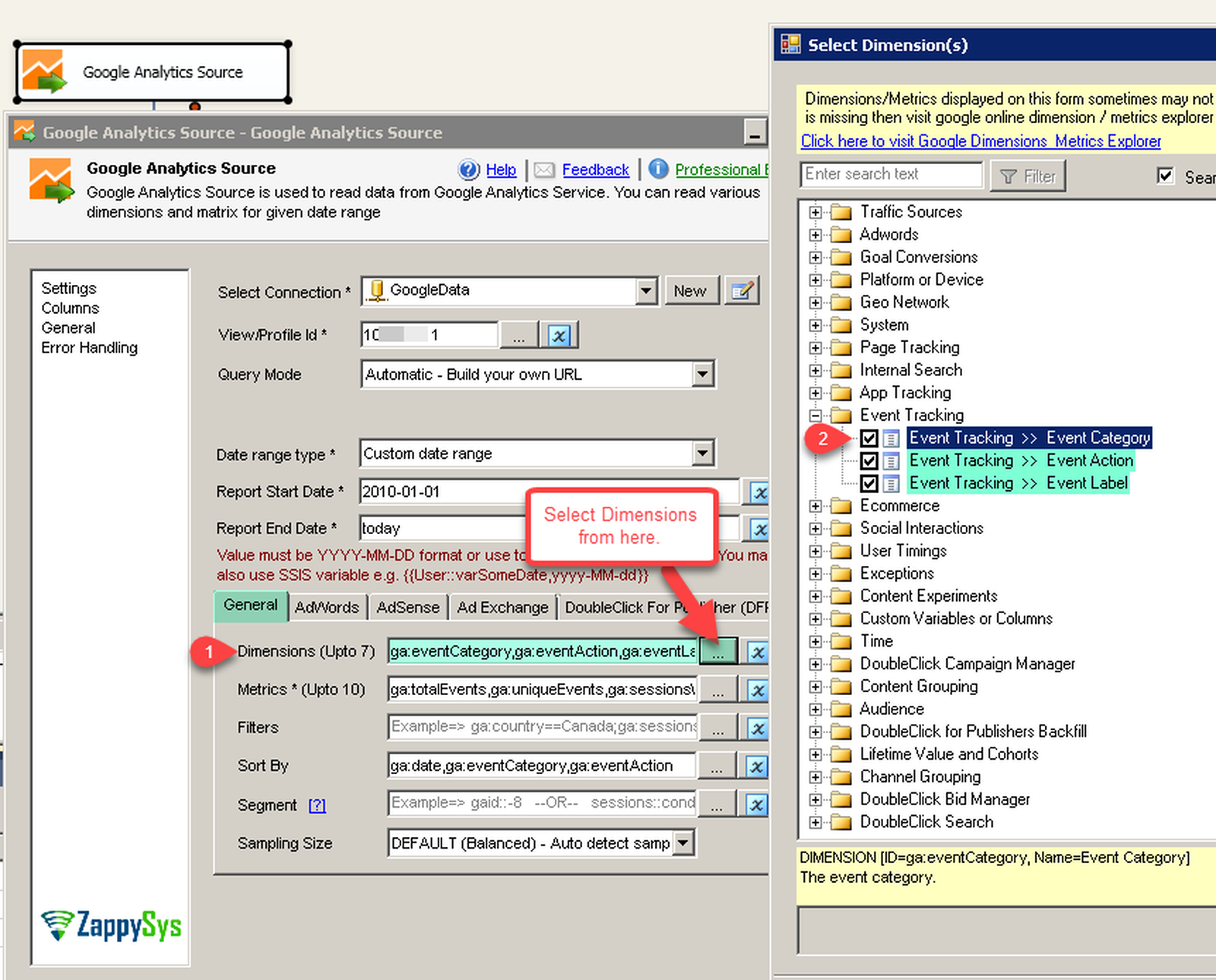
Dimensions: Select the dimensions you want to include in your report (e.g., “date”, “pagePath”, “country”). You can select up to 7 dimensions.
-
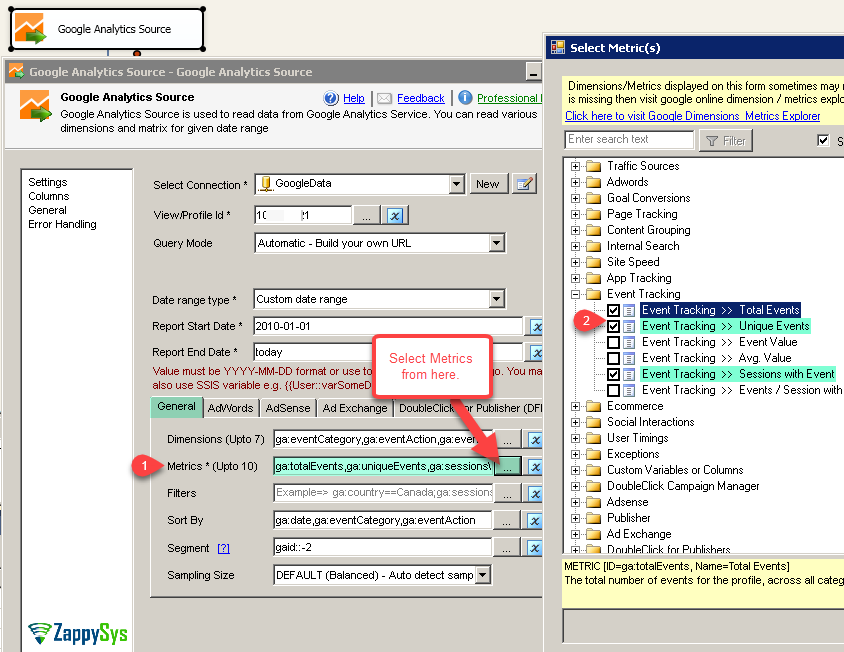
Metrics: Select the metrics you want to retrieve (e.g., “sessions”, “pageviews”, “users”). You can select up to 7 metrics.
-
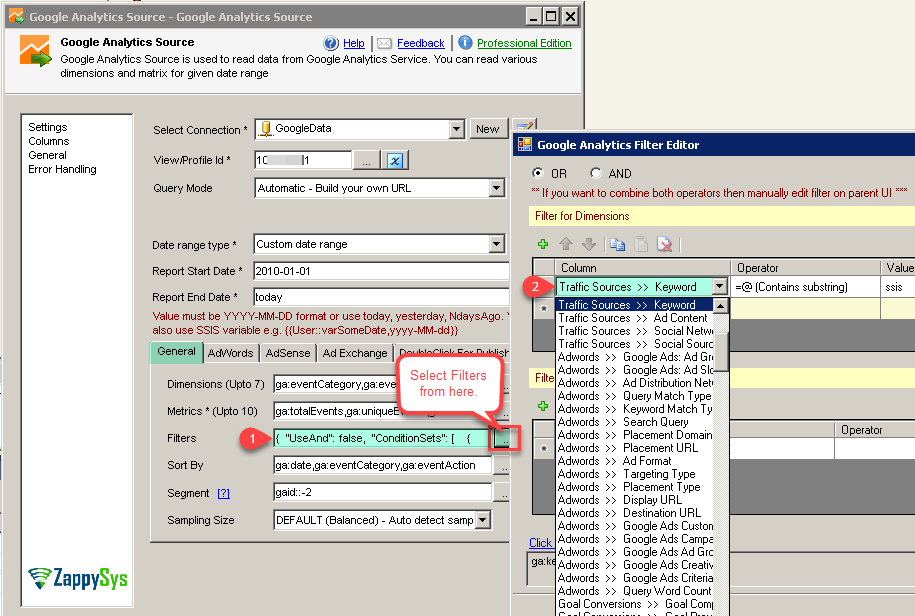
Filters: Optionally, apply filters to narrow down the data based on specific criteria (e.g., filtering for traffic from a particular country).
-
Sort By: Optionally, specify how the data should be sorted (e.g., sorting by “sessions” in descending order).
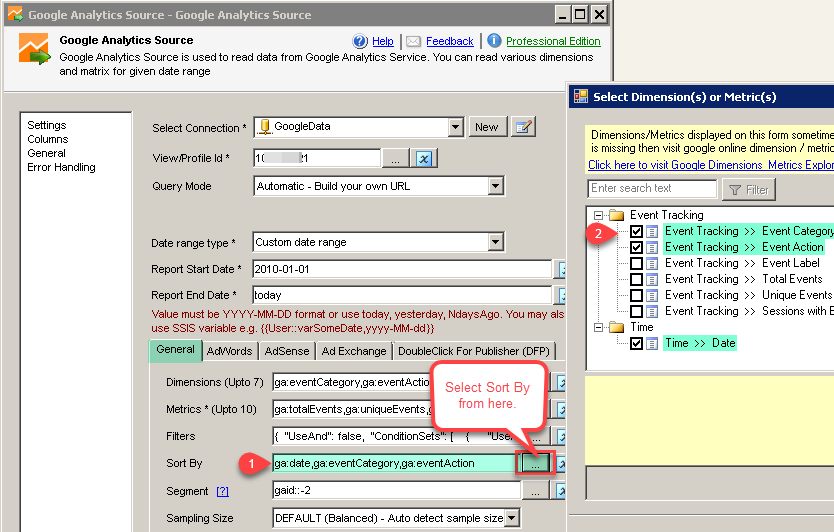
-
Segments: Optionally, apply segments to analyze specific subsets of your data.
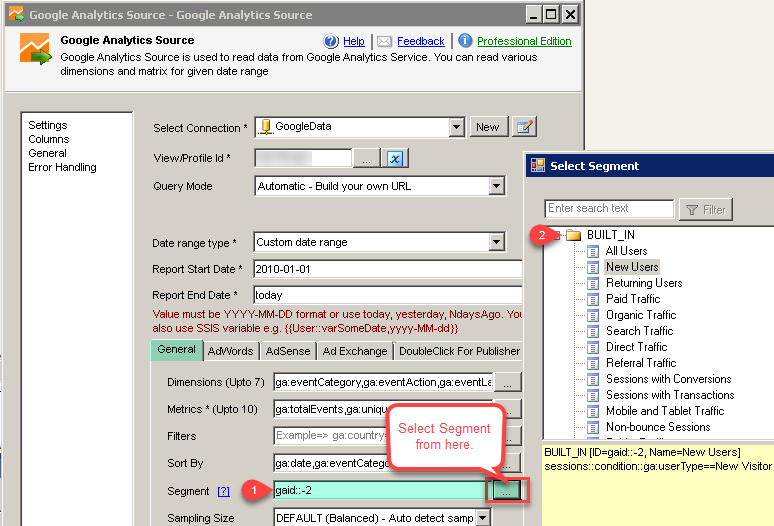
-
Select View(s) or Profile(s):
-
Data Preview and Saving:
- Click the Preview button to view a sample of the data that will be extracted. This allows you to verify your configuration.
-
Click the OK button to save the configuration settings for the Google Analytics Source.
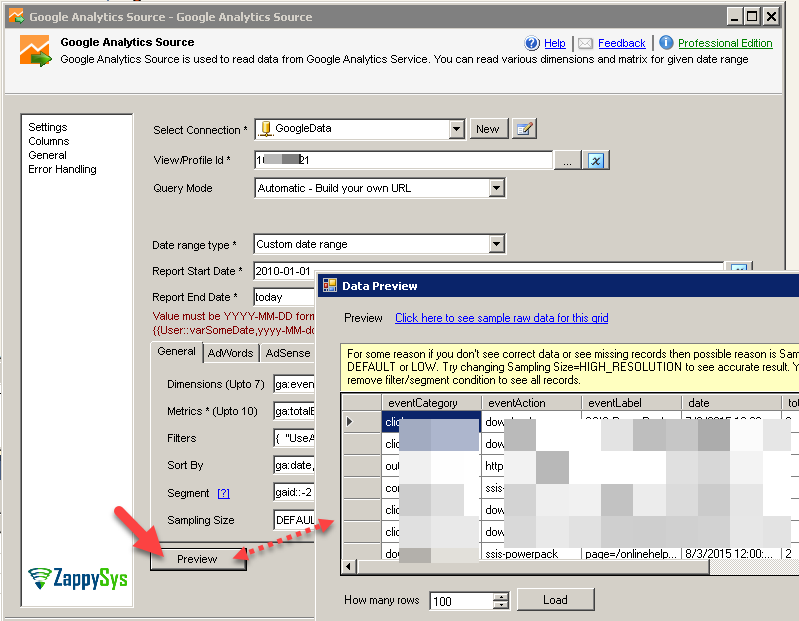
That's it. Now you can now connect the Google Analytics Source to other data flow components, such as a Destination component, to load the extracted data into a database, file, or other destination.
Load Google Analytics data into SQL Server using Upsert Destination (Insert or Update)
Once you configured the data source, you can load Google Analytics data into SQL Server using Upsert Destination.
Upsert Destination can merge or synchronize source data with the target table.
It supports Microsoft SQL Server, PostgreSQL, and Redshift databases as targets.
Upsert Destination also supports very fast bulk upsert operation along with bulk delete.
Upsert operation
- a database operation which performs INSERT or UPDATE SQL commands
based on record's existence condition in the target table.
It
Upsert Destination supports INSERT, UPDATE, and DELETE operations,
so it is similar to SQL Server's MERGE command, except it can be used directly in SSIS package.
-
From the SSIS Toolbox drag-and-drop Upsert Destination component onto the Data Flow designer background.
-
Connect your SSIS source component to Upsert Destination.
-
Double-click on Upsert Destination component to open configuration window.
-
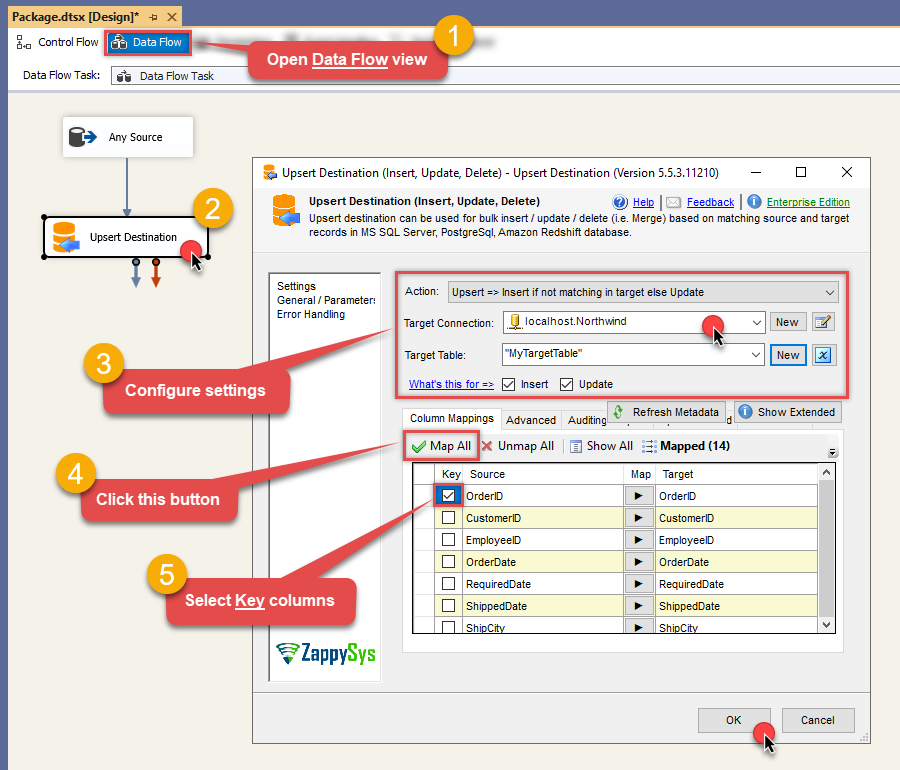
Start by selecting the Action from the list.
-
Next, select the desired target connection or create one by clicking <New [provider] Connection> menu item from the Target Connection dropdown.
-
Then select a table from the Target Table list or click New button to create a new table based on the source columns.
-
Continue by checking Insert and Update options according to your scenario (e.g. if Update option is unchecked, no updates will be made).
-
Finally, click Map All button to map all columns and then select the Key columns to match the columns on:
-
Click OK to save the configuration.
-
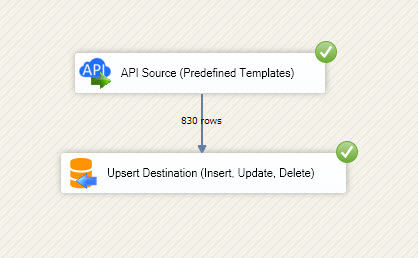
Run the package and Google Analytics data will be merged with the target table in SQL Server, PostgreSQL, or Redshift:
-
Done!
Deploy and schedule SSIS package
After you are done creating SSIS package, most likely, you want to deploy it to SQL Server Catalog and run it periodically. Just follow the instructions in this article:

Running SSIS package in Azure Data Factory (ADF)
To use SSIS PowerPack in ADF, you must first prepare Azure-SSIS Integration Runtime. Follow this link for detailed instructions:
Centralized data access via Data Gateway
In some situations, you may need to provide Google Analytics data access to multiple users or services. Configuring the data source on a Data Gateway creates a single, centralized connection point for this purpose.
This configuration provides two primary advantages:
-
Centralized data access
The data source is configured once on the gateway, eliminating the need to set it up individually on each user's machine or application. This significantly simplifies the management process.
-
Centralized access control
Since all connections route through the gateway, access can be governed or revoked from a single location for all users.
| Data Gateway |
Local ODBC
data source
|
|
|---|---|---|
| Simple configuration | ||
| Installation | Single machine | Per machine |
| Connectivity | Local and remote | Local only |
| Connections limit | Limited by License | Unlimited |
| Central data access | ||
| Central access control | ||
| More flexible cost |
If you need any of these requirements, you will have to create a data source in Data Gateway to connect to Google Analytics, and to create an ODBC data source to connect to Data Gateway in SSIS.
Let's not wait and get going!
Creating Google Analytics data source in Gateway
In this section we will create a data source for Google Analytics in Data Gateway. Let's follow these steps to accomplish that:
-
Download and install ODBC PowerPack.
-
Search for
gatewayin Windows Start Menu and open ZappySys Data Gateway Configuration:
-
Go to Users tab and follow these steps to add a Data Gateway user:
- Click Add button
-
In Login field enter username, e.g.,
john - Then enter a Password
- Check Is Administrator checkbox
- Click OK to save
-
Now we are ready to add a data source:
- Click Add button
- Give Datasource a name (have it handy for later)
- Then select Native -
- Finally, click OK
GoogleAnalyticsDSN
-
When the configuration window opens, configure the Data Source the same way you configured it in ODBC Data Sources (64-bit), in the beginning of this article.
-
Very important step. Now, after creating or modifying the data source make sure you:
- Click the Save button to persist your changes.
- Hit Yes, once asked if you want to restart the Data Gateway service.
This will ensure all changes are properly applied:
Skipping this step may result in the new settings not taking effect and, therefore you will not be able to connect to the data source.
Creating ODBC data source for Data Gateway
In this part we will create ODBC data source to connect to Data Gateway from SSIS. To achieve that, let's perform these steps:
-
Open ODBC Data Sources (x64):
-
Create a User data source (User DSN) based on ODBC Driver 17 for SQL Server:
ODBC Driver 17 for SQL Server
If you don't see ODBC Driver 17 for SQL Server driver in the list, choose a similar version driver. -
Then set a Name of the data source (e.g.
Gateway) and the address of the Data Gateway:GatewayDSNlocalhost,5000
Make sure you separate the hostname and port with a comma, e.g.localhost,5000. -
Proceed with authentication part:
- Select SQL Server authentication
-
In Login ID field enter the user name you used in Data Gateway, e.g.,
john - Set Password to the one you configured in Data Gateway
-
Then set the default database property to
GoogleAnalyticsDSN(the one we used in Data Gateway):GoogleAnalyticsDSN
-
Continue by checking Trust server certificate option:
-
Once you do that, test the connection:
-
If connection is successful, everything is good:
-
Done!
We are ready to move to the final step. Let's do it!
Accessing data in SSIS via Data Gateway
Finally, we are ready to read data from Google Analytics in SSIS via Data Gateway. Follow these final steps:
-
Go back to SSIS.
-
From the SSIS toolbox drag and drop ODBC Source on the dataflow designer surface:
-
Double-click on ODBC Source component to configure it.
-
Click on New... button, it will open Configure ODBC Connection Manager window. Once it opens, click on New... button to create a new ODBC connection to Google Analytics ODBC data source:
-
Then choose the data source from the list and click Test Connection button. If the connection test is successful, close the window, and then click OK button to finish the configuration:
GatewayDSN
-
Read the data the same way we discussed at the beginning of this article.
-
That's it!
Now you can connect to Google Analytics data in SSIS via the Data Gateway.
john and your password.
Conclusion
In this article we showed you how to connect to Google Analytics in SSIS and integrate data without any coding, saving you time and effort.
We encourage you to download Google Analytics Connector for SSIS and see how easy it is to use it for yourself or your team.
If you have any questions, feel free to contact ZappySys support team. You can also open a live chat immediately by clicking on the chat icon below.
Download Google Analytics Connector for SSIS Documentation