SSIS Upsert Destination
Merge and synchronize source rows into SQL Server, PostgreSQL, or Amazon Redshift in a few clicks.
Run a fast bulk upsert (insert if missing, else update), a sync that also deletes rows missing from the source, or a bulk update or bulk delete by key. Send new, updated, and bad rows to separate outputs, all without writing MERGE statements.
The trial includes Upsert Destination and every other PowerPack component
- SQL Server, PostgreSQL, Redshift
- Runs in your environment
- Also runs in Azure Data Factory
- Automatic primary key detection
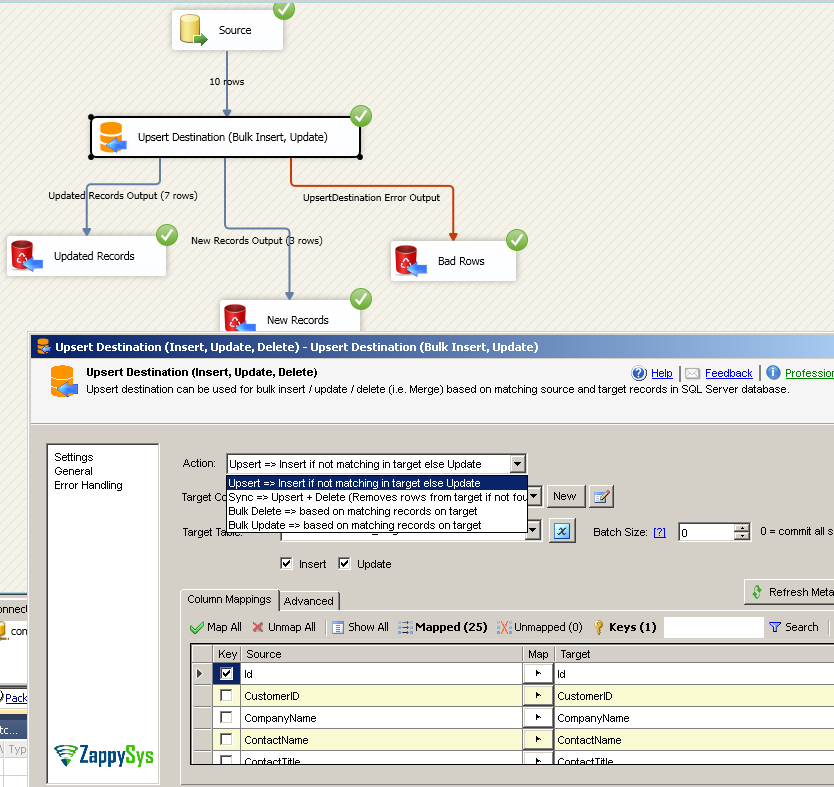


At a glance
What Upsert Destination can do
Upsert Destination merges or synchronizes data from source to target for Microsoft SQL Server, PostgreSQL, and Amazon Redshift. It supports very fast bulk upsert (update or insert) and bulk delete, with no hand-written SQL needed.
Bulk upsert
Insert or update a large amount of data in a few clicks.
- Insert if not matching in target, else update
- Key-based lookup, with automatic primary key detection
- Commit batch size (0 = once all rows are consumed)
Sync source with target
Upsert plus delete in one action.
- Removes rows from target if not found in source
- Turn insert, update, and delete on or off individually
Bulk update & bulk delete
Change or remove only the rows that match on target.
- Bulk Update based on matching records
- Bulk Delete based on matching records
Update only changed rows
Compare actual row content rather than just the key.
- Compare Key (default) or Key + other column(s)
- Only update if content is different
Separate outputs
Redirect new, updated, and deleted rows to different outputs.
- New Records and Updated Records outputs
- Error output for bad records
- Option to remove outputs you do not need
Created / updated timestamps
Set created and last-updated date/time on columns you choose.
- Set created date/time on a column for inserts
- Set last updated date/time on a column for updates
Advanced options
Control how the load runs.
- Pre / post SQL commands and a custom staging table
- Duplicate handling: keep first, keep last, or throw error
- Custom lock hints for MERGE on SQL Server
Error handling & warnings
Catch problems before and during the load.
- Fail, ignore, or redirect rows with errors
- Truncation warning during validation when column lengths differ
SQL Server 2012–2025 & ADF
Runs in your environment on SQL Server 2012–2025 and Azure-SSIS.
- SQL Server 2025, 2022, 2019, 2017, 2016, 2014, 2012 (32/64-bit)
- Azure Data Factory (SSIS IR)
- Design packages in Visual Studio 2017, 2019, 2022, or 2026
- Windows only (64-bit OS): Windows 7–11 or Windows Server 2012–2025
See all features
- Insert or update (i.e. upsert) a large amount of data in a few clicks
- Bulk delete based on matching rows on target
- Sync source data with target
- Automatic primary key detection
- Error handling
- Support for SQL Server, PostgreSQL, and Amazon Redshift (bulk data load operations)
- Redirect new rows, updated rows, and deleted rows to different outputs
- Update by comparing actual row content rather than just the key (only update if content is different)
- Set created date/time on a user-defined column for the insert action
- Set last updated date/time on a user-defined column for the update action
- Control lock hints (Custom Hints option on the Advanced tab)
- Truncation warning during validation if data length differs between source and destination
Support for SQL Server 2025, 2022, 2019, 2017, 2016, 2014, 2012 (32/64-bit) and Azure Data Factory
SQL Server 2012–2025
Four actions
Pick what should happen to the target table.
Select the target connection and table, map columns, and mark the key columns. Then choose the action.
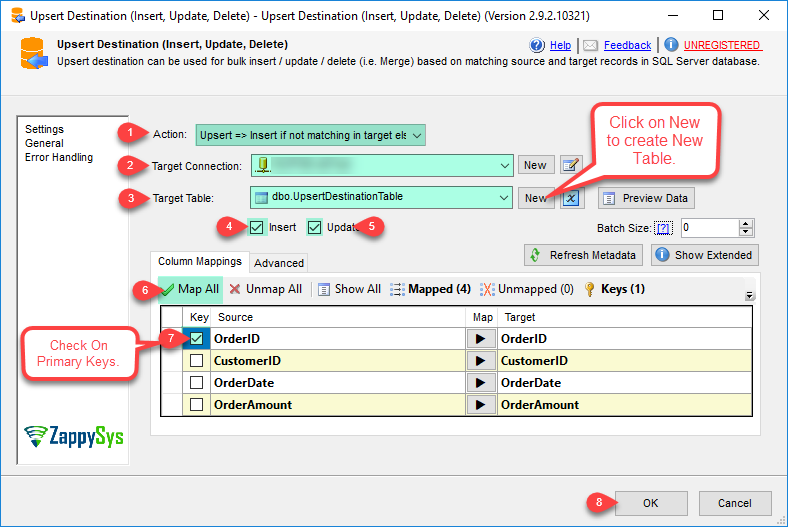
Insert if not matching in target, else update.
Set Action to Upsert, select the target connection and table (or click New to create it), check Insert and Update, click Map All, and mark the primary key columns.
- Insert and Update can be turned on separately
- Create the target table from the UI
- Works with SQL Server, PostgreSQL, and Amazon Redshift
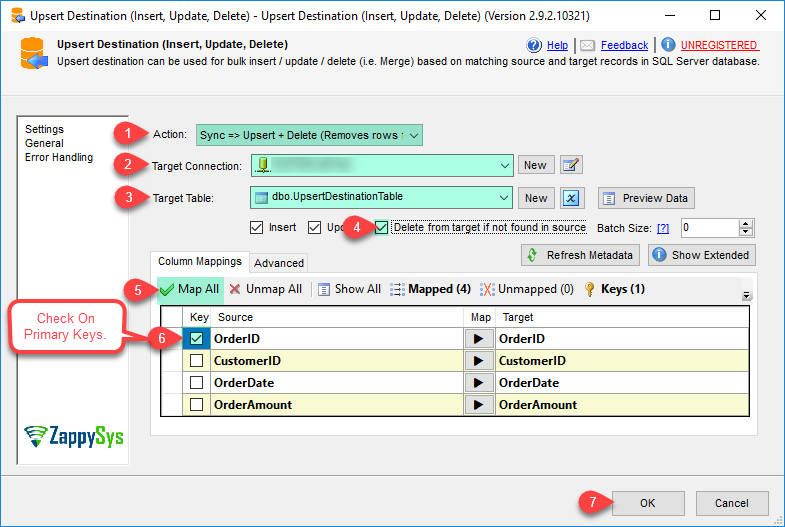
Upsert plus delete.
Set Action to Sync and check Delete from target if not found in source. Rows missing from the source are removed from the target.
- Insert, update, and delete can each be turned on or off
- Same mapping and key settings as Upsert
Update only the rows that match.
Set Action to Bulk Update, select the connection and target table, click Map All, and mark the key columns.
- Based on matching records on target
- No inserts

Delete rows that match on key.
Set Action to Bulk Delete, select the connection and target table, click Map All, and mark the key columns.
- Based on matching records on target
- Uses the key columns you mark

Inside the UI
Key settings, as they appear in SSDT.
Real screens from the Upsert Destination product page and help file. Step through actions, targets, outputs, and advanced options, or open any shot at full size.
Bulk update / insert
Very fast bulk update / insert and delete operations: merge data from source to target.
Articles
Worked examples that use Upsert Destination.
Compatibility and requirements
Designed to stay inside your SSIS runtime.
- SQL Server 2012 through 2025, 32-bit and 64-bit
- Windows only, 64-bit OS required. SQL Server Express and Web editions do not include SSIS
- Azure Data Factory SSIS Integration Runtime
- Self-hosted: credentials and data stay in your environment (external API calls still reach that service)
- Fully functional 30-day trial of SSIS PowerPack
FAQ
Questions teams ask before they drop Upsert Destination on the canvas.
Which databases does Upsert Destination support?
Microsoft SQL Server, PostgreSQL, and Amazon Redshift.
What is the difference between Upsert and Sync?
Upsert inserts rows that are not in the target and updates rows that are. Sync does the same and also deletes target rows that are not found in the source.
Can it update only rows that actually changed?
Yes. Set the row compare mode to Compare Key + Other Column(s) so a row is updated only when its content is different, not just when the key matches.
What happens with duplicate rows in the source?
Choose a duplicate removal mode: keep the first row in the group, keep the last row, or throw an error. You can also set the sort order used to pick the row.
Can I see which rows were inserted or updated?
Yes. New Records and Updated Records are separate outputs, and bad records can go to the error output.
Which SQL Server versions can I run it on?
SQL Server 2025, 2022, 2019, 2017, 2016, 2014, and 2012 (32- and 64-bit), plus Azure Data Factory with an SSIS Integration Runtime (packages must target SQL Server 2017). See Compatibility and requirements.
Where is the full property reference?
Open the Upsert Destination help file for actions, properties, and step-by-step examples. System requirements are on the installation page.




What customers say
Start your free trial today
Install SSIS PowerPack and drag Upsert Destination onto a Data Flow.
Map columns, pick an action, and load your target table with no MERGE scripts required.
- Data Flow Destination in SSISUpsert Destination appears in the toolbox after you install PowerPack.
- Fully functional 30-day trialSSIS PowerPack, running in your environment.
- Live supportHelp during your trial and after purchase.
Open Help FileBrowse all SSIS PowerPack tasks
New purchases may be eligible for refund review within 30 days. See the refund policy.
Talk to an engineer before or during your trial.