Overview
 This tutorial explains how to call SSRS reports from SSIS, export them to files (PDF, Excel, Word, HTML, and more), email them as attachments or as HTML in the message body, pass dynamic parameters, and automate delivery without relying only on fixed SSRS subscriptions. You will use the ZappySys Reporting Services Task (SSRS Report Generator) from SSIS PowerPack.
Two ways to run reports: connect to an SSRS report server (server mode), or point at a local .rdl / .rdlc file on disk (local mode) — no report server install required. Local mode is ideal when developers author reports in SSDT and SSIS supplies the data and delivery.
Prerequisites
Before we perform the steps listed in this article, you will need to make sure the following prerequisites are met:- SSIS designer installed. Sometimes it is referred to as BIDS or SSDT (download it from the Microsoft site).
- Basic knowledge of SSIS package development using Microsoft SQL Server Integration Services.
- Make sure ZappySys SSIS PowerPack is installed (download it, if you haven't already).
- (Optional step). Read this article, if you are planning to deploy packages to a server and schedule their execution later.
For server mode, make sure you have an SSRS report deployed. For local mode, you only need the report file path — deployment to a report server is optional. For more information about creating reports and deploying to a server, refer to these links:
Why Automate SSRS Reports from SSIS?
SSRS subscriptions are useful for fixed schedules, but they can be limiting when you need event-driven report delivery. For example, you may want to send a batch of reports after an ETL load, data validation, billing process, or other workflow is finished. Standard SSRS subscriptions usually rely on hardcoded schedules and predefined parameters, so they are not always easy to invoke dynamically from a process or adjust at runtime. ZappySys SSRS Reporting Services Task helps solve this by letting SSIS control when reports run, which parameters are used, where files are saved, and how reports are emailed.
What You Will Learn
- How to use all three Reporting Services Task modes: server reports, local RDL, and data-driven SQL config export.
- How to call and export SSRS reports from an SSIS package (report server or local .rdl file).
- How to export and email reports without an SSRS server using local RDL mode.
- How to pass dynamic SSRS report parameters from SSIS variables.
- How to send SSRS reports by email as attachments.
- How to send a server SSRS report as an HTML email body (Email Settings tab checkbox or legacy two-step flow).
- How to bind data to local RDL reports (inline SQL, Execute SQL Task Object variables, multiple datasets).
- How to automate report file names, paths, and post-processing steps.
SSRS Subscriptions vs. SSIS Automation
| Requirement | SSRS subscription | SSIS with ZappySys SSRS Task |
|---|---|---|
| Run report after ETL or another process | Mostly schedule based | Can run as part of the SSIS workflow |
| Use dynamic report parameters | Usually predefined in the subscription | Can map SSIS variables to SSRS parameters |
| Control output path and file name | Limited to subscription settings | Can use SSIS logic and placeholder functions |
| Email delivery | Good for fixed report delivery | Supports attachments and custom HTML email workflows |
| Run without SSRS report server | Requires deployed report on server | Local mode — render .rdl/.rdlc from disk (PDF, Excel, Word) |
Tasks Used in This Tutorial
The examples below use these ZappySys SSIS PowerPack components:
 |
SSIS Report Generator Task (Export SSRS Reports) |
 |
Advanced SSIS File System Task |
 |
Send HTML Email Task |
Video: Reporting Services Task in SSIS
This walkthrough demonstrates the SSRS Report Generator / Reporting Services Task in SSIS:
[youtube https://www.youtube.com/watch?v=ajnSgbXls7I&w=560&h=315]Reporting Services Task — Three Export Modes
The ZappySys Reporting Services Task is one SSIS component, but it supports three different export modes. Pick the mode on the task General tab. The sections below walk through each one.
| Mode | Task setting | Best for |
|---|---|---|
| 1. Server reports | Export server report | Reports deployed to SSRS; full format list (PDF, Excel, Word, HTML, CSV, XML, TIFF); HTML email body |
| 2. Local RDL files | Export local report | .rdl / .rdlc on disk; no report server; PDF, Excel, Word; SSIS supplies dataset SQL or recordset data |
| 3. Data-driven export | Data-driven report export using config table | Many reports in one package run; settings in a SQL table (path, format, email, parameters); mix Server and Local rows |
Mode 1: Export Server Reports from SSIS
This section covers server mode: connect to an SSRS report server URL, select a deployed report, and export or email it. The task supports Word (.docx, .doc), Excel (.xlsx, .xls), PDF, TIFF, CSV, XML, and HTML.
Export SSRS Report to File (Word, Excel, PDF, CSV, HTML, XML)
- First of all drag and drop the ZS Reporting Task that is included with our ZappySys SSIS PowerPack:

SSRS task in SSIS
- Secondly, in general tab, make sure that the Export server report is enabled.
- Additionally, specify the report service URL. If you are not sure what your report service URL is, see Microsoft guidance for publishing reports to a report server (linked in the prerequisites section above).
- In addition, in report path, select the report that you want to export to a file.
- Also, check the output as a file option:

Export report to file
- Additionally, in the export settings tab, go to Save as and specify the path and extension of the file to export. You can export to Excel, Word, PDF, Tiff, CSV and XML:
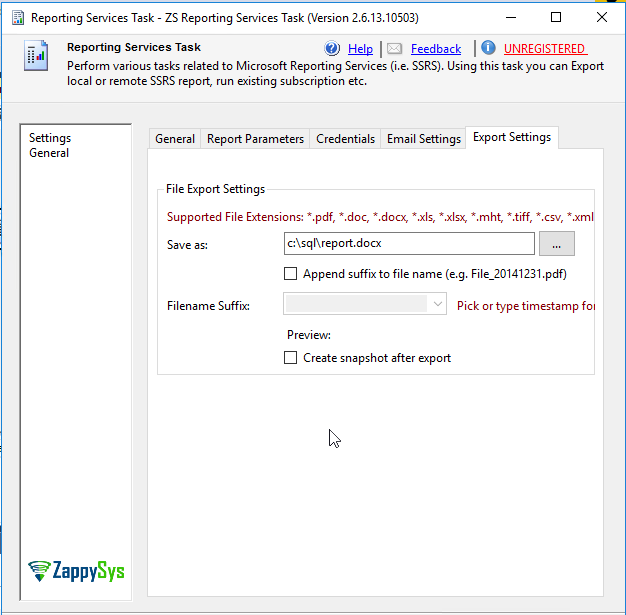
Export SSRS report using SSIS to Excel, Word, PDF
- Finally, run the package and the file will be created:

SSRS report exported to docx
Date and Time in the Export File Name
When you export SSRS reports from SSIS, you may want to add the current date or time to the report file name. For example, you can save the report as Filename20180323.xlsx, where 20180323 means March 23, 2018.
There are two ways to save a report file with date/time in the path:
- New method: Use placeholder functions directly in the SSRS task Save As path under the Export Settings tab.
- Legacy method: Export the report as a file first, and then rename the file using ZappySys Advanced File System Task.
The following legacy example shows how to add a date suffix after the report is exported.
- First of all, we will use the ZappySys Advanced File System Task:
- Secondly, we will use the option Rename files and rename using the fun_getdate function like this:
Filename<<yyyy-MM-dd,FUN_GETDATE>>.xlsx - Also, you can watch all the available examples of functions by pressing the Expressions (x) button:
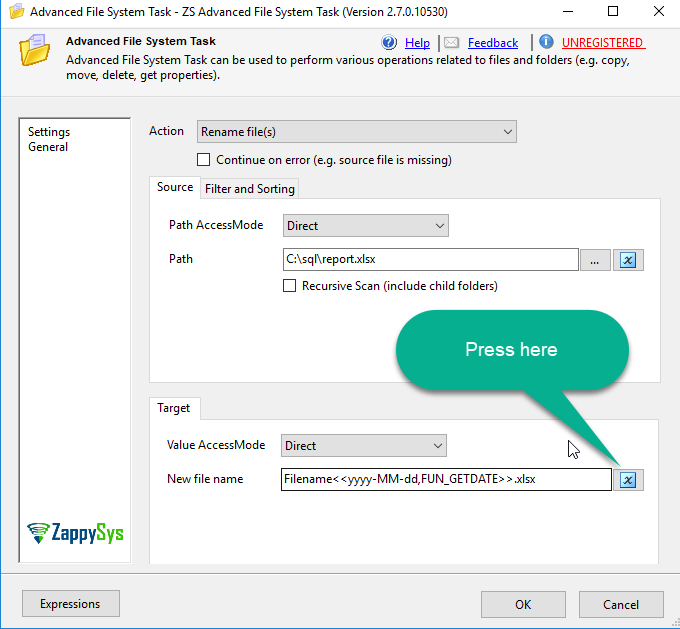
Special SSIS functions
- Finally, press insert variable and function examples and you will be able to see all the examples of special functions to simplify your life:

Samples of functions
Send SSRS Report as an Email Attachment
The Reporting Services Task can render the report and send it by email. You need SMTP settings (server, credentials, port). Follow these steps:
- First of all, in the general tab, check the email report file and uncheck the Output as file option:
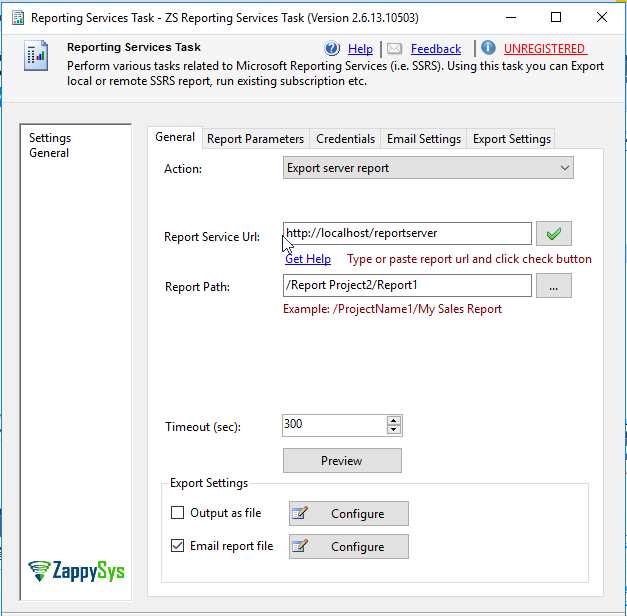
Output SSRS report in SSIS as attachment
- Also, on the Email Settings tab, choose New under SMTP connections to create a connection. Provide the SMTP server name, credentials, and port. You can find sample SMTP hosts and ports in this third-party list.
- In addition, you have an option to specify the sender, receiver, subject, and body. It is possible to write the body in HTML format. You can also specify SSIS variables. The following HTML code shows how to write in bold,
italic, with bullets and more:
123456789101112131415<h1>This is an example using headers</h1><p><strong>This is an example to write using bold</strong> <strong><br /></strong><em>This is an example to write using italic <br /></em>This is an example using underline<br /><br /></p><ol><li>This is an example with lists</li><li>Second item in the list</li><li>Third of the list</li></ol><ul style="list-style-type:circle"><li>This is an example with bullets</li><li>Bullet sample </li><li>Working with bullets</li></ul>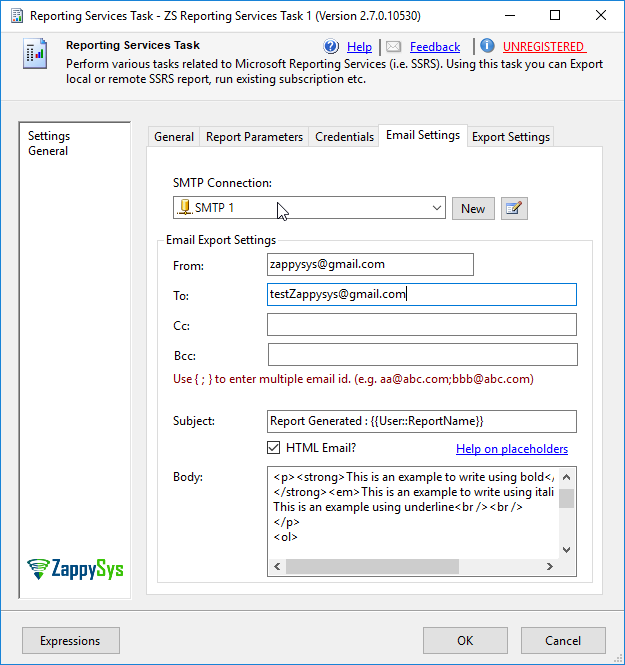
Dynamic HTML in SSIS
- Additionally, in Visual Studio go to the menu and SSIS, Variables and create two variables that will be used in the report named Title and ReportName of type string and specify values for them:

Using SSIS variables in emails
- Finally, execute the Package and check your email received:

Email received SSIS Html format
Send SSRS Report as HTML in the Email Body (Not as an Attachment)
By default, Output as email usually sends the rendered report as an attachment. To put the report inside the email as HTML, use one of the methods below.
Important: HTML export applies to server reports only. Local RDL mode does not support exporting as HTML; use a report deployed to SSRS.
Method 1: Email Settings Checkbox (Recommended, Newer Builds)
If your SSIS PowerPack build is from after May 6, 2026, use this single-step option.
In the Reporting Services Task, open the Email Settings tab and enable Use report output as Email body (*.htm / *.html export formats only). Configure SMTP and recipients as usual, and set the export format to HTML (.htm or .html). The task embeds the rendered report HTML in the email body—no separate Send HTML Email Task is required.
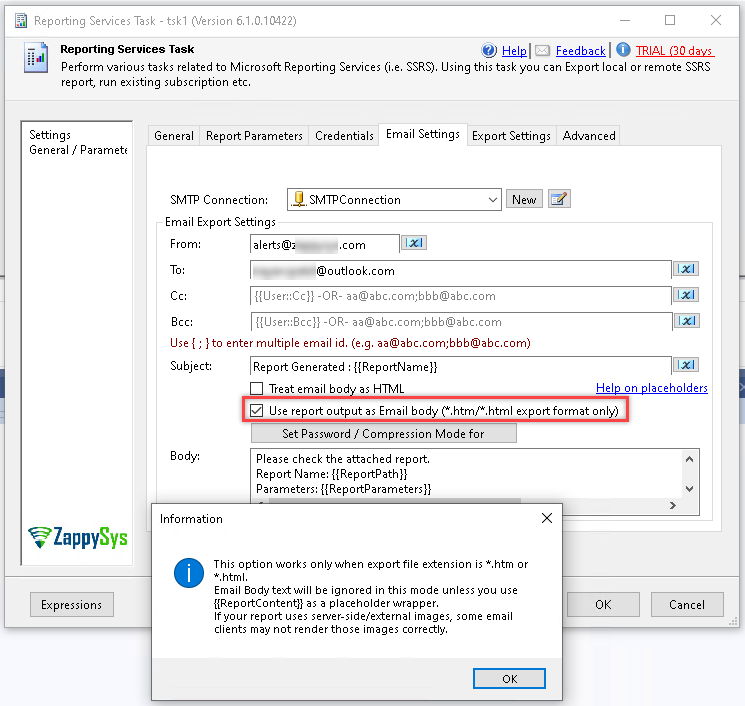
Email Settings: use report output as HTML email body (single-step)
Method 2: SSRS Task Plus Send HTML Email Task (Legacy)
Use this on builds on or before May 6, 2026, or when you want full control over the email HTML in Send HTML Email Task.
Summary of the two-step flow:
- Reporting Services Task exports a server report to an HTML file (for example
C:\temp\sales-order.html). - Send HTML Email Task reads that file into the message body using FUN_FILE_READ.
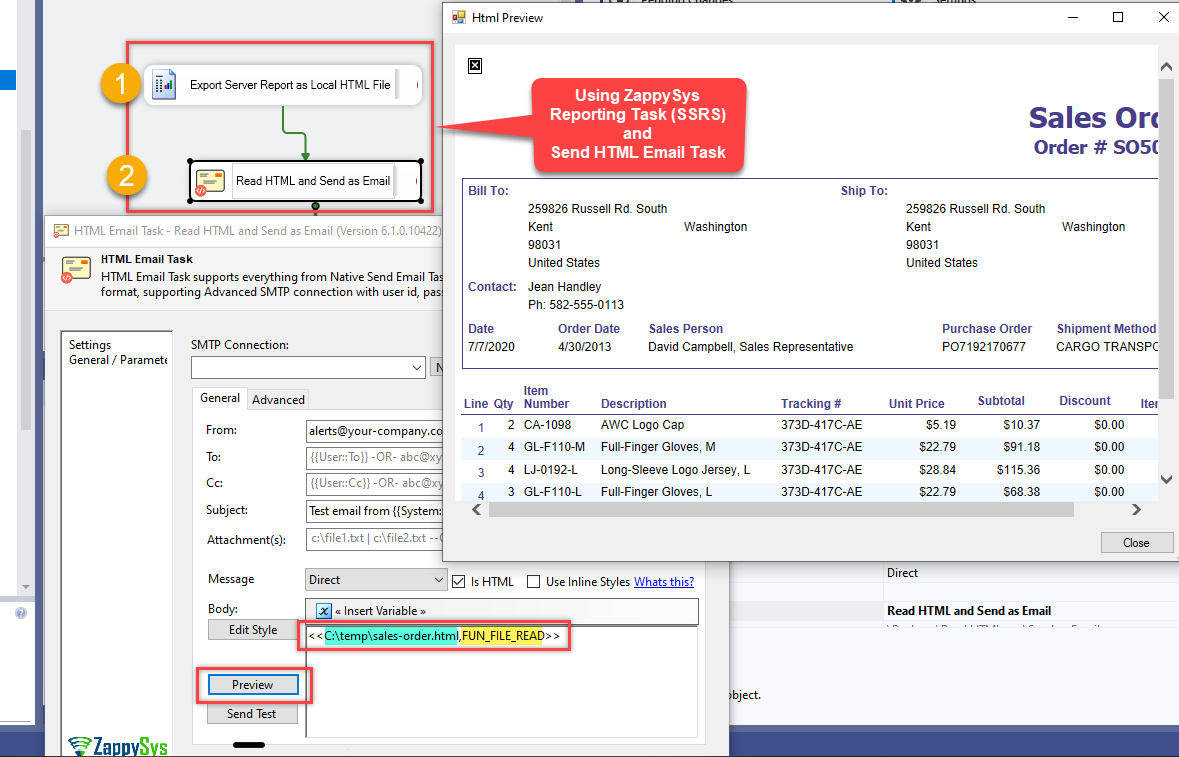
Legacy two-step flow: SSRS Task plus Send HTML Email Task
- In the ZappySys Reporting Services Task, use Export server report, not local report mode.
- Choose Output as file and export the SSRS report as an HTML file to the local system, for example C:\temp\sales-order.html.
- Add ZappySys Send HTML Email Task in the next step of your SSIS package.
- In the email body, use the FUN_FILE_READ placeholder function to read the HTML file exported in the previous step and paste the entire HTML content into the email body:
|
1 |
<<C:\temp\sales-order.html,FUN_FILE_READ>> |
Pass SSRS Report Parameters from SSIS
Many SSRS reports define parameters (for example date range or customer ID). The Reporting Services Task can map SSIS variables to those SSRS parameters so values are chosen when the package runs. You need a report that includes at least one parameter to try this. To learn how to author parameters in SSRS, see Microsoft’s report parameters documentation.
- First of all, you will need an SSRS Report with a parameter:
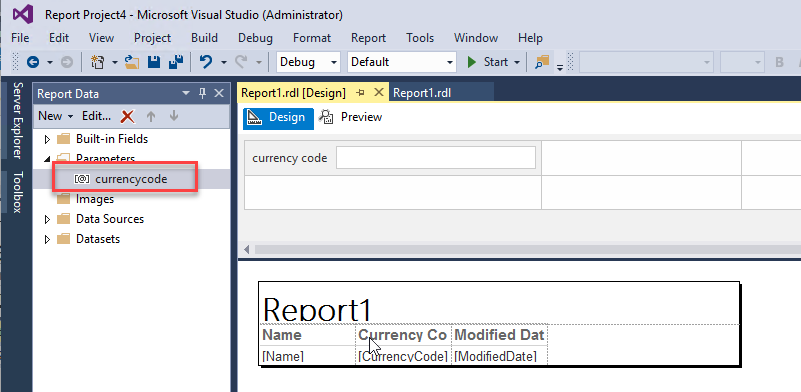
Reporting Service Parameter
- Secondly, in SSDT or Visual Studio, in the menu, go to SSIS and variables. Create an SSIS variable:

Variables in SSIS
- Finally, in Reporting Services Task in Visual Studio, go to Report Parameters and map the SSRS parameter with the SSIS variable:

Map SSIS variable with SSRS parameters
Mode 2: Export and Email Local RDL Files (No SSRS Server)
Local mode lets you render a report from a .rdl or .rdlc file on disk. You do not need SQL Server Reporting Services installed, a report server URL, or a deployed report catalog. SSIS runs the report layout locally and exports or emails the result — the same way many teams use SSDT to design reports, but with SSIS controlling when it runs and what data feeds it.
When to use local mode
Local mode fits developer- and DBA-driven workflows where a full SSRS farm is overkill or unavailable:
- You authored reports in SSDT / Visual Studio Report Designer and want SSIS to export PDF, Excel, or Word after ETL, billing, or validation jobs.
- You need scheduled or event-driven report delivery but no report server is licensed or installed in that environment.
- Report files live on a file share or in source control; SSIS reads the path and delivers output by email or to a folder.
- Data should come from the SSIS package itself — for example an Execute SQL Task recordset or dynamic SQL — not from a fixed subscription on the server.
- You want to preview the local report in the task editor before running the package (see the export steps below).
Export a local RDL to PDF, Excel, or Word
- Drag the ZappySys Reporting Services Task onto the Control Flow.
- On the General tab, select Export local report (not Export server report).
- Set Report path to your .rdl or .rdlc file. Use Browse. The task filters to report files and auto-fills dataset names, queries, and connection strings from the file.
- Review Dataset Name(s), Dataset Connection String(s), and Dataset Quer(ies). Adjust connection strings for your environment (server name, database, auth). See How local mode supplies data for pipe-delimited rules and one-connection vs many-connection cases.
- Optional: map report parameters on the Report Parameters tab (same as server mode).
- Check Output as file. On Export Settings, choose Save As path and format: .pdf, .xls, or .doc.
- Optional: click Preview in the task editor to render the report inside Visual Studio or SSDT before you run the package. Preview uses the same dataset binding as export (connection/query fields, or values copied from the RDL). At design time, an Object variable is usually empty, so Preview typically relies on connection and query fields unless you run with test data.
- Run the package. The file is created without contacting any report server.

Local RDL mode — report path, dataset binding, and export settings
Email a local RDL report without a report server
Local reports can be emailed as attachments the same way as server reports — still no SSRS server involved.
- Configure the task as above (Export local report, report path, dataset binding).
- On the General tab, check Email report file and uncheck Output as file (or use both if you want file + email).
- On Email Settings, configure SMTP, recipients, subject, and body. Export format should be PDF, Excel, or Word.
- Run the package — recipients get the rendered report as an attachment.
Use placeholder functions in the email subject or body for dynamic text (same as server mode). For HTML report content inside the email body, use server report mode with HTML export — local mode does not support that scenario.
Bind data from an Execute SQL Task variable (multiple datasets)
Use this approach when you do not want to type connection strings and queries on the Reporting Services Task. Instead, run SQL earlier in the package, store all result sets in one Object variable, and bind that variable to the local RDL.
An Execute SQL Task can return results from multiple SQL statements (multiple batches or multiple SELECT statements). SSIS stores them in one variable as a DataSet (a collection of DataTable objects, one table per result set). That matches an SSRS report that defines multiple datasets: each result set maps to a dataset in the RDL by ordinal position (index 0, 1, 2, and so on).
Supported variable contents: a single ADO.NET DataTable, a DataSet with multiple tables, or an ADODB recordset (OLE DB).
Step 1: Create the Object variable
- In SSIS, create a package variable (for example
User::MultipleDatasets) with data type Object.
Step 2: Execute SQL Task — return multiple result sets
- Add an Execute SQL Task before the Reporting Services Task.
- On the General tab, set ResultSet to Full result set (required for multiple queries).
- Enter your SQL. You can use multiple statements that each produce a result set (for example three
SELECTqueries for three report datasets). - Open the Result Set tab.
- Map Result Name
0to your Object variable (for exampleUser::MultipleDatasets). Index0is the full multi-table payload when the task returns a DataSet with more than one table. - Run the Execute SQL Task once in isolation if needed to confirm the variable is populated at runtime.
Step 3: Reporting Services Task — bind the variable
- On the Reporting Services Task General tab (local report), enable the binding option shown in your build (for example Bind from recordset variable / binding from a populated variable).
- Choose the same Object variable you mapped on the Execute SQL Task Result Set tab (for example
User::MultipleDatasets). - Ensure Dataset Name(s) on the task still lists every dataset name from the RDL, in the same order as the result sets returned by SQL (first name = index 0, second = index 1, and so on).
- Export or email the report as usual. At runtime the task uses the variable instead of running the inline connection/query fields.
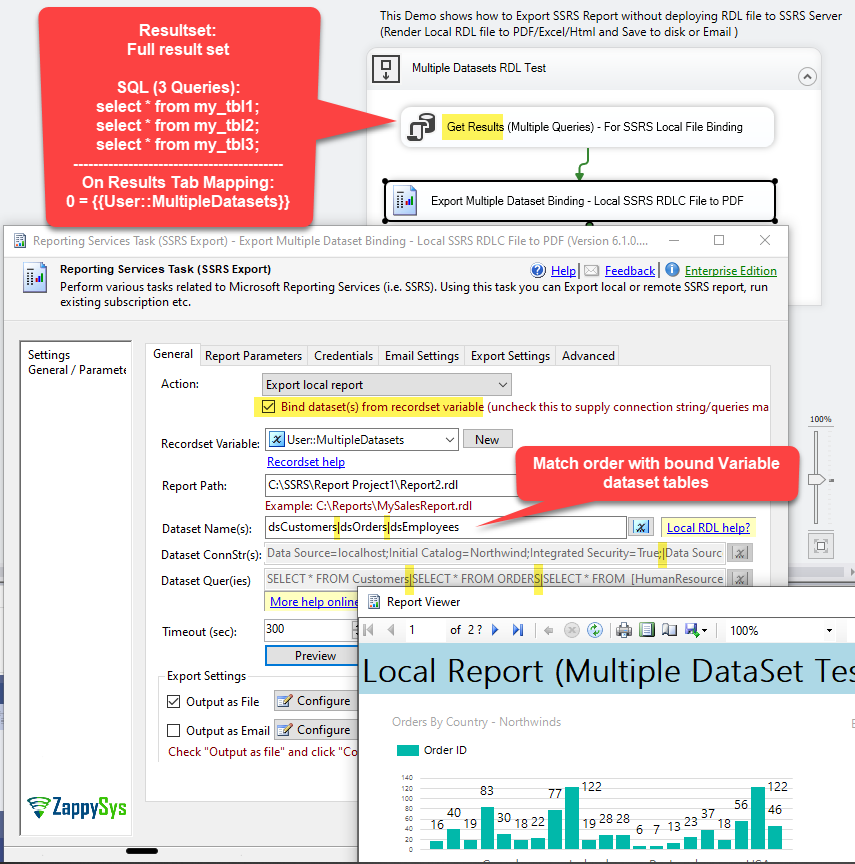
Bind an Object variable from Execute SQL Task to multiple datasets on a local RDL report
How local mode supplies data (important)
A .rdl file contains report layout plus embedded design-time queries. In local mode, SSIS does not automatically run SQL stored only inside the RDL at runtime. The Reporting Services Task needs either inline binding (names, connections, queries on the task) or a recordset variable filled earlier in the package (see the section above).
Inline binding (connection + query fields)
- Dataset Name(s): must match
<DataSet Name="...">in the RDL (case-sensitive). - Dataset Quer(ies): one query per dataset, in the same order as dataset names, pipe-separated (
|) when there is more than one. - Dataset Connection String(s): connection used to execute each query. Mapping is by ordinal, same as dataset names and queries.
To save typing, Browse the .rdl file in the task. Names, queries, and embedded connection strings copy into those fields. Shared .rds data source references are skipped; paste that connection string manually.
Three datasets, three SQL queries, one connection string
This is a common question when the RDL has three datasets and you supply three queries on the task.
- Same server and database for all three queries: enter one connection string. The task reuses that connection for every dataset. You still supply three pipe-separated queries (and three pipe-separated dataset names). You do not need three identical connection strings unless you prefer to repeat them.
- Different databases or different servers per dataset: supply one connection string per dataset, pipe-separated, in the same order as dataset names and queries. Example:
ConnA|ConnB|ConnCwithQueryA|QueryB|QueryCanddsA|dsB|dsC. - Rule of thumb: connection count follows database count, not dataset count by itself. Three datasets on one database = one connection string + three queries. Three datasets on three databases = three connection strings + three queries, all aligned by position.
Variable binding (Execute SQL Task)
When you use an Object variable, connection strings on the Reporting Services Task are not used to fetch data at runtime. The Execute SQL Task (or Recordset Destination) already executed the SQL and stored tables in the variable. You still list Dataset Name(s) on the report task so each DataTable in the variable maps to the correct RDL dataset by index. One variable can hold all tables; you do not need one variable per dataset unless you choose that design.
Preview vs runtime
The Preview button in the task editor uses the same binding rules as export. At design time the Object variable is usually empty, so Preview relies on connection/query fields or values copied from the RDL. At package runtime, Bind from recordset variable (when enabled) uses the populated variable.
Single-dataset example
For a simple Northwind orders report with one dataset named dsOrders:
|
1 2 3 4 |
Report path: C:\Reports\OrdersReport.rdl Dataset Names: dsOrders Connection: Data Source=localhost;Initial Catalog=Northwind;Integrated Security=True; Queries: SELECT * FROM Orders |
Browse the RDL once and these values are copied for you. Click Preview on the task to verify layout, then run the package.
Multiple datasets (inline SQL on the task)
When the RDL defines more than one dataset, list names, connection strings, and queries in the same order, separated by |:
|
1 2 3 |
Dataset Names: dsCustomers|dsOrders|dsDetails Queries: SELECT * FROM Customers|SELECT * FROM Orders|SELECT * FROM [Order Details] Connections: Data Source=MyServer;Initial Catalog=Northwind;Integrated Security=True; |
The example above uses one connection string for three queries on the same database. If dsOrders lived on another server, use pipe-separated connections in the same order as names and queries:
|
1 2 3 |
Dataset Names: dsCustomers|dsOrders Connections: Data Source=ServerA;Initial Catalog=DB1;...|Data Source=ServerB;Initial Catalog=DB2;... Queries: SELECT * FROM Customers|SELECT * FROM Orders |
When SQL contains semicolons or pipes, use the XML query format documented in the task help.
For the same three datasets fed from SSIS instead of inline SQL, use three result sets in one Execute SQL Task, map Result Name 0 to User::MultipleDatasets, and bind that variable on the Reporting Services Task as described earlier.
• Reporting Services Task help
• Local RDL online documentation
• Local RDL help? on the task UI
• Modern RDL (2016 schema): Reports saved from recent SSDT or Visual Studio use the SSRS 2016 report definition format. Install the latest SSIS PowerPack for local mode. It includes the ReportViewer 15.x engine for new RDL files and the legacy engine for older 2008/2010 schema reports. Older builds may fail with a namespace or ReportViewer runtime error. Upgrade PowerPack on the SSIS machine only. No SSRS server upgrade is required for local mode.
Mode 3: Data-Driven Export (SQL Config Table)
Data-driven mode is the third export option. Instead of configuring one report on the task, you store export settings in a SQL Server table. Each row can define a different report, output path, email recipients, parameters, and whether that row uses a server report (ReportType = 'Server') or a local .rdl (ReportType = 'Local'). One SSIS package run can export or email many reports — ideal for operational batches controlled by DBAs or app teams without changing the package.
Data-Driven Export for Multiple SSRS Reports
Follow these steps to set up data-driven export:
- First of all, select the data-driving report export using config table.
- Also, you will need to specify the connection to the SQL Server
database. - In addition, go to config table, press new to create a new table:

SSRS Data-driven in SSIS
- Additionally, ZappySys allows creating a sample table that can help you to understand how to configure local reports, Calling SSRS Reports in SSIS and save to files, specify paths, ports, email options and more:
123456789101112131415161718192021222324252627282930CREATE TABLE [{{SchemaName}}].[{{TableName}}](Id int identity(1,1) NOT NULL PRIMARY KEY,GroupName varchar(100) NULL, /* Used to filter reports */ReportType varchar(10) NOT NULL, /*Local or Server*/ReportServiceUrl varchar(500) null,ReportPath varchar(500) NOT NULL,IsEnabled bit NOT NULL default(1),ExportAsFile bit NOT NULL default(1),ExportAsEmail bit NOT NULL default(0),Parameters varchar(max) NULL, /* ParameterName1;IsMultiValue;Value1|....ParameterNameN;IsMultiValue;ValueN */ExportPath varchar(500) NULL,AddFileSuffix bit NULL,ExportFileSuffix varchar(500) NULL, /* e.g. _ddMMyyyy, _ddMMyyyyhhmmss, _ddMMyyyyhhmmss.fff (see this URL http://msdn.microsoft.com/en-us/library/az4se3k1(v=vs.110).aspx) */Description varchar(500) NULL,EmailFrom varchar(255) NULL,EmailTo varchar(1000) NULL,EmailCc varchar(1000) NULL,EmailBcc varchar(1000) NULL,EmailSubject varchar(500) NULL,EmailIsHtml bit NULL default(1),EmailBodyText varchar(max) NULL,EmailAttachmentFile varchar(500) NULL, /*Unused: For future use only*/LastExportStartDate datetime NULL,LastExportEndDate datetime NULL,LastStatus varchar(20) NULL,LastMessage varchar(max) NULL,Datasets varchar(max) NULL, /*if ReportType=local and report file is using dataset(s) then supply data in this column (multiple values must be pipe delimited). e.g. Dataset1|Dataset2)*/DatasetConnectionStrings varchar(max) NULL, /*if ReportType=local and report file is using dataset(s) then supply data in this column (connection string must be same order as datasets (multiple values must be pipe delimited) enter just one connectionstring if all datasets using same connection. ConnectionString must be ADO.NET for SQLServer, ODBC or OLEDB connection string and correct driver must be installed on the system)*/DatasetQueries varchar(max) NULL /*if ReportType=local and report file is using dataset(s) then supply data in this column (queries must be in the same order as dataset(s) listed in Datasets column. enter multiple queries in this format <xml><query>{query for 1st dataset}</query><query>{query for 2nd dataset}</query></xml>)*/);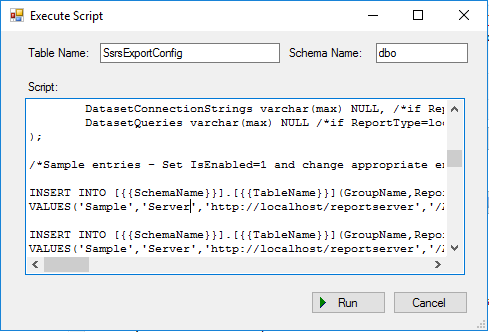
Sample Database in SSIS for SSRS
- Finally, you can check the table with the configuration:

Data-driven table created in SSIS
For local RDL rows, set ReportType to Local and populate Datasets, DatasetConnectionStrings, and DatasetQueries using the same pipe-delimited rules as Mode 2. For server rows, set ReportType to Server, supply ReportServiceUrl, and use the report path on the server — same as Mode 1.
Move Exported Reports to a UNC Path
After export, you can copy or move files—for example to a shared folder via a UNC path—using Advanced File System Task.
- First of all, specify your file name to move. You can use *.xlsx for example to move all the files.
- Secondly, specify the UNC path in destination:

SSIS move files to UNC path
- Also, It is possible to sort files by name, size, modified date or other properties:
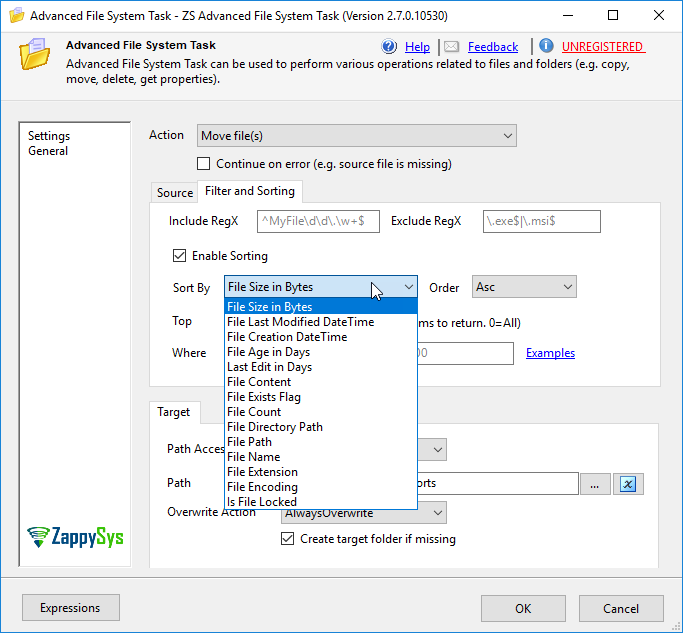
Sort file in SSIS by name, size, modified date
- Finally, press the Examples link, you can see some custom queries that you can create:
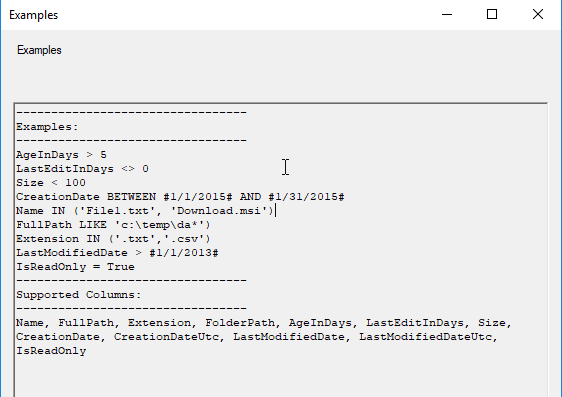
Sample SSIS queries to files
Related SSIS and SSRS Automation Scenarios
You can use this SSIS-based SSRS automation approach in many real-world workflows where a fixed SSRS subscription is not flexible enough:
- Send daily ETL validation reports only after the data load succeeds.
- Generate customer-specific reports by passing customer IDs or date ranges as parameters.
- Email invoice, billing, or sales reports after a business process is completed.
- Export audit reports to a shared folder with date/time in the file name.
- Run multiple SSRS reports from a configuration table and deliver each report to different recipients.
- Render SSDT-authored .rdl files to PDF or Excel without deploying to a report server — ideal for dev/test or small teams.
- Feed local reports from Execute SQL Task recordsets so the same package prepares data and delivers the formatted report.
FAQ: SSRS Reports from SSIS
What are the three Reporting Services Task export modes?
- Export server report — render a report deployed on SSRS (Mode 1).
- Export local report — render a .rdl/.rdlc file from disk without a report server (Mode 2).
- Data-driven report export using config table — read settings from a SQL table and export many server or local reports in one run (Mode 3).
Can I call an SSRS report from SSIS?
Yes. You can use ZappySys SSRS Reporting Services Task inside an SSIS package to call a server SSRS report or a local RDL report and export it to formats such as PDF, Excel, Word, CSV, XML, TIFF, or HTML.
Can SSIS pass parameters to an SSRS report?
Yes. You can create SSIS variables and map them to SSRS report parameters in the Reporting Services Task. This is useful when report values such as customer, date range, region, or batch ID must be decided at runtime.
How do I send an SSRS report by email from SSIS?
You can use the Reporting Services Task to render the report and send it as an email attachment. For more advanced HTML email scenarios, export the report first and then use ZappySys Send HTML Email Task.
Can I send an SSRS report as the HTML body of an email?
Yes, but use server report mode. In newer builds (after May 6, 2026), open the Email Settings tab and check Use report output as Email body (*.htm / *.html export formats only), with an HTML export. On older versions, export the report to HTML and use Send HTML Email Task with a placeholder such as <<C:\temp\sales-order.html,FUN_FILE_READ>>.
Can I export SSRS reports without a report server?
Yes. Use Export local report in the Reporting Services Task. Point the task at a .rdl or .rdlc file, bind dataset name(s), connection string(s), and quer(ies), or bind an Object variable from Execute SQL Task (multiple result sets in one variable). Export to PDF, Excel, or Word. Browse the RDL to auto-fill binding fields from the file. No SSRS installation or report server URL is required.
Three datasets and three queries: one connection string or three?
If all queries run against the same database, enter one connection string on the Reporting Services Task and three pipe-separated queries (and three dataset names). The task reuses that connection for each dataset by ordinal position. If datasets use different databases or servers, supply one pipe-separated connection string per dataset in the same order as names and queries. With variable binding, SQL runs in Execute SQL Task; list dataset names on the report task and map result set index 0 to your Object variable on the Execute SQL Task Result Set tab.
What PowerPack version do I need for reports from modern SSDT?
Reports saved with the SSRS 2016 RDL schema (typical for Visual Studio 2017 and later Report Designer) require the latest SSIS PowerPack with the ReportViewer 15.x local rendering engine. Older PowerPack builds support legacy 2008/2010 schema .rdl files but not the newest report format. Download the current build from the ZappySys site before testing local mode with recently authored reports.
Why use SSIS instead of SSRS subscriptions?
Use SSIS when the report must run after a workflow finishes, when parameters must be supplied dynamically, or when output file names, destinations, and email rules depend on package logic. SSRS subscriptions are better for simpler fixed schedules and predefined parameters.
Next Steps: Download and Try SSIS PowerPack
Automate SSRS from SSIS with the ZappySys Reporting Services Task—event-driven runs, dynamic parameters, flexible export paths, and richer email options than typical subscriptions alone.
- Download SSIS PowerPack — trial and licensed builds.
- SSRS Report Generator Task (Reporting Services Task) — product overview.
- SSIS PowerPack home — all tasks and components.
Conclusion
In summary, calling SSRS reports from SSIS is straightforward with the ZappySys Reporting Services Task and its three export modes: server reports (Mode 1), local RDL files without a report server (Mode 2), and SQL table-driven batch export (Mode 3). It fits scenarios where SSRS subscriptions are too rigid: jobs triggered after ETL or other processes, parameters chosen at runtime, and customized file naming or delivery. This guide covered server export to file, email attachments, HTML-in-body email for server reports, date/time file names, UNC moves, parameter mapping, local RDL binding (inline SQL, one vs many connection strings, Execute SQL Task Object variables for multiple datasets), Preview in the task editor, modern 2016 RDL schema support, and data-driven configuration for mixed server/local batches.
References
For more reading: