
Introduction
 Monday.com is a work operating system that provides a powerful GraphQL API for accessing boards, items, users, groups, and activity data. In this tutorial, you will learn how to connect monday.com to SQL Server Integration Services (SSIS) using Zappysys connectors and extract data without writing custom code.
Because monday.com API uses GraphQL over HTTP, we will configure a token-based HTTP connection and send POST requests from the ZS JSON Source. This approach gives you a repeatable ETL pattern for loading monday.com data into SQL Server tables for reporting, analytics, and automation.
Prerequisites
- SQL Server Integration Services (SSIS) is installed.
- Visual Studio with SSIS extension or SQL Server Data Tools (SSDT) is installed.
- You have a monday.com account with permission to create API tokens and access boards.
- ZappySys SSIS PowerPack is installed.
Steps
Generate a Monday.com API token
- Sign in to your monday.com account.
- Open your profile menu and go to Admin (or Developers, based on your plan).
- Navigate to Connection and click Personal API token settings.
- Create a new API token (personal or app).
- Copy the token and store it securely.
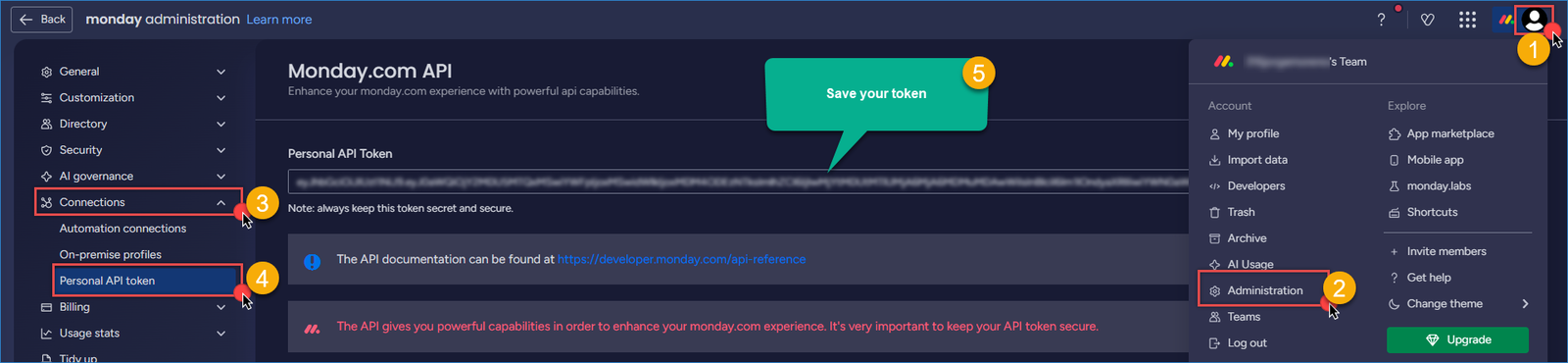
Monday – create token
Create an HTTP connection in SSIS
- Create or open your SSIS project and package.
- In Connection Managers, right-click and choose New Connection…
- Select ZS-HTTP from the SSIS connectors list.
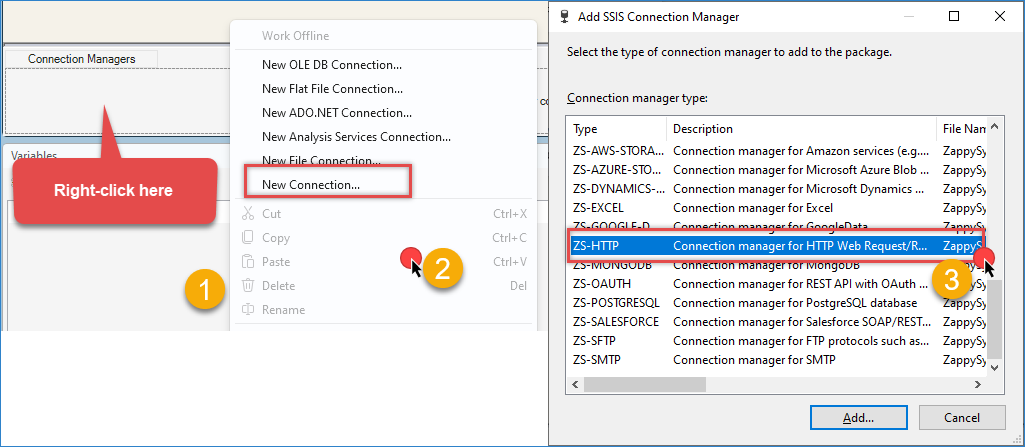
Create a new HTTP connection
- Enter the following URL:
https://api.monday.com/v2 - Set Credentials Type to Static token/API key.
- Paste your monday.com API token in the token value field.
- OAuth header Name:
Authorization - OAuth Scheme:
none(monday.com expects the raw token in the Authorisation header) - Click OK to save the configuration.
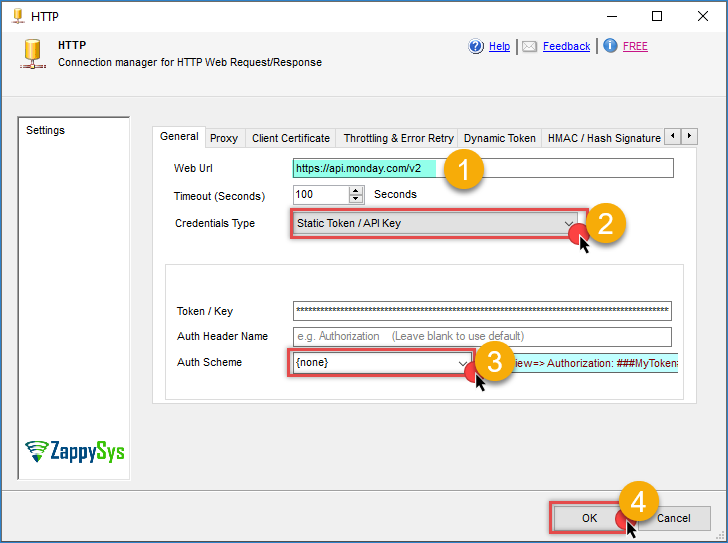
Monday – HTTP connection
Create and configure the ZS JSON Source for Monday.com GraphQL
- Drag and drop a Data Flow Task into the Control Flow, then open it.
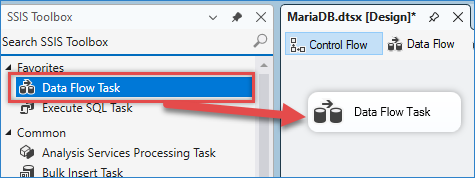
Drag and drop Data flow
- In Data Flow, drag and drop the ZS JSON Source.
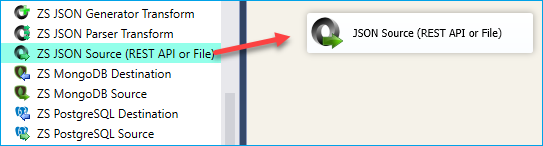
SSIS JSON Source – Drag and Drop
- Open the JSON Source editor and enable Use credentials.
- Select the monday.com HTTP connection you created earlier.
- Set URL to:
1https://api.monday.com/v2 - Set HTTP Request Method to POST.
- Set Body content type to JSON (application/json).
- Use this GraphQL body to retrieve boards:
123{"query": "query { boards { id name } }"} - Set JSON Path Filter to:
1$.data.boards[*] - Click Preview to confirm rows are returned, then click OK to save the configuration.
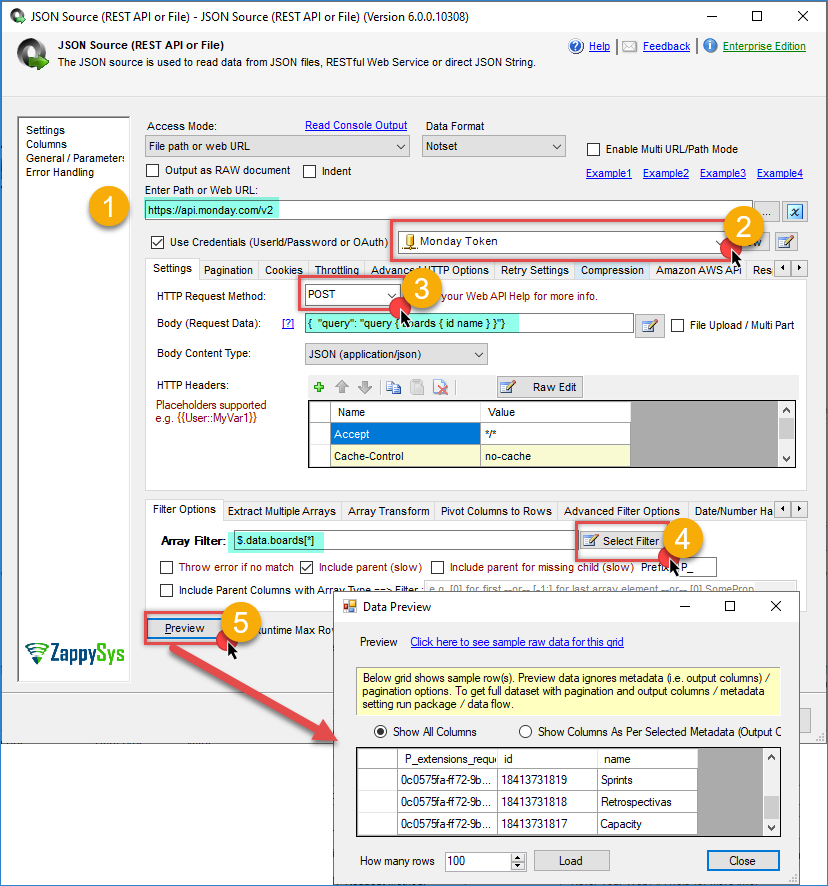
Monday – JSON Source
Optional: Load board items instead of board metadata
- Replace the body with a query that returns items from a board:
123{"query": "query { boards(ids: 1234567890) { id name items_page(limit: 100) { items { id name created_at updated_at } } } }"}
- Replace
1234567890with your real board ID. - Use JSON Path Filter:
1$.data.boards[*].items_page.items[*]
Configure Destination Component
- Add an Upsert destination (or another destination of your choice, such as a Trash destination or a JSON/CSV/XML destination).
- Connect the output arrow from JSON Source to the destination component.
- Configure your SQL Server connection and target table.
- Check the options you want to use: Insert or/and Update
- Map the source columns to destination columns in the Mappings section.
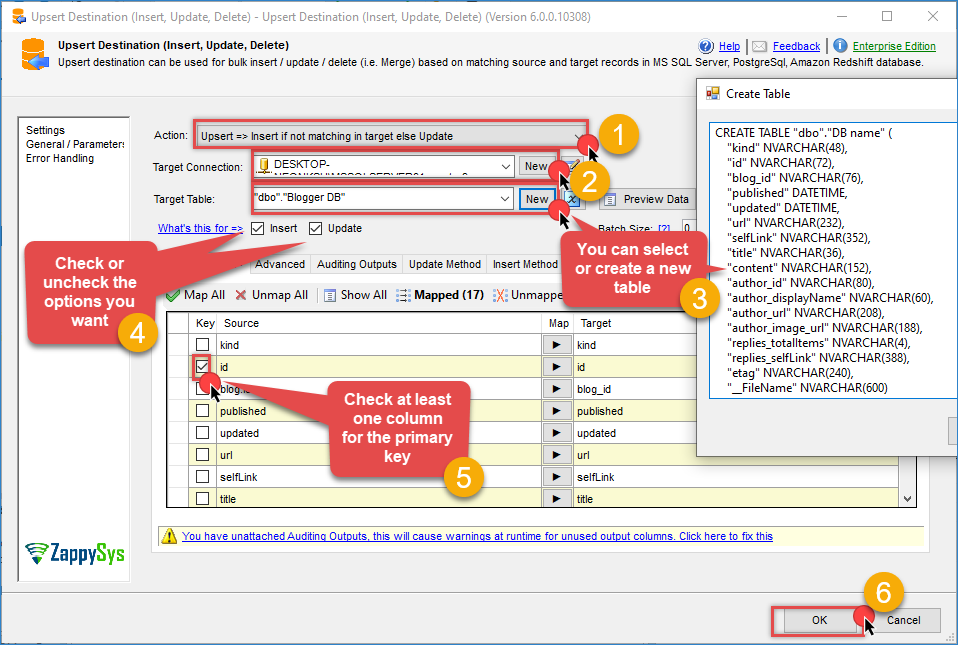
Monday – Upsert destination
- Click OK and execute the package.
- Validate that Monday rows have been loaded into your SQL Server table.
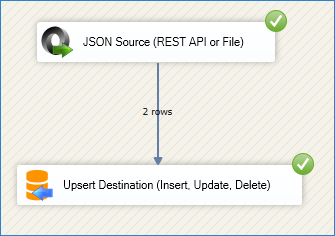
Monday – Upsert Destination example
Conclusion
You now have a working SSIS integration pattern for monday.com using Zappysys HTTP + JSON Source components. By sending GraphQL POST requests to the monday.com API endpoint, you can extract boards, items, users, and more into SQL Server without writing custom scripts.
Explore the full capabilities of the ZappySys SSIS PowerPack to optimise your data integration tasks. By applying this pattern, you can extend your solution to include additional transformations, data validation, error handling, and scheduling through SQL Server Agent.
Need Help?
If you encounter any issues, our support team is here to help:
- Live Chat — Use the chat widget (bottom-right corner of this page)
- Email — support@zappysys.com
- Support Center — Visit the ZappySys Support Portal