SSIS Send HTML Email Task
Send HTML emails from SSIS through any SMTP server, with placeholders and recordset tables.
SSIS Send HTML Email Task is a free task for sending newsletters and great-looking HTML emails from SSIS. It connects to any SMTP server with a user name, password and port, so you are not tied to your company mail server, and auto-expanding placeholders let you build flexible email templates without writing SSIS expressions.
Send HTML Email Task is free in every edition. The same download also includes a trial of the paid PowerPack components
- Control Flow Task in SSIS
- Runs in your environment
- Also runs in Azure Data Factory
- Free component (FREE edition)


At a glance
What Send HTML Email Task can do
SSIS Send HTML Email Task is a free task for sending newsletters and great-looking HTML emails from SSIS. It connects to any SMTP server with a user name, password and port, so you are not tied to your company mail server, and auto-expanding placeholders let you build flexible email templates without writing SSIS expressions.
HTML email from text or template
Send HTML formatted emails, such as newsletters, from direct text, a template file or a variable.
MessageSourceType: direct value, file connection or variableIsHtmlEmail: HTML or plain text
Variable placeholders
Type an SSIS variable anywhere in the body or subject and it is replaced by its value at runtime.
- Example:
{{User::varFirstName}} - No need to build SSIS expressions
- Format specifiers, e.g.
{{System::StartTime,yyyy-MM-dd}}or{{System::LocaleID,C}}
Recordset as HTML table
A RowSet variable placeholder automatically expands into an HTML formatted table in the email.
- Works with a Recordset or DataTable from Execute SQL Task or Script Task
- Dates and currency are formatted in the table
CSS styling & preview
Edit the CSS style for generated tables and preview the email before sending.
DefaultStylesets the table CSS- Preview button in the task UI
- Send Test button
Custom SMTP connection
Use the ZS SMTP Connection Manager with user name, password and port, options not present in the native SSIS Email Task.
- Custom port and
EnableSsl - Anonymous or user name / password authentication
- Test Connection with a test email
Recipients, attachments & priority
Set the sender, recipients, attachments and priority of the email.
To,Cc,Bcc: comma separated addressesAttachments: separate multiple files with a vertical barEmailPriority
Logging control
Control how much information is logged during package execution.
LoggingMode: set to Debugging for maximum log
SQL Server 2012–2025 & ADF
Runs in your environment on SQL Server 2012–2025 and Azure-SSIS.
- SQL Server 2025, 2022, 2019, 2017, 2016, 2014, 2012 (32/64-bit)
- Azure Data Factory (SSIS IR)
- Design packages in Visual Studio 2017, 2019, 2022, or 2026
- Windows only (64-bit OS): Windows 7–11 or Windows Server 2012–2025
See all features
- Send HTML Formatted email from direct text or template file
- Support for Placeholders (e.g. type
{{User::varFirstName}}anywhere in Body or Subject) - Date and currency format specifiers in placeholders (e.g.
{{System::StartTime,yyyy-MM-dd}}) - Send newsletters or mass emails to customers
- Support for Custom SMTP connection manager which allows you to enter UserID, Password and Port
- SSL and anonymous authentication options on the SMTP connection
- Support for RowSet variable placeholder that expands as an HTML formatted table (Recordset or DataTable)
- Edit the default CSS style for generated tables
- Preview the email in the task UI
- Email body from a variable, a file or direct input
- To, Cc and Bcc with multiple comma separated addresses
- Attach multiple files
- Set email priority
- Send a test email from the task UI
Support for SQL Server 2025, 2022, 2019, 2017, 2016, 2014, 2012 (32/64-bit) and Azure Data Factory
SQL Server 2012–2025
How it works
From the toolbox to your first run.
Key steps from the Send HTML Email Task page and help file, with the screens you will see in SSDT.
Write the body with placeholders, not expressions.
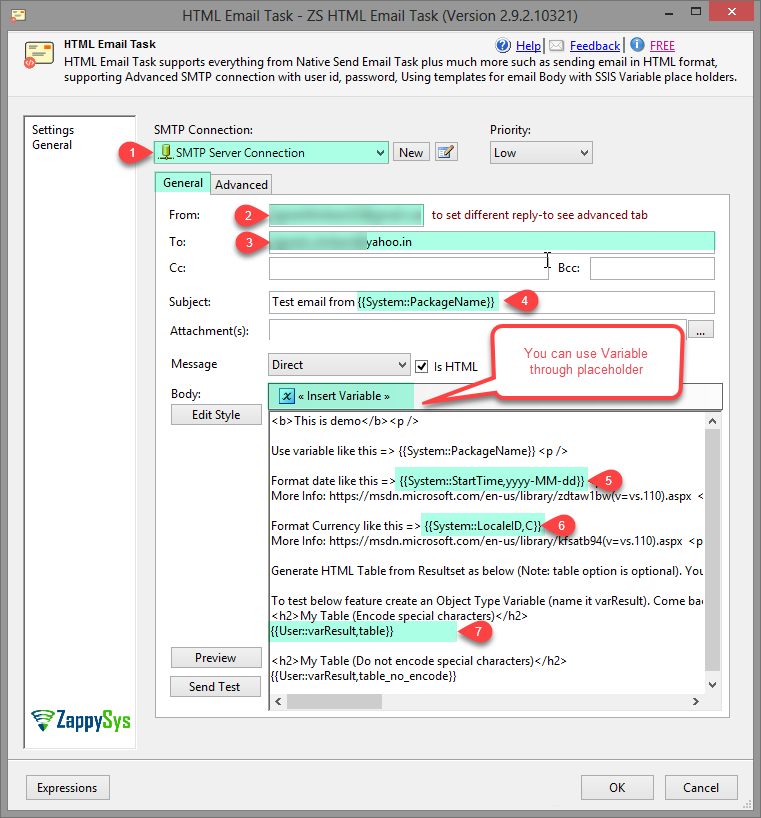
Pick the ZS SMTP connection, fill in From, To, Subject and priority, and type the body as HTML. Insert Variable adds placeholders such as {{System::PackageName}}, formatted values like {{System::StartTime,yyyy-MM-dd}} or {{System::LocaleID,C}}, and a recordset table with {{User::varResult,table}}.
- Body from direct text, a template file or a variable
table_no_encodeoutputs the table without HTML-encoding- Send Test button in the editor
Preview the email before you send it.
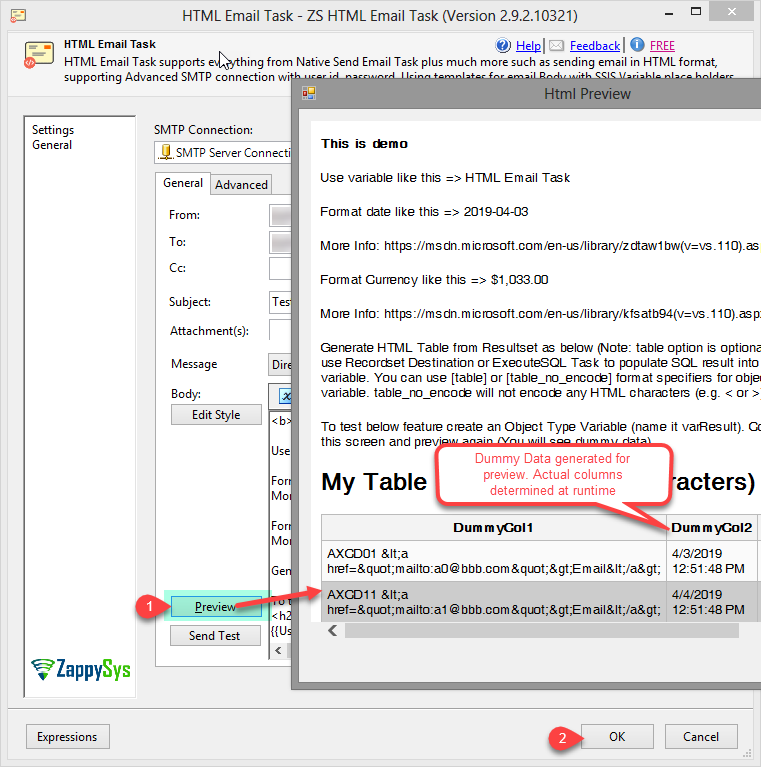
Click Preview to render the body. Placeholders are expanded, and a recordset table shows dummy data so you can check the layout; the real columns come from the variable at runtime.
- Format dates and currency in the preview
- Check the HTML before the package runs
Style generated tables with your own CSS.
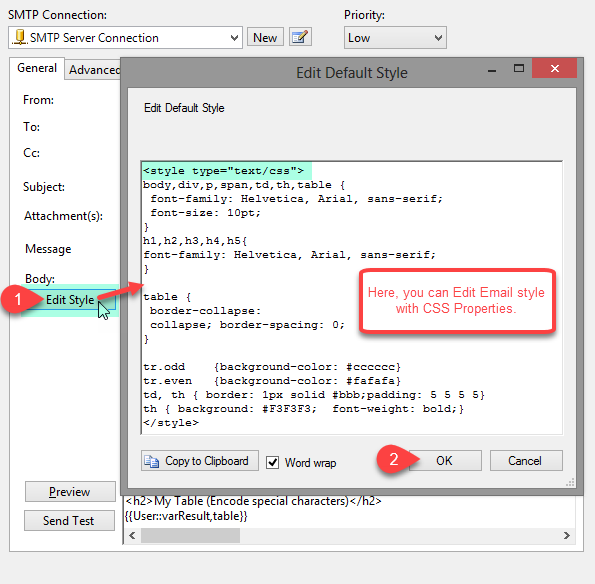
Click Edit Style to change the default CSS for tables generated from a recordset (DefaultStyle). For custom layouts, put a <style> block first in the body.
- CSS tips in the ZappySys blog
Query results arrive as a formatted HTML table.
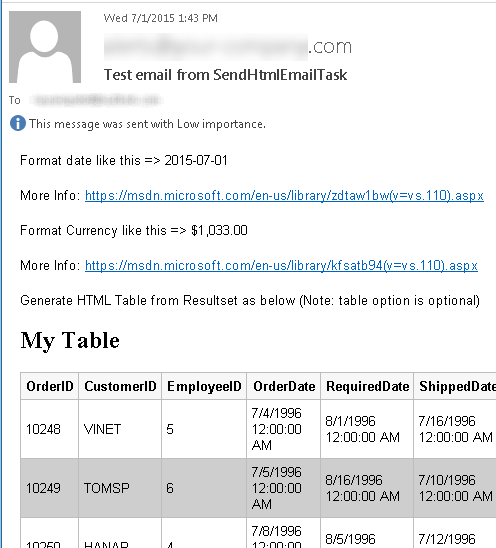
An Execute SQL Task with ResultSet = Full result set stores the query result in an Object variable; the email task turns it into an HTML table, with dates and currency formatted by the placeholders.
- Recordset or DataTable from Execute SQL Task or Script Task
Inside the UI
Key settings, as they appear in SSDT.
Real screens from the Send HTML Email Task product page. Step through them, or open any shot at full size.
Add Execute SQL Task and the email task
Drag Execute SQL Task and ZS HTML Email Task from the SSIS Toolbox and join them; the SQL task supplies the recordset.
Articles
Worked examples that use Send HTML Email Task.
Compatibility and requirements
Designed to stay inside your SSIS runtime.
- SQL Server 2012 through 2025, 32-bit and 64-bit
- Windows only, 64-bit OS required. SQL Server Express and Web editions do not include SSIS
- Azure Data Factory SSIS Integration Runtime
- Self-hosted: credentials and data stay in your environment (external API calls still reach that service)
- Fully functional 30-day trial of SSIS PowerPack
FAQ
Questions teams ask before they drop Send HTML Email Task on the canvas.
What is Send HTML Email Task?
SSIS Send HTML Email Task is a free task for sending newsletters and great-looking HTML emails from SSIS. It connects to any SMTP server with a user name, password and port, so you are not tied to your company mail server, and auto-expanding placeholders let you build flexible email templates without writing SSIS expressions.
Is Send HTML Email Task free?
Yes. It is included in the FREE edition of SSIS PowerPack, as well as in the Standard, Professional and Enterprise editions. See compare editions.
How do I email query results as a table?
Run an Execute SQL Task with ResultSet set to Full result set and map result 0 to an Object variable (e.g. varResult). In the email body add {{User::varResult,table}}; it expands to an HTML table at runtime. Use table_no_encode if the data already contains HTML.
Can I format dates and numbers?
Yes. Add a .NET format specifier after the variable name, for example {{System::StartTime,yyyy-MM-dd}} for a date or {{System::LocaleID,C}} for currency.
Which SMTP settings are supported?
The ZS SMTP Connection Manager takes the server, a custom port, SSL, and anonymous or user name / password authentication, and can send a test email. The help notes that custom port and user name / password are not in the native SSIS SMTP connection.
Can I send to several people and attach files?
Yes. To, Cc and Bcc take comma-separated addresses, and Attachments takes several files separated by a vertical bar. You can also set the email priority.
How do I style the email?
Use Edit Style to change the default table CSS, or place a <style> block first in the body. See Some tips for the SSIS Send HTML Email Task.
Which SQL Server versions can I run it on?
SQL Server 2025, 2022, 2019, 2017, 2016, 2014, and 2012 (32- and 64-bit), plus Azure Data Factory with an SSIS Integration Runtime (packages must target SQL Server 2017). See Compatibility and requirements.


What customers say
Free in every edition
Install SSIS PowerPack and drag Send HTML Email Task onto the Control Flow.
Send styled HTML emails with query results from SSIS, through any SMTP server.
- Control Flow Task in SSISSend HTML Email Task appears in the toolbox after you install PowerPack.
- Free to useSend HTML Email Task is included in the FREE edition of SSIS PowerPack.
- Live supportQuestions? Talk to a ZappySys engineer.
Talk to an engineer before or during your trial.