

Video tutorial
Watch this quick video to see the integration in action. It walks you through the end-to-end setup, including:
- Installing the SSIS PowerPack
- Configuring a secure connection to Asana
- Working with Asana data directly inside SSIS
- Exploring advanced API Source features
Ready to dive in? Download the product to jump right in, or follow the step-by-step guide below to see how it works.
Prerequisites
Before we begin, make sure the following prerequisites are met:
- SQL Server Data Tools (SSDT) designer installed for Visual Studio.
- SQL Server Integration Services Projects 2022+ Visual Studio extension installed.
- SSIS PowerPack is installed.
Make generic REST API request in SSIS
-
Open Visual Studio and click Create a new project.
-
Select Integration Services Project. Enter a name and location for your project, then click OK.
-
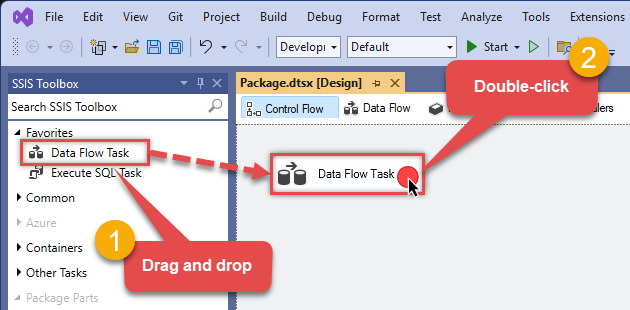
From the SSIS Toolbox, drag and drop a Data Flow Task onto the Control Flow surface, and double-click it:
-
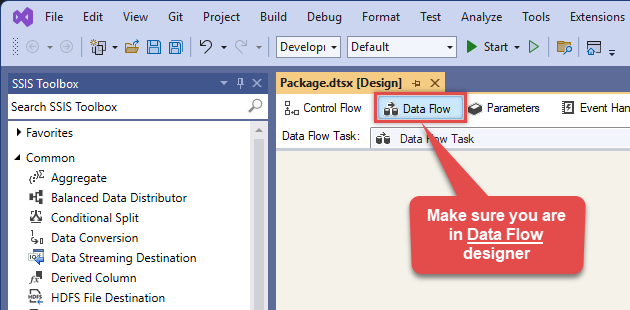
Make sure you are in the Data Flow Task designer:
-
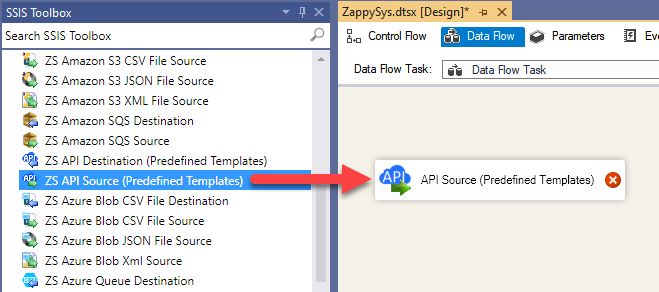
From the SSIS toolbox drag and API Source (Predefined Templates) on the data flow designer surface, and double click on it to edit it:
-
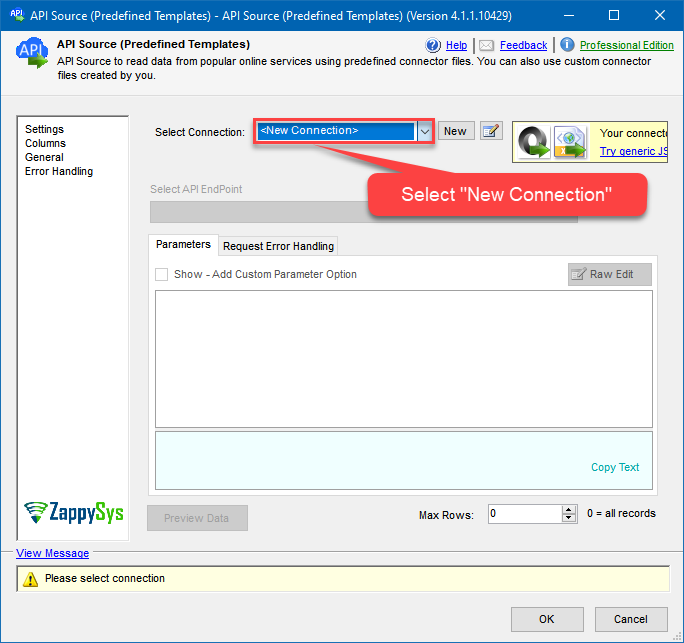
Select New Connection to create a new connection:
-
Use a preinstalled Asana Connector from Popular Connector List or press Search Online radio button to download Asana Connector. Once downloaded simply use it in the configuration:
Asana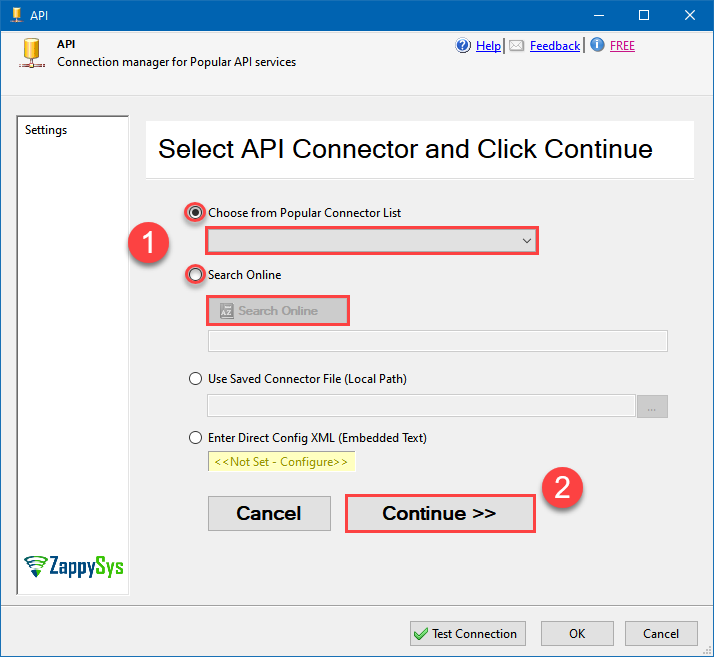
-
Select your authentication scenario below to expand connection configuration steps to:
- Configure the authentication in Asana.
- Enter those details into the API Connection Manager configuration.
Personal Access Token
Asana authentication
Here is how to obtain a Personal Access Token (PAT) in Asana:-
Open My apps in Asana portal
and click Create new token button:
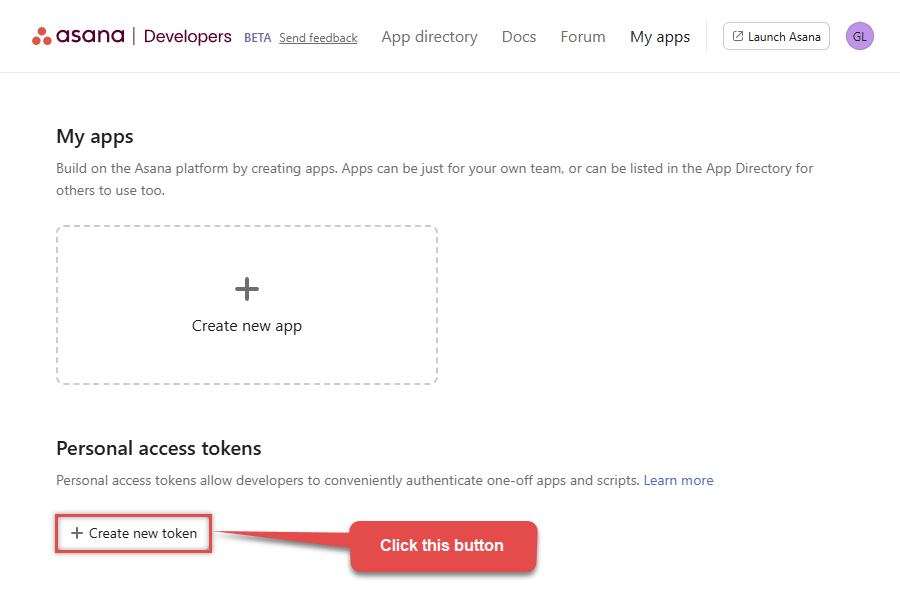
-
Once a popup opens, name your new token:
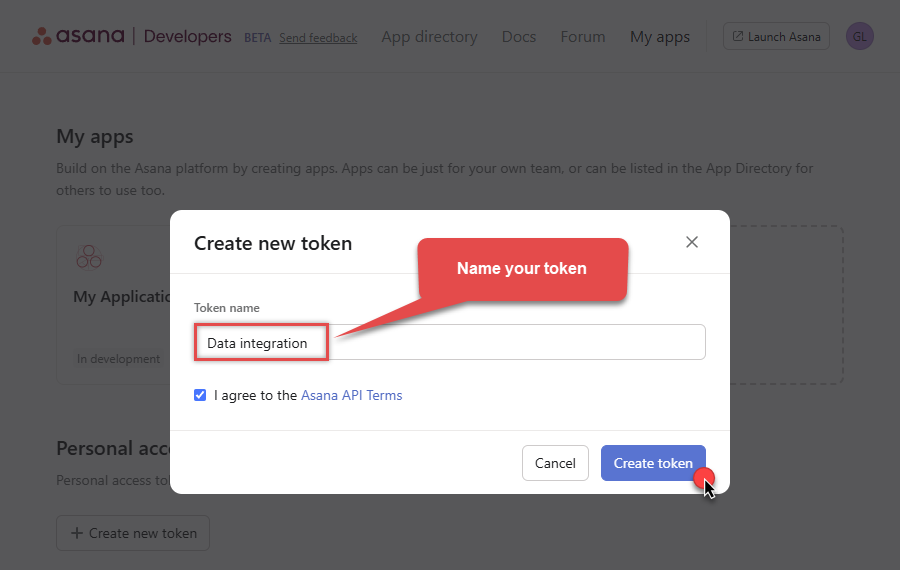
-
Then click Copy button to copy the token:
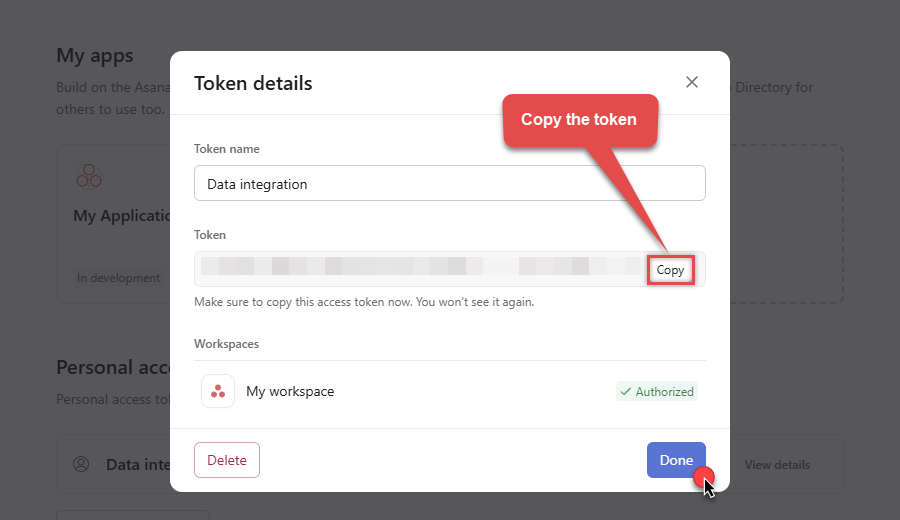
- Now go to SSIS package or ODBC data source and use this token in Personal Access Token authentication configuration.
- Choose Default Workspace and Default Project to work with.
- Click Test Connection to confirm the connection is working.
- Done! Now you are ready to use Asana Connector!
API Connection Manager configuration
Just perform these simple steps to finish authentication configuration:
-
Set Authentication Type to
Personal Access Token [Http] - Optional step. Modify API Base URL if needed (in most cases default will work).
- Fill in all the required parameters and set optional parameters if needed.
- Finally, hit OK button:
AsanaPersonal Access Token [Http]https://app.asana.com/api/1.0Required Parameters Enter Token (Personal Access Token - PAT) Fill-in the parameter... Default Workspace Fill-in the parameter... Default Project Fill-in the parameter... Optional Parameters RetryMode RetryWhenStatusCodeMatch RetryStatusCodeList 429 RetryCountMax 5 RetryMultiplyWaitTime True 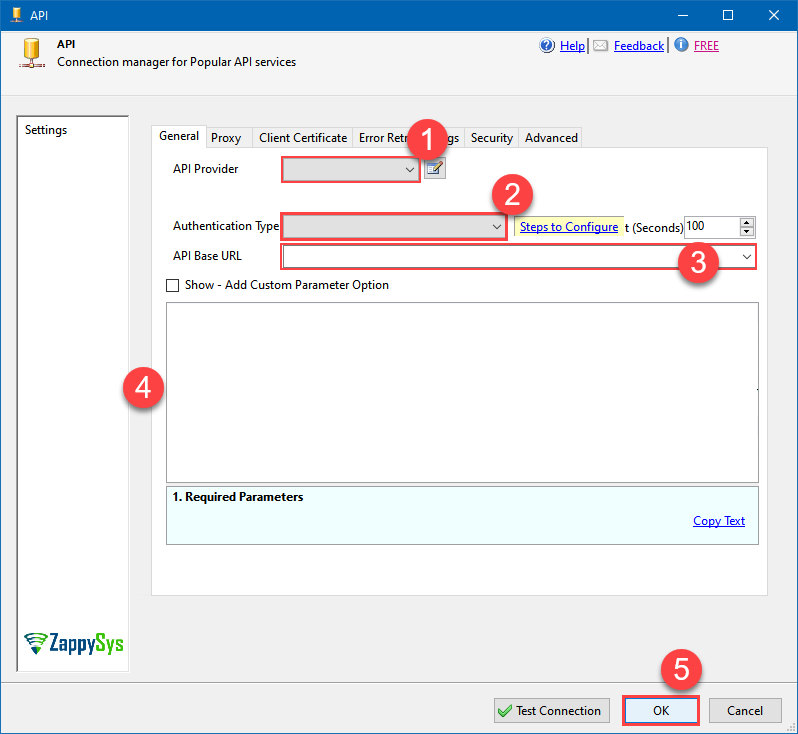 Find full details in the Asana Connector authentication reference.
OAuth app
Asana authentication
Here is how to register an OAuth app in Asana:-
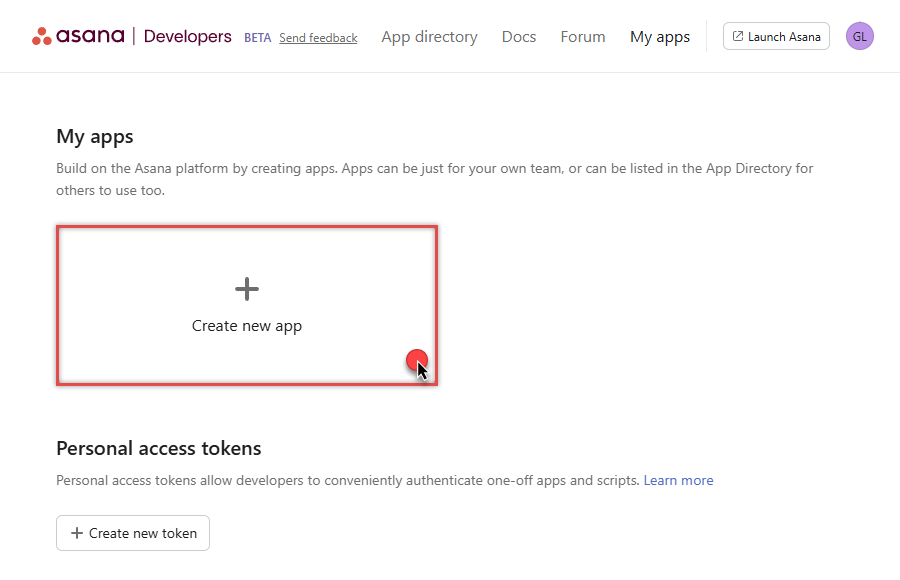
Open My apps in Asana portal
and click Create new app button:
-
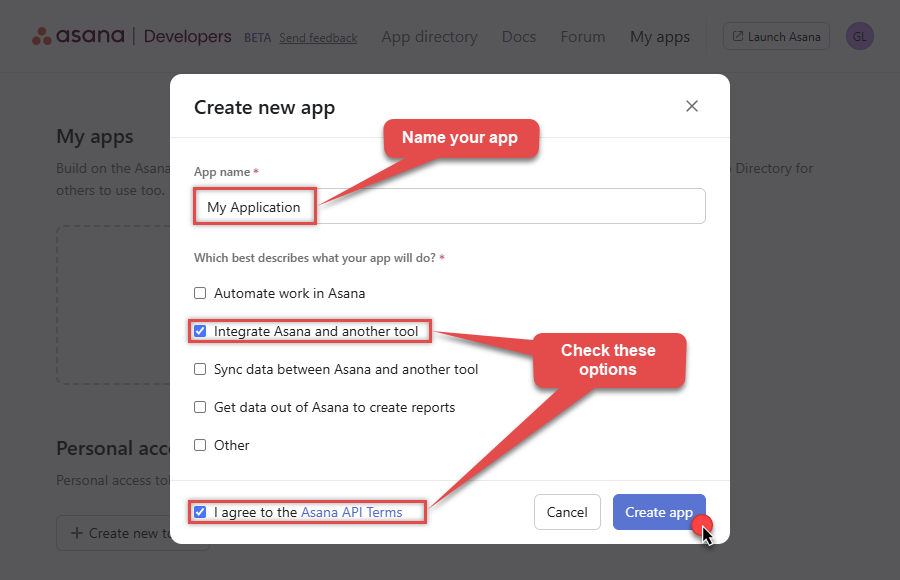
Once a popup opens, name your app and check two options, and click Create app button:
-
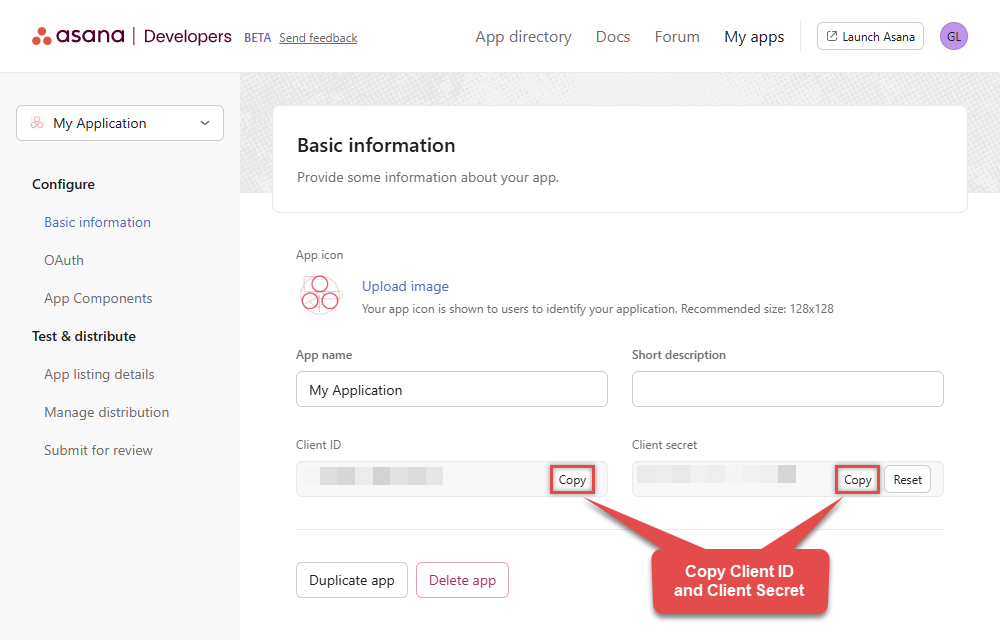
Then copy Client ID and Client secret and save them in a file (we will need them for authentication):
-
Continue by selecting OAuth menu item on your left and click Add redirect URL button (you can have your own or use
https://zappysys.com/oauth):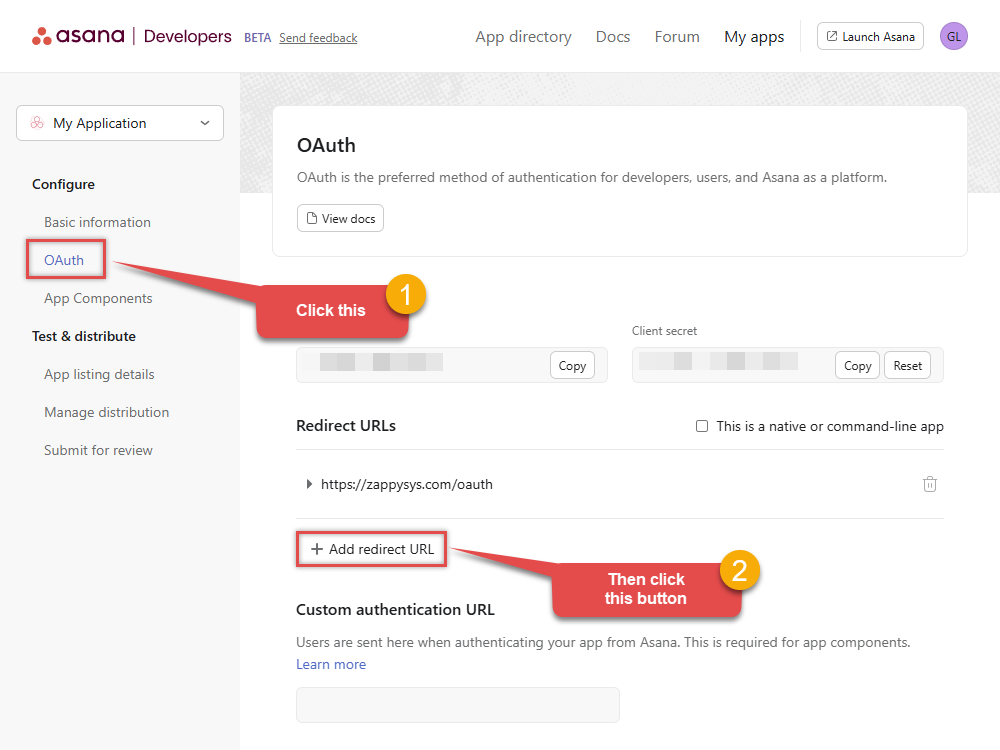
- Proceed by clicking on the Manage distribution section on your left.
-
Then specify workspaces your app needs to access (use Any workspace to access them all):
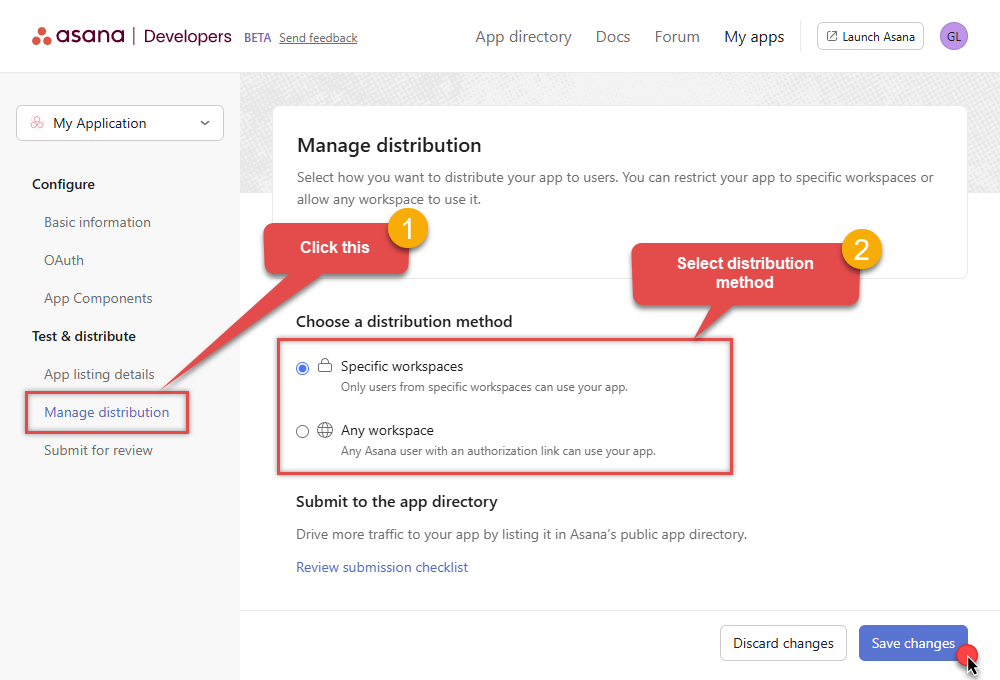
- Once you do that, click Save changes button.
- Now go to SSIS package or ODBC data source and use Client ID, Client Secret, and Redirect URL in OAuth app authentication configuration.
- When you are done with that, click Generate Token button to generate Access and Refresh Tokens.
- Choose Default Workspace and Default Project to work with.
- Click Test Connection to confirm the connection is working.
- Done! Now you are ready to use Asana Connector!
API Connection Manager configuration
Just perform these simple steps to finish authentication configuration:
-
Set Authentication Type to
OAuth app [OAuth] - Optional step. Modify API Base URL if needed (in most cases default will work).
- Fill in all the required parameters and set optional parameters if needed.
- Press Generate Token button to generate the tokens.
- Finally, hit OK button:
AsanaOAuth app [OAuth]https://app.asana.com/api/1.0Required Parameters ClientId Fill-in the parameter... Client Secret Fill-in the parameter... Default Workspace (** Select after Token is generated **) Fill-in the parameter... Default Project (** Select after Token is generated **) Fill-in the parameter... Optional Parameters Permissions default Redirect URL https://zappysys.com/oauth RetryMode RetryWhenStatusCodeMatch RetryStatusCodeList 429 RetryCountMax 5 RetryMultiplyWaitTime True 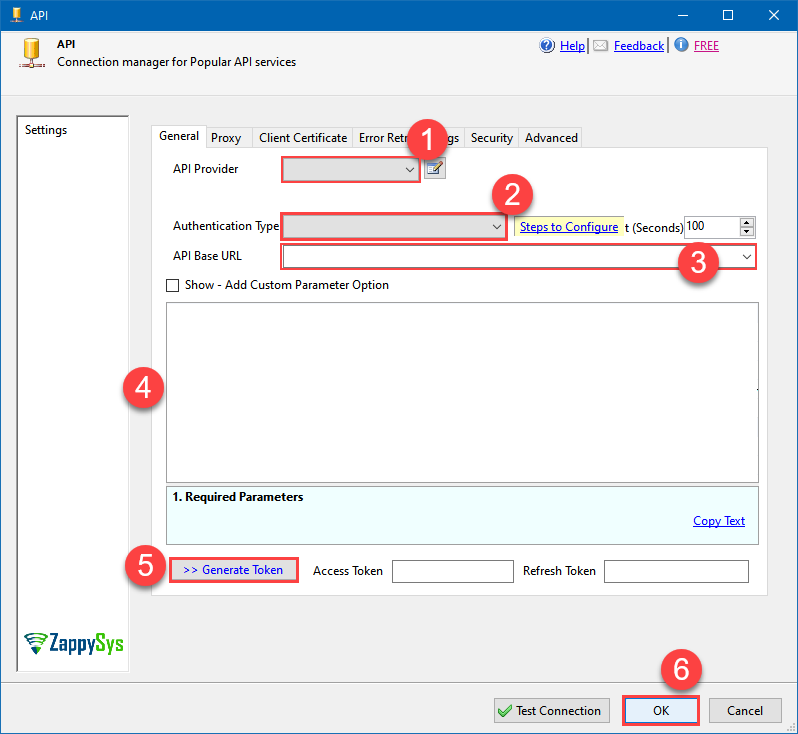 Find full details in the Asana Connector authentication reference.
 -
Select Generic Table (Bulk Read / Write) table from the dropdown and hit Preview Data:
 API Source - AsanaRead and write Asana data effortlessly. Integrate, manage, and automate tasks, projects, workspaces, and time entries — almost no coding required.AsanaGeneric Table (Bulk Read / Write)
Required Parameters HTTP - Url or File Path Fill-in the parameter... HTTP - Request Method Fill-in the parameter... Optional Parameters HTTP - Request Body HTTP - Is MultiPart Body (Pass File data/Mixed Key/value) False HTTP - Request Format (Content-Type) ApplicationJson HTTP - Headers (e.g. hdr1:aaa || hdr2:bbb) Accept: */* || Cache-Control: no-cache Parser - Response Format (Default=Json) Default Parser - Filter (e.g. $.rows[*] ) Parser - Include Parent Columns True Parser - Parent Column Prefix P_ Parser - Include Parent When Child Null False Parser - Encoding Parser - CharacterSet Download - Enable reading binary data False Download - File overwrite mode AlwaysOverwrite Download - Save file path Download - Enable raw output mode as single row False Download - Raw output data RowTemplate {Status:'Downloaded'} Download - Request Timeout (Milliseconds) 0 General - Enable Custom Search/Replace False General - SearchFor (e.g. (\d)-(\d)--regex) General - ReplaceWith (e.g. $1-***) General - File Compression Type None General - Date Format General - Enable Big Number Handling False General - Wait time (Ms) - Helps to slow down pagination (Use for throttling) 0 JSON/XML - ExcludedProperties (e.g. meta,info) JSON/XML - Flatten Small Array (Not preferred for more than 10 items) False JSON/XML - Max Array Items To Flatten 10 JSON/XML - Array Transform Type None JSON/XML - Array Transform Column Name Filter JSON/XML - Array Transform Row Value Filter JSON/XML - Array Transform Enable Custom Columns False JSON/XML - Enable Pivot Transform False JSON/XML - Array Transform Custom Columns JSON/XML - Pivot Path Replace With JSON/XML - Enable Pivot Path Search Replace False JSON/XML - Pivot Path Search For JSON/XML - Include Pivot Path False JSON/XML - Throw Error When No Match for Filter False Pagination - Mode ByResponseAttribute Pagination - Attribute Name (e.g. page) Pagination - Increment By (e.g. 100) 1 Pagination - Expression for Next URL (e.g. $.nextUrl) Pagination - Wait time after each request (milliseconds) 0 Pagination - Max Rows Expr Pagination - Max Pages Expr Pagination - Max Rows DataPath Expr Pagination - Max Pages 0 Pagination - End Rules Pagination - Next URL Suffix Pagination - Next URL End Indicator Pagination - Stop Indicator Expr Pagination - Current Page Pagination - End Strategy Type DetectBasedOnRecordCount Pagination - Stop based on this Response StatusCode Pagination - When EndStrategy Condition Equals True Pagination - Max Response Bytes Pagination - Min Response Bytes Pagination - Error String Match Pagination - Enable Page Token in Body False Pagination - Placeholders (e.g. {page}) Pagination - Has Different NextPage Info False Pagination - First Page Body Part Pagination - Next Page Body Part Csv - Column Delimiter , Csv - Has Header Row True Csv - Throw error when column count mismatch False Csv - Throw error when no record found False Csv - Allow comments (i.e. line starts with # treat as comment and skip line) False Csv - Comment Character # Csv - Skip rows 0 Csv - Ignore Blank Lines True Csv - Skip Empty Records False Csv - Skip Header Comment Rows 0 Csv - Trim Headers False Csv - Trim Fields False Csv - Ignore Quotes False Csv - Treat Any Blank Value As Null False Xml - ElementsToTreatAsArray 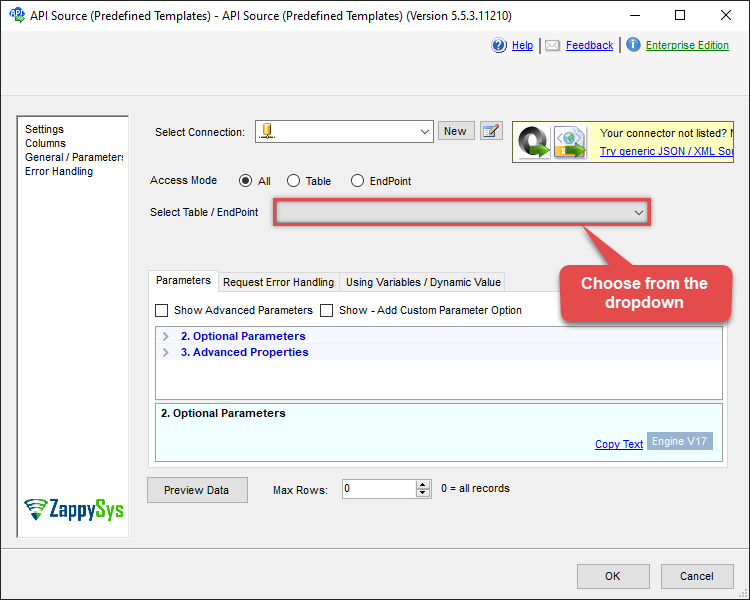
-
That's it! We are done! Just in a few clicks we configured the call to Asana using Asana Connector.
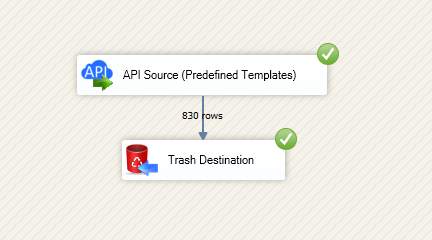
You can load the source data into your desired destination using the Upsert Destination , which supports SQL Server, PostgreSQL, and Amazon Redshift. We also offer other destinations such as CSV , Excel , Azure Table , Salesforce , and more . You can check out our SSIS PowerPack Tasks and components for more options. (*loaded in Trash Destination)
Asana Connector actions
Need another use case? Pick the next Asana action in SSIS below.
- Download Attachment
- Download Multiple Attachments
- Get Allocations
- Get Attachments (For Project refer to Key-Resources Upload only)
- Get Goals
- Get Memberships
- Get Portfolio Custom Fields
- Get Portfolios
- Get Project (Single)
- Get Project Custom Fields
- Get Project Section
- Get Project Sections
- Get Projects
- Get Sub Tasks
- Get Tags
- Get Task (Single)
- Get Tasks
- Get Time Tracking Entries
- Get User (Single)
- Get User Task Lists
- Get Users
- Get Workspace (Single)
- Get Workspace Custom Fields
- Get Workspace Tasks
- Get Workspace Teams
- Get Workspaces
- Search Tasks (Advanced Filter)
- Make Generic REST API Request (Bulk Write)
Conclusion
You now know how to make generic REST API request in SSIS without writing complex code. Asana SSIS Connector handled pagination and authentication automatically.
Ready to get started? Download the trial or ping us via chat if you need help: