Introduction
 In our previous blog, we saw how to write data to a CSV file in SSIS (GZip/Split). In this blog, we will parse a CSV string into multiple columns and rows using the SSIS CSV Parser Transform (helpful for extracting data from a raw CSV string stored as a database column or from another source). It also supports Pivot mode, allowing you to convert a single CSV string value into Rows.
In a nutshell, this post will focus on parsing a CSV string into multiple columns and rows using the CSV Parser Transform.
Prerequisite
- First, you will need to have SSIS installed
- Secondly, make sure to have SSDT
- Finally, do not forget to install ZappySys SSIS PowerPack
How to Extract Data from SQL Server Table and Parse a string into multiple columns and rows.
Let’s start with an example. In this SSIS CSV Parser Transform example, we will parse a database column containing a CSV string into multiple columns and rows.
- First of all, drag and drop the Data Flow Task from the SSIS Toolbox and double-click it to edit.
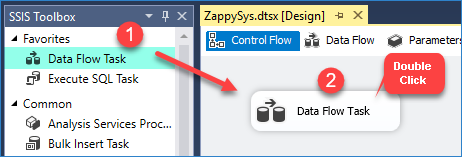
Drag and Drop SSIS Data Flow Task from SSIS Toolbox
- Furthermore, drag and drop the OLE DB Source.
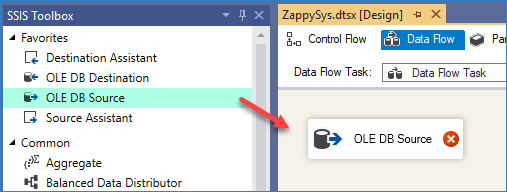
OLE DB Source – Drag and Drop
- Double-click the OLE DB Source to configure it, then click OK.
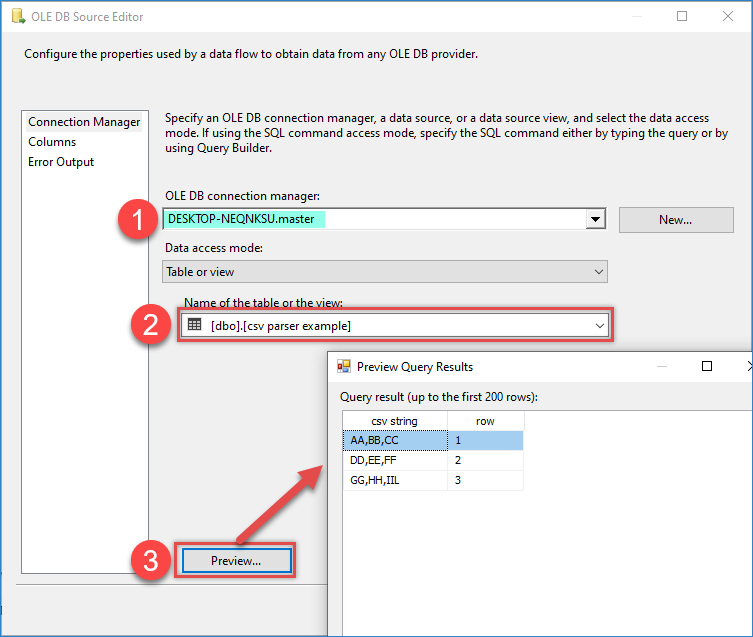
Configure OLE DB Source Editor
- Now drag and drop the CSV Parser Transform, then connect it to the OLE DB source.
- Double-click on CSV Parser Transform and select that column from the drop-down, enter sample data, and click on Preview.
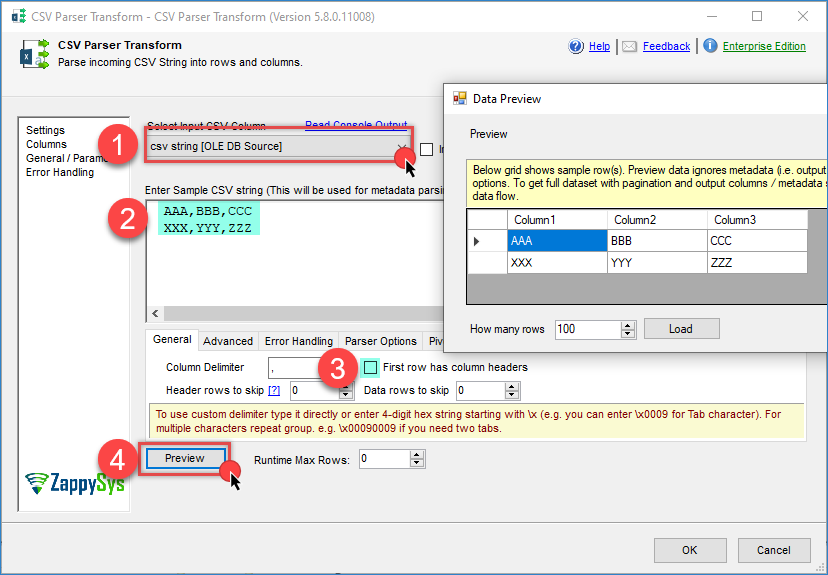
CSV Parser Transform Preview
- That’s it, now you can use that data in your desired destination.
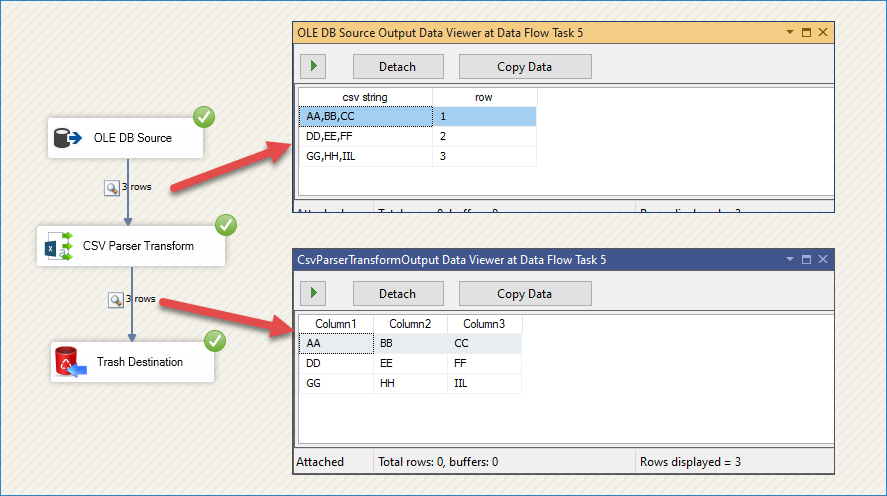
CSV Parser Transform result
SSIS CSV Parser Transform – Pivot Option (Normalize CSV string)
If Pivot Option is enabled, you will see two extra columns in the output (Pivot_Name and Pivot_Value).
Property name will appear in the “Pivot_Name” column, and property value will appear in the ”Pivot_Value’’ column. This option is beneficial when your data has a dynamic number of attributes and you want to store them as rows rather than columns—parent level.
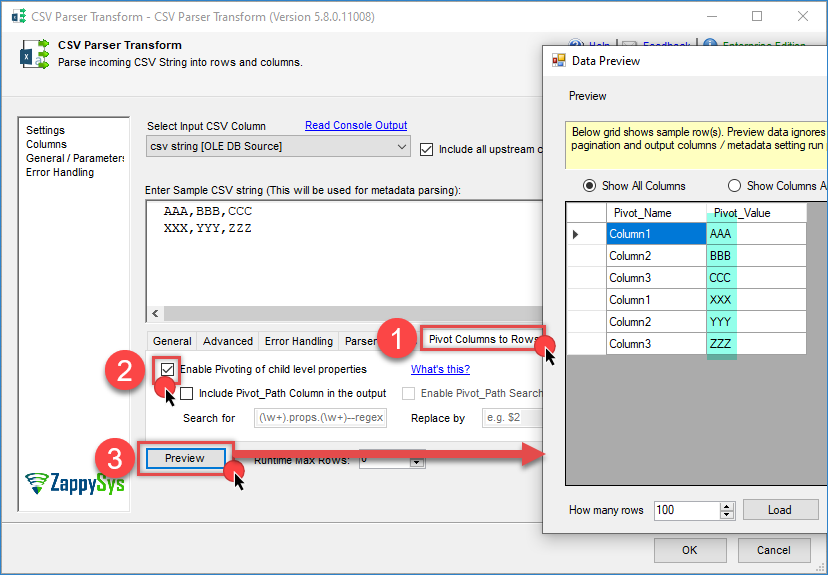
SSIS CSV Parser Transform – Pivot Option (Normalize CSV string)
Conclusion
After all, we saw how to parse a string into multiple columns and rows using the SSIS CSV Parser Transform from a SQL Server Table using an OLE DB Connection. To explore many other scenarios not discussed in this article, download SSIS PowerPack from here (includes 70+ Components).
References
Finally, you can use the following URL for more information.
- Help File: CSV Parser Transform