SSIS CSV Parser Transform
Parse CSV string into multiple columns and rows.
SSIS CSV Parser Transform can parse CSV string into multiple columns and rows (Helpful to extract data from raw CSV string stored as database column or coming from other source). It also supports Pivot mode so you can convert single CSV string value into Rows.
The trial includes CSV Parser Transform and every other PowerPack component
- Data Flow Transform in SSIS
- Runs in your environment
- Also runs in Azure Data Factory
- Fully functional 30-day trial


At a glance
What CSV Parser Transform can do
SSIS CSV Parser Transform can parse CSV string into multiple columns and rows (Helpful to extract data from raw CSV string stored as database column or coming from other source). It also supports Pivot mode so you can convert single CSV string value into Rows.
Parse CSV strings
Parse a CSV string into multiple columns and rows, e.g. raw CSV stored in a database column or coming from another source.
- Select the input column and enter
SampleDatato detect output columns - Preview the parsed result in the UI
Pivot mode
Normalize a CSV string so each value is output in a separate row.
EnablePivotoutputsPivot_NameandPivot_Valuecolumns- Useful when data has a dynamic number of attributes
Parse command-line output
Parse output from the command line standard output stream, e.g. cmd:>curl -k http://httpbin.org/get.
Upstream columns & empty input
Keep the other input columns and decide how empty input is handled.
OutputAllUpstreamColumnspasses other upstream columns throughEmptyInputProcessingMode: skip, process, throw error or use a custom value
Advanced parsing options
Fine-tune delimiters, quotes, headers and skipped rows.
- Custom
ColumnDelimiter, including hex codes such as\x0009for Tab TrimFields,TrimHeaders,SkipRowsand comment lines- Custom
QuoteCharacterorIgnoreQuotes
Blank values & error checks
Handle blank data and fail early on bad input.
TreatBlankAsNull,IgnoreBlankLinesandSkipEmptyRecordsThrowErrorOnColumnCountMismatchandThrowErrorOnNoRecordFound
Search & replace before parsing
Replace unwanted characters in the text before the parser reads it.
EnableCustomReplacewithSearchFor/ReplaceWith- Regular expressions with
--regexor--regex-ic
SQL Server 2012–2025 & ADF
Runs in your environment on SQL Server 2012–2025 and Azure-SSIS.
- SQL Server 2025, 2022, 2019, 2017, 2016, 2014, 2012 (32/64-bit)
- Azure Data Factory (SSIS IR)
- Design packages in Visual Studio 2017, 2019, 2022, or 2026
- Windows only (64-bit OS): Windows 7–11 or Windows Server 2012–2025
Data types & culture
Control how data types, lengths, dates and numbers are detected.
MetaDataScanMode: Auto, Strict, Guess2x to Guess10x, all-string or MAX-length optionsCulturefor culture-specific number formatsDateParseHandlingandFloatParseHandling
See all features
- Parse an input CSV string into rows and columns
- Pivot option to normalize a CSV string so each value is output in a separate row
- Parse output from the command line standard output stream (e.g.
cmd:>curl -k http://httpbin.org/get) - Include all upstream columns in the output
- Options for empty or NULL input: skip, process, throw error or use a custom value
- Custom column delimiter, quote character and header row options
- Trim fields and headers, skip rows and skip comment lines
- Treat blank values as NULL and skip blank lines or empty records
- Throw errors on column count mismatch or when no record is found
- Custom search / replace (including regular expressions) before parsing
- Metadata scan modes for accurate data types and lengths
- Culture, date and decimal parsing options
- Encoding and character set options
Support for SQL Server 2025, 2022, 2019, 2017, 2016, 2014, 2012 (32/64-bit) and Azure Data Factory
SQL Server 2012–2025
How it works
From the toolbox to your first run.
Key steps from the CSV Parser Transform page and help file, with the screens you will see in SSDT.
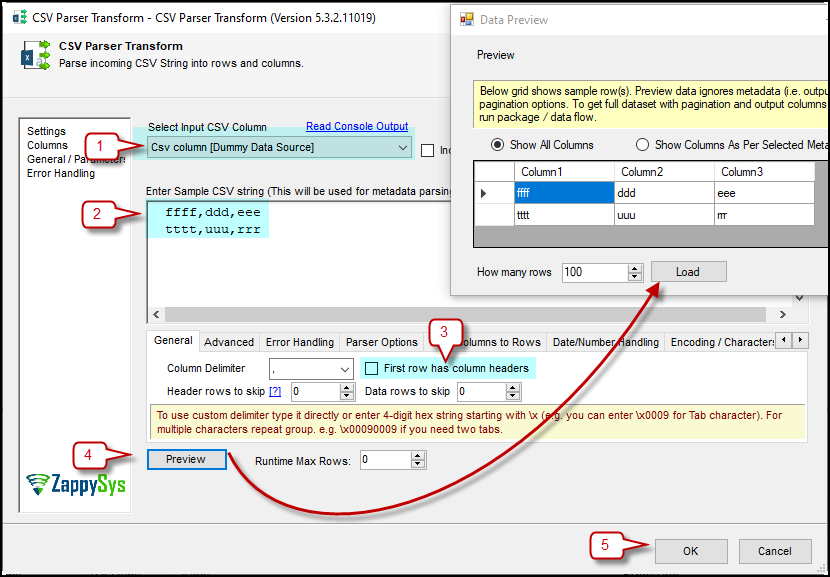
Select the input column and paste a sample.
Select the input column that holds the CSV text, paste a sample CSV string so the output columns can be detected, set the column delimiter and whether the first row has column headers, then click Preview.
- Custom delimiter, including hex codes such as
\x0009for Tab - Header rows / data rows to skip
- Read Console Output to parse command-line output
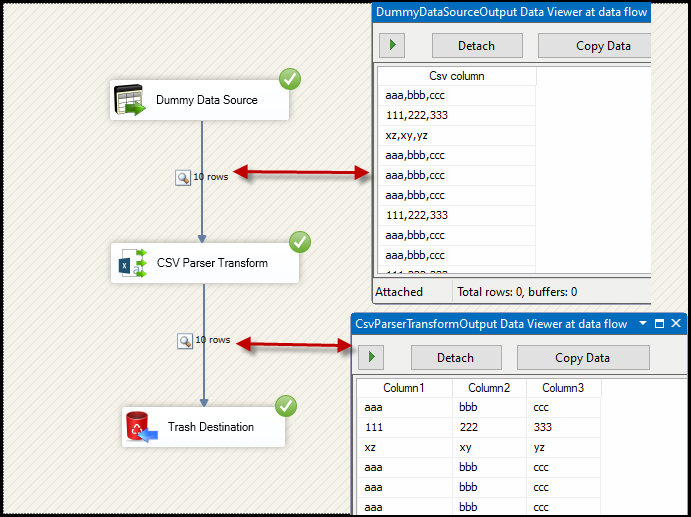
Turn a CSV column into real columns.
At runtime each input row is parsed: here a Csv column from Dummy Data Source becomes Column1, Column2 and Column3 in the CSV Parser Transform output.
OutputAllUpstreamColumnskeeps the other input columnsEmptyInputProcessingModefor NULL or empty input
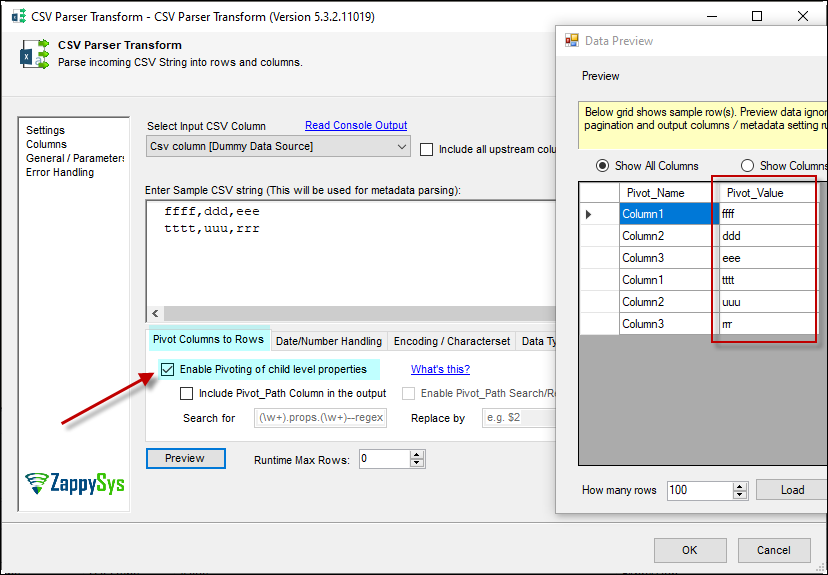
Normalize a CSV string into rows.
On Pivot Columns to Rows, tick Enable Pivoting. Each value is then output as a separate row with Pivot_Name and Pivot_Value columns, which helps when data has a dynamic number of attributes.
EnablePivotIncludePivotPathadds aPivot_Pathcolumn
Inside the UI
Key settings, as they appear in SSDT.
Real screens from the CSV Parser Transform product page. Step through them, or open any shot at full size.
Parse a CSV string
Select the input CSV column, paste a sample string, untick First row has column headers when there is no header, and click Preview.
Articles
Worked examples that use CSV Parser Transform.
Compatibility and requirements
Designed to stay inside your SSIS runtime.
- SQL Server 2012 through 2025, 32-bit and 64-bit
- Windows only, 64-bit OS required. SQL Server Express and Web editions do not include SSIS
- Azure Data Factory SSIS Integration Runtime
- Self-hosted: credentials and data stay in your environment (external API calls still reach that service)
- Fully functional 30-day trial of SSIS PowerPack
FAQ
Questions teams ask before they drop CSV Parser Transform on the canvas.
What is CSV Parser Transform?
A Data Flow Transform in SSIS PowerPack that parses a CSV string into multiple columns and rows, for example raw CSV stored in a database column or coming from another source. It also has a pivot mode that turns each value into its own row.
How are the output columns detected?
Paste a sample CSV string in the editor (SampleData). The parser uses it to build the output columns, and MetaDataScanMode controls how data types and lengths are guessed.
Can I keep the other input columns?
Yes. Turn on OutputAllUpstreamColumns to pass all other upstream columns through with the parsed columns. EmptyInputProcessingMode decides whether NULL or empty input is skipped, processed, raises an error or uses a custom value.
Can it parse command-line output?
Yes. It can parse output from the command-line standard output stream, e.g. cmd:>curl -k http://httpbin.org/get.
Which SQL Server versions can I run it on?
SQL Server 2025, 2022, 2019, 2017, 2016, 2014, and 2012 (32- and 64-bit), plus Azure Data Factory with an SSIS Integration Runtime (packages must target SQL Server 2017). See Compatibility and requirements.




What customers say
Start your free trial today
Install SSIS PowerPack and drag CSV Parser Transform onto the Data Flow.
Split raw CSV strings from a column into proper columns and rows, or pivot each value into its own row.
- Data Flow Transform in SSISCSV Parser Transform appears in the toolbox after you install PowerPack.
- Fully functional 30-day trialSSIS PowerPack, running in your environment.
- Live supportHelp during your trial and after purchase.
Open Help FileBrowse all SSIS PowerPack tasks
New purchases may be eligible for refund review within 30 days. See the refund policy.
Talk to an engineer before or during your trial.