

Video tutorial
Watch this quick video to see the integration in action. It walks you through the end-to-end setup, including:
- Installing the SSIS PowerPack
- Configuring a secure connection to ServiceNow
- Working with ServiceNow data directly inside SSIS
- Exploring advanced API Source features
Ready to dive in? Download the product to jump right in, or follow the step-by-step guide below to see how it works.
Prerequisites
Before we begin, make sure the following prerequisites are met:
- SQL Server Data Tools (SSDT) designer installed for Visual Studio.
- SQL Server Integration Services Projects 2022+ Visual Studio extension installed.
- SSIS PowerPack is installed.
Download table attachments in SSIS
-
Open Visual Studio and click Create a new project.
-
Select Integration Services Project. Enter a name and location for your project, then click OK.
-
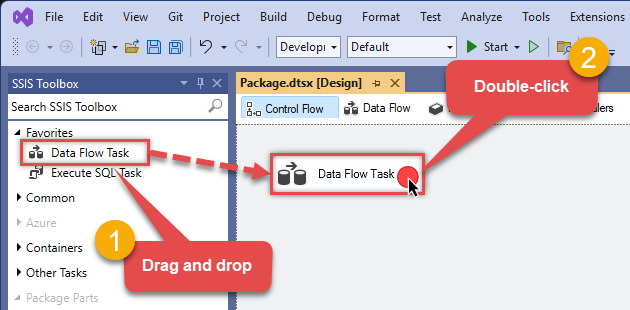
From the SSIS Toolbox, drag and drop a Data Flow Task onto the Control Flow surface, and double-click it:
-
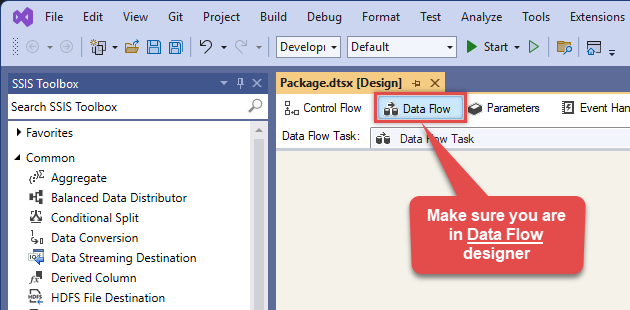
Make sure you are in the Data Flow Task designer:
-
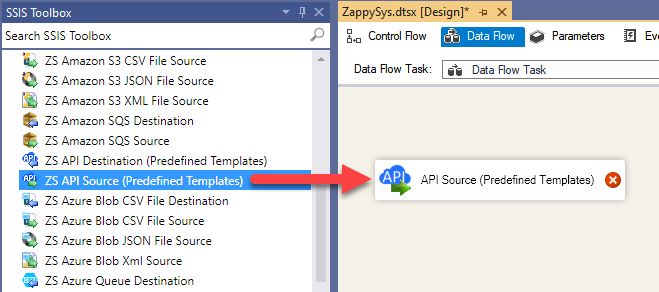
From the SSIS toolbox drag and API Source (Predefined Templates) on the data flow designer surface, and double click on it to edit it:
-
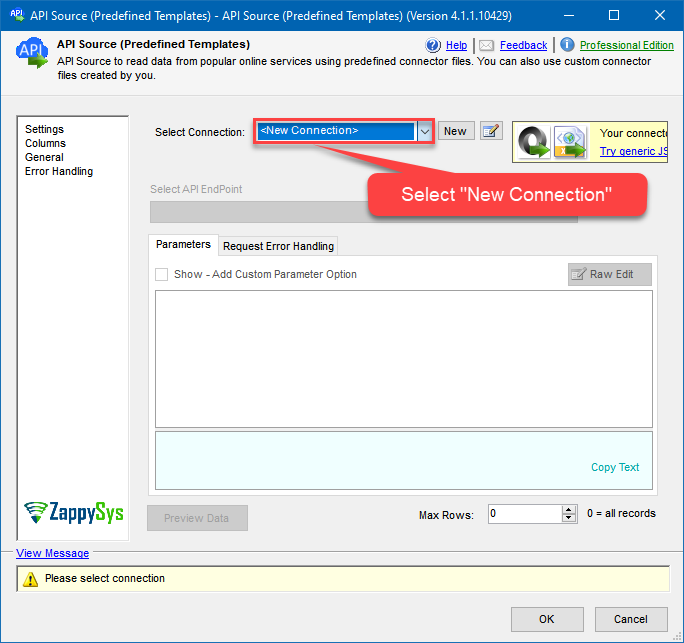
Select New Connection to create a new connection:
-
Use a preinstalled ServiceNow Connector from Popular Connector List or press Search Online radio button to download ServiceNow Connector. Once downloaded simply use it in the configuration:
ServiceNow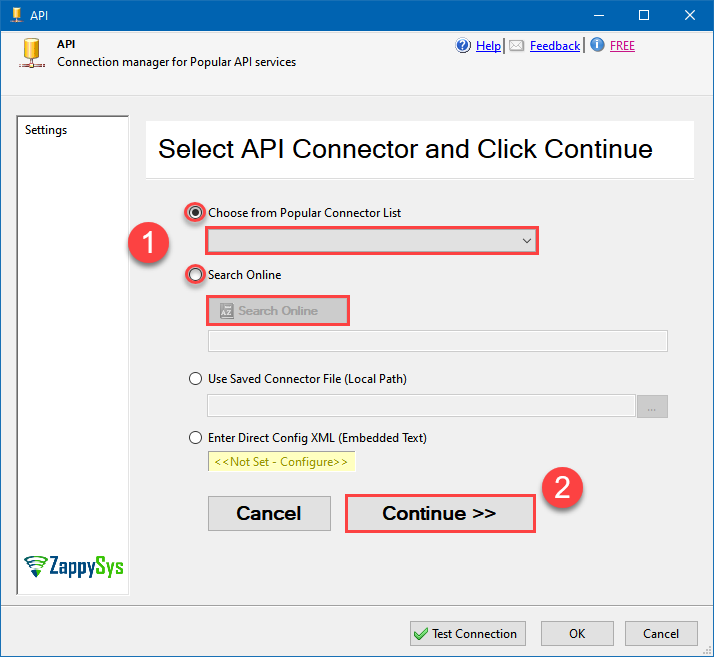
-
Select your authentication scenario below to expand connection configuration steps to:
- Configure the authentication in ServiceNow.
- Enter those details into the API Connection Manager configuration.
Basic Auth (UserName and Password)
ServiceNow authentication
Authenticate using ServiceNow instance username and password.
Locate your ServiceNow instance credentials and use them for HTTP authentication:
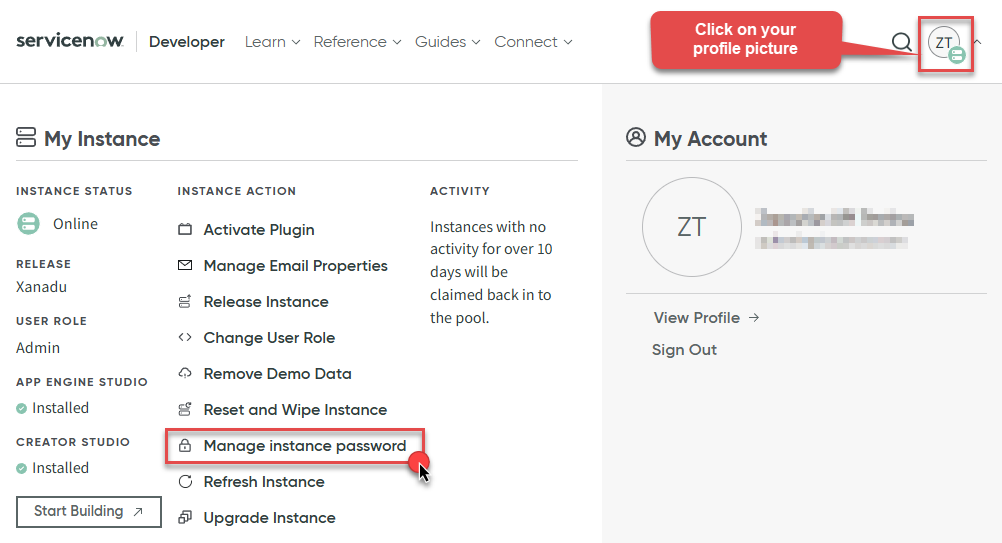
- Go to https://developer.servicenow.com/dev.do and log in.
- Click on your profile picture.
-
When a menu appears, click on Manage instance password or a similar option:
-
In a new window you will see your HTTP Basic Authentication credentials:
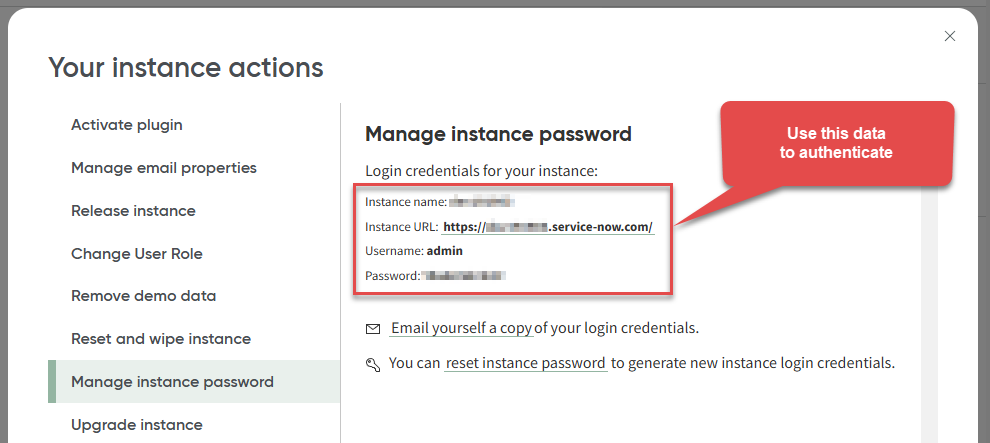
-
Done! Use this username and password when configuring HTTP Authentication parameters.
API Connection Manager configuration
Just perform these simple steps to finish authentication configuration:
-
Set Authentication Type to
Basic Auth (UserName and Password) [Http] - Optional step. Modify API Base URL if needed (in most cases default will work).
- Fill in all the required parameters and set optional parameters if needed.
- Finally, hit OK button:
ServiceNowBasic Auth (UserName and Password) [Http]https://[$InstanceName$].service-now.com/api/nowRequired Parameters InstanceName (e.g. mycompany) Fill-in the parameter... User name Fill-in the parameter... Password Fill-in the parameter... Optional Parameters ApiVersion v2 RetryMode RetryWhenStatusCodeMatch RetryStatusCodeList 429 RetryCountMax 5 RetryMultiplyWaitTime True Date Time Value Handling 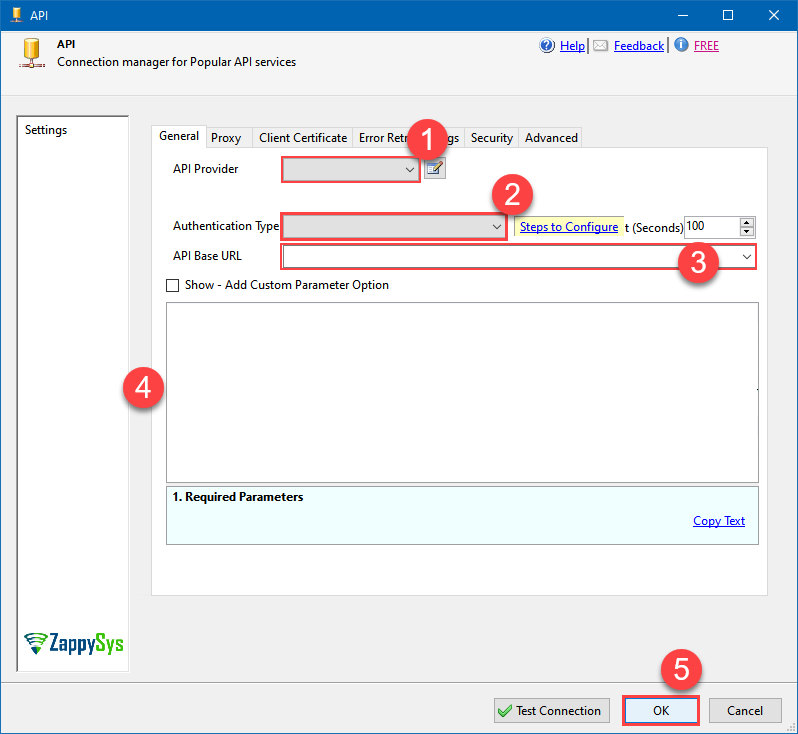 Find full details in the ServiceNow Connector authentication reference.
OAuth Authorization Code Grant (User Creds)
ServiceNow authentication
Authenticate using OAuth 2.0 Authorization Code Flow (3-legged)
Create OAuth application and use it for authentication:
- Login to your instance at https://your-instance-id.service-now.com.
-
Start by clicking on menu item All, then search for oauth, and click Application Registry option:
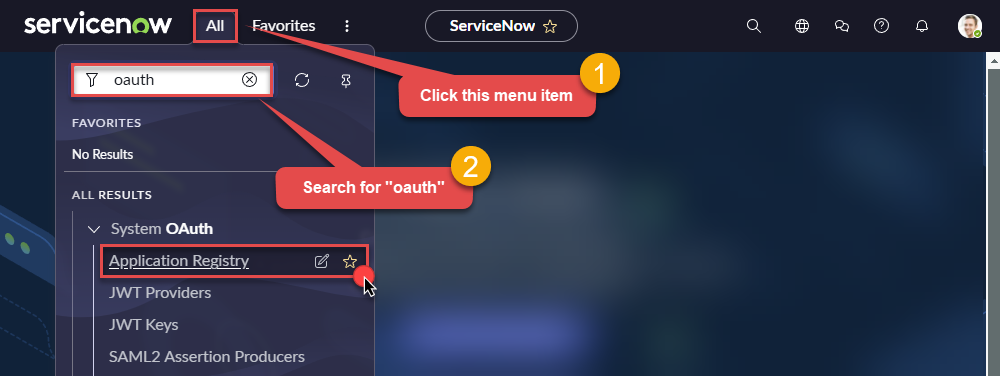
-
Then click button New:
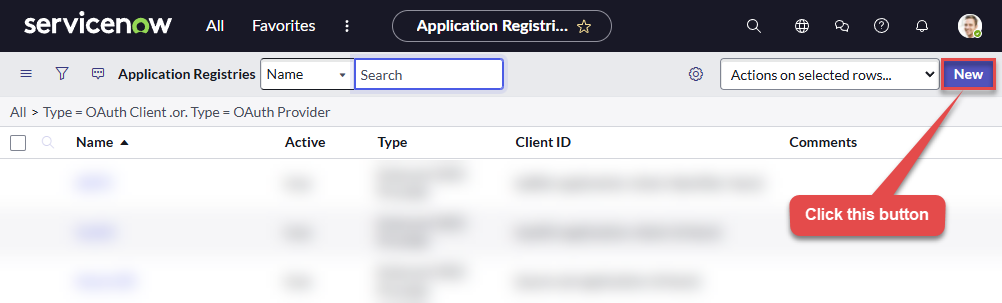
-
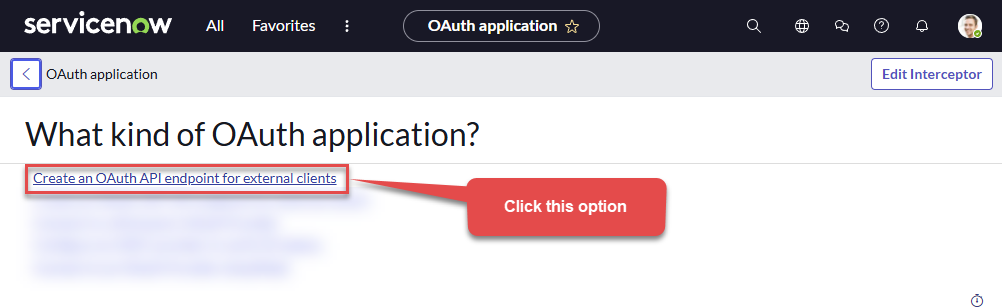
Continue by clicking Create an OAuth API endpoint for external clients option:
-
Move on by naming your OAuth application and entering a Client Secret (or let it be generated automatically).
- Click on the lock icon next to the Redirect URL. Enter
https://zappysys.com/oauth. This is not needed if you use Client Credentials Grant or Password Grant -
Finally give it a final touch by increasing the Refresh Token Lifespan value to
315,360,000(it should last for 10 years):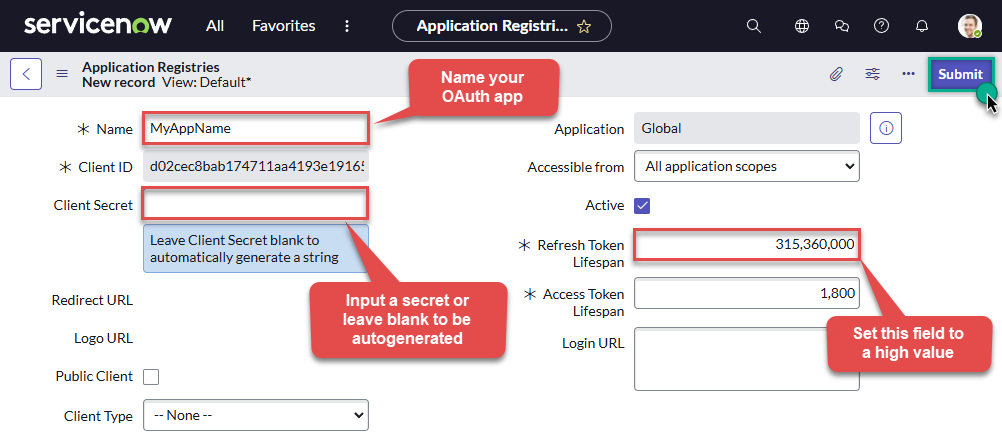
- Change Default Grant Type as per your need. NOTE: If you prefer to use Client Credentials grant (Service account style access without using real userid-password) then your admin must enable it. Client Credentials is only supported on instances where it is explicitly enabled by the ServiceNow administrator. Its not supported in Dev / Free instance.
-
Done! Now you can use Client ID and Client Secret when configuring OAuth Authentication parameters.
Enable Client Credentials Grant Type
-
Enable the Client Credentials Grant Type:
Go to System Properties > All Properties, create a new property named
glide.oauth.inbound.client.credential.grant_type.enabled, and set it to true. - Configure the OAuth Application: Navigate to System OAuth > Application Registry, click New, and select Create an OAuth API endpoint for external clients. Set the name and save the record. In the Default Grant Type field, select Client Credentials and associate it with the integration user.
API Connection Manager configuration
Just perform these simple steps to finish authentication configuration:
-
Set Authentication Type to
OAuth Authorization Code Grant (User Creds) [OAuth] - Optional step. Modify API Base URL if needed (in most cases default will work).
- Fill in all the required parameters and set optional parameters if needed.
- Press Generate Token button to generate the tokens.
- Finally, hit OK button:
ServiceNowOAuth Authorization Code Grant (User Creds) [OAuth]https://[$InstanceName$].service-now.com/api/nowRequired Parameters Redirect URI (***Must match as App Registry Page***) Fill-in the parameter... 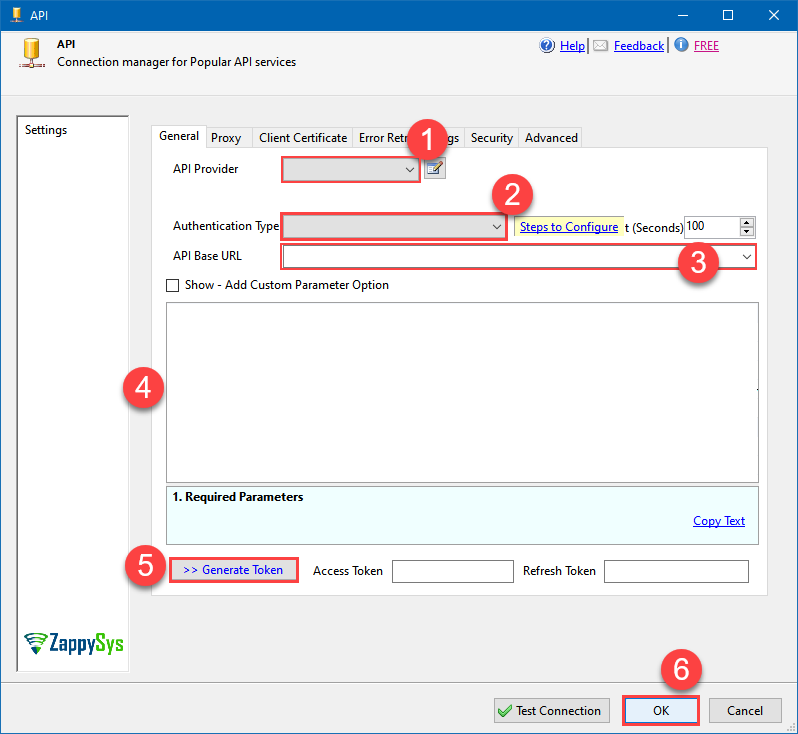 Find full details in the ServiceNow Connector authentication reference.
OAuth Client Credentials Grant (Must be enabled by Admin)
ServiceNow authentication
Authenticate using OAuth Client Credentials Grant (Client ID and Client Secret). [API reference]
Create OAuth application and use it for authentication:
- Login to your instance at https://your-instance-id.service-now.com.
-
Start by clicking on menu item All, then search for oauth, and click Application Registry option:
-
Then click button New:
-
Continue by clicking Create an OAuth API endpoint for external clients option:
-
Move on by naming your OAuth application and entering a Client Secret (or let it be generated automatically).
- Click on the lock icon next to the Redirect URL. Enter
https://zappysys.com/oauth. This is not needed if you use Client Credentials Grant or Password Grant -
Finally give it a final touch by increasing the Refresh Token Lifespan value to
315,360,000(it should last for 10 years):
- Change Default Grant Type as per your need. NOTE: If you prefer to use Client Credentials grant (Service account style access without using real userid-password) then your admin must enable it. Client Credentials is only supported on instances where it is explicitly enabled by the ServiceNow administrator. Its not supported in Dev / Free instance.
-
Done! Now you can use Client ID and Client Secret when configuring OAuth Authentication parameters.
Enable Client Credentials Grant Type
-
Enable the Client Credentials Grant Type:
Go to System Properties > All Properties, create a new property named
glide.oauth.inbound.client.credential.grant_type.enabled, and set it to true. - Configure the OAuth Application: Navigate to System OAuth > Application Registry, click New, and select Create an OAuth API endpoint for external clients. Set the name and save the record. In the Default Grant Type field, select Client Credentials and associate it with the integration user.
API Connection Manager configuration
Just perform these simple steps to finish authentication configuration:
-
Set Authentication Type to
OAuth Client Credentials Grant (Must be enabled by Admin) [OAuth] - Optional step. Modify API Base URL if needed (in most cases default will work).
- Fill in all the required parameters and set optional parameters if needed.
- Finally, hit OK button:
ServiceNowOAuth Client Credentials Grant (Must be enabled by Admin) [OAuth]https://[$InstanceName$].service-now.com/api/nowThere are no parameters to configure. 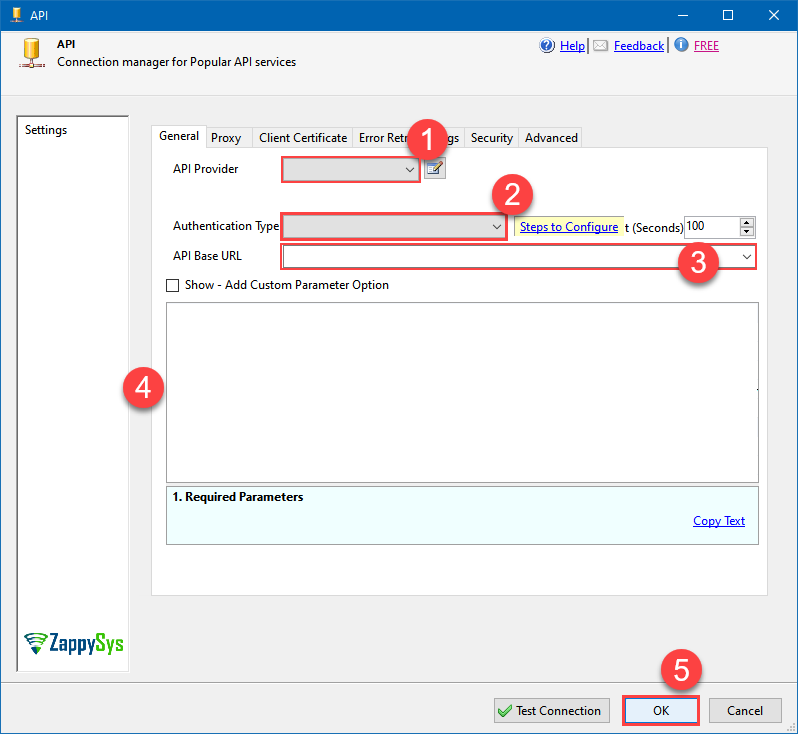 Find full details in the ServiceNow Connector authentication reference.
OAuth Password Grant
ServiceNow authentication
Authenticate using OAuth Password Grant (ServiceNow instance username, password, OAuth Client ID, and Client Secret). [API reference]
Create OAuth application and use it for authentication:
- Login to your instance at https://your-instance-id.service-now.com.
-
Start by clicking on menu item All, then search for oauth, and click Application Registry option:
-
Then click button New:
-
Continue by clicking Create an OAuth API endpoint for external clients option:
-
Move on by naming your OAuth application and entering a Client Secret (or let it be generated automatically).
- Click on the lock icon next to the Redirect URL. Enter
https://zappysys.com/oauth. This is not needed if you use Client Credentials Grant or Password Grant -
Finally give it a final touch by increasing the Refresh Token Lifespan value to
315,360,000(it should last for 10 years):
- Change Default Grant Type as per your need. NOTE: If you prefer to use Client Credentials grant (Service account style access without using real userid-password) then your admin must enable it. Client Credentials is only supported on instances where it is explicitly enabled by the ServiceNow administrator. Its not supported in Dev / Free instance.
-
Done! Now you can use Client ID and Client Secret when configuring OAuth Authentication parameters.
Enable Client Credentials Grant Type
-
Enable the Client Credentials Grant Type:
Go to System Properties > All Properties, create a new property named
glide.oauth.inbound.client.credential.grant_type.enabled, and set it to true. - Configure the OAuth Application: Navigate to System OAuth > Application Registry, click New, and select Create an OAuth API endpoint for external clients. Set the name and save the record. In the Default Grant Type field, select Client Credentials and associate it with the integration user.
API Connection Manager configuration
Just perform these simple steps to finish authentication configuration:
-
Set Authentication Type to
OAuth Password Grant [OAuth] - Optional step. Modify API Base URL if needed (in most cases default will work).
- Fill in all the required parameters and set optional parameters if needed.
- Finally, hit OK button:
ServiceNowOAuth Password Grant [OAuth]https://[$InstanceName$].service-now.com/api/nowRequired Parameters User name Fill-in the parameter... Password Fill-in the parameter...
Find full details in the ServiceNow Connector authentication reference. -
Select Download Table Attachments (Multiple - Using Query) endpoint from the dropdown and hit Preview Data:
 API Source - ServiceNowRead and write ServiceNow data effortlessly. Integrate, manage, and automate incidents, tasks, attachments, and records — almost no coding required.ServiceNowDownload Table Attachments (Multiple - Using Query)
Required Parameters SaveFolder Fill-in the parameter... Optional Parameters Output Mode True TableName (for attachments) ParentSysId Fields to include in response (Keep blank to get all fields -OR- Enter comma separated list) Attachment Filter / Order By OverwriteFile True ContinueOn404Error True 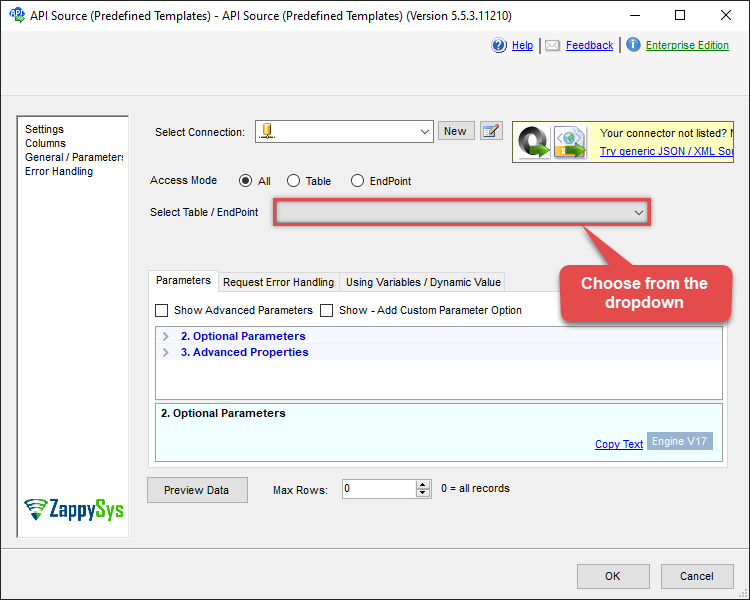
-
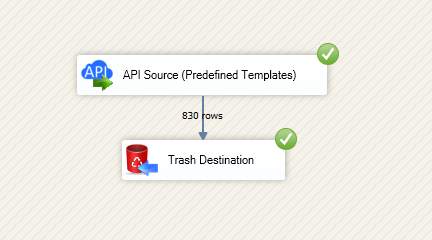
That's it! We are done! Just in a few clicks we configured the call to ServiceNow using ServiceNow Connector.
You can load the source data into your desired destination using the Upsert Destination , which supports SQL Server, PostgreSQL, and Amazon Redshift. We also offer other destinations such as CSV , Excel , Azure Table , Salesforce , and more . You can check out our SSIS PowerPack Tasks and components for more options. (*loaded in Trash Destination)
ServiceNow Connector actions
Need another use case? Pick the next ServiceNow action in SSIS below.
- Delete a Table Row
- Delete Attachment
- Delete table row
- Download Table Attachment (Single - Using Id)
- Download Table Attachments By Parent Row Search
- Get Attachments
- Get Attachments By Parent Row Search
- Get List Of System Tables Admin Use Sys Db Object
- Get List of Tables
- Get List Of Tables Admin Use Sys Db Object
- Get List Of User Tables Admin Use Sys Db Object
- Get Record Labels (Tags)
- Get Table Columns
- Get Table Columns Admin Use Sys Dictionary
- Get Table Row Count
- Get Table Rows
- Test Connection
- Update a Table Row
- Upload Attachment
- Make Generic REST API Request
- Make Generic REST API Request (Bulk Write)
Conclusion
You now know how to download table attachments (multiple - using query) in SSIS without writing complex code. ServiceNow SSIS Connector handled pagination and authentication automatically.
Ready to get started? Download the trial or ping us via chat if you need help: