

Authentication OAuth Authorization Code Grant (User Creds)
Description
Authenticate using OAuth 2.0 Authorization Code Flow (3-legged)
Instructions
Create OAuth application and use it for authentication:
- Login to your instance at https://your-instance-id.service-now.com.
-
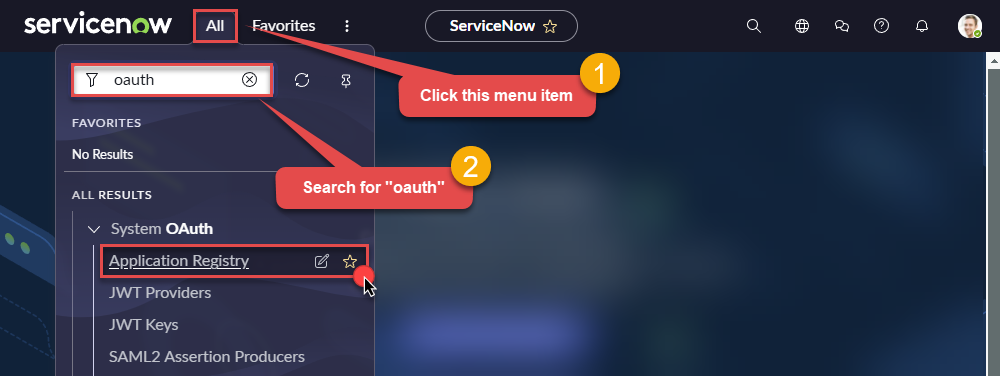
Start by clicking on menu item All, then search for oauth, and click Application Registry option:
-
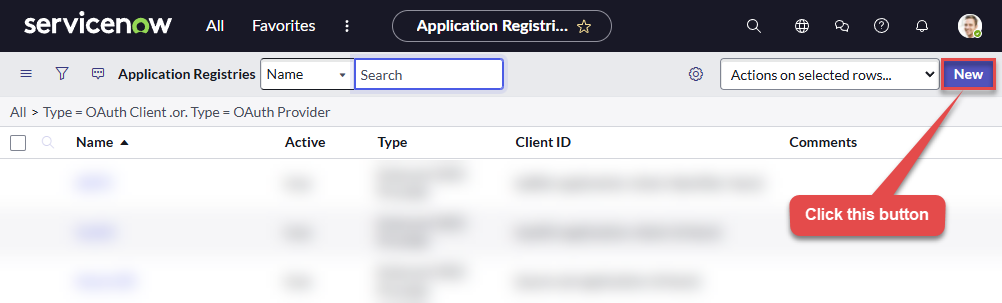
Then click button New:
-
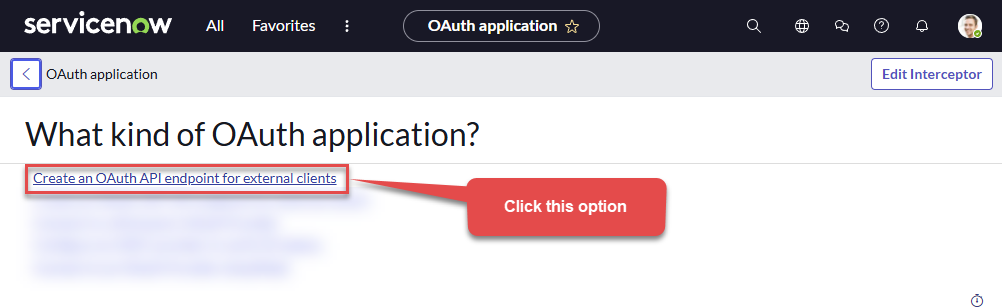
Continue by clicking Create an OAuth API endpoint for external clients option:
-
Move on by naming your OAuth application and entering a Client Secret (or let it be generated automatically).
- Click on the lock icon next to the Redirect URL. Enter
https://zappysys.com/oauth. This is not needed if you use Client Credentials Grant or Password Grant -
Finally give it a final touch by increasing the Refresh Token Lifespan value to
315,360,000(it should last for 10 years):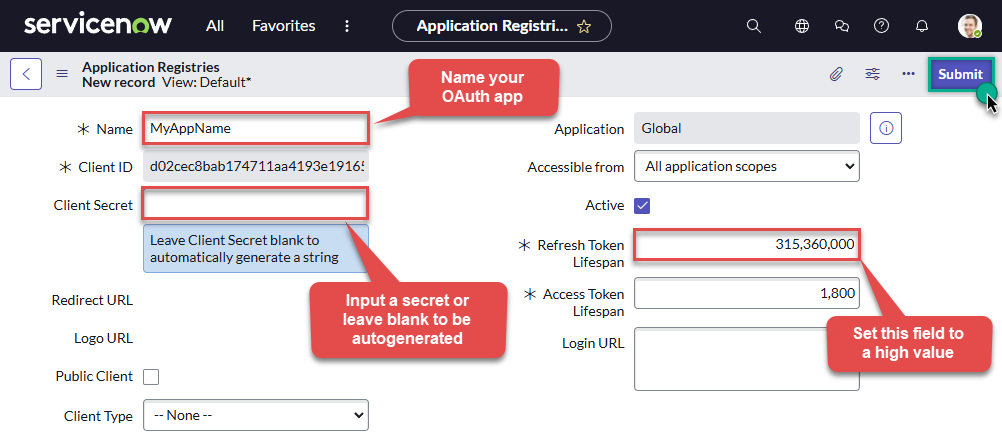
- Change Default Grant Type as per your need. NOTE: If you prefer to use Client Credentials grant (Service account style access without using real userid-password) then your admin must enable it. Client Credentials is only supported on instances where it is explicitly enabled by the ServiceNow administrator. Its not supported in Dev / Free instance.
-
Done! Now you can use Client ID and Client Secret when configuring OAuth Authentication parameters.
Enable Client Credentials Grant Type
-
Enable the Client Credentials Grant Type:
Go to System Properties > All Properties, create a new property named
glide.oauth.inbound.client.credential.grant_type.enabled, and set it to true. - Configure the OAuth Application: Navigate to System OAuth > Application Registry, click New, and select Create an OAuth API endpoint for external clients. Set the name and save the record. In the Default Grant Type field, select Client Credentials and associate it with the integration user.
Parameters
| Parameter | Required | Default value | Options |
|---|---|---|---|
|
Name:
Label: Redirect URI (***Must match as App Registry Page***) |
YES |
https://zappysys.com/oauth
|