

Video tutorial
Watch this quick video to see the integration in action. It walks you through the end-to-end setup, including:
- Installing the SSIS PowerPack
- Configuring a secure connection to Dropbox
- Working with Dropbox data directly inside SSIS
- Exploring advanced API Source features
Ready to dive in? Download the product to jump right in, or follow the step-by-step guide below to see how it works.
Prerequisites
Before we begin, make sure the following prerequisites are met:
- SQL Server Data Tools (SSDT) designer installed for Visual Studio.
- SQL Server Integration Services Projects 2022+ Visual Studio extension installed.
- SSIS PowerPack is installed.
Read CSV file in SSIS
-
Open Visual Studio and click Create a new project.
-
Select Integration Services Project. Enter a name and location for your project, then click OK.
-
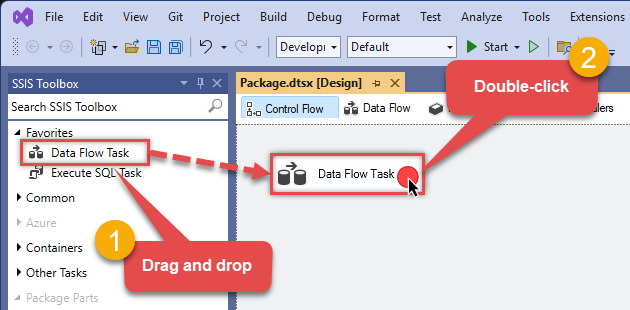
From the SSIS Toolbox, drag and drop a Data Flow Task onto the Control Flow surface, and double-click it:
-
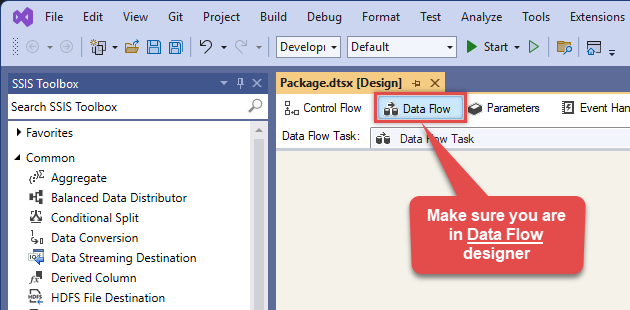
Make sure you are in the Data Flow Task designer:
-
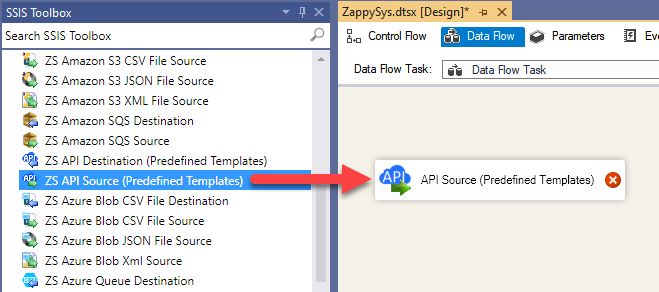
From the SSIS toolbox drag and API Source (Predefined Templates) on the data flow designer surface, and double click on it to edit it:
-
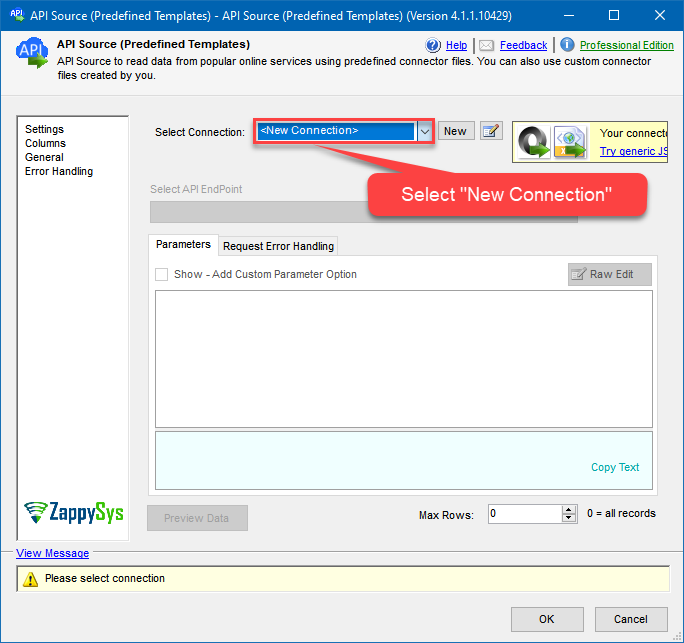
Select New Connection to create a new connection:
-
Use a preinstalled Dropbox Connector from Popular Connector List or press Search Online radio button to download Dropbox Connector. Once downloaded simply use it in the configuration:
Dropbox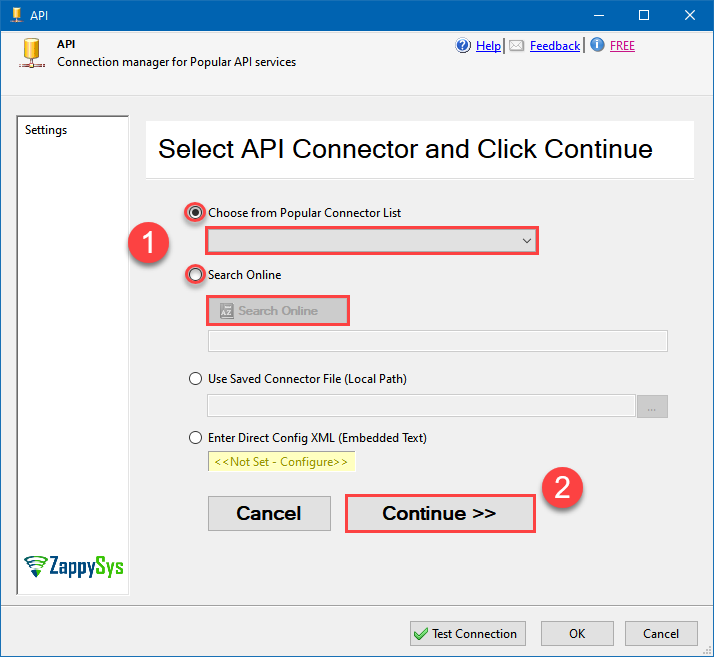
-
Select your authentication scenario below to expand connection configuration steps to:
- Configure the authentication in Dropbox.
- Enter those details into the API Connection Manager configuration.
User Account
Dropbox authentication
To use OAuth authentication, firstly, you need to create OAuth application:
- Log into your Dropbox account.
- Go to Dropbox My Apps.
-
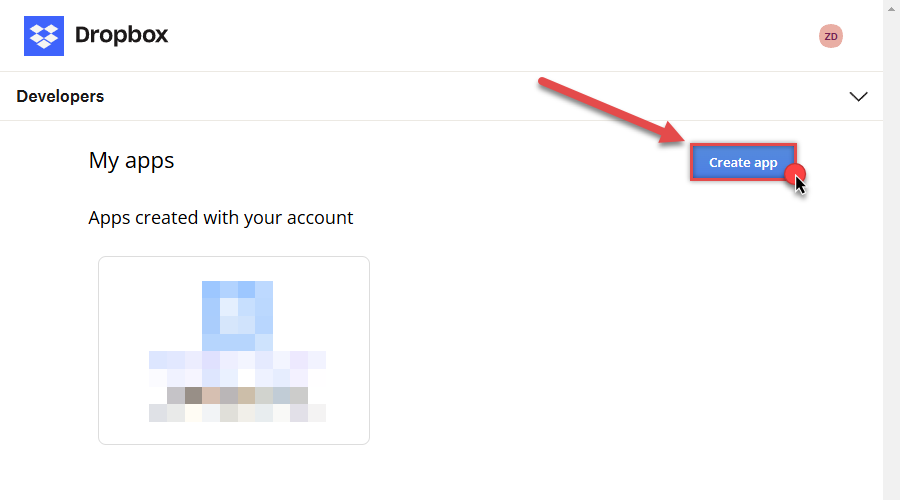
Then press Create app button to create a new app:
-
Once a new page opens, select Scoped access option:
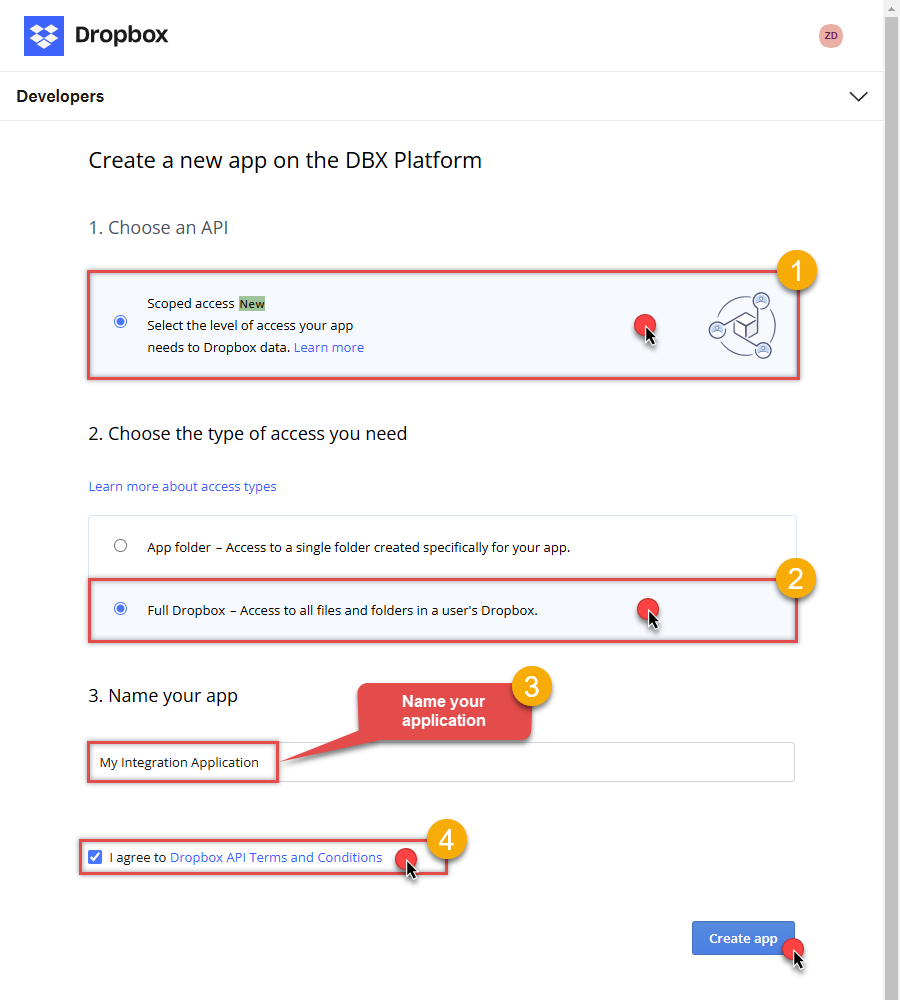
- Next, select Full Dropbox to access all files and folders or App folder to access specific folder's files and folders option.
- Continue by giving your app a name.
- Then check I agree to Dropbox API Terms and Conditions checkbox.
- Click Create app button.
-
Once a new page opens, click Enable additional teams and Enable additional users buttons:
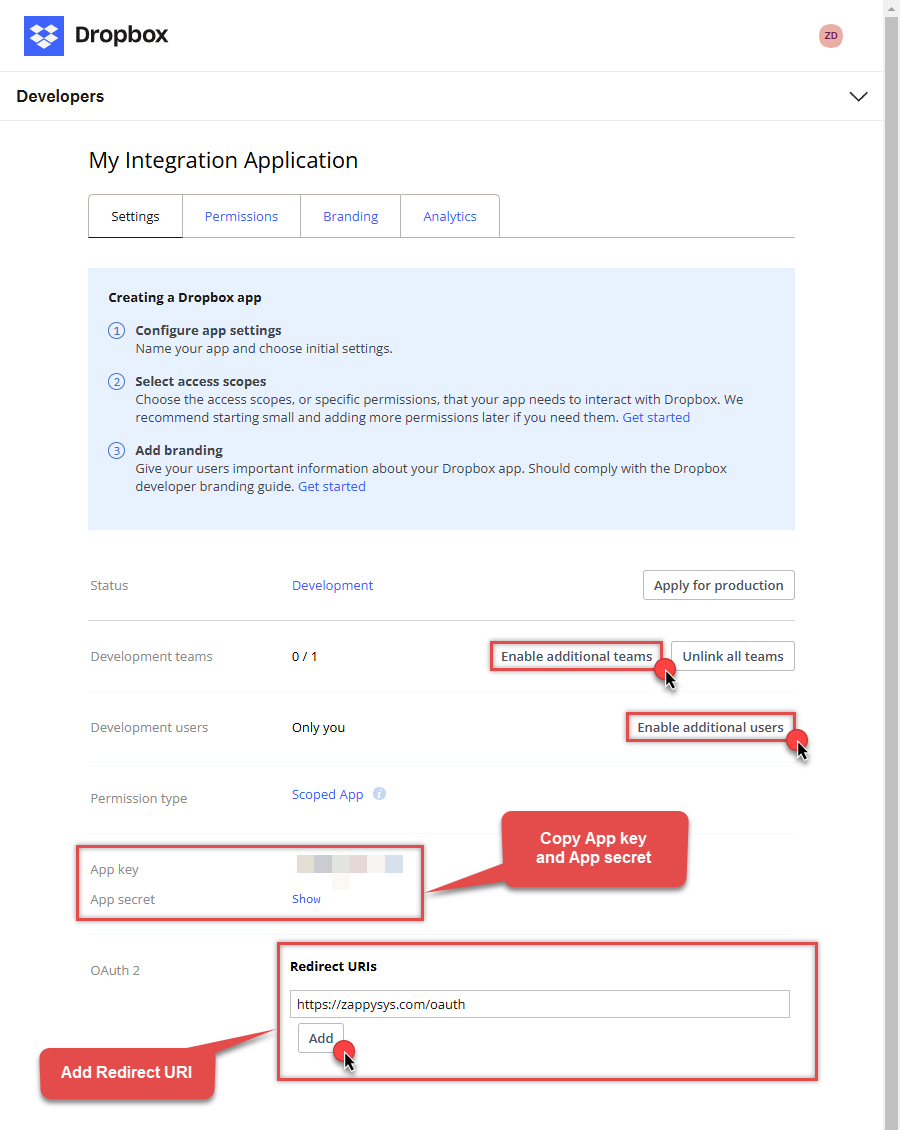
- Then copy App key and App secret and copy paste them into your favorite text editor (you will need them later).
-
Proceed by setting a Redirect URI and clicking Add button.
NOTE: If you don't have a working Redirect URI, you can use
https://zappysys.com/oauth(it's safe). -
Then click on Permissions tab and select application scopes:
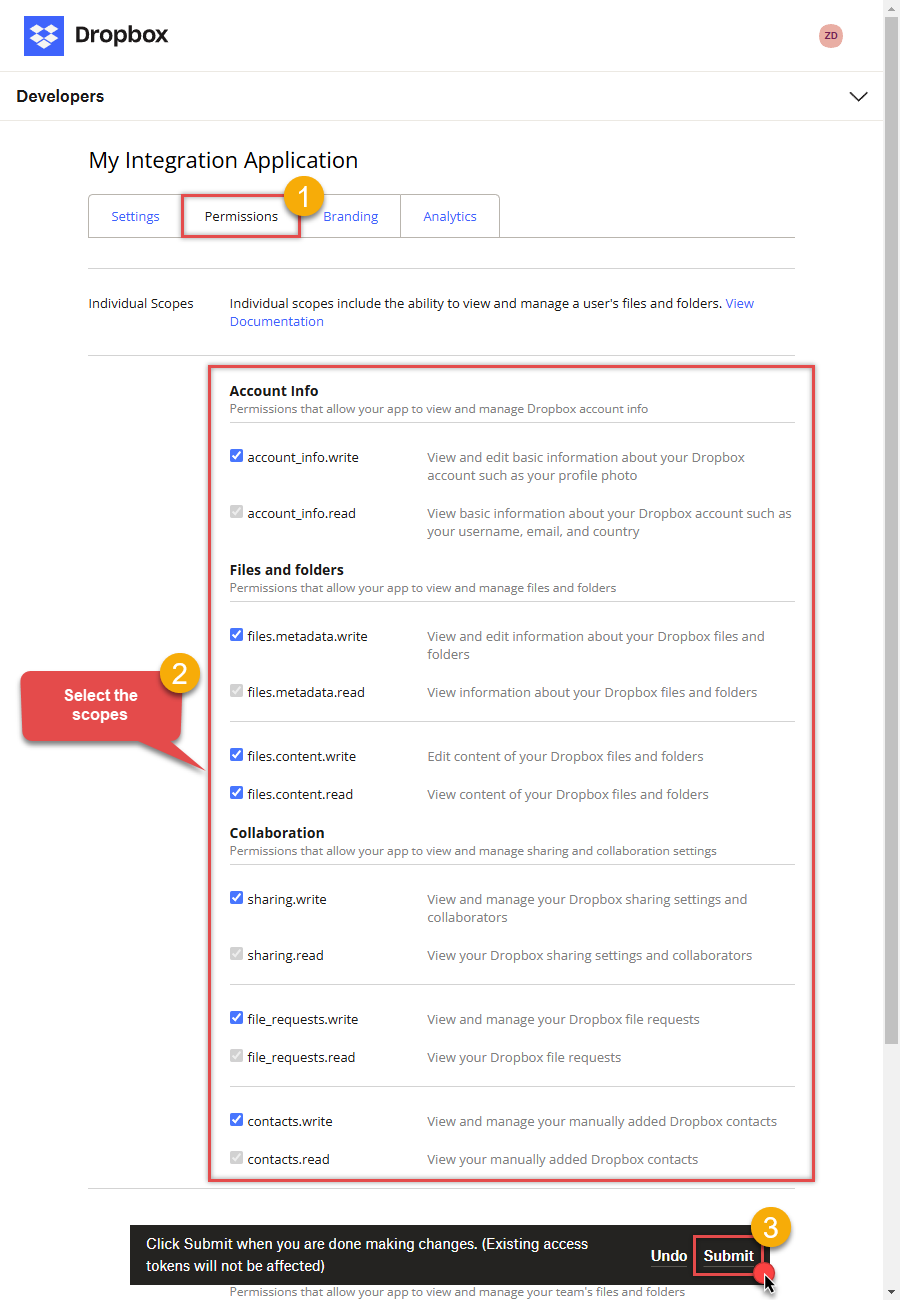
- Select all Individual Scopes and Team Scopes if you want to manage team data.
- Click Submit button.
-
Now go to SSIS package or ODBC data source and in User Account authentication set these parameters:
- For ClientId field use App key value.
- For ClientSecret field use App secret value.
- For ReturnUrl field use Redirect URI value.
- Done! Now you are ready to use Dropbox Connector!
NOTE: If you are planning to use your current data connection/token for automated processes, we recommend that you use a generic account for token generation when the login box appears (e.g. sales_automation@mycompany.com instead of bob_smith@mycompany.com). When you use a personal account which is tied to a specific employee profile and that employee leaves the company, the token may become invalid and any automated processes using that token will fail. Another potentially unwanted effect of using a personal token is incorrect logging; the API calls (e.g. Read, Edit, Delete, Upload) made with that token will record the specific user as performing the calls instead of an automated process.API Connection Manager configuration
Just perform these simple steps to finish authentication configuration:
-
Set Authentication Type to
User Account [OAuth] - Optional step. Modify API Base URL if needed (in most cases default will work).
- Fill in all the required parameters and set optional parameters if needed.
- Press Generate Token button to generate the tokens.
- Finally, hit OK button:
DropboxUser Account [OAuth]https://api.dropboxapi.com/2/Required Parameters UseCustomApp Fill-in the parameter... ReturnUrl Fill-in the parameter... Optional Parameters ClientId ClientSecret Scope RetryMode RetryWhenStatusCodeMatch RetryStatusCodeList 429 RetryCountMax 5 RetryMultiplyWaitTime True 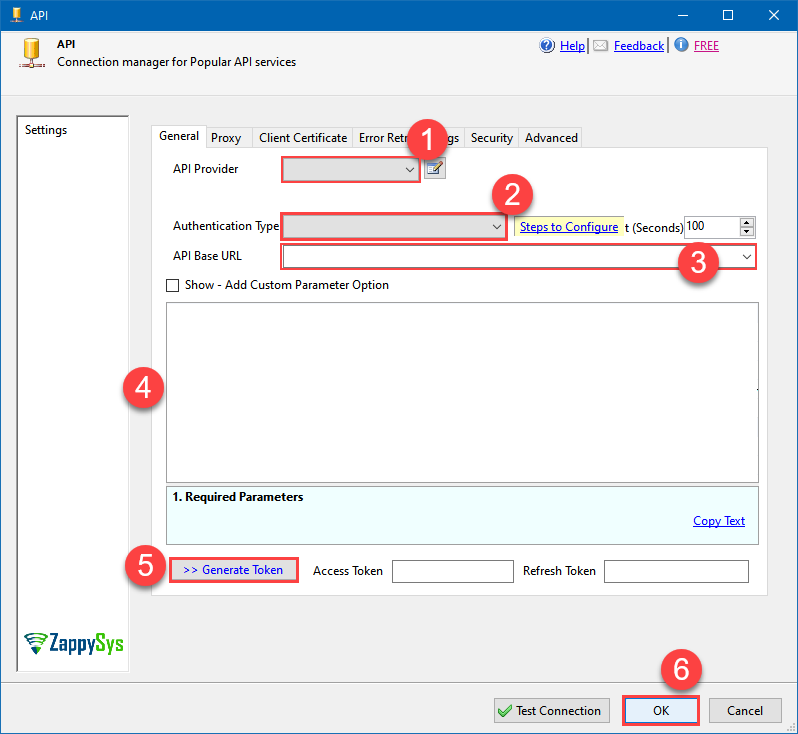 Find full details in the Dropbox Connector authentication reference.
 -
Select Read CSV file endpoint from the dropdown and hit Preview Data:
 API Source - DropboxRead and write Dropbox data effortlessly. Integrate, manage, and automate files and folders — almost no coding required.DropboxRead CSV file
Required Parameters File path or ID Fill-in the parameter... 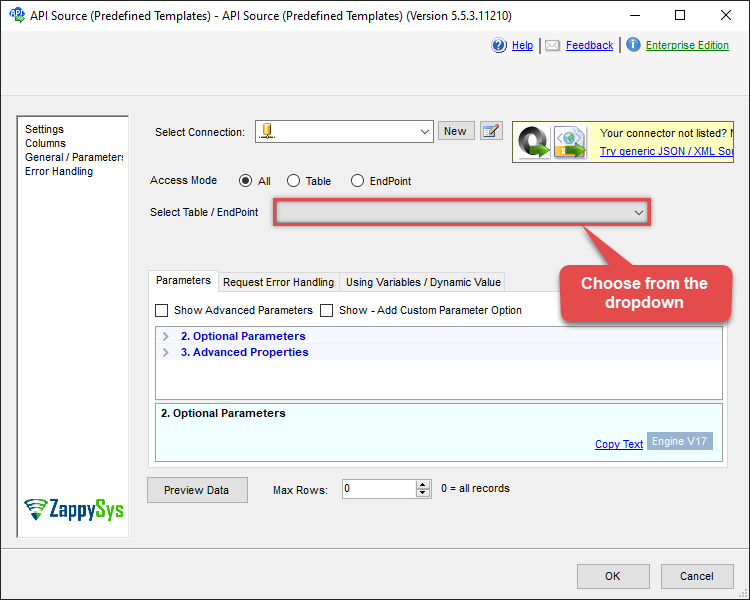
-
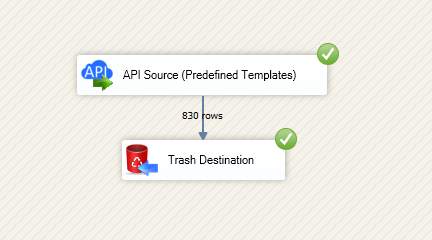
That's it! We are done! Just in a few clicks we configured the call to Dropbox using Dropbox Connector.
You can load the source data into your desired destination using the Upsert Destination , which supports SQL Server, PostgreSQL, and Amazon Redshift. We also offer other destinations such as CSV , Excel , Azure Table , Salesforce , and more . You can check out our SSIS PowerPack Tasks and components for more options. (*loaded in Trash Destination)
Dropbox Connector actions
Need another use case? Pick the next Dropbox action in SSIS below.
- Create folder
- Delete file or folder
- Download file
- Download folder as ZIP archive
- List files
- List files and folders
- Make connection test
- Read CSV files from folder
- Upload file
- Make Generic REST API Request
- Make Generic REST API Request (Bulk Write)
Conclusion
You now know how to read CSV file in SSIS without writing complex code. Dropbox SSIS Connector handled pagination and authentication automatically.
Ready to get started? Download the trial or ping us via chat if you need help: