Introduction
 Airtable is a cloud-based platform that combines spreadsheet simplicity with database capabilities. Teams use Airtable to manage projects, operations, CRM workflows, and content pipelines. Many organisations need Airtable data in SQL Server for reporting, analytics, and downstream data integration.
In this tutorial, you will learn how to connect to Airtable APIs using SQL Server Integration Services (SSIS) with the ZappySys SSIS PowerPack. This approach helps you build repeatable ETL pipelines without writing custom API integration code.
Prerequisites
Before we perform the steps listed in this article, make sure the prerequisites are met:- Basic knowledge of SSIS package development using Microsoft SQL Server Integration Services.
- Make sure the SSIS designer is installed.
- Download and install ZappySys SSIS PowerPack.
Steps
Get Airtable Personal Access Token
- Sign in to your Airtable account.
- Go to your developer hub and create a Personal Access Token.
- Grant scopes required for reading records (for example,
data.records:readandschema.bases:readbased on your use case). - Allow access to the target base(s) and securely copy the token.
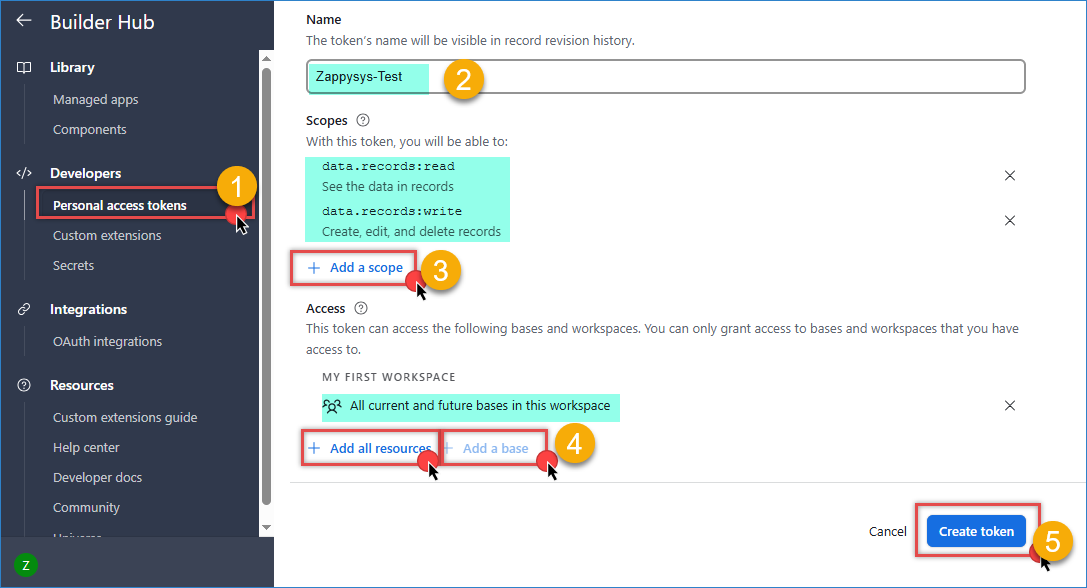
Airtable – Create a token
Get Airtable Base ID and Table ID
- Open the target table in Airtable.
- Copy the Base ID and Table ID from the URL or API documentation page.
- Keep these IDs handy because you will use them in the API URL, for example:
https://api.airtable.com/v0/{BASE_ID}/{TABLE_ID}
Create an HTTP Connection in SSIS
- Create or open your SSIS project and package.
- In Connection Managers, right-click and select New Connection….
- Select ZS-HTTP from the SSIS connectors list.
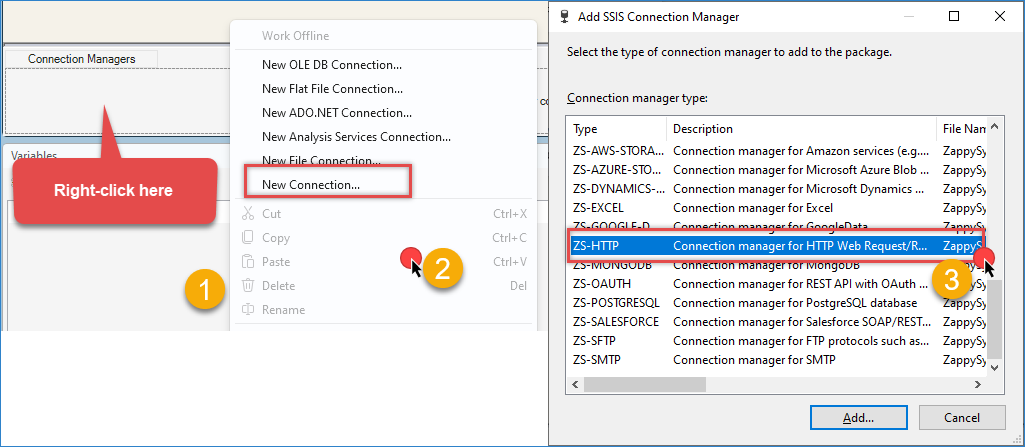
Create a new HTTP connection
- Set Credentials Type to Static token/API key.
- Paste your Airtable token in the token value field.
- Click OK to save the connection.
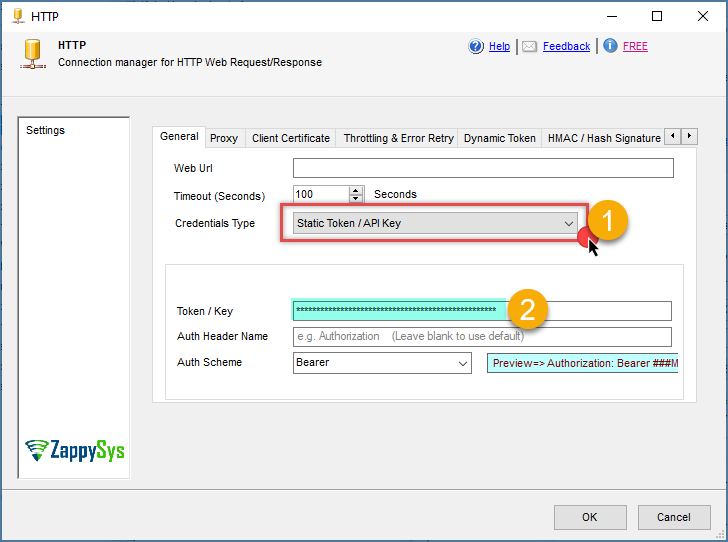
Airtable – Connection configuration
Create and Configure JSON Source
- In your SSIS package, navigate to the Variables section and create the following variables:
- BaseID(String) — Enter the Base ID.
- TableID (String) — Enter the Table ID.
- Drag a Data Flow Task into Control Flow and open it.
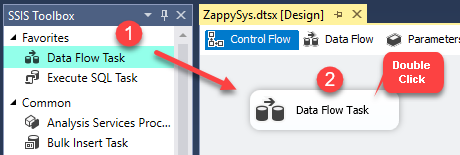
Dragging and dropping Data Flow Task into Control Flow
- In Data Flow, drag and drop the ZS JSON Source.
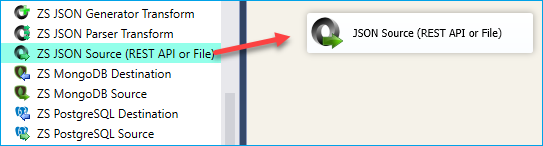
SSIS JSON Source – Drag and Drop
- Open the JSON Source editor and enable Use credentials.
- Select the Airtable HTTP connection you created earlier.
- Set the API URL. Example to extract records from a table:
1https://api.airtable.com/v0/{{User::BaseID}}/{{User::TableID}} - Set HTTP Request Method to GET.
- Set JSON Path Filter to:
1$.records[*] - Click Preview to confirm rows are returned, then click OK.
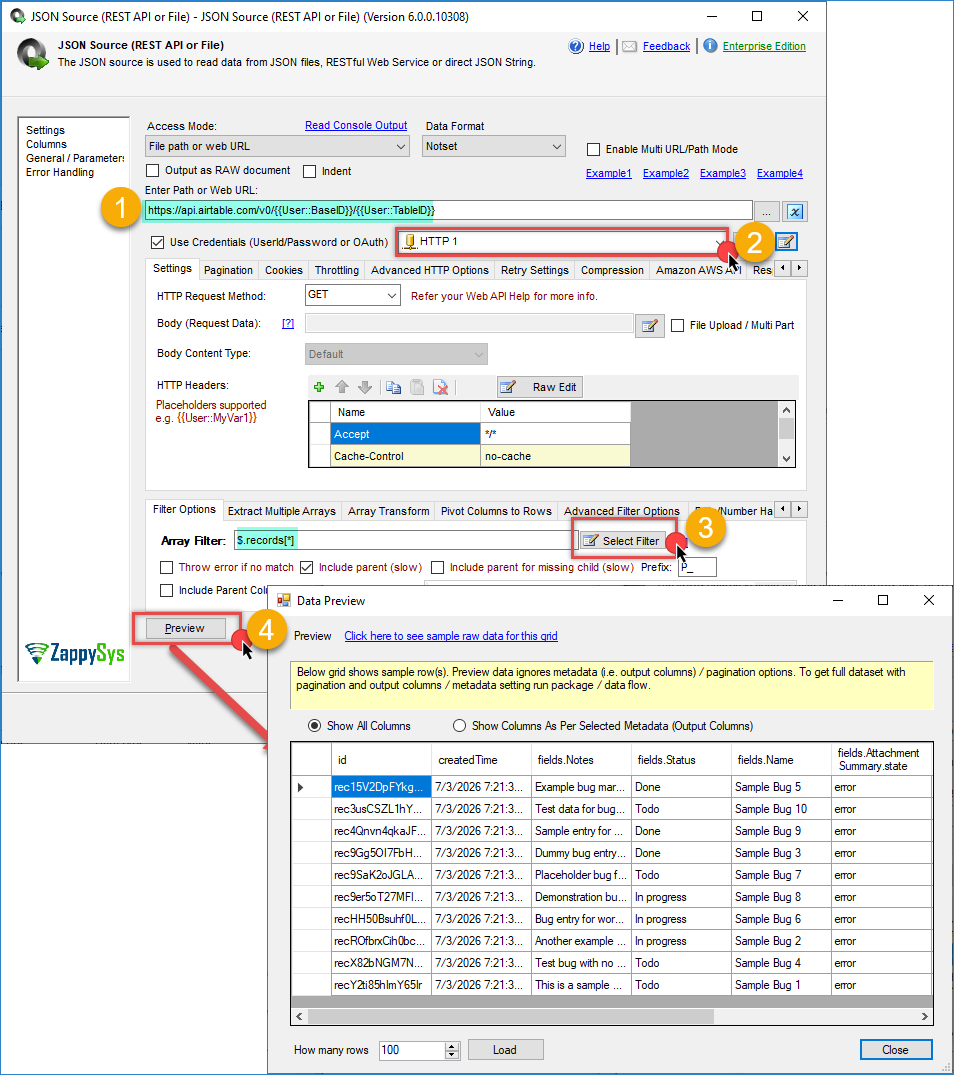
Airtable – JSON Source configuration
Configure Destination Component
- Add an Upsert destination (or another destination of your choice, such as a Trash destination or a JSON/CSV/XML destination).
- Connect the output arrow from JSON Source to the destination component.
- Configure your SQL Server connection and target table.
- Check the options you want to use: Insert or/and Update
- Map the source columns to destination columns in the Mappings section.
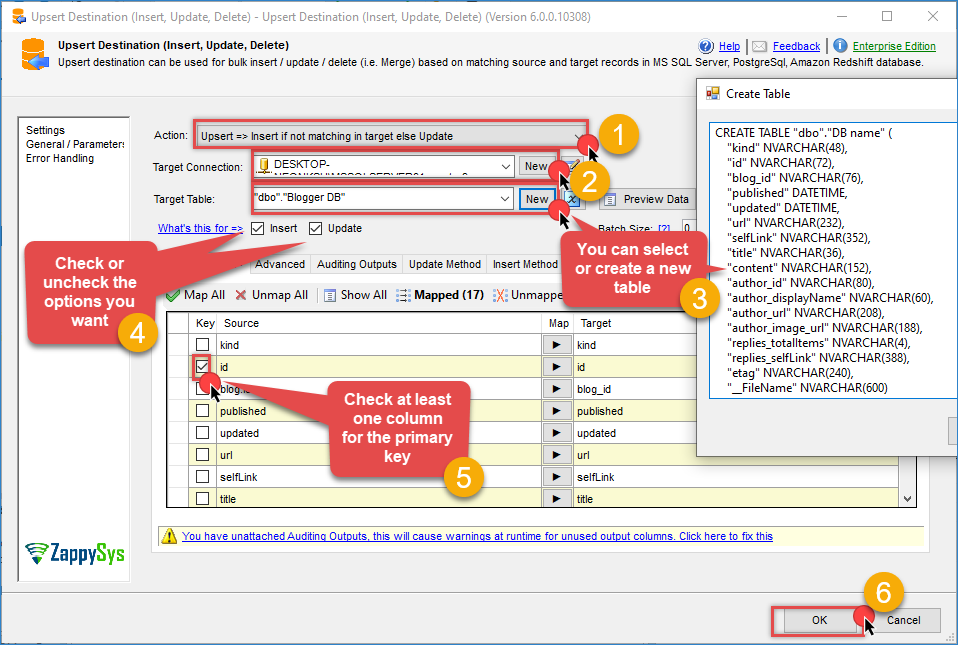
Airtable – Upsert destination
- Click OK and execute the package.
- Validate that Airtable rows have been loaded into your SQL Server table.
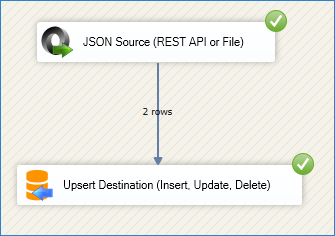
Airtable – Upsert Destination example
Conclusion
You now have a working SSIS integration to extract Airtable data using ZappySys SSIS PowerPack and Airtable APIs. With this pattern, you can automate extraction of operational records into SQL Server for reporting and analytics.
Explore the full capabilities of the ZappySys SSIS PowerPack to optimise your data integration tasks. By applying this pattern, you can extend your solution to include transformations, data validation, error handling, and scheduling through SQL Server Agent.
Need Help?
If you encounter any issues, our support team is here to help:
- Live Chat: Open the chat widget (bottom right of this page)
- Email: support@zappysys.com
- Support Center: Support | ZappySys