Introduction
 Airtable is a cloud-based platform that combines spreadsheet-style usability with relational data capabilities. Many teams use Airtable to manage projects, CRM pipelines, operations, and content workflows. To analyze this data at scale, you can connect Airtable to Power BI and build interactive reports.
Using the ZappySys ODBC Driver for REST APIs, you can query Airtable API data with SQL and load it into Power BI without writing custom integration code.
This tutorial shows how to create an Airtable ODBC DSN, configure API authentication, preview table data, connect Power BI, and run practical SQL queries.
Prerequisites
To access your data in your app using the ODBC Driver, ensure the following requirements are met. Download and install ZappySys ODBC PowerPackSteps
Create an Airtable Personal Access Token
- Sign in to your Airtable account.
- Go to the Airtable token page and click to create a new token.
- Grant the minimum required scopes for your scenario, such as data.records:read and schema.bases:read.
- Allow access to the specific base(s) and copy the token to a secure location.
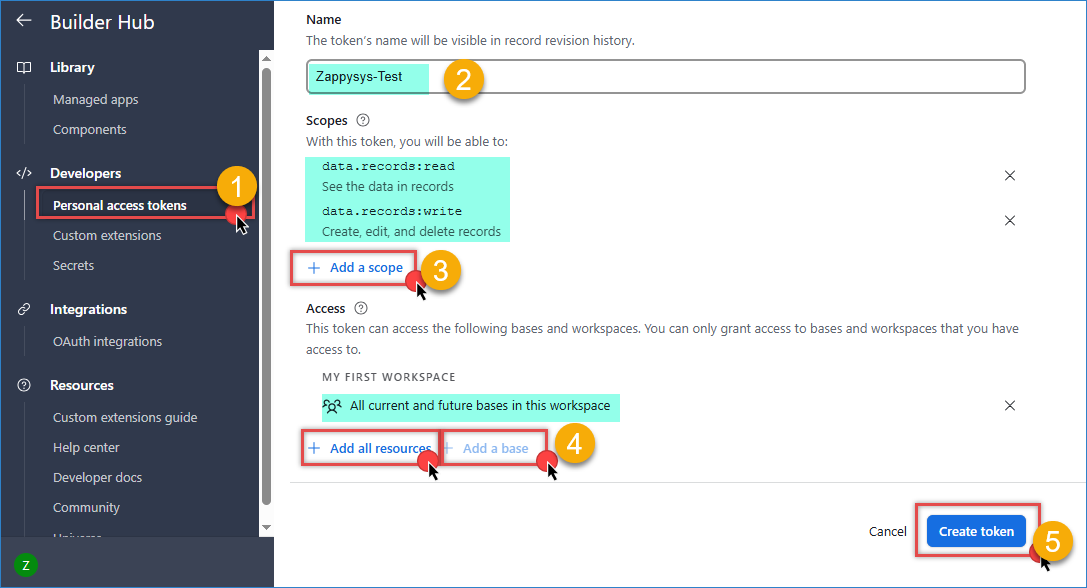
Airtable – Create a token
Get Airtable Base ID and Table ID
- Open the target table in Airtable.
- Copy the Base ID and Table ID from the URL or API documentation page.
- Keep these IDs handy because you will use them in the API URL, for example:
https://api.airtable.com/v0/{BASE_ID}/{TABLE_ID}
Create a New ODBC DSN Using ZappySys JSON Driver
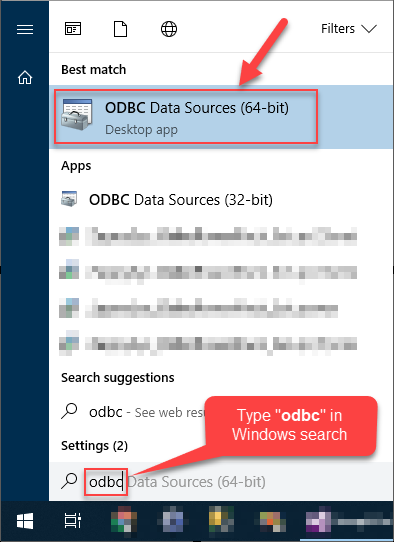
- Search for ODBC in the Windows Start menu and open ODBC Data Source Administrator.
- In User DSN or System DSN, click Add.
- Select ZappySys JSON Driver, then click Continue.

Configure Airtable API Connection
- Enter the Airtable API URL in this format:
https://api.airtable.com/v0/{BASE_ID}/{TABLE_ID} - In Connection Type, select HTTP and click Configure.
- Set Credential Type to Static Token / API Key.
- Paste your Airtable Personal Access Token in the token field.
- Click OK to save HTTP authentication settings.
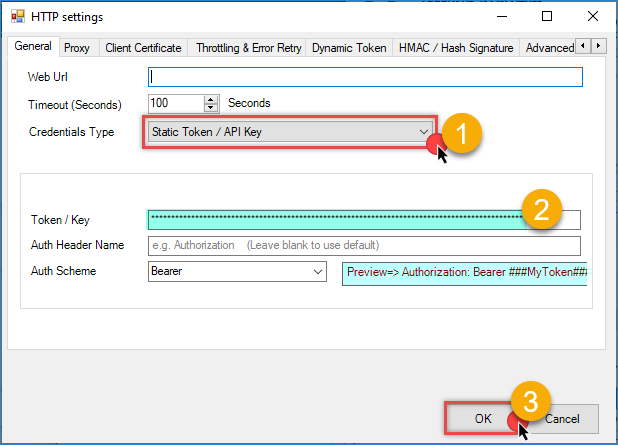
Airtable – ODBC HTTP Static token connection
- Set HTTP Request Method to GET.
- Set JSON Path Filter to:
$.records[*] - Click Test Connection, then click OK to save the DSN.
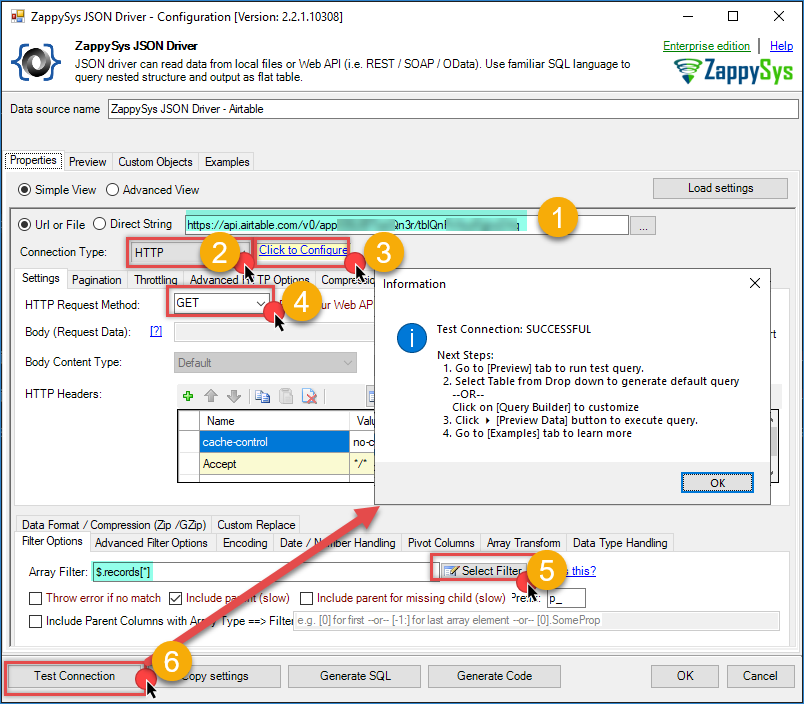
Airtable – JSON Driver configuration
Preview Airtable Data in ODBC Driver
- Open the Preview tab in the DSN configuration window.
- Generate a query and click Preview Data.
- Confirm rows are returned. If not, recheck token permissions, Base ID, Table ID, and JSON Path Filter.
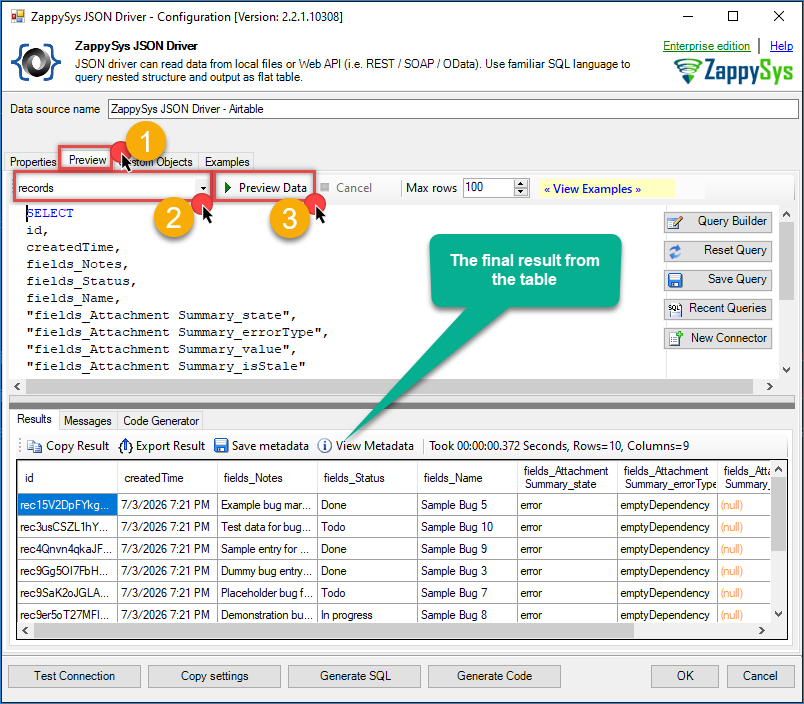
Airtable – JSON Driver result
Connect Power BI to Airtable via ODBC
- Open Power BI Desktop.
- Go to Home > Get Data > More….
- Search for ODBC and click Connect.
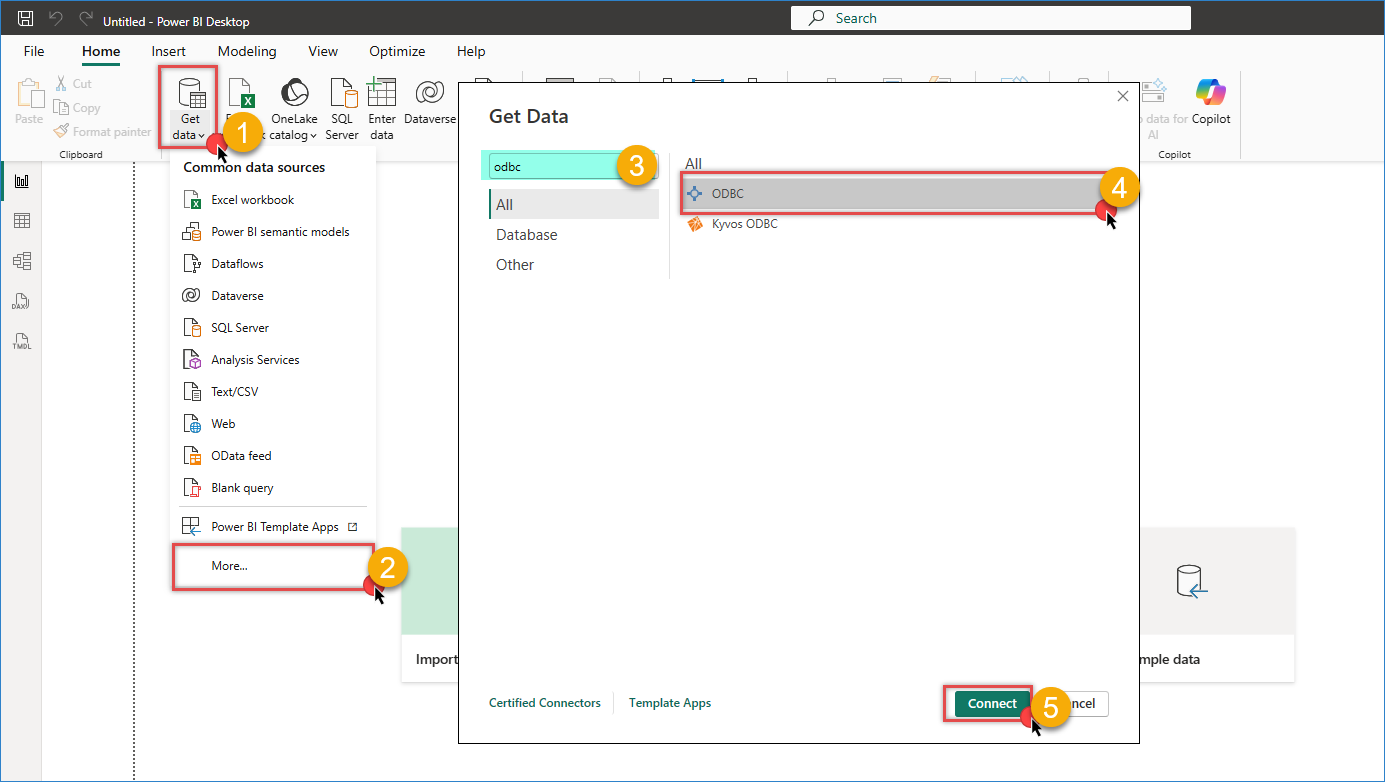
Power BI – Get data from ODBC connection
- Select your Airtable DSN from the data source list.
- Optionally enter a custom SQL query in Advanced options.
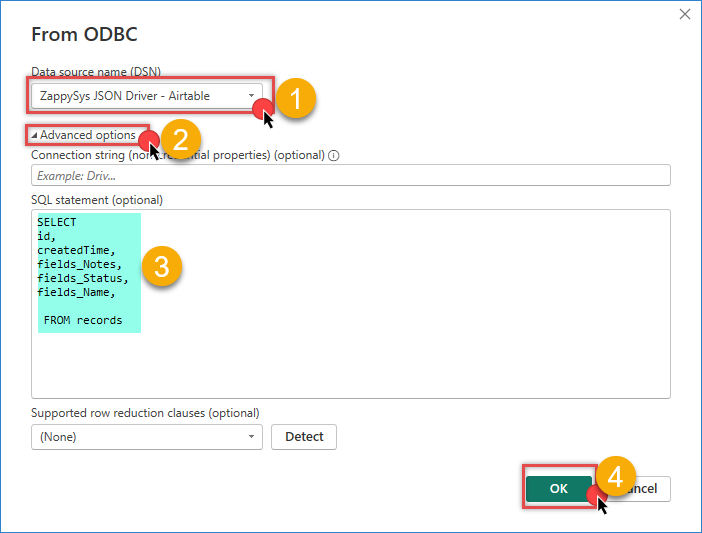
Airtable – Power BI select driver
- Click OK, review the preview, and click Load.
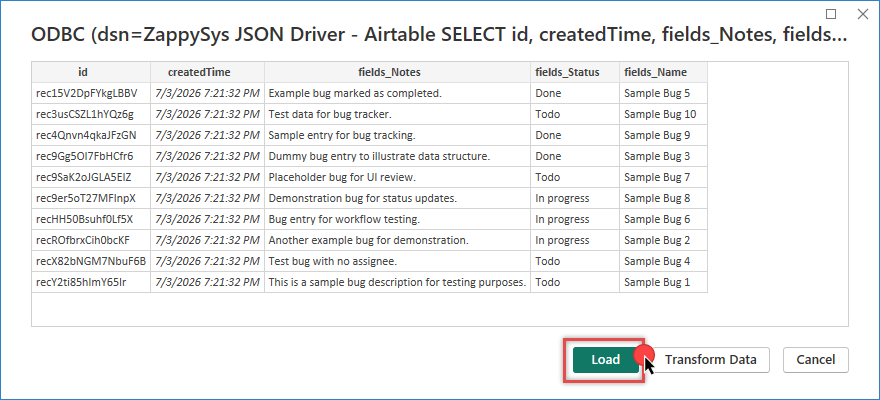
Airtable – Power BI preview
- In the Navigator, select fields or tables you want to import into your model.
Query Airtable Data with SQL
Use custom SQL queries in the ODBC driver or Power BI to shape data before loading, depending on your database; here are some examples for our table.
Example 1: Select Common Airtable Fields
|
1 2 3 4 5 6 7 8 |
SELECT id, createdTime, fields_Name AS Name, fields_Status AS Status, fields_Owner AS Owner, fields_Amount AS Amount FROM records |
Example 2: Filter Active Records
|
1 2 3 4 5 6 7 |
SELECT id, fields_Name, fields_Status, fields_Priority FROM records WHERE fields_Status = 'Done' |
Example 3: Recent Records (Last 7 Days)
|
1 2 3 4 5 6 |
SELECT id, fields_Name, createdTime FROM records WHERE createdTime >= <<<span class="hljs-string">today-7d,FUN_TO_DATE>></span> |
Example 4: Group by Status
|
1 2 3 4 5 6 |
SELECT fields_Status AS Status, COUNT(*) AS RecordCount FROM records GROUP BY fields_Status ORDER BY RecordCount DESC |
Conclusion
Connecting Airtable to Power BI using the ZappySys ODBC Driver gives you a fast, SQL-friendly way to build analytics on top of Airtable API data. You can centralise operational data, model it in Power BI, and publish dashboards for your team without building custom connectors.
Explore the full capabilities of the ZappySys ODBC Drivers to integrate Airtable and other APIs into your reporting workflow.
Need Help?
If you encounter any issues, our support team is here to help:
- Live Chat: Open the chat widget (bottom right of this page)
- Email: support@zappysys.com
- Support Center: Support | ZappySys