Introduction
 In our previous post, we explored how to read and write PostgreSQL data using the ZappySys PostgreSQL Source and Destination connectors for SSIS. In this article, you will learn how to connect MariaDB to PostgreSQL using ZappySys SSIS PowerPack and transfer data between both systems.
We will demonstrate a practical ETL pattern using ZappySys ODBC/JDBC connectivity to extract data from MariaDB and load it into PostgreSQL within SSIS.
Prerequisites
Before you begin, make sure you have the following:
- First, you will need to have SSIS installed
- Secondly, make sure to have SSDT
- Thirdly, access credentials for both MariaDB and PostgreSQL
- Finally, do not forget to install ZappySys SSIS PowerPack and ZappySys ODBC PowerPack
Steps
Configure MariaDB Connection Using ODBC (JDBC Bridge)
Since MariaDB connectivity is handled via JDBC, we will use the ZappySys JDBC Bridge Driver to expose it as an ODBC data source.
- Visit the official MariaDB website.
- Download the latest MariaDB JDBC driver.
- Save the
.jarfile locally, for example: D:\Zappysys\drivers\mariadb-java-client-3.5.7.jar - Download and install ZappySys ODBC PowerPack if not already installed.
- Open ODBC Data Sources (64-bit).
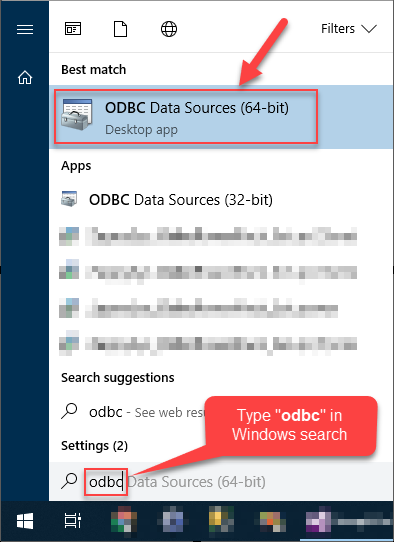
Open ODBC Data Sources
- Create a User data source (User DSN) based on ZappySys JDBC Bridge Driver:
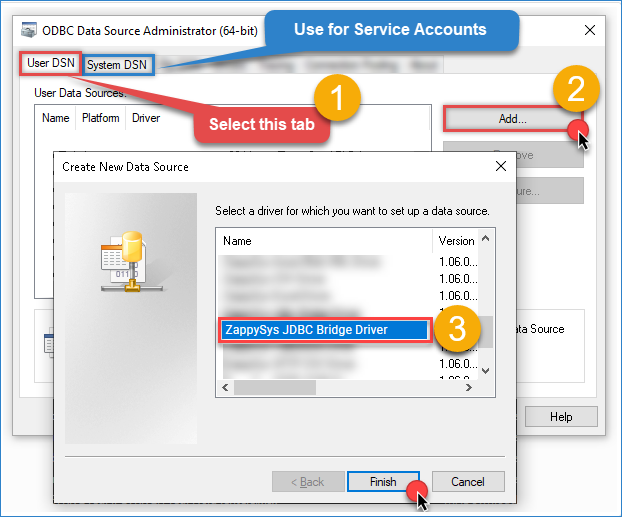
Create a User data source
- Configure the JDBC Connection. Fill in the connection details
- Connection String
jdbc:mariadb://{host-name}:{port}/{database-name}
- JDBC Driver File
D:\Zappysys\drivers\mariadb-java-client-3.5.7.jar
- Username
root
- Password
********
- Connection Parameters
[]
- Connection String
- Click Test Connection. If configured correctly, you should see a success message.
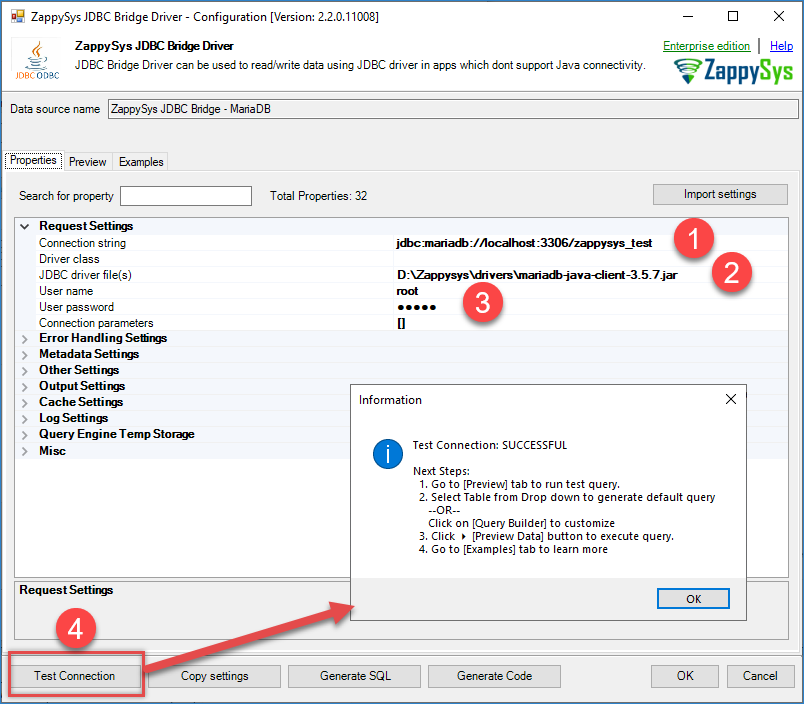
Zappysys JDBC – MariaDB
- You can also use the Preview tab to select the table and execute SQL queries. For advanced SQL examples, refer to the JDBC Bridge documentation.
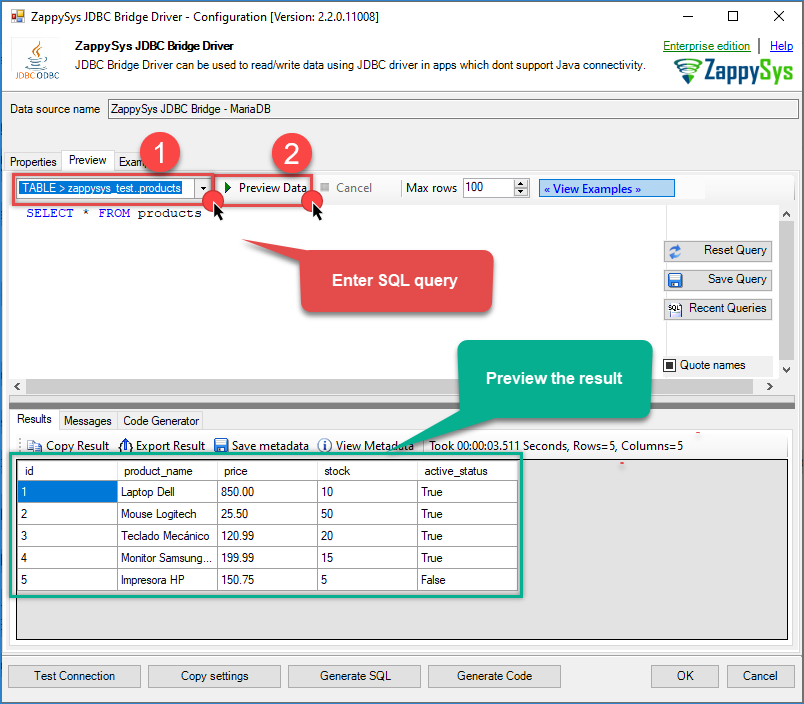
Zappysys JDBC – MariaDB preview result
Connect MariaDB to SSIS
- Open Visual Studio.
- Create a New Project.
- Select Integration Services Project.
- Provide a project name and location, then click OK.
- Drag and drop a Data Flow Task from the SSIS Toolbox onto the Control Flow surface.
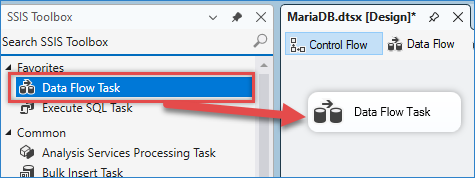
Drag and drop Data flow.
- Double-click the task to open the Data Flow Designer.
- Drag and drop an ODBC Source component into the Data Flow.
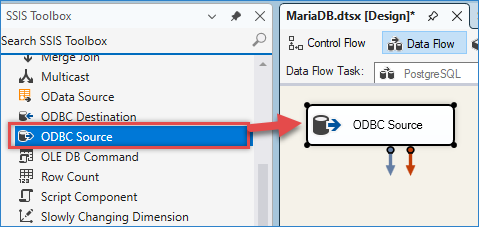
Drag and drop the ODBC source.
- Double-click the component to configure it.
- Click New… to create a new ODBC Connection Manager.
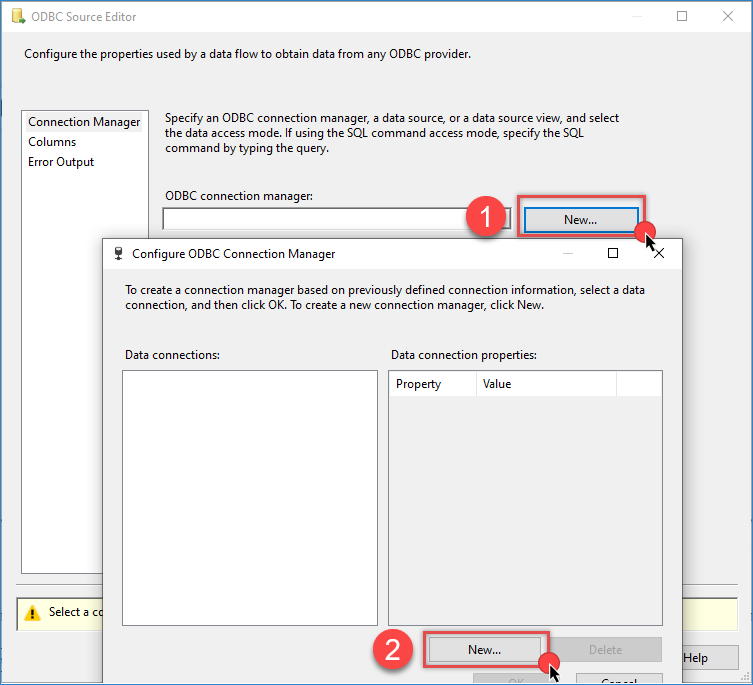
Creating an ODBC Connection Manager in SSIS
- Select the MariaDB ODBC DSN you created earlier.
- Click Test Connection and click OK to save the configuration.
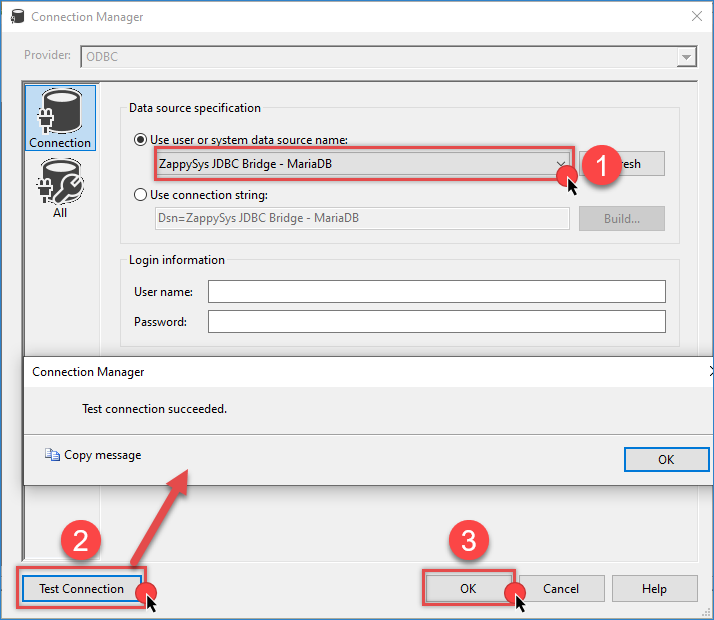
Creating an ODBC Connection Manager in SSIS from JDBC
- Choose Data Access Mode: Table name or SQL command.
- Select the desired table or enter a custom query.
- Click Preview to validate the data, and click OK to save the configuration.
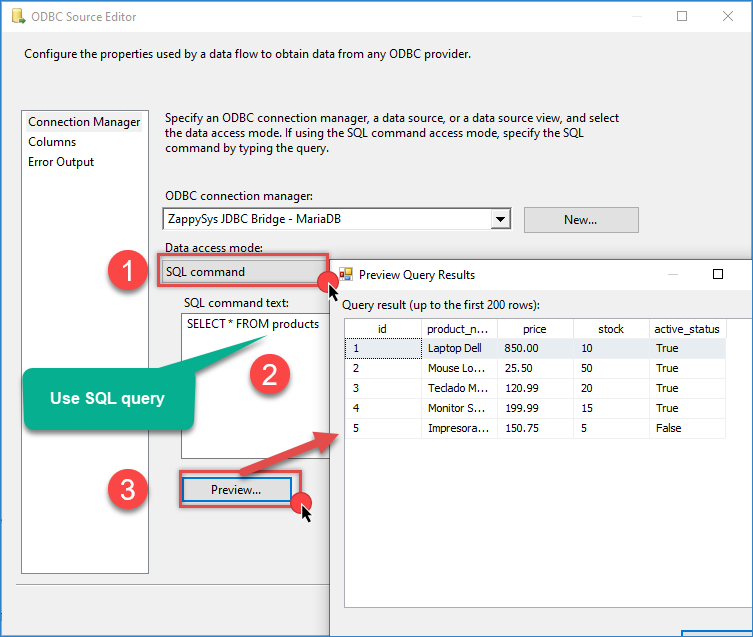
Preview an ODBC Connection Manager in SSIS from JDBC
Configure PostgreSQL Destination
- In the Connection Manager pane, click New Connection.
- Select ZS-POSTGRESQL.
- Configure the connection:
- Host
- Username
- Password
- Port
- Database name
- Use the other tabs for more configuration if needed
- Click Test Connection and Click OK.
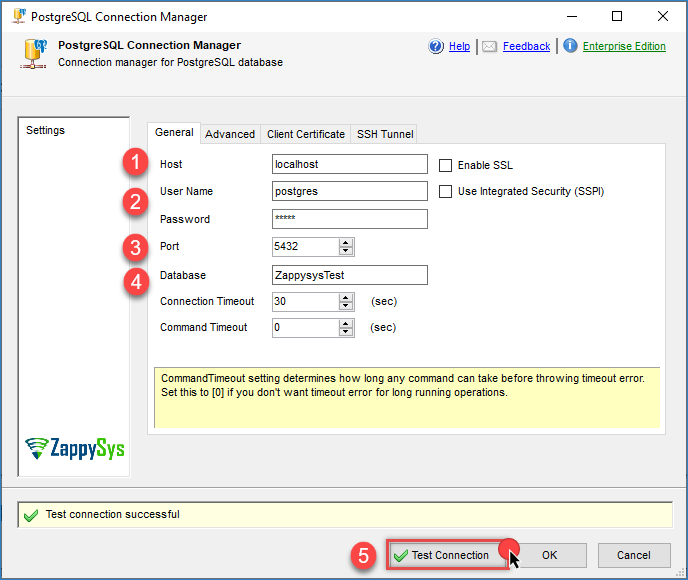
PostgreSQL connection configuration
- Drag and drop the PostgreSQL Destination component.
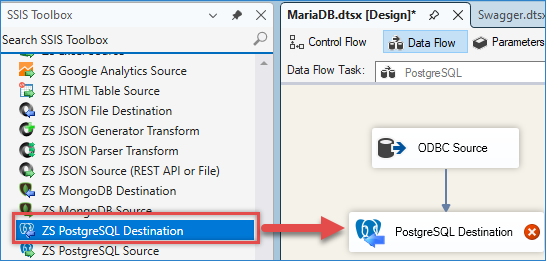
Drag and drop the PostgreSQL destination.
- Connect it to the ODBC Source and double-click to configure it.
- Select the PostgreSQL connection.
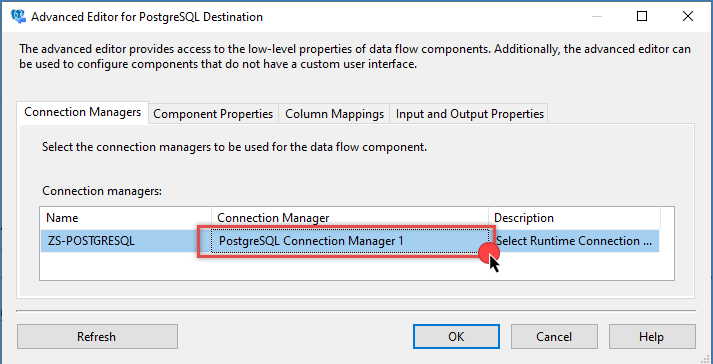
PostgreSQL Destination – Choose the connection
- Go to the Properties tab and choose the target table.
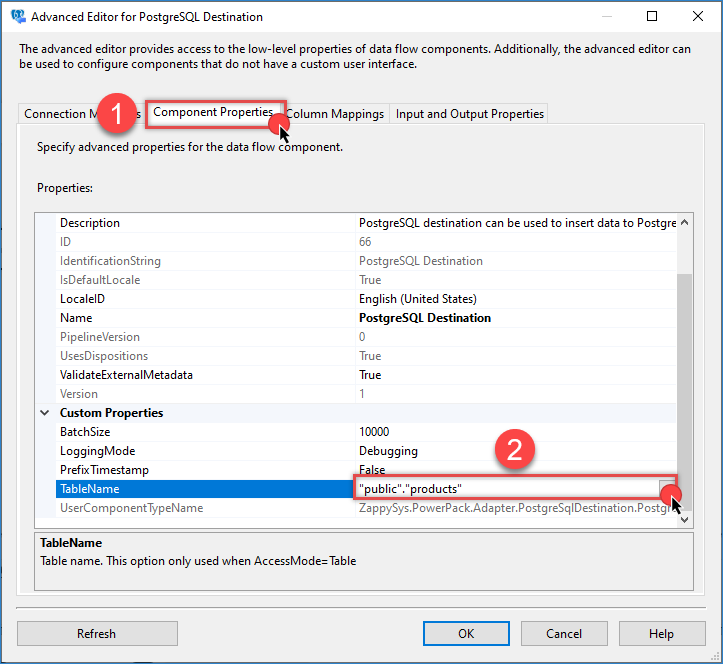
PostgreSQL Destination – Choose the target table
- Go to the Column Mappings tab and map source columns to destination columns.
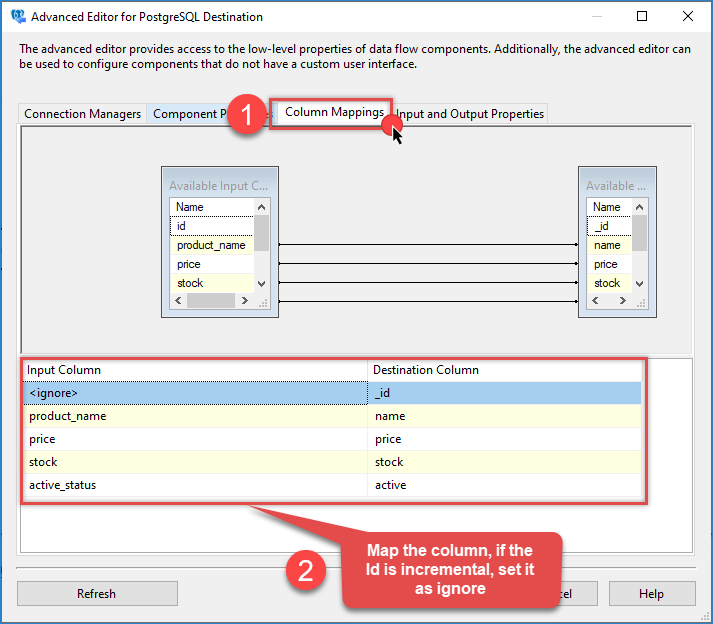
PostgreSQL Destination – Map the columns
- Click OK to save the configuration.
- Run the SSIS package. If everything is configured correctly, the data will be transferred from MariaDB to PostgreSQL.
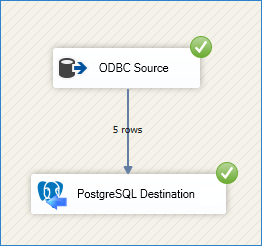
PostgreSQL Destination – Final result
Alternative Option — Using Upsert Destination
An alternative destination component is the Upsert Destination; you can replace it with the PostgreSQL destination. You can preview data from the element, select the options to insert or/and update, and more.
- Replace the PostgreSQL Destination with the Upsert Destination.
- Select your PostgreSQL connection.
- Choose the target table.
- Choose Insert or/and Update action.n
- Map the columns.
- Select the primary key column(s).
- Configure additional options under the Advanced tab if needed.
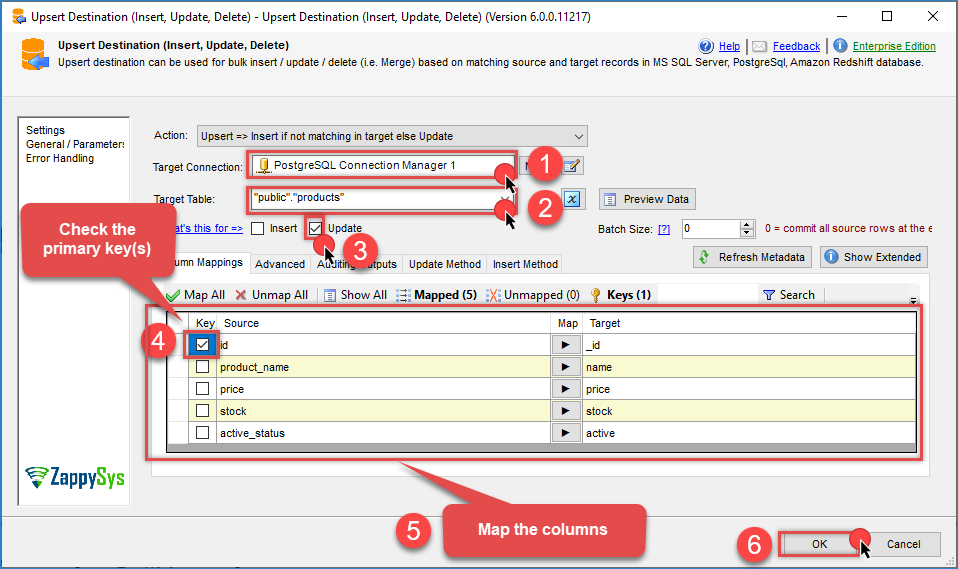
Upsert Destination – PostgreSQL destination table
- Run the package to perform the upsert operation.
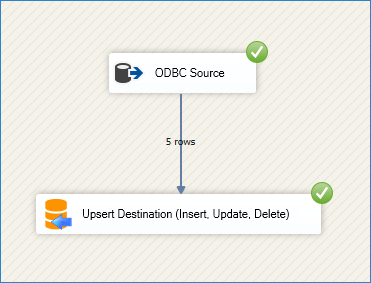
Upsert Destination – Final result
Conclusion
With ZappySys SSIS PowerPack and ODBC PowerPack, connecting MariaDB to PostgreSQL becomes straightforward and reliable.
By configuring the ODBC/JDBC bridge for MariaDB and using the native PostgreSQL destination in SSIS, you can build a robust ETL pipeline between the two databases.
Explore the full capabilities of the ZappySys SSIS PowerPack and ZappySys ODBC PowerPack to optimize your data integration tasks.
Need Help?
If you encounter any issues, our support team is here to help:
- Live Chat — Use the chat widget (bottom-right corner of this page)
- Email — support@zappysys.com
- Support Center — Support | ZappySys