Introduction
Downloading Gmail Attachments in SSIS is always a little more difficult than working with simple text or numeric columns. If you are not an SSIS expert, doing it for the first time may be challenging. That is why we created this article for you. This is a common request we receive, so we are bringing this article to you.
Gmail is the most popular email service in the world, and it can be helpful to automate and get valuable information from it. We will connect to Gmail with the REST API. For that, if you are not an experienced user of the REST API, do not worry. This article is for you. We will provide simple steps for the connection.
Requirements
To do it, we will need the following components:
- SSDT for SSIS must be installed on your computer
- ZappySys SSIS Powerpack should be installed. This Powerpack Plugin includes connectors to Gmail via the REST API.
Getting Started
Creating the connection
- First of all, in SSDT, create a new SSIS project
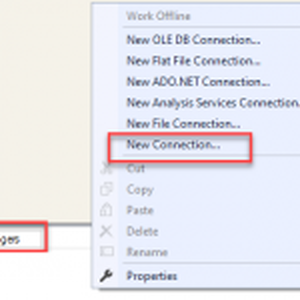
- To create a connection in SSDT, open the Connection Manager and select New Connection.
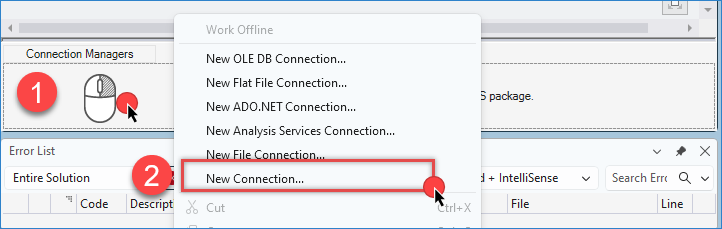
Create a new connection
- Select the ZS OAuth connection. This is a special connection included with the ZS.
SSIS PowerPack installer that we will use to connect to Gmail.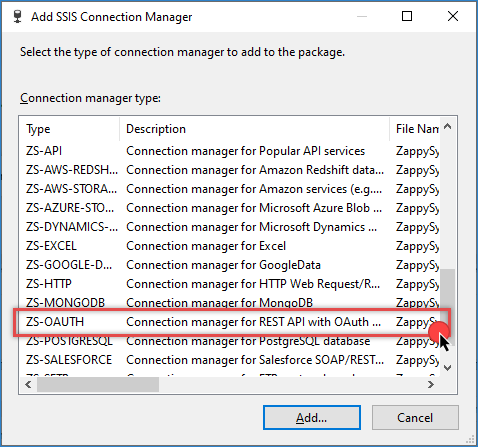
Select ZS-OAuth connector
- In the ZS OAuth connection, select the Google API OAuth Provider and specify the following credentials and scope permissions:

SSIS Gmail connection
12345https://mail.google.com/https://www.googleapis.com/auth/gmail.modifyhttps://www.googleapis.com/auth/gmail.readonlyhttps://www.googleapis.com/auth/gmail.addons.current.message.readonlyhttps://www.googleapis.com/auth/gmail.addons.current.message.action
Creating the package to download Gmail attachments in SSIS
- First of all, drag and drop the Data Flow Task from the SSIS Toolbox and double-click it
to edit.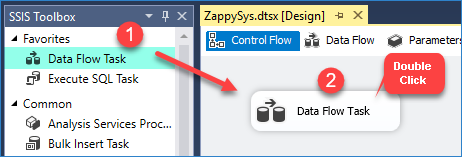
Drag and Drop SSIS Data Flow Task from SSIS Toolbox
- Secondly, in the Data Flow, we will use the JSON Source to connect to Gmail and get the attachments. JSON Source is a ZappySys component used now only to connect to JSON files, but also to connect to REST API Servers that support JSON. In this case, Gmail REST API can send information in JSON Format. Use the connection created before.
- Basically, we need to specify the URL of the Gmail attachment. In Gmail, the email attachment is inside the message. Then you need to specify the message-id and the Gmail attachment-id like this:
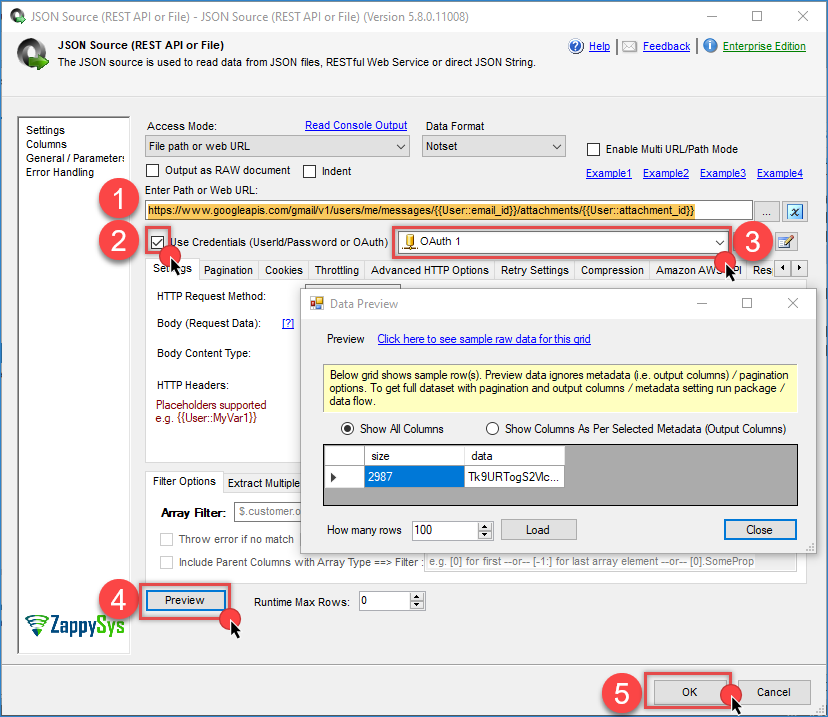
Zappysys JSON source Gmail attachments configuration
1https://www.googleapis.com/gmail/v1/users/me/messages/{{User::email_id}}/attachments/{{User::attachment_id}} - Now, in the go-to columns tab, set the data type to DT_IMAGE and increase the length of the other columns’ DT_WSTR fields by 1000 and 1500. We set
contentBytes to the
DT_IMAGE datatype, it’s like
varbinary(MAX)
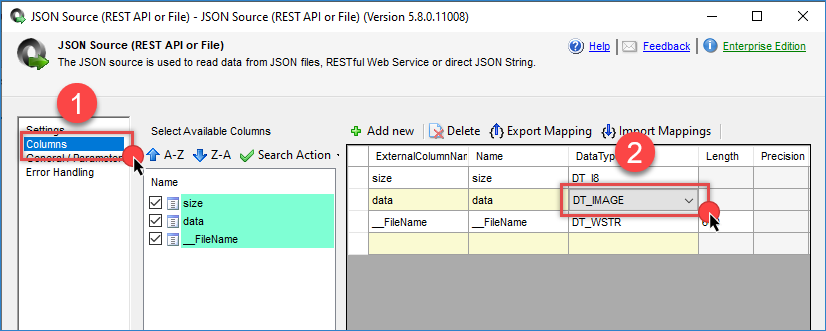
JSON Source Columns Tab – attachment datatype
- Next, we will use the derived column to set the path to the local folder where the attachment will be stored. The derived column will be used to set the local path for the attachment. Make sure to specify valid paths with double backslashes, since backslashes are special characters. The derived column is a special transformation component that creates new columns. SSIS expressions.

Derived columns – Gmail attachment file path
- Also, we will require the Export column to download into a file. This component is specially used to get images or binary files into the file system.

Export columns transformation – Gmail attachment
- Finally, we will use the Trash destination to get the attachment and finish the flow. This one is also a ZappySys component ubiquitous.
- Your package should be something like this:
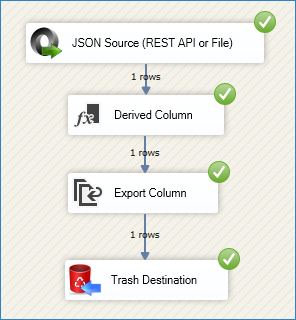
Final Result – Gmail attachment
- The next step is to run it and test it.
- If everything is fine, we will be able to see the file in your system.
Conclusion
In conclusion, we learned how to download Gmail attachments in SSIS. Basically, you need to use the ZappySys JSON Source to connect to Gmail via the REST API, then use the derived column component to specify the path to store the attachment. The next step is to use the Export column component to export the attachment. Finally, the ZS Trash destination is the attachment’s destination. If you liked this article, do not hesitate to continue testing and using ZappySys PowerPack for SSIS.
API Connector
Here are a few examples with our API connector for Gmail
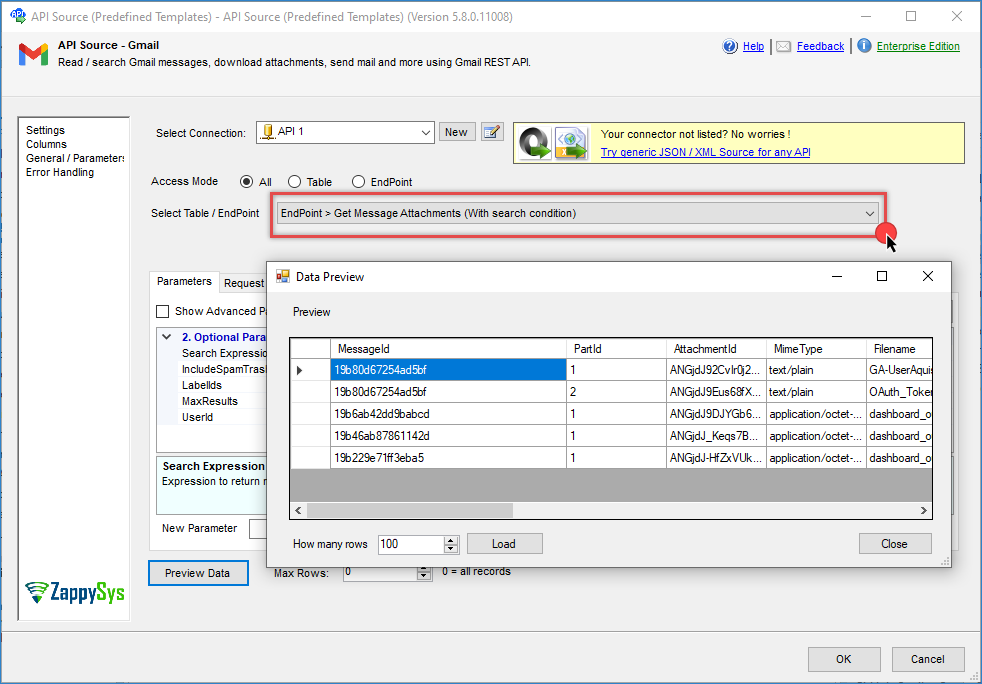
API connector – Gmail get message attachments

API connector – Gmail download message attachments