
Introduction
 Trello is a popular project management platform used by teams worldwide to organize tasks, track progress, and collaborate on projects. Many organizations need to integrate Trello data with SQL Server for reporting, analytics, and business intelligence purposes. Using Zappysys SSIS PowerPack, you can easily extract card data, lists, and board information from Trello using REST APIs without writing custom code.
This tutorial demonstrates how to connect SSIS to Trello and load card and board data into SQL Server tables using the Zappysys REST API Source component.
Prerequisites
- SQL Server Integration Services (SSIS) is installed.
- Visual Studio with SSIS extension or SQL Server Data Tools (SSDT).
- A Trello account with at least one board and list created.
- Zappysys SSIS PowerPack installed on your system.
Steps
Generate Trello API Key and Token
- Go to the Trello Power-up page and log in to your account.
- Create a new App and fill in the form.
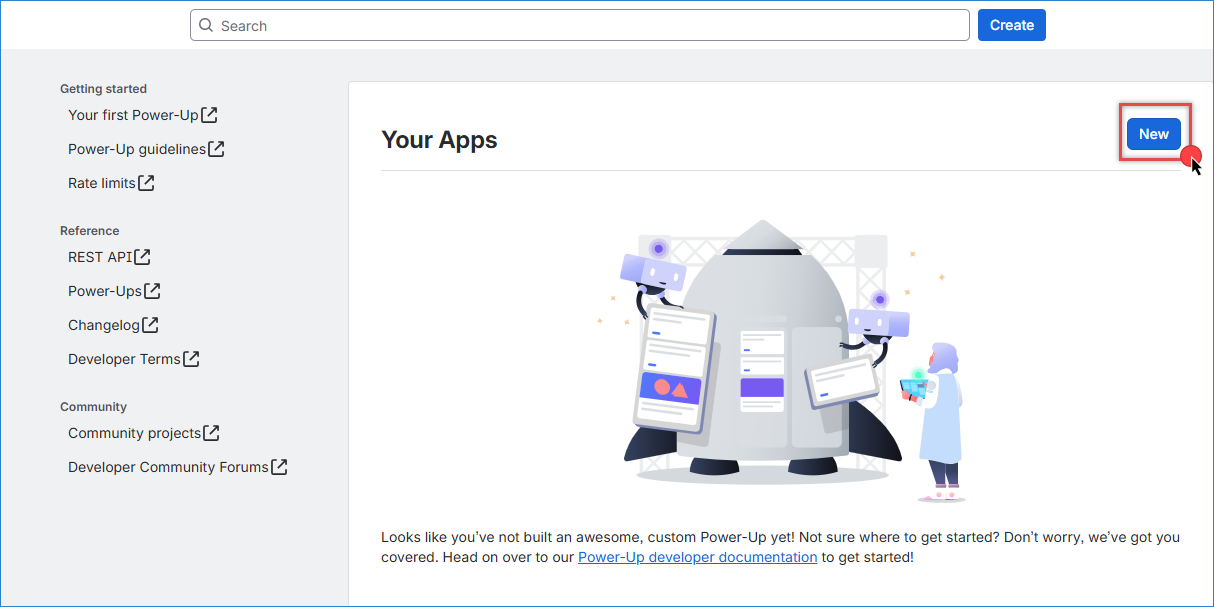
Trello – Create a new App
- Inside your new App, click the API key, then generate a new API Key.
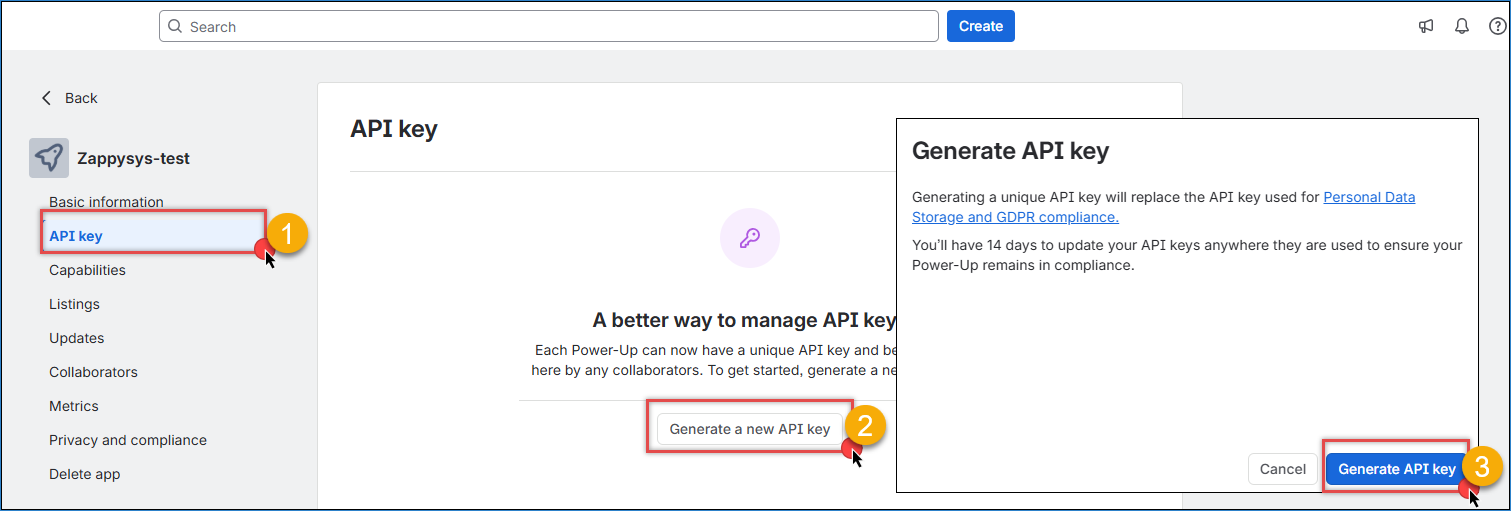
Trello – API key page
- In the API Key section, click the Token link to generate an access token.
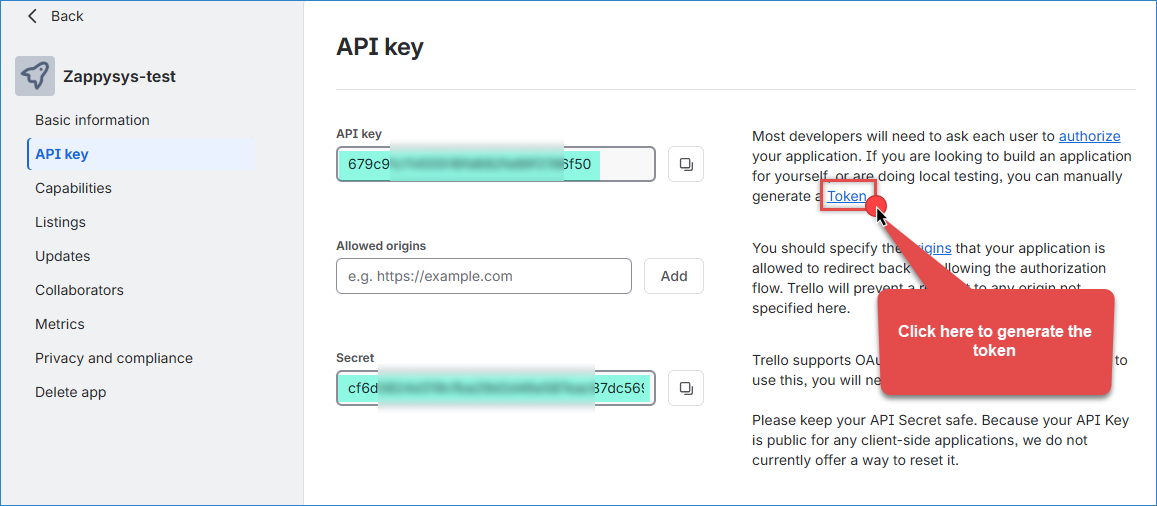
Trello – API key and Token link
- Choose the token’s expiration time (Recommended: 30 days for security).
- Review the permissions and click Create Token.
- Copy the generated token and store it securely.
- You now have both your API Key and Token. Keep these credentials confidential.
Configure SSIS Package Variables
- Open your SSIS project in Visual Studio or SQL Server Data Tools (SSDT).
- Create a new package or open an existing one.
- Navigate to the Variables section and create the following variables:
- TrelloApiKey (String) — Enter the API Key you generated in the previous step.
- TrelloToken (String) — Enter the access token you created.
- BoardId (String) — Enter your Trello Board ID.
- Ensure all variables are marked as sensitive if they contain authentication credentials to secure the package.
Create and Configure the JSON Source
-
- Add a new Data Flow Task to your SSIS package.
- Double-click the Data Flow Task to enter the Data Flow design surface.
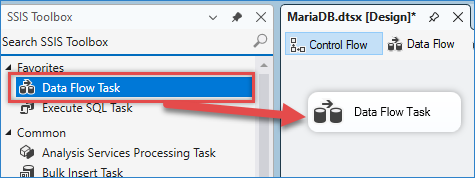
Drag and drop Data flow
- Drag a ZappySys JSON Source component from the toolbox onto the canvas.
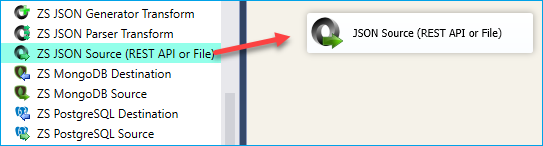
SSIS JSON Source – Drag and Drop
- Double-click the ZappySys JSON Source to open its configuration editor.
- In the Connection section, enter the Trello API endpoint to retrieve cards from your board:
1https://api.trello.com/1/members/me/boards?key={{User::TrelloApiKey}}&token={{User::TrelloToken}} - Set the HTTP Request Method to GET.
- Click Test Connection to verify that your API credentials are correct and you can access your Trello board data.
- Click Preview Data to view the card data that will be extracted from Trello.
- Click OK to save the configuration.
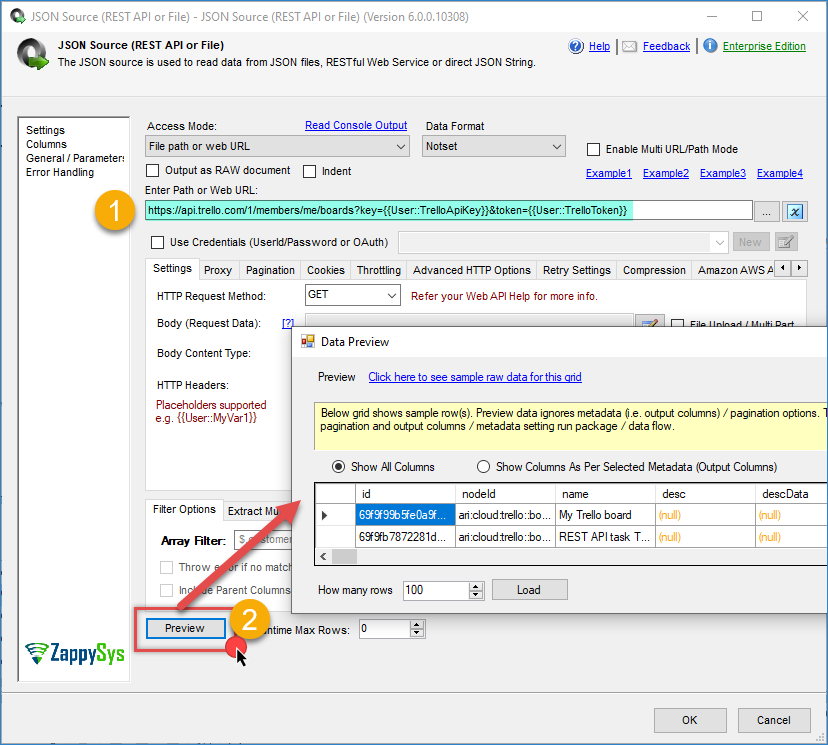
Trello – JSON source example
- Alternatively, you can use the
boardIdparameter in the request to retrieve specific board data. Here are some common API endpoints:
GET /boards/{boardId}/cards — Retrieve all cards from a specific board
GET /boards/{boardId}/lists — Retrieve all lists from a specific board
GET /cards/{cardId} — Retrieve details of a specific card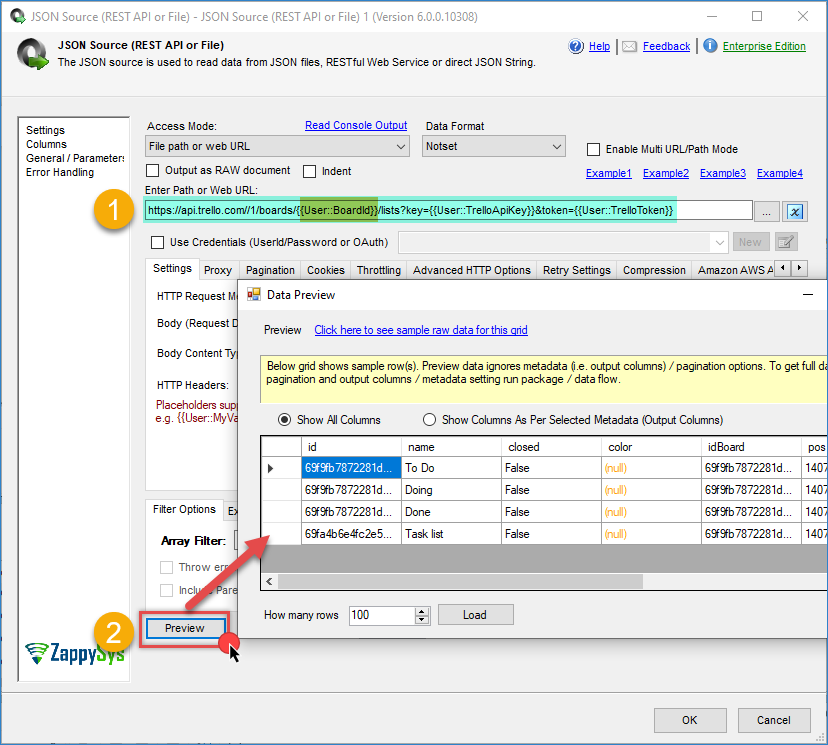
Trello – JSON source example board ID
Configure Destination Component
- Add an Upsert destination (or another destination of your choice, such as a Trash destination or a JSON/CSV/XML destination).
- Connect the output arrow from JSON Source to the destination component.
- Configure your SQL Server connection and target table.
- Check the options you want to use: Insert or/and Update
- Map the source columns to destination columns in the Mappings section.
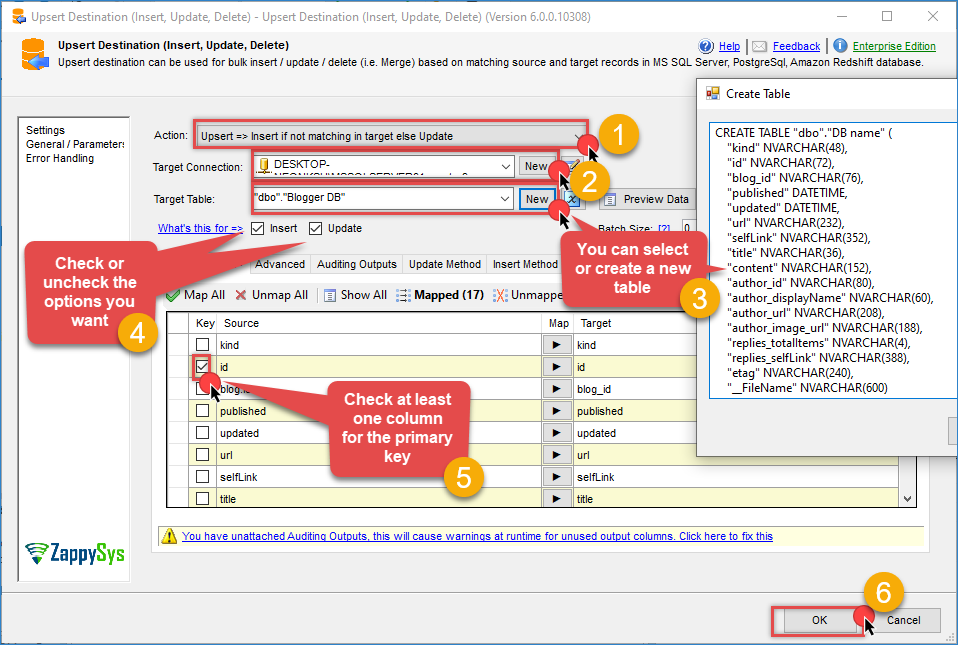
Trello – Upsert destination
- Click OK and execute the package.
- Validate that Trello rows have been loaded into your SQL Server table.
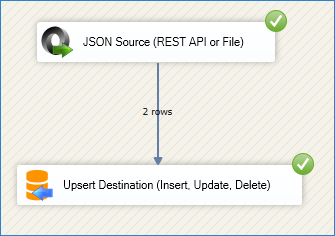
Trello – Upsert Destination example
Conclusion
Connecting SSIS to Trello using Zappysys REST API Source simplifies the integration of project management data into your SQL Server environment without custom development. By following the steps outlined in this tutorial, you can build reliable SSIS packages that automatically synchronize Trello board data with SQL Server for analytics, reporting, and business intelligence. Whether you need to track project progress, analyze team productivity, consolidate data from multiple teams, or create executive dashboards, Trello integration with SSIS provides a flexible and powerful solution that saves time and reduces manual data entry errors.
Explore the full capabilities of the ZappySys SSIS PowerPack to optimize your data integration tasks. By applying this pattern, you can extend your solution to include additional transformations, data validation, error handling, and scheduling through SQL Server Agent.
Need Help?
If you encounter any issues, our support team is here to help:
- Live Chat — Use the chat widget (bottom-right corner of this page)
- Email — support@zappysys.com
- Support Center — Visit the ZappySys Support Portal