Introduction
 Power BI native ODBC connectors do not support DirectQuery. This significant platform limitation forces users into Import mode, preventing real-time data access and causing refresh delays for critical business dashboards. If you have been searching for a “Power BI ODBC DirectQuery workaround” or a way to “enable DirectQuery for custom ODBC drivers,” this guide provides the exact steps to bridge that gap.
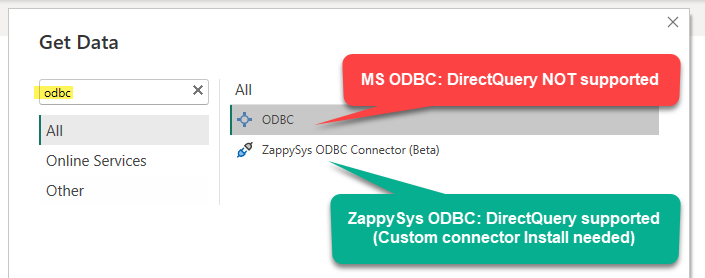
The Industry Challenge: Standard Power BI ODBC settings lack the DirectQuery option.
The Problem: Why “Import Mode” Fails Modern Data Teams
While the native Microsoft connector is useful for simple tasks, its lack of DirectQuery support creates several enterprise-level issues:
- Stale Data: There is no true real-time reporting, as data is only as fresh as your last refresh.
- Memory Constraints: Large datasets quickly bloat the Power BI model and increase memory usage.
- Refresh Overhead: Frequent changes in underlying data require complex and constant refresh schedules.
- API Lag: Data from cloud apps like Jira, SharePoint, or OneDrive becomes outdated between scheduled updates.
The Solution: ZappySys DirectQuery ODBC Connector
To fix this widespread industry problem, you can use the ZappySys DirectQuery ODBC Connector (a specialized custom Power BI connector). This tool allows you to treat any ODBC source as a live connection, unlocking real-time analytics for databases, APIs, and cloud apps.
Advanced Capabilities:
- Enable DirectQuery mode for virtually any 64-bit ODBC source.
- Query live data directly without importing massive datasets into Power BI.
- Seamlessly integrate with the ZappySys ODBC PowerPack for API and JSON connectivity.
Step 1: Install the ZappySys Connector
- First, download and install the ZappySys ODBC PowerPack.
This is essential for those using ZappySys drivers (e.g. REST API, JSON, JDBC Bridge (e.g. Trino, Infor, Athena) and more). - Download the Power BI Connector file: ZappySys-DirectQuery-ODBC-Connector.zip
- Copy the extracted
.mezfile to <your-profile>\Documents\Power BI Desktop\Custom Connectors: (See next section to find exact path)
1234Examples:C:\Users\<YourUsername>\Documents\Power BI Desktop\Custom ConnectorsC:\Users\<YourUsername>\OneDrive - <your-company>\Documents\Power BI Desktop\Custom Connectors
Note: If theCustom Connectorsfolder does not exist, you must create it manually.For finding exact connector folder path see Microsoft Connector Extensibility documentation.
How to find the Custom Connector folder Path for Power BI
- Type PowerShell on command line.
- Run the lines below to print the base path and the full path. You can run one after another or paste both lines.
12[Environment]::GetFolderPath('MyDocuments')Join-Path ([Environment]::GetFolderPath('MyDocuments')) 'Microsoft Power BI Desktop\Custom Connectors'
Step 2: Update Power BI Security for Custom Connectors
- Open Power BI Desktop.
- Navigate to File > Options and settings > Options > Security.
- Under Data Extensions, enable the option “Allow any extension to load without validation”.
- Save your changes and restart Power BI Desktop to apply the new security policy.
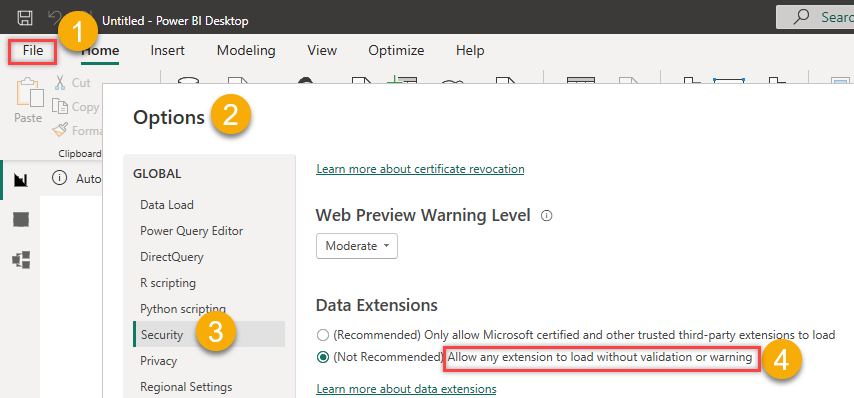
Power BI options security settings to enable custom connectors
Step 3: Set Up a 64-bit ODBC DSN
- Open the ODBC Data Sources (64-bit) administrator.
- Click the System DSN tab and select Add.
- Choose your driver (for example, the ZappySys ODBC Driver for API/Jira/SharePoint).
- Save the DSN with a clear name, such as
MyZappyDSN.
Important Architecture Note: Power BI Desktop and the Gateway require a 64-bit DSN; 32-bit DSNs are not supported for this workflow.
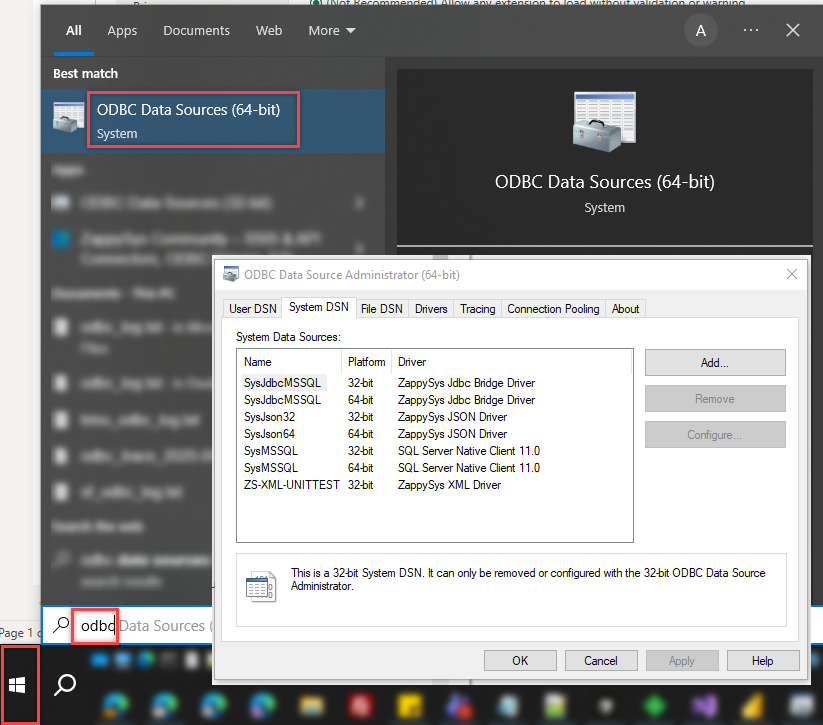
Windows 64-bit ODBC DSN Configuration.
Step 4: Connecting for Live Data / DirectQuery Support
- In Power BI Desktop, go to Get Data > More...
- Search for “zappysys” in the list.
- Select ZappySys ODBC Connector (For DirectQuery Support).
- Provide your DSN name (
MyZappyDSN) or a full connection string. - Select DirectQuery mode and click connect.
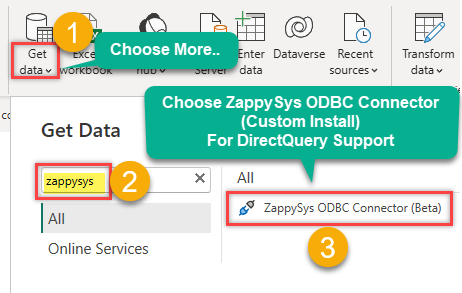
ZappySys ODBC Connector – To enable DirectQuery option for ODBC Datasource (Custom Install required)
Note for PowerPack Users: You can use a full connection string (e.g., Driver={ZappySys ODBC Driver};Host=...;) by using the “Copy Settings” feature within the ZappySys Driver UI. Read more how to copy full connection string
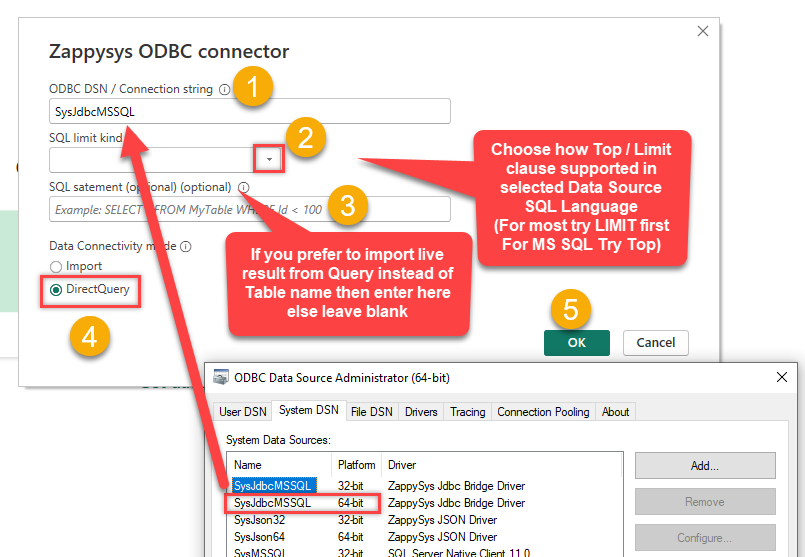
Power BI Get Data showing ZappySys DirectQuery ODBC Connector selected
Choosing Your Selection Mode
When the navigator opens, you must choose how to fetch your data:
- Table Mode: Best for simple datasets where you want to select a table from a list.
- Query Mode (SQL): Recommended for performance. Writing a custom SQL query allows you to filter and join data at the source, which is much faster for DirectQuery.
Step 5: Verify Your DirectQuery Connection (Final Result)
Once connected, it is crucial to verify that the report is truly “Live.” A successful connection will change the behavior of Power BI Desktop.
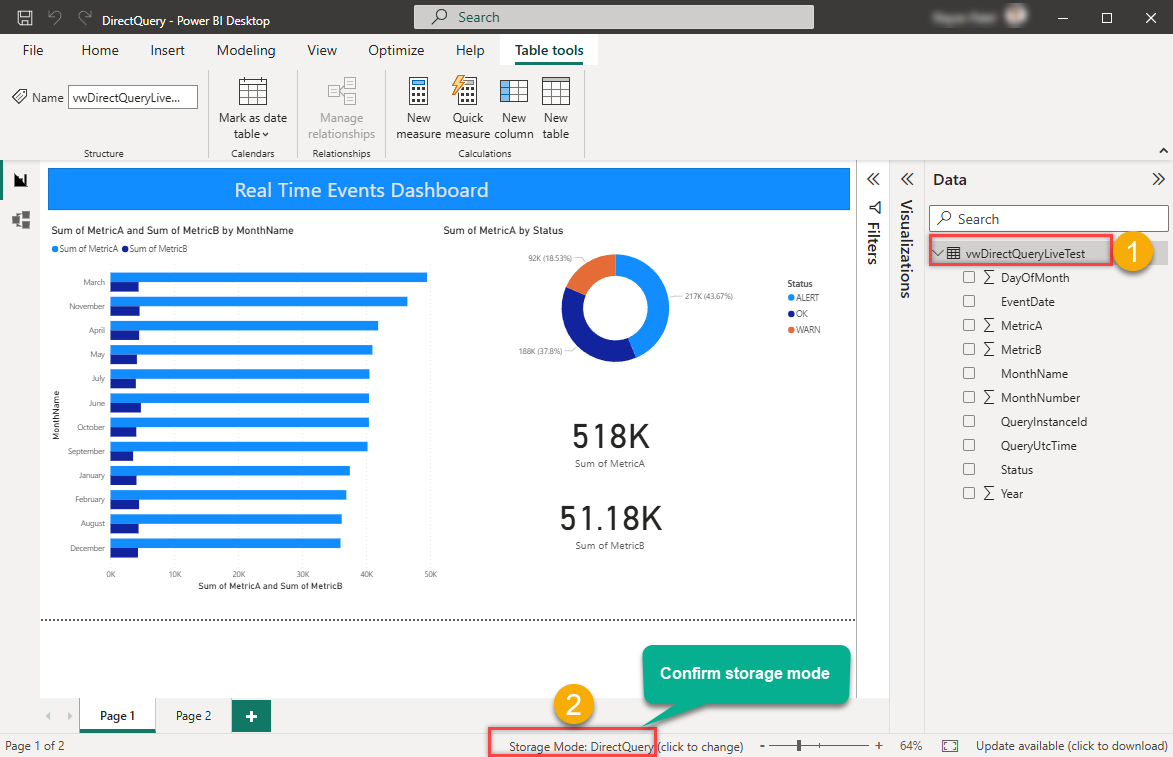
Power BI Test Dashboard showing Storage Mode: DirectQuery
* Storage Mode: Look at the status bar at the bottom-right; it must say Storage Mode: DirectQuery.
* Data Pane: On the right side, you can see your tables, but the local “Data” icon on the far left sidebar is hidden because data is not imported.
Step 6: Configure the Gateway for Power BI Service
Once your report is ready, you must configure the gateway so Power BI Service can maintain the live DirectQuery connection to your data source. Follow the steps below to deploy and enable your custom connector for the On-premises Data Gateway.
6.1 Create a Dedicated Connector Folder
Do not place the connector in a user-specific folder. The gateway service account needs reliable access, so use a shared folder on a local drive instead.
- Recommended paths:
C:\CustomConnectorsorC:\ZappySysConnectors
6.2 Copy the Connector File
Copy your custom connector file (.mez) into the folder you created.
|
1 |
C:\CustomConnectors\YourConnector.mez |
6.3 Grant Folder Permissions to the Gateway Service
If the connector does not appear in Power BI Service, first make sure the gateway service account can access the connector folder.
- Right-click the folder (for example,
C:\CustomConnectors) and select Properties > Security. - Click Edit > Add.
- Enter
NT SERVICE\PBIEgwServiceand click Check Names.
NOTE: If you are using a different service account, then use that instead. To verify Services account name try below steps.
Press Windows Key + R > open services.msc > locate On-premises data gateway service > look at Log On As
> If it says NT SERVICE\PBIEgwService then use exact same user name
> If it says Local System then use SYSTEM user for folder permission
> If it says DOMAIN\Svc-PBI-Gateway then use exact same user name - If Windows cannot find the account, make sure the Location is set to the local machine, not the domain.
- Grant at least Read and List folder contents permissions.
6.4 Enable Custom Connectors in the Gateway Config File
You must explicitly enable custom connectors and point the gateway to your connector folder.
- Open this file in Notepad as Administrator:
|
1 |
C:\Program Files\On-premises data gateway\Microsoft.PowerBI.DataMovement.Pipeline.GatewayCore.dll.config |
- Find the
<appSettings>section and add these entries:
|
1 2 |
<add key="EnableCustomConnectors" value="true" /> <add key="CustomConnectorsPath" value="C:\CustomConnectors" /> |
- Save the file.
- Restart the gateway service from services.msc or from the gateway application.
6.5 Verify the Connector in Power BI Service
After restarting the gateway, sign in to Power BI Service and try adding or mapping the data source. Your custom connector should now be available through the gateway.
C:\CustomConnectors and granting access to the gateway service account helps avoid common Connector Not Found issues when publishing to Power BI Service.FAQ: Frequently Asked Questions
Does the native Microsoft ODBC connector support DirectQuery?
No. The native Microsoft ODBC connector is limited to Import mode only.
How can I enable DirectQuery for ODBC sources in Power BI?
By using the ZappySys DirectQuery ODBC Connector and following the custom extension setup outlined in this guide.
Where is the ZappySys DirectQuery connector download?
You can find the latest version here: ZappySys DirectQuery Connector ZIP.
Troubleshooting Checklist
- Connector Missing: Ensure “Allow any extension” is checked in Power BI security settings.
- Gateway Errors: Verify the DSN name is identical on both the local PC and the gateway server.
- 32-bit vs 64-bit: Ensure you are using a 64-bit System DSN; 32-bit will cause connection failures.
- Driver Installation: Ensure the ZappySys ODBC driver is installed on all machines where the report or gateway runs.