

Video tutorial
Watch this quick video to see the integration in action. It walks you through the end-to-end setup, including:
- Installing the SSIS PowerPack
- Configuring a secure connection to Power BI Service
- Working with Power BI Service data directly inside SSIS
- Exploring advanced API Source features
Ready to dive in? Download the product to jump right in, or follow the step-by-step guide below to see how it works.
Prerequisites
Before we begin, make sure the following prerequisites are met:
- SQL Server Data Tools (SSDT) designer installed for Visual Studio.
- SQL Server Integration Services Projects 2022+ Visual Studio extension installed.
- SSIS PowerPack is installed.
Get dataflows in SSIS
-
Open Visual Studio and click Create a new project.
-
Select Integration Services Project. Enter a name and location for your project, then click OK.
-
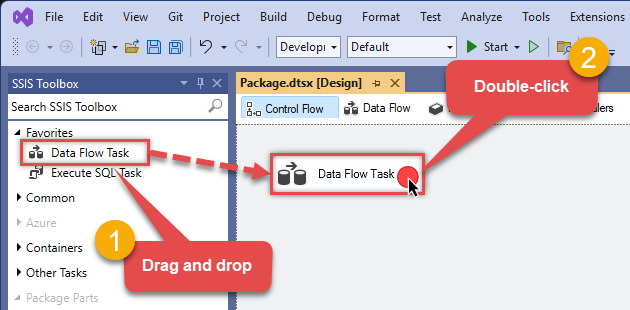
From the SSIS Toolbox, drag and drop a Data Flow Task onto the Control Flow surface, and double-click it:
-
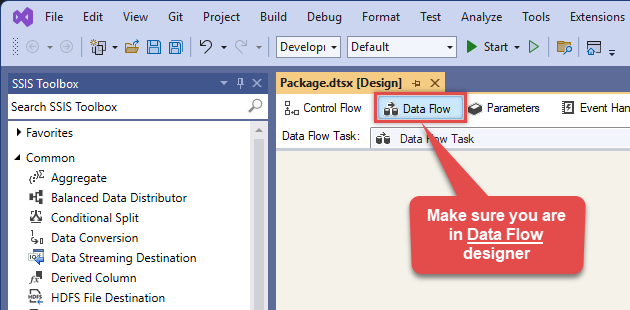
Make sure you are in the Data Flow Task designer:
-
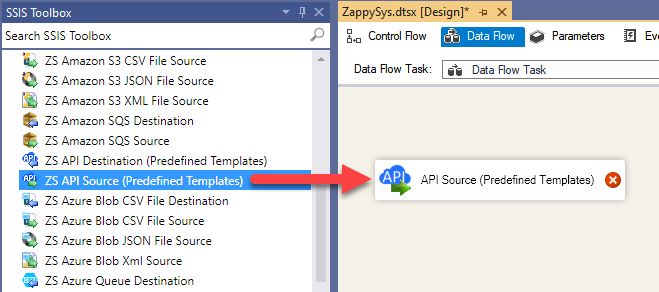
From the SSIS toolbox drag and API Source (Predefined Templates) on the data flow designer surface, and double click on it to edit it:
-
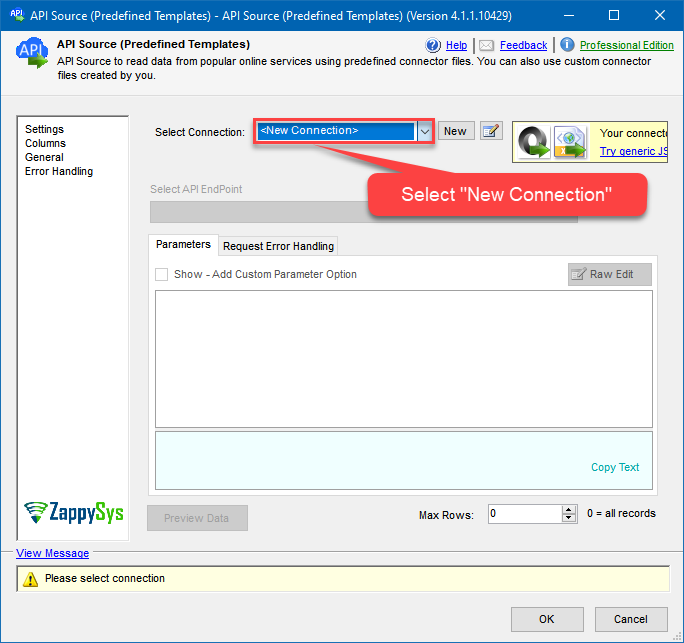
Select New Connection to create a new connection:
-
Use a preinstalled Power BI Service Connector from Popular Connector List or press Search Online radio button to download Power BI Service Connector. Once downloaded simply use it in the configuration:
Power BI Service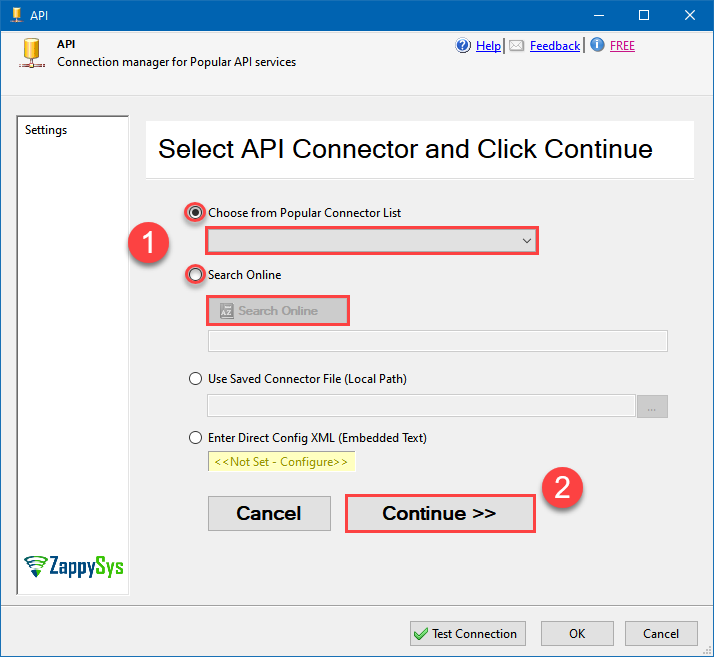
-
Select your authentication scenario below to expand connection configuration steps to:
- Configure the authentication in Power BI Service.
- Enter those details into the API Connection Manager configuration.
User Credentials
Power BI Service authentication
Use delegated access (User Credentials) whenever you want to let a signed-in user work with their own resources or resources they can access. Whether it's an admin setting up policies for their entire organization or a user deleting an email in their inbox, all scenarios involving user actions should use delegated access. [API reference]
Follow these simple steps below to create Microsoft Entra ID application with delegated access:
WARNING: If you are planning to automate processes, we recommend that you use a Application Credentials authentication method. In case, you still need to use User Credentials, then make sure you use a system/generic account (e.g.automation@my-company.com). When you use a personal account which is tied to a specific employee profile and that employee leaves the company, the token may become invalid and any automated processes using that token will start to fail.- Navigate to the Azure Portal and log in using your credentials.
- Access Microsoft Entra ID.
-
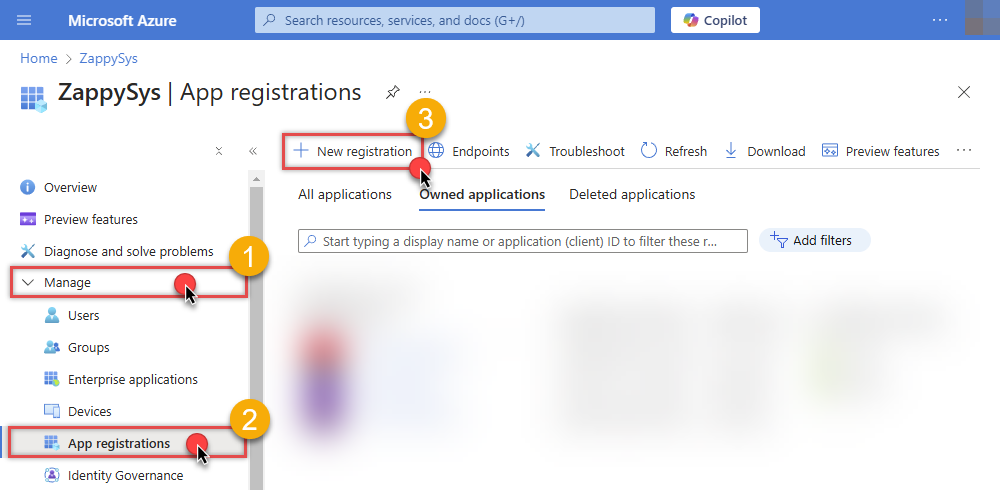
Register a new application by going to App registrations and clicking on New registration button:
 INFO: Find more information on how to register an application in Graph API reference.
 -
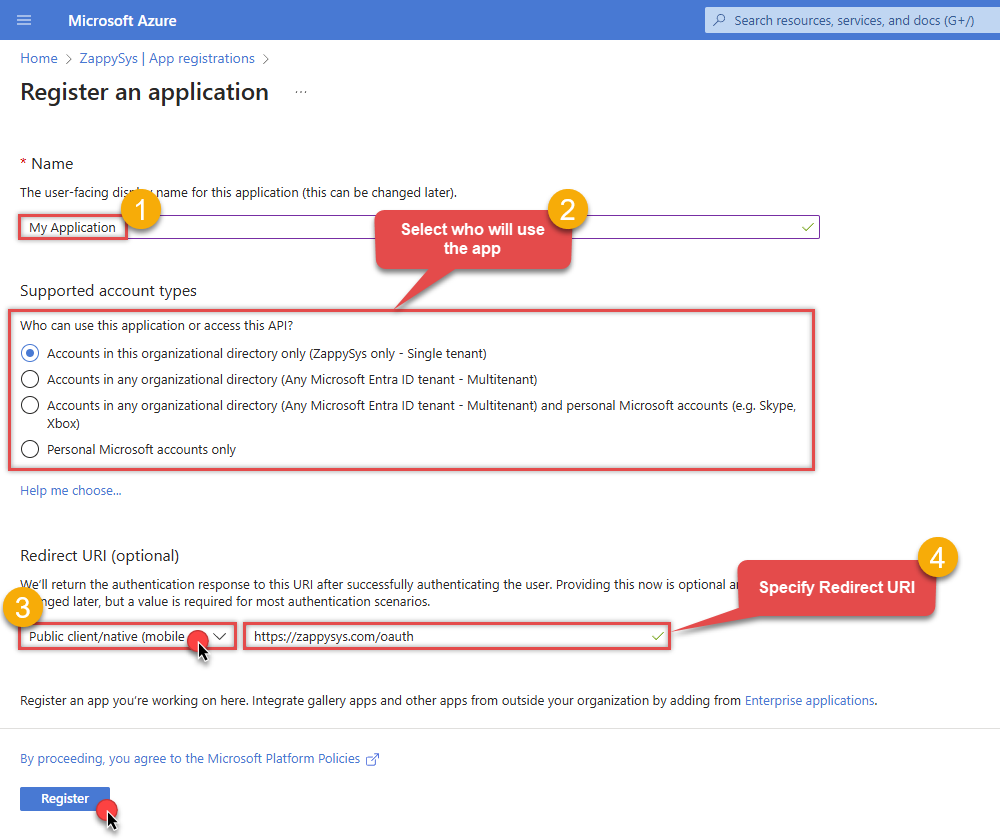
When configuration window opens, configure these fields:
-
Supported account type
- Use
Accounts in this organizational directory only, if you need access to data in your organization only.
- Use
-
Supported account type
-
Redirect URI:
- Set the type to
Public client/native (mobile & desktop). - Use
https://zappysys.com/oauthas the URL.
- Set the type to
-
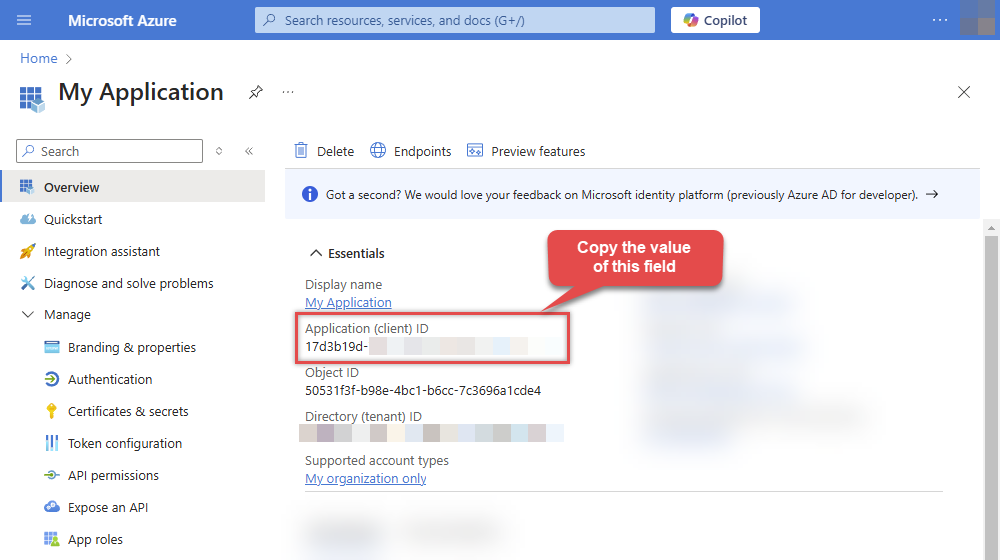
After registering the app, copy the Application (client) ID for later:
-
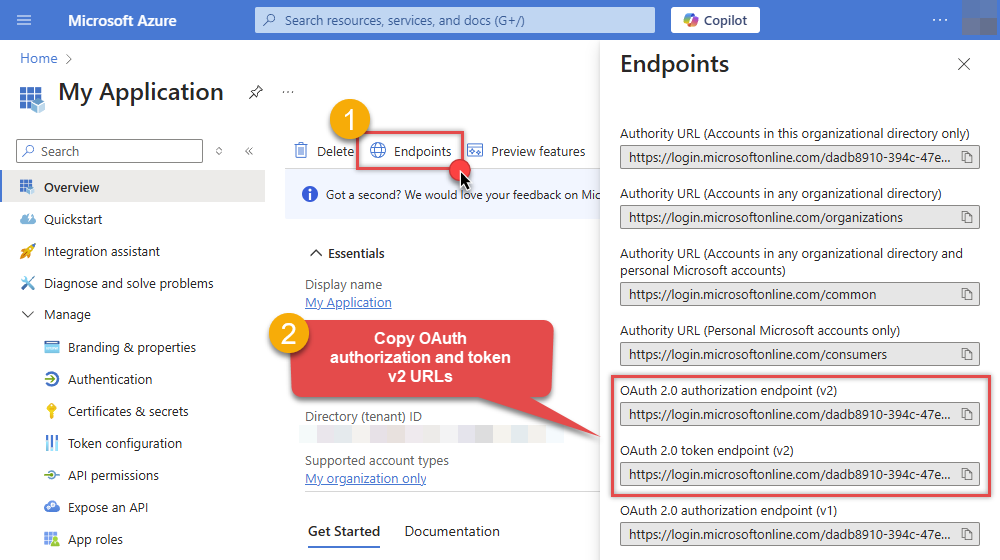
Copy OAuth authorization endpoint (v2) & OAuth token endpoint (v2) URLs to use later in the configuration:
-
Now go to SSIS package or ODBC data source and use the copied values in User Credentials authentication configuration:
- In the Authorization URL field paste the OAuth authorization endpoint (v2) URL value you copied in the previous step.
- In the Token URL field paste the OAuth token endpoint (v2) URL value you copied in the previous step.
- In the Client ID field paste the Application (client) ID value you copied in the previous step.
-
In the Scope field use the default value or select individual scopes, e.g.:
-
offline_access -
https://analysis.windows.net/powerbi/api/Workspace.Read.All -
https://analysis.windows.net/powerbi/api/Dataset.Read.All -
https://analysis.windows.net/powerbi/api/Dataset.ReadWrite.All
Admin consent note:- Token generation can still ask for admin approval, even when delegated scopes are listed in API permissions.
- A Global Administrator can allow user consent for selected low-impact delegated permissions.
- If tenant policy blocks user consent, an administrator must approve the requested delegated permissions.
-
- Press Generate Token button to generate Access and Refresh Tokens.
- Click Test Connection to confirm the connection is working.
- Optional step. Choose Default Workspace from the drop down menu.
- Choose Default Dataset from the drop down menu.
- Done! Now you are ready to use the API Connector!
API Connection Manager configuration
Just perform these simple steps to finish authentication configuration:
-
Set Authentication Type to
User Credentials [OAuth] - Optional step. Modify API Base URL if needed (in most cases default will work).
- Fill in all the required parameters and set optional parameters if needed.
- Press Generate Token button to generate the tokens.
- Finally, hit OK button:
Power BI ServiceUser Credentials [OAuth]https://api.powerbi.com/v1.0/myorgRequired Parameters Authorization URL Fill-in the parameter... Token URL Fill-in the parameter... Application (client) ID Fill-in the parameter... Scope Fill-in the parameter... Default Dataset (select after generating tokens) Fill-in the parameter... Optional Parameters Client Secret Redirect URI (must match App Redirect URI) Default Workspace (Keep Empty for My Workspace - select after generating tokens) RetryMode RetryWhenStatusCodeMatch RetryStatusCodeList 429|503 RetryCountMax 20 RetryWaitTimeMs 1000 RetryMultiplyWaitTime True Login options 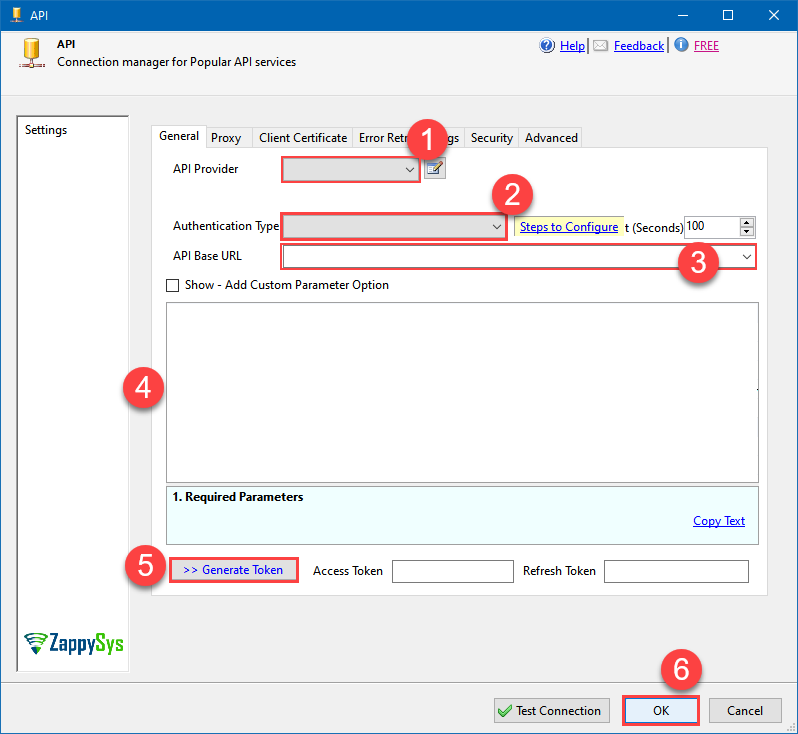 Find full details in the Power BI Service Connector authentication reference.
 -
Select Dataflows table from the dropdown and hit Preview Data:
 API Source - Power BI ServiceRead and write Microsoft Power BI data effortlessly. Access, refresh, and manage datasets, reports, and dashboards — almost no coding required.Power BI ServiceDataflows
Optional Parameters WorkspaceId 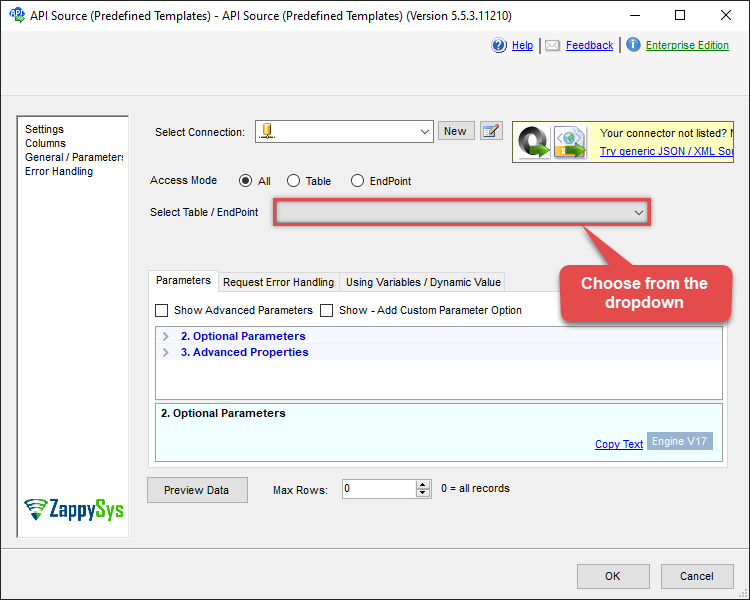
-
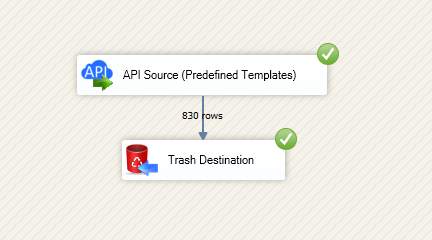
That's it! We are done! Just in a few clicks we configured the call to Power BI Service using Power BI Service Connector.
You can load the source data into your desired destination using the Upsert Destination , which supports SQL Server, PostgreSQL, and Amazon Redshift. We also offer other destinations such as CSV , Excel , Azure Table , Salesforce , and more . You can check out our SSIS PowerPack Tasks and components for more options. (*loaded in Trash Destination)
Power BI Service Connector actions
Need another use case? Pick the next Power BI Service action in SSIS below.
- Create a Push Dataset
- Delete a Dataset
- Execute a DAX query
- Get a Dataset
- Get a Workspace
- Get Datasets
- Get Table Columns
- Get Table Rows
- Get Tables
- Get Workspaces
- Insert Rows into Push Dataset Table
- Refresh a Dataflow
- Refresh a Dataset
- Truncate a Push Dataset Table
- Make Generic REST API Request
- Make Generic REST API Request (Bulk Write)
Conclusion
You now know how to get dataflows in SSIS without writing complex code. Power BI Service SSIS Connector handled pagination and authentication automatically.
Ready to get started? Download the trial or ping us via chat if you need help: