
Introduction

Jamf Pro is a comprehensive Apple device management platform that provides REST APIs for managing Macs, iPads, and iPhones across your organization. This guide demonstrates how to connect Zappysys ODBC drivers to Jamf Pro using OAuth 2.0 API authentication.
Whether you are using Jamf Cloud or an on-premises Jamf Pro server, you will learn how to configure a secure ODBC data source to access Jamf Pro data directly from Excel, Power BI, Tableau, or any application that supports ODBC without writing any custom code. Zappysys handles all the technical complexity, allowing you to focus on data analysis and reporting.
Prerequisites
- Windows operating system with the ODBC Data Source Administrator available.
- Active Jamf Pro account with administrator privileges for API client configuration.
- Finally, do not forget to install ZappySys ODBC PowerPack.
Steps
Generate Jamf credentials
- Log in to your Jamf Pro instance as an administrator.
- Navigate to Settings > System Settings > API Roles and Clients.
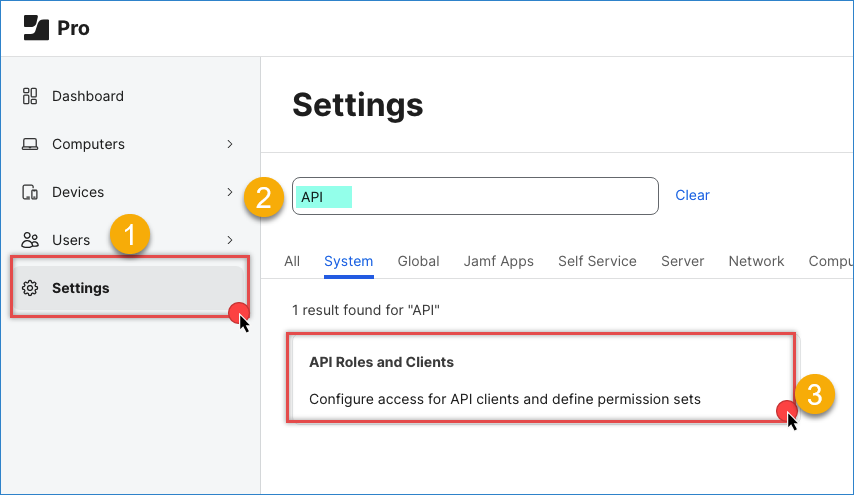
Jamf – API roles and clients
- First, create a new API Role with the required permissions:
- Click API Roles, then click + New.
- Enter a descriptive name (e.g., ODBC Integration Role).
- Assign permissions based on your use case:
- Check Read for data extraction (computers, devices, users)
- Check Create, Update, or Delete only if you need to write data back to Jamf Pro
- Click Save.
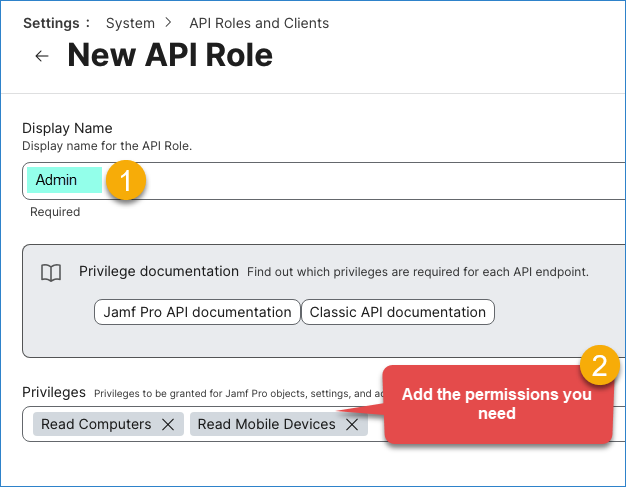
Jamf – new API role
- Now, create an API Client:
- Go back to API Roles and Clients and select the API Clients tab.
- Click + New in the upper right corner.
- Enter a Display Name (e.g., ODBC Connector).
- Select the API Role created in the previous step.
- Toggle Enable API client to ON, then click Save.
- Generate client credentials:
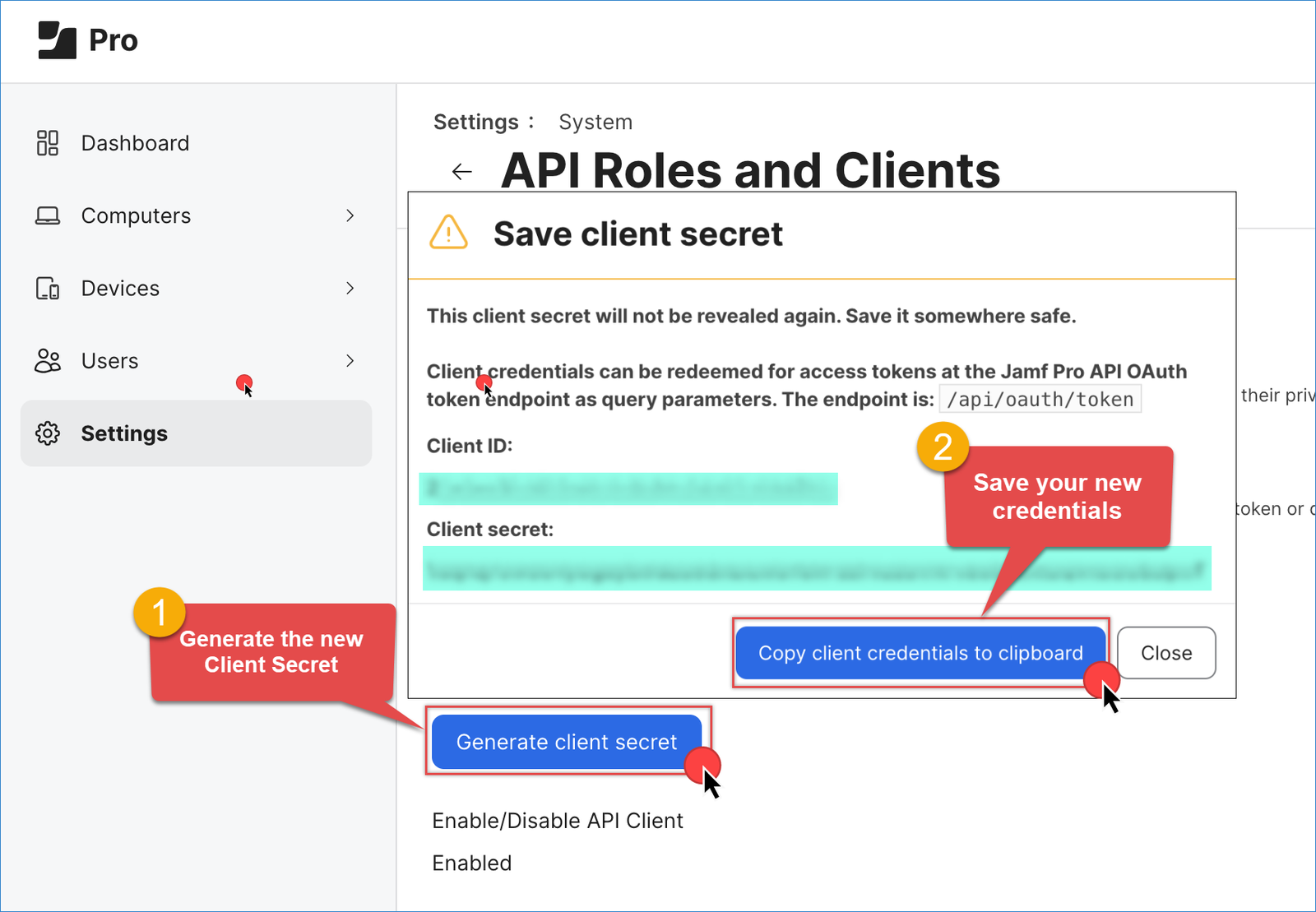
- Select Generate client secret and click Create secret in the pop-up dialog.
- Copy and securely save the Client ID and Client Secret for use in the next steps.
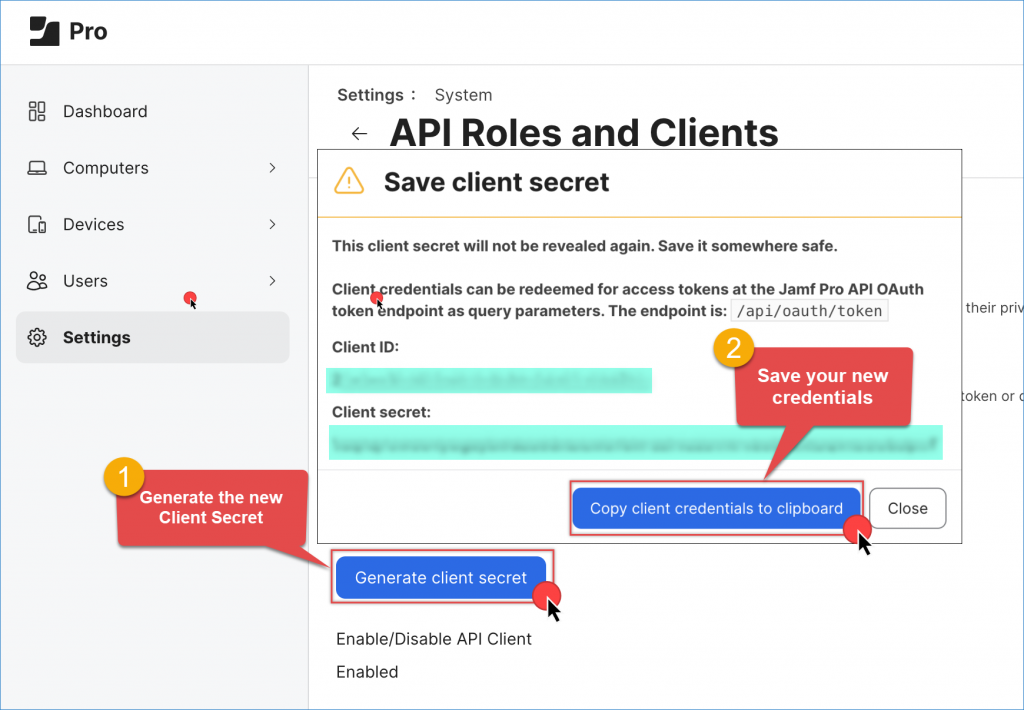
Jamf – Generate Client ID and Client Secret
- Record your Jamf Pro instance URL (e.g.,
https://your-company.jamfcloud.com).
Creating a new ODBC DSN using ZappySys JSON Driver
- Search for ODBC in the Windows Start menu and open the ODBC Data Source Administrator.
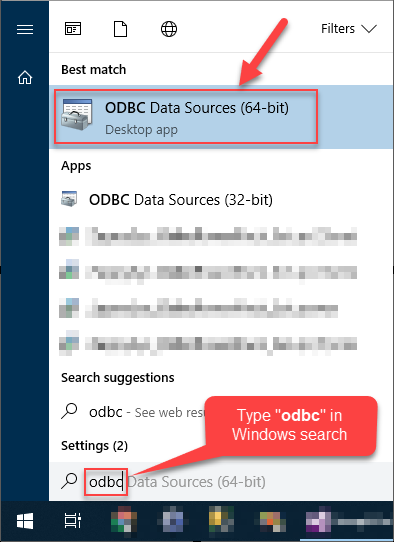
- In the User DSN or System DSN tab, click Add to create a new data source.
- In the ODBC Data Source Setup window, select the ZappySys JSON Driver and click Continue.

Configuring the ODBC connection for Blogger
- Enter the Jamf Pro API endpoint in the URL:
https://your-company.jamfcloud.com/JSSResource/computers— To retrieve computer inventoryhttps://your-company.jamfcloud.com/JSSResource/mobiledevices— To retrieve mobile device datahttps://your-company.jamfcloud.com/JSSResource/users— To retrieve user informationhttps://your-company.jamfcloud.com/JSSResource/accounts— To retrieve account data
- Select OAUTH as the connection type, then click it to configure it.
- Set the OAuth Version to OAuth 2.0.
- Set the Grant Type to Client Credentials Grant.
- Provide the Client ID and Client Secret from the API Client created above.
- Enter the Token URL:
1https://your-company.jamfcloud.com/api/oauth/token - Click OK to save the connection.
- Set the HTTP method to GET.
- Select the object you want to use in the Array Filter (e.g.,
$.account) - Click Test Connection to verify your credentials and API access.
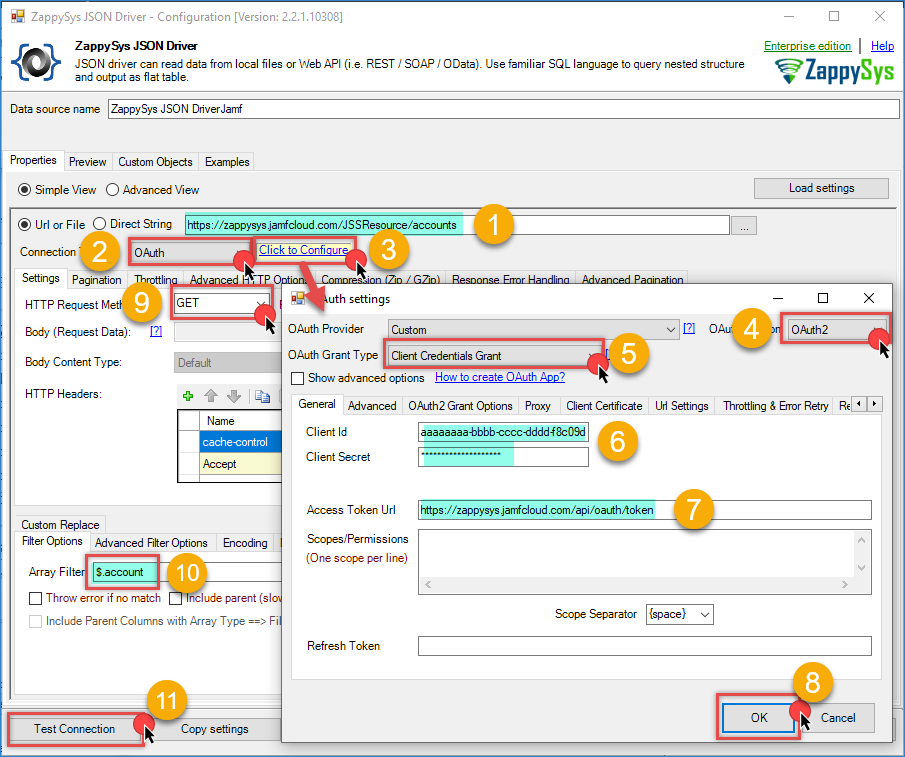
Jamf – ODBC JSON driver configuration
Preview the data
- Once your ODBC DSN is configured, go to the preview tab.
- Select the table you want to use.
- Press the Preview data button to see the result.
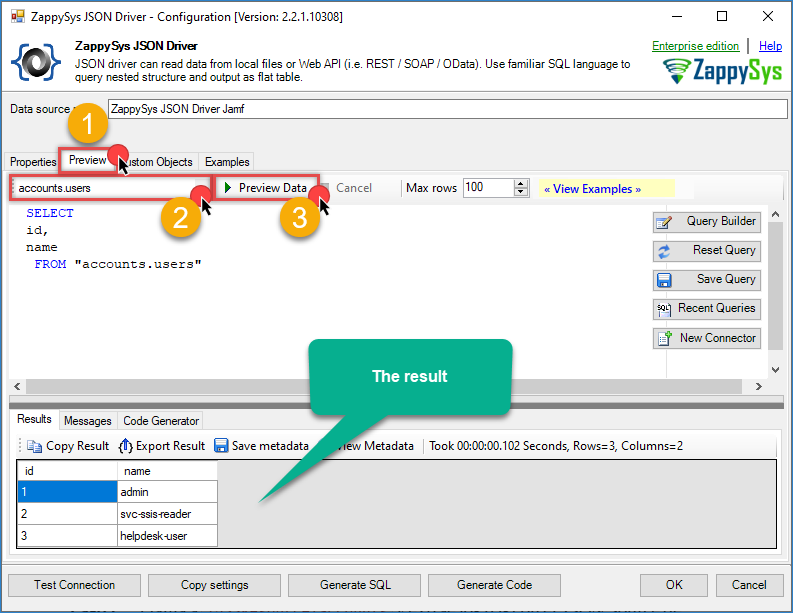
Jamf – ODBC JSON driver result
Conclusion
You now have a secure and flexible ODBC connection to Jamf Pro using OAuth 2.0 authentication. This approach allows you to access Jamf Pro data directly from any ODBC-compatible application—Excel, Power BI, Tableau, SQL Server, or custom applications—without writing any code. With your ODBC data source configured, you can create powerful dashboards, run ad-hoc queries, generate compliance reports, and integrate Jamf Pro device management data with your existing business intelligence tools.
Explore the full capabilities of the ZappySys ODBC PowerPack to optimize your data integration tasks. By applying this pattern, you can extend your solution to include additional data sources and create unified reporting across multiple cloud-based APIs.
Need Help?
If you encounter any issues, our support team is here to help:
- Live Chat — Use the chat widget (bottom-right corner of this page)
- Email — support@zappysys.com
- Support Center — Visit the ZappySys Support Portal