Introduction

ShipStation is a leading shipping and order management platform used by eCommerce businesses to manage orders, shipments, and fulfillment across multiple sales channels. Many organizations need ShipStation data in Power BI to monitor fulfillment performance, shipping costs, and order trends.
Using the ZappySys ODBC Driver for REST APIs, you can query ShipStation API data with SQL and load it into Power BI without writing custom connector code. This tutorial shows how to create a ShipStation ODBC DSN, configure API authentication, preview data, connect Power BI, and run practical SQL queries.
Prerequisites
Before we perform the steps listed in this article, make sure the prerequisites are met:- Basic knowledge of SSIS package development using Microsoft SQL Server Integration Services.
- Make sure the SSIS designer is installed.
- Download and install ZappySys SSIS PowerPack.
Steps
Get ShipStation API credentials
- Sign in to your ShipStation account.
- Go to Account Settings → API Settings.

ShipStation – Settings
- Generate your API Key and API Secret — store both values securely.

ShipStation – Generate token
Create a new ODBC DSN using ZappySys JSON Driver
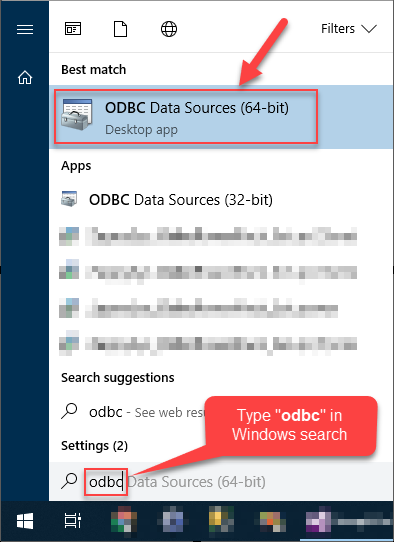
- Search for ODBC in the Windows Start menu and open ODBC Data Source Administrator.
- In User DSN or System DSN, click Add.
- Select ZappySys JSON Driver, then click Continue.

Configure ShipStation API connection
- Enter a ShipStation endpoint URL in this format:
https://ssapi.shipstation.com/orders - In Connection Type, select HTTP and click Configure.
- Set Credential Type to Basic Auth (Username/Password).
- Set Username to your ShipStation API Key.
- Set Password to your ShipStation API Secret.
- Click OK to save HTTP authentication settings.

ShipStation – ODBC HTTP connection
- Set HTTP Request Method to GET.
- Add the following HTTP Header:
- Accept: application/json
- Set JSON Path Filter based on the endpoint. Each ShipStation endpoint wraps its array under a named key:
- Orders:
$.orders[*] - Shipments:
$.shipments[*] - Products:
$.products[*] - Customers:
$.customers[*]
- Orders:
- Click Test Connection, then click OK to save the DSN.

ShipStation – ODBC JSON driver configuration
Preview ShipStation data in ODBC Driver
- Open the Preview tab in the DSN configuration window.
- Generate a query and click Preview Data.
- Confirm rows are returned. If not, recheck the endpoint URL, credentials, and JSON Path Filter.

ShipStation – ODBC JSON driver result
Connect Power BI to ShipStation via ODBC
- Open Power BI Desktop.
- Go to Home > Get Data > More….
- Search for ODBC and click Connect.
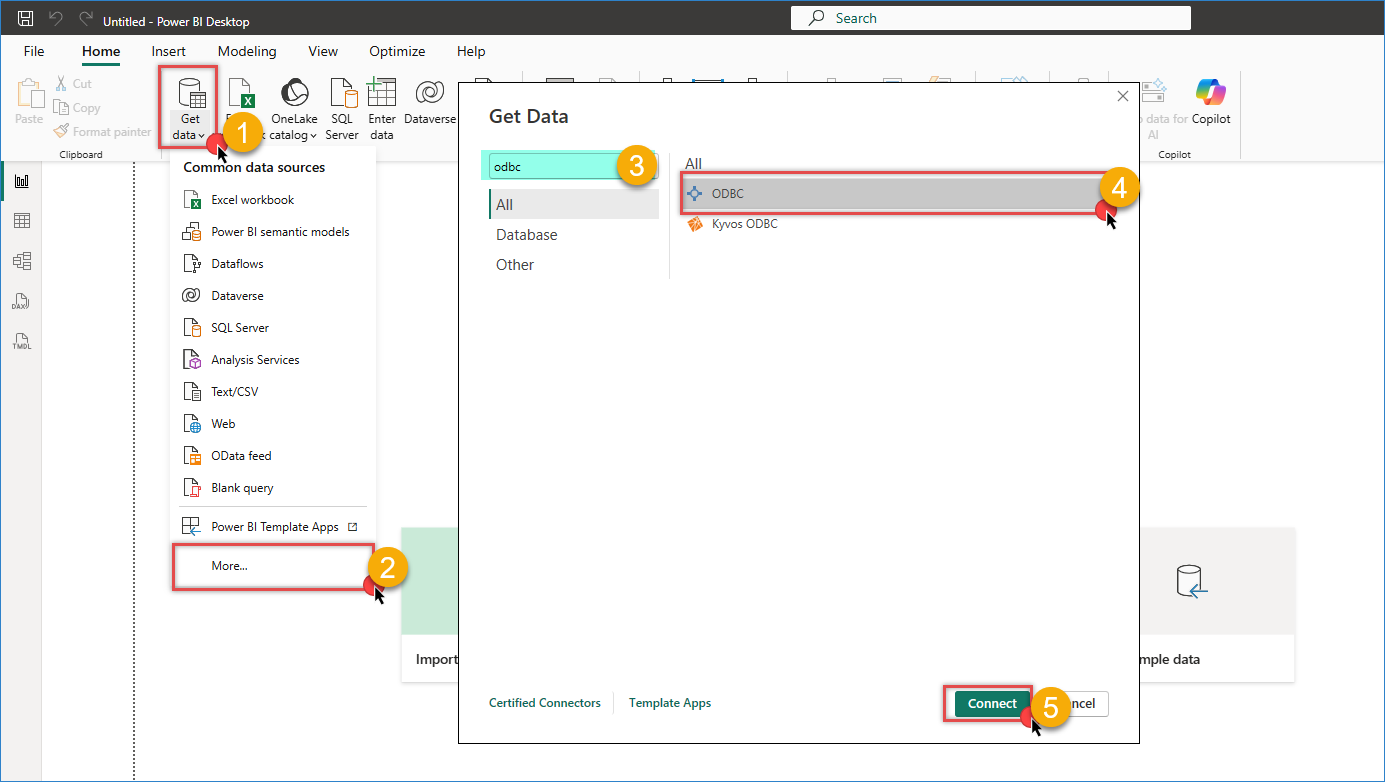
Power BI – Get data from ODBC connection
- Select your Spotify DSN from the data source list.
- Optionally enter a custom SQL query in Advanced options.

ShipStation – Power BI SQL example
- Click OK, review the preview, and click Load

ShipStation – Power BI result
Query ShipStation Data with SQL
Use custom SQL queries in the ODBC driver or Power BI to shape data before loading.
Example 1: List Orders
|
1 2 3 4 5 6 7 8 9 10 11 12 13 14 15 16 17 18 19 20 21 22 23 24 25 26 |
SELECT orderId, orderNumber, orderStatus, orderDate, orderTotal, amountPaid, shippingAmount, taxAmount, customerEmail, customerUsername, paymentMethod, carrierCode, serviceCode, [billTo.name] AS billTo_name, [billTo.city] AS billTo_city, [billTo.country] AS billTo_country, [shipTo.name] AS shipTo_name, [shipTo.city] AS shipTo_city, [shipTo.country] AS shipTo_country, [weight.value] AS weight_value, [weight.units] AS weight_units, createDate, modifyDate, shipByDate FROM _root_ |
Example 2: Filter Awaiting Shipment Orders
|
1 2 3 4 5 6 7 8 9 10 |
SELECT orderId, orderNumber, orderStatus, orderTotal, customerEmail, shipByDate FROM _root_ WHERE orderStatus = 'awaiting_shipment' ORDER BY shipByDate ASC |
Example 3: Orders Summary by Status
|
1 2 3 4 5 6 7 8 |
SELECT orderStatus, COUNT(*) AS OrderCount, SUM(orderTotal) AS TotalAmount, SUM(shippingAmount) AS TotalShipping FROM _root_ GROUP BY orderStatus ORDER BY OrderCount DESC |
Conclusion
Connecting ShipStation to Power BI using the ZappySys ODBC Driver gives you a fast, SQL-friendly way to build fulfillment and logistics analytics from ShipStation API data. You can centralize order, shipment, and customer data, model it in Power BI, and publish dashboards without building custom connectors.
Explore the full capabilities of the ZappySys ODBC Drivers to integrate ShipStation and other APIs into your reporting workflow.
Need Help?
If you encounter any issues, our support team is here to help:
- Live Chat: Open the chat widget (bottom right of this page)
- Email: support@zappysys.com
- Support Center: Support | ZappySys