Introduction
 This tutorial walks you through the process of extracting blog posts and comments data from Blogger using the REST API and Zappysys SSIS connectors. In this guide, you will learn how to authenticate with the Blogger REST API, configure a Zappysys REST data source, and load extracted data into SQL Server. This approach eliminates the need for custom code and provides a graphical interface for managing complex API integrations.
Zappysys provides a powerful REST connector that simplifies integrating cloud-based APIs into your SQL Server Integration Services packages. We will demonstrate a practical ETL pattern using ZappySys REST connectivity to extract data from Blogger and load it into SQL Server within SSIS.
Prerequisites
Before you begin, make sure you have the following:
- First, you will need to have SSIS installed
- Secondly, make sure to have SSDT
- Thirdly, access to a Blogger blog with appropriate permissions to read public posts and comments.
- Finally, do not forget to install ZappySys SSIS PowerPack.
Steps
Create/Select a Project in the Google API Console
- Navigate to the Google API Console.
- Click on the Project Dropdown at the top bar and either select an existing project or create a new one by clicking CREATE PROJECT.
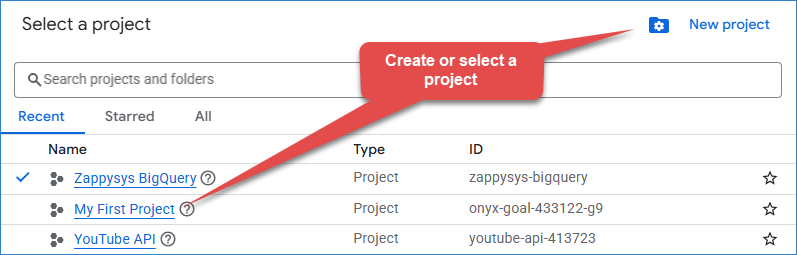
Google Console – Create or select a project
- Once the project is set, click ENABLE APIS AND SERVICES.
- Search for the Blogger API v3 and click ENABLE.
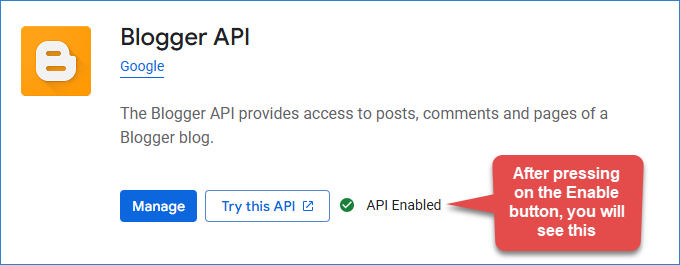
Google Console – Enable Blogger API
- Return to the main screen and click on the OAuth Consent Screen tab.
- Select the External user type and click CREATE.
- Provide the application name, user support email, and developer contact information, then click SAVE AND CONTINUE.
- Click through the remaining scopes and summary pages (no additional scopes are required for this tutorial), and click SAVE AND CONTINUE on each.
- Move to the Credentials tab.
- Click CREATE CREDENTIALS in the top bar, choose OAuth Client ID, select Desktop App as the Application Type, and click Create to obtain your Client ID and Secret.
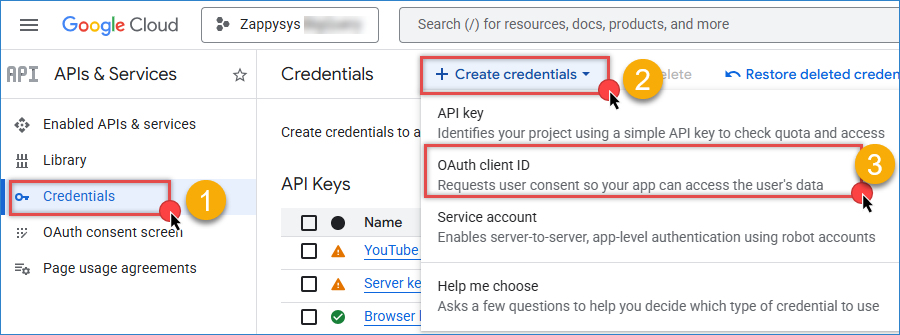
Google Console – Create credentials
- Download the credentials JSON file and save it in a secure location on your development machine.
Create the OAuth connection for Blogger
- Create or select your SSIS project, and open the package.dtsx file.
- Drag and drop the ZS REST API task from the Toolbox.
- Inside Connection Manager, right-click and select New connection…
- Inside the SSIS connectors, select the ZS-OAuth
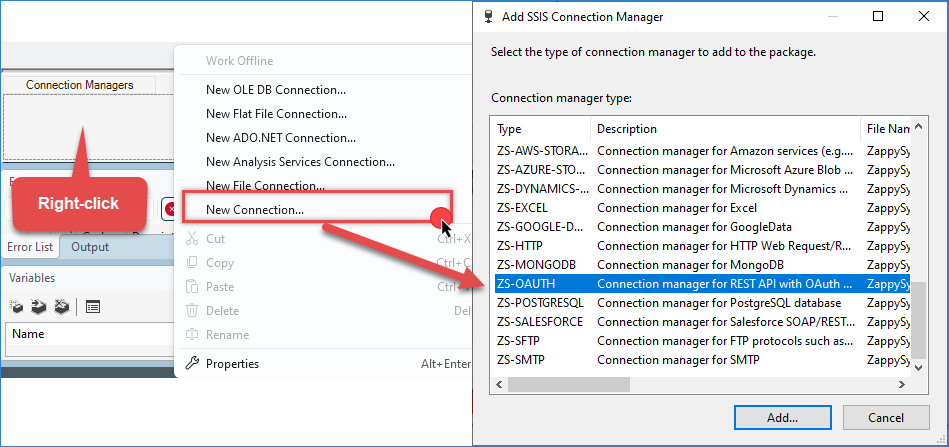
Create a new SSIS OAuth API Connection Manager
- Select the Google API provider
- Enter the Client ID and Client Secret you generated in the past step
- Use Blogger URL scope:
https://www.googleapis.com/auth/blogger - Generate the token
- Test the connection to ensure it is working correctly.
- Click OK to save the connection.
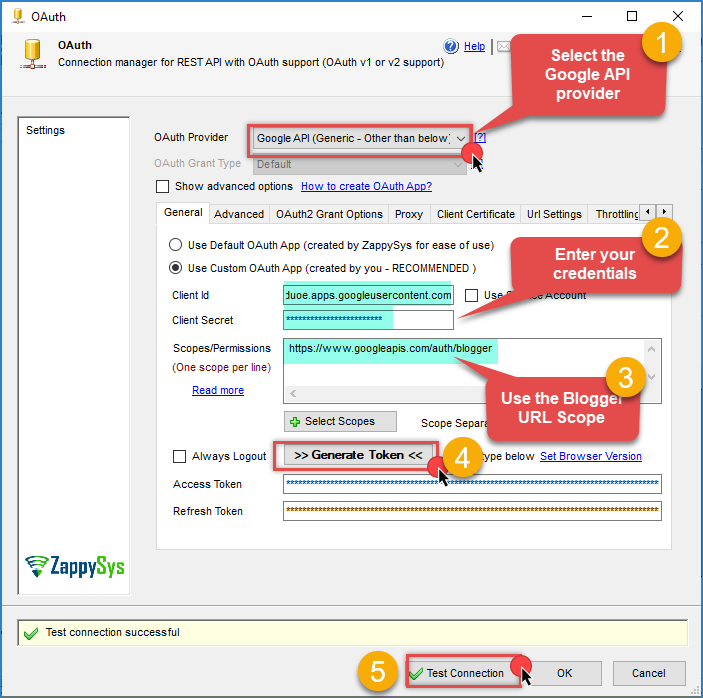
OAuth connection – Blogger API
Get information from a Blog
- Create a string variable
{{User::BlogID}}and enter the ID from the blog you want to get information from. - From the SSIS Toolbox, drag the ZS REST API Task onto the Control Flow designer.
- Double-click the task to open the editor.
- Select the connection manager you created in the previous step.
- In the URL Path field, enter:
https://www.googleapis.com/blogger/v3/blogs/{{User::BlogID}}/posts - Set the HTTP method to GET.
- Click the Preview tab to test the API connection and view sample data.
- If the preview is successful, click OK to configure the task.
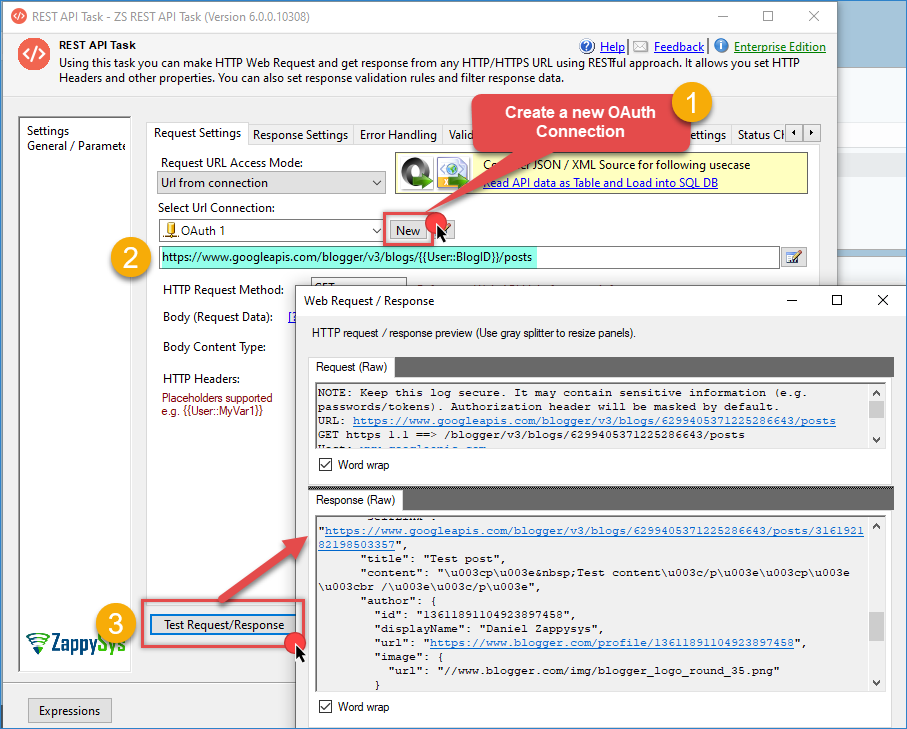
REST API task – Blogger example
Save the information in a SQL table
- Drag and drop a Data Flow into the Control Flow and double-click it.
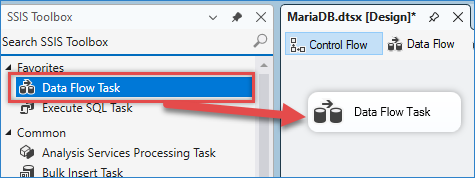
Drag and drop Data flow.
- In the Data Flow, drag and drop the JSON source, then double-click it to configure it.
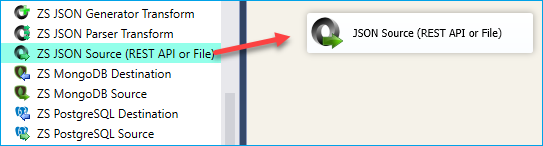
SSIS JSON Source – Drag and Drop
- Use the same configuration as in the REST API task, but first enable the Use credentials option.
- Enter the URL, select the OAuth connection, and use the Method GET.
- You can use the filter option to get the object you want to get data from:
$.Items[*] - Preview the data and click OK to save the configuration.
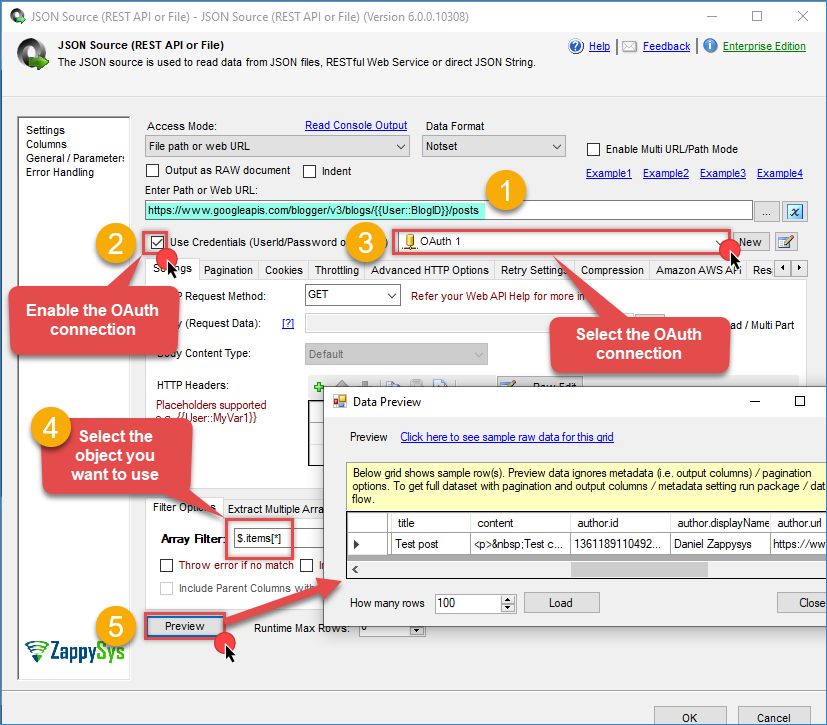
JSON Source – Blogger Example Request
- Now drag and drop a destination component. In our case, we will use the Upsert destination component.
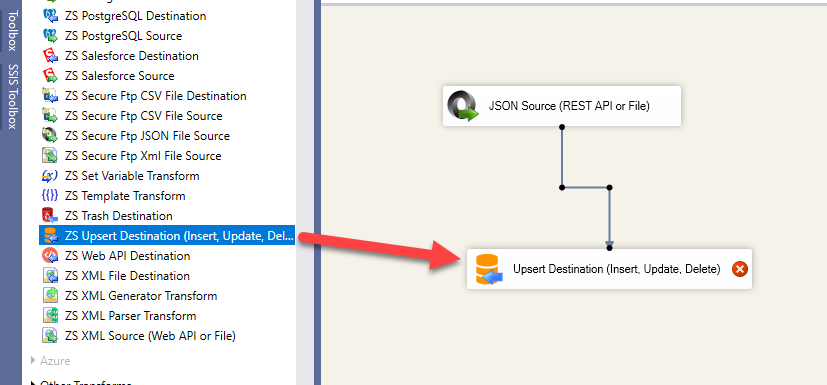
SSIS – Data Flow – Drag and Drop Upsert Destination Component
- Double-click in the Upsert destination component to configure it.
- Select the Action you want to use.
- Create or select a database connector.
- Create or select a table.
- Use the options Insert or/and Update.
- Map the column; if the columns have the same name, it will be automatic.
- Select at least one column for a primary key.
- Click OK to save the configuration.
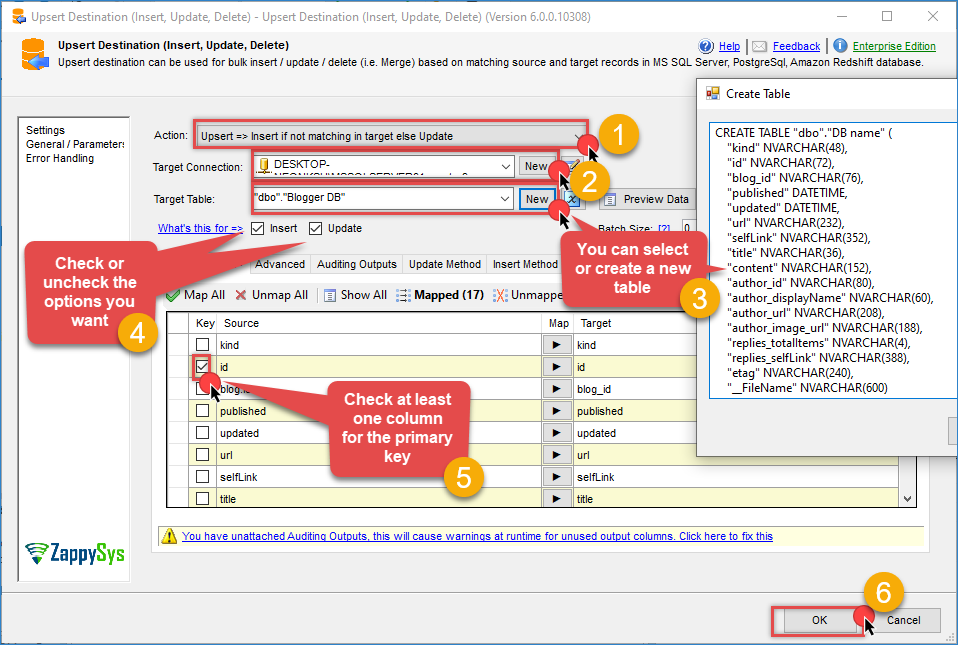
Upsert destination – Blogger example
- Run the package, and you will see the data from Blogger in your database
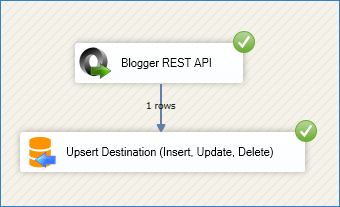
Blogger – result
Code Examples
Sample REST API Request
Here’s an example of retrieving blog posts using the Blogger REST API:
|
1 2 3 |
GET https://www.googleapis.com/blogger/v3/blogs/{blogId}/posts Authorization: Bearer {access_token} Content-Type: application/json |
Example response:
|
1 2 3 4 5 6 7 8 9 10 11 12 13 14 15 16 17 |
{ "kind": "blogger#posts", "items": [ { "kind": "blogger#post", "id": "7109703471293209437", "title": "Getting started with Blogger API", "content": "Learn how to integrate Blogger with your applications...", "published": "2026-03-15T10:30:00Z", "updated": "2026-03-20T14:15:00Z", "url": "http://example.blogspot.com/2026/03/getting-started.html", "author": { "displayName": "John Doe" } } ] } |
SQL Table Structure
Recommended table structure for storing Blogger posts data:
|
1 2 3 4 5 6 7 8 9 10 11 12 |
CREATE TABLE BloggerPosts ( PostID BIGINT PRIMARY KEY, BlogID BIGINT NOT NULL, Title NVARCHAR(MAX), Content NVARCHAR(MAX), AuthorName NVARCHAR(255), PublishedDate DATETIME, UpdatedDate DATETIME, PostURL NVARCHAR(MAX), CreatedDate DATETIME DEFAULT GETDATE(), ModifiedDate DATETIME DEFAULT GETDATE() ); |
Conclusion
You have successfully learned how to use Zappysys SSIS connectors to extract data from the Blogger
platform using the REST API. With ZappySys SSIS PowerPack, connecting Blogger to your SQL Server becomes
straightforward and reliable. By configuring the REST connector for Blogger and using the native SSIS destination,
you can build a robust ETL pipeline for extracting blog data.
Explore the full capabilities of the ZappySys SSIS PowerPack to optimize your data integration
tasks. By applying this pattern, you can extend your solution to include additional transformations, data
validation, error handling, and scheduling through SQL Server Agent.
Need Help?
If you encounter any issues, our support team is here to help:
- Live Chat — Use the chat widget (bottom-right corner of this page)
- Email — support@zappysys.com
- Support Center — Visit the ZappySys Support Portal