Introduction
In this article, we’ll learn how to integrate a documented API in Swagger with SQL Server Integration Services (SSIS) using ZappySys PowerPack.
Swagger enables us to visualize and test REST endpoints, while ZappySys SSIS provides advanced components for consuming APIs and transforming data in ETL processes.
Prerequisites
Before we perform the steps listed in this article, you will need to make sure the following prerequisites are met:- SSIS designer installed. Sometimes it is referred to as BIDS or SSDT (download it from the Microsoft site).
- Basic knowledge of SSIS package development using Microsoft SQL Server Integration Services.
- Make sure ZappySys SSIS PowerPack is installed (download it, if you haven't already).
- (Optional step). Read this article, if you are planning to deploy packages to a server and schedule their execution later.
Steps
Get the Swagger endpoints
- Review the server’s endpoint list. In this example, we will explore the Pet category.
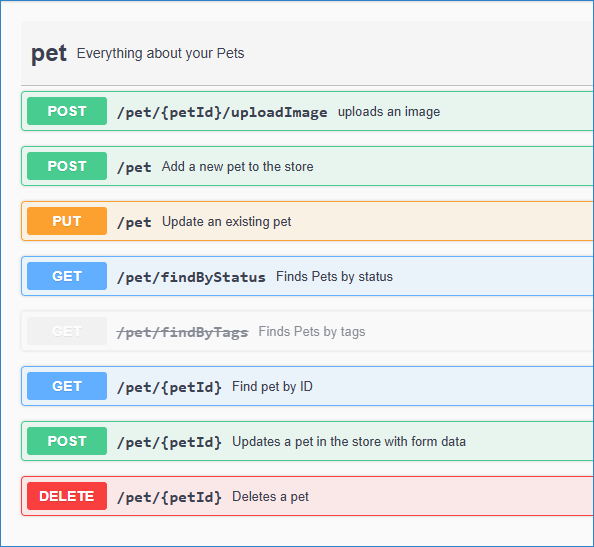
Swagger – Pet category
- From the list, we can see multiple endpoints and HTTP methods, including GET, POST, PUT, and DELETE.
- Click on an endpoint to expand it. For this example, we will use Add a new pet to the store.
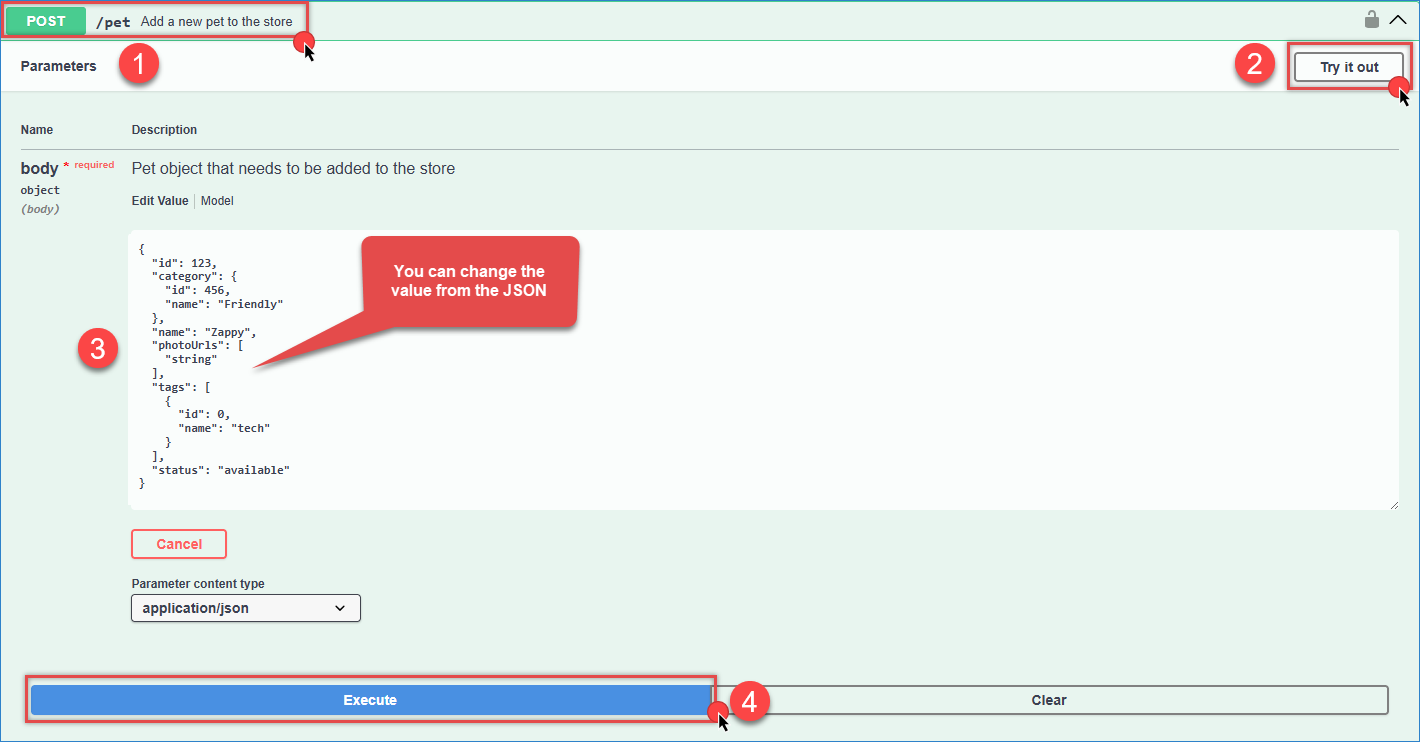
Swagger – Create a new pet
- Click Try it out. Swagger will allow you to edit the request body and choose the content type (JSON or XML).
- Click Execute. Swagger will display
- The generated request in cURL format
- The Request URL
- The Response body
- The HTTP status code
- In the Response JSON, we can see the new pet with status code 200, indicating success.
- Now, with the CURL syntax, we can use that inside our tool.
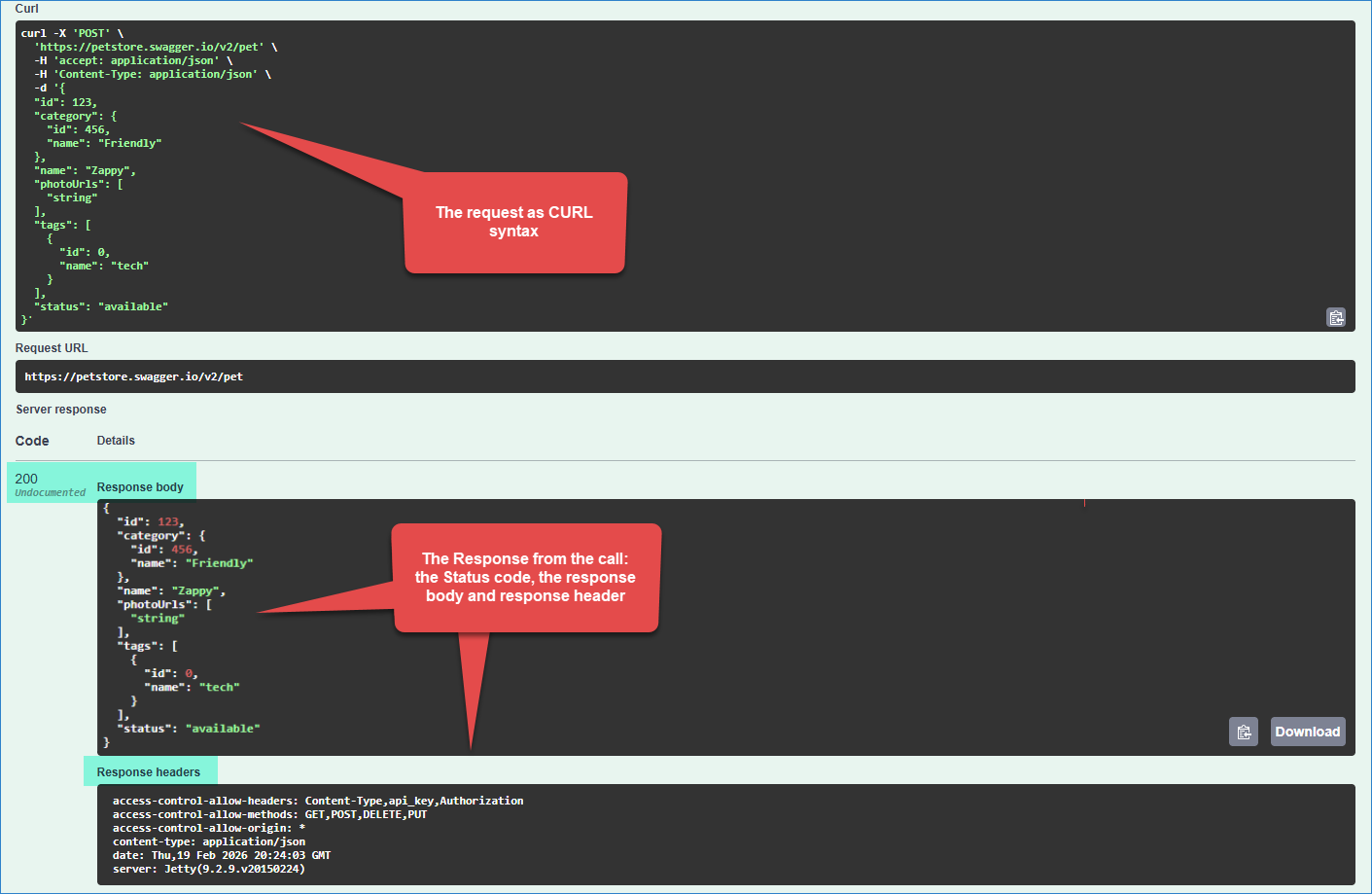
Swagger – Create a new pet CURL
POST request: Create Pet Request
- Open Visual Studio and create a new Integration Services Project.
- After the project is created, locate the SSIS Toolbox on the left panel.
- Drag and drop the REST API Task onto the Control Flow surface and double-click it to configure
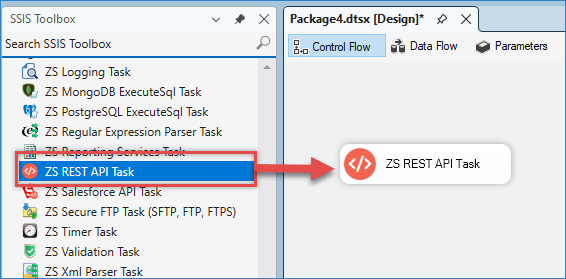
Drag and Drop REST API Task
- Use the cURL generated from Swagger. For reference, you can review our article about converting cURL to an SSIS API Task.
12345678910111213141516171819202122curl -X 'POST' \'https://petstore.swagger.io/v2/pet' \-H 'accept: application/json' \-H 'Content-Type: application/json' \-d '{"id": 123,"category": {"id": 456,"name": "Friendly"},"name": "Zappy","photoUrls": ["string"],"tags": [{"id": 0,"name": "tech"}],"status": "available"}' - -X POST represents the HTTP method. Set the Request Method to POST.
- Enter the URL from the cURL command.
- Each -H represents a Header. Add the corresponding headers inside the REST API Task.
- The -d parameter represents the Body. Paste the JSON payload into the Body section.
- Click Test Request/Response to validate the configuration.
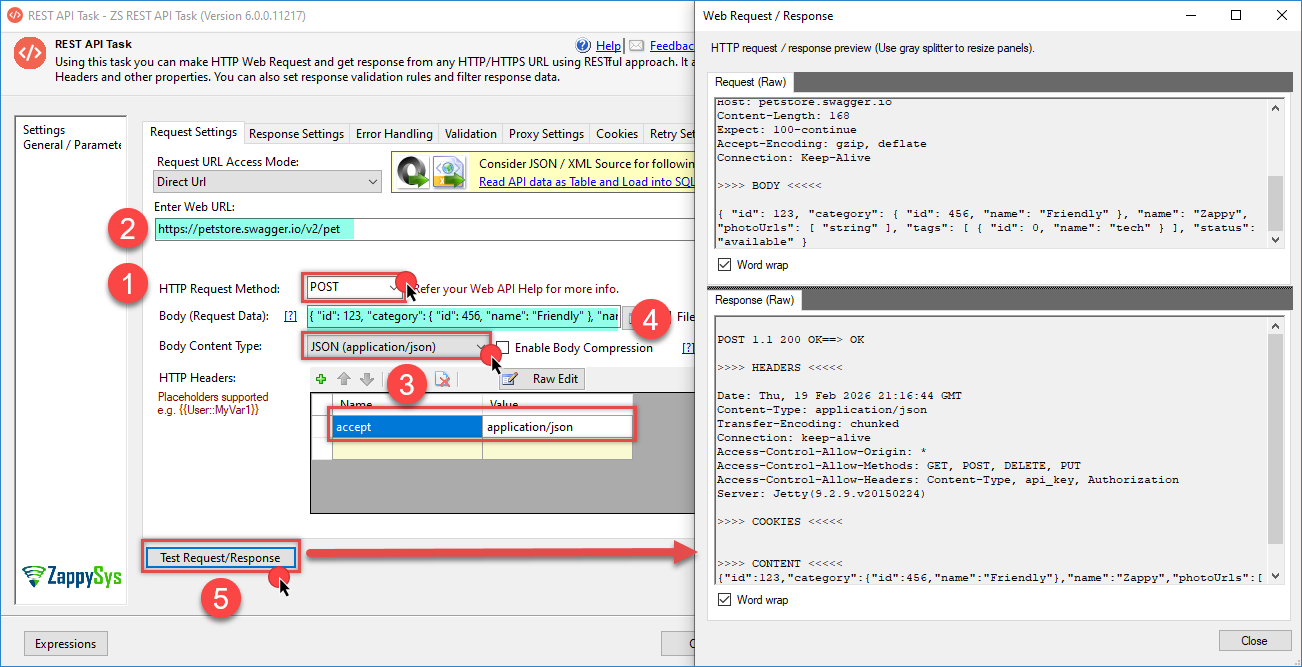
SSIS – Create a new pet
- You can use additional components such as JSON Source or XML Source, depending on how you plan to process the response.
POST request: Upload a file
- Next, we will upload an image for the pet we created earlier
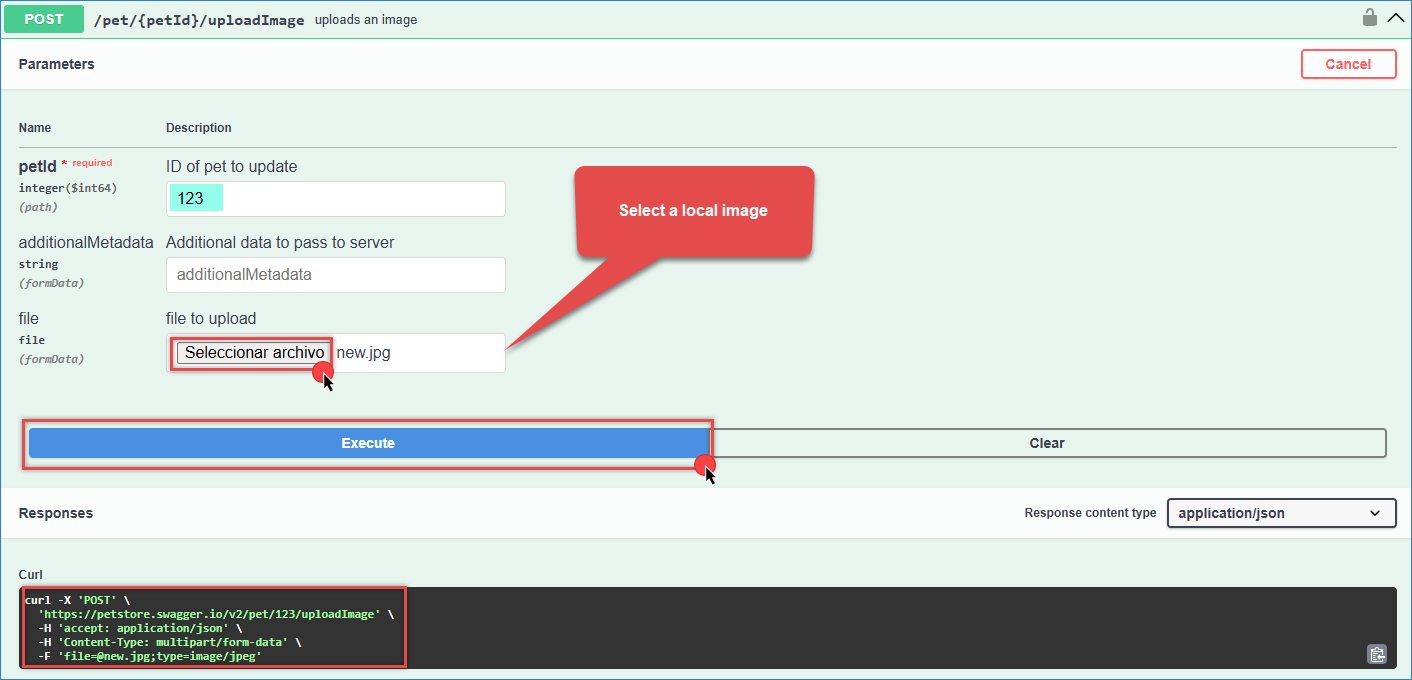
Swagger – upload image
- Generate the CURL code.
12345curl -X 'POST' \'https://petstore.swagger.io/v2/pet/123/uploadImage' \-H 'accept: application/json' \-H 'Content-Type: multipart/form-data' \-F 'file=@new.jpg;type=image/jpeg' - Configure the REST API Task with:
- Request Method: POST
- URL
- Headers
- File parameter
- Check the option File upload.
- Specify the full file path (e.g., file=@D:\Zappysys\new.jpg).
- Click Test Request to validate the upload.
- You can find an article about uploading files here.
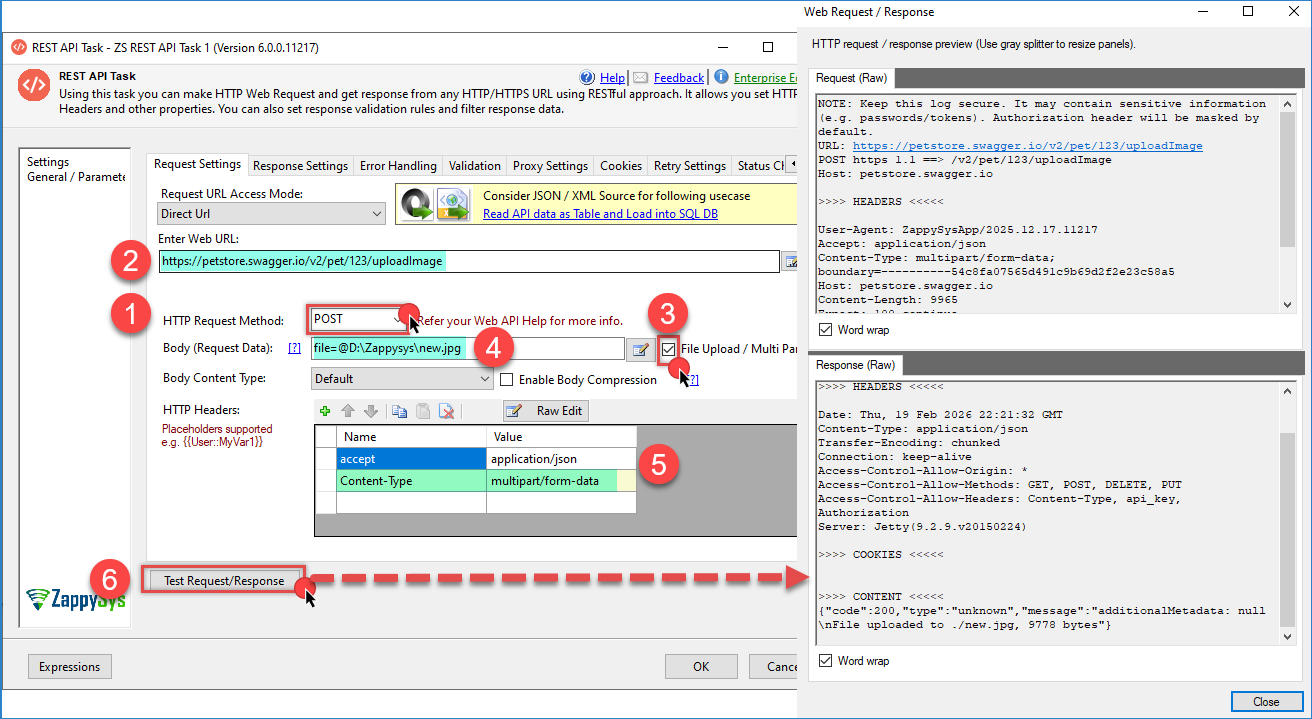
SSIS – upload an image
GET request: Get the Pet information
- Now we will get the pet we created earlier. This is the example
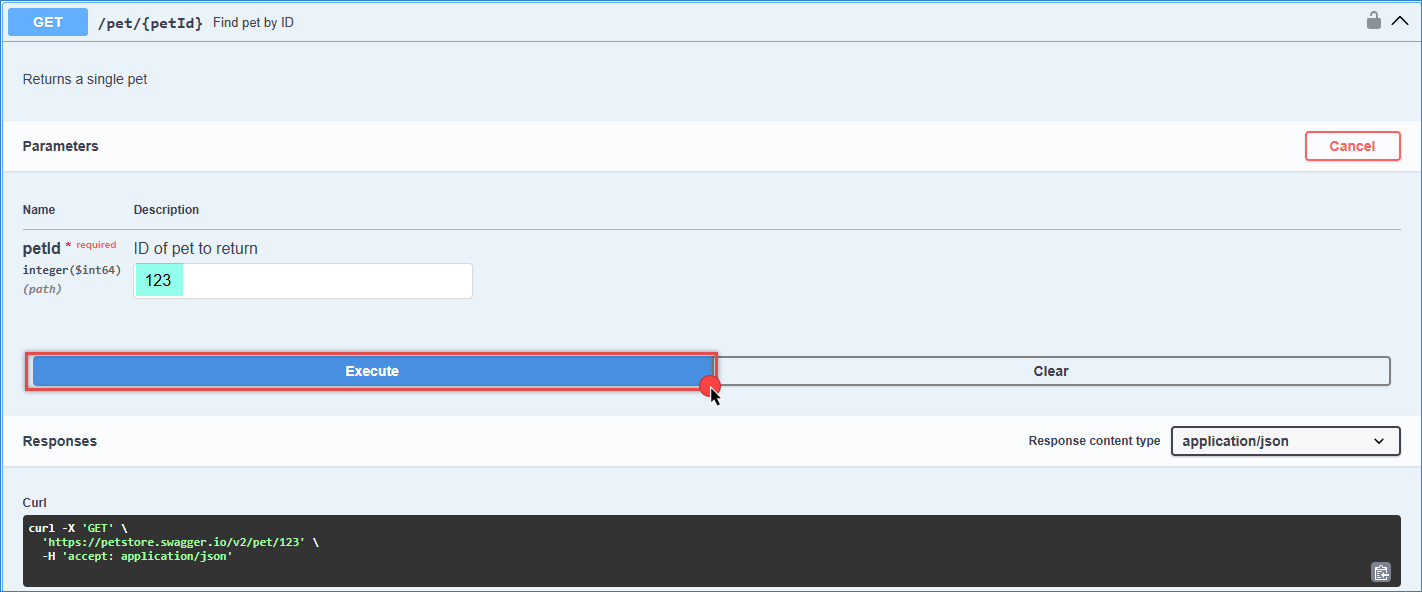
Swagger – get pet by id
- We generate the CURL
123curl -X 'GET' \'https://petstore.swagger.io/v2/pet/123' \-H 'accept: application/json' - Inside the Visual Studio project, drag and drop the SSIS Data Flow Task from the SSIS Toolbox. Double-click on the Data Flow Task to see the Data Flow designer.
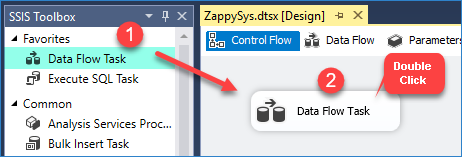
Drag and Drop SSIS Data Flow Task from SSIS Toolbox
- From the SSIS toolbox, drag and drop a JSON Source onto the data flow designer surface, and double-click on it to edit it
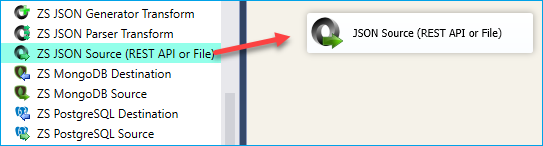
SSIS JSON Source – Drag and Drop
- We use the method GET
- We enter the URL with the ID from the earlier response.
- We can use the filter to get the object we need, and now we can check the data.
- Preview the data, and you will see the Pet’s information
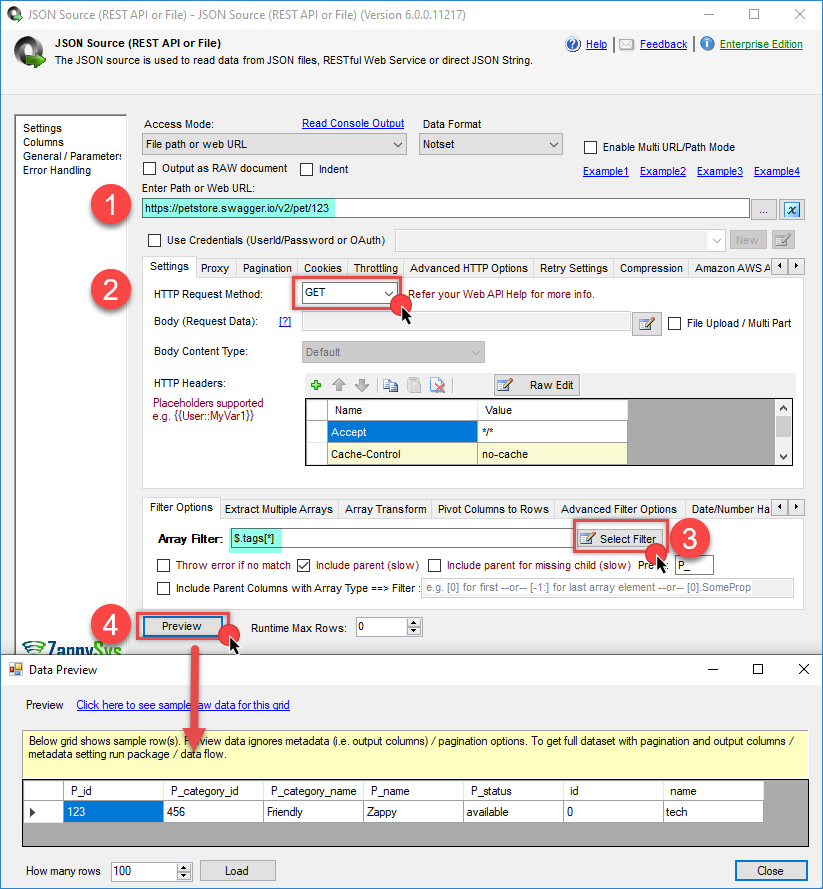
SSIS – get a pet by ID
PUT request: Update an existing pet
- We go to the updated pet example and run the example
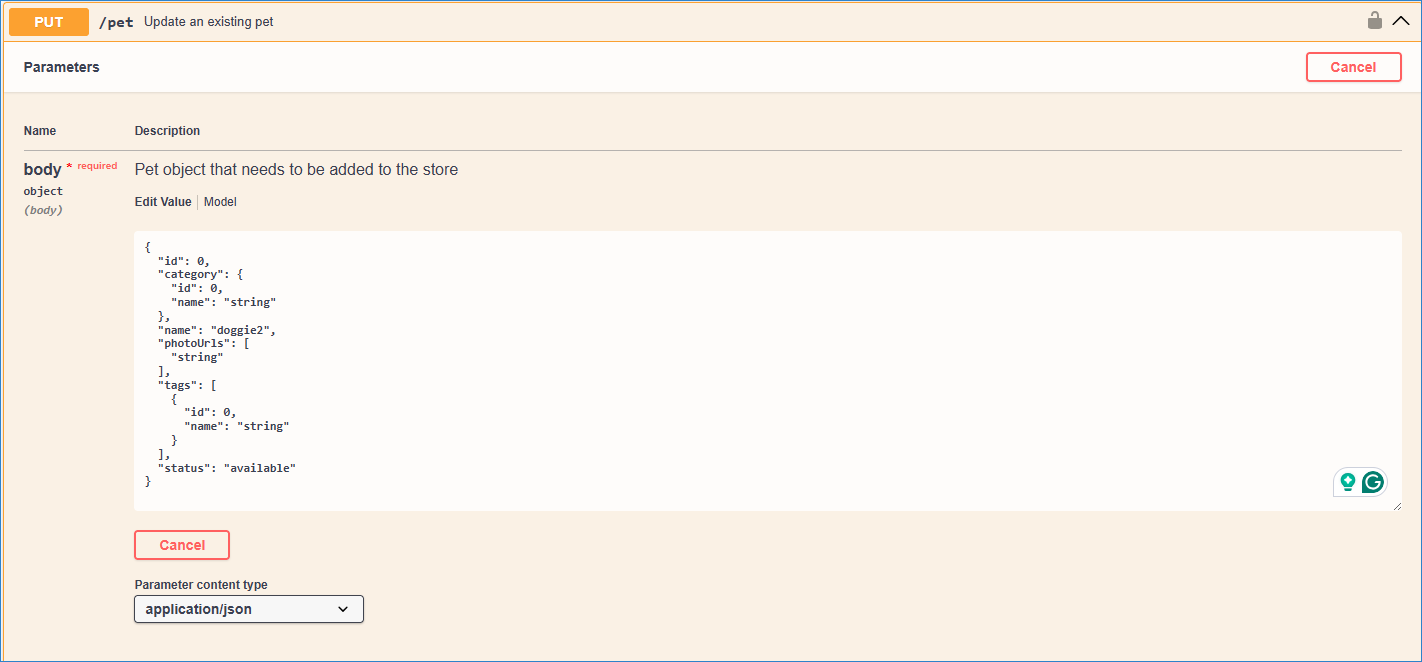
Swagger – update a pet
- Generate the CURL
12345678910111213141516171819202122curl -X 'PUT' \'https://petstore.swagger.io/v2/pet' \-H 'accept: application/json' \-H 'Content-Type: application/json' \-d '{"id": 0,"category": {"id": 0,"name": "string"},"name": "doggie2","photoUrls": ["string"],"tags": [{"id": 0,"name": "string"}],"status": "available"}' - Inside the JSON source, we configure the HTTP method to PUT.
- Change the url and the header.
- Inside the Body we can change the values from the existing pet.
- Test the connection and check the result.
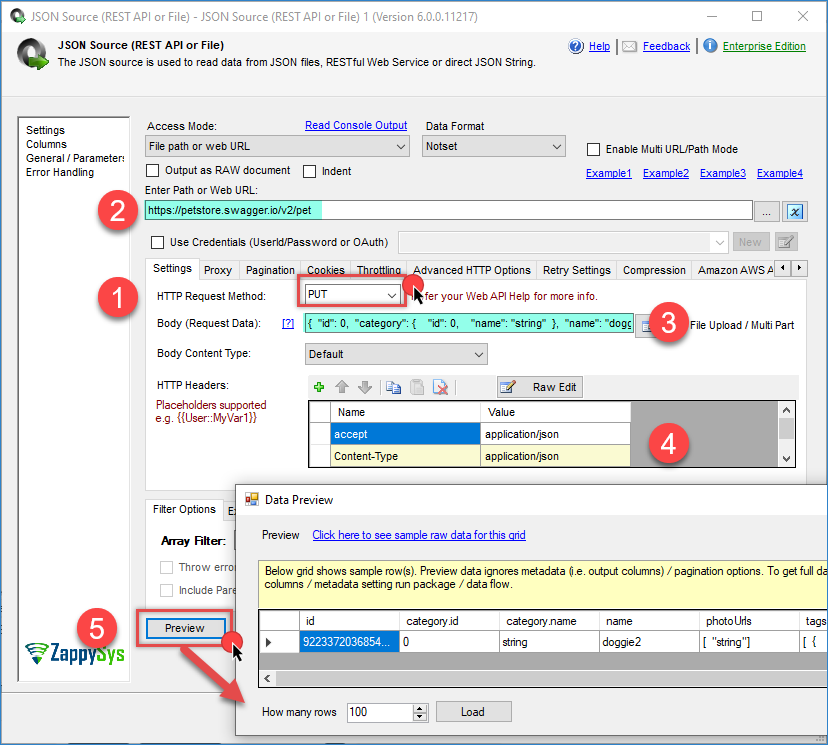
SSIS – update a pet
DELETE request: Remove an existing pet
- Now we will delete the pet using this example.
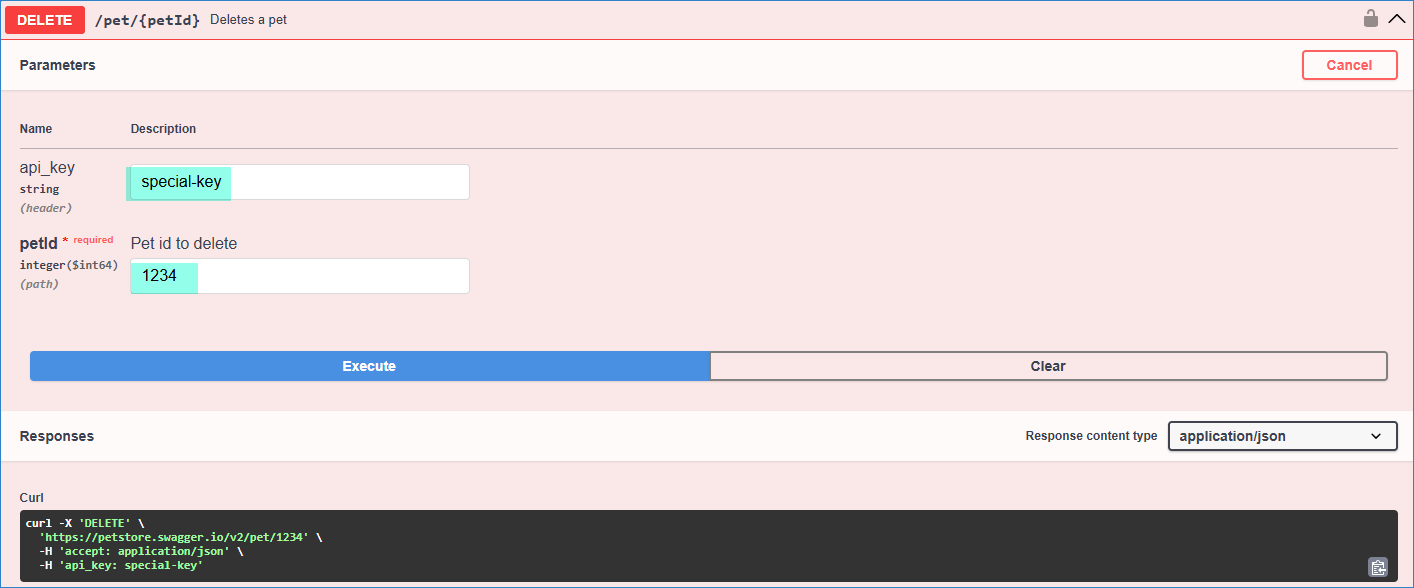
Swagger – delete a pet
- Generate the CURL to delete the pet
1234curl -X 'DELETE' \'https://petstore.swagger.io/v2/pet/1234' \-H 'accept: application/json' \-H 'api_key: special-key' - Inside the JSON source, configure the HTTP method to DELETE.
- Change the URL to include the pet’s ID.
- Inside the header, we need to insert an API key.
- Test the connection, and we will delete the pet.
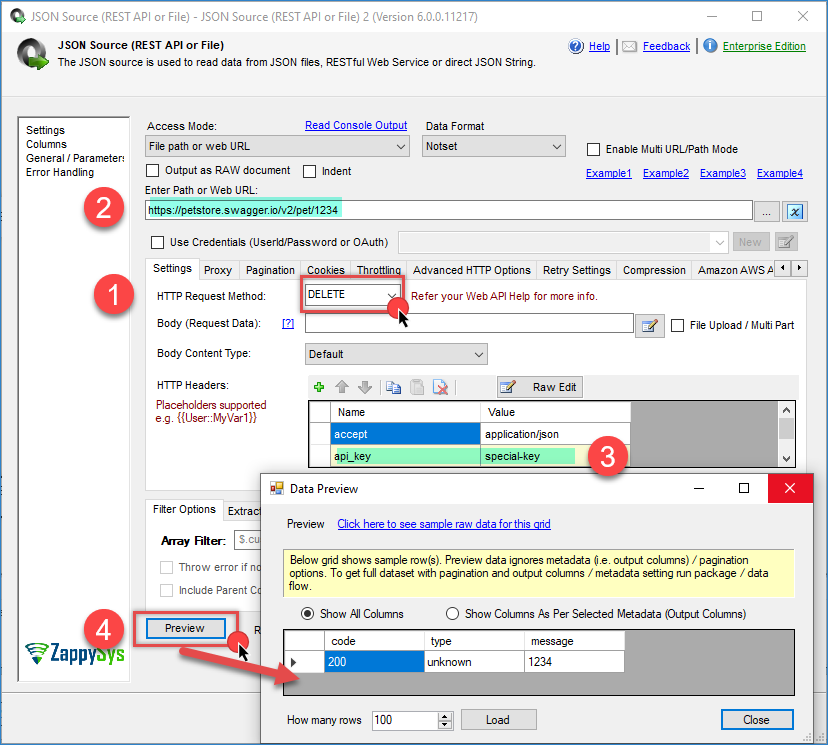
aSSIS – delete a pet
Authentication method
- Some APIs require authentication. You can configure authentication using an HTTP Connection Manager.
- Enter the login URL if required.
- Select the credential type (e.g., Basic – Username/Password).
- Enter the credentials.
- Click OK to save the configuration.
- This connection can be reused across multiple REST API Tasks or JSON Sources.
- For more details on basic authentication, click here. For more details on the OAuth connection, click here.
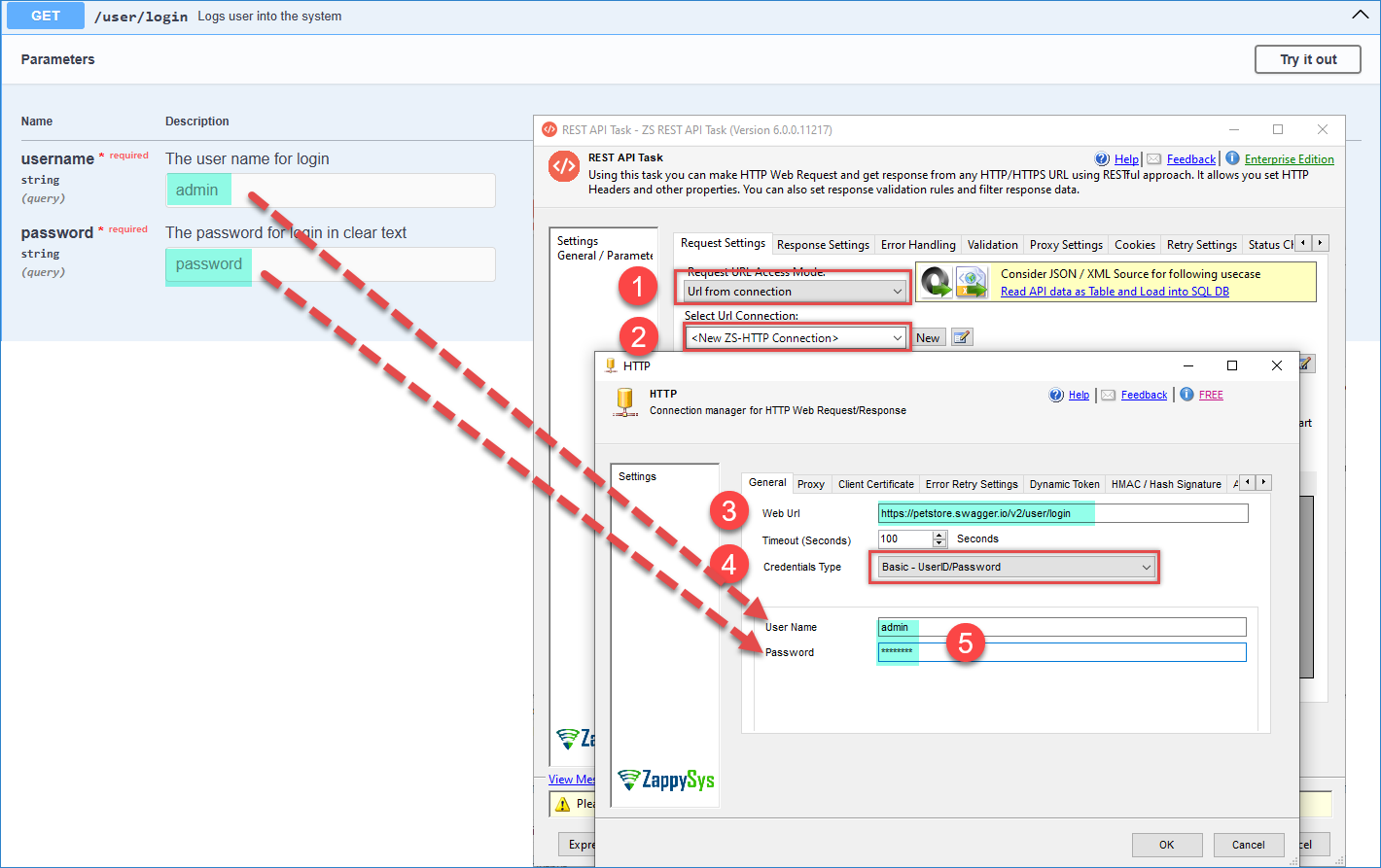
Swagger – SSIS basic authentication
Conclusion
Integrating Swagger-documented APIs with ZappySys SSIS becomes significantly easier when using the generated cURL command as a reference. Swagger provides a clear and interactive way to understand API endpoints, request structures, headers, and payload formats, while cURL offers a direct, executable representation of the HTTP request.
By translating the cURL command into the REST API Task or JSON Source configuration, developers can confidently replicate API calls inside SSIS without guesswork. This approach ensures accuracy, reduces troubleshooting time, and provides a consistent workflow for handling GET, POST, PUT, DELETE operations, file uploads, and authentication scenarios.
Download SSIS PowerPack today and see for yourself how easy it is to combine Swagger and ZappySys SSIS, enabling organizations to seamlessly integrate modern REST APIs into enterprise ETL processes and bridge the gap between cloud-based services and traditional SQL Server data platforms.
If the issue persists, please get in touch with our support team:
- Live Chat: Open the chat widget (bottom right of this page)
- Email: support@zappysys.com
- Support Center: Support | ZappySys