Create data source using Zendesk ODBC Driver
Video instructions
Watch this quick walkthrough to see how to configure your Zendesk ODBC data source, or scroll down for the step-by-step written guide.
Step-by-step instructions
-
Download and install ODBC PowerPack (if you haven't already).
-
Search for
odbcand open the ODBC Data Sources (64-bit):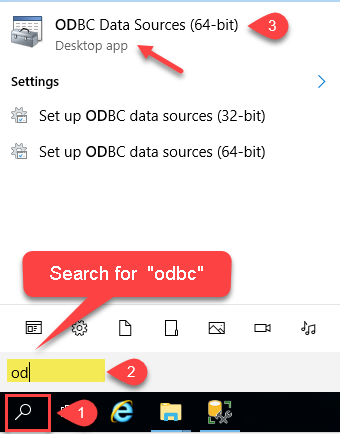
-
Create a User data source (User DSN) based on the ZappySys API Driver driver:
ZappySys API Driver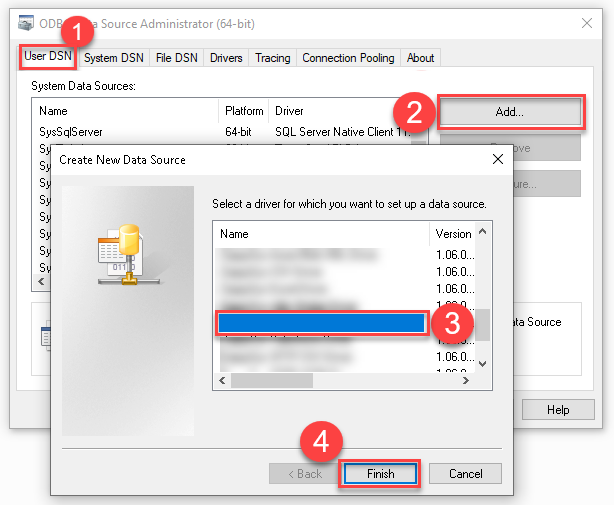
- Create and use a User DSN if the client application runs under a User Account. This is the ideal option at design time (e.g., when developing in Visual Studio). Use it for both types of applications (64-bit and 32-bit).
- Create and use a System DSN if the client application runs under a System Account (e.g., as a Windows Service). This is usually the required option in a production environment. If your Windows Service is a 32-bit application, you must use the 32-bit ODBC Data Source Administrator to configure this
-
When the Configuration window appears give your data source a name if you haven't done that already, then select "Zendesk" from the list of Popular Connectors. If "Zendesk" is not present in the list, then click "Search Online" and download it. Then set the path to the location where you downloaded it. Finally, click Continue >> to proceed with configuring the DSN:
ZendeskDSNZendesk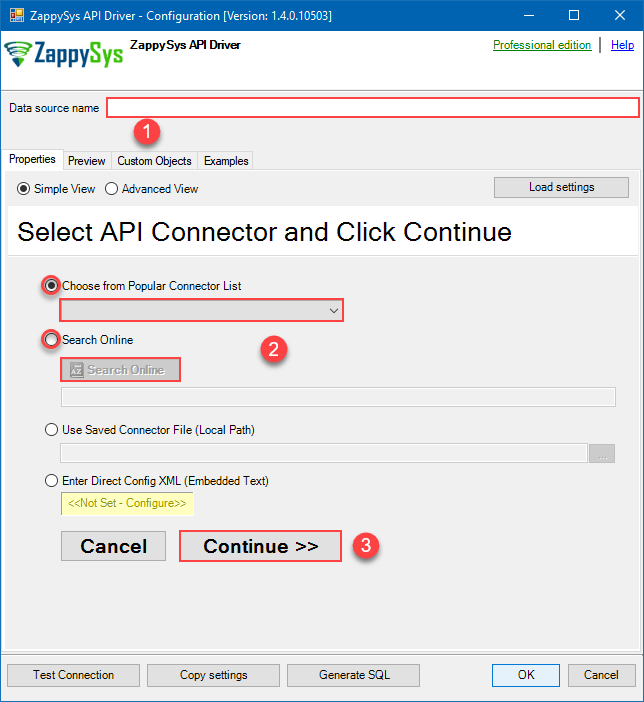
-
Select your authentication scenario below to expand connection configuration steps to:
- Configure the authentication in Zendesk.
- Enter those details into the ZappySys API Driver data source configuration.
OAuth - Client Credentials (Server-to-Server)
Zendesk authentication
Recommended for unattended server-to-server automation. No interactive user login or refresh token is required. The OAuth client must be configured as a Confidential client in Zendesk. [API reference]
Use OAuth - Client Credentials (Server-to-Server) for unattended applications such as ETL packages, scheduled jobs, services, data pipelines, and other server-side integrations.
Recommended for unattended automation: This authentication method does not require an interactive user login and does not use a refresh token. When the access token expires, ZappySys automatically requests a new access token using the same Client ID and Client Secret.- Sign in to Zendesk as an administrator.
- Go to Admin Center > Apps and integrations > APIs > Zendesk API.
- Open the OAuth Clients section and create an OAuth client.
- Configure the OAuth client as a Confidential client.
- Enter a unique Client ID.
- Copy the generated Client Secret and store it securely.
- Configure the permissions/scopes required by your integration.
- In the ZappySys connection, enter your Zendesk Sub Domain, Client ID, Client Secret, and desired Permissions.
- Click Test Connection.
Security: Client Credentials should only be used in trusted server-side environments where the Client Secret can be stored securely. Do not expose the Client Secret in browser-side or client-side applications.The access token is associated with the Zendesk user linked to the OAuth client and inherits that user's permissions. For automated integrations, consider using a dedicated Zendesk service account with only the permissions required by the integration.No Redirect URL, browser login, authorization code, or refresh token is required for this authentication method.
API Connection Manager configuration
Just perform these simple steps to finish authentication configuration:
-
Set Authentication Type to
OAuth - Client Credentials (Server-to-Server) [OAuth] - Optional step. Modify API Base URL if needed (in most cases default will work).
- Fill in all the required parameters and set optional parameters if needed.
- Finally, hit OK button:
ZendeskDSNZendeskOAuth - Client Credentials (Server-to-Server) [OAuth]https://[$Domain$].zendesk.com/api/v2Required Parameters Sub Domain (e.g. mycompany) Fill-in the parameter... OAuth Client ID Fill-in the parameter... OAuth Client Secret Fill-in the parameter... Permissions Fill-in the parameter... Optional Parameters RetryMode RetryWhenStatusCodeMatch RetryStatusCodeList 429 RetryCountMax 5 RetryMultiplyWaitTime True 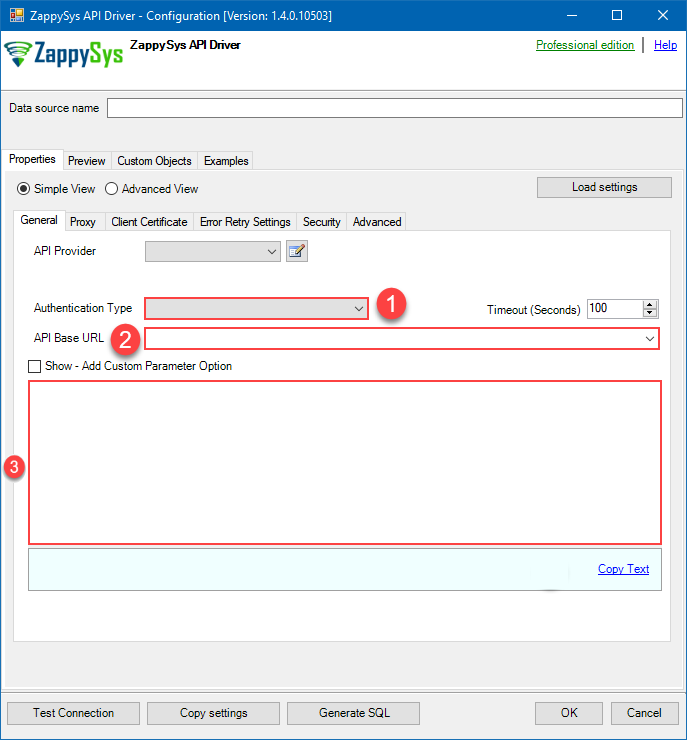 Find full details in the Zendesk Connector authentication reference.
OAuth - User Login (Interactive)
Zendesk authentication
Authenticate through an interactive Zendesk login. Create an OAuth client in Zendesk Admin Center under Apps and integrations > APIs > Zendesk API > OAuth Clients. [API reference]
Use OAuth - User Login (Interactive) when the integration should access Zendesk on behalf of a specific user.
During initial setup, a browser window opens and the user signs in to Zendesk and authorizes the application. No Zendesk password is stored in the connection.
- Sign in to Zendesk as an administrator.
- Go to Admin Center > Apps and integrations > APIs > Zendesk API.
- Open the OAuth Clients section and create an OAuth client.
- Enter a unique Client ID.
- Copy the generated Client Secret and store it securely.
-
Configure the following Redirect URL for the OAuth client:
https://zappysys.com/oauth - In the ZappySys connection, enter your Zendesk Sub Domain, Client ID, Client Secret, and desired Permissions.
- Start the authorization process and sign in to Zendesk when the browser opens.
- Approve access when prompted.
- Click Test Connection.
Token renewal: Zendesk access tokens expire. ZappySys uses the OAuth refresh token to obtain new access tokens without requiring the user to sign in again. The latest refresh token must be stored securely because Zendesk rotates refresh tokens during renewal.If the refresh token expires, is revoked, or cannot be restored from the saved connection, the interactive Zendesk login process must be performed again.For unattended server-side integrations where you do not want to maintain a refresh token, consider OAuth - Client Credentials (Server-to-Server).
API Connection Manager configuration
Just perform these simple steps to finish authentication configuration:
-
Set Authentication Type to
OAuth - User Login (Interactive) [OAuth] - Optional step. Modify API Base URL if needed (in most cases default will work).
- Fill in all the required parameters and set optional parameters if needed.
- Press Generate Token button to generate the tokens.
- Finally, hit OK button:
ZendeskDSNZendeskOAuth - User Login (Interactive) [OAuth]https://[$Domain$].zendesk.com/api/v2Required Parameters Sub Domain (e.g. mycompany) Fill-in the parameter... ClientId Fill-in the parameter... ClientSecret Fill-in the parameter... Permissions Fill-in the parameter... RedirectUrl Fill-in the parameter... Optional Parameters RetryMode RetryWhenStatusCodeMatch RetryStatusCodeList 429 RetryCountMax 5 RetryMultiplyWaitTime True 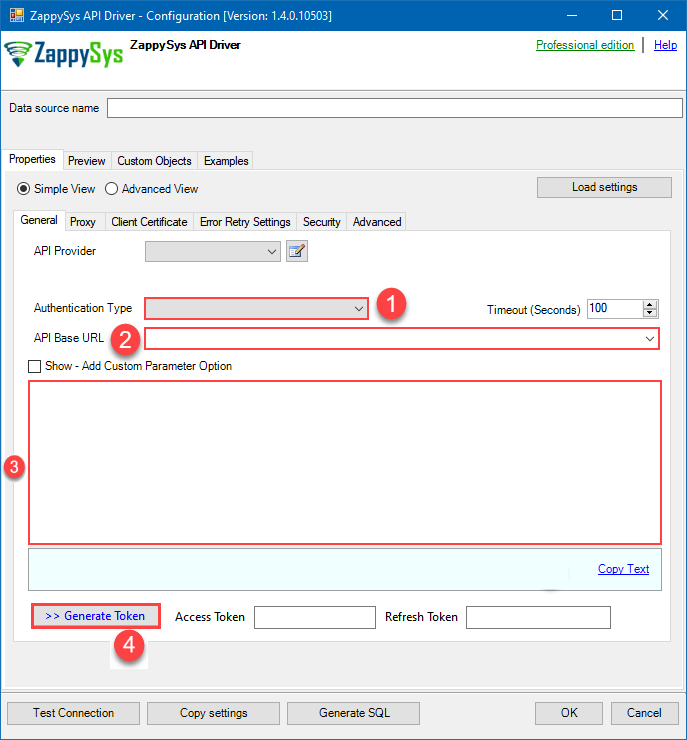 Find full details in the Zendesk Connector authentication reference.
Token Authentication (Legacy)
Zendesk authentication
Authenticate using Static Token instead of userid / password ([Token Access] option must be enabled under Admin Console > Channel > API > Settings and then Click [ADD API Token] to generate new token. These settings typically found here https://YOUR-SUB-DOMAIN.zendesk.com/agent/admin/api/settings [API reference]
Use API Token authentication to authenticate with your Zendesk user email and a Zendesk API token instead of your password.
Deprecated by Zendesk: Zendesk is removing API token authentication. Existing API tokens are scheduled to stop working on April 30, 2027. For new integrations, use OAuth instead.- Sign in to Zendesk as an administrator.
- Go to Admin Center > Apps and integrations > APIs > Zendesk API.
- Make sure Token access is enabled.
- Create or select an existing API token.
- Copy the generated token and store it securely.
- Enter your Zendesk Sub Domain.
- Enter your Zendesk User ID / Email.
- Paste the API token into the Token field.
- Click Test Connection.
Migration: For unattended ETL, scheduled jobs, and server-side integrations, use OAuth - Client Credentials (Server-to-Server).API Connection Manager configuration
Just perform these simple steps to finish authentication configuration:
-
Set Authentication Type to
Token Authentication (Legacy) [Http] - Optional step. Modify API Base URL if needed (in most cases default will work).
- Fill in all the required parameters and set optional parameters if needed.
- Finally, hit OK button:
ZendeskDSNZendeskToken Authentication (Legacy) [Http]https://[$Domain$].zendesk.com/api/v2Required Parameters Sub Domain (e.g. mycompany) Fill-in the parameter... UserId Fill-in the parameter... Token Fill-in the parameter... Optional Parameters RetryMode RetryWhenStatusCodeMatch RetryStatusCodeList 429 RetryCountMax 5 RetryMultiplyWaitTime True 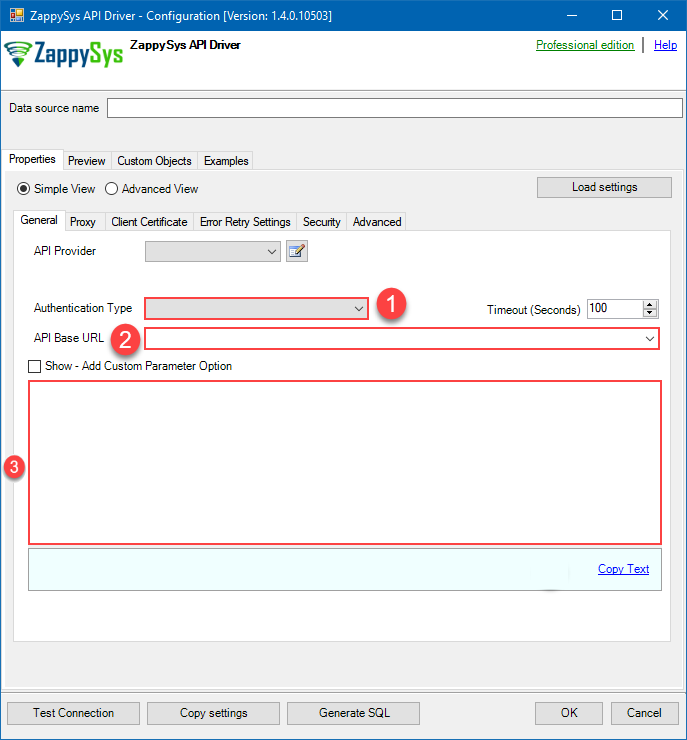 Find full details in the Zendesk Connector authentication reference.
Basic Authentication (User ID + Password)
Zendesk authentication
Authenticate using your Zendesk user ID and password. Two-factor authentication (2FA) must be disabled, and Password Access must be enabled under Admin Console > Channels > API > Settings. [API reference]
Use Basic Authentication to authenticate with your Zendesk user email and password.
Important: This method cannot be used when two-factor authentication (2FA) is enabled for the Zendesk user. Password access to the API must also be enabled in Zendesk.- Sign in to Zendesk as an administrator.
- Go to Admin Center > Apps and integrations > APIs > Zendesk API.
- Make sure Password access is enabled.
-
Enter your Zendesk Sub Domain.
For example, if your Zendesk URL is:
https://mycompany.zendesk.com, entermycompany. - Enter your Zendesk User ID / Email and Password.
- Click Test Connection.
Recommendation: For new integrations, OAuth is preferred over storing a user's password. For unattended server-side integrations, consider OAuth - Client Credentials (Server-to-Server).API Connection Manager configuration
Just perform these simple steps to finish authentication configuration:
-
Set Authentication Type to
Basic Authentication (User ID + Password) [Http] - Optional step. Modify API Base URL if needed (in most cases default will work).
- Fill in all the required parameters and set optional parameters if needed.
- Finally, hit OK button:
ZendeskDSNZendeskBasic Authentication (User ID + Password) [Http]https://[$Domain$].zendesk.com/api/v2Required Parameters Sub Domain (e.g. mycompany) Fill-in the parameter... UserName (2FA Must be OFF) Fill-in the parameter... Password Fill-in the parameter... Optional Parameters RetryMode RetryWhenStatusCodeMatch RetryStatusCodeList 429 RetryCountMax 5 RetryMultiplyWaitTime True
Find full details in the Zendesk Connector authentication reference. -
Then go to Preview tab to start building a SQL query.
-
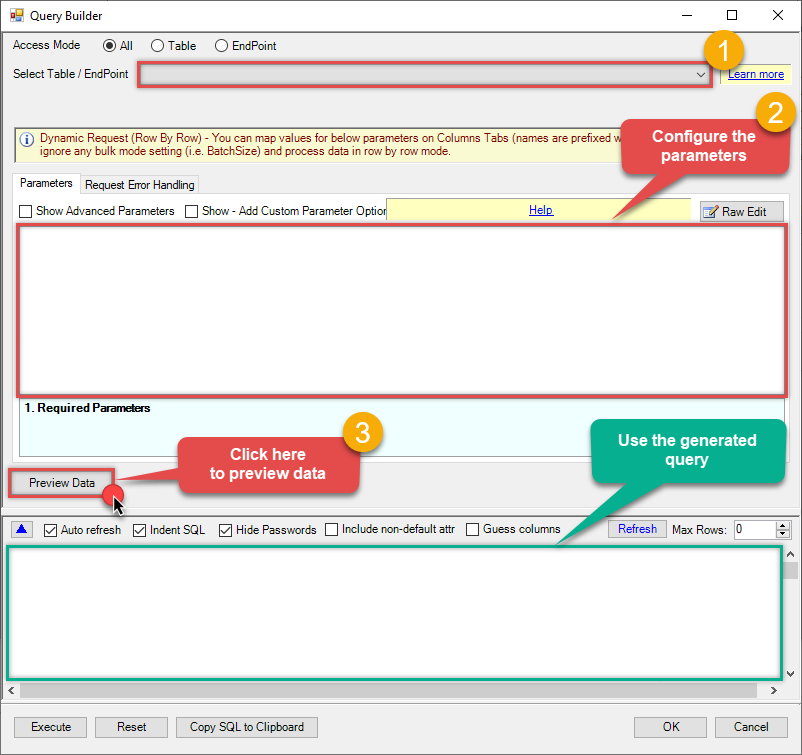
Once you do that, proceed by opening Query Builder:
 ZappySys API Driver - ZendeskRead and write Zendesk data effortlessly. Manage tickets, users, and organizations — almost no coding required.ZendeskDSN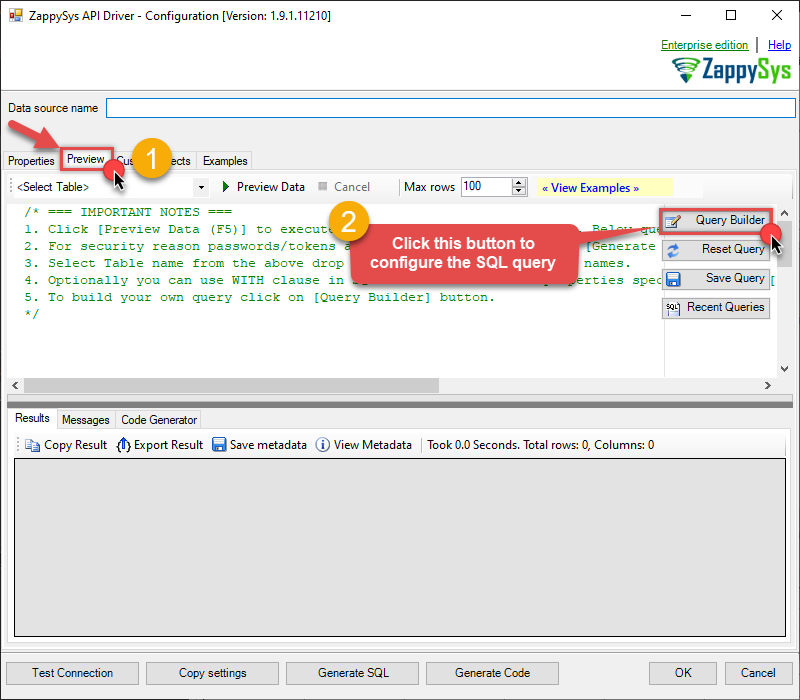
-
Then simply select the Read Tickets for User (CCed) endpoint (action).
-
Continue by configuring the Required parameters. You can also set optional parameters too.
-
Move on by hitting Preview Data button to preview the results.
-
If you see the results you need, simply copy the generated query:
-
Click OK to use built SQL query and close the Query Builder.
-
Now hit Preview Data button to preview the data using the generated SQL query. If you are satisfied with the result, use this query in C#:
 ZappySys API Driver - ZendeskRead and write Zendesk data effortlessly. Manage tickets, users, and organizations — almost no coding required.ZendeskDSN
SELECT * FROM get_tickets_for_user_cced WITH( user_id='123' )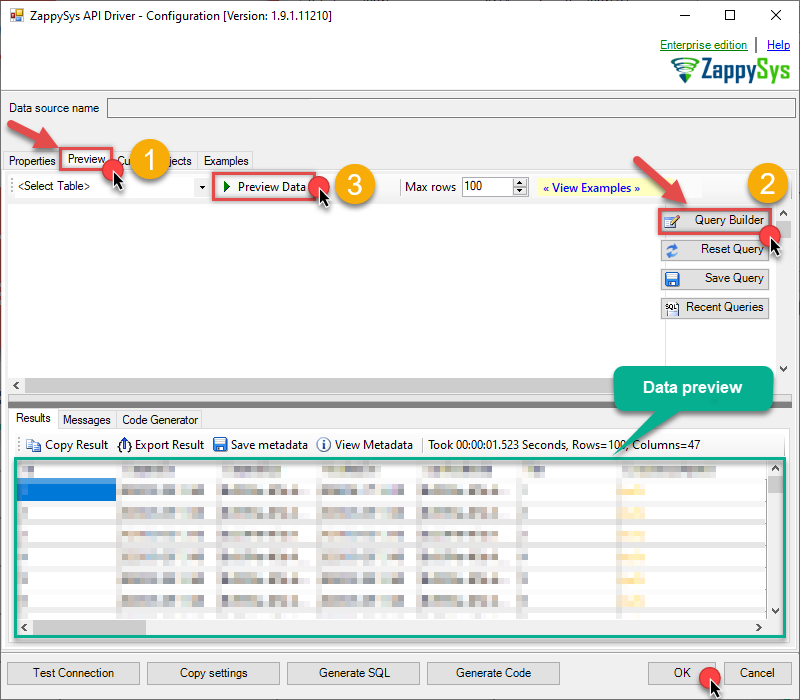 You can also access data quickly from the tables dropdown by selecting <Select table>.A
WHEREclause,LIMITkeyword will be performed on the client side, meaning that thewhole result set will be retrieved from the Zendesk API first, and only then the filtering will be applied to the data. If possible, it is recommended to use parameters in Query Builder to filter the data on the server side (in Zendesk servers).
Let's not stop here and explore SQL query examples, including how to use them in Stored Procedures and Views (virtual tables) in the next steps.
Zendesk SQL query examples
Use these SQL queries in your C# data source:
Read tickets CCed to user
Reads all tickets where a specific user is CCed. This example demonstrates using the get_tickets_for_user_cced endpoint with the user_id parameter.
SELECT * FROM get_tickets_for_user_cced
WITH(
	  user_id='123'
)Create SQL view in ODBC data source
ZappySys API Drivers support flexible Query language so you can override Default Properties you configured on Data Source such as URL, Body. This way you don't have to create multiple Data Sources if you like to read data from multiple EndPoints. However not every application support supplying custom SQL to driver so you can only select Table from list returned from driver.
If you're dealing with Microsoft Access and need to import data from an SQL query, it's important to note that Access doesn't allow direct import of SQL queries. Instead, you can create custom objects (Virtual Tables) to handle the import process.
Many applications like MS Access, Informatica Designer wont give you option to specify custom SQL when you import Objects. In such case Virtual Table is very useful. You can create many Virtual Tables on the same Data Source (e.g. If you have 50 URLs with slight variations you can create virtual tables with just URL as Parameter setting.
-
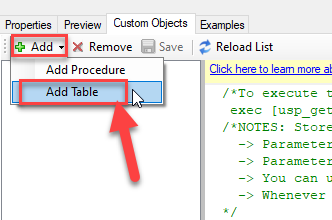
Go to Custom Objects Tab and Click on Add button and Select Add Table:
-
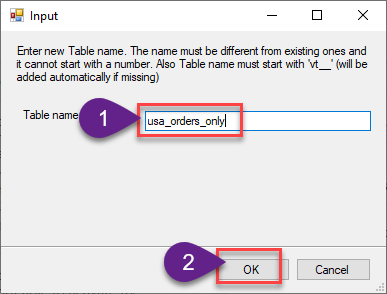
Enter the desired Table name and click on OK:
-
And it will open the New Query Window Click on Cancel to close that window and go to Custom Objects Tab.
-
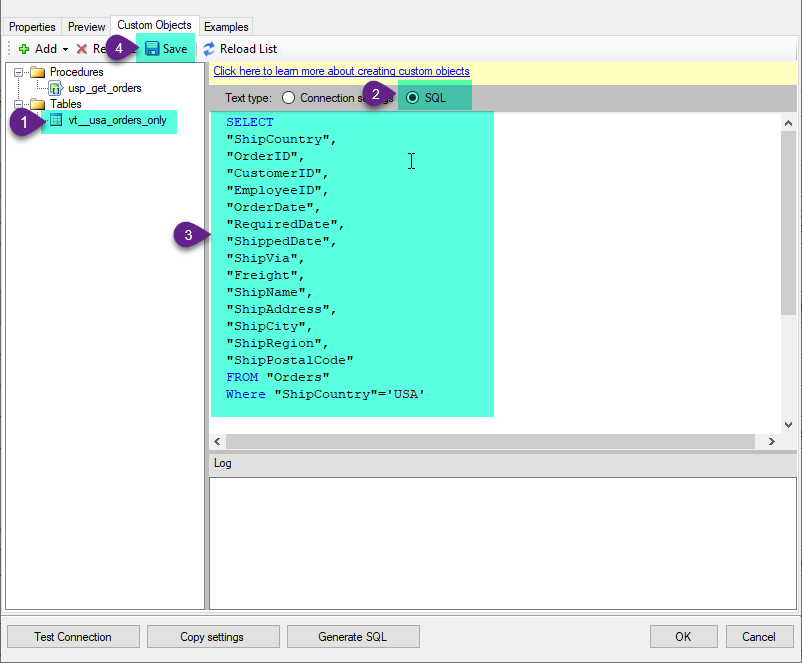
Select the created table, Select Text Type AS SQL and write the your desired SQL Query and Save it and it will create the custom table in the ZappySys Driver:
Here is an example SQL query for ZappySys Driver. You can insert Placeholders also. Read more about placeholders here
SELECT
  "ShipCountry",
  "OrderID",
  "CustomerID",
  "EmployeeID",
  "OrderDate",
  "RequiredDate",
  "ShippedDate",
  "ShipVia",
  "Freight",
  "ShipName",
  "ShipAddress",
  "ShipCity",
  "ShipRegion",
  "ShipPostalCode"
FROM "Orders"
Where "ShipCountry"='USA'
-
That's it now go to Preview Tab and Execute your custom virtual table query. In this example it will extract the orders for the USA Shipping Country only:
SELECT * FROM "vt__usa_orders_only"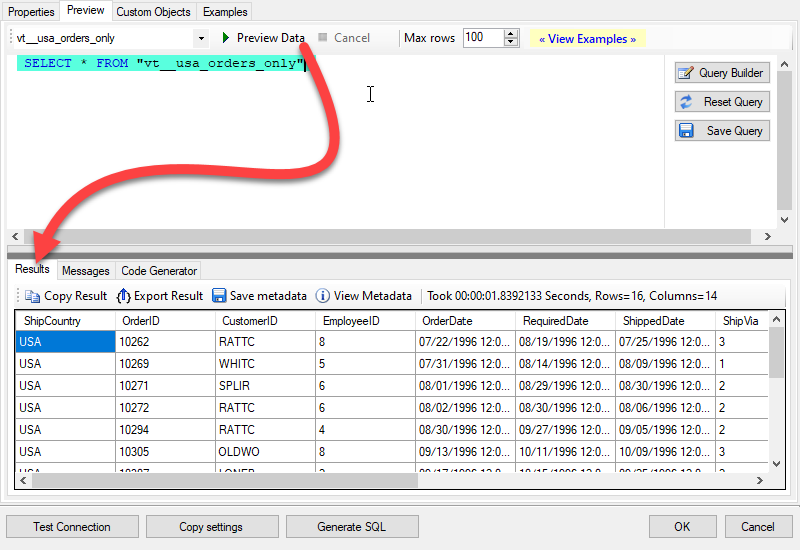
Read tickets for user in C# via SQL view
-
Use this code snippet to read the data using
ZendeskDSNdata source:"ZendeskDSN" ;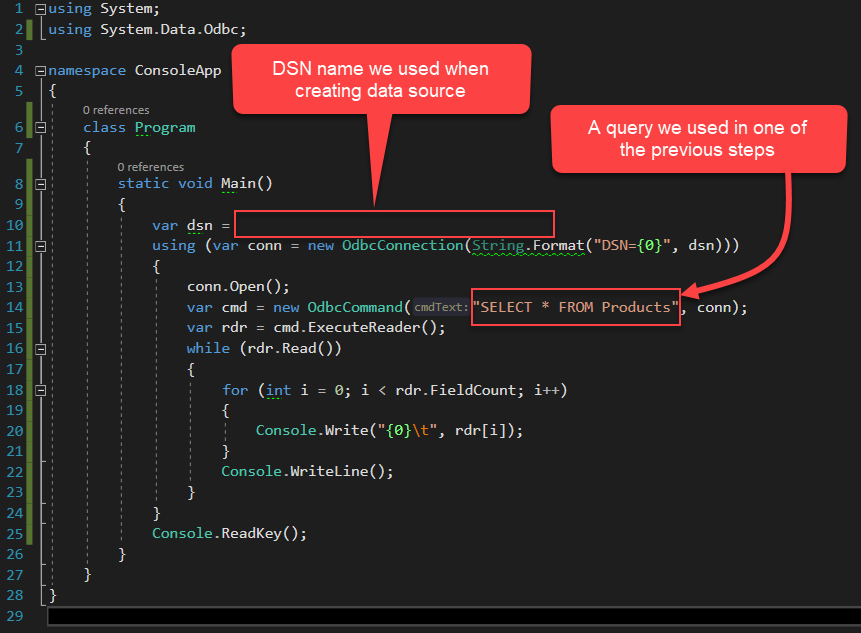
-
Press F5 to run the code and read the data:
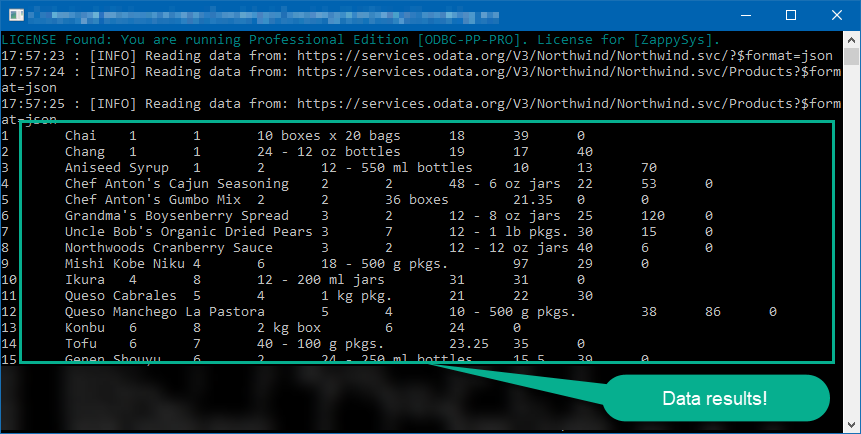
-
Here is the code in text format:
using System;
using System.Data.Odbc;

namespace ConsoleApp {
    class Program {
        static void Main() {
            var dsn = "ZendeskDSN";
            using (var conn = new OdbcConnection(String.Format("DSN={0}", dsn)))
            {
                conn.Open();
                var cmd = new OdbcCommand("SELECT * FROM Products", conn);

                //Increase the timeout duration from the default 30 seconds, which may be insufficient in certain scenarios
                cmd.CommandTimeout=600; // 600-Seconds

                var rdr = cmd.ExecuteReader();
                while (rdr.Read())
                {
                    for (int i = 0; i < rdr.FieldCount; i++)
                    {
                            Console.Write("{0}\t", rdr[i]);
                    }
                    Console.WriteLine();
                }
            }
            Console.ReadKey();
        }
    }
}
Advanced topics
Creating SQL stored procedures
You can create procedures to encapsulate custom logic and then only pass handful parameters rather than long SQL to execute your API call.
Steps to create Custom Stored Procedure in ZappySys Driver. You can insert Placeholders anywhere inside Procedure Body. Read more about placeholders here
-
Go to Custom Objects Tab and Click on Add button and Select Add Procedure:
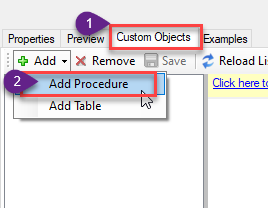
-
Enter the desired Procedure name and click on OK:
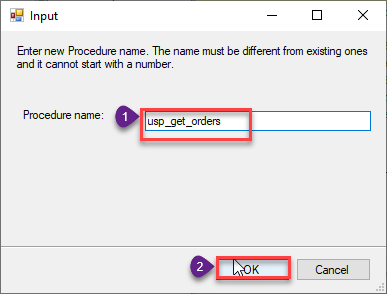
-
Select the created Stored Procedure and write the your desired stored procedure and Save it and it will create the custom stored procedure in the ZappySys Driver. Here is an example stored procedure for ZappySys Driver. You can insert Placeholders anywhere inside Procedure Body. Read more about placeholders here
CREATE PROCEDURE [usp_get_orders]
    @fromdate = '<<yyyy-MM-dd,FUN_TODAY>>'
 AS
    SELECT * FROM Orders where OrderDate >= '<@fromdate>';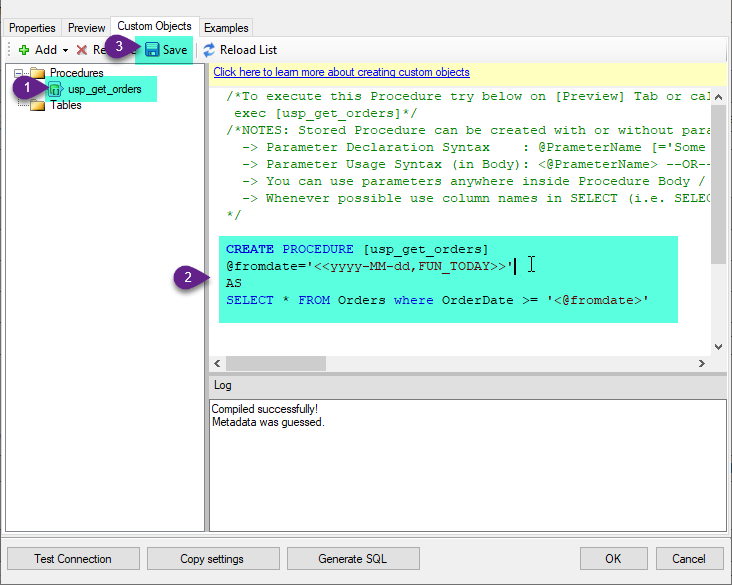
-
That's it now go to Preview Tab and Execute your Stored Procedure using Exec Command. In this example it will extract the orders from the date 1996-01-01:
Exec usp_get_orders '1996-01-01';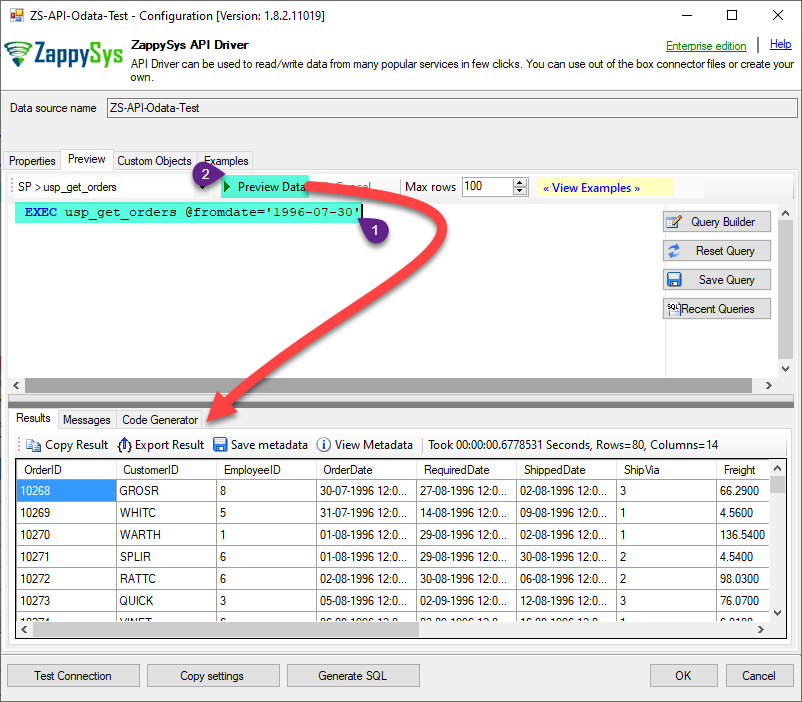
Zendesk Connector actions
Need another use case? Pick the next Zendesk action in C# below.
- Create Organization
- Create Ticket (Single)
- Create Tickets (Bulk)
- Create User
- Delete Attachment
- Delete Organization
- Delete Ticket
- Delete Tickets (Bulk)
- Delete Upload Session
- Delete User
- Read Attachment
- Read Brands
- Read Current User Info
- Read Groups
- Read Macros
- Read Organization Count
- Read Organization Fields
- Read Organization(s) by ID
- Read Organizations (All)
- Read Organizations (Incremental) changed after a specified date
- Read Requests
- Read Requests Search
- Read Sessions
- Read Tags
- Read Ticket ActivityStream
- Read Ticket ActivityStream Details
- Read Ticket Attachments
- Read Ticket Comments
- Read Ticket Events (Incremental) changed after a specified date
- Read Ticket Fields
- Read Ticket Forms
- Read Ticket Metric Events (Incremental) changed after a specified date
- Read Ticket Metrics
- Read Ticket(s) by ID
- Read Tickets (All)
- Read Tickets (Incremental) changed after a specified date
- Read Tickets (Recent)
- Read Tickets Count (All)
- Read Tickets Count (for Organization)
- Read Tickets for Organization
- Read Tickets for User (Assigned)
- Read Tickets for User (Requested)
- Read User Fields
- Read User Sessions
- Read User(s) by ID
- Read Users (All)
- Read Users (Incremental) changed after a specified date
- Read Views
- Search Records - NO Sorting (Allows more than 1000 rows)
- Search Records - WITH Sorting and Extra Columns (Max 1000 rows)
- Update Organization
- Update Ticket (Single)
- Update Tickets (Bulk)
- Update User
- Upload Attachment (Single file)
- Upsert Organization - Create or Update
- Upsert User - Create or Update
- Upsert Users (Bulk) - Create or Update
- Make Generic REST API Request
- Make Generic REST API Request (Bulk Write)
Conclusion
You now know how to read tickets for user (CCed) in C# without writing complex code. Zendesk ODBC Driver handled pagination and authentication automatically.
Ready to get started? Download the trial or ping us via chat if you need help: