
Video tutorial
Watch this quick video to see the integration in action. It walks you through the end-to-end setup, including:
- Installing the ODBC PowerPack
- Configuring a secure connection to Google BigQuery
- Working with Google BigQuery data directly inside Power BI
- Exploring advanced API Driver features
Ready to dive in? Download the product to jump right in, or follow the step-by-step guide below to see how it works.
Create data source using Google BigQuery ODBC Driver
Step-by-step instructions
-
Download and install ODBC PowerPack (if you haven't already).
-
Search for
odbcand open the ODBC Data Sources (64-bit):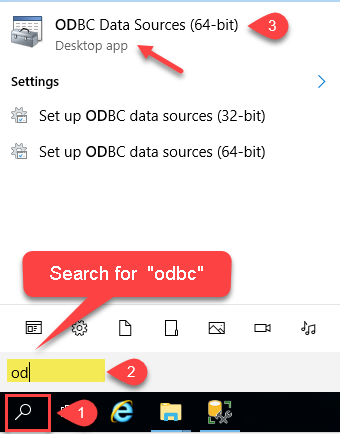
-
Create a User data source (User DSN) based on the ZappySys API Driver driver:
ZappySys API Driver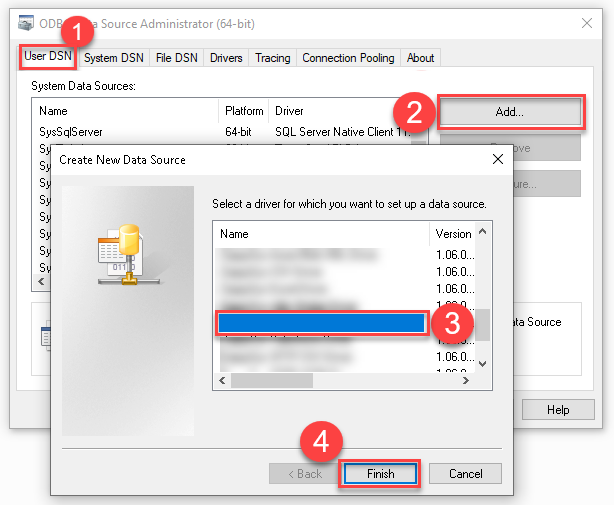
- Create and use a User DSN if the client application runs under a User Account. This is the ideal option at design time (e.g., when developing in Visual Studio). Use it for both types of applications (64-bit and 32-bit).
- Create and use a System DSN if the client application runs under a System Account (e.g., as a Windows Service). This is usually the required option in a production environment. If your Windows Service is a 32-bit application, you must use the 32-bit ODBC Data Source Administrator to configure this
-
When the Configuration window appears give your data source a name if you haven't done that already, then select "Google BigQuery" from the list of Popular Connectors. If "Google BigQuery" is not present in the list, then click "Search Online" and download it. Then set the path to the location where you downloaded it. Finally, click Continue >> to proceed with configuring the DSN:
GoogleBigqueryDSNGoogle BigQuery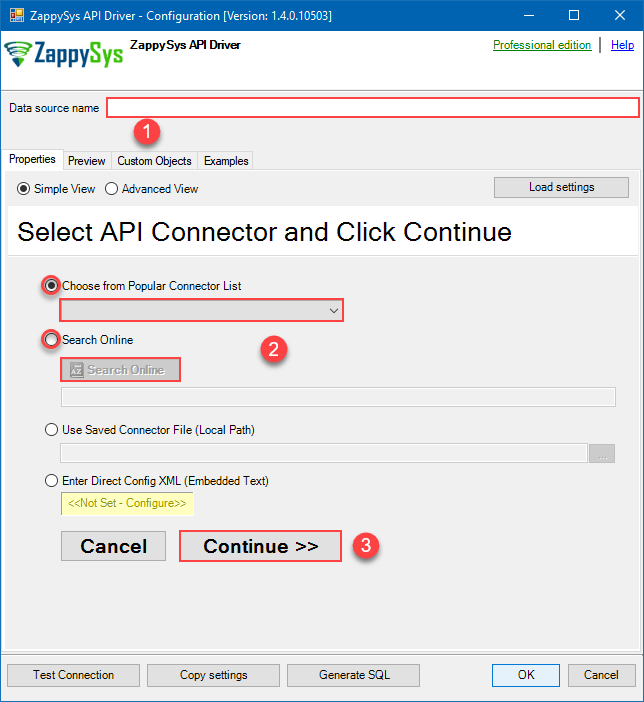
-
Select your authentication scenario below to expand connection configuration steps to:
- Configure the authentication in Google BigQuery.
- Enter those details into the ZappySys API Driver data source configuration.
User Account
Google BigQuery authentication
User accounts represent a developer, administrator, or any other person who interacts with Google APIs and services. User accounts are managed as Google Accounts, either with Google Workspace or Cloud Identity. They can also be user accounts that are managed by a third-party identity provider and federated with Workforce Identity Federation. [API reference]
Follow these steps on how to create Client Credentials (User Account principle) to authenticate and access BigQuery API in SSIS package or ODBC data source:
WARNING: If you are planning to automate processes, we recommend that you use a Service Account authentication method. In case, you still need to use User Account, then make sure you use a system/generic account (e.g.automation@my-company.com). When you use a personal account which is tied to a specific employee profile and that employee leaves the company, the token may become invalid and any automated processes using that token will start to fail.Step-1: Create project
This step is optional, if you already have a project in Google Cloud and can use it. However, if you don't, proceed with these simple steps to create one:
-
First of all, go to Google API Console.
-
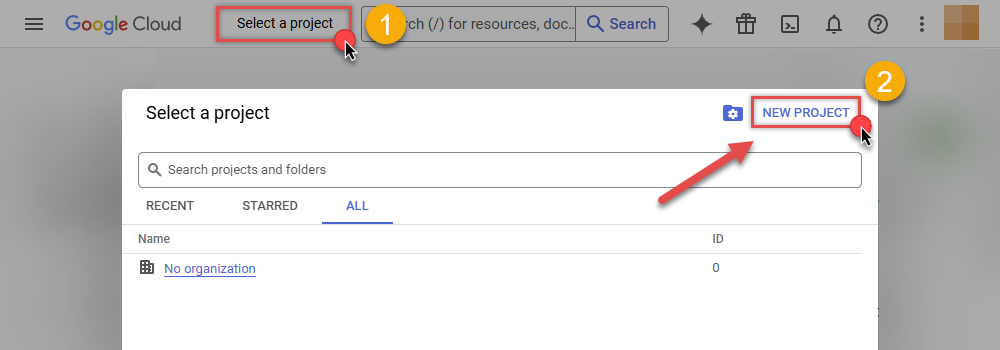
Then click Select a project button and then click NEW PROJECT button:
-
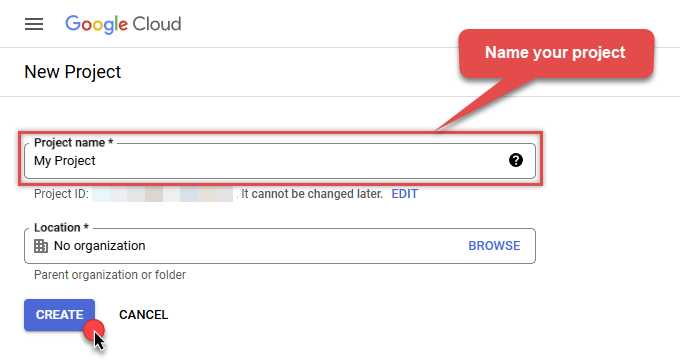
Name your project and click CREATE button:
-
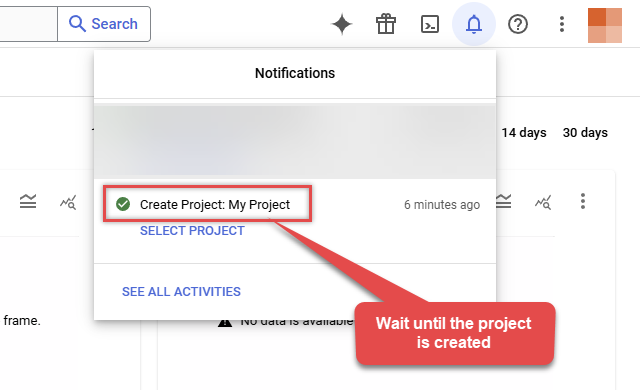
Wait until the project is created:
- Done! Let's proceed to the next step.
Step-2: Enable Google Cloud APIs
In this step we will enable BigQuery API and Cloud Resource Manager API:
-
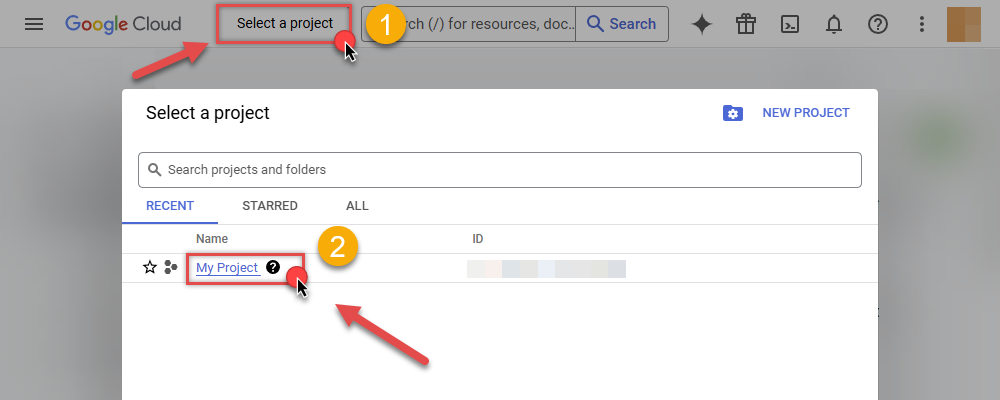
Select your project on the top bar:
-
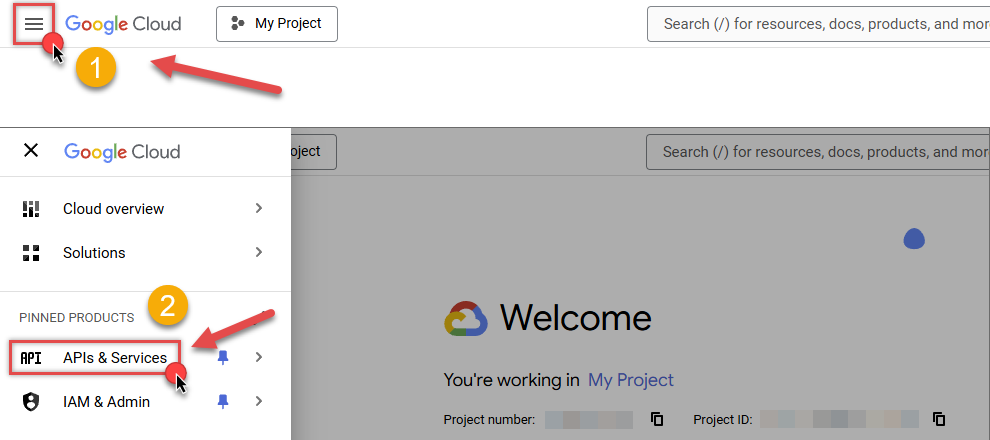
Then click the "hamburger" icon on the top left and access APIs & Services:
-
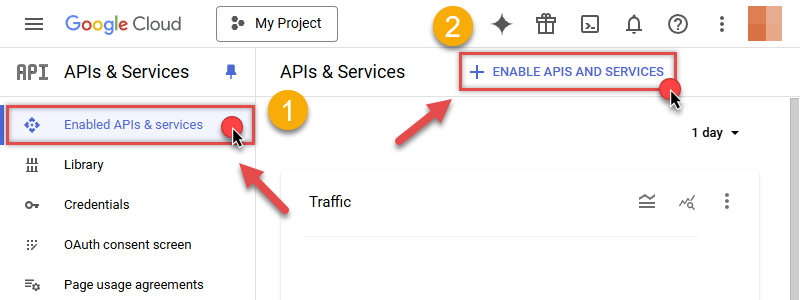
Now let's enable several APIs by clicking ENABLE APIS AND SERVICES button:
-
In the search bar search for
bigquery apiand then locate and select BigQuery API: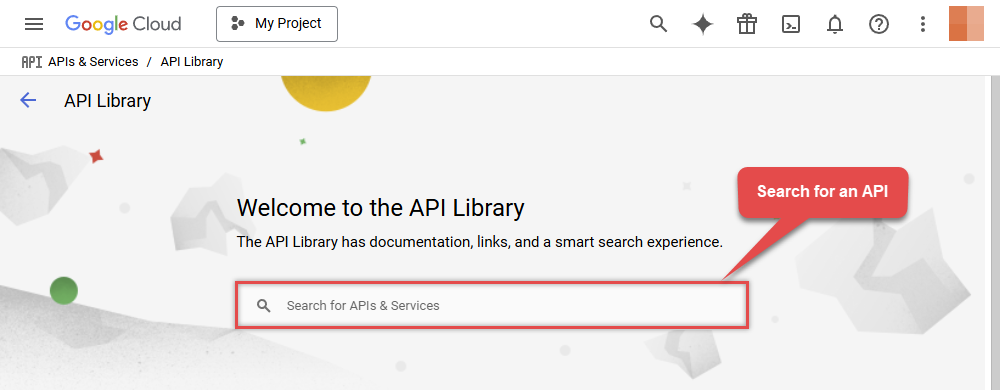
-
If BigQuery API is not enabled, enable it:

-
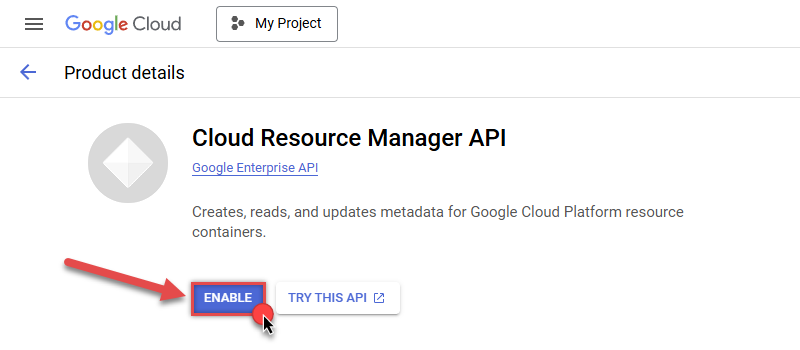
Then repeat the step and enable Cloud Resource Manager API as well:
- Done! Let's proceed to the next step.
Step-3: Create OAuth application
-
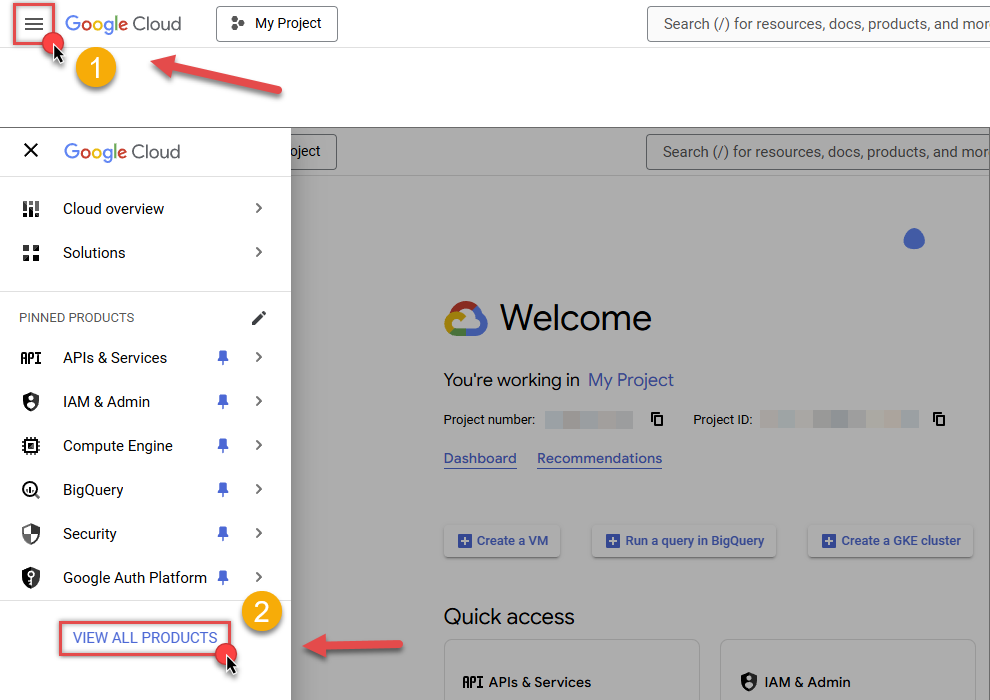
First of all, click the "hamburger" icon on the top left and then hit VIEW ALL PRODUCTS:
-
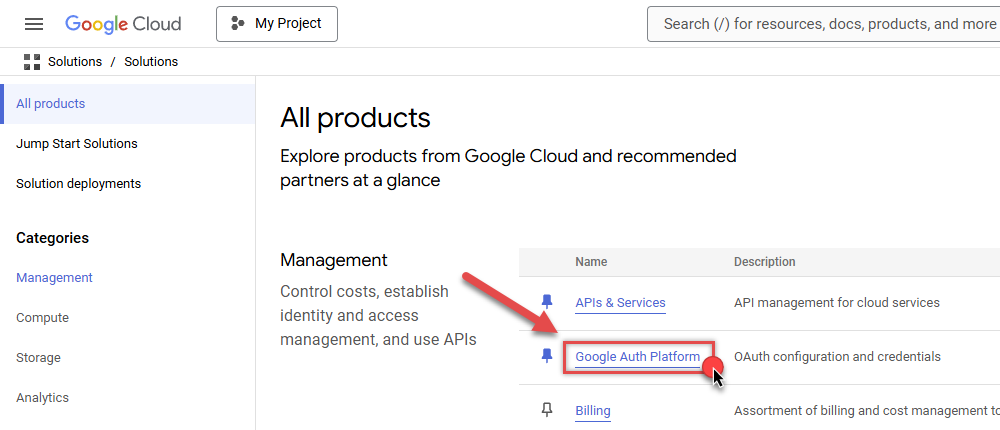
Then access Google Auth Platform to start creating an OAuth application:
-
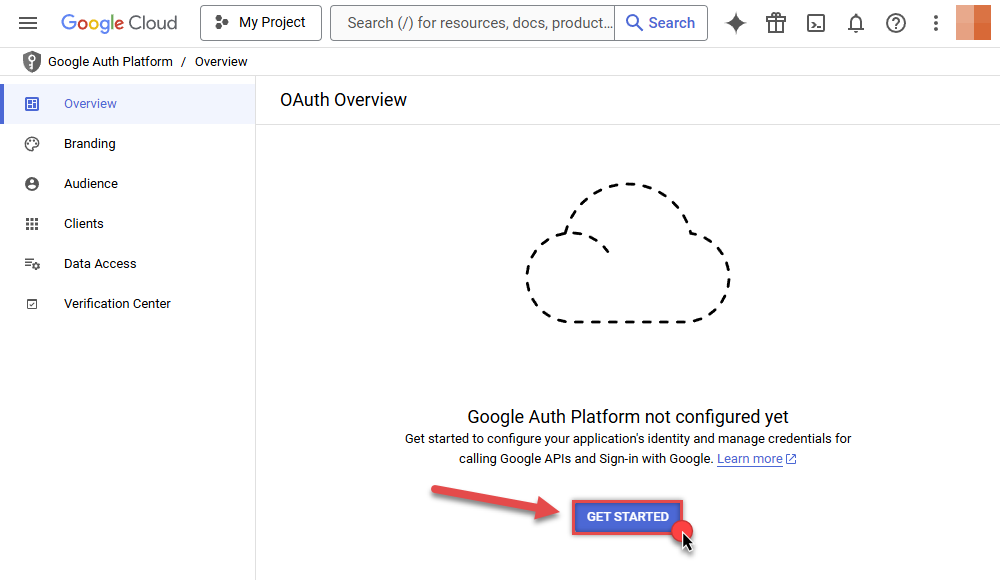
Start by pressing GET STARTED button:
-
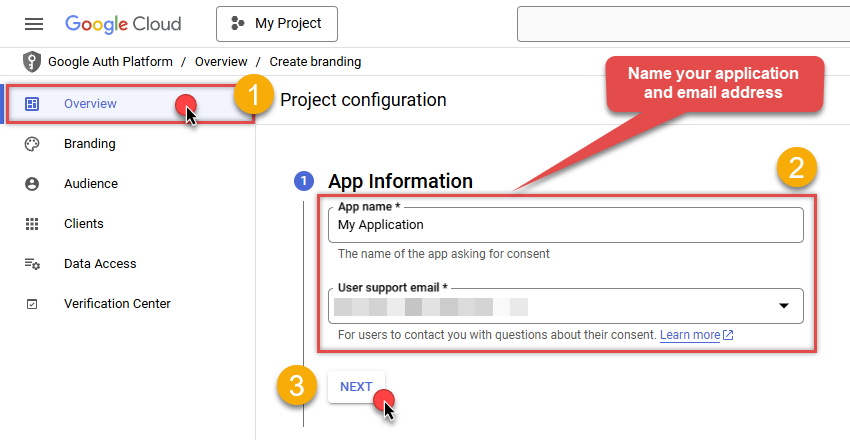
Next, continue by filling in App name and User support email fields:
-
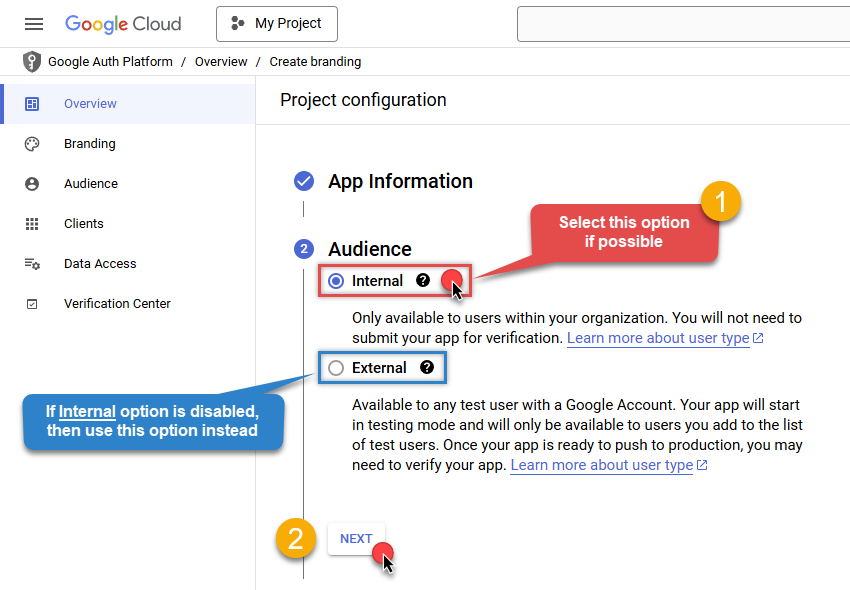
Choose Internal option, if it's enabled, otherwise select External:
-
Optional step if you used
Internaloption in the previous step. Nevertheless, if you had to useExternaloption, then click ADD USERS to add a user: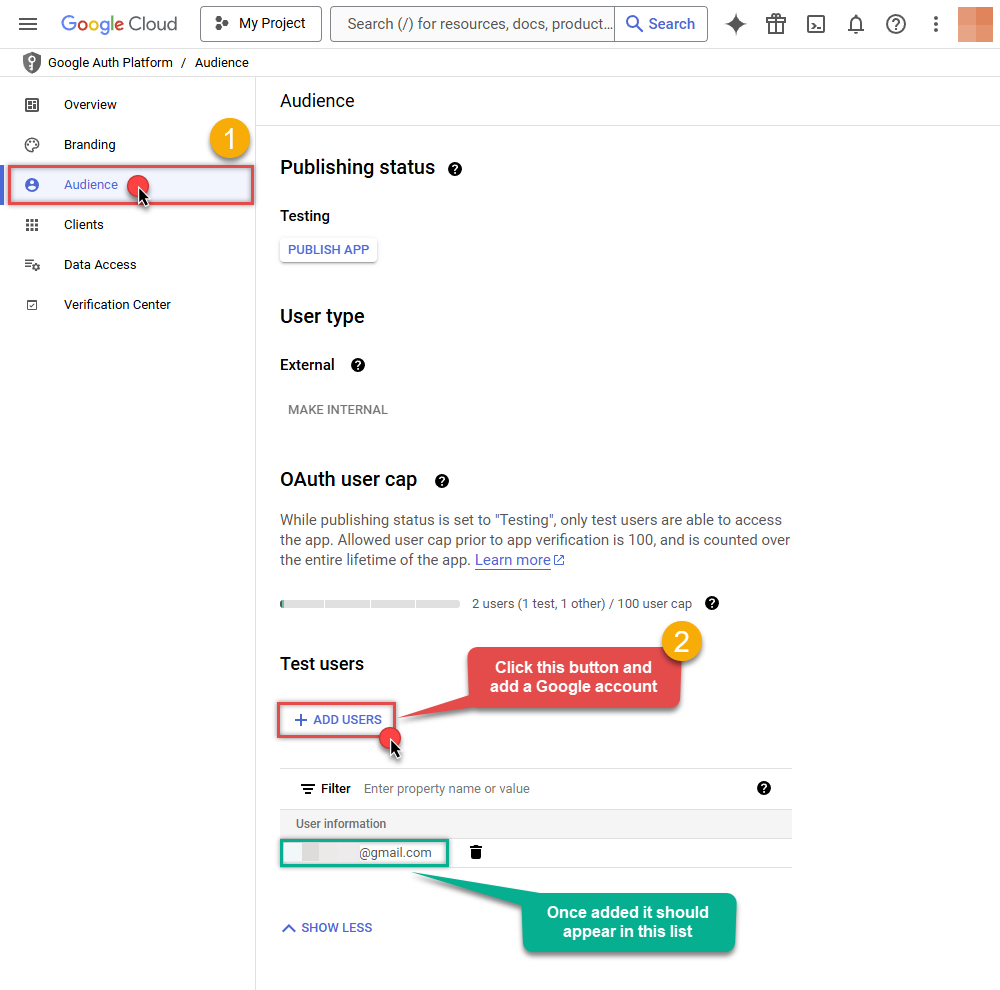
-
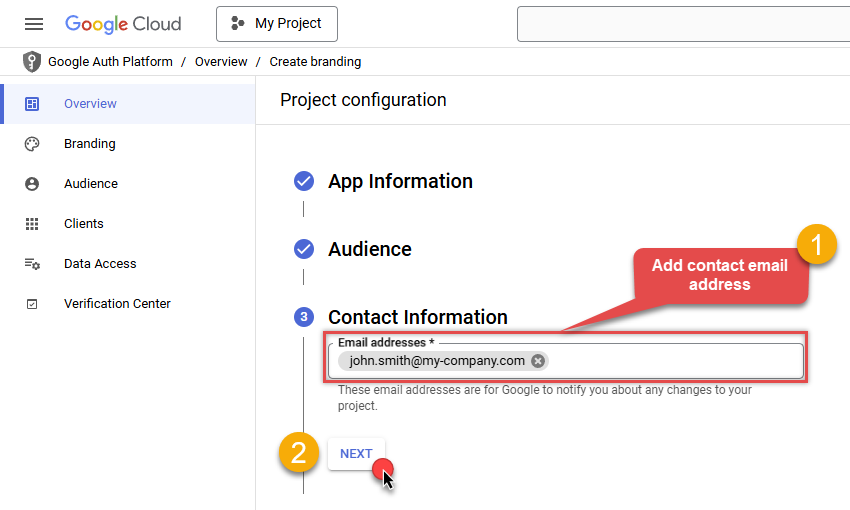
Then add your contact Email address:
-
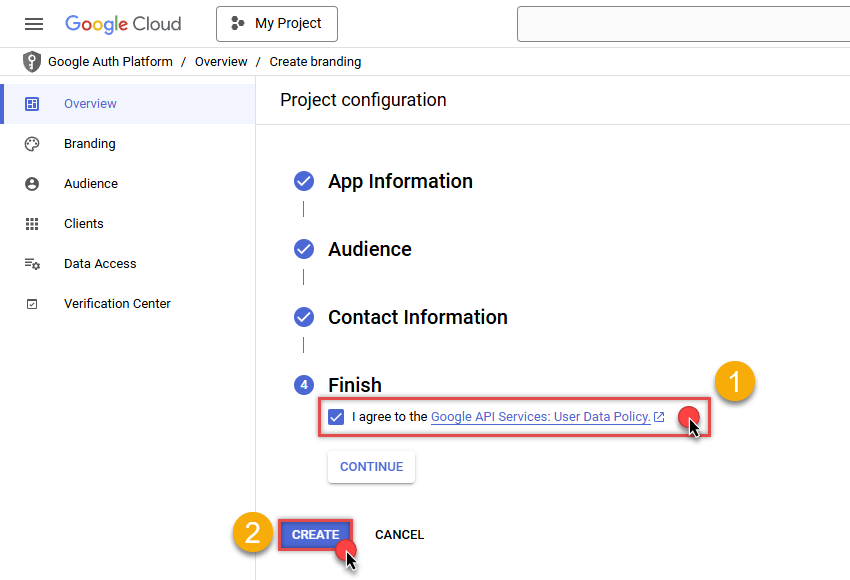
Finally, check the checkbox and click CREATE button:
- Done! Let's create Client Credentials in the next step.
Step-4: Create Client Credentials
-
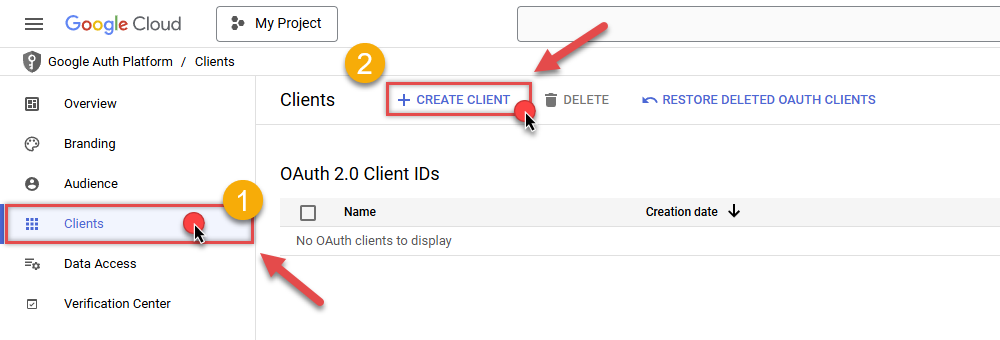
In Google Auth Platform, select Clients menu item and click CREATE CLIENT button:
-
Choose
Desktop appas Application type and name your credentials: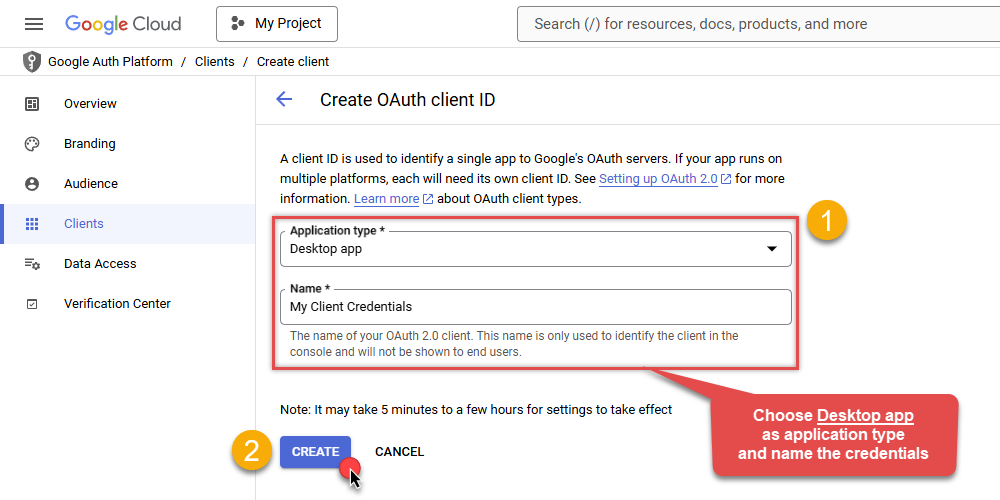
-
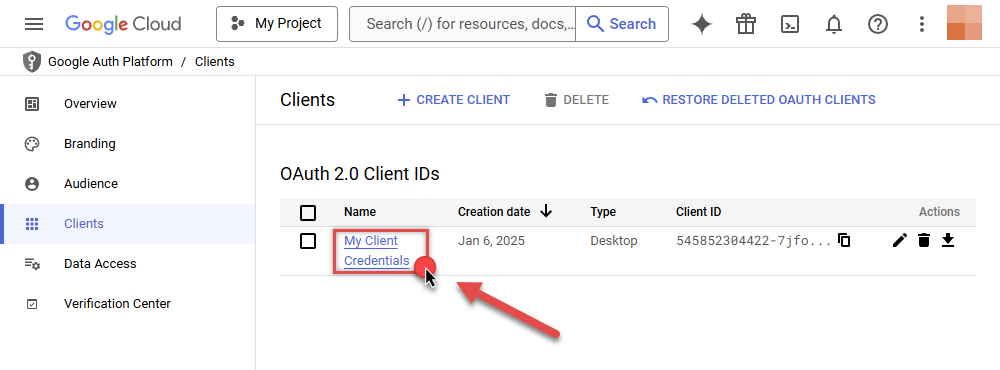
Continue by opening the created credentials:
-
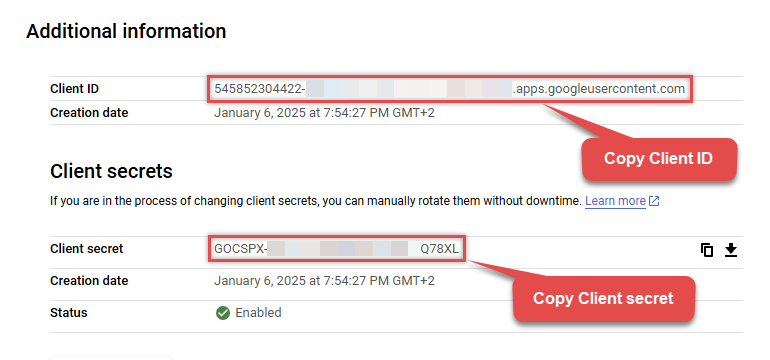
Finally, copy Client ID and Client secret for the later step:
-
Done! We have all the data needed for authentication, let's proceed to the last step!
Step-5: Configure connection
-
Now go to SSIS package or ODBC data source and use previously copied values in User Account authentication configuration:
- In the ClientId field paste the Client ID value.
- In the ClientSecret field paste the Client secret value.
-
Press Generate Token button to generate Access and Refresh Tokens.
-
Then choose ProjectId from the drop down menu.
-
Continue by choosing DatasetId from the drop down menu.
-
Finally, click Test Connection to confirm the connection is working.
-
Done! Now you are ready to use Google BigQuery Connector!
API Connection Manager configuration
Just perform these simple steps to finish authentication configuration:
-
Set Authentication Type to
User Account [OAuth] - Optional step. Modify API Base URL if needed (in most cases default will work).
- Fill in all the required parameters and set optional parameters if needed.
- Press Generate Token button to generate the tokens.
- Finally, hit OK button:
GoogleBigqueryDSNGoogle BigQueryUser Account [OAuth]https://www.googleapis.com/bigquery/v2Required Parameters UseCustomApp Fill-in the parameter... ProjectId (Choose after [Generate Token] clicked) Fill-in the parameter... DatasetId (Choose after [Generate Token] clicked and ProjectId selected) Fill-in the parameter... Optional Parameters ClientId ClientSecret Scope https://www.googleapis.com/auth/bigquery https://www.googleapis.com/auth/bigquery.insertdata https://www.googleapis.com/auth/cloud-platform https://www.googleapis.com/auth/cloud-platform.read-only https://www.googleapis.com/auth/devstorage.full_control https://www.googleapis.com/auth/devstorage.read_only https://www.googleapis.com/auth/devstorage.read_write RetryMode RetryWhenStatusCodeMatch RetryStatusCodeList 429|503 RetryCountMax 5 RetryMultiplyWaitTime True Job Location Redirect URL (Only for Web App) 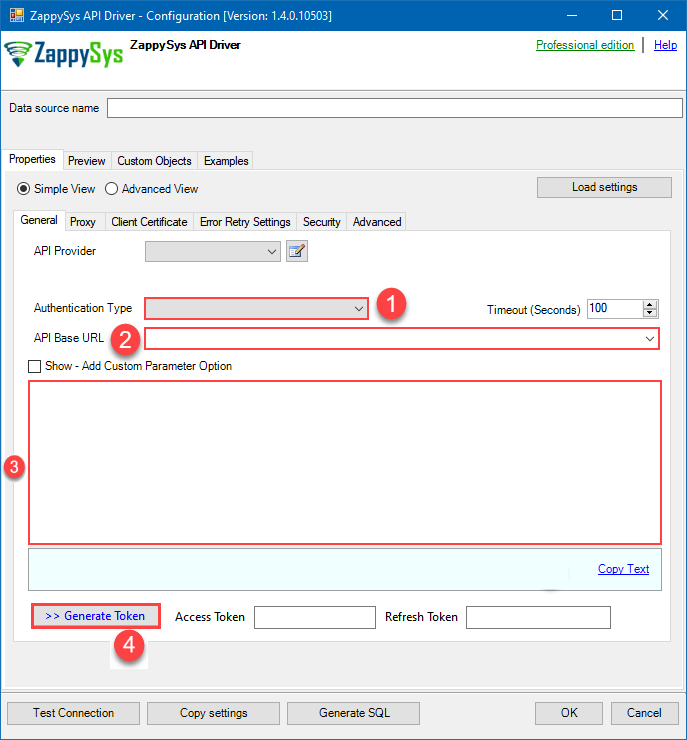 Find full details in the Google BigQuery Connector authentication reference.
Service Account (Using *.json OR *.p12 key file)
Google BigQuery authentication
Service accounts are accounts that do not represent a human user. They provide a way to manage authentication and authorization when a human is not directly involved, such as when an application needs to access Google Cloud resources. Service accounts are managed by IAM. [API reference]
Follow these steps on how to create Service Account to authenticate and access BigQuery API in SSIS package or ODBC data source:
Step-1: Create project
This step is optional, if you already have a project in Google Cloud and can use it. However, if you don't, proceed with these simple steps to create one:
-
First of all, go to Google API Console.
-
Then click Select a project button and then click NEW PROJECT button:
-
Name your project and click CREATE button:
-
Wait until the project is created:
- Done! Let's proceed to the next step.
Step-2: Enable Google Cloud APIs
In this step we will enable BigQuery API and Cloud Resource Manager API:
-
Select your project on the top bar:
-
Then click the "hamburger" icon on the top left and access APIs & Services:
-
Now let's enable several APIs by clicking ENABLE APIS AND SERVICES button:
-
In the search bar search for
bigquery apiand then locate and select BigQuery API:
-
If BigQuery API is not enabled, enable it:
-
Then repeat the step and enable Cloud Resource Manager API as well:
- Done! Let's proceed to the next step and create a service account.
Step-3: Create Service Account
Use the steps below to create a Service Account in Google Cloud:
-
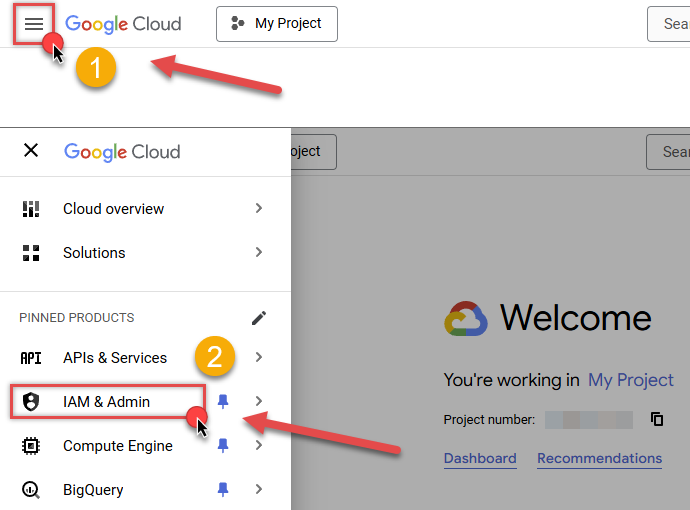
First of all, go to IAM & Admin in Google Cloud console:
-
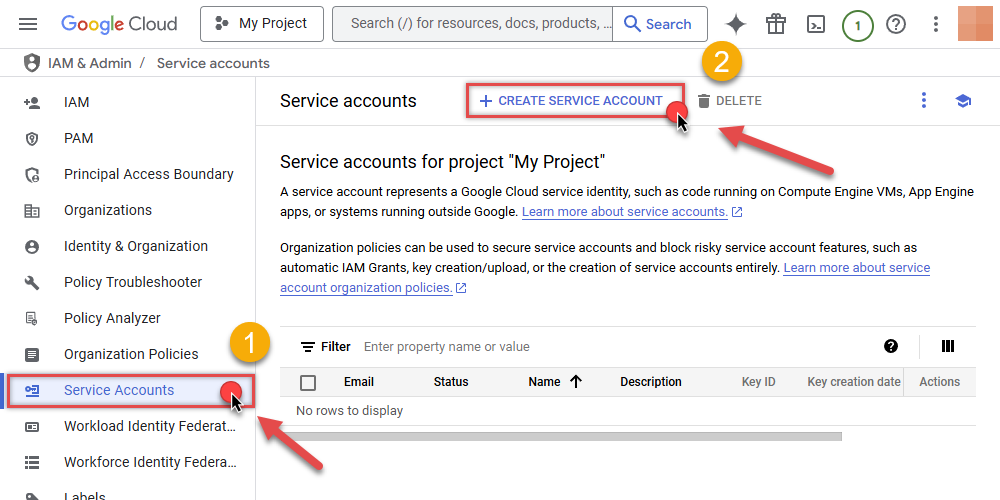
Once you do that, click Service Accounts on the left side and click CREATE SERVICE ACCOUNT button:
-
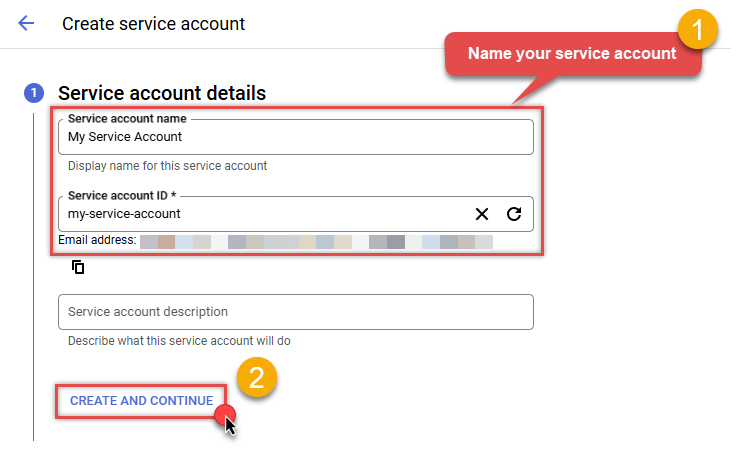
Then name your service account and click CREATE AND CONTINUE button:
-
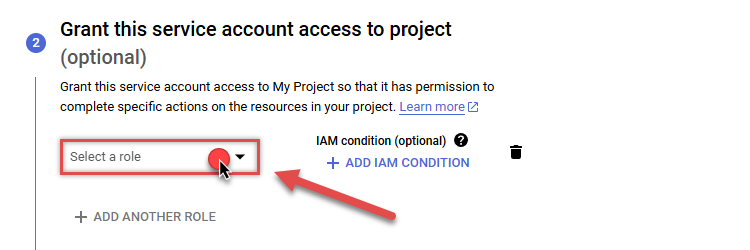
Continue by clicking Select a role dropdown and start granting service account BigQuery Admin and Project Viewer roles:
-
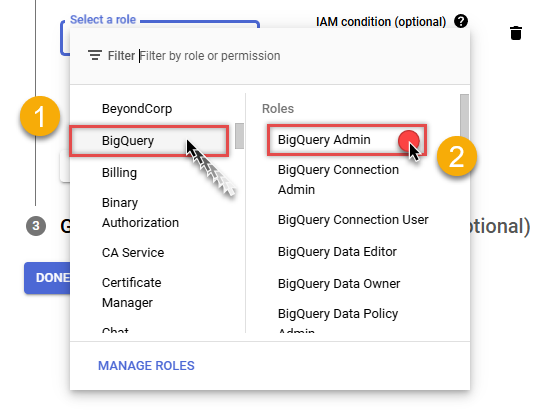
Find BigQuery group on the left and then click on BigQuery Admin role on the right:
-
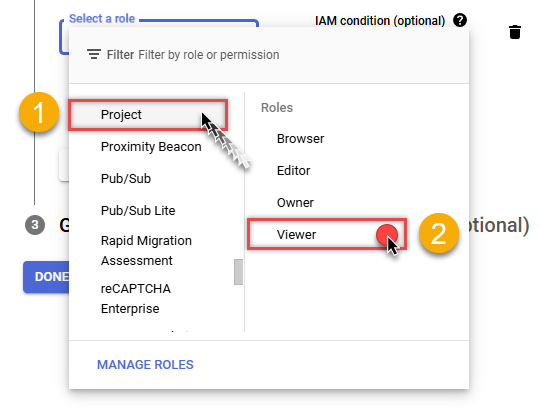
Then click ADD ANOTHER ROLE button, find Project group and select Viewer role:
-
Finish adding roles by clicking CONTINUE button:
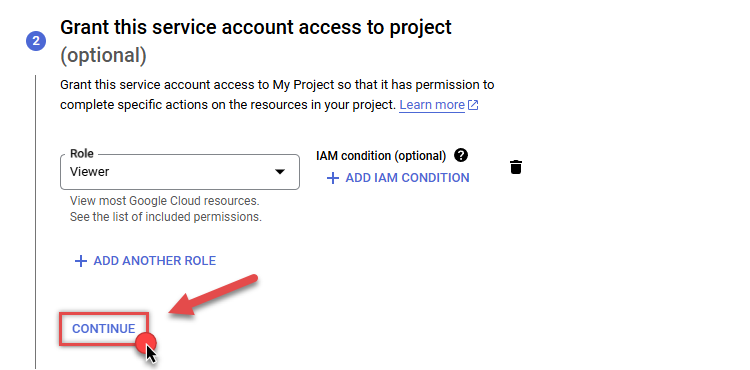 You can always add or modify permissions later in IAM & Admin.
 -
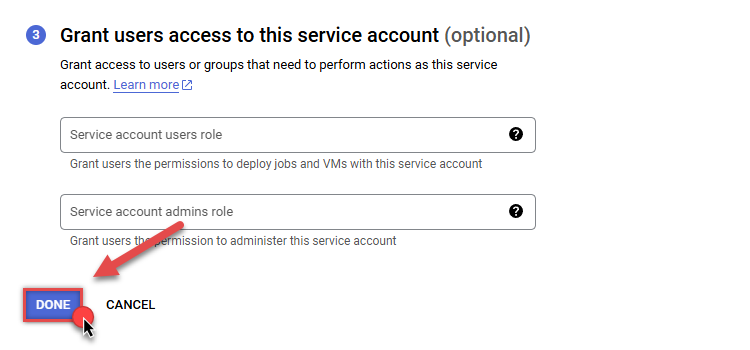
Finally, in the last step, just click button DONE:
-
Done! We are ready to add a Key to this service account in the next step.
Step-4: Add Key to Service Account
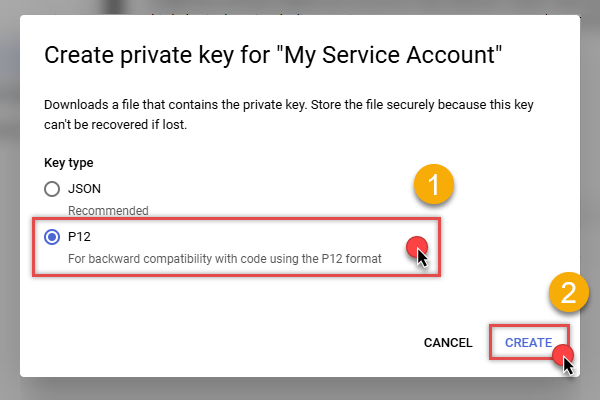
We are ready to add a Key (JSON or P12 key file) to the created Service Account:
-
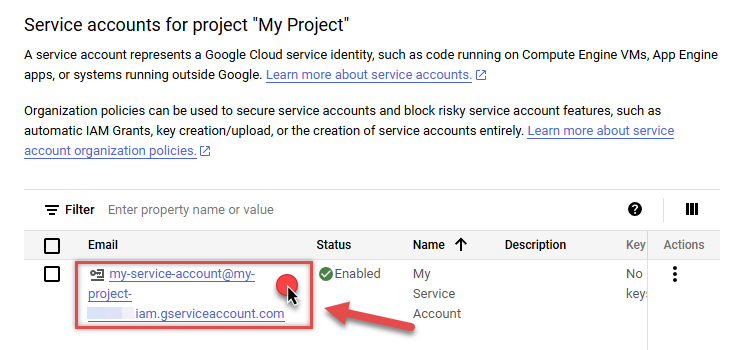
In Service Accounts open newly created service account:
-
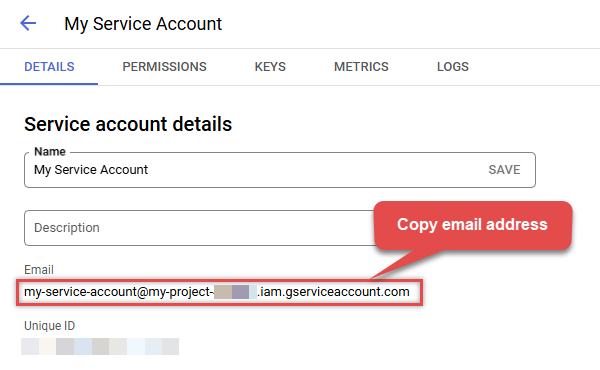
Next, copy email address of your service account for the later step:
-
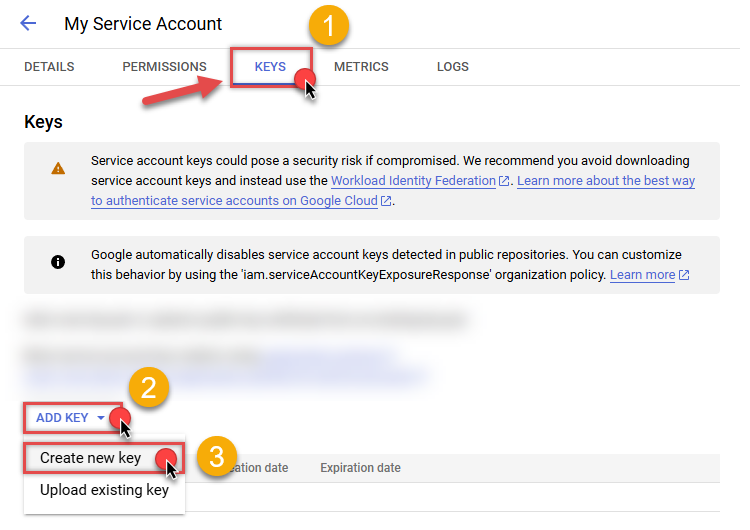
Continue by selecting KEYS tab, then press ADD KEY dropdown, and click Create new key menu item:
-
Finally, select JSON (Engine v19+) or P12 option and hit CREATE button:
- Key file downloads into your machine. We have all the data needed for authentication, let's proceed to the last step!
Step-5: Configure connection
-
Now go to SSIS package or ODBC data source and configure these fields in Service Account authentication configuration:
- In the Service Account Email field paste the service account Email address value you copied in the previous step.
- In the Service Account Private Key Path (i.e. *.json OR *.p12) field use downloaded certificate's file path.
- Done! Now you are ready to use Google BigQuery Connector!
API Connection Manager configuration
Just perform these simple steps to finish authentication configuration:
-
Set Authentication Type to
Service Account (Using *.json OR *.p12 key file) [OAuth] - Optional step. Modify API Base URL if needed (in most cases default will work).
- Fill in all the required parameters and set optional parameters if needed.
- Finally, hit OK button:
GoogleBigqueryDSNGoogle BigQueryService Account (Using *.json OR *.p12 key file) [OAuth]https://www.googleapis.com/bigquery/v2Required Parameters Service Account Email Fill-in the parameter... Service Account Private Key Path (i.e. *.json OR *.p12) Fill-in the parameter... ProjectId Fill-in the parameter... DatasetId (Choose after ProjectId) Fill-in the parameter... Optional Parameters Scope https://www.googleapis.com/auth/bigquery https://www.googleapis.com/auth/bigquery.insertdata https://www.googleapis.com/auth/cloud-platform https://www.googleapis.com/auth/cloud-platform.read-only https://www.googleapis.com/auth/devstorage.full_control https://www.googleapis.com/auth/devstorage.read_only https://www.googleapis.com/auth/devstorage.read_write RetryMode RetryWhenStatusCodeMatch RetryStatusCodeList 429 RetryCountMax 5 RetryMultiplyWaitTime True Job Location Impersonate As (Enter Email Id) 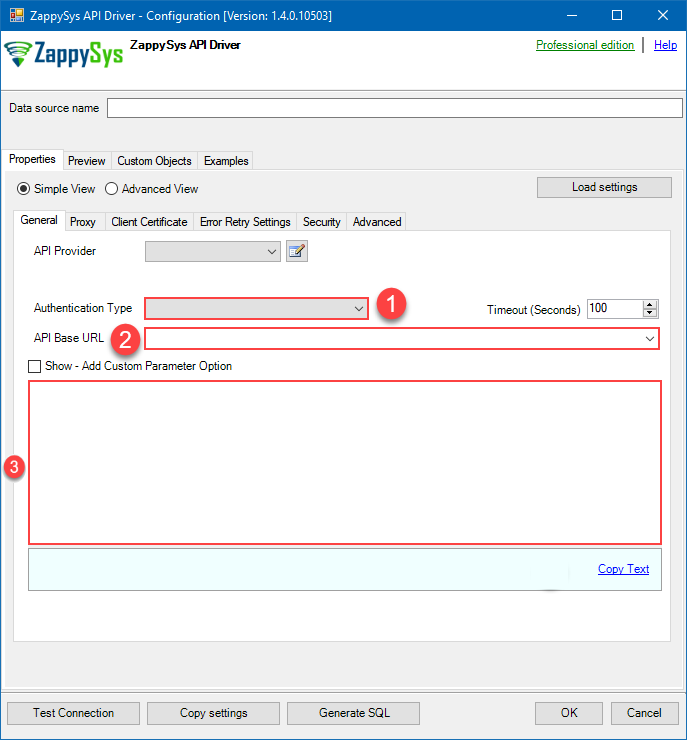 Find full details in the Google BigQuery Connector authentication reference.
 -
Then go to Preview tab to start building a SQL query.
-
Once you do that, proceed by opening Query Builder:
 ZappySys API Driver - Google BigQueryRead and write Google BigQuery data effortlessly. Query, integrate, and manage datasets, tables, and jobs — almost no coding required.GoogleBigqueryDSN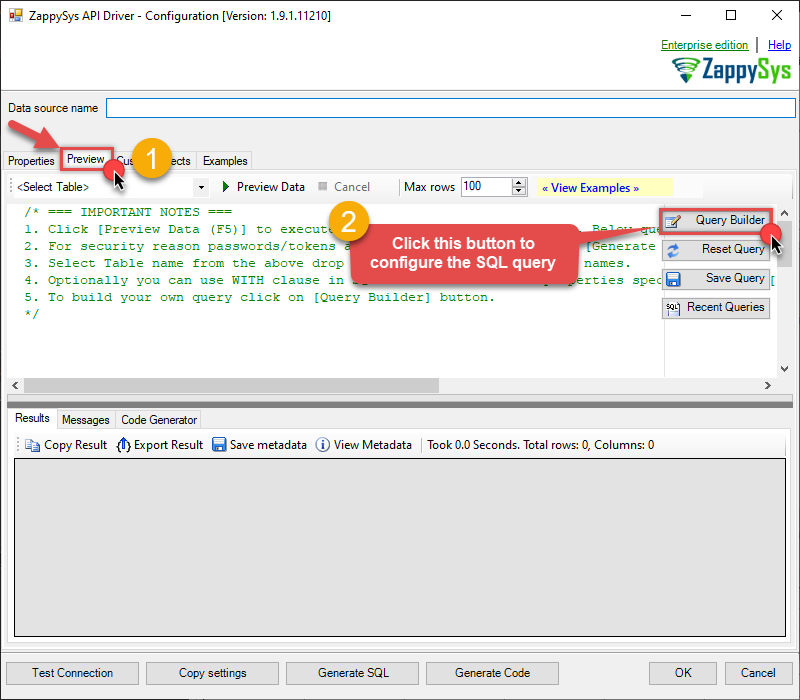
-
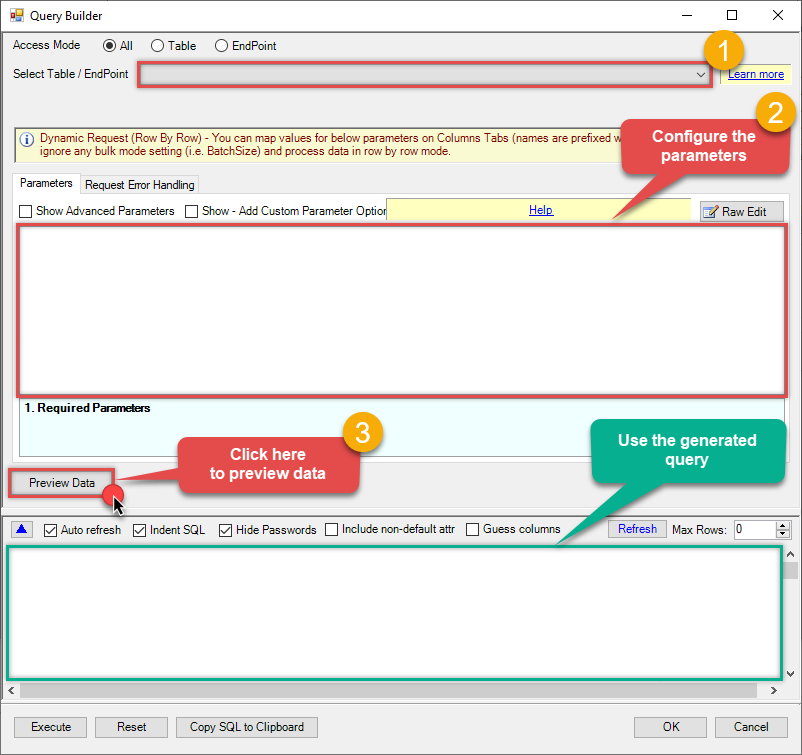
Then simply select the Delete Dataset endpoint (action).
-
Continue by configuring the Required parameters. You can also set optional parameters too.
-
Move on by hitting Preview Data button to preview the results.
-
If you see the results you need, simply copy the generated query:
-
Click OK to use built SQL query and close the Query Builder.
-
Now hit Preview Data button to preview the data using the generated SQL query. If you are satisfied with the result, use this query in Power BI:
 ZappySys API Driver - Google BigQueryRead and write Google BigQuery data effortlessly. Query, integrate, and manage datasets, tables, and jobs — almost no coding required.GoogleBigqueryDSN
SELECT * FROM delete_dataset WITH(DatasetId='MyDatasetId', deleteContents='False')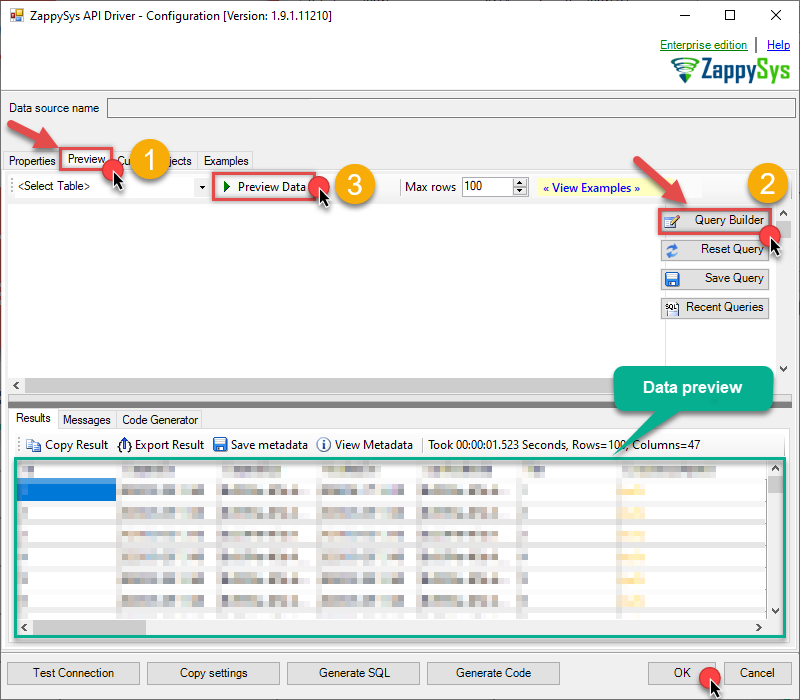 You can also access data quickly from the tables dropdown by selecting <Select table>.A
WHEREclause,LIMITkeyword will be performed on the client side, meaning that thewhole result set will be retrieved from the Google BigQuery API first, and only then the filtering will be applied to the data. If possible, it is recommended to use parameters in Query Builder to filter the data on the server side (in Google BigQuery servers).
Let's not stop here and explore SQL query examples, including how to use them in Stored Procedures and Views (virtual tables) in the next steps.
Google BigQuery SQL query examples
Use these SQL queries in your Power BI data source:
Delete dataset
Deletes a dataset by ID. Use deleteContents='true' to delete all tables in the dataset.
SELECT * FROM delete_dataset WITH(DatasetId='MyDatasetId', deleteContents='False')Create SQL view in ODBC data source
ZappySys API Drivers support flexible Query language so you can override Default Properties you configured on Data Source such as URL, Body. This way you don't have to create multiple Data Sources if you like to read data from multiple EndPoints. However not every application support supplying custom SQL to driver so you can only select Table from list returned from driver.
If you're dealing with Microsoft Access and need to import data from an SQL query, it's important to note that Access doesn't allow direct import of SQL queries. Instead, you can create custom objects (Virtual Tables) to handle the import process.
Many applications like MS Access, Informatica Designer wont give you option to specify custom SQL when you import Objects. In such case Virtual Table is very useful. You can create many Virtual Tables on the same Data Source (e.g. If you have 50 URLs with slight variations you can create virtual tables with just URL as Parameter setting.
-
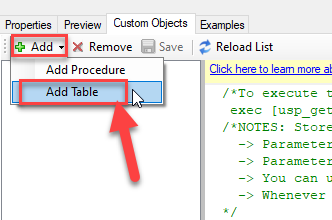
Go to Custom Objects Tab and Click on Add button and Select Add Table:
-
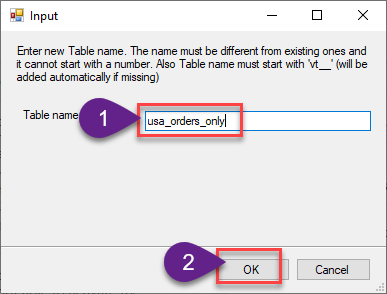
Enter the desired Table name and click on OK:
-
And it will open the New Query Window Click on Cancel to close that window and go to Custom Objects Tab.
-
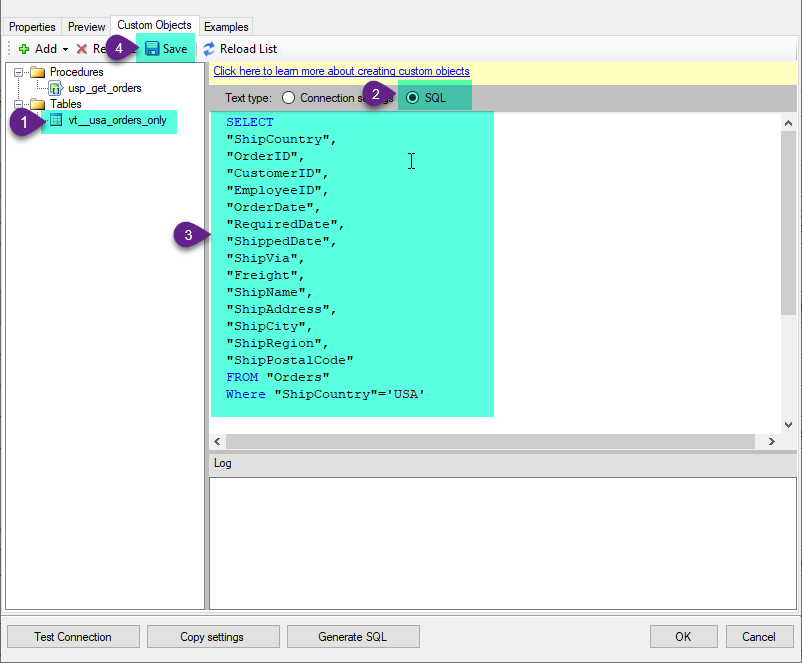
Select the created table, Select Text Type AS SQL and write the your desired SQL Query and Save it and it will create the custom table in the ZappySys Driver:
Here is an example SQL query for ZappySys Driver. You can insert Placeholders also. Read more about placeholders here
SELECT
  "ShipCountry",
  "OrderID",
  "CustomerID",
  "EmployeeID",
  "OrderDate",
  "RequiredDate",
  "ShippedDate",
  "ShipVia",
  "Freight",
  "ShipName",
  "ShipAddress",
  "ShipCity",
  "ShipRegion",
  "ShipPostalCode"
FROM "Orders"
Where "ShipCountry"='USA'
-
That's it now go to Preview Tab and Execute your custom virtual table query. In this example it will extract the orders for the USA Shipping Country only:
SELECT * FROM "vt__usa_orders_only"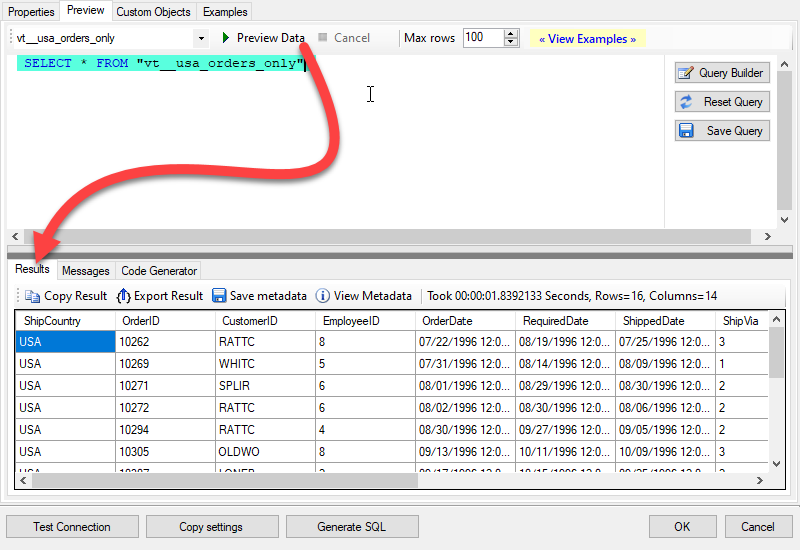
Delete dataset in Power BI via SQL view
-
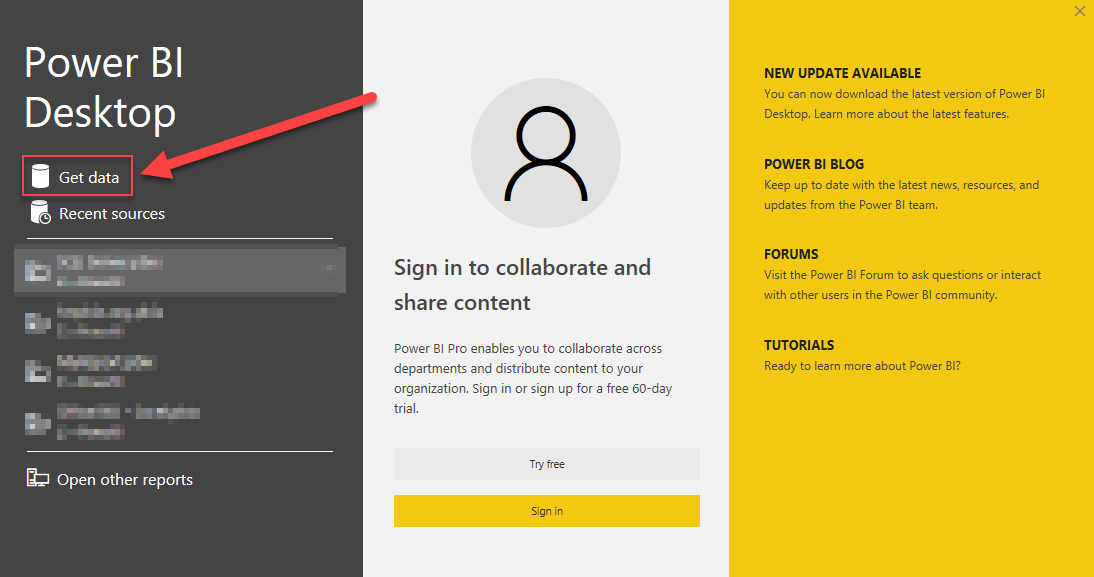
Once you open Power BI Desktop click Get Data to get data from ODBC:
-
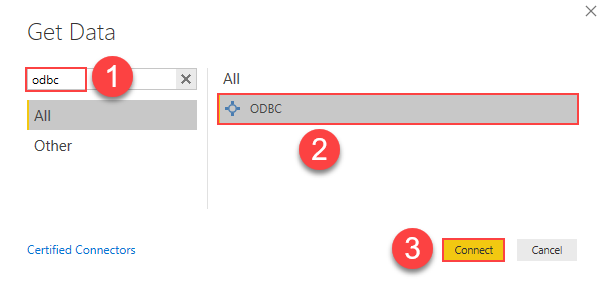
A window opens, and then search for "odbc" to get data from ODBC data source:
-
Another window opens and asks to select a Data Source we already created. Choose GoogleBigqueryDSN and continue:
GoogleBigqueryDSN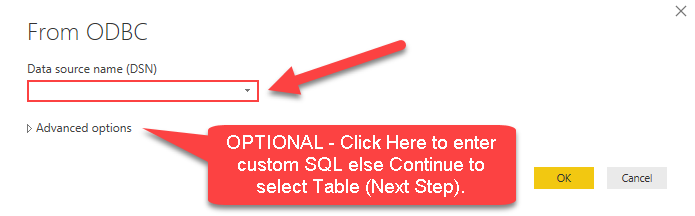
-
Most likely, you will be asked to authenticate to a newly created DSN. Just select Windows authentication option together with Use my current credentials option:
GoogleBigqueryDSN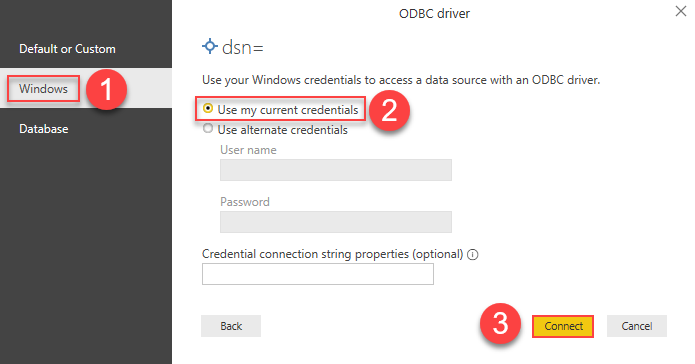
-
Finally, you will be asked to select a table or view to get data from. Select one and load the data!
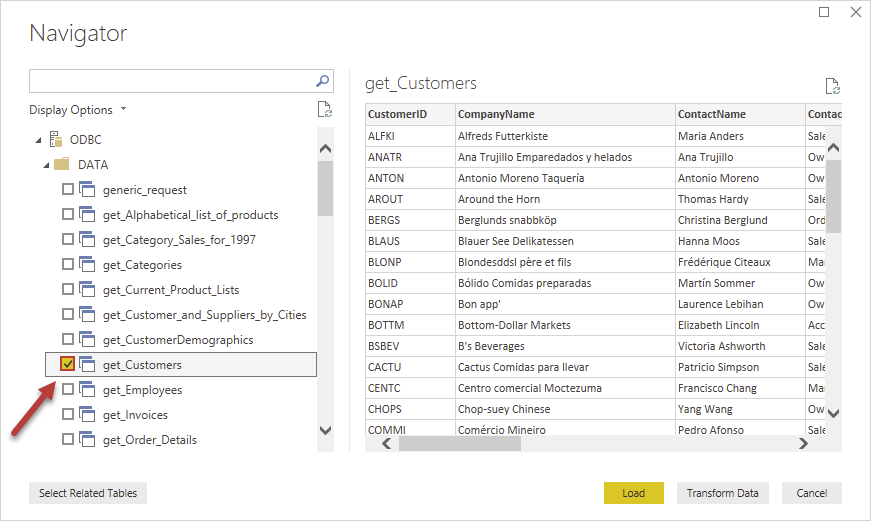
-
Finally, finally, read extracted data from Google BigQuery in a Power BI report:
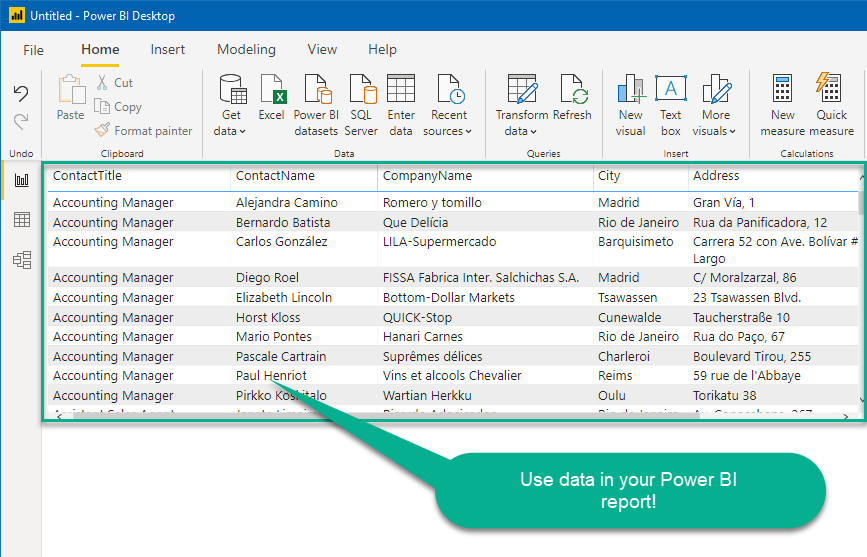
Advanced topics
Creating SQL stored procedures
You can create procedures to encapsulate custom logic and then only pass handful parameters rather than long SQL to execute your API call.
Steps to create Custom Stored Procedure in ZappySys Driver. You can insert Placeholders anywhere inside Procedure Body. Read more about placeholders here
-
Go to Custom Objects Tab and Click on Add button and Select Add Procedure:
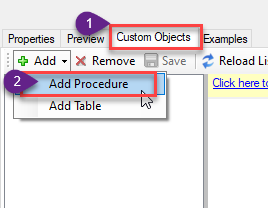
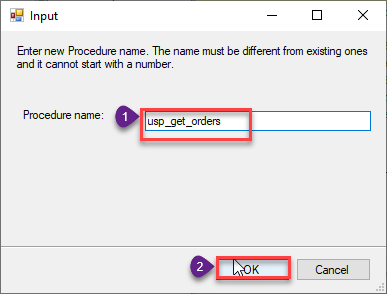
-
Enter the desired Procedure name and click on OK:
-
Select the created Stored Procedure and write the your desired stored procedure and Save it and it will create the custom stored procedure in the ZappySys Driver. Here is an example stored procedure for ZappySys Driver. You can insert Placeholders anywhere inside Procedure Body. Read more about placeholders here
CREATE PROCEDURE [usp_get_orders]
    @fromdate = '<<yyyy-MM-dd,FUN_TODAY>>'
 AS
    SELECT * FROM Orders where OrderDate >= '<@fromdate>';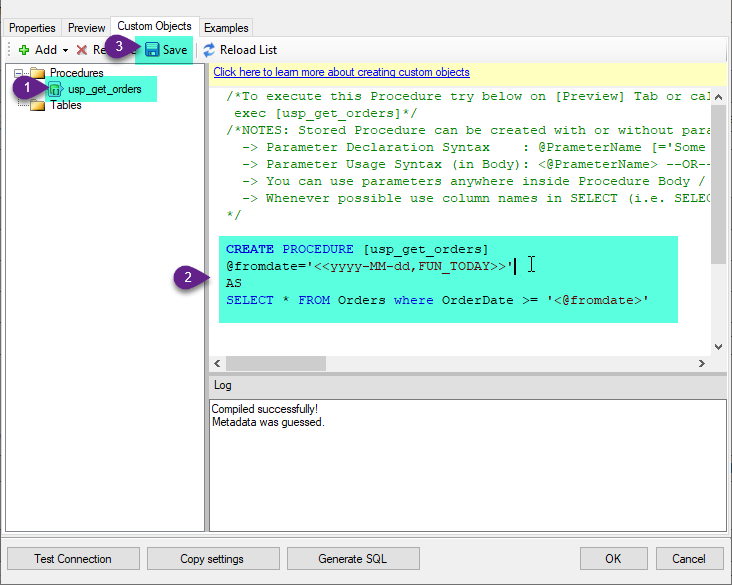
-
That's it now go to Preview Tab and Execute your Stored Procedure using Exec Command. In this example it will extract the orders from the date 1996-01-01:
Exec usp_get_orders '1996-01-01';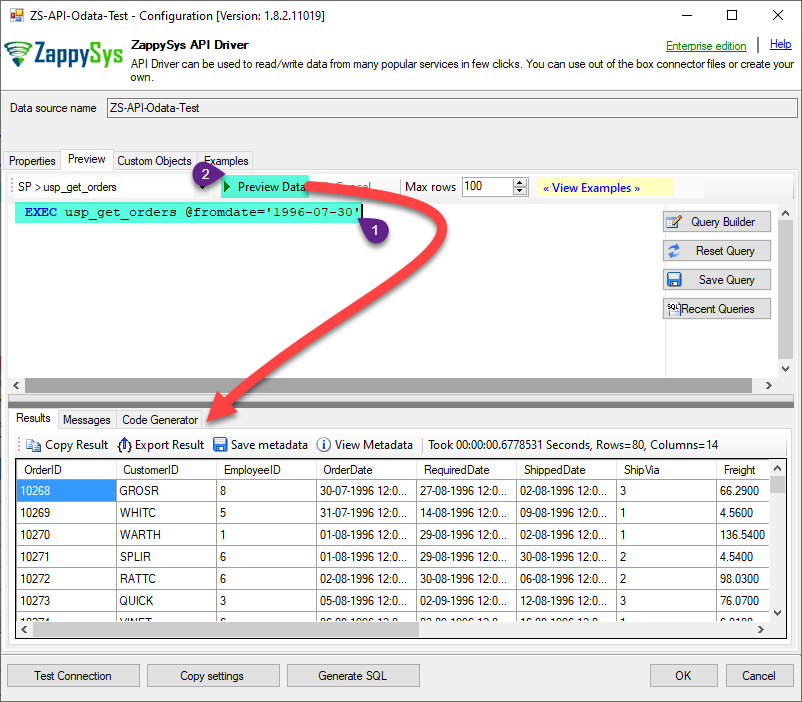
Google BigQuery Connector actions
Need another use case? Pick the next Google BigQuery action in Power BI below.
- [Dynamic Endpoint]
- Create Dataset
- Delete Table
- Get Query Schema (From SQL)
- Get Table Schema
- Insert Table Data
- List Datasets
- List Projects
- List Tables
- Post Dynamic Endpoint
- Read Data using SQL Query -OR- Execute Script (i.e. CREATE, SELECT, INSERT, UPDATE, DELETE)
- Read Table Rows
- Make Generic REST API Request
- Make Generic REST API Request (Bulk Write)
Conclusion
You now know how to delete dataset in Power BI without writing complex code. Google BigQuery ODBC Driver handled pagination and authentication automatically.
Ready to get started? Download the trial or ping us via chat if you need help: