
Introduction

Claude is a powerful cloud-native intelligence and automation platform that offers REST APIs for accessing AI models, data processing pipelines, and automation workflows. In this guide, we will demonstrate how to connect Zappysys SSIS connectors to the Claude using API key authentication.
Whether you are using Claude for intelligent document processing, data enrichment, or automated workflows, you will learn how to configure SSIS integration without writing custom code. Zappysys handles all the complexity, allowing you to focus on building ETL workflows.
Prerequisites
-
- SQL Server Integration Services (SSIS) is installed.
- Visual Studio with SSIS extension or SQL Server Data Tools (SSDT).
- Claude.IA account with API access enabled.
- Finally, do not forget to install ZappySys SSIS PowerPack.
Steps
Generate an API Key in Claude
- Log in to your Claude.IA account settings.
- Navigate to Settings > API Keys.
- Click Create Key.
- Enter the workspace name (optional).
- Enter a descriptive name for the API key.
- Press Add to generate the token Key.
- Save the API key in a secure location; you won’t be able to view it again.
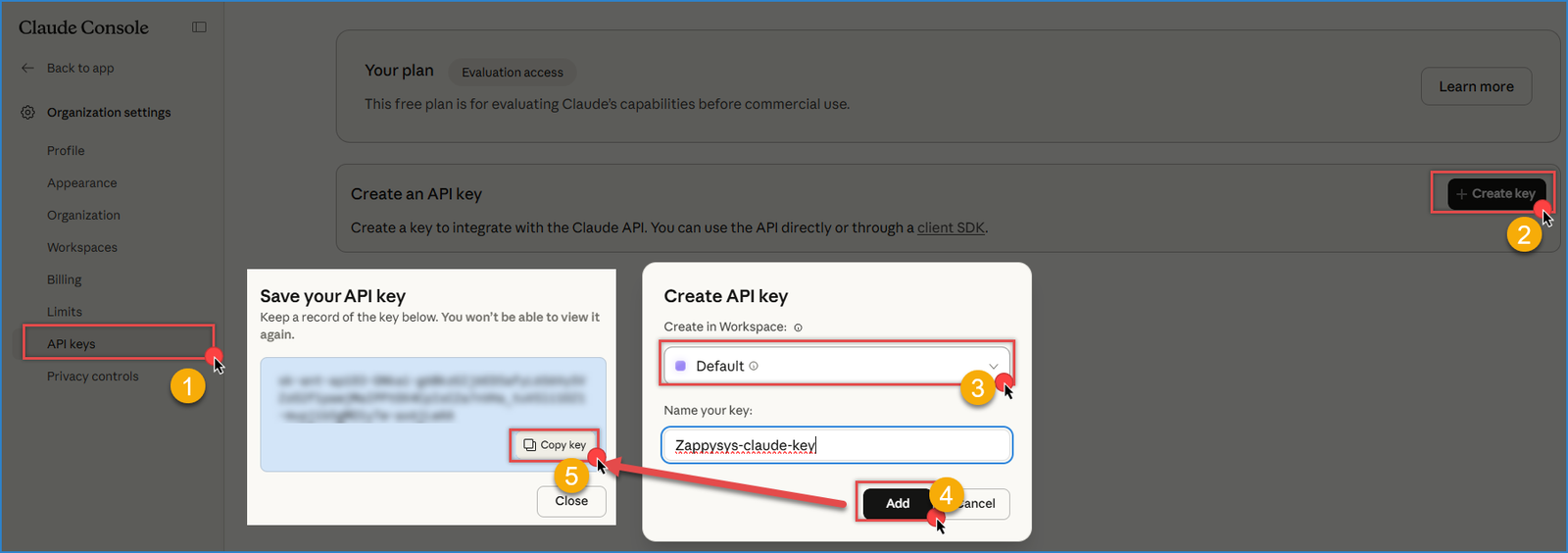
Claude – Generate Token
- Set Up Billing (required): add a payment method via the Billing Settings page.
Create Zappysys Connection in SSIS
- Create or select your SSIS project and open the package.
- Right-click in the Connection Managers pane and select New Connection…
- Select ZS-HTTP from the SSIS connectors list
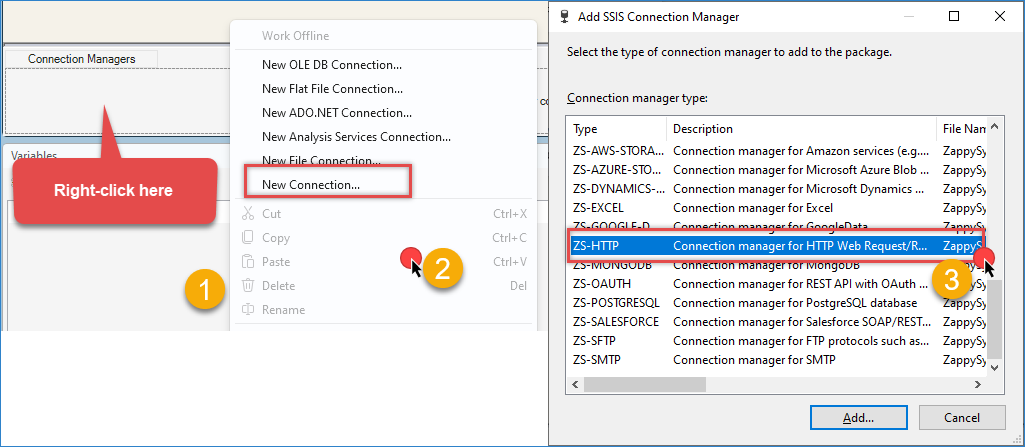
Create a new HTTP connection
- In Credentials Type, select Static token/API key.
- Enter the API key from the previous step.
- The API documentation requires sending the token in the header with this format:
x-api-key: API_KEY- In the OAuth header Name, we will use x-api-key
- For the OAuth Scheme, set to none
- Click OK to save the settings.
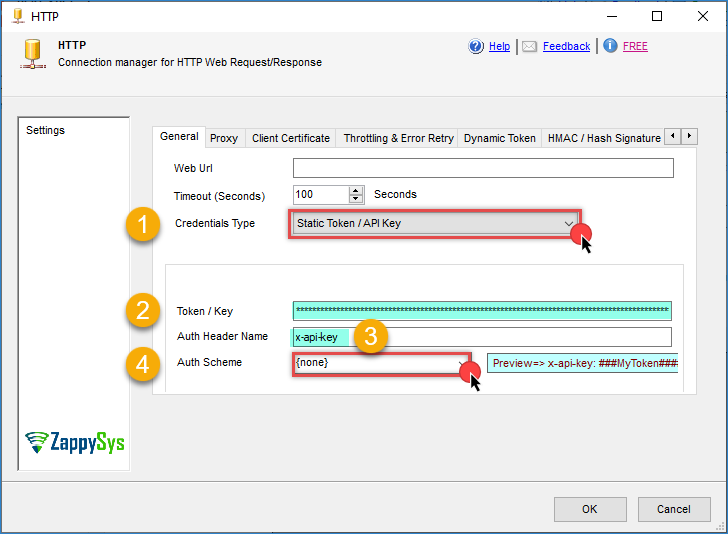
Claude – HTTP connection
Create and Configure the JSON source
-
- In your SSIS package, drag and drop a Data Flow Task from the Toolbox into the Control Flow.
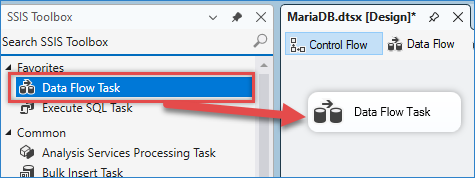
Drag and drop Data flow
- Double-click the Data Flow Task to enter the Data Flow tab.
- In the Data Flow, drag and drop a ZS JSON Source component from the Toolbox.
- Double-click the JSON Source to open its editor.
- Enable Use credentials, then select your Claude HTTP connection from the connection list dropdown.
- Enter the following URL:
1https://api.anthropic.com/v1/messages - Select POST as an HTTP Request Method
- Inside the header, add: anthropic-version: 2023-06-01
- In the Body content type, select JSON(application/json)
- In your SSIS package, drag and drop a Data Flow Task from the Toolbox into the Control Flow.
- Use this as the body:
12345678910{"model": "claude-sonnet-4-6","max_tokens": 1024,"messages": [{"role": "user","content": "{YOUR-Message}"}]} - Press on Preview to check the result.
- You can use the Array filter to get the object you need, and you can use $.messages[*].content to get only the message.
- Click OK to save the configuration.
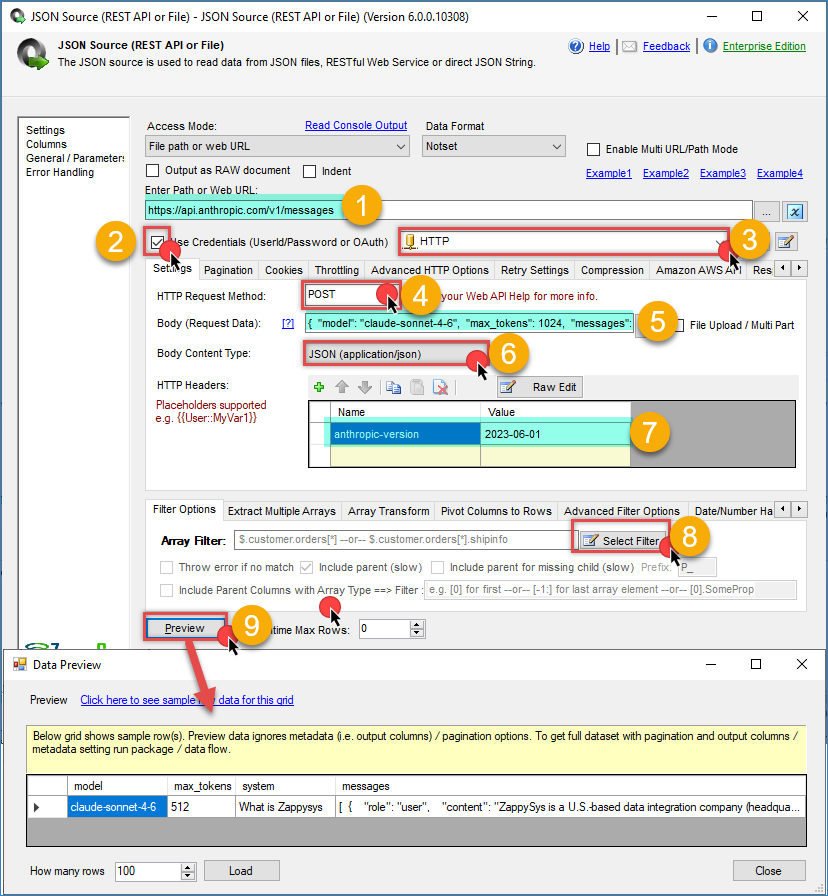
Claude – JSON source request
Configure the Destination
- Drag and drop a destination component (e.g., Trash destination) into the Data Flow.
- Connect the output arrow from the JSON Source to the destination component.
- Double-click the destination component and configure it to point to your target table or file.
- Map the columns from the response to the appropriate destination columns
- Click OK to save the destination configuration.
- Execute the package and verify that the data extraction is working correctly.
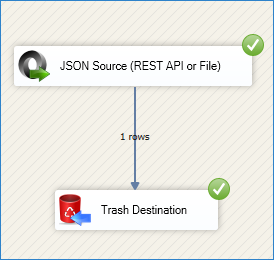
Claude – Final Result
Conclusion
You now have a secure and reliable connection between Zappysys SSIS and Claude. API Key authentication is simpler to set up with our HTTP connection. With this connection configured, you can build powerful data extraction, transformation, and loading workflows using Claude’s intelligence and automation capabilities directly from your SSIS packages without writing any custom code.
Explore the full capabilities of the ZappySys SSIS PowerPack to optimize your data integration tasks. By applying this pattern, you can extend your solution to include additional transformations, data validation, error handling, and scheduling through SQL Server Agent.
Need Help?
If you encounter any issues, our support team is here to help:
- Live Chat — Use the chat widget (bottom-right corner of this page)
- Email — support@zappysys.com
- Support Center — Visit the ZappySys Support Portal