
Introduction
If you’re using ZappySys SSIS Power Pack to manage files in Azure Data Lake Storage Gen2 (ADLS v2)—including hierarchical folders required by many modern data lake workloads (for example, Parquet-based pipelines)—this guide walks you through the complete setup process step by step.
Prerequisites
Before we perform the steps listed in this article, you will need to make sure the following prerequisites are met:- SSIS designer installed. Sometimes it is referred to as BIDS or SSDT (download it from the Microsoft site).
- Basic knowledge of SSIS package development using Microsoft SQL Server Integration Services.
- Make sure ZappySys SSIS PowerPack is installed (download it, if you haven't already).
- (Optional step). Read this article, if you are planning to deploy packages to a server and schedule their execution later.
Steps
Validating your Azure Storage Account Is Gen2 (ADLS v2)
Before connecting from SSIS, confirm that your Azure Storage Account is ADLS Gen2–enabled, which means it supports a hierarchical namespace.
- Check the Storage Account Type. Go to Azure Portal → Storage Accounts and verify that your account is ADLS v2 (Gen2).
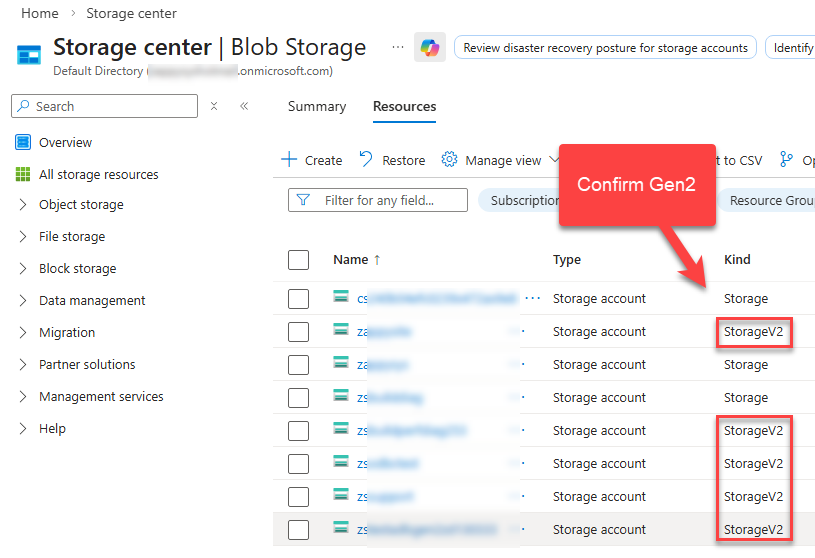
Validate Your Account Type
- Open the storage account
- Locate Hierarchical namespace
- Ensure it is set to Enabled
- If hierarchical namespace is not enabled, click Enable
- During the wizard, Azure may require Soft Delete to be turned off
- Disable both soft delete options if prompted
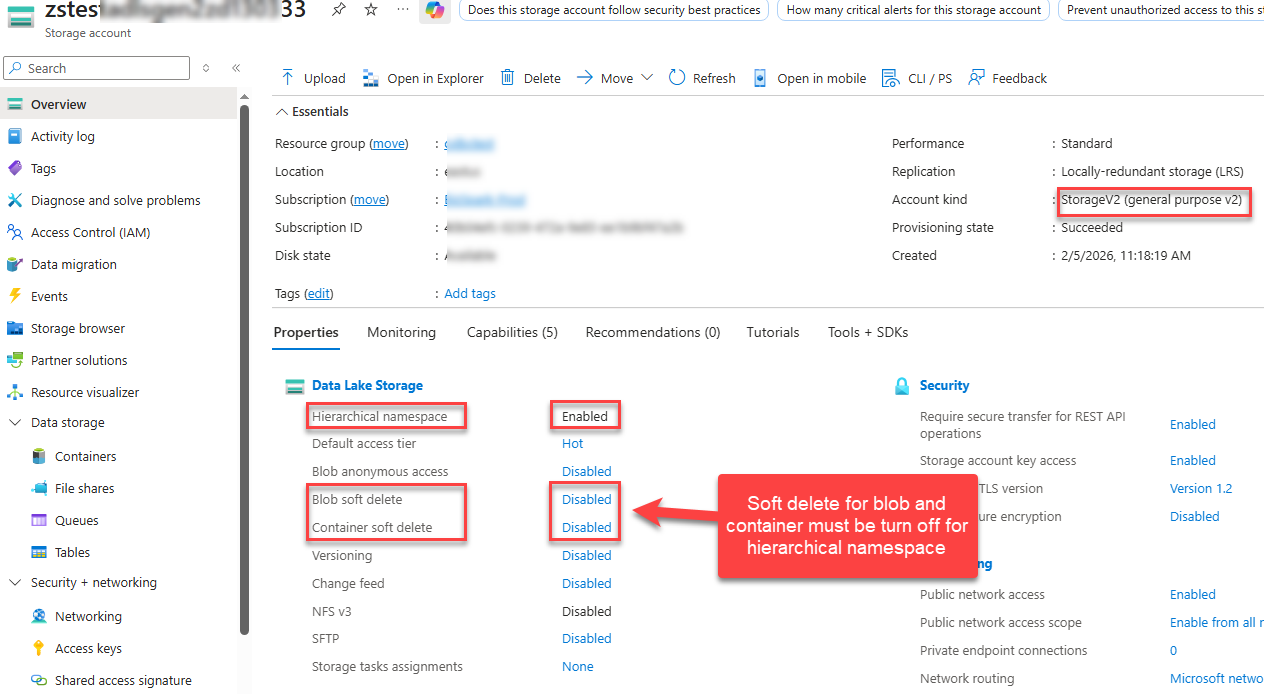
How to enable hierarchical namespace option in Azure Blob Storage – ADSL Gen2
Important
Enabling hierarchical namespace is a one-way operation. Once enabled, the storage account cannot be reverted to a flat namespace.
Connect Azure ADLS Gen2 in SSIS
ZappySys supports multiple authentication methods. The two most common options are Access Key and SAS Token.
Option A: Connect Using Storage Account Access Key. This is the simplest method and works well for internal or controlled environments.
- Obtain the Access Key.
- Go to your Storage Account.
- Navigate to Access keys.
- Copy Key1 or Key2.
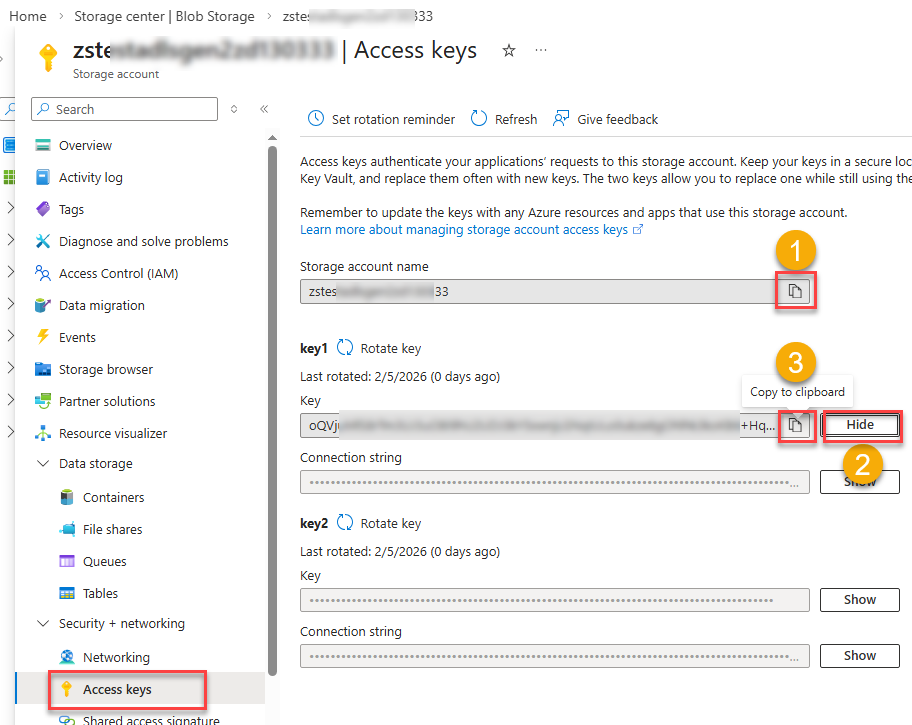
Azure Storage Account – Obtain Access Key for Connection API calls
- Create or open an SSIS project in Visual Studio and add the ZappySys Azure Storage Task.
- Create a new connection and choose Access Key authentication.
- Enter the Storage Account Name and Access Key and test the connection.
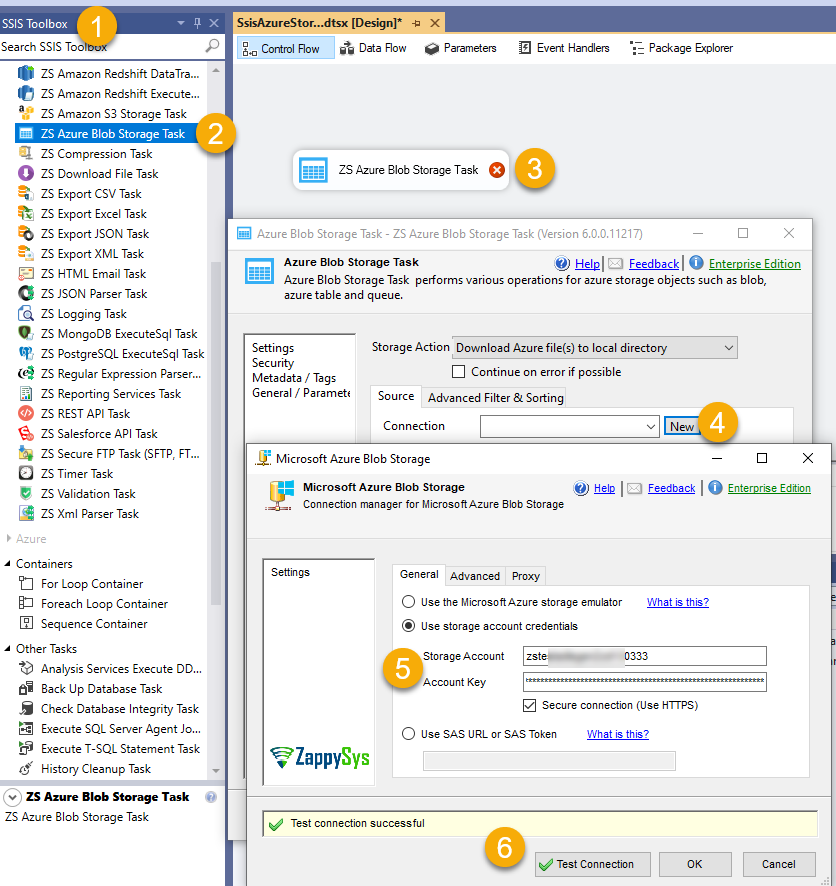
Connect Azure Storage Account in SSIS – Using Access Key Method
Option B: Connect Using SAS Token (Recommended for Least-Privilege Access). SAS tokens are ideal when you want restricted, time-bound, or container-level access.
- Navigate to the Target Container
- Open Storage Account → Containers.
- Select the container you want to grant access to.
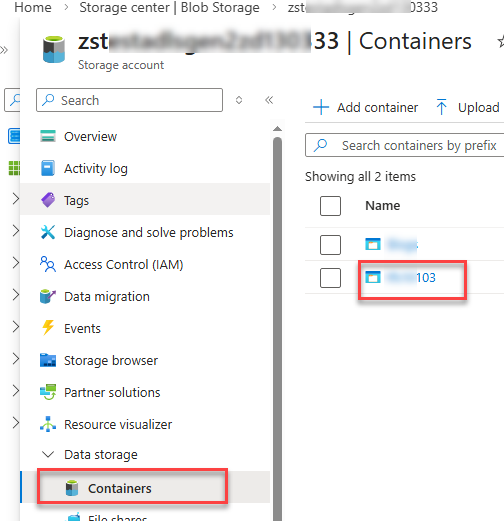
Containers in Azure Portal
- Click Generate SAS to generate a Container-Level SAS Token.
- Select required permissions (Read / Write / List / Delete).
- Set expiration date.
- Generate and copy the SAS URL.
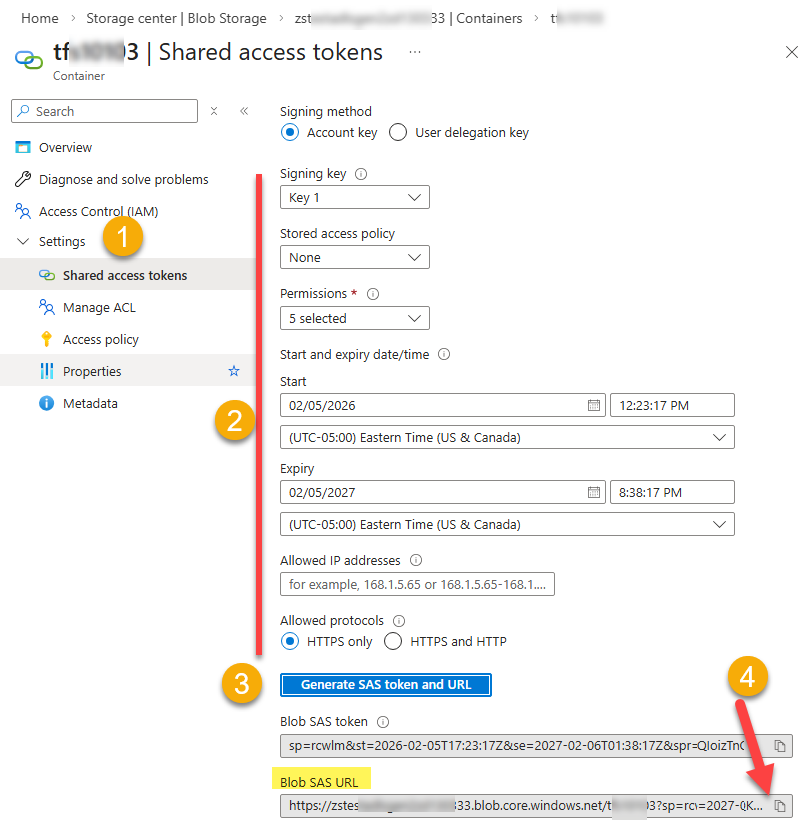
Azure Storage Account – Generate SAS Token (Container Level)
Recommended: Use SAS URL for quicker and more reliable configuration. While SAS Token authentication is still supported, Copy SAS URL is easier and more user-friendly because it already includes the container path. When you paste the SAS URL into the Connection UI, the container name is automatically detected, eliminating the need to enter it as a separate step manually.
- Go to our Microsoft Azure Blob connection and use the SAS Token in SSIS
- Choose SAS Token authentication in the Azure Storage Task and provide the SAS Token or URL.
- Test the connection and click OK to save the configuration.
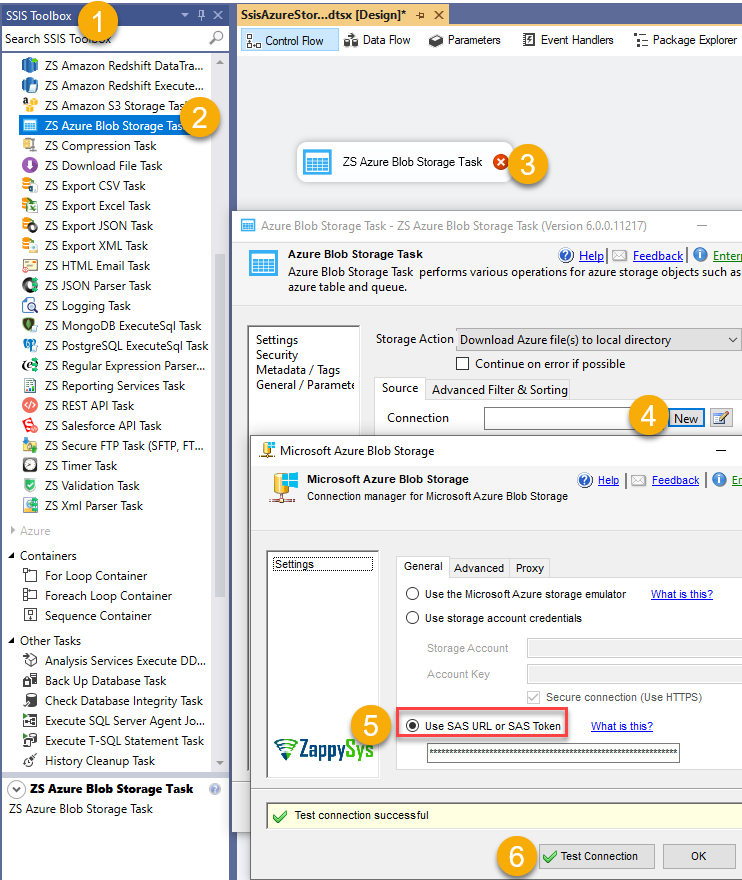
Connect Azure Storage Account in SSIS – Using SAS Token Method
Download Files from Azure ADLS Gen2 in SSIS
- Inside the ZappySys Azure Storage Task, select the connection created in the previous step.
- Use the option DownloadAzure File(s) to local directory.
- Select the Parquet or CSV files you want to download. You can pull files from date-partitioned folders and use dynamically built paths with SSIS variables.
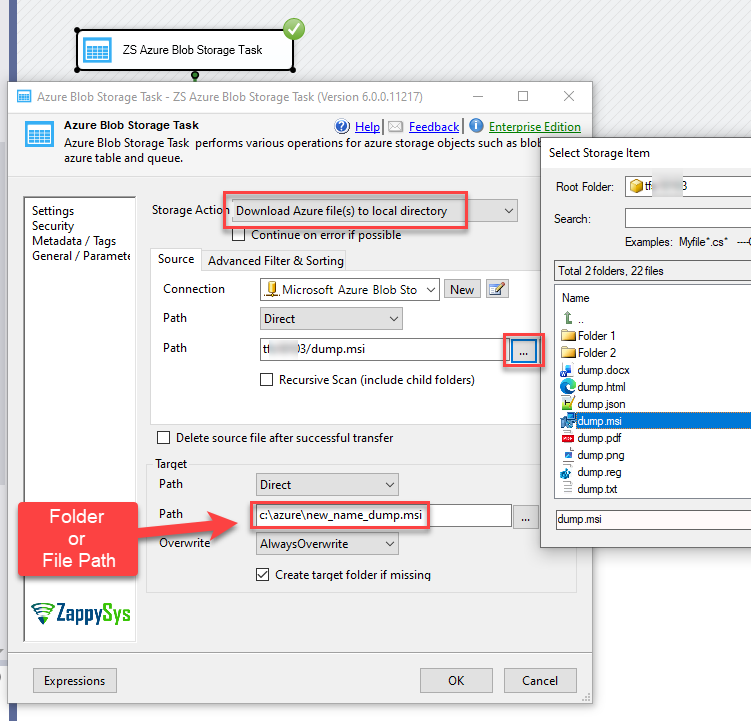
Download Azure Storage Files in SSIS (ADSL v2 or Legacy Blob Storage)
Upload Files to Azure ADLS Gen2 in SSIS
- Change the Storage Action to Upload local file(s) to Azure.
- Upload single files or entire folders.
- Choose between Overwrite or skip existing files.
- Use the ZappySys placeholder engine to dynamically build source and destination paths.
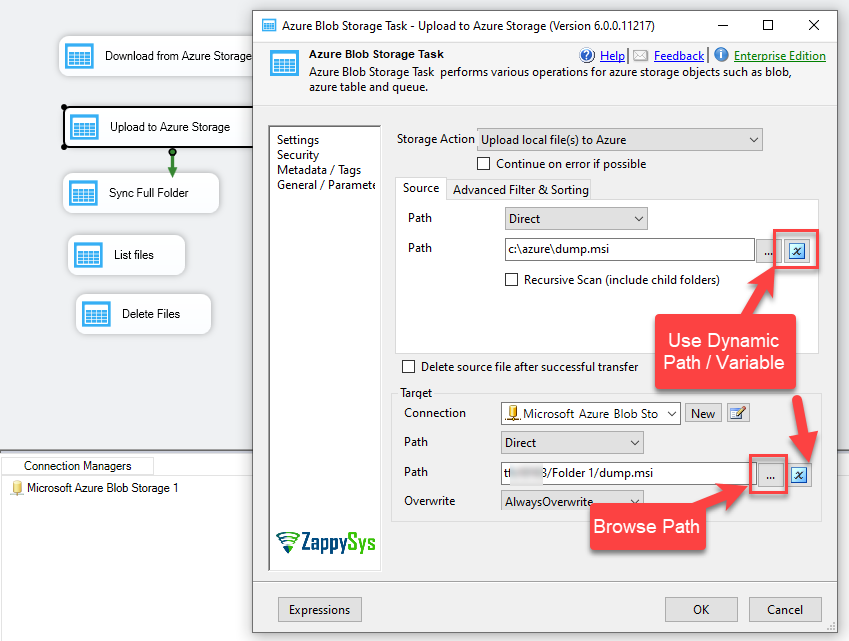
Upload Local Files to Azure Blob Storage in SSIS (ADSL v2 or Legacy Blob Storage)
Other Azure Storage File Operations
The Azure Storage Task supports many additional operations:
- Sync folders
- Create containers or directories
- Delete files or folders
- List files recursively
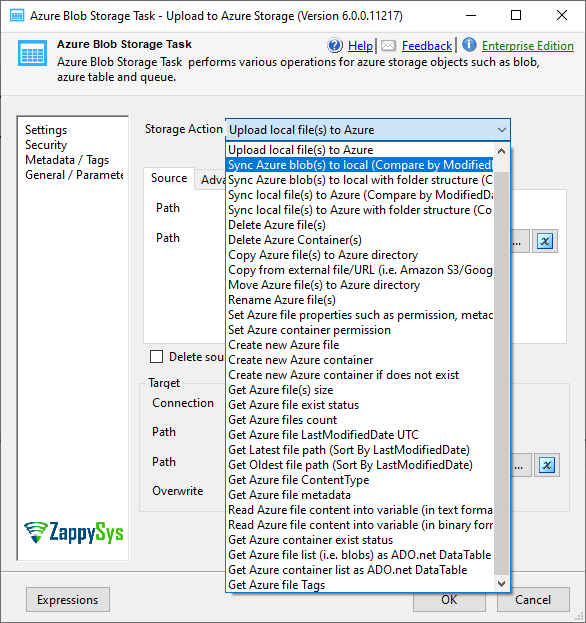
Azure Storage File Operations in SSIS (Sync, Create, Delete, List)
Advanced Filtering and Sorting
Most operations support advanced filtering and sorting options. These options are available under the Advanced Filter and Sorting tab:
- Filter by file name
- Filter by size
- Filter by modified date
- Sort ascending or descending
- Limit the number of files processed
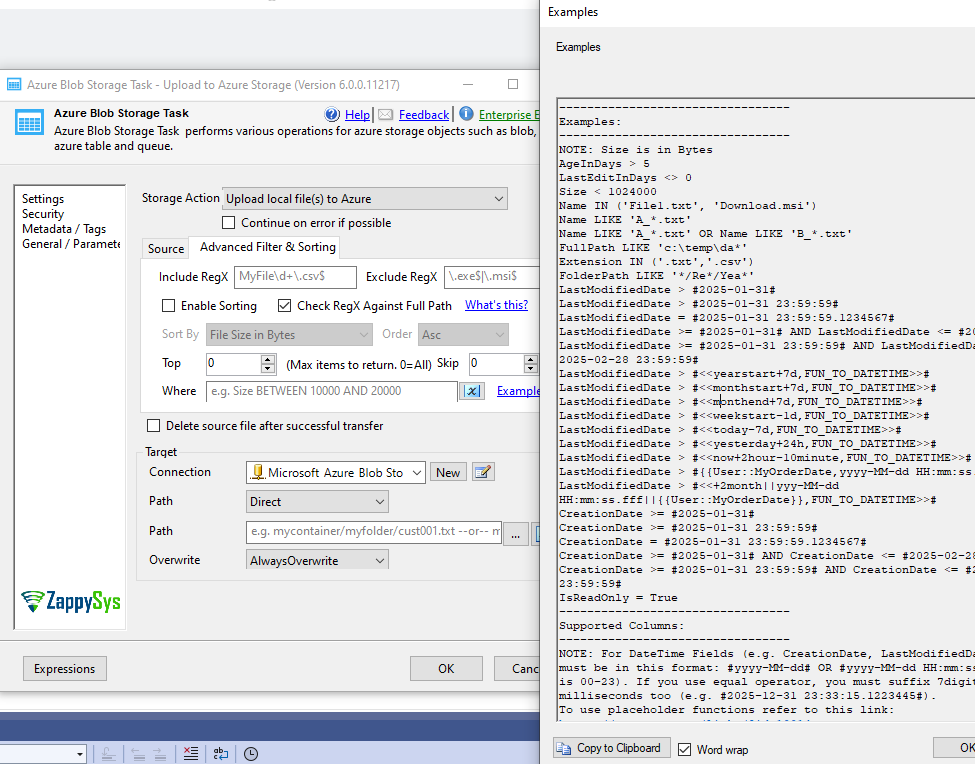
More filter options
Similar filtering capabilities are also available in:
- Amazon S3 Storage Task
- Secure FTP Task
- Other ZappySys file-based connectors
Summary
With ZappySys SSIS Power Pack, you can fully manage Azure Data Lake Storage Gen2 directly inside SSIS—including hierarchical folders, secure authentication, and advanced file operations—without writing custom code.
This makes it easy to:
- Build modern data lake pipelines
- Work with Parquet and partitioned data
- Secure access using SAS tokens
- Automate file movement at scale
Still need help?
If the issue persists, please get in touch with our support team:
- Live Chat: Open the chat widget (bottom right of this page)
- Email: support@zappysys.com
- Support Center: Support | ZappySys