
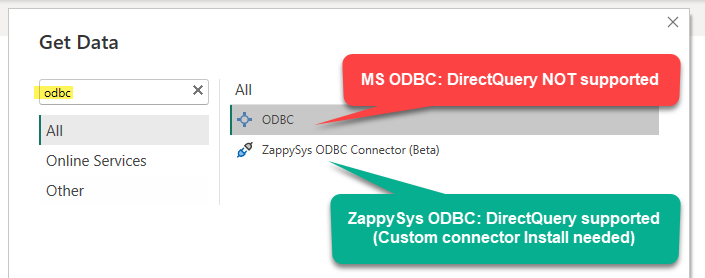
Power BI native ODBC connector does not support DirectQuery. If you connect with the Microsoft ODBC connector, Power BI uses Import mode, which means data is copied into the model and refreshed on a schedule.
If you searched for Power BI ODBC DirectQuery, DirectQuery ODBC connector Power BI, or ZappySys ODBC PowerPack download, this guide gives you the exact workaround and setup steps.
Why This Matters
- No true real-time reporting with native ODBC connector
- Large datasets increase memory usage in Import mode
- Frequent data changes require constant refresh schedules
- API and cloud app data can become stale quickly
Solution: ZappySys DirectQuery ODBC Connector (ODBC PowerPack)
To enable DirectQuery over ODBC, use the ZappySys DirectQuery ODBC Connector (custom Power BI connector). Download it from:
https://zappysys.com/downloads/ZappySys-DirectQuery-ODBC-Connector.zip
With this connector, you can:
- Use DirectQuery with ODBC sources in Power BI
- Query databases, APIs, and cloud apps in real time
- Avoid importing very large datasets into Power BI
- Reduce duplicate data storage between systems
Step 1: Install the ZappySys Connector
- Download and unzip the connector package.
- Copy the
.mezfile to:
C:\Users\<YourUsername>\Documents\Power BI Desktop\Custom Connectors - Create the
Custom Connectorsfolder if it does not exist.
Step 2: Enable Custom Connectors in Power BI
- Open Power BI Desktop.
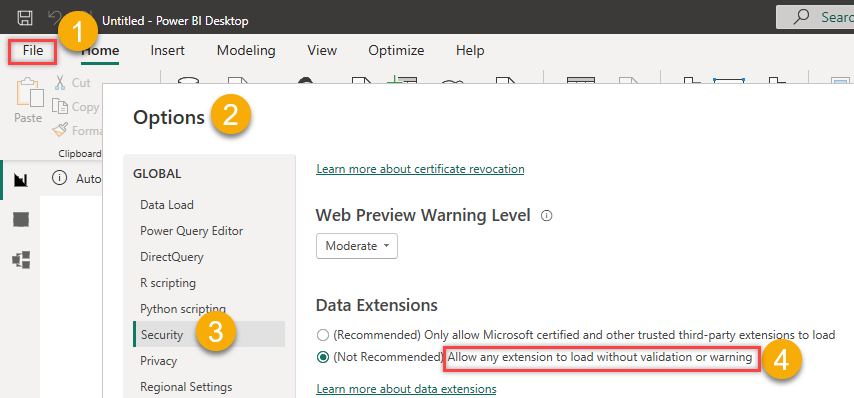
- Go to File > Options and settings > Options > Security.
- Under Data Extensions, enable Allow any extension to load without validation.
- Save and restart Power BI Desktop.
Step 3: Create a 64-bit ODBC DSN
- Open ODBC Data Sources (64-bit).
- Go to System DSN and click Add.
- Select your ODBC driver (for example, ZappySys ODBC Driver).
- Save DSN with a simple name, such as
MyZappyDSN.
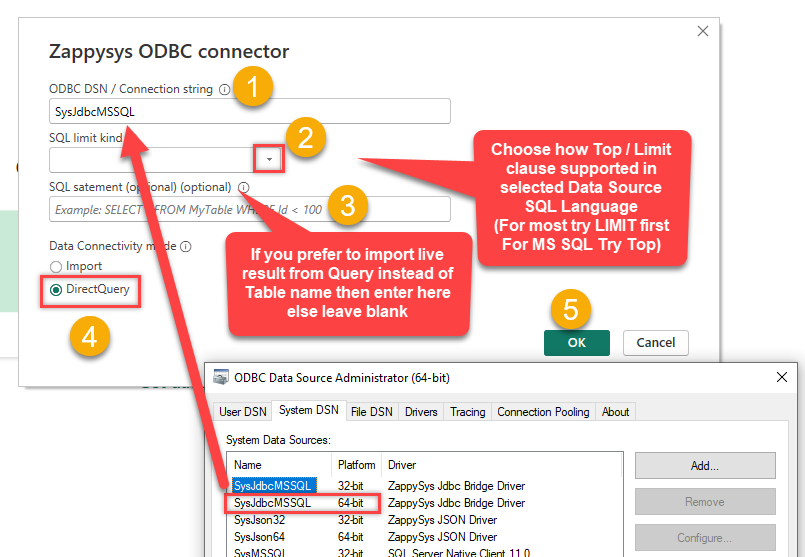
Important: Do not use 32-bit ODBC DSN. Power BI Desktop and gateway setup should use 64-bit DSN.

Step 4: Connect with ZappySys DirectQuery ODBC Connector
- In Power BI Desktop, click Get Data.
- Select ZappySys DirectQuery ODBC Connector.
- Enter DSN name
MyZappyDSN(or full connection string). - Select DirectQuery mode and connect.
Example connection string:
|
1 |
Driver={ZappySys ODBC Driver};Host=...;User=...;Password=...; |
Step 5: Configure On-Premises Data Gateway (Power BI Service)
- Copy the same
.mezfile to the gateway machine custom connectors folder. - Edit:
C:\Program Files\On-premises data gateway\Microsoft.PowerBI.DataMovement.Pipeline.GatewayCore.dll.config - Add this setting in
<appSettings>:
|
1 2 3 |
<setting name="EnableCustomConnectors" serializeAs="String"> <value>true</value> </setting> |
- Restart gateway service.
- Create the same DSN name (
MyZappyDSN) on the gateway server. - Map dataset to gateway in Power BI Service settings.
Common Search Questions (Quick Answers)
Does native Microsoft ODBC connector support DirectQuery in Power BI?
No. Native ODBC path is Import-oriented and does not provide a DirectQuery option.
How do I enable Power BI ODBC DirectQuery?
Use the ZappySys DirectQuery ODBC Connector and configure custom connectors + 64-bit DSN.
Where can I download the ZappySys ODBC PowerPack connector for Power BI DirectQuery?
Download from: ZappySys DirectQuery ODBC Connector ZIP.
Troubleshooting
- Connector not visible: Recheck security option and restart Power BI.
- Gateway fails: Ensure DSN name matches exactly on desktop and gateway.
- Driver missing: Install ZappySys ODBC driver on all required machines.
- Desktop works but service fails: Verify DSN is 64-bit, not 32-bit.