Introduction
When you create a linked server, the connection succeeds, but the query fails. By default, non-admin users do not have access to a Linked Server in SQL Server. When such users attempt to query a Linked Server, they may encounter errors similar to the following:
|
1 2 3 4 5 6 |
OLE DB provider "SQLNCLI11" for linked server "ZappySysLink" returned message "Unable to open a logical session". Msg -1, Level 16, State 1, Line 0 SMux Provider: Physical connection is not usable [xFFFFFFFF]. |
This issue occurs because the Linked Server does not have a login mapping configured for the user executing the query.
Cause
1. Non-admin users do not inherit access to Linked Servers by default.
2. No login mapping exists between the local SQL Server login and the remote Linked Server credentials.
3. SQL Server cannot determine which remote credentials to use when the user connects.
For admin users, SQL Server often uses the default option “Be made using this security context”, which allows access without additional configuration.
Solution
- Remove any existing incorrect login mapping (optional but recommended)
123EXEC sp_droplinkedsrvlogin@rmtsrvname = 'YourLinkedServerName',@locallogin = 'MyDomain\User1';
- Create a new login mapping for the Linked Server:
123456EXEC sp_addlinkedsrvlogin@rmtsrvname = 'YourLinkedServerName', -- Linked Server name@useself = 'false',@locallogin = 'MyDomain\User1', -- Local Windows user@rmtuser = 'gateway_Admin', -- Remote (Linked Server) login@rmtpassword = 'gateway_pass123'; -- Remote password
-
Verify the configuration:– Open Linked Server Properties in SQL Server Management Studio (SSMS).– Go to the Security tab.– Confirm that your local login is mapped to the correct remote user.
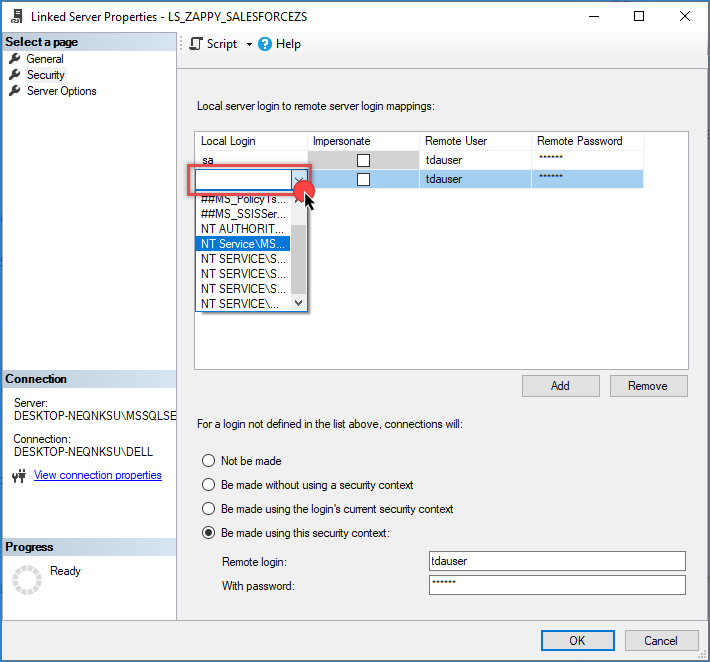
Linked server – security tab
-
Test the Linked Server query again using the non-admin user.
Conclusion
sp_addlinkedsrvlogin, you can grant controlled access to Linked Servers and ensure queries execute successfully without connection errors.Still need help?
- Live Chat: Open the chat widget (bottom right of this page)
- Email: support@zappysys.com
- Support Center: https://zappysys.com/support/