
Introduction
 Trello is a popular project management platform used by teams worldwide to organize tasks, track progress, and collaborate on projects. Many applications and tools need to integrate with Trello data for reporting, analytics, and business intelligence. Using Zappysys ODBC Driver for Trello, you can easily query card data, lists, and board information from Trello using standard SQL queries without writing custom code.
This tutorial demonstrates how to connect to Trello via ODBC and extract card and board data for use in your applications, databases, and reporting tools.
Prerequisites
- A Windows or Linux system with an ODBC driver manager installed.
- An ODBC-compatible application (Excel, Power BI, Tableau, database tool, etc.).
- A Trello account with at least one board and list created.
- Finally, install the ZappySys ODBC Driver.
Steps
Generate Trello API Key and Token
- Go to the Trello Power-up page and log in to your account.
- Create a new App and fill in the form.
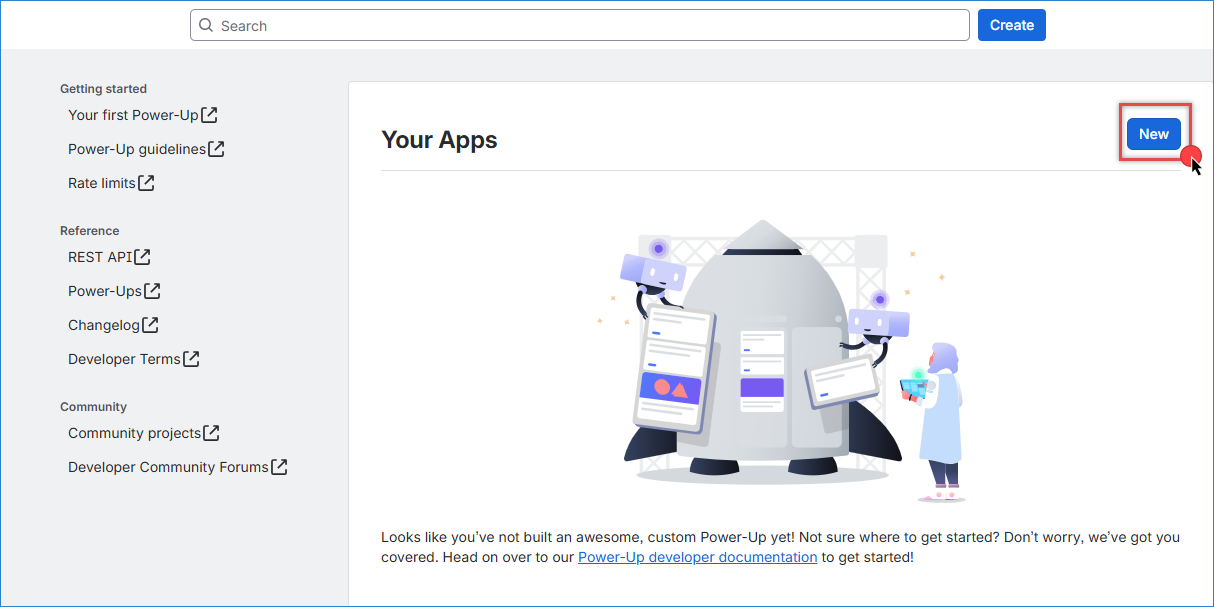
Trello – Create a new App
- Inside your new App, click the API key, then generate a new API Key.
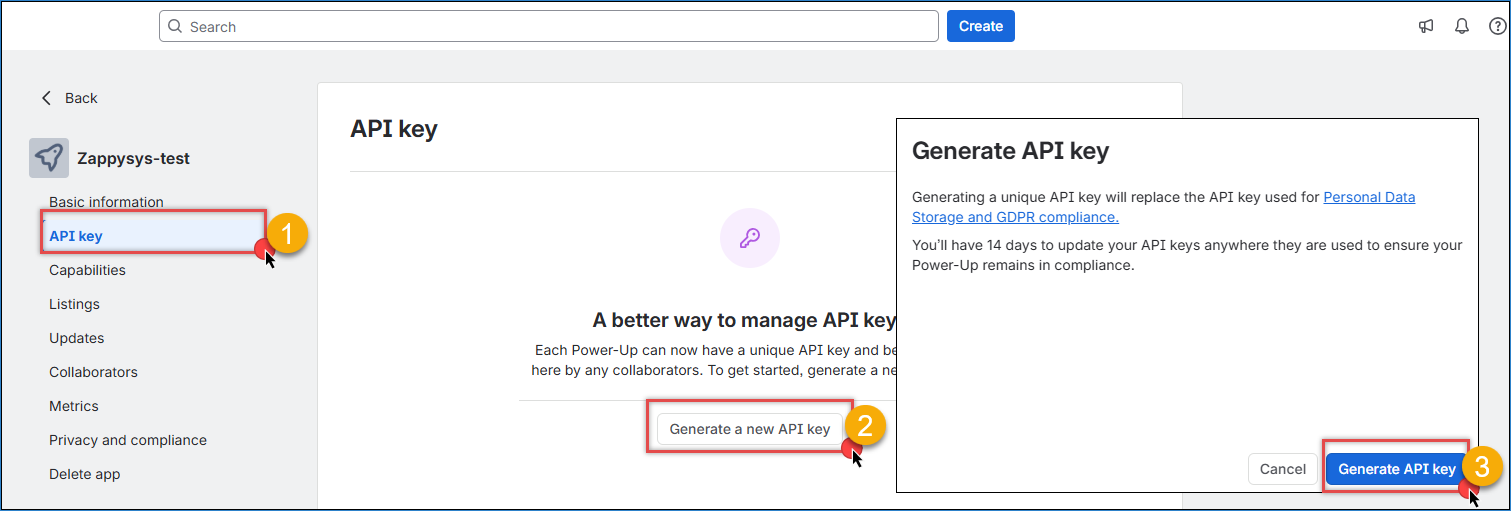
Trello – API key page
- In the API Key section, click the Token link to generate an access token.
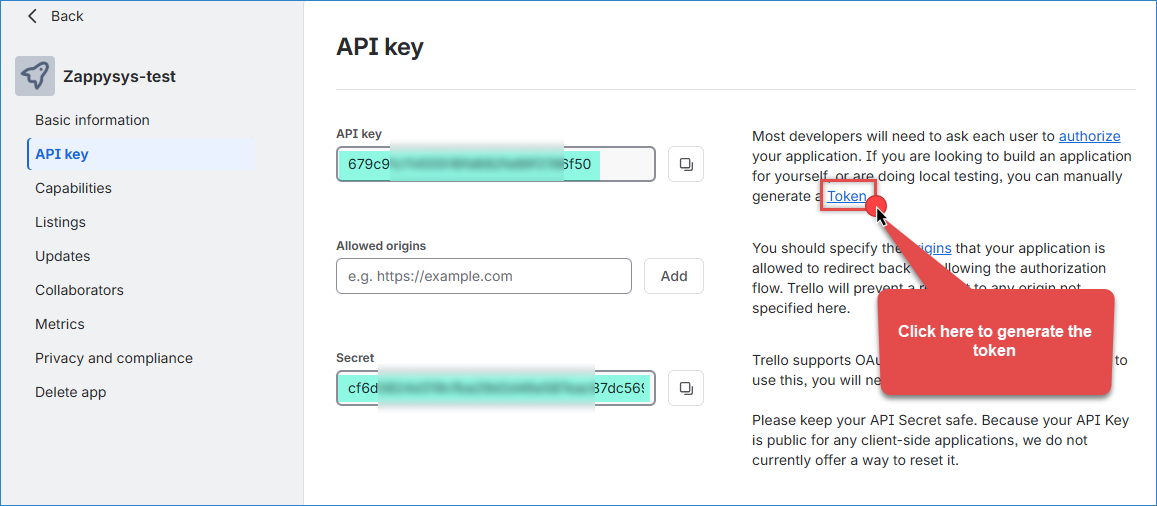
Trello – API key and Token link
- Choose the token’s expiration time (Recommended: 30 days for security).
- Review the permissions and click Create Token.
- Copy the generated token and store it securely.
- You now have both your API Key and Token. Keep these credentials confidential.
Creating a new ODBC DSN using ZappySys JSON Driver
- Search for ODBC in the Windows Start menu and open the ODBC Data Source Administrator.
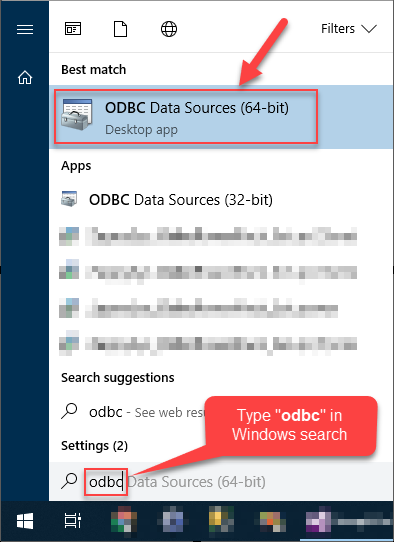
- In the User DSN or System DSN tab, click Add to create a new data source.
- In the ODBC Data Source Setup window, select the ZappySys JSON Driver and click Continue.

Configure the Connection and API Settings
- In the Base URL field, enter the URL:
For more examples:1https://api.trello.com/1/members/me/boards?key={{TrelloApiKey}}&token={{TrelloToken}}
GET /boards/{boardId}/cards — Retrieve all cards from a specific board
GET /boards/{boardId}/lists — Retrieve all lists from a specific board
GET /cards/{cardId} — Retrieve details of a specific card
- In the Request Method, use GET
- You can use the Array filter to get the object you need.
- Test the connection to check everything is working fine
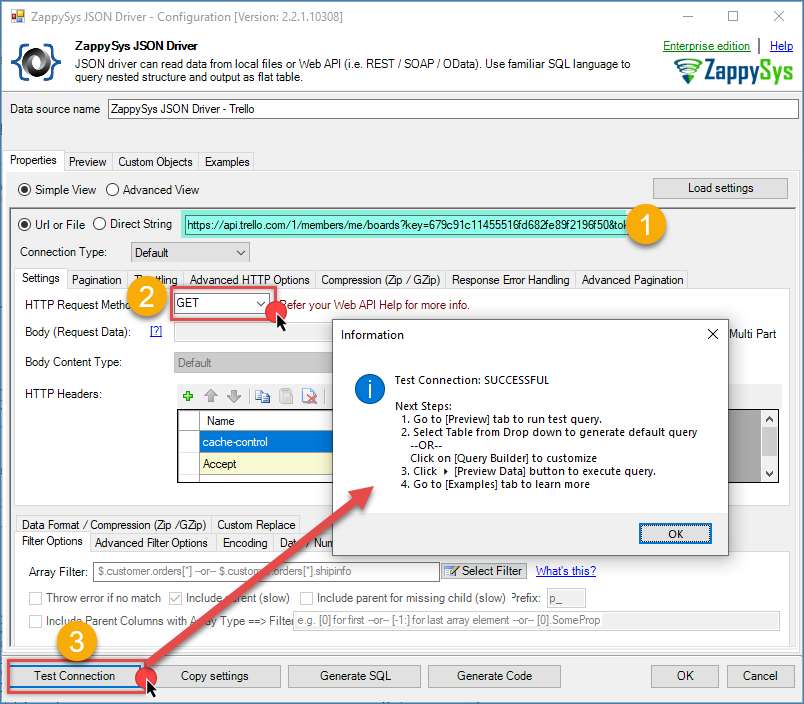
Trello – ODBC configuration
Preview the data
- Once your ODBC DSN is configured, go to the preview tab.
- Select the table you want to use.
- Press the Preview data button to see the result.
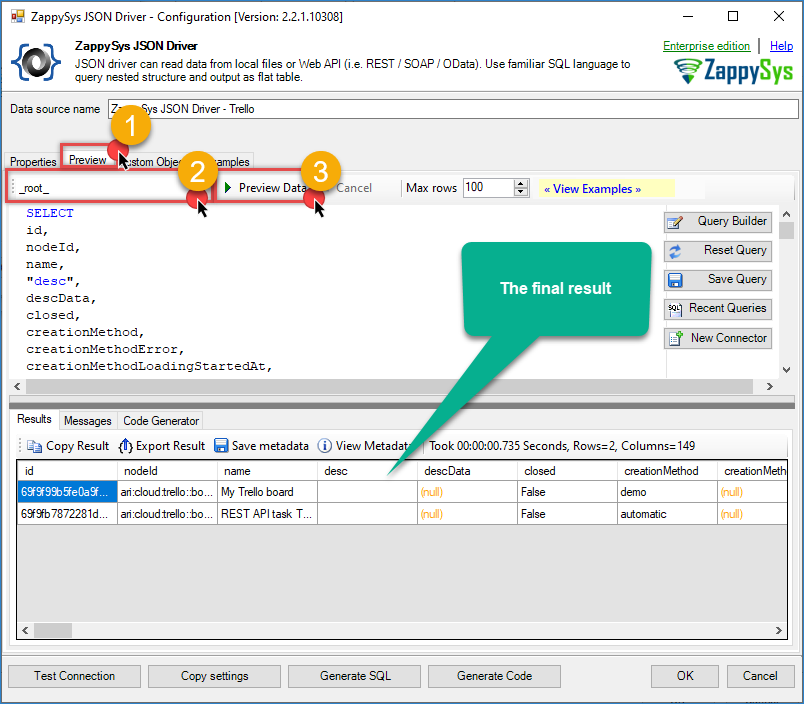
Trello – ODBC final result
Conclusion
Connecting to Trello via ODBC with the Zappysys ODBC Driver simplifies integrating project management data into your applications, databases, and reporting tools without custom development. By following the steps outlined in this tutorial, you can build reliable data connections that allow you to query Trello data using standard SQL and access it from Excel, Power BI, Python, SQL Server, and many other tools. Whether you need to track project progress, analyze team productivity, consolidate data from multiple teams, or create executive dashboards, Trello integration via ODBC provides a flexible and powerful solution.
Explore the full capabilities of the ZappySys ODBC Drivers to optimize your data access and integration strategy. You can extend this solution to include periodic data synchronization, real-time dashboards, and advanced transformations using your preferred analytics platform.
Need Help?
If you encounter any issues, our support team is here to help:
- Live Chat — Use the chat widget (bottom-right corner of this page)
- Email — support@zappysys.com
- Support Center — Visit the ZappySys Support Portal