
Introduction

DocuWare is a powerful document management platform that provides REST APIs for accessing documents, metadata, and workflows. This guide demonstrates how to connect Zappysys SSIS connectors to DocuWare using OAuth 2.0 or Bearer Token authentication.
Whether you are using DocuWare Cloud or an on-premises deployment, you will learn how to configure secure authentication without writing any custom code. Zappysys handles all the technical complexity, allowing you to focus on building your ETL workflows.
Prerequisites
- SQL Server Integration Services (SSIS) must be installed.
- Visual Studio with SSIS extension or SQL Server Data Tools (SSDT) is required.
- Active DocuWare account with appropriate permissions.
- ZappySys SSIS PowerPack installed.
Steps
Get the Endpoint Examples
Download the DocuWare API Postman collection to review available endpoints. This helps you understand the API structure before configuring your connection. For additional guidance, see our article on migrating Postman to SSIS.
OAuth 2.0 Connection (DocuWare Cloud)
- Create or select your SSIS project and open the package.dtsx file.
- Drag and drop the ZS REST API task from the Toolbox.
- Right-click in the Connection Managers pane and select New Connection…
- Select ZS-OAuth from the SSIS connectors list.
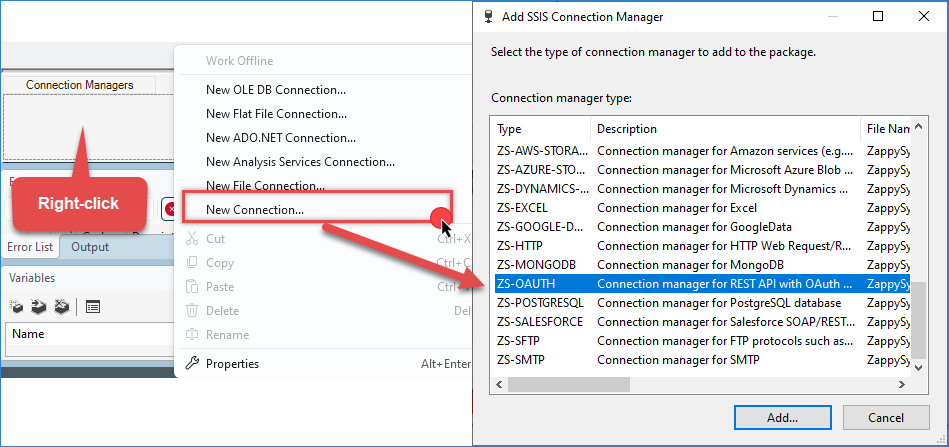
Create a new SSIS OAuth API Connection Manager
- Set the OAuth Version to OAuth 2.0.
- Set Grant Type to Password Grant.
- Enter Client ID:
docuware.public.client - Enter your DocuWare credentials (username and password).
- Enter the Token URL:
1https://your-docuware-server/DocuWare/Platform/Account/Logon - Enter the Scope:
docuware.platforms - Click OK to save the connection.
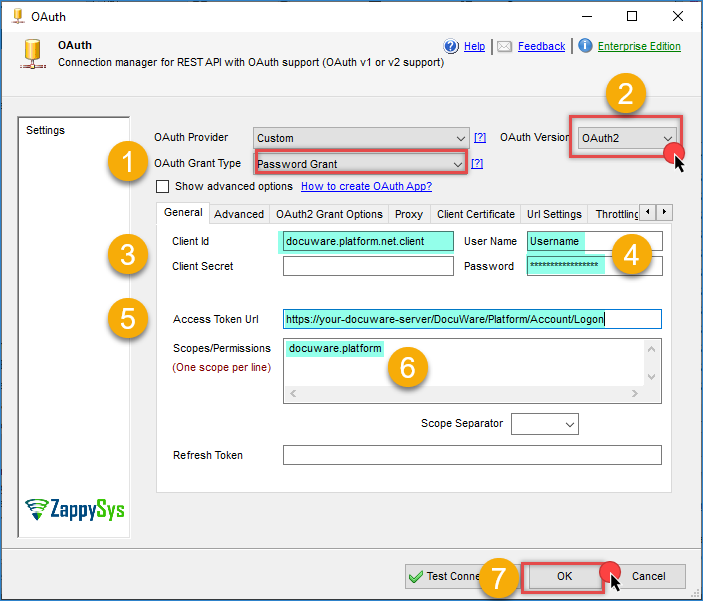
Docuware – OAuth connection
NTLM Authentication (For On-Premises or Windows-based Environments)
- If using NTLM authentication instead of OAuth, select ZS-HTTP from the SSIS connectors list.
- Set Credential Type to NTLM Authentication.
- Enter the Base URL:
1https://your-docuware-server/DocuWare/Platform - Enter your Windows credentials (domain\username and password).
- Click OK to save the connection.
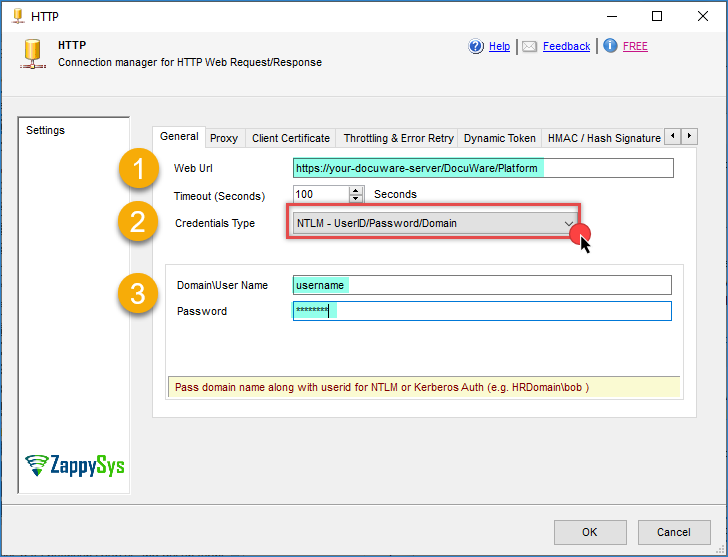
Docuware – NTLM Authentication connection
Configure the REST API Task
- Drag and drop the REST API task into the Control Flow, then double-click it to open the editor.
- Select the connection you created (OAuth or NTLM).
- Enter the DocuWare API endpoint URL (for example:
/FileCabinetsto retrieve all file cabinets and document trays) - Select the appropriate HTTP method—typically GET for retrieving data.
- Click Test Connection to verify the configuration works correctly.
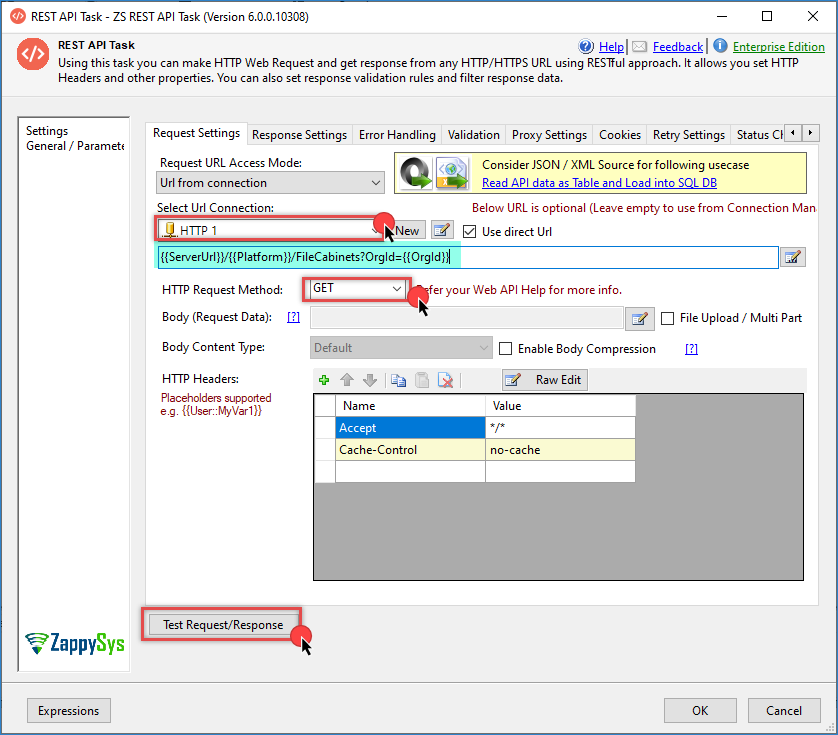
Docuware – REST API example
Conclusion
You now have a secure and reliable connection between Zappysys SSIS and DocuWare. Use OAuth 2.0 for DocuWare Cloud deployments and NTLM authentication for on-premises environments.
With your connection configured, you can build powerful ETL workflows using the REST connector in SSIS to extract document data, apply transformations, and load results into SQL Server—all without writing any custom code.
Next steps: Create a Data Flow Task and use the Zappysys REST Source component to query DocuWare API endpoints and load the extracted document data into your SQL Server database.
Need Help?
If you have questions or encounter any issues:
- Live Chat Support — Use the chat widget on this page for immediate assistance
- Email Support — support@zappysys.com
- DocuWare Support Portal — Visit https://www.docuware.com/en/support