
Prerequisites
Before we begin, make sure the following prerequisites are met:
- SQL Server Data Tools (SSDT) designer installed for Visual Studio.
- SQL Server Integration Services Projects 2022+ Visual Studio extension installed.
- SSIS PowerPack is installed.
Make generic REST API request in SSIS
-
Open Visual Studio and click Create a new project.
-
Select Integration Services Project. Enter a name and location for your project, then click OK.
-
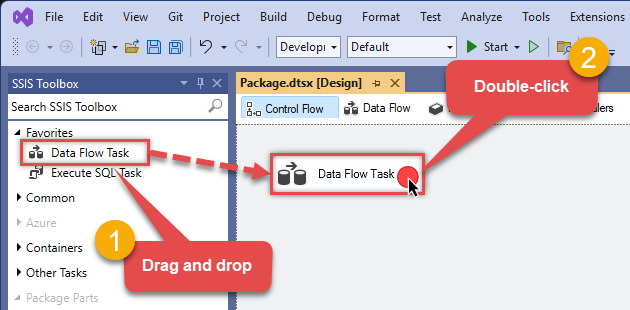
From the SSIS Toolbox, drag and drop a Data Flow Task onto the Control Flow surface, and double-click it:
-
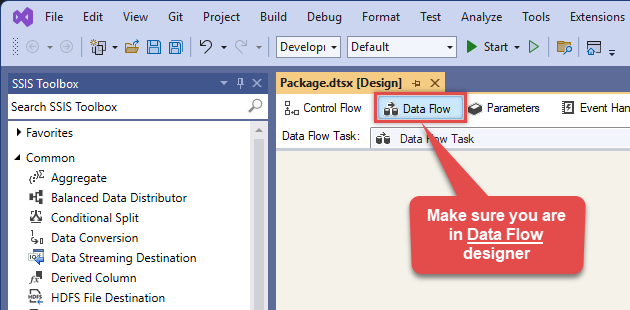
Make sure you are in the Data Flow Task designer:
-
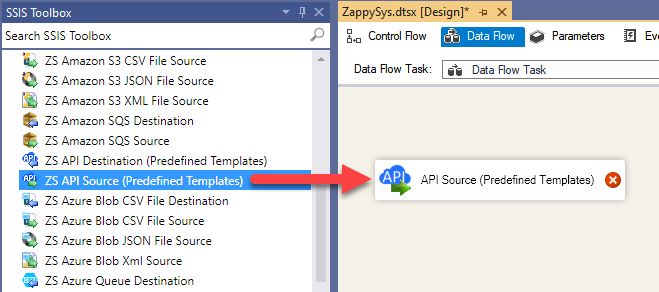
From the SSIS toolbox drag and API Source (Predefined Templates) on the data flow designer surface, and double click on it to edit it:
-
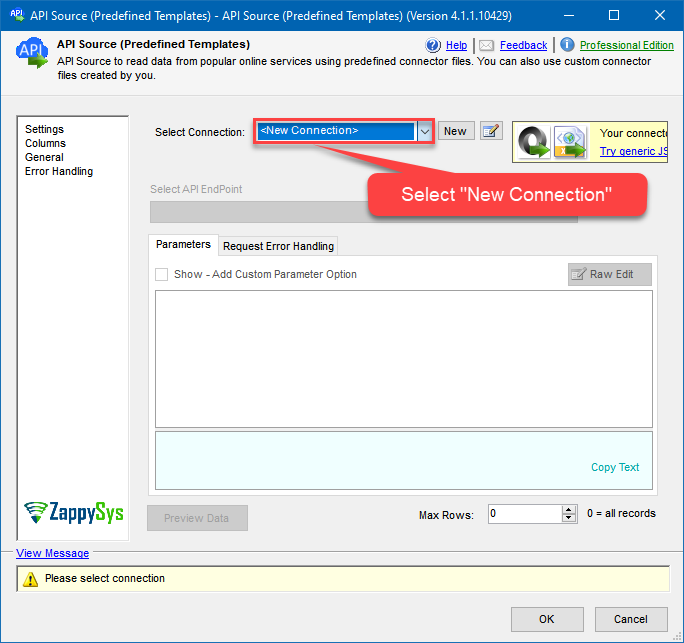
Select New Connection to create a new connection:
-
Use a preinstalled FTP/SFTP CSV File Connector from Popular Connector List or press Search Online radio button to download FTP/SFTP CSV File Connector. Once downloaded simply use it in the configuration:
FTP/SFTP CSV File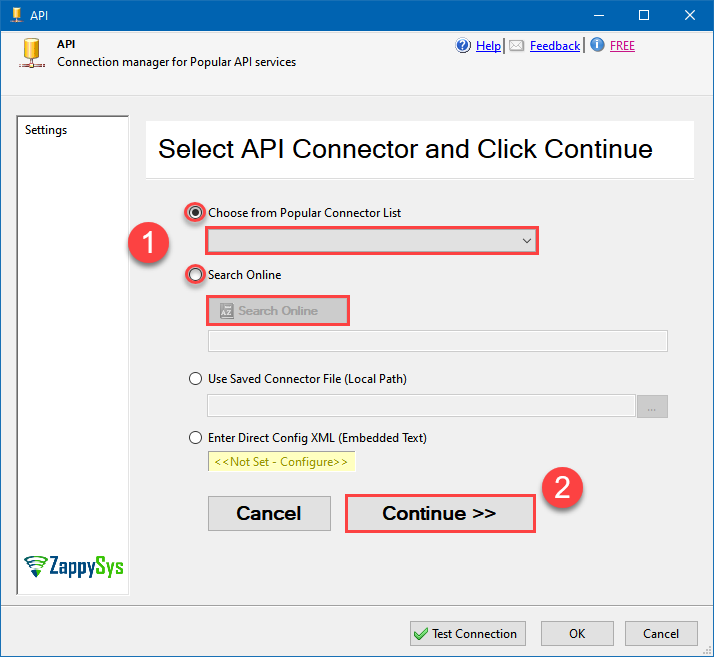
-
Select Generic Table (Bulk Read / Write) table from the dropdown and hit Preview Data:
 API Source - FTP/SFTP CSV FileRead and write CSV files over FTP/SFTP effortlessly. Streamline, manage, and automate CSV files on FTP and SFTP for analytics, reporting, and data pipelines — almost no coding required.FTP/SFTP CSV FileGeneric Table (Bulk Read / Write)
Required Parameters HTTP - Url or File Path Fill-in the parameter... HTTP - Request Method Fill-in the parameter... Optional Parameters HTTP - Request Body HTTP - Is MultiPart Body (Pass File data/Mixed Key/value) HTTP - Request Format (Content-Type) ApplicationJson HTTP - Headers (e.g. hdr1:aaa || hdr2:bbb) Accept: */* || Cache-Control: no-cache Parser - Response Format (Default=Json) Default Parser - Filter (e.g. $.rows[*] ) Parser - Encoding Parser - CharacterSet Download - Enable reading binary data False Download - File overwrite mode AlwaysOverwrite Download - Save file path Download - Enable raw output mode as single row False Download - Raw output data RowTemplate {Status:'Downloaded'} Download - Request Timeout (Milliseconds) General - Enable Custom Search/Replace General - SearchFor (e.g. (\d)-(\d)--regex) General - ReplaceWith (e.g. $1-***) General - File Compression Type General - Date Format General - Enable Big Number Handling False General - Wait time (Ms) - Helps to slow down pagination (Use for throttling) 0 JSON/XML - ExcludedProperties (e.g. meta,info) JSON/XML - Flatten Small Array (Not preferred for more than 10 items) JSON/XML - Max Array Items To Flatten 10 JSON/XML - Array Transform Type JSON/XML - Array Transform Column Name Filter JSON/XML - Array Transform Row Value Filter JSON/XML - Array Transform Enable Custom Columns JSON/XML - Enable Pivot Transform JSON/XML - Array Transform Custom Columns JSON/XML - Pivot Path Replace With JSON/XML - Enable Pivot Path Search Replace False JSON/XML - Pivot Path Search For JSON/XML - Include Pivot Path False JSON/XML - Throw Error When No Match for Filter False JSON/XML - Parent Column Prefix JSON/XML - Include Parent When Child Null False Pagination - Mode Pagination - Attribute Name (e.g. page) Pagination - Increment By (e.g. 100) 1 Pagination - Expression for Next URL (e.g. $.nextUrl) Pagination - Wait time after each request (milliseconds) 0 Pagination - Max Rows Expr Pagination - Max Pages Expr Pagination - Max Rows DataPath Expr Pagination - Max Pages 0 Pagination - End Rules Pagination - Next URL Suffix Pagination - Next URL End Indicator Pagination - Stop Indicator Expr Pagination - Current Page Pagination - End Strategy Type DetectBasedOnRecordCount Pagination - Stop based on this Response StatusCode Pagination - When EndStrategy Condition Equals True Pagination - Max Response Bytes 0 Pagination - Min Response Bytes 0 Pagination - Error String Match Pagination - Enable Page Token in Body False Pagination - Placeholders (e.g. {page}) Pagination - Has Different NextPage Info False Pagination - First Page Body Part Pagination - Next Page Body Part Csv - Column Delimiter , Csv - Has Header Row True Csv - Throw error when column count mismatch False Csv - Throw error when no record found False Csv - Allow comments (i.e. line starts with # treat as comment and skip line) False Csv - Comment Character # Csv - Skip rows 0 Csv - Ignore Blank Lines True Csv - Skip Empty Records False Csv - Skip Header Comment Rows 0 Csv - Trim Headers False Csv - Trim Fields False Csv - Ignore Quotes False Csv - Treat Any Blank Value As Null False Xml - ElementsToTreatAsArray 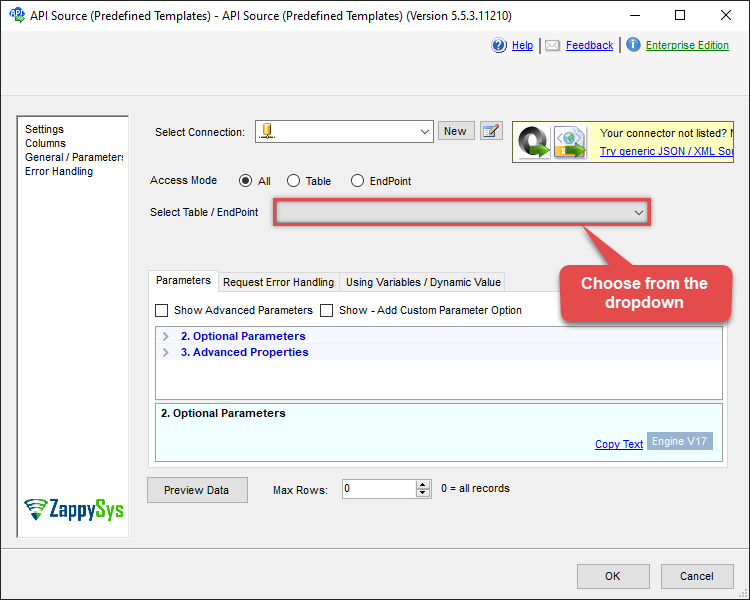
-
That's it! We are done! Just in a few clicks we configured the call to FTP/SFTP CSV File using FTP/SFTP CSV File Connector.
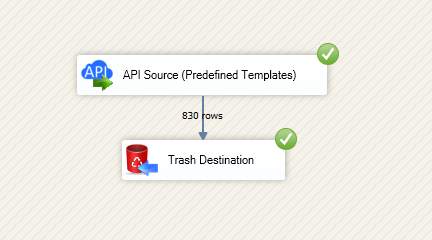
You can load the source data into your desired destination using the Upsert Destination , which supports SQL Server, PostgreSQL, and Amazon Redshift. We also offer other destinations such as CSV , Excel , Azure Table , Salesforce , and more . You can check out our SSIS PowerPack Tasks and components for more options. (*loaded in Trash Destination)
FTP/SFTP CSV File Connector actions
Need another use case? Pick the next FTP/SFTP CSV File action in SSIS below.
Conclusion
You now know how to make generic REST API request in SSIS without writing complex code. FTP/SFTP CSV File SSIS Connector handled pagination and authentication automatically.
Ready to get started? Download the trial or ping us via chat if you need help: