Introduction
Many times during your ETL process, you receive files that are encoded differently than you expect. Example: all files are in UTF-16, but your application expects them in UTF-8. Or sometimes files are in ASCII format, and you want to convert to UTF-8.
In this post, you will see how to use the Advanced File System Task to convert multiple files to the desired encoding (e.g., ASCII, UTF-8, UTF-16).
Steps to Convert File Encoding for Multiple Files in SSIS
- Download and Install SSIS PowerPack
- From your SSIS Toolbox,x drathe g Advanced File System Task
- Double-click the task to configure it
- Select the “Change Encoding of files” action from the dropdown, as shown in the screenshot below
- Enter the path or pattern for the source file you want to convert to a different encoding
- Select desired encoding from the Encoding dropdown (e.g. if your files are in ASCII and you want to convert them to UTF–, just select UTF-8)
- Execute the package and check the SSIS execution log to see which files are converted to the new encoding.
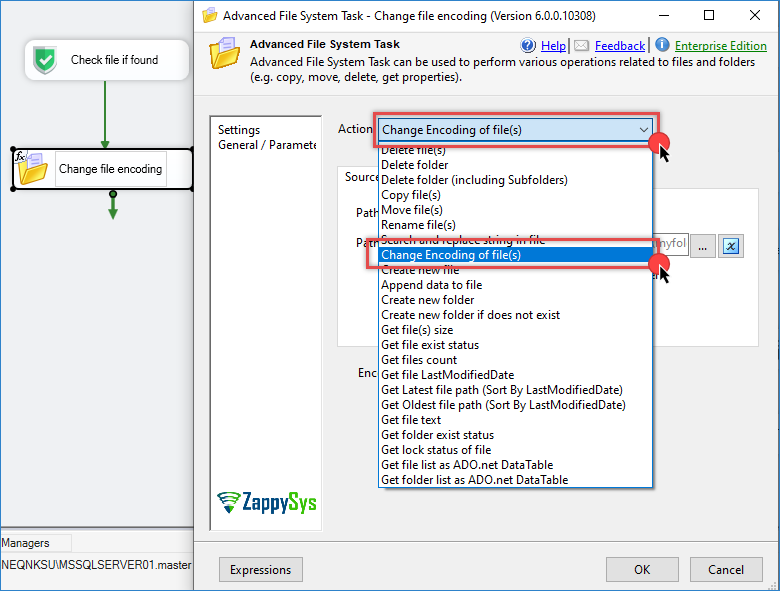
Change file encoding using the SSIS Advanced File System Task
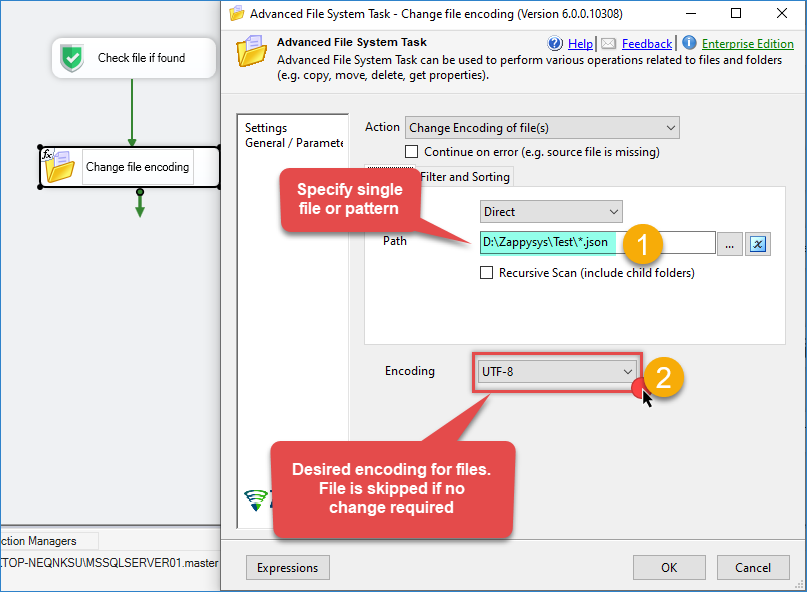
Change file encoding to UTF-8 from ASCII using the SSIS Advanced File System Task
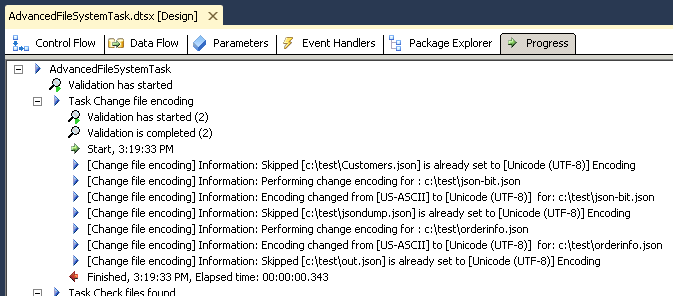
SSIS Execution log – Convert files to UTF-8 using SSIS Advanced File System Task