Introduction
 Spotify Web API exposes rich data for artists, albums, tracks, playlists, and categories. If you want to build dashboards from this data, you can connect Spotify to Power BI through an ODBC layer and query API responses using SQL.
In this tutorial, you will learn how to configure the ZappySys ODBC Driver for REST APIs for Spotify, test the connection, and load Spotify data into Power BI.
Prerequisites
To access your data in your app using the ODBC Driver, ensure the following requirements are met. Download and install ZappySys ODBC PowerPackSteps
Create a Spotify Developer App
- Open the Spotify Developer Dashboard and sign in with any free or premium Spotify account.
- Click Create app, then enter an app name, description, and a redirect URL (for example:
http://127.0.0.1:3000).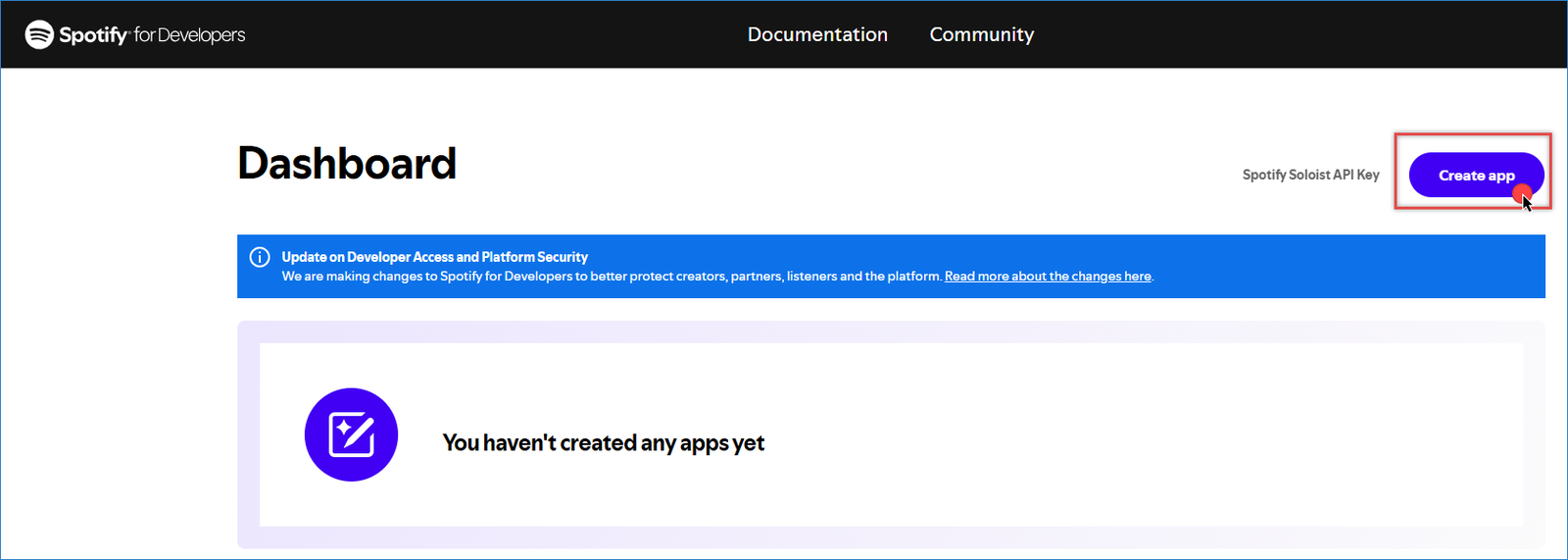
Spotify – Create app
- Open app Settings and copy your Client ID and Client Secret.
- Store these credentials securely.
Create a New ODBC DSN Using ZappySys JSON Driver
- Search for ODBC in the Windows Start menu and open ODBC Data Source Administrator.
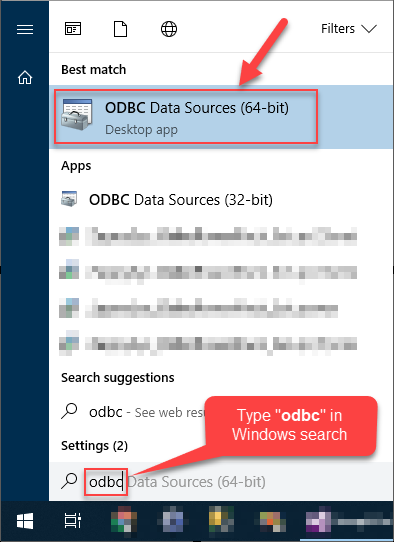
- In User DSN or System DSN, click Add.
- Select ZappySys JSON Driver and click Continue.

Configure the Connection and API Settings
- Enter a Spotify endpoint URL. Example:
1https://api.spotify.com/v1/search?q=genre:pop&type=artist&limit=50 - In Connection Type, select OAuth and click Configure.
- Set Credential Type to OAuth2 / Client Credentials Grant and fill in the following values:
- Client ID: Your Spotify Client ID
- Client Secret: Your Spotify Client Secret
- Access Token URL:
https://accounts.spotify.com/api/token - Scopes/Permissions: (leave empty)
- Click OK to save HTTP authentication settings.
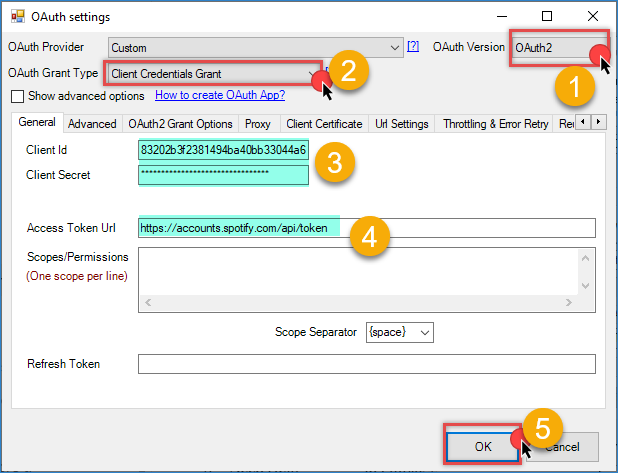
Spotify ODBC OAuth connection
- Set HTTP Request Method to GET.
- Add the following HTTP Header:
- Accept: application/json
- Set JSON Path Filter to:
1$.artists.items[*] - Click Test Connection, then click OK to save the DSN.
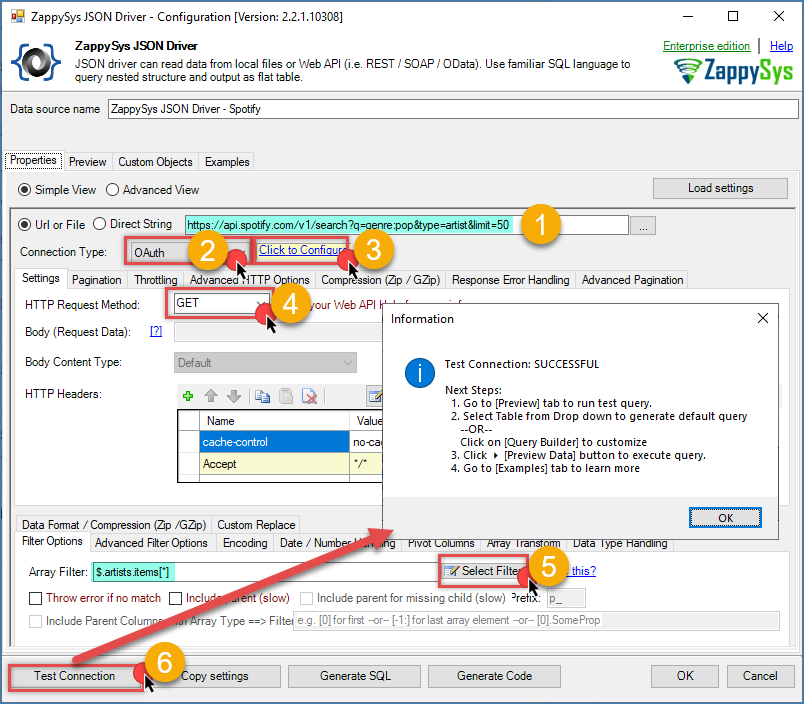
Spotify – ODBC JSON driver configuration
Preview Spotify Data in ODBC Driver
- Open the Preview tab in the DSN configuration window.
- Generate a query and click Preview Data.
- Confirm rows are returned. If not, recheck credentials, endpoint URL, and JSON Path Filter.
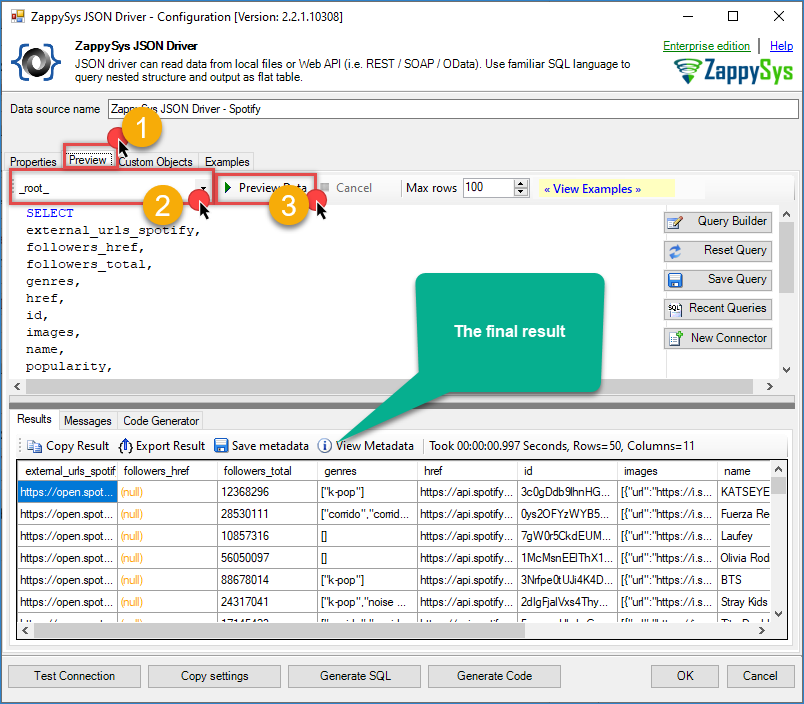
Spotify – ODBC preview data
Connect Power BI to Spotify via ODBC
- Open Power BI Desktop.
- Go to Home > Get Data > More….
- Search for ODBC and click Connect.
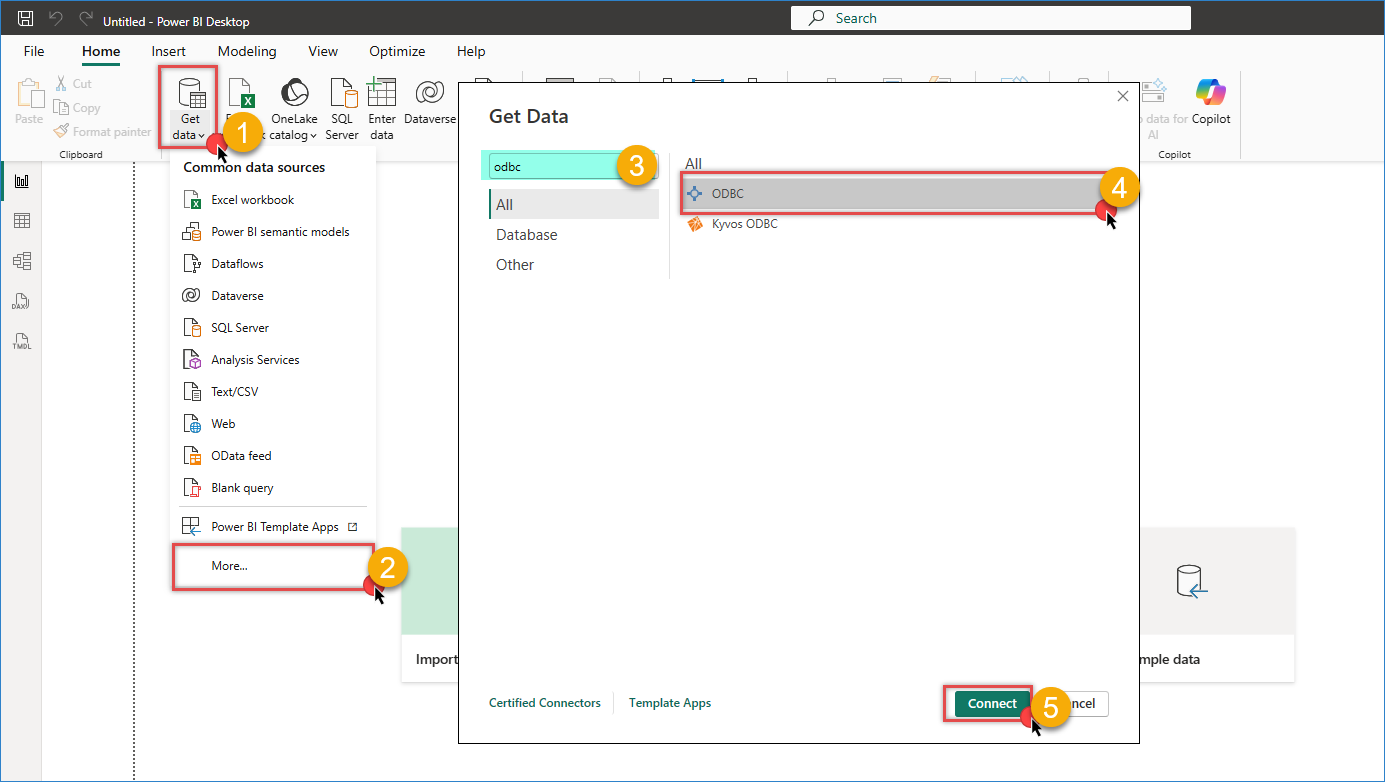
Power BI – Get data from ODBC connection
- Select your Spotify DSN from the data source list.
- Optionally enter a custom SQL query in Advanced options.
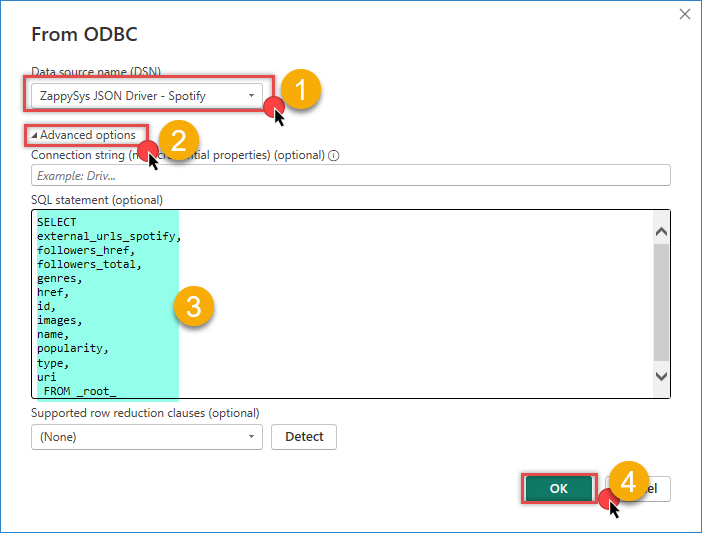
Power BI – Enter query Spotify
- Click OK, review the preview, and click Load.
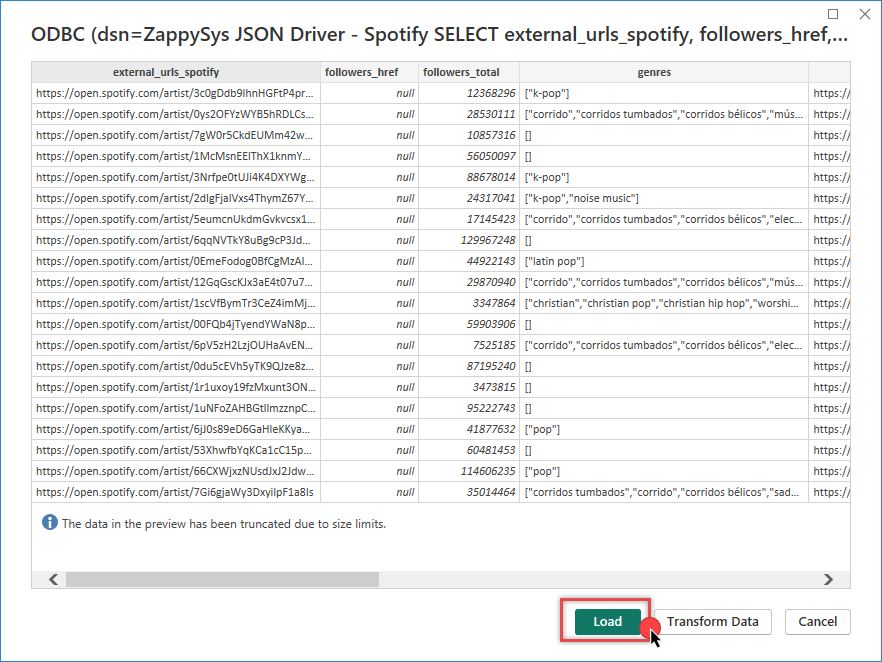
Power BI – Spotify Result
- In the Navigator, select fields or tables you want to import into your model.
Query Spotify Data with SQL
Use custom SQL queries in the ODBC driver or Power BI to shape data before loading.
Example 1: List All Artists
|
1 2 3 4 5 6 7 8 |
SELECT id, name, type, popularity, followers_total, uri FROM _root_ |
Example 2: Filter Highly Popular Artists
|
1 2 3 4 5 6 7 8 |
SELECT id, name, popularity, followers_total FROM _root_ WHERE popularity >= 80 ORDER BY popularity DESC |
Example 3: Artists with Large Followings
|
1 2 3 4 5 6 7 8 |
SELECT id, name, followers_total, popularity FROM _root_ WHERE followers_total >= 1000000 ORDER BY followers_total DESC |
Example 4: Search by Genre
|
1 2 3 4 5 6 7 8 |
SELECT id, name, genres, popularity FROM _root_ WHERE genres LIKE '%pop%' ORDER BY popularity DESC |
Conclusion
Connecting Spotify to Power BI using the ZappySys ODBC Driver gives you a fast way to analyze music catalog trends and artist metrics with SQL and dashboards. Once your DSN is configured, you can reuse the same pattern for tracks, albums, playlists, categories, and market-specific reporting.
Explore more connectors and API integrations with the ZappySys ODBC Drivers.
Need Help?
If you encounter any issues, our support team is here to help:
- Live Chat: Open the chat widget (bottom right of this page)
- Email: support@zappysys.com
- Support Center: Support | ZappySys