
Introduction
 Pipedrive is a CRM platform used by sales teams to manage leads, deals, contacts, activities, and pipelines. Many organisations need this data in Power BI to monitor sales performance, pipeline health, conversion rates, and team productivity.
Using ZappySys ODBC Driver for REST APIs, you can connect to Pipedrive APIs, query CRM data with SQL, and load it directly into Power BI dashboards without writing custom connector code.
This tutorial shows how to create an ODBC DSN for Pipedrive API, preview data, connect to Power BI, and build analytics using custom SQL queries.
Prerequisites
- A Pipedrive account with API access enabled.
- Power BI Desktop is installed on your machine.
- Basic understanding of SQL and Power BI data modelling.
- Finally, install the ZappySys ODBC Driver.
Steps
Get Pipedrive API token
- Sign in to your Pipedrive account.
- Go to Personal Preferences and open API.
- Copy your API token and store it securely.
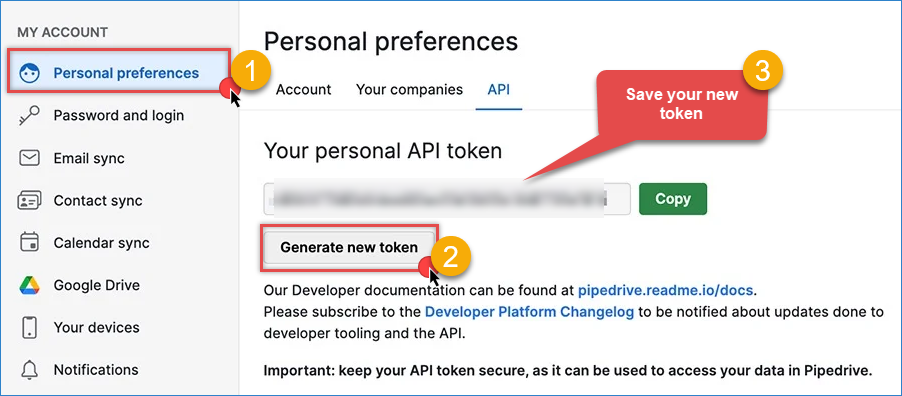
Pipedrive – Personal token
Create a new ODBC DSN using ZappySys JSON Driver
- Search for ODBC in the Windows Start menu and open ODBC Data Source Administrator.
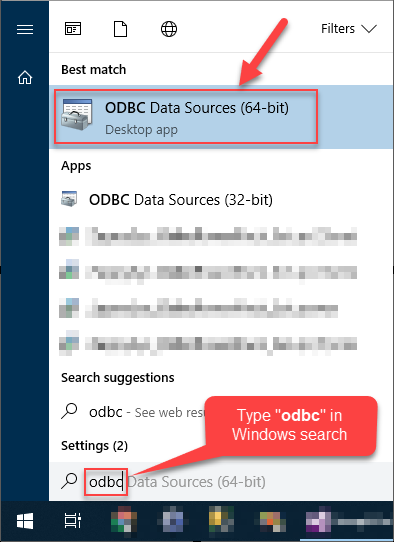
- In the User DSN or System DSN tab, click Add.
- Select ZappySys JSON Driver and click Continue.

Configure the Connection and API Settings
- Enter the base URL:
https://api.pipedrive.com/v1/deals?api_token={your_api_token} - Set HTTP Request Method to GET.
- Set JSON Path Filter to:
1$.data[*] - Click Test Connection to verify connectivity, then click OK to save the DSN.
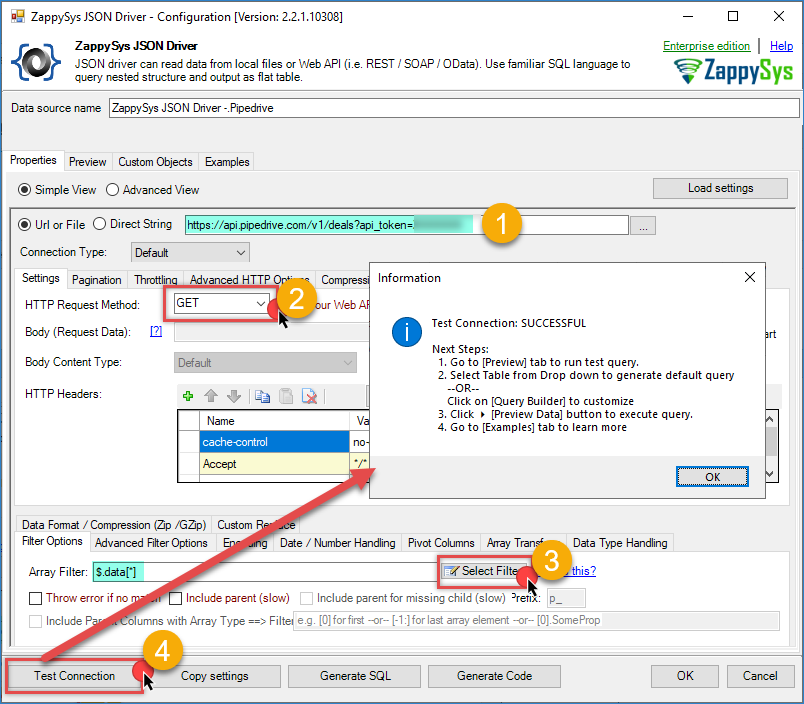
Pipedrive – JSON Driver configuration
Preview Pipedrive data in ODBC Driver
- Go to the Preview tab.
- Generate a query, then click Preview Data to confirm rows are returned.
- If no data is returned, verify your API token, endpoint URL, and JSON Path Filter.
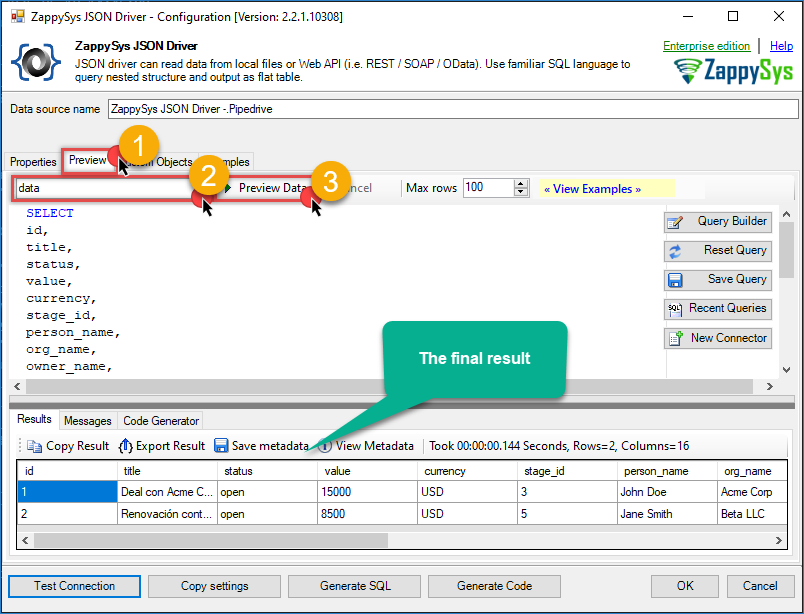
Pipedrive – JSON Driver result
Connect Power BI to Pipedrive via ODBC
- Open Power BI Desktop.
- Click Get Data from the Home ribbon.
- Click More…, search for ODBC, and click Connect.
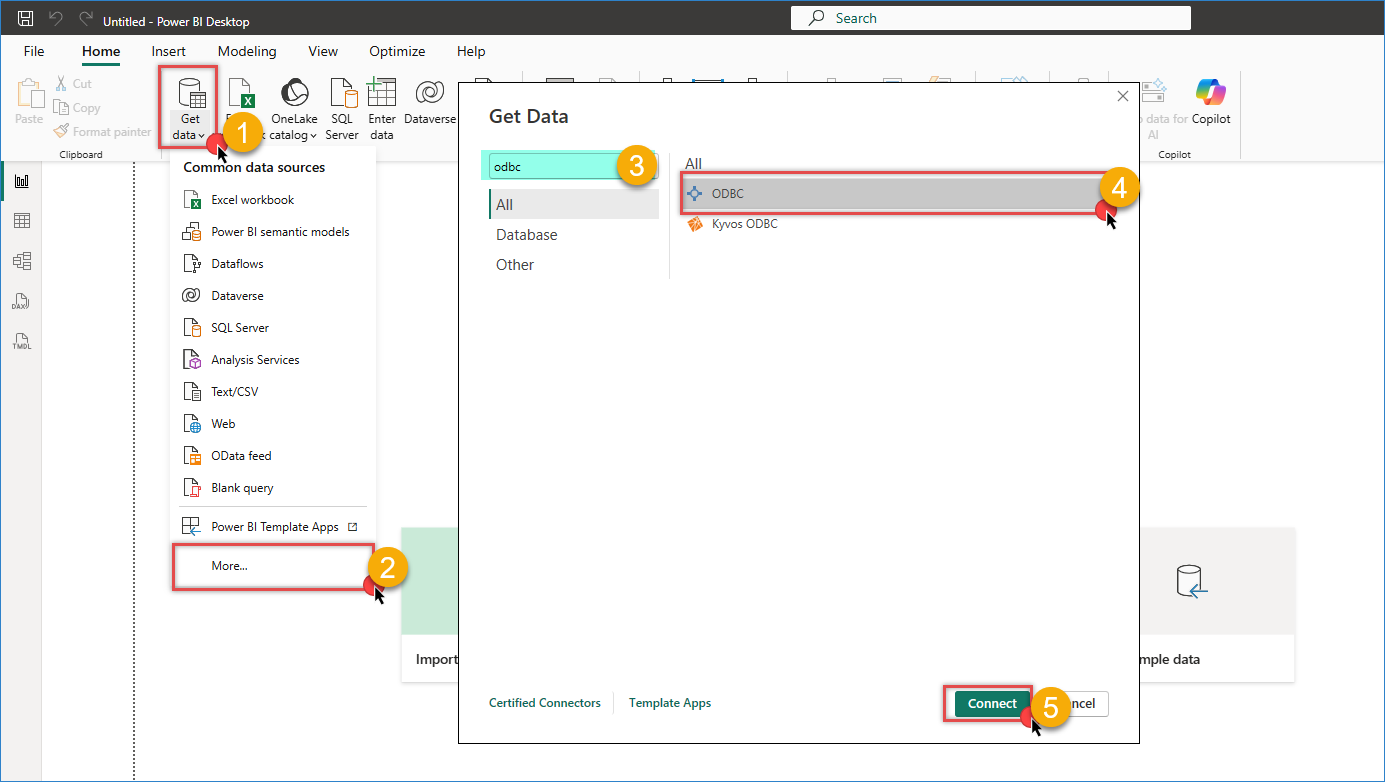
Power BI – Get data from ODBC connection
- Select your Pipedrive ODBC DSN from the dropdown list.
- Optionally, enter a custom SQL query in Advanced options.
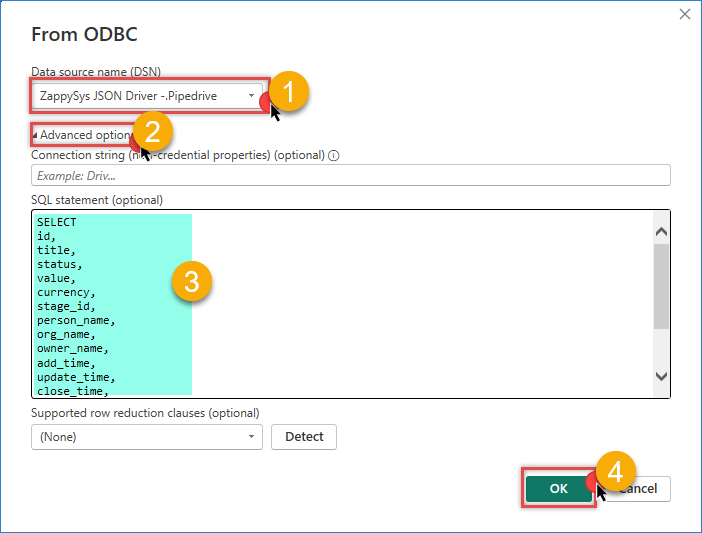
Pipedrive – Power BI select driver
- Click OK, then click Load to import data.
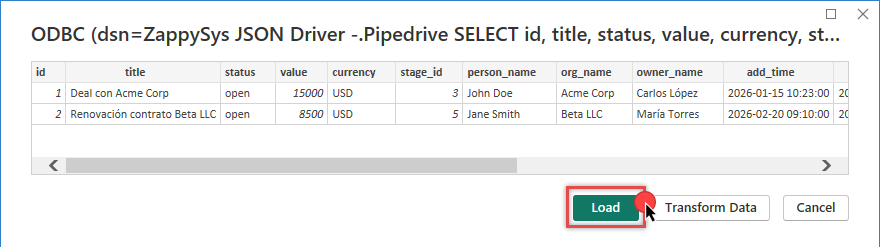
Pipedrive – Power BI preview
- In the Navigator window, select the columns you want to load.
Query Pipedrive data with SQL
For advanced analytics, use custom SQL queries in Power BI or the ODBC tool.
Example 1: List All Deals
|
1 2 3 4 5 6 7 8 9 10 |
SELECT id, title, value, currency, status, stage_id, add_time, update_time FROM data |
Example 2: Open Deals Only
|
1 2 3 4 5 6 7 8 9 |
SELECT id, title, value, currency, stage_id, expected_close_date FROM data WHERE status = 'open' |
Conclusion
Connecting Pipedrive to Power BI using the ZappySys ODBC Driver makes it easy to build CRM analytics dashboards without building custom connectors. With SQL-based access to Pipedrive API responses, you can monitor pipeline performance, deal progression, and sales activity in one place.
Explore the full capabilities of the Zappysys ODBC Drivers to integrate multiple data sources and build comprehensive Power BI dashboards. By combining Pipedrive data with other sources, you can create unified views of your operational data.
Need help?
If you encounter any issues, our support team is here to help:
- Live Chat – Use the chat widget (bottom-right corner of this page)
- Email – support@zappysys.com
- Support Center – Visit the ZappySys Support Portal