

Introduction
You can connect to your Smartsheet data from SQL Server via the high-performance Smartsheet ODBC Driver. We'll walk you through the entire setup.
Let's not waste time and get started!
Video tutorial
Watch this quick video to see the integration in action. It walks you through the end-to-end setup, including:
- Installing the ODBC PowerPack
- Configuring a secure connection to Smartsheet
- Working with Smartsheet data directly inside SQL Server
- Exploring advanced API Driver features
Ready to dive in? Download the product to jump right in, or follow the step-by-step guide below to see how it works.
Create data source in ZappySys Data Gateway
In this section we will create a data source for Smartsheet in the Data Gateway. Let's follow these steps to accomplish that:
-
Download and install ODBC PowerPack (if you haven't already).
-
Search for
gatewayin the Windows Start Menu and open ZappySys Data Gateway Configuration: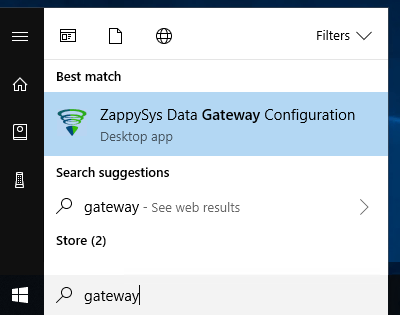
-
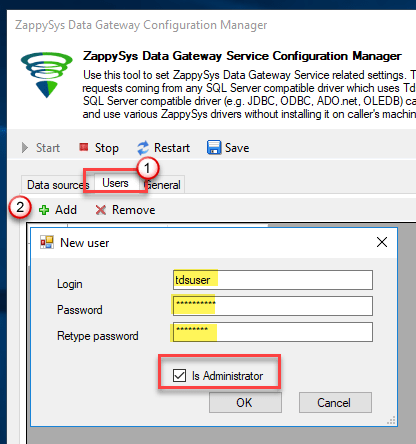
Go to the Users tab and follow these steps to add a Data Gateway user:
- Click the Add button
-
In the Login field enter a username, e.g.,
john - Then enter a Password
- Check the Is Administrator checkbox
- Click OK to save
-
Now we are ready to add a data source:
- Click the Add button
- Give the Data source a name (have it handy for later)
- Then select Native - ZappySys API Driver
- Finally, click OK
SmartsheetDSNZappySys API Driver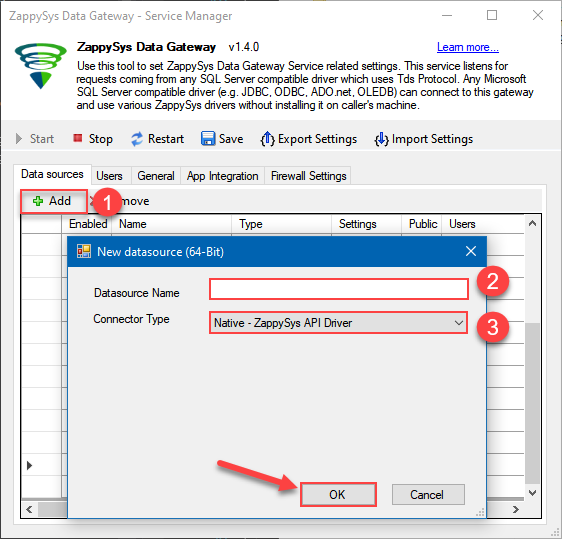
-
When the Configuration window appears give your data source a name if you haven't done that already, then select "Smartsheet" from the list of Popular Connectors. If "Smartsheet" is not present in the list, then click "Search Online" and download it. Then set the path to the location where you downloaded it. Finally, click Continue >> to proceed with configuring the DSN:
SmartsheetDSNSmartsheet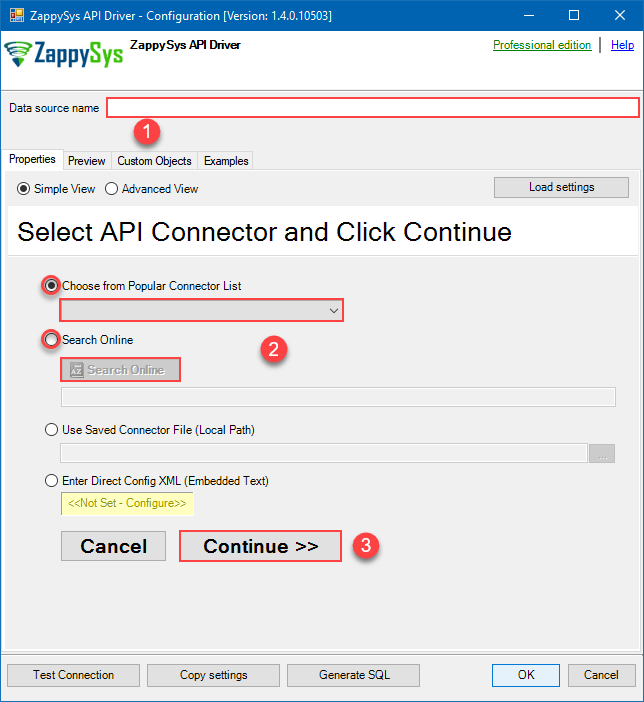
-
Select your authentication scenario below to expand connection configuration steps to:
- Configure the authentication in Smartsheet.
- Enter those details into the ZappySys API Driver data source configuration.
OAuth (Dynamic Token)
Smartsheet authentication
OAuth Walkthrough
Apps connect to Smartsheet using OAuth 2.0 to authenticate and authorize users. If you are building an app, this documentation will walk you through the steps you need to authenticate your users. The Smartsheet SDKs contain APIs for OAuth 2.0.
NOTE: For users of apps like AWS AppFabric, you will need a Tenant ID. You can find your Tenant ID in Admin Center under Security & Controls. There is a Smartsheet Tenant ID pane.
First Steps
Before you can start using OAuth 2.0 with your app, Smartsheet needs the following information:
- You must register with Smartsheet to get a developer account*. The developer account gives you access to "Developer Tools", which is where you manage your app.
- In "Developer Tools", complete any required fields in your developer profile.
- In "Developer Tools", register your app so Smartsheet can assign a client Id and a client secret to the app.
- Review the list of access scopes. You'll need to choose which ones your app needs to get to a user's Smartsheet data, and then ask the user to consent to that access.
- After you've worked through these steps, you'll be ready to implement the OAuth Flow.
Open Developer Tools
- Log in to Smartsheet with your developer account.
- Click the "Account" button in the lower-left corner of your Smartsheet screen, and then click "Developer Tools".
- Do one of the following:
- If you need to register an app, click "Create New App".
- If you need to manage an app, click "view/edit" for the app.
Register Your App Using Developer Tools
- Log in to Smartsheet with your developer account.
- Click the "Account" button in the upper-right corner of your Smartsheet screen, and then click "Developer Tools".
- In the "Create New App" form, provide the following information:
- Name: the name the user sees to identify your app
- Description: a brief description intended for the user
- URL: the URL to launch your app, or the landing page if not a web app
- Contact/support: support information for the user
- Redirect URL: also known as a callback URL. The URL within your application that will receive the OAuth 2.0 credentials After you click "Save", Smartsheet assigns a client Id and secret to your app. Make a note of these Ids for the next steps; however, you can always look them up again in "Developer Tools".
API Connection Manager configuration
Just perform these simple steps to finish authentication configuration:
-
Set Authentication Type to
OAuth (Dynamic Token) [OAuth] - Optional step. Modify API Base URL if needed (in most cases default will work).
- Fill in all the required parameters and set optional parameters if needed.
- Press Generate Token button to generate the tokens.
- Finally, hit OK button:
SmartsheetDSNSmartsheetOAuth (Dynamic Token) [OAuth]https://api.smartsheet.com/2.0Required Parameters ClientId Fill-in the parameter... ClientSecret Fill-in the parameter... Scope Fill-in the parameter... Optional Parameters RetryMode RetryWhenStatusCodeMatch RetryStatusCodeList 429|503 RetryCountMax 5 RetryMultiplyWaitTime True 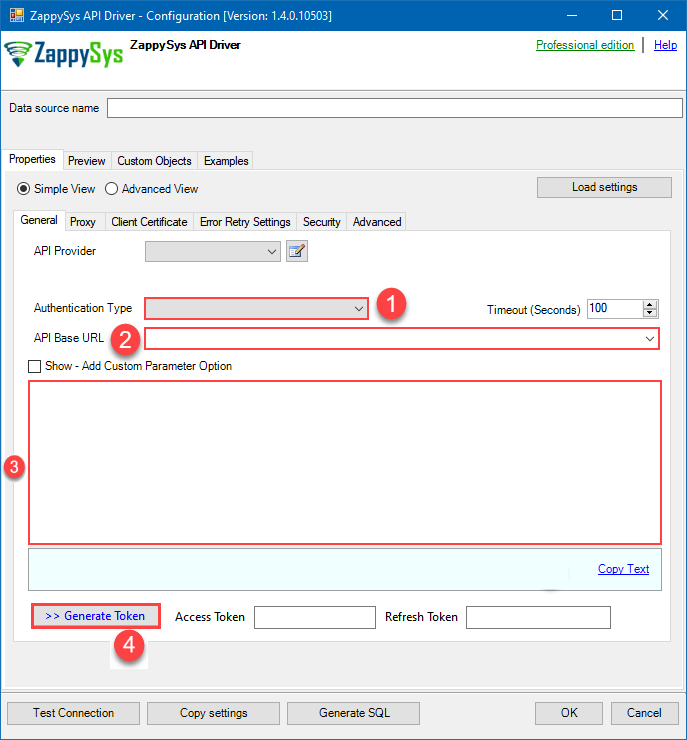 Find full details in the Smartsheet Connector authentication reference.
Static Token
Smartsheet authentication
Raw Token Requests
If you want to get started quickly, or are developing a standalone application that can run with your credentials, follow these instructions:
- Click the "Account" button in the lower-left corner of the Smartsheet screen, and then click "Personal Settings".
- Click the "API Access" tab.
- Click the "Generate new access token" button to obtain an access token.
The access token must be sent with every API call in an HTTP authorization header (except for therequests to Get Access Token or Refresh Access Token). Once you have an access token, include it in the Authorization header for every request you make:
Authorization: Bearer JKlMNOpQ12RStUVwxYZAbcde3F5g6hijklM789The header name is Authorization and the value of the header is Bearer JKlMNOpQ12RStUVwxYZAbcde3F5g6hijklM789. Since the access token is being transmitted in clear text, all API calls are done over HTTPS.
NOTE: A best practice is to use a shared account, such as ticket-processor@example.com, rather than your individual work account.
API Connection Manager configuration
Just perform these simple steps to finish authentication configuration:
-
Set Authentication Type to
Static Token [Http] - Optional step. Modify API Base URL if needed (in most cases default will work).
- Fill in all the required parameters and set optional parameters if needed.
- Finally, hit OK button:
SmartsheetDSNSmartsheetStatic Token [Http]https://api.smartsheet.com/2.0Required Parameters Access Token Fill-in the parameter... Optional Parameters RetryMode RetryWhenStatusCodeMatch RetryStatusCodeList 429|503 RetryCountMax 5 RetryMultiplyWaitTime True 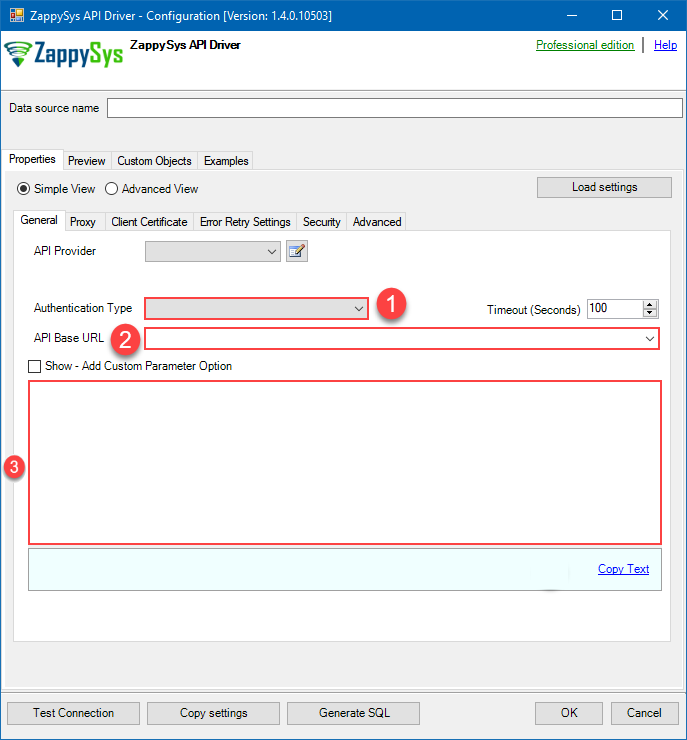 Find full details in the Smartsheet Connector authentication reference.
 -
Once the data source connection has been configured, it's time to configure the SQL query. Select the Preview tab and then click Query Builder button to configure the SQL query:
 ZappySys API Driver - SmartsheetRead and write Smartsheet data effortlessly. Integrate, manage, and automate sheets, rows, and reports — almost no coding required.SmartsheetDSN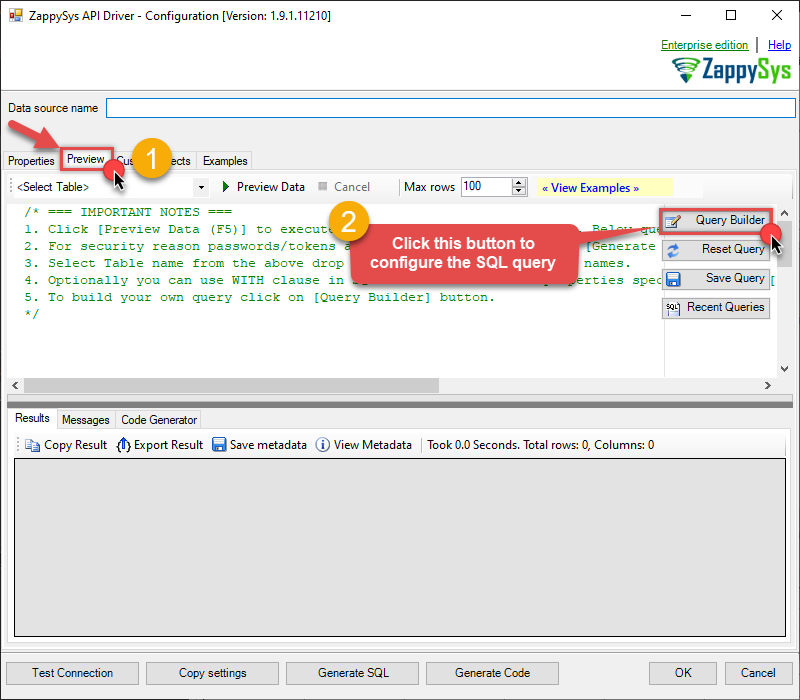
-
Start by selecting the Table or Endpoint you are interested in and then configure the parameters. This will generate a query that we will use in SQL Server to retrieve data from Smartsheet. Hit OK button to use this query in the next step.
SELECT * FROM Sheets --Where Id='5815807987847055'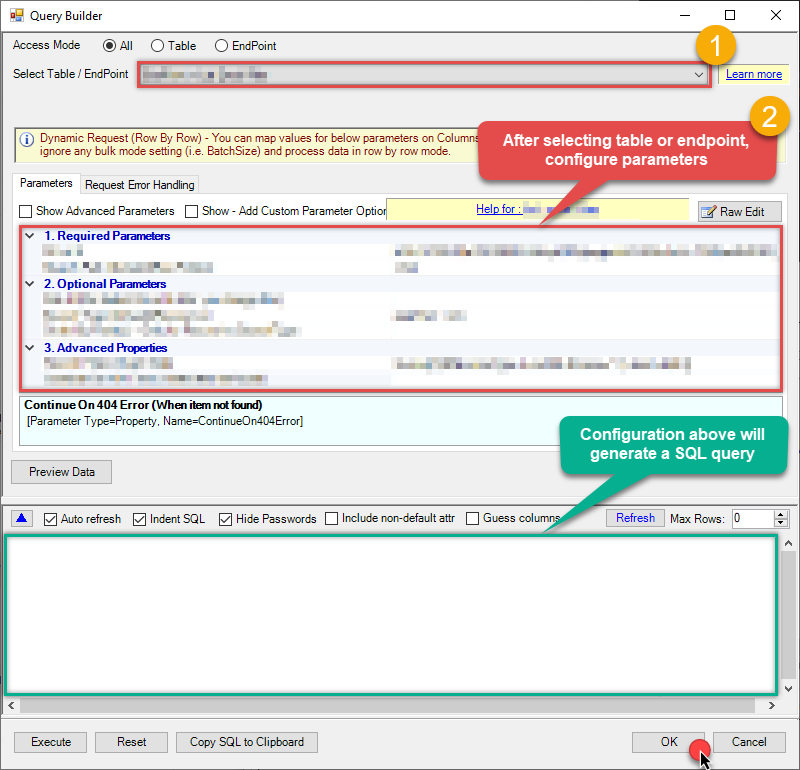 Some parameters configured in this window will be passed to the Smartsheet API, e.g. filtering parameters. It means that filtering will be done on the server side (instead of the client side), enabling you to get only the meaningful data
much faster . -
Now hit Preview Data button to preview the data using the generated SQL query. If you are satisfied with the result, use this query in SQL Server:
ZappySys API Driver - SmartsheetRead and write Smartsheet data effortlessly. Integrate, manage, and automate sheets, rows, and reports — almost no coding required.SmartsheetDSNSELECT * FROM Sheets --Where Id='5815807987847055'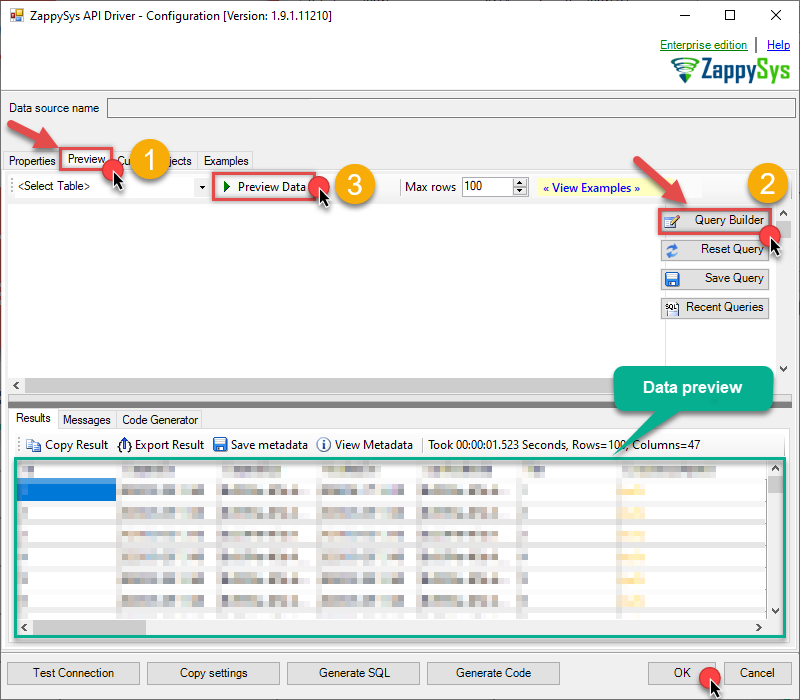 You can also access data quickly from the tables dropdown by selecting <Select table>.A
WHEREclause,LIMITkeyword will be performed on the client side, meaning that thewhole result set will be retrieved from the Smartsheet API first, and only then the filtering will be applied to the data. If possible, it is recommended to use parameters in Query Builder to filter the data on the server side (in Smartsheet servers). -
Click OK to finish creating the data source.
-
Once done, go to the Network Settings tab and Add a firewall rule for inbound traffic:
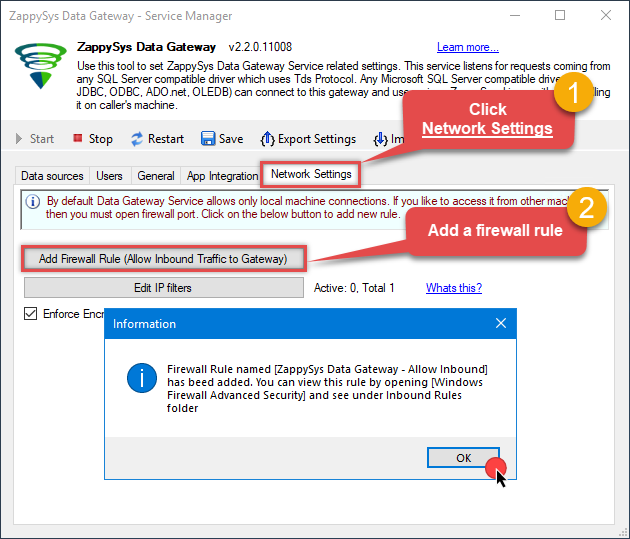
- This will initially allow all inbound traffic.
- Click Edit IP filters to restrict access to specific IP addresses or ranges.
-
Crucial Step: After creating or modifying the data source, you must:
- Click the Save button to persist your changes.
- Hit Yes when prompted to restart the Data Gateway service.
This ensures all changes are properly applied:
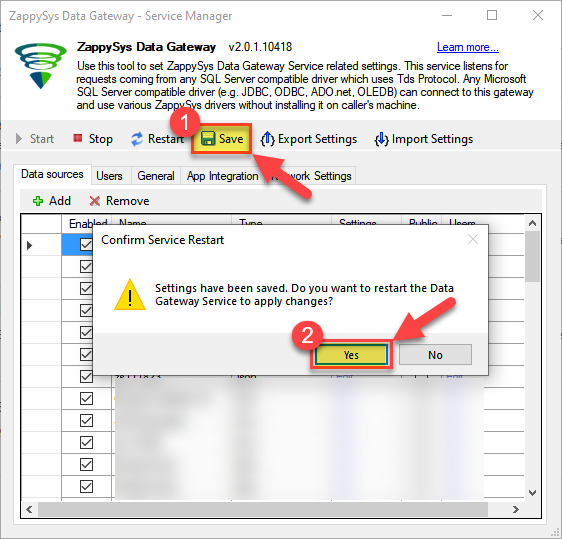 Skipping this step may cause the new settings to fail, preventing you from connecting to the data source.
Read data in SQL Server via Data Gateway
After configuring your data source using the ZappySys ODBC Driver, the next mandatory step to read that data in SQL Server is to create a Linked Server. SQL Server requires a Linked Server definition to access any ODBC-based source through the ZappySys Data Gateway, allowing the source driver data to be queried using standard T-SQL.
There are two ways to create the Linked Server:- Method 1: Using a SQL Script automatically generated by the Data Gateway
- Method 2: Using SQL Server UI (SSMS) to manually configure the Linked Server
Method 1: Using a SQL Script automatically generated by the Data Gateway
The fastest and most reliable way to create the Linked Server is to use the SQL Script generated by the Data Gateway. This ensures all settings are applied correctly with minimal manual steps.
In the Data Gateway, open the App Integration tab.
Update the prefilled Linked Server Name if you want to use a custom name.
Select the SmartsheetDSN data source which we created earlier as the Database.
-
Choose the correct SQL Server version for your environment.
- SQL 2019 or Lower (
@provider='SQLNCLI11') - SQL 2022 or Higher (
@provider='MSOLEDBSQL')
- SQL 2019 or Lower (
Click Generate Code.
-
In the generated script scroll down to 4. Attach Gateway login with linked server step, enter your Data Gateway admin username and password.
'LS_TO_SMARTSHEET_IN_GATEWAY'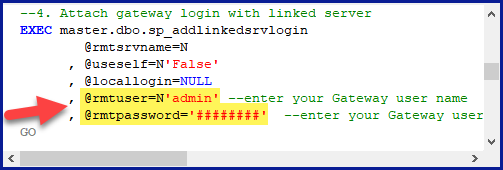
-
Press Ctrl + A and Ctrl + C to copy the entire script.
LS_TO_SMARTSHEET_IN_GATEWAYSmartsheetDSN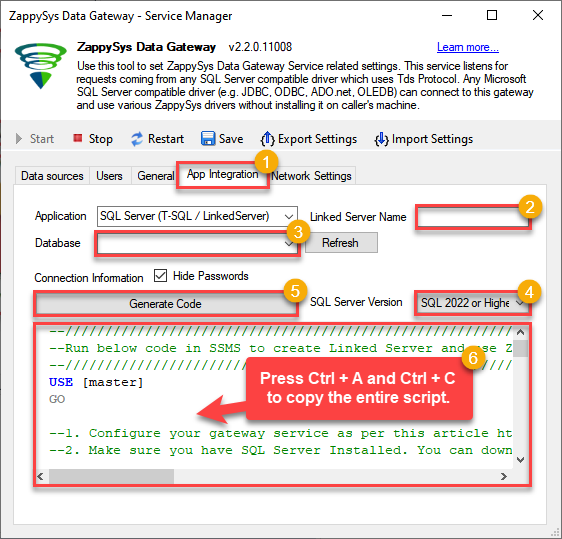
-
Paste the script into SQL Server Management Studio (SSMS) and run it.
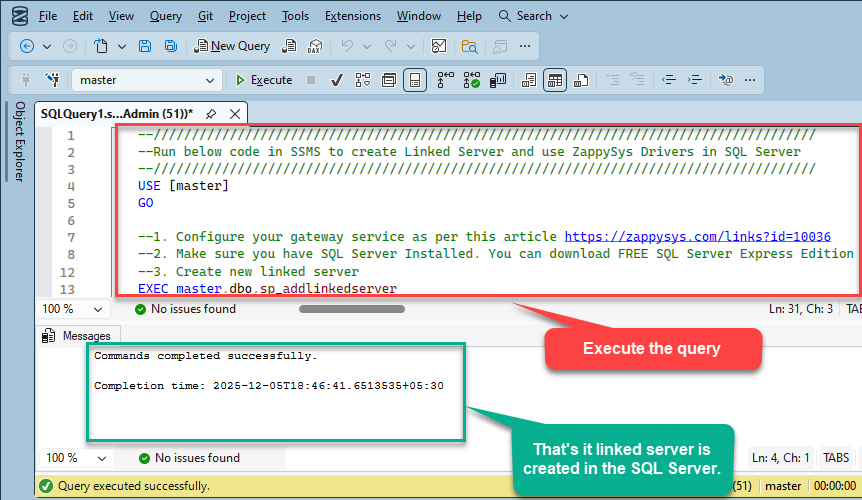
That's it linked server is created in the SQL Server.
-
Finally, open a new query and execute a query we saved in one of the previous steps:
SELECT * FROM OPENQUERY([LS_TO_SMARTSHEET_IN_GATEWAY], 'SELECT * FROM Sheets --Where Id=''5815807987847055''')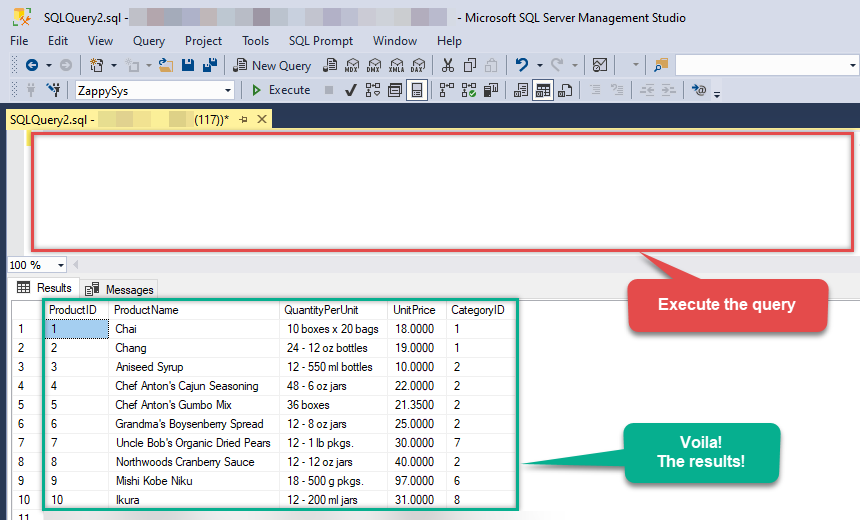
SELECT * FROM OPENQUERY([LS_TO_SMARTSHEET_IN_GATEWAY], 'SELECT * FROM Sheets --Where Id=''5815807987847055''')
Sample SQL Script for Creating a Linked Server in SQL Server
USE [master]
GO
--///////////////////////////////////////////////////////////////////////////////////////
--Run below code in SSMS to create Linked Server and use ZappySys Drivers in SQL Server
--///////////////////////////////////////////////////////////////////////////////////////

-- Replace YOUR_GATEWAY_USER, YOUR_GATEWAY_PASSWORD
-- Replace localhost with IP/Machine name if ZappySys Gateway Running on different machine other than SQL Server
-- Replace Port 5000 if you configured gateway on a different port


--1. Configure your gateway service as per this article https://zappysys.com/links?id=10036

--2. Make sure you have SQL Server Installed. You can download FREE SQL Server Express Edition from here if you dont want to buy Paid version https://www.microsoft.com/en-us/sql-server/sql-server-editions-express

--Uncomment below if you like to drop linked server if it already exists
--EXEC master.dbo.sp_dropserver @server=N'LS_TO_SMARTSHEET_IN_GATEWAY', @droplogins='droplogins'

--3. Create new linked server

EXEC master.dbo.sp_addlinkedserver
    @server = N'LS_TO_SMARTSHEET_IN_GATEWAY'  --Linked server name (this will be used in OPENQUERY sql
, @srvproduct=N''
---- For MSSQL 2012, 2014, 2016, 2017, and 2019 use below (SQL Server Native Client 11.0)---
, @provider=N'SQLNCLI11'
---- For MSSQL 2022 or higher use below (Microsoft OLE DB Driver for SQL Server)---
--, @provider=N'MSOLEDBSQL'
, @datasrc=N'localhost,5000' --//Machine / Port where Gateway service is running
, @provstr=N'Network Library=DBMSSOCN;'
, @catalog=N'SmartsheetDSN' --Data source name you gave on Gateway service settings

--4. Attach gateway login with linked server

EXEC master.dbo.sp_addlinkedsrvlogin
@rmtsrvname=N'LS_TO_SMARTSHEET_IN_GATEWAY'  --linked server name
, @useself=N'False'
, @locallogin=NULL
, @rmtuser=N'YOUR_GATEWAY_USER' --enter your Gateway user name
, @rmtpassword='YOUR_GATEWAY_PASSWORD'  --enter your Gateway user's password
GO

--5. Enable RPC OUT (This is Optional - Only needed if you plan to use EXEC(...) AT YourLinkedServerName rather than OPENQUERY
EXEC sp_serveroption 'LS_TO_SMARTSHEET_IN_GATEWAY', 'rpc', true;
EXEC sp_serveroption 'LS_TO_SMARTSHEET_IN_GATEWAY', 'rpc out', true;

--Disable MSDTC - Below needed to support INSERT INTO from EXEC AT statement
EXEC sp_serveroption 'LS_TO_SMARTSHEET_IN_GATEWAY', 'remote proc transaction promotion', false;

--Increase query timeout if query is going to take longer than 10 mins (Default timeout is 600 seconds)
--EXEC sp_serveroption 'LS_TO_SMARTSHEET_IN_GATEWAY', 'query timeout', 1200;
GO
Method 2: Using SQL Server UI (SSMS) to manually configure the Linked Server
You can also create the Linked Server manually through SSMS if you prefer a visual setup. This method lets you configure the provider, data source, and security interactively.
-
First, let's open SQL Server Management Studio, create a new Linked Server, and start configuring it:
LS_TO_SMARTSHEET_IN_GATEWAYMicrosoft OLE DB Driver for SQL Serverlocalhost,5000SmartsheetDSNSmartsheetDSN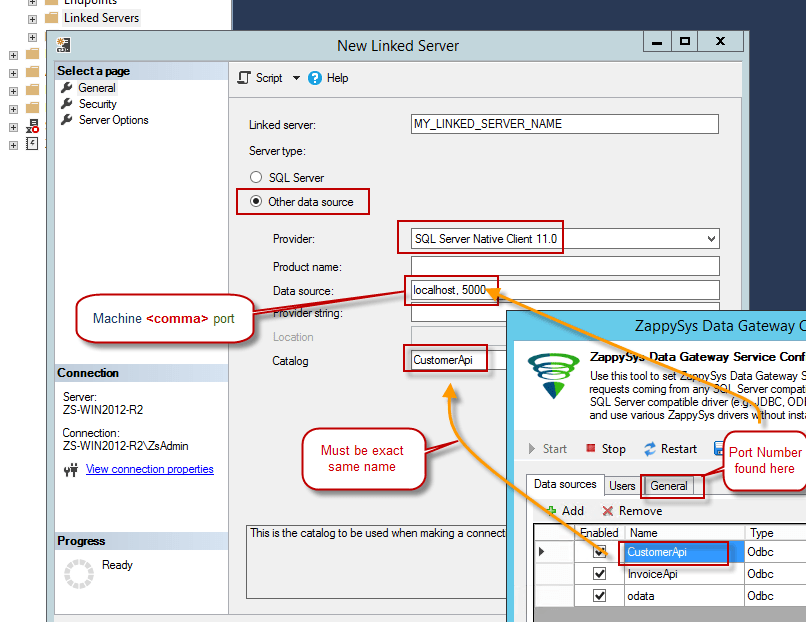
- For SQL Server 2012, 2014, 2016, 2017, and 2019, choose SQL Server Native Client 11.0 as the provider.
- For SQL Server 2022 or higher, choose Microsoft OLE DB Driver for SQL Server as the provider.
-
Then click on Security option and configure username we created in ZappySys Data Gateway in one of the previous steps, e.g.
john: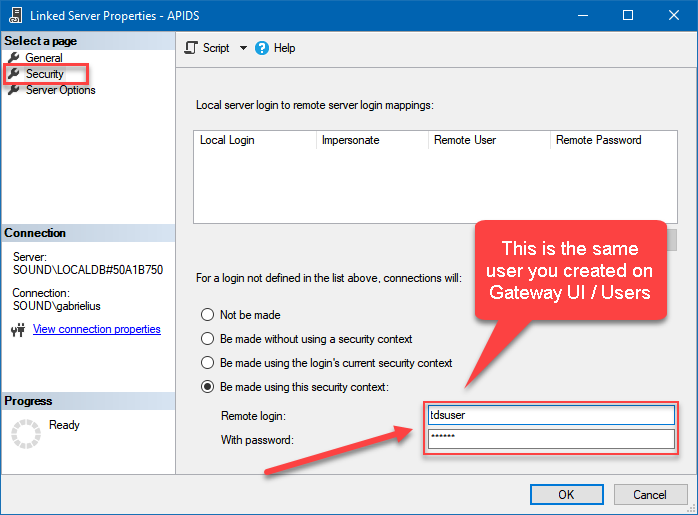
-
Optional step. Under the Server Options, Enable RPC and RPC Out and Disable Promotion of Distributed Transactions(MSDTC).
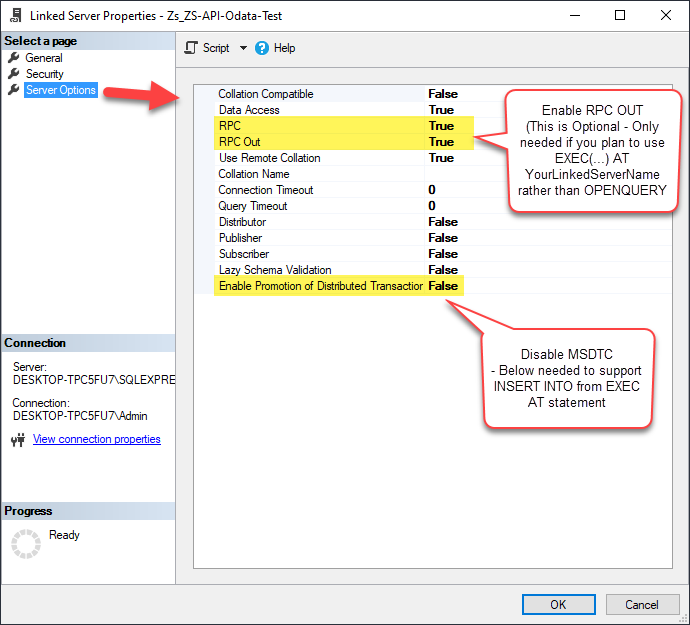
You need to enable RPC Out if you plan to use
EXEC(...) AT [LS_TO_SMARTSHEET_IN_GATEWAY]rather than OPENQUERY.
If don't enabled it, you will encounter theServer 'LS_TO_SMARTSHEET_IN_GATEWAY' is not configured for RPCerror.Query Example:
DECLARE @MyQuery NVARCHAR(MAX) = 'SELECT * FROM Sheets --Where Id=''5815807987847055''';

EXEC (@MyQuery) AT [LS_TO_SMARTSHEET_IN_GATEWAY];
If you plan to use
'INSERT INTO <TABLE> EXEC(...) AT [LS_TO_SMARTSHEET_IN_GATEWAY]'in that case you need to Disable Promotion of Distributed Transactions(MSDTC).
If don't disabled it, you will encounter theThe operation could not be performed because OLE DB provider "SQLNCLI11" for linked server "MY_LINKED_SERVER_NAME" was unable to begin a distributed transaction.error.Query Example:
INSERT INTO dbo.Products DECLARE @MyQuery NVARCHAR(MAX) = 'SELECT * FROM Sheets --Where Id=''5815807987847055'''; EXEC (@MyQuery) AT [LS_TO_SMARTSHEET_IN_GATEWAY]; -
Finally, open a new query and execute a query we saved in one of the previous steps:
SELECT * FROM OPENQUERY([LS_TO_SMARTSHEET_IN_GATEWAY], 'SELECT * FROM Sheets --Where Id=''5815807987847055''')
SELECT * FROM OPENQUERY([LS_TO_SMARTSHEET_IN_GATEWAY], 'SELECT * FROM Sheets --Where Id=''5815807987847055''')
Firewall settings
So far we have assumed that Gateway is running on the same machine as SQL Server. However there will be a case when ZappySys ODBC PowerPack is installed on a different machine than SQL Server. In such case you may have to perform additional Firewall configurations. On most computers firewall settings wont allow outside traffic to ZappySys Data Gateway. In such case perform following steps to allow other machines to connect to Gateway.
Method-1 (Preferred)If you are using newer version of ZappySys Data Gateway then adding firewall rule is just a single click.
- Search for gateway in start menu and open ZappySys Data Gateway.
-
Go to Firewall Tab and click Add Firewall Rule button like below. This will create Firewall rule to all Inbound Traffic on Port 5000 (Unless you changed it).
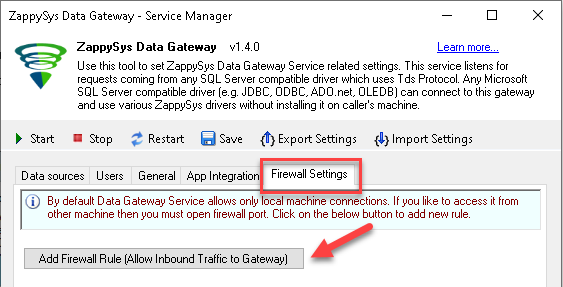
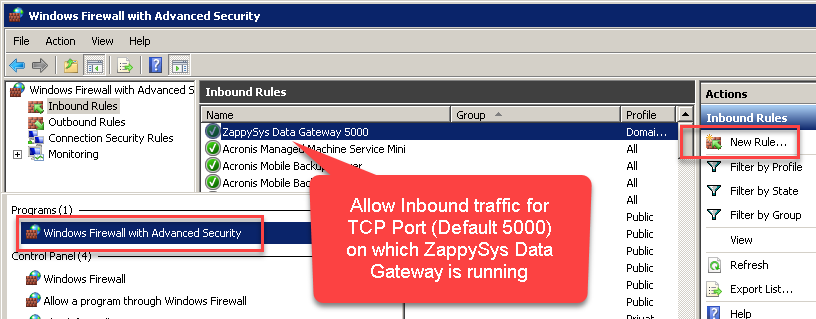
Here is another way to add / edit Inbound Traffic rule in windows firewall. Use below method if you choose to customize your rule (for advanced users).
- Search for Windows Firewall Advanced Security in start menu.
- Under Inbound Rules > Right click and click [New Rule] >> Click Next
- Select Port on Rule Type >> Click Next
- Click on TCP and enter port number under specified local port as 5000 (use different one if you changed Default port) >> Click Next
- Select Profile (i.e. Private, Public) >> Click Next
- Enter Rule name [i.e. ZappySys Data Gateway – Allow Inbound ] >> Click Next
- Click OK to save the rule
OPENQUERY vs EXEC (handling larger SQL text)
So far we have seen examples of using OPENQUERY. It allows us to send pass-through query at remote server. The biggest limitation of OPENQUERY is it doesn't allow you to use variables inside SQL so often we have to use unpleasant looking dynamic SQL (Lots of tick, tick …. and escape hell). Well there is good news. With SQL 2005 and later you can use EXEC(your_sql) AT your_linked_server syntax .
Disadvantage of EXEC AT is you cannot do SELECT INTO like OPENQUERY. Also you cannot perform JOIN like below in EXEC AT
SELECT a.*
FROM OPENQUERY([LS_TO_SMARTSHEET_IN_GATEWAY],'SELECT * FROM Customers') AS A
JOIN OPENQUERY([LS_TO_SMARTSHEET_IN_GATEWAY],'SELECT * FROM Orders') AS B
ON A.CustomerId = B.CustomerId;INSERT INTO SomeTable EXEC(…) AT your_linked_server. So table must exists when you do that way.
Here is how to use it. To use EXEC(..) AT {linked-server} you must turn on RPC OUT option. Notice how we used variable in SQL to make it dynamic. This is much cleaner than previous approach we saw.
USE [master]
GO
--Replace YOUR_GATEWAY_USER, YOUR_GATEWAY_PASSWORD
--Replace localhost with IP/Machine name if ZappySys Gateway Running on different machine other than SQL Server

--Create new linked server
EXEC master.dbo.sp_addlinkedserver
@server = N'LS_TO_SMARTSHEET_IN_GATEWAY'  --Linked server name (this will be used in OPENQUERY sql)
, @srvproduct=N''
---- For MSSQL 2012, 2014, 2016, 2017, and 2019 use below (SQL Server Native Client 11.0)---
, @provider=N'SQLNCLI11'
---- For MSSQL 2022 or higher use below (Microsoft OLE DB Driver for SQL Server)---
--, @provider=N'MSOLEDBSQL'
, @datasrc=N'localhost,5000' --//Machine / Port where Gateway service is running
, @provstr=N'Network Library=DBMSSOCN;'
, @catalog=N'SmartsheetDSN' --Data source name you gave on Gateway service settings

--Attach gateway login with linked server
EXEC master.dbo.sp_addlinkedsrvlogin
@rmtsrvname=N'LS_TO_SMARTSHEET_IN_GATEWAY'  --linked server name
, @useself=N'False'
, @locallogin=NULL
, @rmtuser=N'YOUR_GATEWAY_USER' --enter your Gateway user name
, @rmtpassword='YOUR_GATEWAY_PASSWORD'  --enter your Gateway user's password
GO

--5. Enable RPC OUT (This is Optional - Only needed if you plan to use EXEC(...) AT YourLinkedServerName rather than OPENQUERY
EXEC sp_serveroption 'LS_TO_SMARTSHEET_IN_GATEWAY', 'rpc', true;
EXEC sp_serveroption 'LS_TO_SMARTSHEET_IN_GATEWAY', 'rpc out', true;
--Disable MSDTC - Below needed to support INSERT INTO from EXEC AT statement
EXEC sp_serveroption 'LS_TO_SMARTSHEET_IN_GATEWAY', 'remote proc transaction promotion', false;
--Increase query timeout if query is going to take longer than 10 mins (Default timeout is 600 seconds)
--EXEC sp_serveroption 'LS_TO_SMARTSHEET_IN_GATEWAY', 'query timeout', 1200;
GO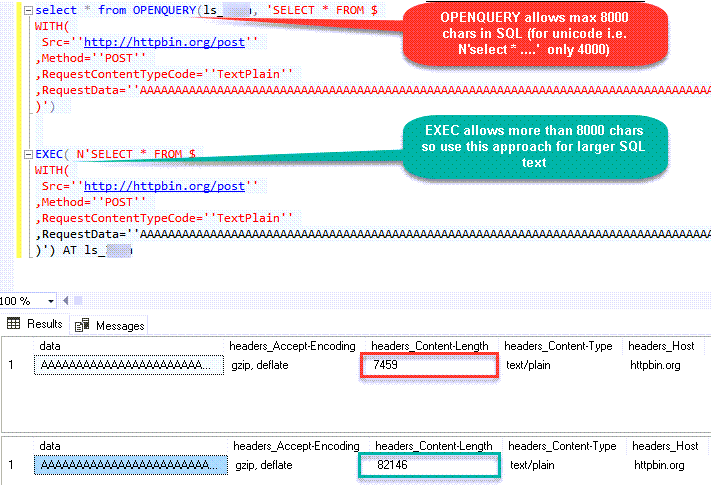
Fetching Tables / Columns using metadata stored procs
ZappySys Data Gateway emulates certains system procs you might find in real SQL Server. You can call using below syntax using 4-Parts syntaxEXEC [LS_TO_SMARTSHEET_IN_GATEWAY].[SmartsheetDSN].[DATA].sp_tablesEXEC [LS_TO_SMARTSHEET_IN_GATEWAY].[SmartsheetDSN].[DATA].sp_columns_90 N'your-table-name'-- List all tables
EXEC [LS_TO_SMARTSHEET_IN_GATEWAY].[SmartsheetDSN].[DATA].sp_tables
-- List all columns and its type for specified table
EXEC [LS_TO_SMARTSHEET_IN_GATEWAY].[SmartsheetDSN].[DATA].sp_columns_90 N'Account'Known Issues
Let's explore some common problems that can occur when using OPENQUERY or Data Gateway connectivity.
SQL Native Client 11.0 not visible in the Providers dropdown (Linked Server Creation)
If you are following some screenshots / steps from our article it might say use SQL Native Client to create Linked Server to ZappySys Gateway but for some users they dont see that driver entry in the dropdown. This is due to the fact that Microsoft has deprecated SQL Native Client OLEDB Driver (SQLNCLI and SQLNCLI11) going forward after SQL 2022. So you need to use [Microsoft OLE DB Driver for SQL Server] instead (MSOLEDBSQL). Please follow all other instructions except the driver type selection, use new suggested driver instead if you dont see SQL Native Client.
Error: The data is invalid
There will be a time when, you may encounter unexpected errors like the ones listed below. These can include:
OLE DB provider "SQLNCLI11" for linked server "Zs_Csv" returned message "Deferred prepare could not be completed.".
OLE DB provider "SQLNCLI11" for linked server "Zs_Csv" returned message "Communication link failure".
Msg 13, Level 16, State 1, Line 0

Session Provider: The data is invalid.
Possible Cause:
There are few reasons for such error but below are two main reasons
-
If the query length exceeds 2000 characters, as shown below, you might encounter this error.
SELECT * FROM OPENQUERY(LS, '--some really long text more than 2000 chars--') -
If a query contains multiple OPENQUERY statements for JOINs or UNIONs, as shown below, it might fail due to a MARS compatibility issue where the gateway doesn't support parallel queries on a single connection.
SELECT a.id, b.name from OPENQUERY(LS, 'select * from tbl1') a join OPENQUERY(LS, 'select * from tbl2') b on a.id=b.id
Possible Fix:
There are few ways to fix above error based on reason why you getting this error (i.e. Query Length issue OR JOIN/UNION in the same statement)
-
If your query has long SQL (more than 2000 chars ) then reduce SQL length using different techniques
- e.g. use SELECT * FROM MyTable rather than SELECT col1,col2… FROM MyTable
- Use Meta Option in WITH clause if you must use column name. (e.g. SELECT * FROM MyTable WITH(META=’c:\meta.txt’) this way you can define column in Meta file rather than SELECT query. Check this article
- Consider using EXECT (….) AT [Linked_Server_name] option rather than OPENQUERY so you can use very long SQL (See next section on EXEC..AT usecase)
-
Consider
using Virtual Table / Stored Proc
to wrap long SQL so your call is very small (where usp_GetOrdersByYear is custom proc created on ZappySys Driver UI)
SELECT * FROM OPENQUERY(LS, 'EXEC usp_GetOrdersByYear 2021')
-
If your query uses JOIN / UNION with multiple OPENQUERY in same SQL then use multiple Linked servers (one for each OPENQUERY clause) as below.
select a.id, b.name from OPENQUERY(LS_1, 'select * from tbl1') a join OPENQUERY(LS_2, 'select * from tbl2') b on a.id=b.id
Error: Unable to begin a distributed transaction (When INSERT + EXEC used)
If you try to use the EXEC statement to insert data into a table, as shown below, you might encounter the following error unless the MSDTC option is turned off.
INSERT INTO MyTable EXEC('select * from tbl') AT MyLinkedServer"Protocol error in TDS stream" The operation could not be performed because OLE DB provider "SQLNCLI11" for linked server "ls_Json2" was unable to begin a distributed transaction. --OR-- The operation could not be performed because OLE DB provider "MSOLEDBSQL" for linked server "ls_Json" was unable to begin a distributed transaction.
Method-1: Go to linked server properties | Server Options | Enable Promotion of Distributed Transaction | Change to false (Default is true)
Now your try your INSERT with EXEC AT and it should work
Method-2: Run the below command if you dont want to use UI
EXEC master.dbo.sp_serveroption @server=N'My_Linked_Server', @optname=N'remote proc transaction promotion', @optvalue=N'false'Linked Server: "Unable to open a logical session" for Non-Admin users
While Linked Servers work seamlessly for SysAdmin roles, regular Non-Admin users or service accounts often encounter a connection failure.
Error: OLE DB provider "SQLNCLI11" for linked server "ZappySysLink" returned message "Unable to open a logical session".
SMux Provider: Physical connection is not usable [xFFFFFFFF].
OR
Error:
Msg 7416, Level 16, State 2, Line 1
Access to the remote server is denied because no login-mapping exists.
This occurs because SQL Server does not automatically pass the security context of a non-admin local login to the remote ZappySys Data Gateway. You must explicitly map the local login to a valid Gateway account.
Use the following script to map the local Windows/SQL login to your ZappySys Data Gateway User credentials (found in the "Users" tab of the Gateway Configuration tool).
-- Map local user to ZappySys Gateway credentials
EXEC sp_addlinkedsrvlogin
@rmtsrvname  = 'YourLinkedServerName', -- e.g. ZappySysLink
@useself     = 'false',                -- Force use of remote credentials
@locallogin  = 'MyDomain\User1',       -- The Non-Admin local user
@rmtuser     = 'gateway_Admin',        -- Gateway User Login
@rmtpassword = 'gateway_pass123';      -- Gateway User Password
For a detailed step-by-step guide, read our full article: Fixing 'Unable to open a logical session' Linked Server Errors for Non-Admin Users .
Error: Cannot use OPENQUERY with JOIN / UNION
When you perform a JOIN or UNION ALL on the same Linked Server, it may fail to process sometimes because the Data Gateway doesn't support parallel query requests on the same connection. A workaround for that would be to create multiple linked servers for the same data source. Refer to the section above for the same workaround.
Error: Truncation errors due to data length mismatch
Many times, you may encounter truncation errors if a table column's length is less than the actual column size from the query column. To solve this issue, use the new version of Data Gateway and check the 'Use nvarchar(max) for string options' option found on the General Tab.
Performance Tips
Now, let's look at a few performance tips in this section.
Use INSERT INTO rather than SELECT INTO to avoid extra META request
We discussed some Pros and Cons of OPENQUERY vs EXEC (…) AT in previous section. One obvious advantage of EXEC (….) AT is it reduces number of requests to driver (It sends pass through query). With EXEC you cannot load data dynamically like SELECT INTO tmp FROM OPENQUERY. Table must exist before hand if you use EXEC.
INSERT INTO tmp_API_Report_Load(col1,col2)
EXEC('select col1,col2 from some_api_table') AT [API-LINKED-SERVER]
--OR--
INSERT INTO tmp_API_Report_Load(col1,col2)
select col1,col2 from OPENQUERY([API-LINKED-SERVER], 'select col1,col2 from some_api_table')
The advantage of this method is that your query speed will increase because the system only calls the API once when you use EXEC AT. In contrast, with OPENROWSET, the query needs to be called twice: once to obtain metadata and once to retrieve the data.
Use Cached Metadata if possible
By default, most SQL queries sent to the Data Gateway need to invoke two phases: first, to get metadata, and second, to fetch data. However, you can bypass the metadata API call by supplying static metadata. Use the META property in the WITH clause, as explained in this article , to speed up your SQL queries.Smartsheet Connector actions
Got a specific use case in mind? We've mapped out exactly how to perform a variety of essential Smartsheet operations directly in SQL Server, so you don't have to figure out the setup from scratch. Check out the step-by-step guides below:
- Search (cell data or other object types)
- List Sheets
- Get Sheet Fields
- Get Sheet Rows
- Get Sheet Row by ID(s)
- Delete Sheet Rows
- Add Sheet Rows
- Update Sheet Rows
- Export Sheet (to PDF, Excel, CSV file)
- Export Report (to PDF, Excel, CSV file)
- Send Report Via Email Excel Pdf Or Pdf Gantt Format
- Send Sheet Via Email Excel Pdf Or Pdf Gantt Format
- List Reports
- List Contacts
- List Groups
- Get Contacts
- Make Generic REST API Request
- Make Generic REST API Request (Bulk Write)
Conclusion
In this guide, we demonstrated how to connect to Smartsheet in SQL Server and integrate your data — all without writing complex code.
Ready to get started? Download ODBC PowerPack now or ping us via chat if you still need help: