
Shopify Connector for Tableau
Shopify Connector can be used to integrate Shopify REST API in your App / BI Tools. You can read/write data about Customers, Orders, OrderItems, Products and more.
In this article you will learn how to quickly and efficiently integrate Shopify data in Tableau without coding. We will use high-performance Shopify Connector to easily connect to Shopify and then access the data inside Tableau.
Let's follow the steps below to see how we can accomplish that!
Shopify Connector for Tableau is based on ZappySys API Driver which is part of ODBC PowerPack. It is a collection of high-performance ODBC drivers that enable you to integrate data in SQL Server, SSIS, a programming language, or any other ODBC-compatible application. ODBC PowerPack supports various file formats, sources and destinations, including REST/SOAP API, SFTP/FTP, storage services, and plain files, to mention a few.
Create Data Source in Data Gateway based on ZappySys API Driver
In this section we will create a data source for Shopify in Data Gateway. Let's follow these steps to accomplish that:
-
Download and install ODBC PowerPack.
-
Search for
gatewayin Windows Start Menu and open ZappySys Data Gateway Configuration: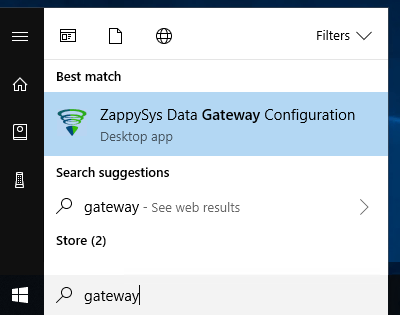
-
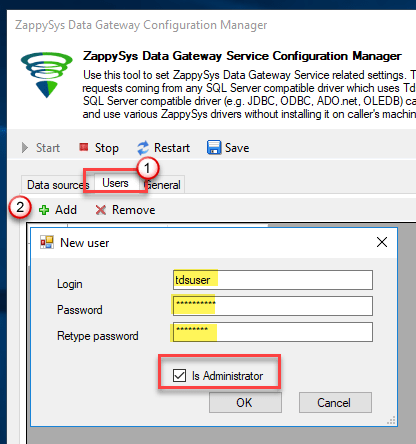
Go to Users tab and follow these steps to add a Data Gateway user:
- Click Add button
-
In Login field enter username, e.g.,
john - Then enter a Password
- Check Is Administrator checkbox
- Click OK to save
-
Now we are ready to add a data source:
- Click Add button
- Give Datasource a name (have it handy for later)
- Then select Native - ZappySys API Driver
- Finally, click OK
ShopifyDSNZappySys API Driver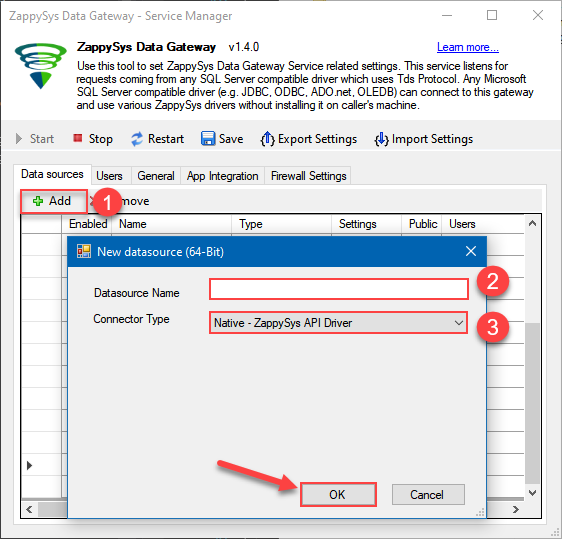
-
When the Configuration window appears give your data source a name if you haven't done that already, then select "Shopify" from the list of Popular Connectors. If "Shopify" is not present in the list, then click "Search Online" and download it. Then set the path to the location where you downloaded it. Finally, click Continue >> to proceed with configuring the DSN:
ShopifyDSNShopify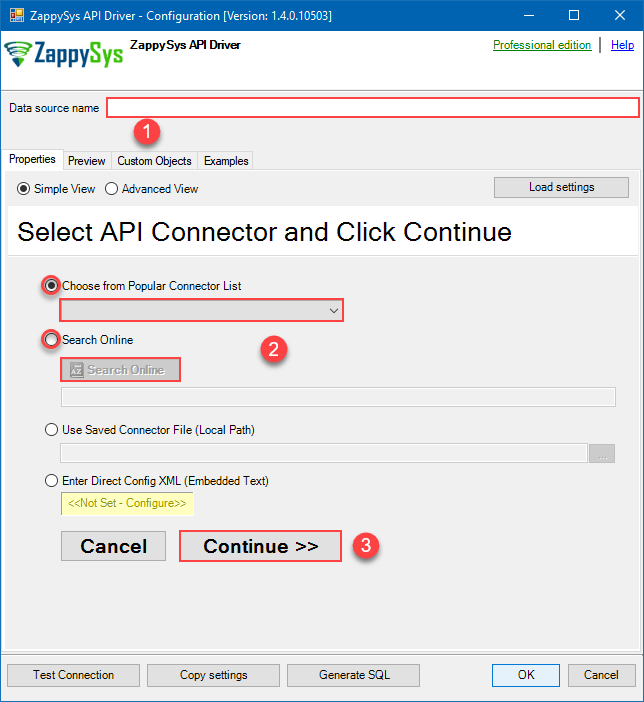
-
Now it's time to configure the Connection Manager. Select Authentication Type, e.g. Token Authentication. Then select API Base URL (in most cases, the default one is the right one). More info is available in the Authentication section.
Shopify authentication
Setting up your Shopify store account for API access involves creating an "app" for your store. The "app" is installed into the Shopify account and configured with the appropriate access levels for your data integration needs.- Visit https://accounts.shopify.com and log into your Shopify store account.
- After logging in, select the store to connect to with the ZappySys Shopify Connector.
- Select the Settings link (usually in the lower-left corner) to launch the Settings screen.
- On the left menu panel, select Apps and sales channels.
- On the Apps and sales channels screen, select Develop apps (near the top of the screen).
- On the App development screen, select Create an app (near the upper-right corner of the screen).
- Give the app that will be used to provide Shopify API access a name, select the appropriate developer from the App developer drop-down, and then select Create app.
- Select Configure Admin API scopes and the Admin API access scopes screen will appear.
-
In the Admin API access scopes screen, select every access scope checkbox that applies to your integration needs. It is generally not a good idea to allow more access than what is needed in order to fulfill your integration needs.
- To enable the reading of customer information, select read_customers.
- To enable the writing of customer information, select write_customers.
- To enable the reading of inventory item information, select read_inventory.
- To enable the writing of inventory item information, select write_inventory.
- To enable the reading of order information, select read_orders.
- To enable the writing of order information, select write_orders.
- Install the app by selecting the Install app button (near the upper-right corner of the screen). If any other prompts for installation appears, select Install.
- After the app is installed, the Admin API access token will be available in the API credentials tab of the page. It can only be revealed ONCE for security purposes. Select Reveal token once to show the new Admin API access token. SAVE THE ADMIN API ACCESS TOKEN IN A SAFE PLACE WHERE YOU HAVE IT CONFIDENTIAL, SECURE, AND NOT ACCESSIBLE TO UNAUTHORIZED INDIVIDUALS. The Admin API access token will be needed in this process later.
- In the ZappySys connector API screen, enter the subdomain of your Shopify store into the Subdomain parameter textbox. For example, if your Shopify URL is https://acmetoys.myshopify.com, the subdomain would be acmetoys.
- In the same screen, enter the Admin API access token saved from step 11 above into the Admin API Access Token textbox. In order to edit the text in this field, select the ellipses (...) button that appears when the textbox is clicked and edit the access token with the dialog box that appears.
- Select the Test Connection button at the bottom of the window to verify proper connectivity with the Shopify store.
- If the connection test succeeds, select OK.
API Connection Manager configuration
Just perform these simple steps to finish authentication configuration:
-
Set Authentication Type to
Access Token [Http] - Optional step. Modify API Base URL if needed (in most cases default will work).
- Fill in all the required parameters and set optional parameters if needed.
- Finally, hit OK button:
ShopifyDSNShopifyAccess Token [Http]https://[$Subdomain$].myshopify.com/admin/api/2023-01Required Parameters Sub-domain Fill-in the parameter... Admin API Access Token Fill-in the parameter... Optional Parameters RetryMode RetryWhenStatusCodeMatch RetryStatusCodeList 429 RetryCountMax 5 RetryMultiplyWaitTime True 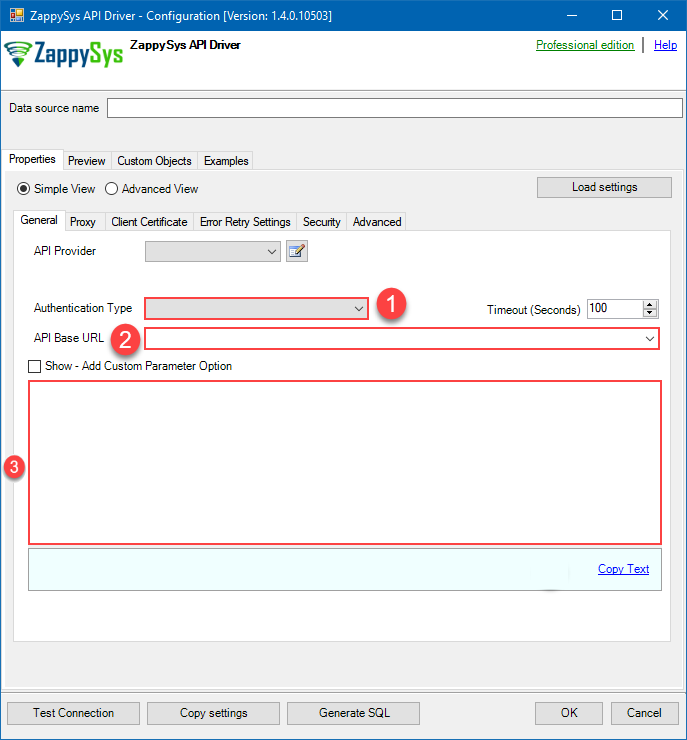
-
Once the data source connection has been configured, it's time to configure the SQL query. Select the Preview tab and then click Query Builder button to configure the SQL query:
 ZappySys API Driver - ShopifyShopify Connector can be used to integrate Shopify REST API in your App / BI Tools. You can read/write data about Customers, Orders, OrderItems, Products and more.ShopifyDSN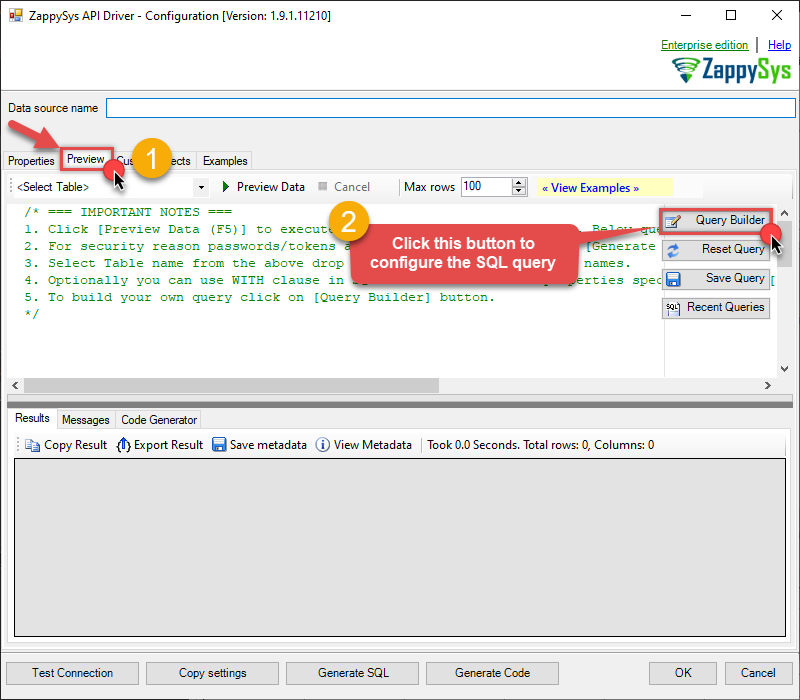
-
Start by selecting the Table or Endpoint you are interested in and then configure the parameters. This will generate a query that we will use in Tableau to retrieve data from Shopify. Hit OK button to use this query in the next step.
SELECT * FROM Products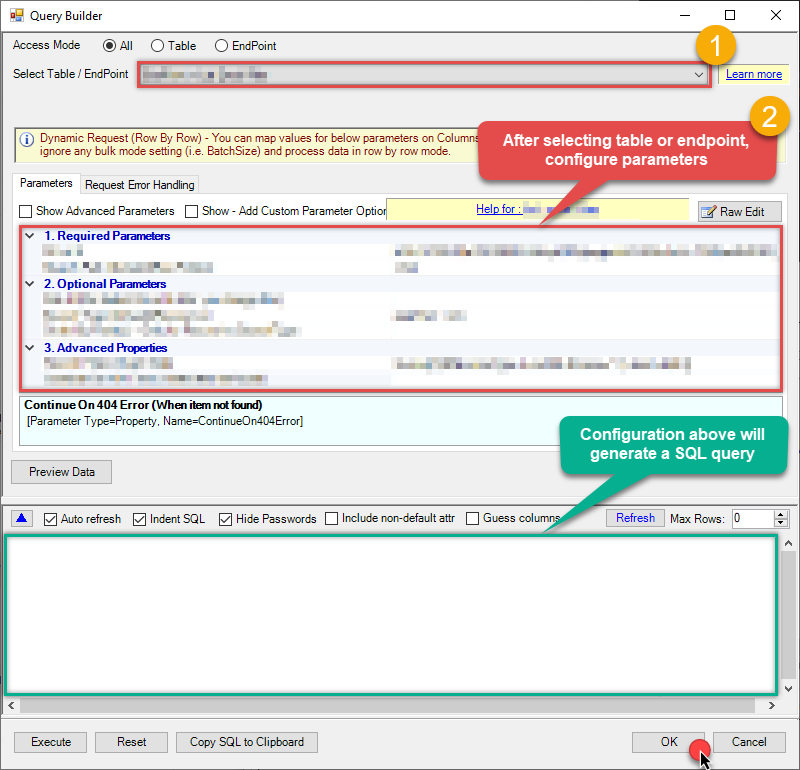 Some parameters configured in this window will be passed to the Shopify API, e.g. filtering parameters. It means that filtering will be done on the server side (instead of the client side), enabling you to get only the meaningful data
much faster . -
Now hit Preview Data button to preview the data using the generated SQL query. If you are satisfied with the result, use this query in Tableau:
ZappySys API Driver - ShopifyShopify Connector can be used to integrate Shopify REST API in your App / BI Tools. You can read/write data about Customers, Orders, OrderItems, Products and more.ShopifyDSNSELECT * FROM Products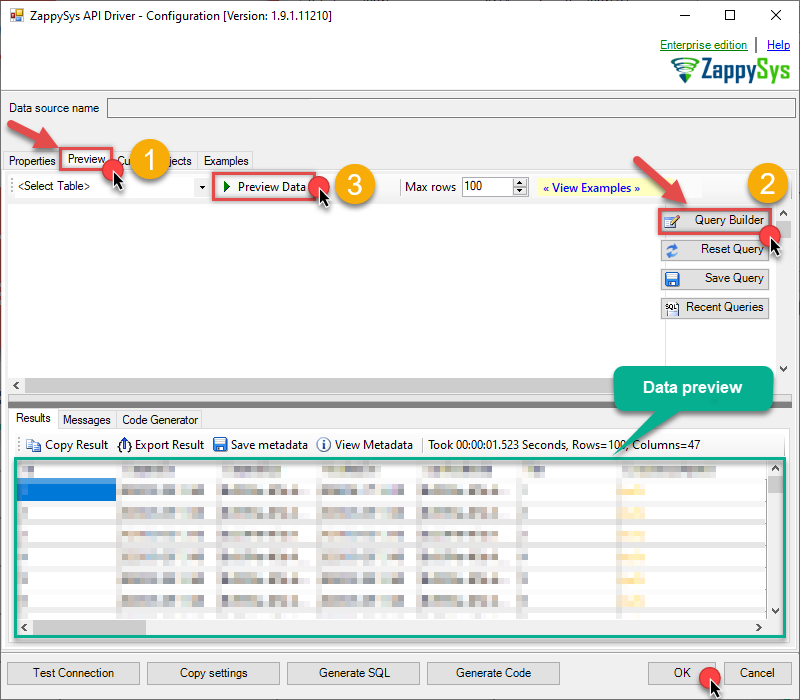 You can also access data quickly from the tables dropdown by selecting <Select table>.A
WHEREclause,LIMITkeyword will be performed on the client side, meaning that thewhole result set will be retrieved from the Shopify API first, and only then the filtering will be applied to the data. If possible, it is recommended to use parameters in Query Builder to filter the data on the server side (in Shopify servers). -
Click OK to finish creating the data source.
-
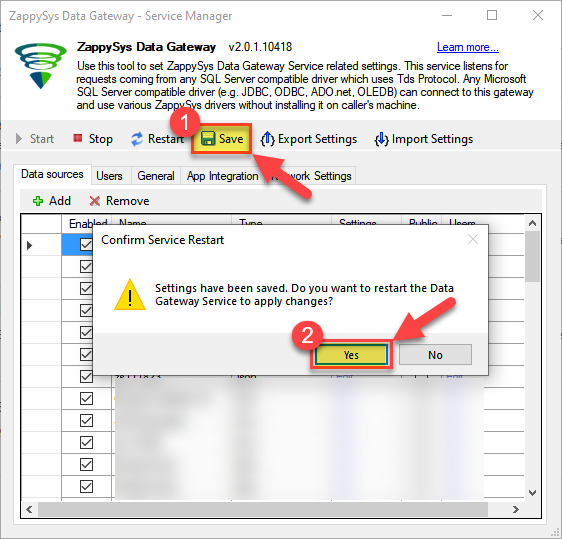
Very important step. Now, after creating or modifying the data source make sure you:
- Click the Save button to persist your changes.
- Hit Yes, once asked if you want to restart the Data Gateway service.
This will ensure all changes are properly applied:
 Skipping this step may result in the new settings not taking effect and, therefore you will not be able to connect to the data source.
Read data in SQL Server via Data Gateway
To read the data in SQL Server, the first thing you have to do is create a Linked Server:
-
First, let's open SQL Server Management Studio, create a new Linked Server, and start configuring it:
LS_TO_SHOPIFY_IN_GATEWAYMicrosoft OLE DB Driver for SQL Serverlocalhost,5000ShopifyDSNShopifyDSN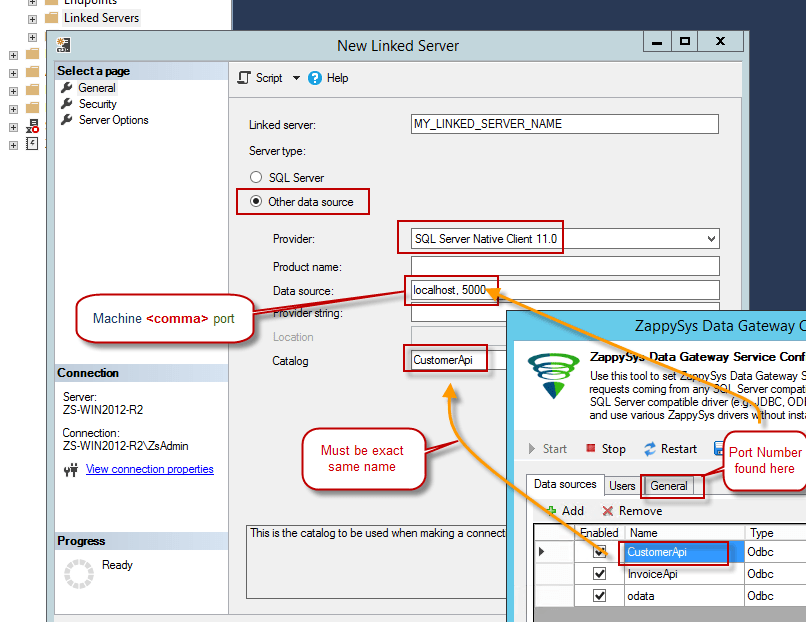
- For SQL Server 2012, 2014, 2016, 2017, and 2019, choose SQL Server Native Client 11.0 as the provider.
- For SQL Server 2022 or higher, choose Microsoft OLE DB Driver for SQL Server as the provider.
-
Then click on Security option and configure username we created in ZappySys Data Gateway in one of the previous steps, e.g.
john: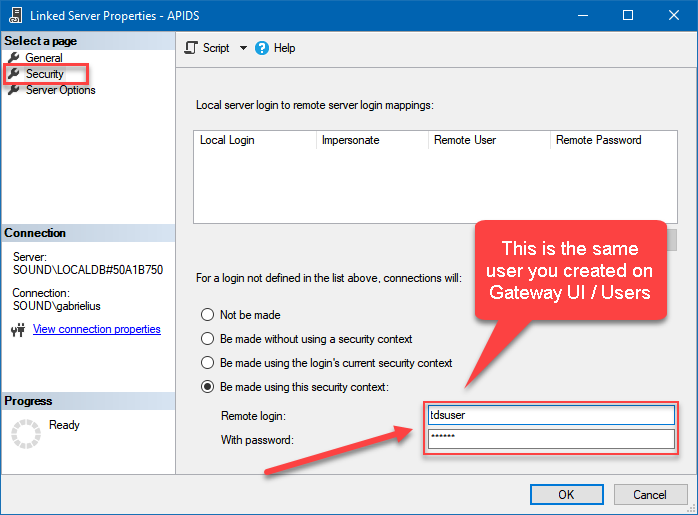
-
Optional step. Under the Server Options, Enable RPC and RPC Out and Disable Promotion of Distributed Transactions(MSDTC).
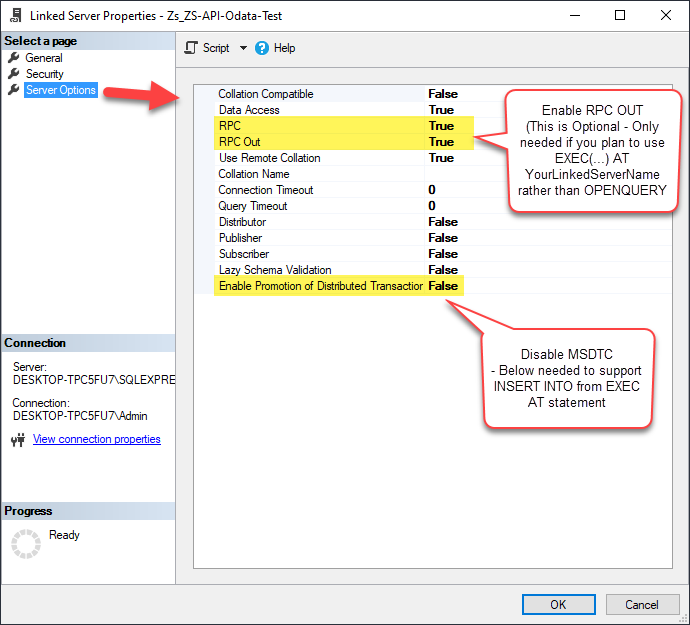
You need to enable RPC Out if you plan to use
EXEC(...) AT [LS_TO_SHOPIFY_IN_GATEWAY]rather than OPENQUERY.
If don't enabled it, you will encounter theServer 'LS_TO_SHOPIFY_IN_GATEWAY' is not configured for RPCerror.Query Example:
DECLARE @MyQuery NVARCHAR(MAX) = 'SELECT * FROM Products';

EXEC (@MyQuery) AT [LS_TO_SHOPIFY_IN_GATEWAY];
If you plan to use
'INSERT INTO <TABLE> EXEC(...) AT [LS_TO_SHOPIFY_IN_GATEWAY]'in that case you need to Disable Promotion of Distributed Transactions(MSDTC).
If don't disabled it, you will encounter theThe operation could not be performed because OLE DB provider "SQLNCLI11" for linked server "MY_LINKED_SERVER_NAME" was unable to begin a distributed transaction.error.Query Example:
INSERT INTO dbo.Products DECLARE @MyQuery NVARCHAR(MAX) = 'SELECT * FROM Products'; EXEC (@MyQuery) AT [LS_TO_SHOPIFY_IN_GATEWAY]; -
Finally, open a new query and execute a query we saved in one of the previous steps:
SELECT * FROM OPENQUERY([LS_TO_SHOPIFY_IN_GATEWAY], 'SELECT * FROM Products')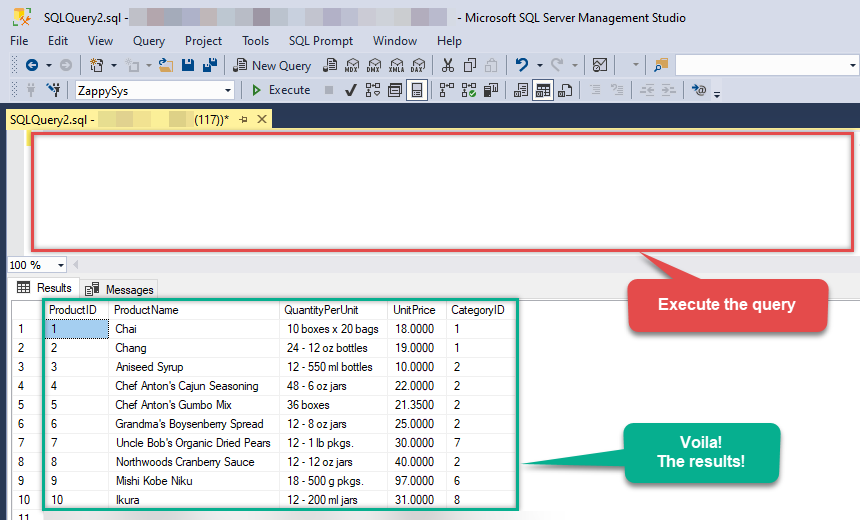
SELECT * FROM OPENQUERY([LS_TO_SHOPIFY_IN_GATEWAY], 'SELECT * FROM Products')
Create Linked Server using Code
In previous section you saw how to create a Linked Server from UI. You can do similar action by code too (see below). Run below script after changing necessary parameters. Assuming your Data Source name on ZappySys Data Gateway UI is 'ShopifyDSN'USE [master]
GO
--///////////////////////////////////////////////////////////////////////////////////////
--Run below code in SSMS to create Linked Server and use ZappySys Drivers in SQL Server
--///////////////////////////////////////////////////////////////////////////////////////
-- Replace YOUR_GATEWAY_USER, YOUR_GATEWAY_PASSWORD
-- Replace localhost with IP/Machine name if ZappySys Gateway Running on different machine other than SQL Server
-- Replace Port 5000 if you configured gateway on a different port
--1. Configure your gateway service as per this article https://zappysys.com/links?id=10036
--2. Make sure you have SQL Server Installed. You can download FREE SQL Server Express Edition from here if you dont want to buy Paid version https://www.microsoft.com/en-us/sql-server/sql-server-editions-express
--Uncomment below if you like to drop linked server if it already exists
--EXEC master.dbo.sp_dropserver @server=N'LS_TO_SHOPIFY_IN_GATEWAY', @droplogins='droplogins'
--3. Create new linked server
EXEC master.dbo.sp_addlinkedserver
@server = N'LS_TO_SHOPIFY_IN_GATEWAY' --Linked server name (this will be used in OPENQUERY sql
, @srvproduct=N''
---- For MSSQL 2012, 2014, 2016, 2017, and 2019 use below (SQL Server Native Client 11.0)---
, @provider=N'SQLNCLI11'
---- For MSSQL 2022 or higher use below (Microsoft OLE DB Driver for SQL Server)---
--, @provider=N'MSOLEDBSQL'
, @datasrc=N'localhost,5000' --//Machine / Port where Gateway service is running
, @provstr=N'Network Library=DBMSSOCN;'
, @catalog=N'ShopifyDSN' --Data source name you gave on Gateway service settings
--4. Attach gateway login with linked server
EXEC master.dbo.sp_addlinkedsrvlogin
@rmtsrvname=N'LS_TO_SHOPIFY_IN_GATEWAY' --linked server name
, @useself=N'False'
, @locallogin=NULL
, @rmtuser=N'YOUR_GATEWAY_USER' --enter your Gateway user name
, @rmtpassword='YOUR_GATEWAY_PASSWORD' --enter your Gateway user's password
GO
--5. Enable RPC OUT (This is Optional - Only needed if you plan to use EXEC(...) AT YourLinkedServerName rather than OPENQUERY
EXEC sp_serveroption 'LS_TO_SHOPIFY_IN_GATEWAY', 'rpc', true;
EXEC sp_serveroption 'LS_TO_SHOPIFY_IN_GATEWAY', 'rpc out', true;
--Disable MSDTC - Below needed to support INSERT INTO from EXEC AT statement
EXEC sp_serveroption 'LS_TO_SHOPIFY_IN_GATEWAY', 'remote proc transaction promotion', false;
--Increase query timeout if query is going to take longer than 10 mins (Default timeout is 600 seconds)
--EXEC sp_serveroption 'LS_TO_SHOPIFY_IN_GATEWAY', 'query timeout', 1200;
GOCreate View in SQL Server
Finally, use this or similar query in a view or stored procedure, which you will be able to use in Tableau. We will create a view to return invoices:
-
CREATE VIEW vwApiInvoices AS
 SELECT * FROM OPENQUERY([LS_TO_SHOPIFY_IN_GATEWAY], 'SELECT * FROM Invoices')
Read data in Tableau from SQL Server
Actually, we will be getting data from SQL Server which in turn will be getting data from ZappySys Data Gateway data source. Let's begin and see how to accomplish that:
-
Open Tableau Desktop and click File > New.
-
To create new Connection click More > Microsoft SQL Server > Enter your credentials to connect to SQL Server (in our example before we used john):
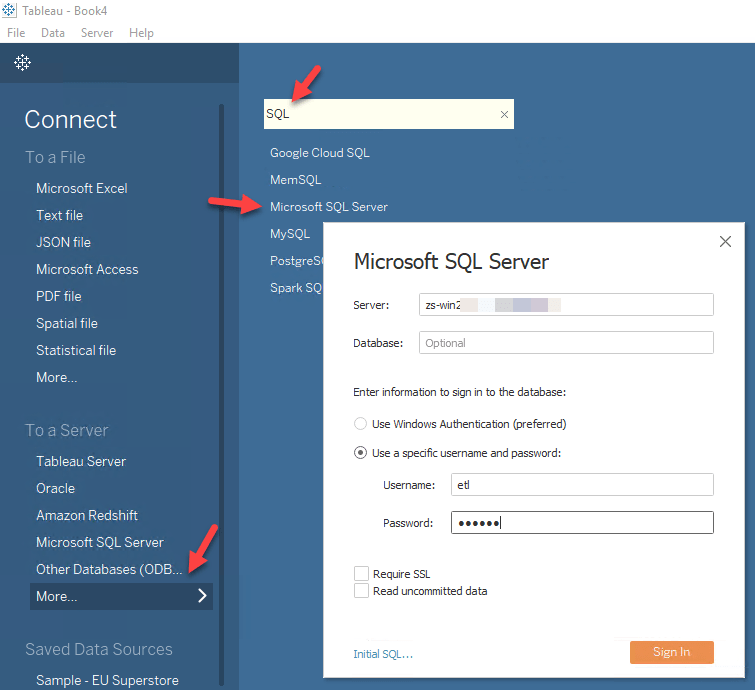
-
Once connection is created for SQL Server we can read Shopify data 3 different ways:
- Query View which contains OPENQUERY to Linked Server for Shopify data
- Use direct SQL Query using OPENQUERY
- Use Stored Procedure (Mostly useful to parameterize calls
-
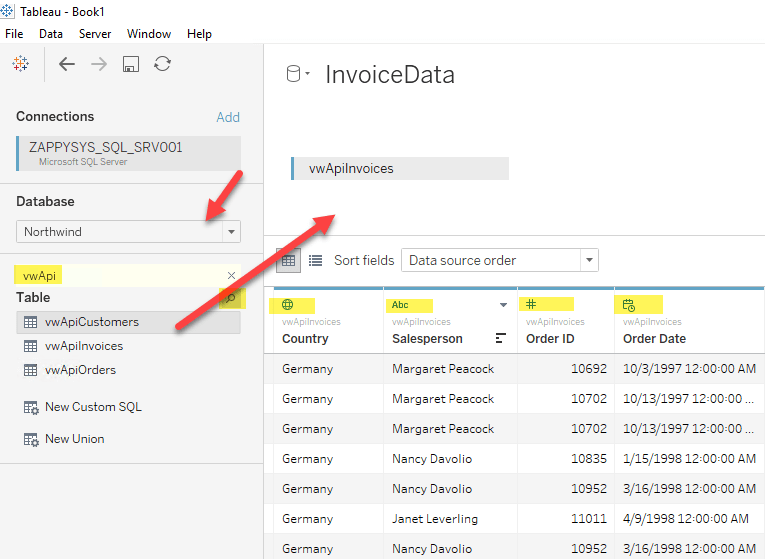
See below example to pull data from Shopify in Tableau using SQL View approach:
-
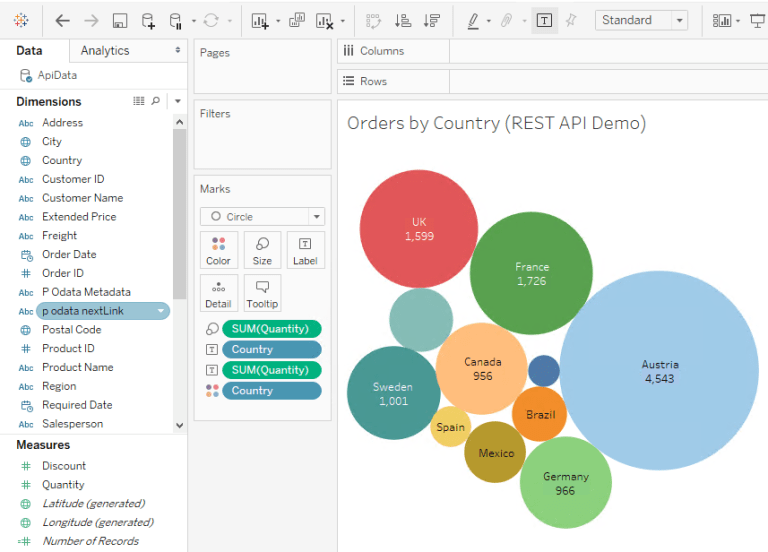
Once your data sources are created you can click on Sheet1 and drag fields to create visualizations for Tableau Dashboard:
Passing Parameters to Shopify calls in Tableau (Dynamic SQL)
Now let's look at scenario where you have to pass parameters to build Dynamic Dashboard. You can try to insert Parameters in your Direct SQL when you build Dynamic SQL but we found some issues with that so we are going to suggest Stored Procedure approach. For more information on Known issue on Dynamic Metadata Check this post.-
First lets create a stored procedure in SQL Server for Parameter Example. Notice how we added WITH RESULT SETS in the code to describe metadata.
--DROP PROC dbo.usp_GetInvoicesByCountry --GO /* Purpose: Parameterize Shopify call via SQL. Call ZappySys Drivers inside SQL Server. */ CREATE PROC dbo.usp_GetInvoicesByCountry @country varchar(100) AS DECLARE @sql varchar(max) --//Escape single ticks carefully SET @sql = 'SELECT OrderID,CustomerID,Country,Quantity FROM $ WITH (Src=''https://services.odata.org/V3/Northwind/Northwind.svc/Invoices?$format=json@filter=Country eq '+ @country +''' ,Filter=''$.value[*]'' ,DataFormat=''OData'' )' DECLARE @sqlFull varchar(max) SET @sqlFull='SELECT * FROM OPENQUERY([LS_TO_SHOPIFY_IN_GATEWAY], ''' + REPLACE( @sql, '''', '''''' ) + ''' )' PRINT @sqlFull --//For DEBUG purpose EXECUTE (@sqlFull) WITH RESULT SETS ( (OrderID int,CustomerID varchar(100),Country varchar(100),Quantity int) --//describe first result. If you don't do this then wont work in Tableau ) GO -- Example call EXEC dbo.usp_GetInvoicesByCountry @country='Germany' - Once you create a stored procedure go to Tableau datasource and select Database which contains the stored procedure we just created.
-
Now find your stored proc and drag it on the datasource pane. You will see parameters UI as below. You can create new parameter - Select New Parameter under Value Column.
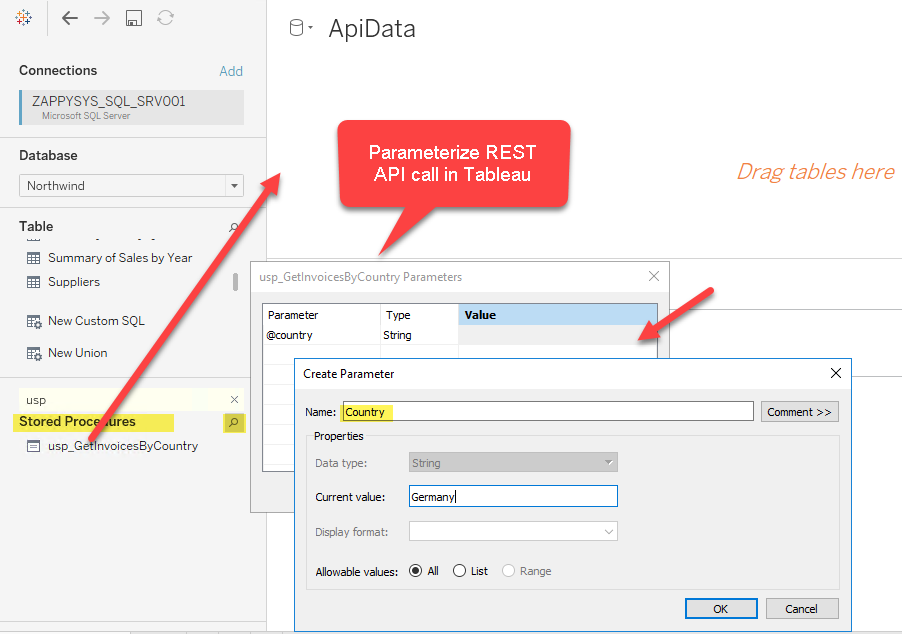
- Thats it now you can reuse your parameterized datasource anywhere in Dashboard.
-
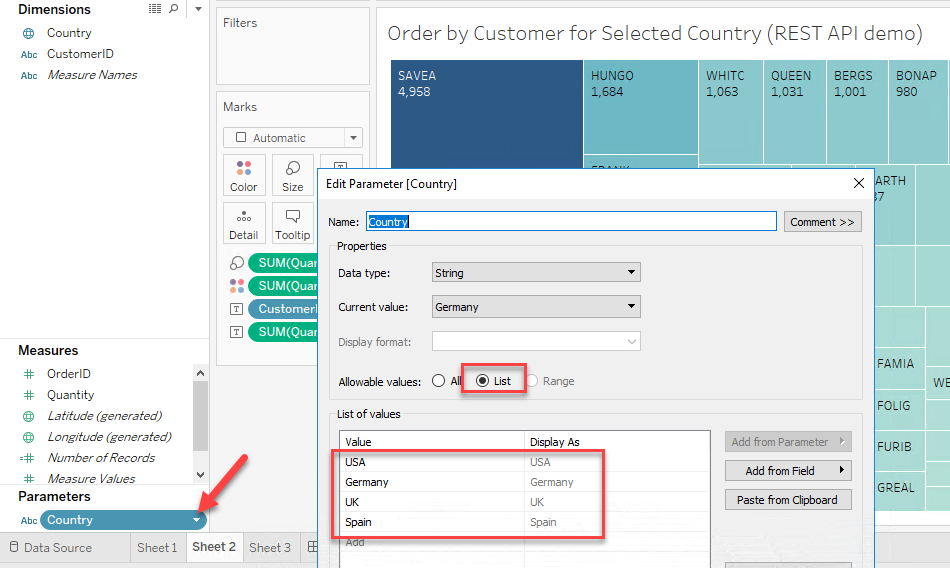
If you have need to select Parameters from predefined values rather than free text then edit your parameter and select List option. Define values you like to select from as below.
-
When you create Tableau Dashboard you will see Parameter dropdown (If you selected List) elase you may see Textbox to enter custom value.

Firewall settings
So far we have assumed that Gateway is running on the same machine as SQL Server. However there will be a case when ZappySys ODBC PowerPack is installed on a different machine than SQL Server. In such case you may have to perform additional Firewall configurations. On most computers firewall settings wont allow outside traffic to ZappySys Data Gateway. In such case perform following steps to allow other machines to connect to Gateway.
Method-1 (Preferred)If you are using newer version of ZappySys Data Gateway then adding firewall rule is just a single click.
- Search for gateway in start menu and open ZappySys Data Gateway.
-
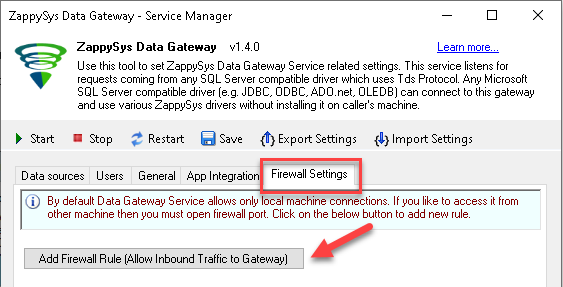
Go to Firewall Tab and click Add Firewall Rule button like below. This will create Firewall rule to all Inbound Traffic on Port 5000 (Unless you changed it).
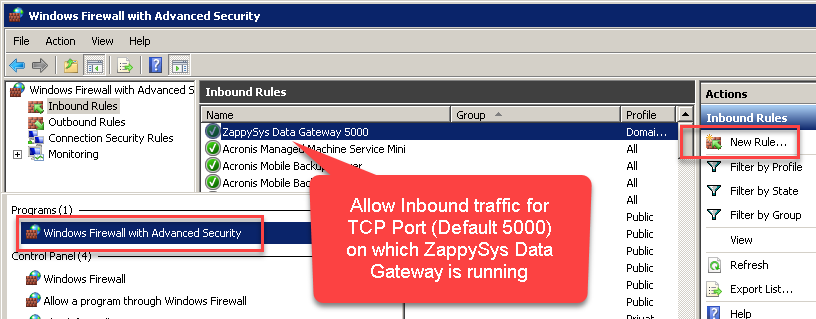
Here is another way to add / edit Inbound Traffic rule in windows firewall. Use below method if you choose to customize your rule (for advanced users).
- Search for Windows Firewall Advanced Security in start menu.
- Under Inbound Rules > Right click and click [New Rule] >> Click Next
- Select Port on Rule Type >> Click Next
- Click on TCP and enter port number under specified local port as 5000 (use different one if you changed Default port) >> Click Next
- Select Profile (i.e. Private, Public) >> Click Next
- Enter Rule name [i.e. ZappySys Data Gateway – Allow Inbound ] >> Click Next
- Click OK to save the rule
Actions supported by Shopify Connector
Learn how to perform common Shopify actions directly in Tableau with these how-to guides:
- Create a Customer
- Create a Location
- Create a Product
- Create a Product Variant
- Create an Order
- Delete a Customer
- Delete a Location
- Delete a product
- Delete a product variant
- Delete an Order
- Get Customer
- Get Customers
- Get Inventory Item
- Get Inventory Items
- Get Inventory Levels
- Get Location
- Get Locations
- Get Order
- Get Order Items
- Get Orders
- Get Orders Count
- Get Payouts
- Get Product
- Get Product Variants
- Get Products
- Get Products Count
- Insert Inventory Levels
- Update a Customer
- Update a Location
- Update a Product
- Update a Product Variant
- Update an Order
- Update Inventory Item
- Update Inventory Levels
- Make Generic API Request
- Make Generic API Request (Bulk Write)
Conclusion
In this article we showed you how to connect to Shopify in Tableau and integrate data without any coding, saving you time and effort.
We encourage you to download Shopify Connector for Tableau and see how easy it is to use it for yourself or your team.
If you have any questions, feel free to contact ZappySys support team. You can also open a live chat immediately by clicking on the chat icon below.
Download Shopify Connector for Tableau Documentation