Introduction
You can connect to your Shopify data from Alteryx via the high-performance Shopify ODBC Driver. We'll walk you through the entire setup.
Let's not waste time and get started!
Create data source using Shopify ODBC Driver
Video instructions
Watch this quick walkthrough to see how to configure your Shopify ODBC data source, or scroll down for the step-by-step written guide.
Step-by-step instructions
To get data from Shopify using Alteryx, we first need to create an ODBC data source. We will later read this data in Alteryx. Perform these steps:
-
Download and install ODBC PowerPack (if you haven't already).
-
Search for
odbcand open the ODBC Data Sources (64-bit):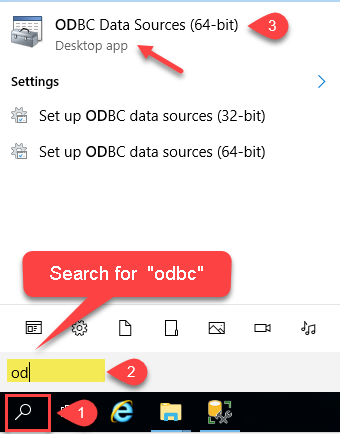
-
Create a User data source (User DSN) based on the ZappySys API Driver driver:
ZappySys API Driver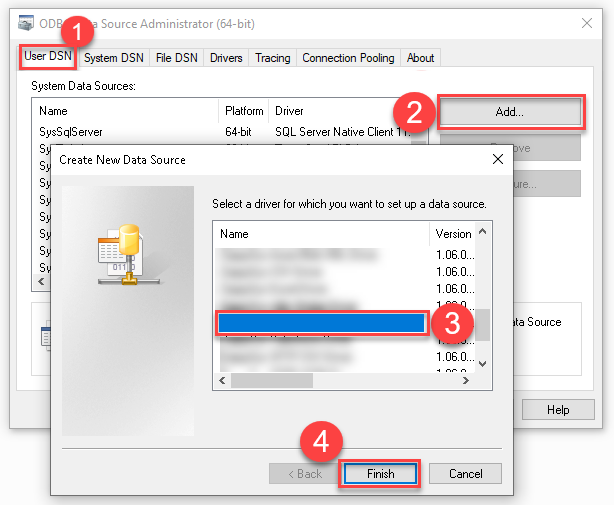
- Create and use a User DSN if the client application runs under a User Account. This is the ideal option at design time (e.g., when developing in Visual Studio). Use it for both types of applications (64-bit and 32-bit).
- Create and use a System DSN if the client application runs under a System Account (e.g., as a Windows Service). This is usually the required option in a production environment. If your Windows Service is a 32-bit application, you must use the 32-bit ODBC Data Source Administrator to configure this
-
When the Configuration window appears give your data source a name if you haven't done that already, then select "Shopify" from the list of Popular Connectors. If "Shopify" is not present in the list, then click "Search Online" and download it. Then set the path to the location where you downloaded it. Finally, click Continue >> to proceed with configuring the DSN:
ShopifyDSNShopify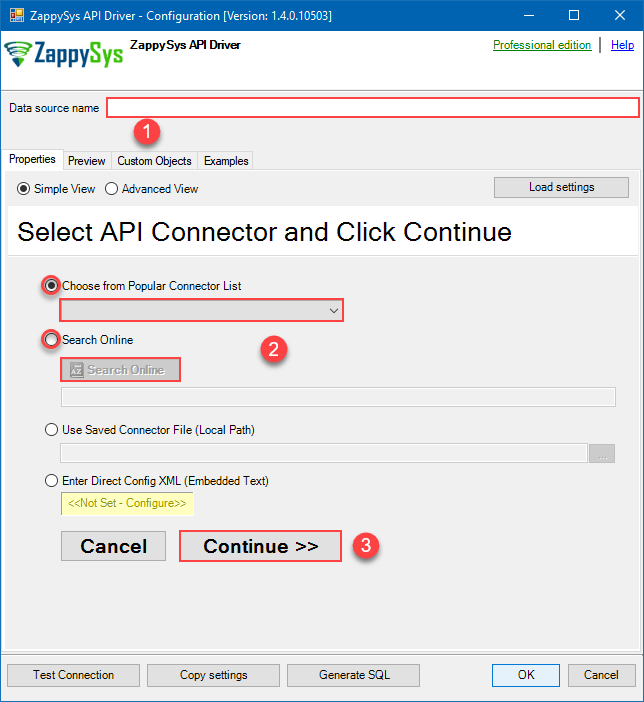
-
Select your authentication scenario below to expand connection configuration steps to:
- Configure the authentication in Shopify.
- Enter those details into the ZappySys API Driver data source configuration.
Admin Access Token (Custom App)
Shopify authentication
Method: Admin API Access Token (Recommended for Single-Store Connections)
This method uses a permanent Admin API Access Token generated from a "Custom App" within your Shopify Admin. This is the simplest way to connect if you are only integrating with your own store.
Quick Setup Summary:
- Log in to your Shopify Admin and click Settings (the gear icon in the bottom left).
- Select Apps from the left-side settings menu.
- Click the Develop apps button at the top right of the page.
- Open your app (or create a new one) and configure the necessary Admin API access scopes.
- Click Install app. Once installed, navigate to the API credentials tab.
Important: Your Admin API access token (shpat_xxx) is only revealed once. Please copy and store it securely immediately after clicking "Reveal token once."
Note: If you are using the Shopify Dev Dashboard (via a Partner Account), you must use the OAuth Authorization Code Grant method, as those apps do not issue permanent 'shpat' tokens.
Video Tutorial: How to Get Admin API Access Token in Shopify?
Part 1: Create and Configure the Shopify App
- Visit https://accounts.shopify.com and log into your Shopify store account.
- After logging in, select the store you wish to connect to.
- Select Settings (gear icon in the lower-left corner) to launch the Settings screen.
- On the left menu panel, select Apps. (Note: Sales channels are now managed in a separate menu item).
- On the Apps page, select Develop apps (near the top right of the screen).
Note: If this is your first time accessing this section, you may need to click "Allow custom app development" to proceed. - On the App development screen, select Create an app.
- Give the app a name (e.g., "ZappySys Connector"), select the appropriate developer from the drop-down, and select Create app.
- Click Configure Admin API scopes.
- In the Admin API access scopes screen, select the checkboxes based on which features you plan to use:
- For Customers:
read_customers,write_customers - For Orders:
read_orders,write_orders - For Products:
read_products,write_products - For Inventory:
read_inventory,write_inventory - For Locations:
read_locations - For Payouts/Analytics:
read_all_ordersorread_analytics
Important: If you select fewer scopes than required, some connector features will not work. To ensure full functionality, select both read and write permissions for the resources you need to access.
- For Customers:
- After selecting your scopes, click Save at the top or bottom of the page.
- Install the app by clicking the Install app button (upper-right corner). If prompted, confirm by selecting Install.
Part 2: Get Admin API Access Token
- Once the app is installed, you will be taken to the API credentials tab.
- Look for the Admin API access token section. Select Reveal token once to show the token (it starts with
shpat_). IMPORTANT: Copy and save this token immediately in a secure location. You cannot view it again after leaving this page.
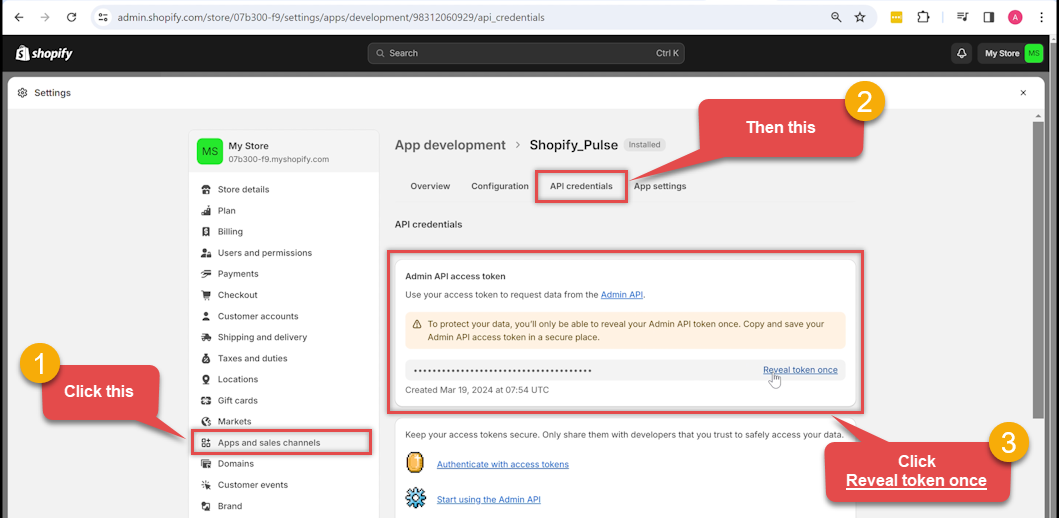
Note: You may also see an API Key or Secret Key in this section; these are not required for this specific authentication method. Use only the Admin API access token.
Part 3: Configure the ZappySys Connector
- Open the ZappySys connector configuration screen.
- Enter Subdomain: Enter the unique subdomain of your Shopify store into the Subdomain parameter textbox.
How to find your Subdomain:
If you use a custom domain (e.g.,
www.my-store.com), you must still use your internal Shopify subdomain:- Method 1 (Admin URL): While logged into Shopify, check your browser address bar.
- If the URL is
admin.shopify.com/store/my-unique-slug, your subdomain is my-unique-slug. - If the URL is
my-unique-slug.myshopify.com/admin, your subdomain is my-unique-slug.
- If the URL is
- Method 2 (Domains Setting): Go to Settings > Domains. Look for the "Primary domain for the online store" or the fallback domain ending in
.myshopify.com. The part before the dots is your subdomain.
- Method 1 (Admin URL): While logged into Shopify, check your browser address bar.
- Enter Access Token: Paste the
shpat_xxxtoken you saved in Step 14 into the Admin API Access Token textbox.
Tip: Click the ellipses (...) button inside the textbox to open a larger dialog for easier pasting. - Click Test Connection to verify the settings.
- If the test is successful, click OK to save the configuration.
API Connection Manager configuration
Just perform these simple steps to finish authentication configuration:
-
Set Authentication Type to
Admin Access Token (Custom App) [Http] - Optional step. Modify API Base URL if needed (in most cases default will work).
- Fill in all the required parameters and set optional parameters if needed.
- Finally, hit OK button:
ShopifyDSNShopifyAdmin Access Token (Custom App) [Http]https://[$Subdomain$].myshopify.com/admin/api/2025-01Required Parameters Sub-domain Fill-in the parameter... Admin API Access Token Fill-in the parameter... Optional Parameters RetryMode RetryWhenStatusCodeMatch RetryStatusCodeList 429 RetryCountMax 5 RetryMultiplyWaitTime True 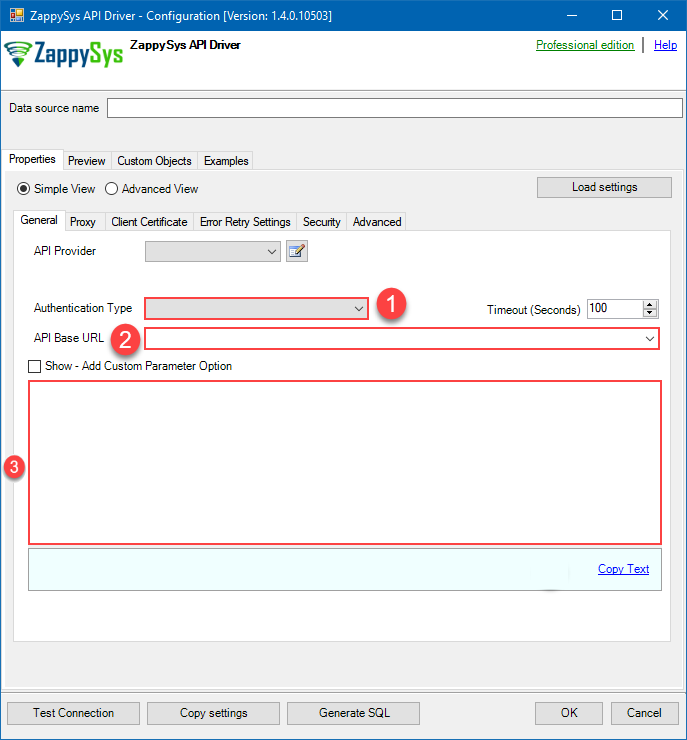 Find full details in the Shopify Connector authentication reference.
OAuth Authorization Code Grant (3-legged) - RECOMMENDED
Shopify authentication
Authenticate using OAuth 2.0 Authorization Code Flow (3-legged). Use this for apps built in the Dev Dashboard (https://dev.shopify.com). This is the primary OAuth flow supported for public apps and apps created in the Dev Dashboard.
Method: OAuth Authorization Code Grant (3-Legged)
This method is for apps built in the Shopify Dev Dashboard. Use this if you are a Partner or developer building a multi-store integration.
Note: If you are connecting to your own single store, the Admin Access Token method is significantly simpler. Use this OAuth method only if your integration specifically requires a Client ID and Secret.
Part 1: Create and Configure App in Dev Dashboard
- Log in to the Shopify Dev Dashboard using your Partner account.
- Click Apps in the left menu, then click Create app.
- Select Start from Dev Dashboard (manual setup) and give your app a name.
- Step 1: Configure Scopes and URLs via "Versions"
- Click the Versions tab at the top of the app screen.
- Click Create version (or edit the Draft).
- In the URLs section, enter
https://zappysys.com/oauthinto Allowed redirection URL(s). - Select your Admin API scopes based on which features you plan to use:
- For Customers:
read_customers,write_customers - For Orders:
read_orders,write_orders - For Products:
read_products,write_products - For Inventory:
read_inventory,write_inventory - For Locations:
read_locations - For Payouts/Analytics:
read_all_ordersorread_analytics
Important: If you select fewer scopes than required, some connector features will not work. To ensure full functionality, select both read and write permissions for the resources you need to access.
- For Customers:
- Click Release (top right). Note: Settings only become active once a version is Released.
- Step 2: Set Distribution Method
- Click Distribution in the left-side menu.
- Select Custom Distribution.
- Enter your Shopify store URL (e.g.,
your-store.myshopify.com) and click Generate link. - Action Required: Copy the generated install link, open it in your browser, and follow the prompts to install/unlock the app for your store. You must complete this step before testing the connection in ZappySys.
Part 2: Get Client Credentials
- Click on Settings in the left-side navigation of your app.
- In the Client credentials section, copy the Client ID and Client Secret (click the eye icon to reveal).
Part 3: Configure the ZappySys Connector
- Open the ZappySys connector and select OAuth Authorization Code Grant (3-legged).
- Subdomain: Enter your store handle (the part before
.myshopify.com). - Client ID / Secret: Paste the credentials from Steps 6 and 7.
- Redirect URI: Enter
https://zappysys.com/oauth. - Click Test Connection. You will be prompted to authorize the app in your browser.
Note on Tokens: Successful authorization generates an "Offline" Access Token (starting with
shpca_). This token does not expire and does not require a refresh token.Troubleshooting: If you see "App no longer available," ensure you have completed the Distribution step and followed the Install Link in Step 5 to unlock the app for your store.
API Connection Manager configuration
Just perform these simple steps to finish authentication configuration:
-
Set Authentication Type to
OAuth Authorization Code Grant (3-legged) - RECOMMENDED [OAuth] - Optional step. Modify API Base URL if needed (in most cases default will work).
- Fill in all the required parameters and set optional parameters if needed.
- Press Generate Token button to generate the tokens.
- Finally, hit OK button:
ShopifyDSNShopifyOAuth Authorization Code Grant (3-legged) - RECOMMENDED [OAuth]https://[$Subdomain$].myshopify.com/admin/api/2025-01Required Parameters Redirect URI (***Must match App Settings***) Fill-in the parameter... 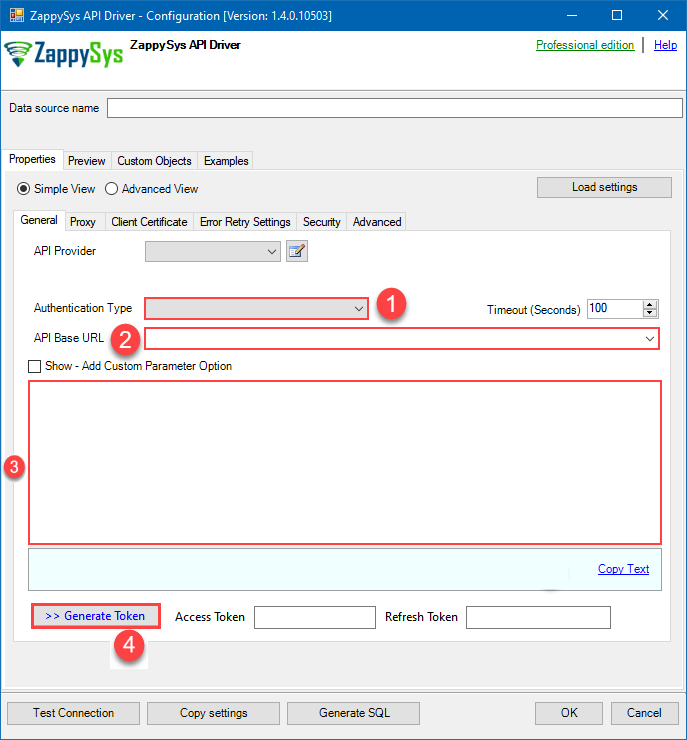 Find full details in the Shopify Connector authentication reference.
 -
Once the data source connection has been configured, it's time to configure the SQL query. Select the Preview tab and then click Query Builder button to configure the SQL query:
 ZappySys API Driver - ShopifyRead and write Shopify data effortlessly. Integrate, manage, and automate customers, orders, products, and inventory — almost no coding required.ShopifyDSN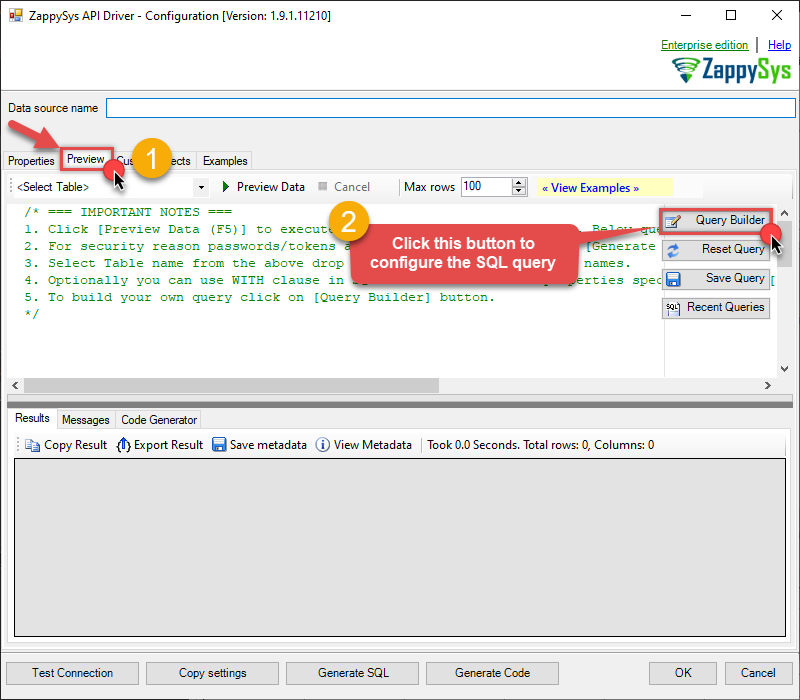
-
Start by selecting the Table or Endpoint you are interested in and then configure the parameters. This will generate a query that we will use in Alteryx to retrieve data from Shopify. Hit OK button to use this query in the next step.
SELECT * FROM Products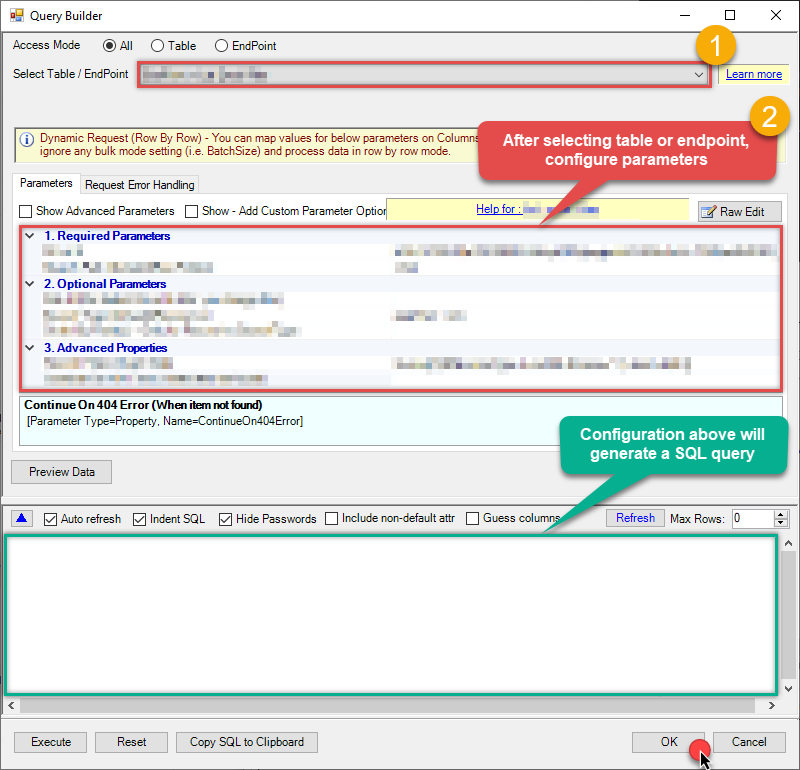 Some parameters configured in this window will be passed to the Shopify API, e.g. filtering parameters. It means that filtering will be done on the server side (instead of the client side), enabling you to get only the meaningful data
much faster . -
Now hit Preview Data button to preview the data using the generated SQL query. If you are satisfied with the result, use this query in Alteryx:
ZappySys API Driver - ShopifyRead and write Shopify data effortlessly. Integrate, manage, and automate customers, orders, products, and inventory — almost no coding required.ShopifyDSNSELECT * FROM Products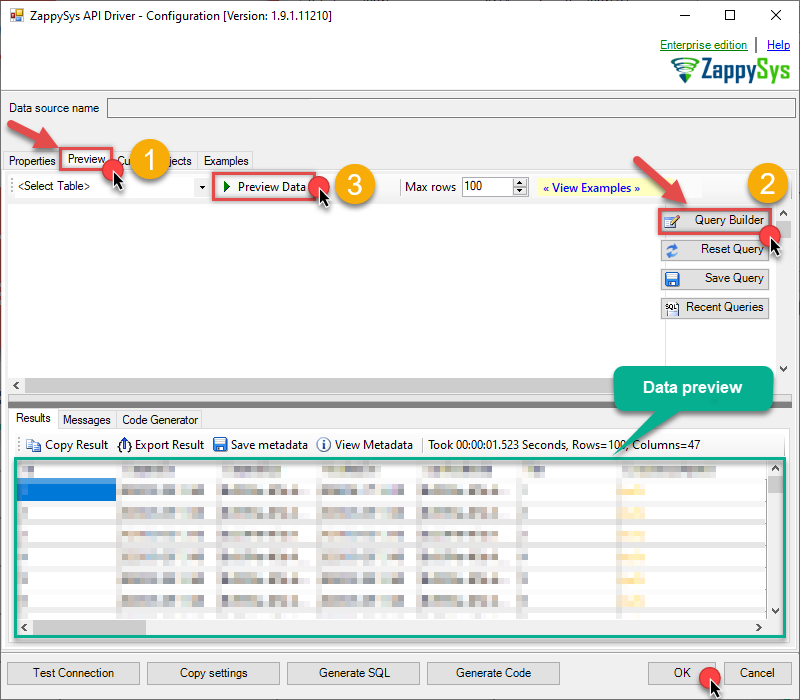 You can also access data quickly from the tables dropdown by selecting <Select table>.A
WHEREclause,LIMITkeyword will be performed on the client side, meaning that thewhole result set will be retrieved from the Shopify API first, and only then the filtering will be applied to the data. If possible, it is recommended to use parameters in Query Builder to filter the data on the server side (in Shopify servers). -
Click OK to finish creating the data source.
Read Shopify data in Alteryx Designer (workstation)
Here we will be reading Shopify data on your workstation using Alteryx Designer. Follow the steps below to connect via ODBC and run your workflow locally.
-
Open Alteryx Designer.
-
First, verify your DCM Settings to ensure you can access ODBC drivers. Go to Options > User Settings > Edit User Settings.
If DCM Mode is set to DCM Only, change it to DCM Optional if you would like to access the legacy Generic ODBC Connection.
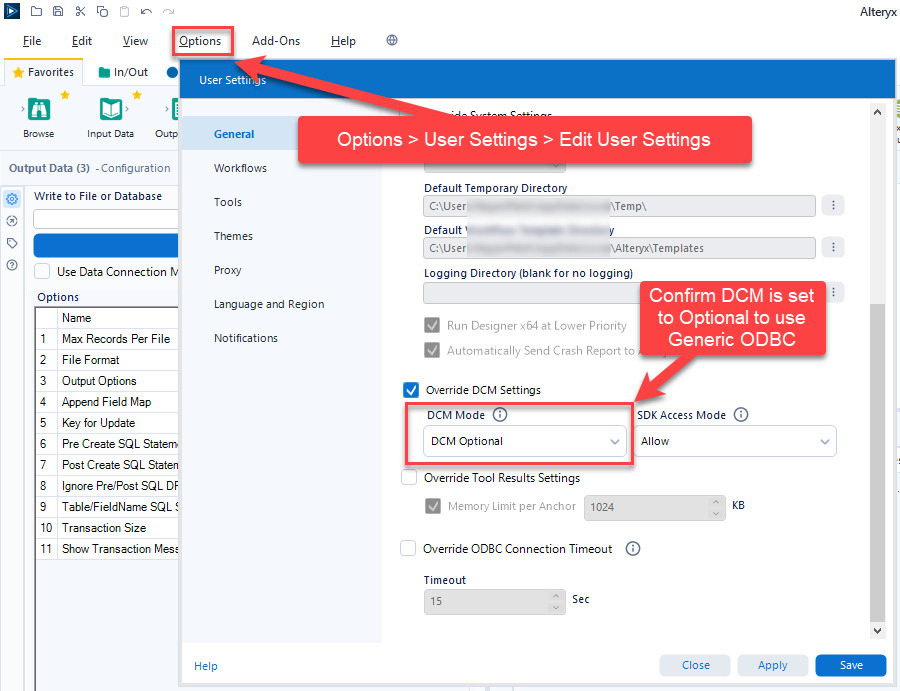 After changing this setting, you may need to click Save and restart the connection window for the "Generic ODBC" icon to appear.
 -
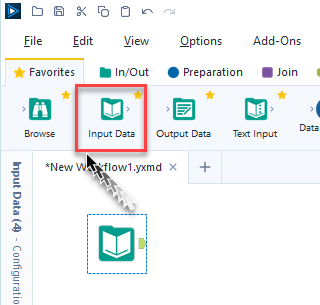
Drag an Input Data tool onto your Alteryx canvas.
-
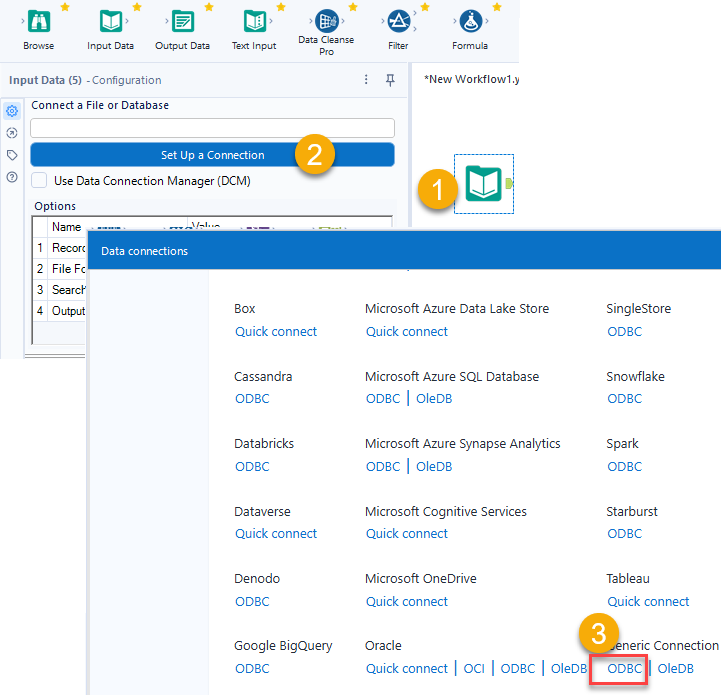
In the Configuration pane, click Set Up a Connection.
-
Note for DCM Users: If your environment has DCM (Data Connection Manager) enabled, the classic "Generic ODBC" icon may be hidden. To find it, select Data sources on the left and type "ODBC" in the search bar.
-
Once the ODBC window opens, click Connect Asset and select your ShopifyDSN DSN from the list.
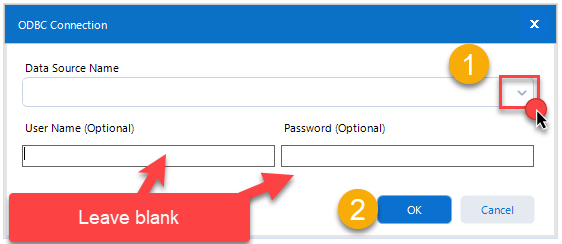 Ensure you have configured a 64-bit System DSN in the Windows ODBC Data Source Administrator before this step.
 -
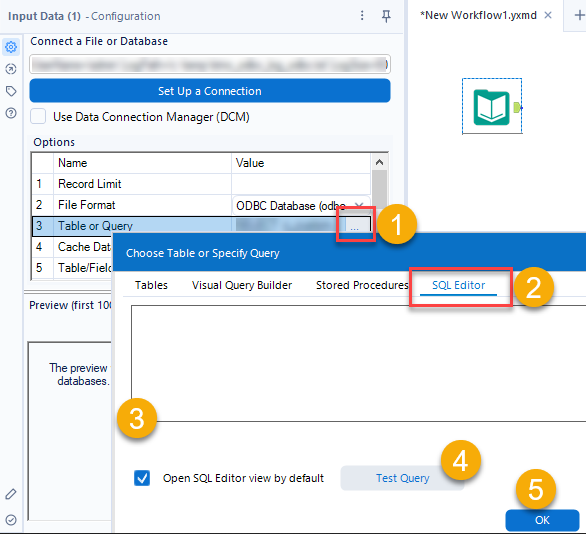
After selecting your DSN, configure your SQL Query in the Input Data tool configuration:
-
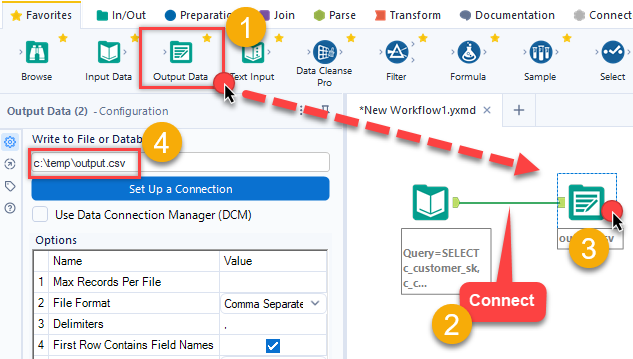
To save your data, drag an Output Data tool and connect it to the Input Data tool.
-
Configure the Output Data tool to write to a CSV file:
-
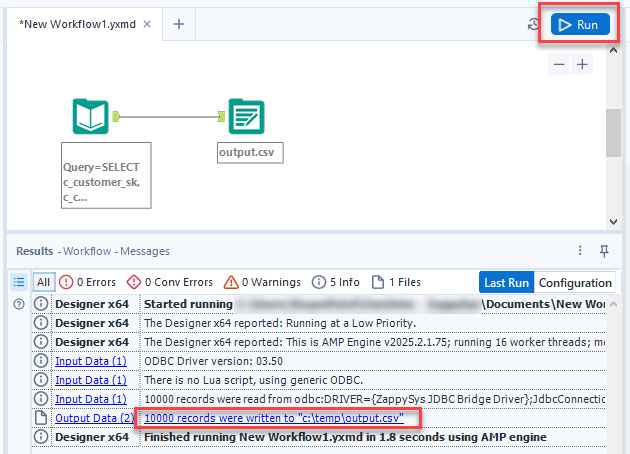
Press Run (Ctrl+R) to execute the workflow. Verify the results in the Results Window at the bottom.
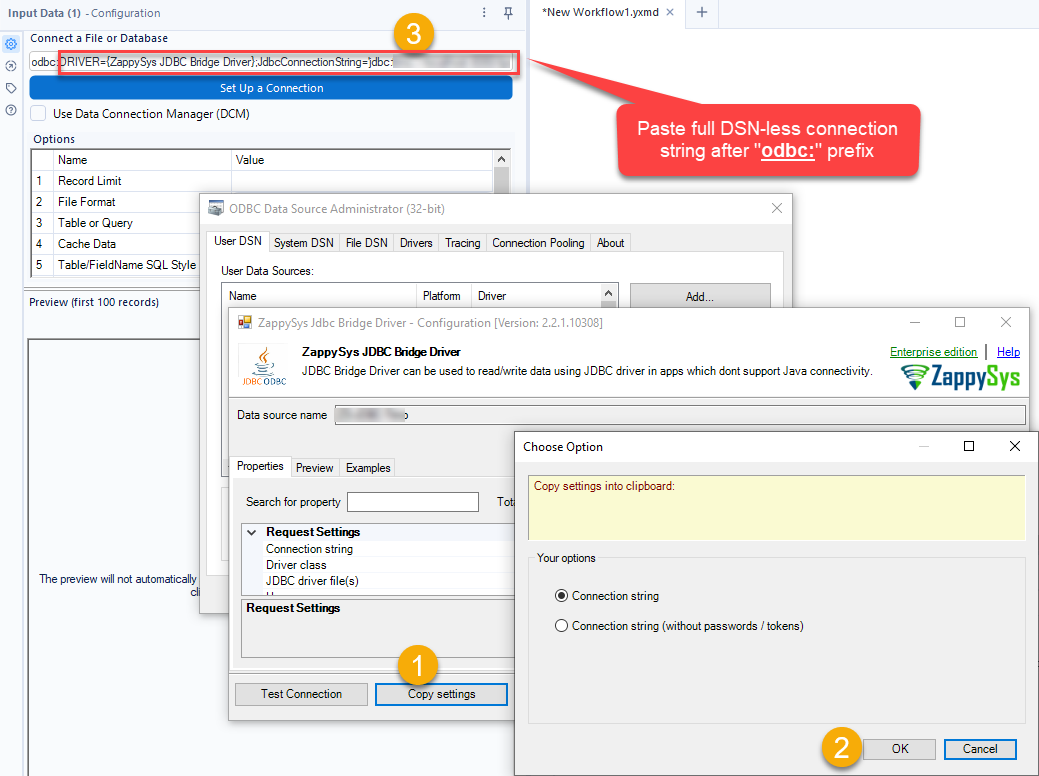
Using DSN-less Connection String
If you prefer to use a DSN-less connection string instead of creating an ODBC data source in Alteryx, you can enter the connection string directly in the Input Data tool's connection setup:
Deploy workflow and run on server (e.g. Alteryx Server)
To run your Alteryx workflow on a server (e.g. Alteryx Server or a machine used for scheduled runs), install ZappySys ODBC PowerPack and configure the same DSN on that server so the workflow can connect to Shopify data.
- On the server where the workflow will run, download and install ODBC PowerPack (v2.2.1 or higher for Alteryx support).
- Open ODBC Data Sources (64-bit) on the server and create a System DSN with the same name and settings as on your workstation (use the same driver and connection configuration). An easy way to copy your workstation DSN settings to the server is described in How to copy ODBC DSN or Data Gateway settings to another server (use Copy Settings on the workstation, then Load settings on the server).
- Deploy or publish your workflow to the server (e.g. upload to Alteryx Server or copy the workflow to the server).
- Run the workflow on the server; it will use the DSN you created in step 2 to connect to Shopify.
Shopify Connector actions
Got a specific use case in mind? We've mapped out exactly how to perform a variety of essential Shopify operations directly in Alteryx, so you don't have to figure out the setup from scratch. Check out the step-by-step guides below:
- Get Customers
- Get Customer
- Create a Customer
- Update a Customer
- Delete a Customer
- Get Orders
- Get Order
- Create an Order
- Update an Order
- Delete an Order
- Get Order Items
- Get Products
- Get Product
- Get Products Count
- Get Orders Count
- Get Product Variants
- Update a Product Variant
- Create a Product Variant
- Create a Product
- Update a Product
- Delete a product
- Delete a product variant
- Get Payouts
- Get Locations
- Get Location
- Create a Location
- Update a Location
- Delete a Location
- Get Inventory Items
- Get Inventory Levels
- Update Inventory Levels
- Insert Inventory Levels
- Get Inventory Item
- Update Inventory Item
- Make Generic REST API Request
- Make Generic REST API Request (Bulk Write)
Optional: Centralized data access via ZappySys Data Gateway
In some situations, you may need to provide Shopify data access to multiple users or services. Configuring the data source on a Data Gateway creates a single, centralized connection point for this purpose.
This configuration provides two primary advantages:
-
Centralized data access
The data source is configured once on the gateway, eliminating the need to set it up individually on each user's machine or application. This significantly simplifies the management process.
-
Centralized access control
Since all connections route through the gateway, access can be governed or revoked from a single location for all users.
| Data Gateway |
Local ODBC
data source
|
|
|---|---|---|
| Simple configuration | ||
| Installation | Single machine | Per machine |
| Connectivity | Local and remote | Local only |
| Connections limit | Limited by License | Unlimited |
| Central data access | ||
| Central access control | ||
| More flexible cost |
To achieve this, you must first create a data source in the Data Gateway (server-side) and then create an ODBC data source in Alteryx (client-side) to connect to it.
Let's not wait and get going!
Create Shopify data source in the gateway
In this section we will create a data source for Shopify in the Data Gateway. Let's follow these steps to accomplish that:
-
Search for
gatewayin the Windows Start Menu and open ZappySys Data Gateway Configuration: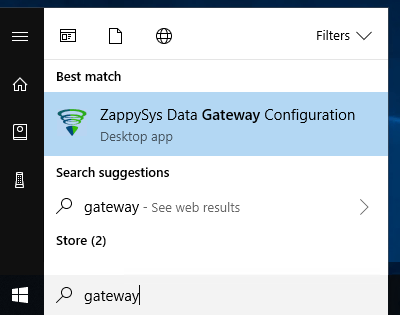
-
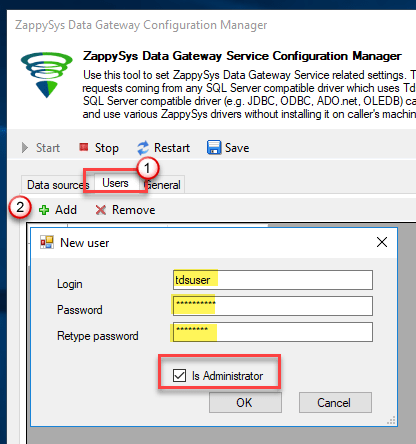
Go to the Users tab and follow these steps to add a Data Gateway user:
- Click the Add button
-
In the Login field enter a username, e.g.,
john - Then enter a Password
- Check the Is Administrator checkbox
- Click OK to save
-
Now we are ready to add a data source:
- Click the Add button
- Give the Data source a name (have it handy for later)
- Then select Native - ZappySys API Driver
- Finally, click OK
ShopifyDSNZappySys API Driver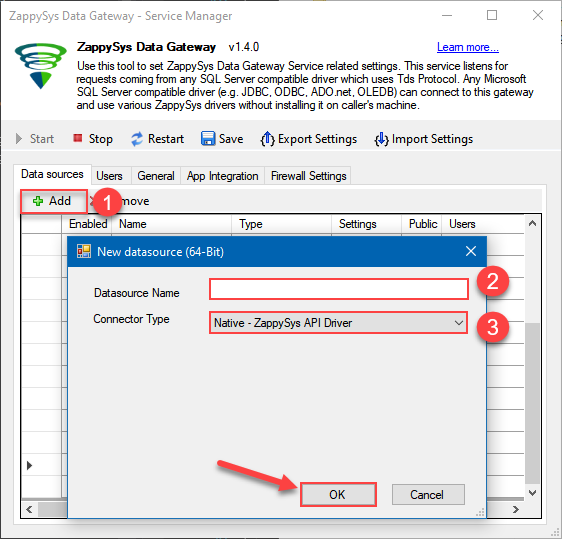
-
When the ZappySys API Driver configuration window opens, go back to ODBC Data Source Administrator where you already have the Shopify ODBC data source created and configured, and follow these steps on how to Import data source configuration into the Gateway:
-
Open ODBC data source configuration and click Copy settings:
 ZappySys API Driver - ShopifyRead and write Shopify data effortlessly. Integrate, manage, and automate customers, orders, products, and inventory — almost no coding required.ShopifyDSN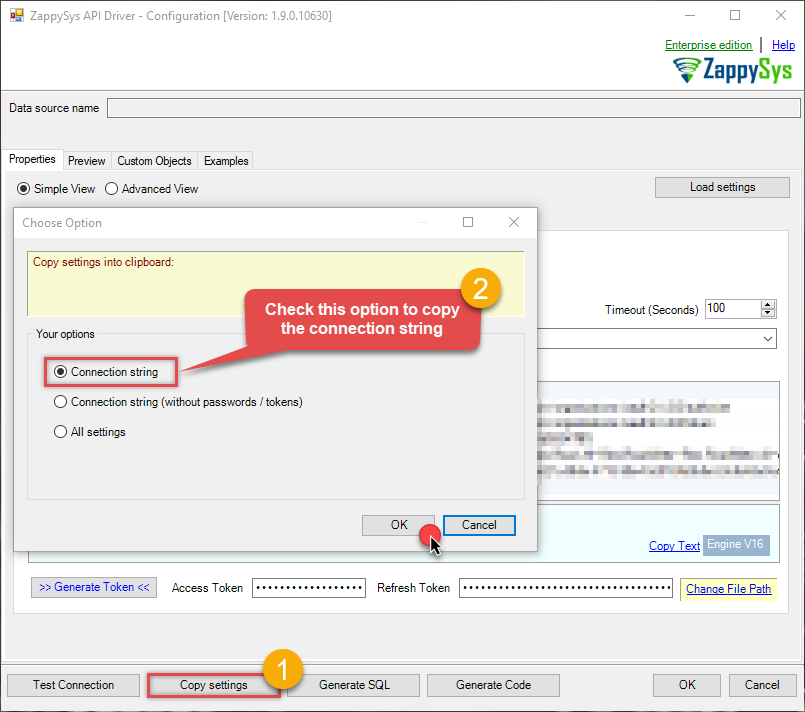
-
The window opens, telling us the connection string was successfully copied to the clipboard:
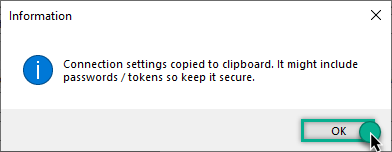
-
Then go to Data Gateway configuration and in data source configuration window click Load settings:
ShopifyDSN
ZappySys API Driver - Configuration [Version: 2.0.1.10418]ZappySys API Driver - ShopifyRead and write Shopify data effortlessly. Integrate, manage, and automate customers, orders, products, and inventory — almost no coding required.ShopifyDSN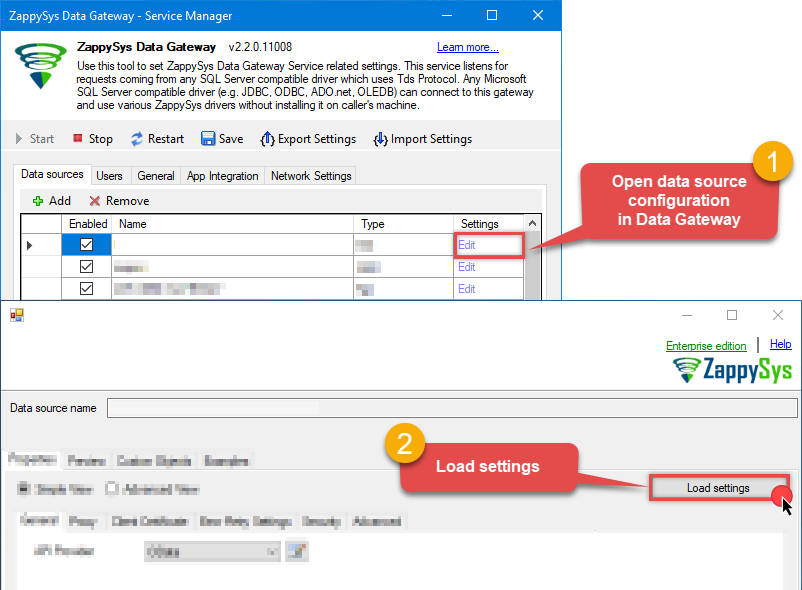
-
Once a window opens, just paste the settings by pressing
CTRL+Vor by clicking right mouse button and then Paste option.
-
Open ODBC data source configuration and click Copy settings:
-
Once done, go to the Network Settings tab and Add a firewall rule for inbound traffic:
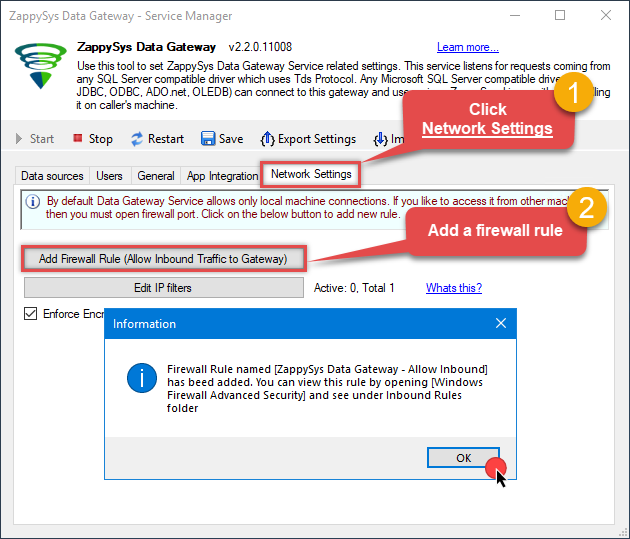
- This will initially allow all inbound traffic.
- Click Edit IP filters to restrict access to specific IP addresses or ranges.
-
Crucial Step: After creating or modifying the data source, you must:
- Click the Save button to persist your changes.
- Hit Yes when prompted to restart the Data Gateway service.
This ensures all changes are properly applied:
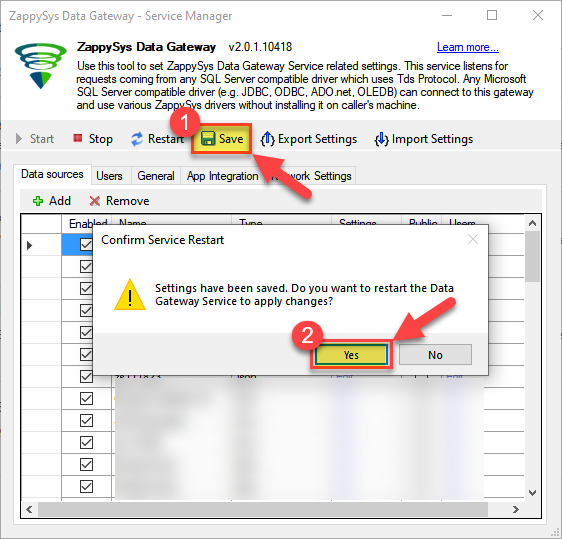 Skipping this step may cause the new settings to fail, preventing you from connecting to the data source.
Create ODBC data source to connect to the gateway
In this part we will create an ODBC data source to connect to the ZappySys Data Gateway from Alteryx. To achieve that, let's perform these steps:
-
Search for
odbcand open the ODBC Data Sources (64-bit):
-
Create a User data source (User DSN) based on the ODBC Driver 17 for SQL Server driver:
ODBC Driver 17 for SQL Server
If you don't see the ODBC Driver 17 for SQL Server driver in the list, choose a similar version. -
Then set a Name for the data source (e.g.
Gateway) and the address of the Data Gateway:ZappySysGatewayDSNlocalhost,5000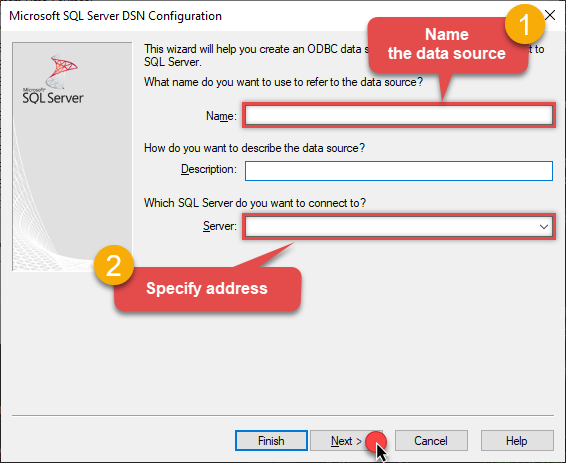 Make sure you separate the hostname and port with a comma, e.g.
localhost,5000. -
Proceed with the authentication part:
- Select SQL Server authentication
-
In the Login ID field enter the user name you created in the Data Gateway, e.g.,
john - Set Password to the one you configured in the Data Gateway
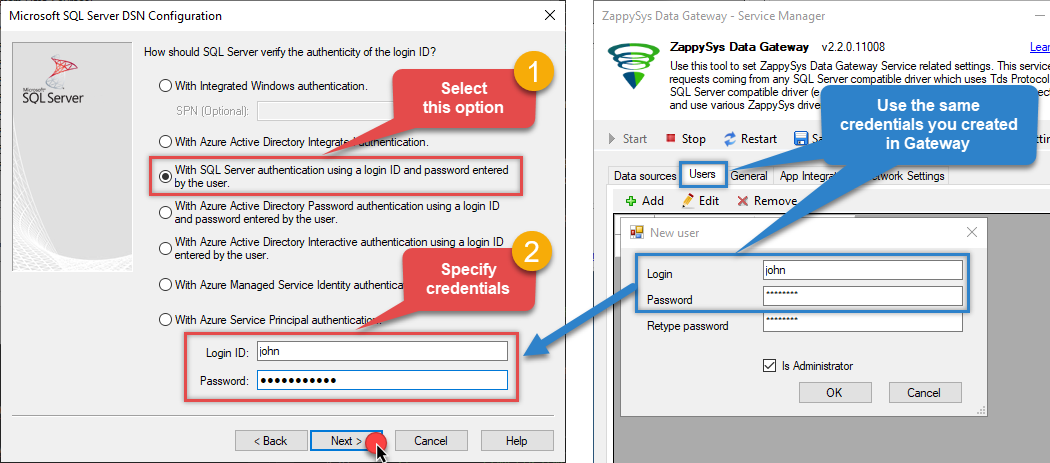
-
Then set the default database property to
ShopifyDSN(the one we used in the Data Gateway):ShopifyDSNShopifyDSN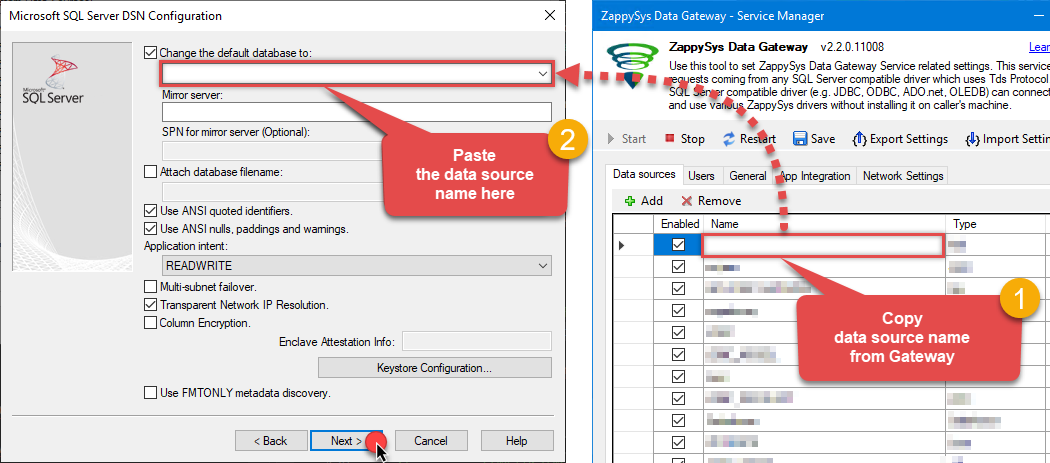 Make sure to type the data source name manually or copy/paste it directly into the field. Using the dropdown might fail because the Trust server certificate option is not enabled yet (next step).
 -
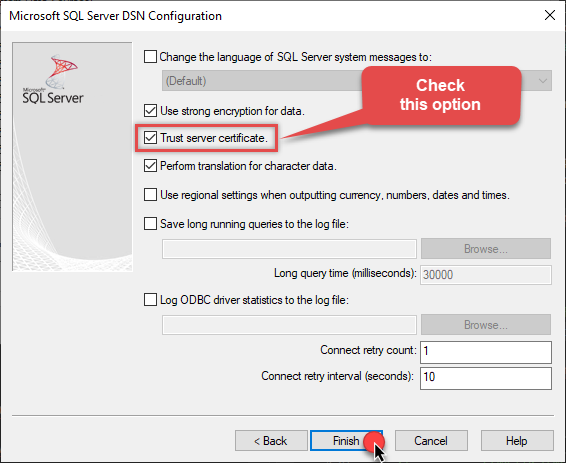
Continue by checking the Trust server certificate option:
-
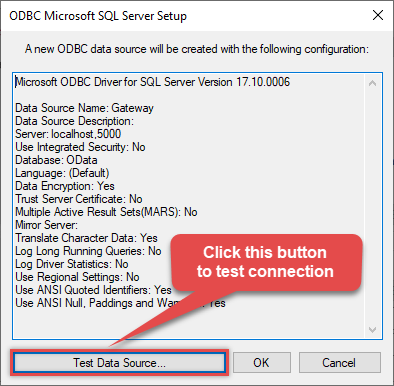
Once you do that, test the connection:
-
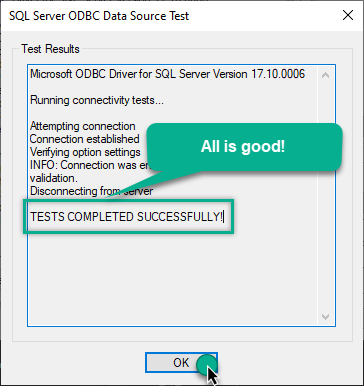
If the connection is successful, everything is good:
-
Done!
We are ready to move to the final step. Let's do it!
Access data in Alteryx via the gateway
Finally, we are ready to read data from Shopify in Alteryx via the Data Gateway. Follow these final steps:
-
Go back to Alteryx.
-
Drag an Input Data tool onto your Alteryx canvas.
-
In the Configuration pane, click Set Up a Connection.
-
Note for DCM Users: If your environment has DCM (Data Connection Manager) enabled, the classic "Generic ODBC" icon may be hidden. To find it, select Data sources on the left and type "ODBC" in the search bar.
-
Once the ODBC window opens, click Connect Asset and select your ZappySysGatewayDSN DSN from the list.
Ensure you have configured a 64-bit System DSN in the Windows ODBC Data Source Administrator before this step. -
Read the data the same way we discussed at the beginning of this article.
-
That's it!
Now you can connect to Shopify data in Alteryx via the ZappySys Data Gateway.
john and your password.
Conclusion
In this guide, we demonstrated how to connect to Shopify in Alteryx and integrate your data — all without writing complex code.
Ready to get started? Download ODBC PowerPack now or ping us via chat if you still need help: