
Create data source using Zoho CRM ODBC Driver
Video instructions
Watch this quick walkthrough to see how to configure your Zoho CRM ODBC data source, or scroll down for the step-by-step written guide.
Step-by-step instructions
-
Download and install ODBC PowerPack (if you haven't already).
-
Search for
odbcand open the ODBC Data Sources (64-bit):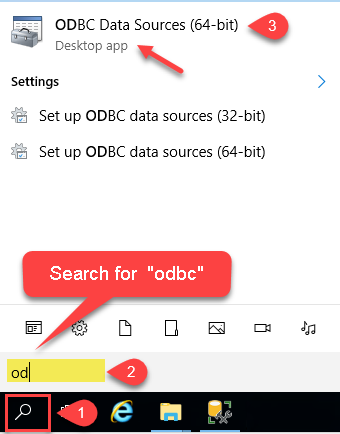
-
Create a User data source (User DSN) based on the ZappySys API Driver driver:
ZappySys API Driver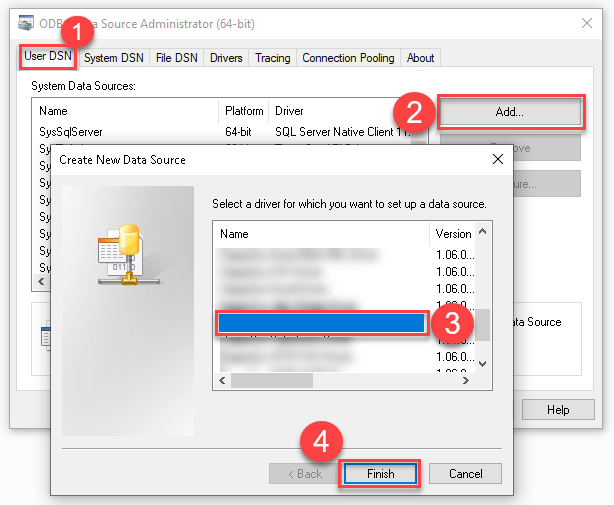
- Create and use a User DSN if the client application runs under a User Account. This is the ideal option at design time (e.g., when developing in Visual Studio). Use it for both types of applications (64-bit and 32-bit).
- Create and use a System DSN if the client application runs under a System Account (e.g., as a Windows Service). This is usually the required option in a production environment. If your Windows Service is a 32-bit application, you must use the 32-bit ODBC Data Source Administrator to configure this
-
When the Configuration window appears give your data source a name if you haven't done that already, then select "Zoho CRM" from the list of Popular Connectors. If "Zoho CRM" is not present in the list, then click "Search Online" and download it. Then set the path to the location where you downloaded it. Finally, click Continue >> to proceed with configuring the DSN:
ZohoCrmDSNZoho CRM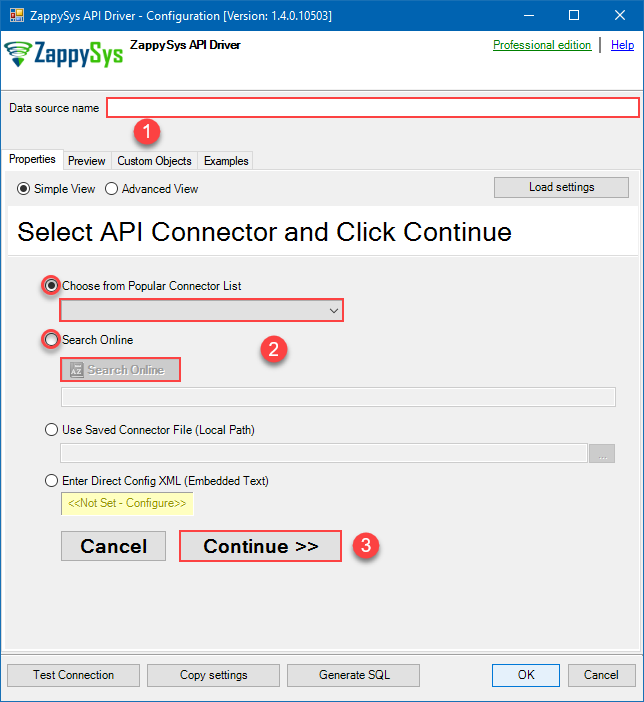
-
Select your authentication scenario below to expand connection configuration steps to:
- Configure the authentication in Zoho CRM.
- Enter those details into the ZappySys API Driver data source configuration.
OAuth
Zoho CRM authentication
OAuth Connection for Zoho CRM API [API reference]
To register custom App, perform the following steps (Detailed steps found in the help link at the end)- Go to Zoho API Console
- Click Add Client link
- Select Server-based Applications option
- Enter desired client name (Display purpose only)
- Enter some URL for Company homepage
- For Authorized Redirect URI enter https://zappysys.com/oauth (Or enter your own but we recommend using ZappySys one if possible). This URL must match on Zoho Connector UI.
- Click CREATE.
- Copy Client ID and Secret and paste on Zoho Connector UI.
API Connection Manager configuration
Just perform these simple steps to finish authentication configuration:
-
Set Authentication Type to
OAuth [OAuth] - Optional step. Modify API Base URL if needed (in most cases default will work).
- Fill in all the required parameters and set optional parameters if needed.
- Press Generate Token button to generate the tokens.
- Finally, hit OK button:
ZohoCrmDSNZoho CRMOAuth [OAuth]https://www.zohoapis.com/crm/[$Version$]Optional Parameters ClientId ClientSecret Permissions ZohoCRM.settings.all ZohoCRM.modules.all ZohoCRM.coql.READ AccountUrl https://accounts.zoho.com RedirectUrl https://zappysys.com/oauth API Version v2 RetryMode RetryWhenStatusCodeMatch RetryStatusCodeList 429 RetryCountMax 5 RetryMultiplyWaitTime True 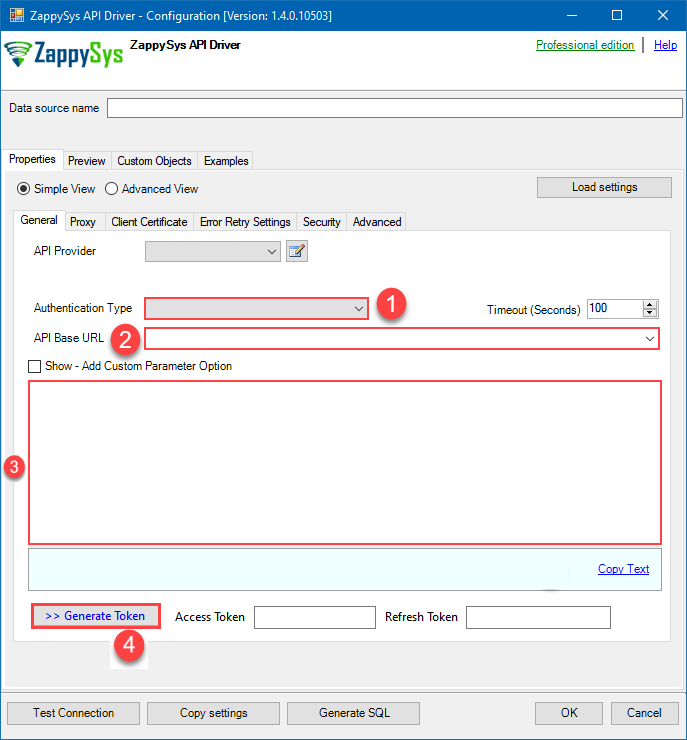 Find full details in the Zoho CRM Connector authentication reference.
-
Then go to Preview tab to start building a SQL query.
-
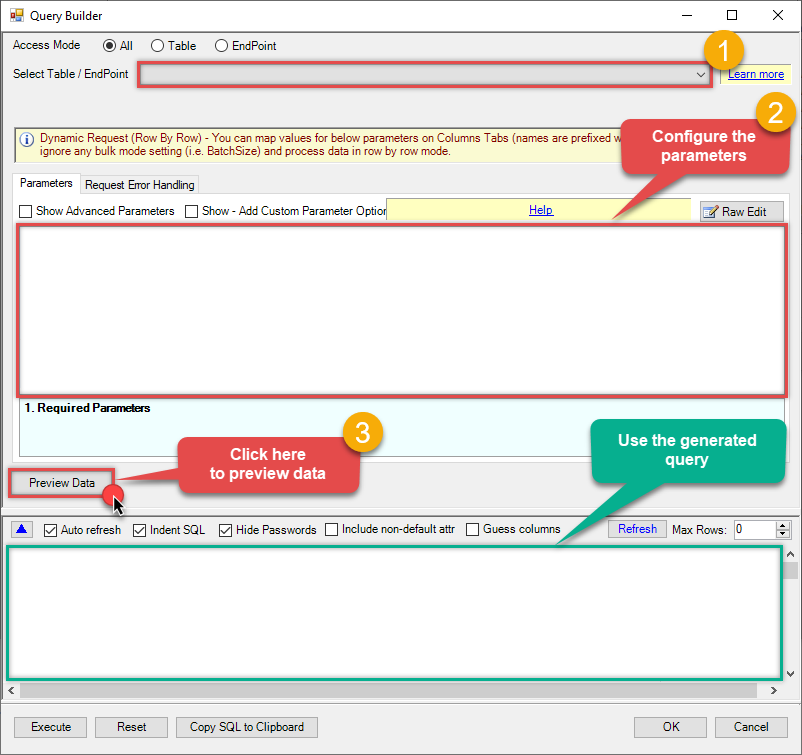
Once you do that, proceed by opening Query Builder:
 ZappySys API Driver - Zoho CRMRead and write Zoho CRM data effortlessly. Integrate, manage, and automate accounts, leads, contacts, and deals — almost no coding required.ZohoCrmDSN
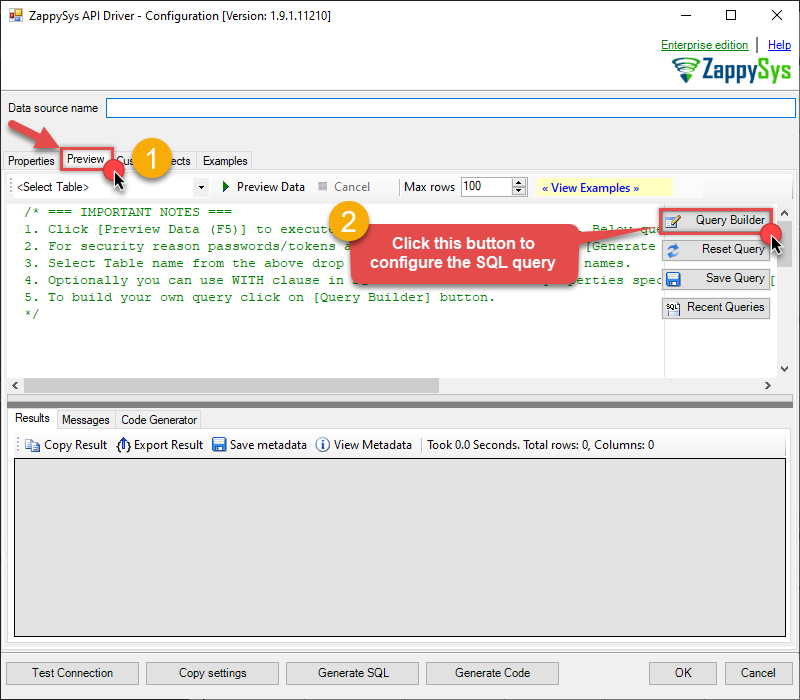
-
Then simply select the List Module Fields endpoint (action).
-
Continue by configuring the Required parameters. You can also set optional parameters too.
-
Move on by hitting Preview Data button to preview the results.
-
If you see the results you need, simply copy the generated query:
-
Click OK to use built SQL query and close the Query Builder.
-
Now hit Preview Data button to preview the data using the generated SQL query. If you are satisfied with the result, use this query in SAP Crystal Reports:
 ZappySys API Driver - Zoho CRMRead and write Zoho CRM data effortlessly. Integrate, manage, and automate accounts, leads, contacts, and deals — almost no coding required.ZohoCrmDSN
SELECT * FROM get_module_fields WITH ( "module" = 'abcd-1234-module' )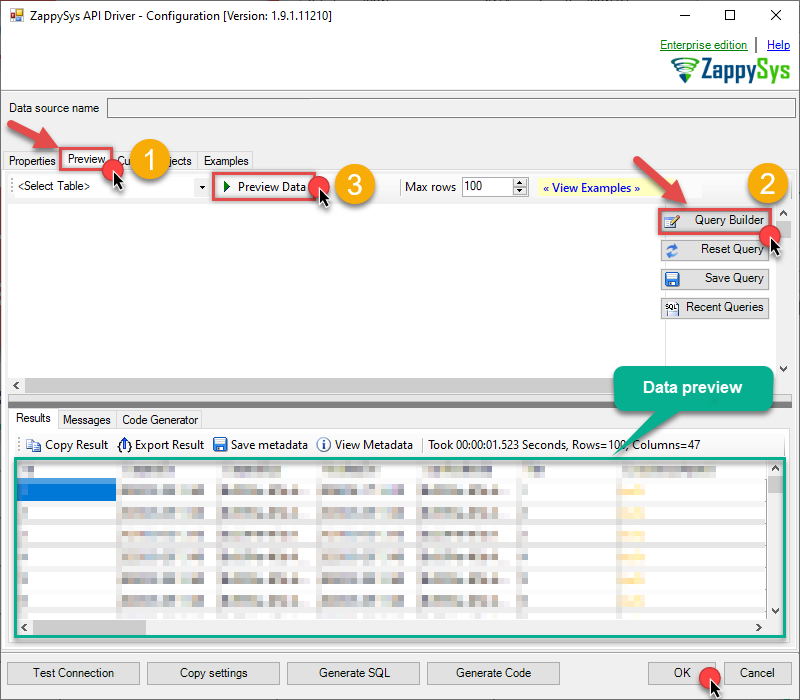 You can also access data quickly from the tables dropdown by selecting <Select table>.A
WHEREclause,LIMITkeyword will be performed on the client side, meaning that thewhole result set will be retrieved from the Zoho CRM API first, and only then the filtering will be applied to the data. If possible, it is recommended to use parameters in Query Builder to filter the data on the server side (in Zoho CRM servers).
Let's not stop here and explore SQL query examples, including how to use them in Stored Procedures and Views (virtual tables) in the next steps.
Zoho CRM SQL query examples
Use these SQL queries in your SAP Crystal Reports data source:
List module fields
SELECT * FROM get_module_fields
WITH
(
    "module" = 'abcd-1234-module'
)Create SQL view in ODBC data source
ZappySys API Drivers support flexible Query language so you can override Default Properties you configured on Data Source such as URL, Body. This way you don't have to create multiple Data Sources if you like to read data from multiple EndPoints. However not every application support supplying custom SQL to driver so you can only select Table from list returned from driver.
If you're dealing with Microsoft Access and need to import data from an SQL query, it's important to note that Access doesn't allow direct import of SQL queries. Instead, you can create custom objects (Virtual Tables) to handle the import process.
Many applications like MS Access, Informatica Designer wont give you option to specify custom SQL when you import Objects. In such case Virtual Table is very useful. You can create many Virtual Tables on the same Data Source (e.g. If you have 50 URLs with slight variations you can create virtual tables with just URL as Parameter setting.
-
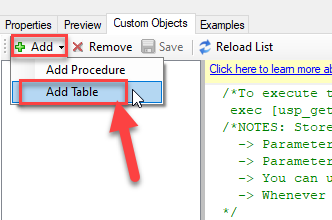
Go to Custom Objects Tab and Click on Add button and Select Add Table:
-
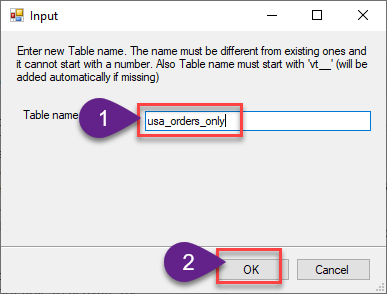
Enter the desired Table name and click on OK:
-
And it will open the New Query Window Click on Cancel to close that window and go to Custom Objects Tab.
-
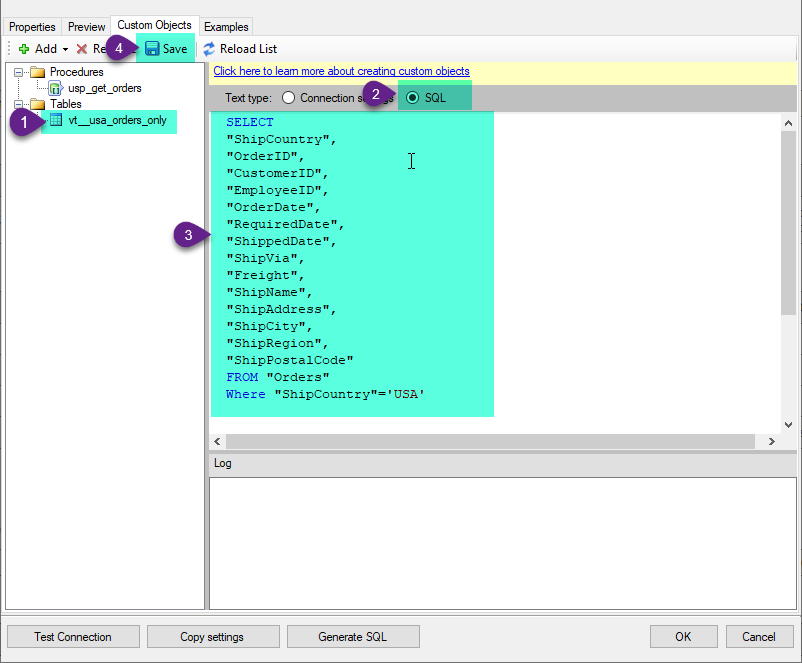
Select the created table, Select Text Type AS SQL and write the your desired SQL Query and Save it and it will create the custom table in the ZappySys Driver:
Here is an example SQL query for ZappySys Driver. You can insert Placeholders also. Read more about placeholders here
SELECT
  "ShipCountry",
  "OrderID",
  "CustomerID",
  "EmployeeID",
  "OrderDate",
  "RequiredDate",
  "ShippedDate",
  "ShipVia",
  "Freight",
  "ShipName",
  "ShipAddress",
  "ShipCity",
  "ShipRegion",
  "ShipPostalCode"
FROM "Orders"
Where "ShipCountry"='USA'
-
That's it now go to Preview Tab and Execute your custom virtual table query. In this example it will extract the orders for the USA Shipping Country only:
SELECT * FROM "vt__usa_orders_only"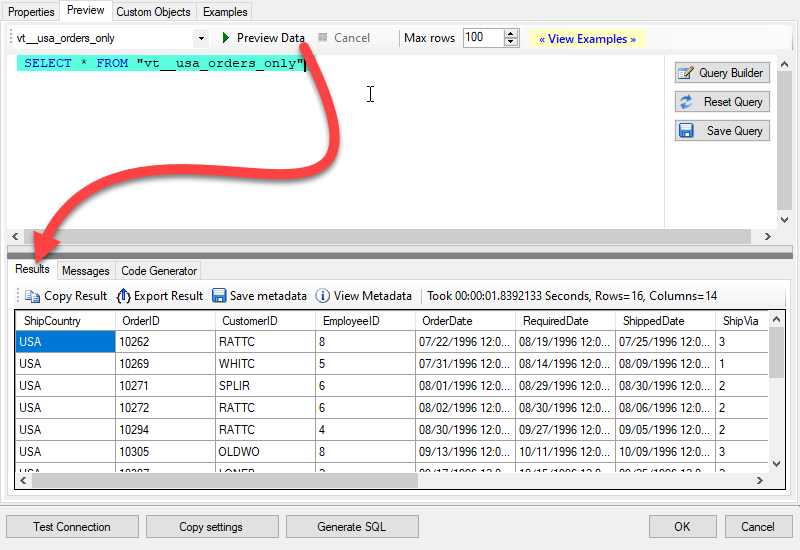
List module fields in SAP Crystal Reports via SQL view
-
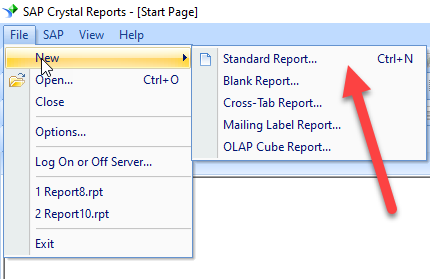
First of all, open SAP Crystal Reports and create the new Crystal Report.
-
And it will open the new data source selection window. Under ODBC(RDO) double click on the Make New Connection and Select the desired ODBC DSN, in our case we need to select ZohoCrmDSN which we created in upper section. And Click on Next.
ZohoCrmDSN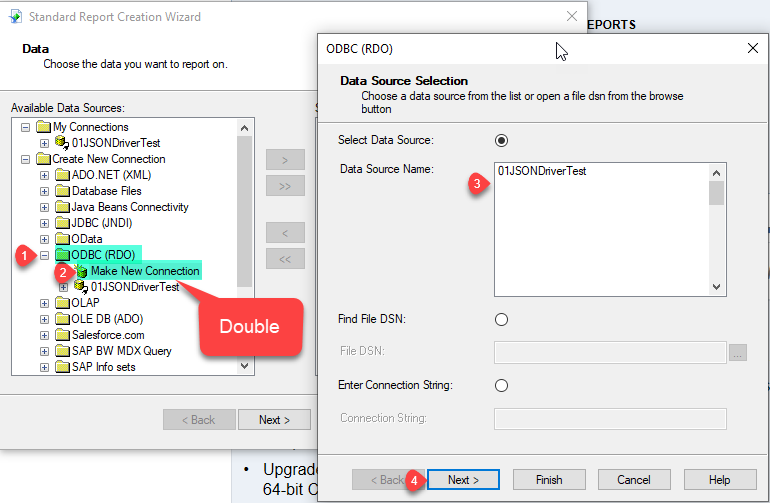
-
Expand the Connection and under the data select the desired table(s) or view(s) and click Add > button and click on Next. The list also shows the custom views (virtual tables, named
vt__...) you created in the ZohoCrmDSN data source, so you can select a saved SQL query just like a table. To type a SQL query instead, double click Add Command under the connection.Tip: Save frequently used SQL queries as custom views on the Custom Objects tab of the ZohoCrmDSN data source. Each view appears here as a separate object, so one DSN can serve many API endpoints (e.g./restaurants,/users) and every report reuses the same query instead of keeping its own Add Command SQL. See ODBC Drivers Custom Objects feature.ZohoCrmDSNZohoCrmDSN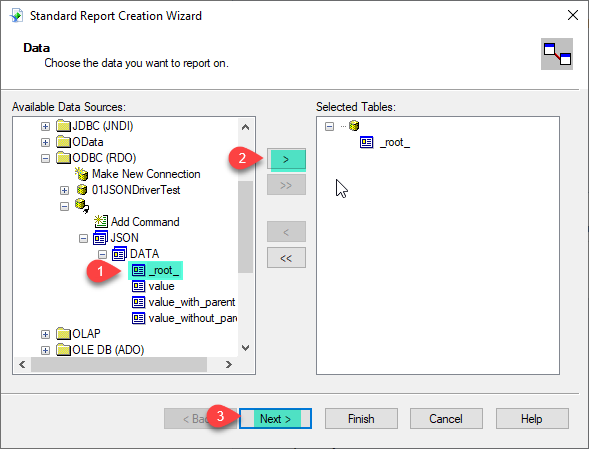
-
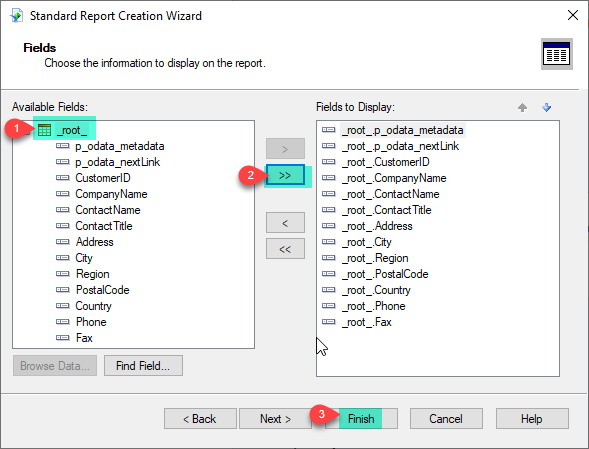
Add the desired Fields to Display in the Reports. Here we are adding all fields and click on Finish.
-
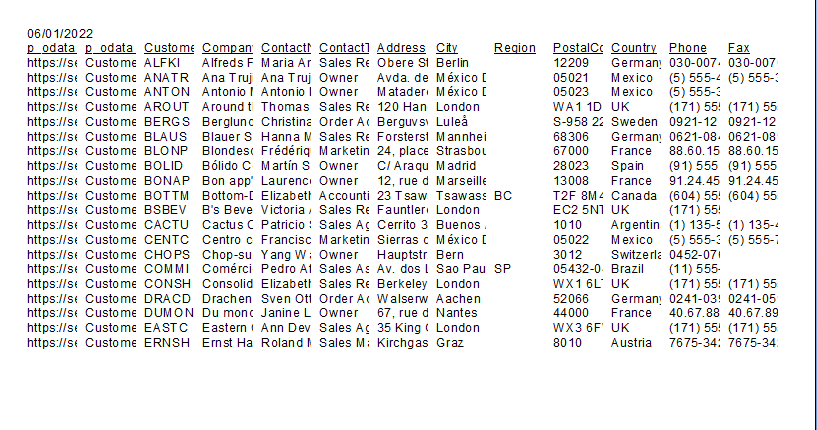
That's it and you will be able to load the data in the Report.
Advanced topics
Creating SQL stored procedures
You can create procedures to encapsulate custom logic and then only pass handful parameters rather than long SQL to execute your API call.
Steps to create Custom Stored Procedure in ZappySys Driver. You can insert Placeholders anywhere inside Procedure Body. Read more about placeholders here
-
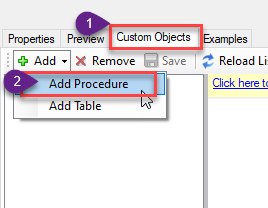
Go to Custom Objects Tab and Click on Add button and Select Add Procedure:
-
Enter the desired Procedure name and click on OK:
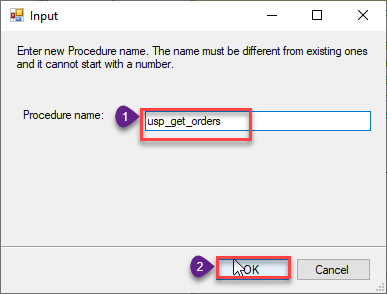
-
Select the created Stored Procedure and write the your desired stored procedure and Save it and it will create the custom stored procedure in the ZappySys Driver. Here is an example stored procedure for ZappySys Driver. You can insert Placeholders anywhere inside Procedure Body. Read more about placeholders here
CREATE PROCEDURE [usp_get_orders]
    @fromdate = '<<yyyy-MM-dd,FUN_TODAY>>'
 AS
    SELECT * FROM Orders where OrderDate >= '<@fromdate>';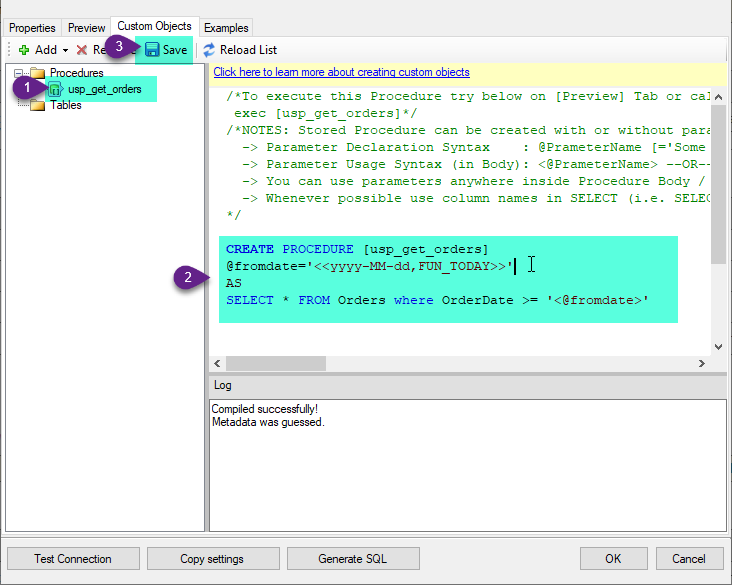
-
That's it now go to Preview Tab and Execute your Stored Procedure using Exec Command. In this example it will extract the orders from the date 1996-01-01:
Exec usp_get_orders '1996-01-01';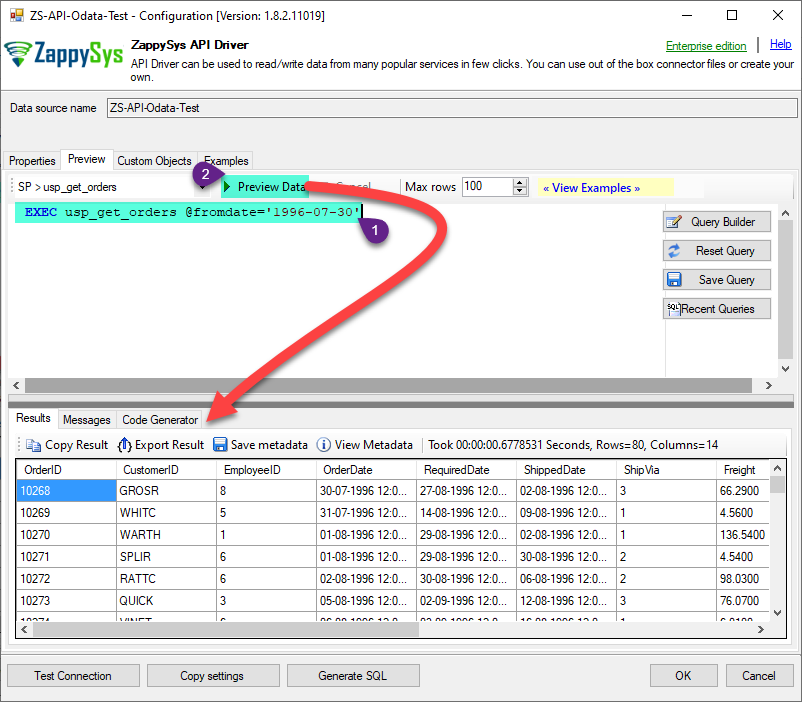
Add ZohoCrmDSN data to an existing Crystal Report
The steps above use the new report wizard. To use the ZohoCrmDSN data source in a report you already have, add it with the Database Expert:
-
Open the report and go to Database > Database Expert...
-
Under Available Data Sources expand Create New Connection > ODBC (RDO), select the ZohoCrmDSN DSN, click Next and then Finish. If you used this DSN before, it is listed under My Connections instead.
-
Expand the connection and select the table(s), custom view(s) (
vt__...) or Add Command for a SQL query, then click the > button to move them to Selected Tables and click OK. -
If the report already has other tables, Crystal Reports opens the Links tab. Link the new object to the existing tables on a common column (or remove the suggested links if they are not related).
-
Open View > Field Explorer, expand Database Fields and drag the new fields onto the report.
Point an existing table to the ZohoCrmDSN data source
To switch a table the report already uses (e.g. one from another DSN) to an object of ZohoCrmDSN without rebuilding the report, go to Database > Set Datasource Location..., select the table in Current Data Source, select the new table or custom view under the ZohoCrmDSN connection in Replace with and click Update. Then run Database > Verify Database to refresh the field list.
Zoho CRM Connector actions
Need another use case? Pick the next Zoho CRM action in SAP Crystal Reports below.
- Add / Update Tags for records
- Delete [Dynamic Endpoint]
- Gets record count for specific tag for module
- Insert [Dynamic Endpoint]
- List Module Settings
- List Modules
- List Tags
- List Territories
- List Views
- Read [Dynamic Endpoint]
- Read [Dynamic Endpoint] (Use this for fewer than 50 Fields in v3+)
- Read Data (COQL Query Builder)
- Read Data (Direct COQL Query - Auto Paging)
- Search [Dynamic Endpoint]
- Update [Dynamic Endpoint]
- Upsert [Dynamic Endpoint] (Update or Insert)
- Make Generic REST API Request
- Make Generic REST API Request (Bulk Write)
Conclusion
You now know how to list module fields in SAP Crystal Reports without writing complex code. Zoho CRM ODBC Driver handled pagination and authentication automatically.
Ready to get started? Download the trial or ping us via chat if you need help: