Prerequisites
Before we begin, make sure the following prerequisites are met:
- SQL Server Data Tools (SSDT) designer installed for Visual Studio.
- SQL Server Integration Services Projects 2022+ Visual Studio extension installed.
- SSIS PowerPack is installed.
Delete [dynamic endpoint] in SSIS
-
Open Visual Studio and click Create a new project.
-
Select Integration Services Project. Enter a name and location for your project, then click OK.
-
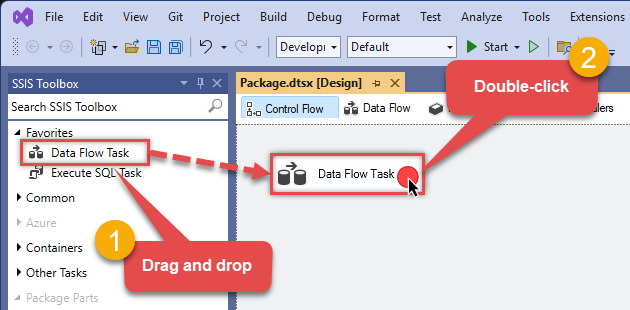
From the SSIS Toolbox, drag and drop a Data Flow Task onto the Control Flow surface, and double-click it:
-
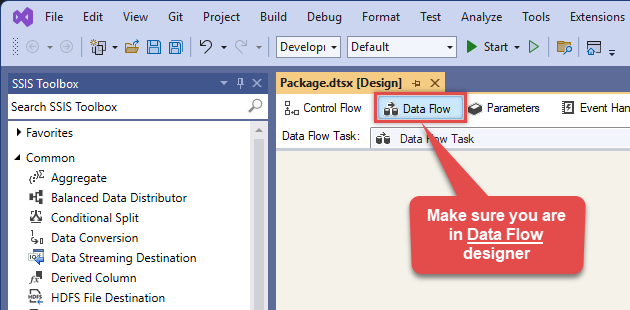
Make sure you are in the Data Flow Task designer:
-
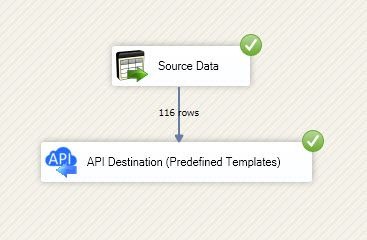
Read the data from the source, using any desired source component. You can even make an API call using the ZappySys JSON/XML/API Source and read data from there. In this example, we will use an OLE DB Source component to read real-time data from a SQL Server database.
-
From the SSIS Toolbox drag and drop API Destination (Predefined Templates) on the Data Flow Designer surface and connect source component with it, and double click to edit it.
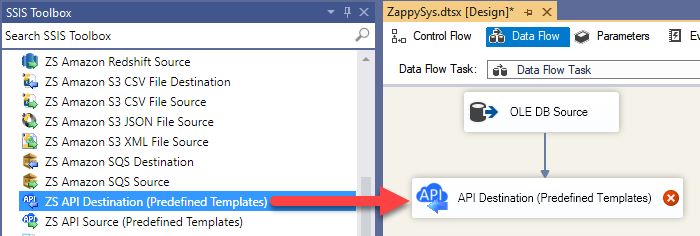
-
Select New Connection to create a new connection:
API Destination - Zoho CRMRead and write Zoho CRM data effortlessly. Integrate, manage, and automate accounts, leads, contacts, and deals — almost no coding required.
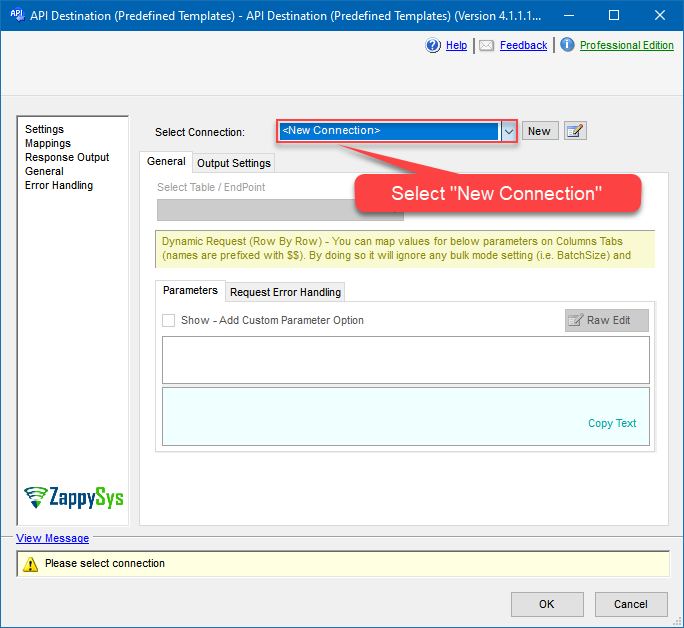
-
To configure the Zoho CRM connector, choose one of the following methods:
- Choose from Popular Connector List: Select a pre-installed service directly from the dropdown menu.
- Search Online: Use this to find and download a new connector file to your computer.
- Use Saved/Downloaded File: Once the file is downloaded, browse your local drive to load it into the configuration.
After that, just click Continue >>:
Zoho CRM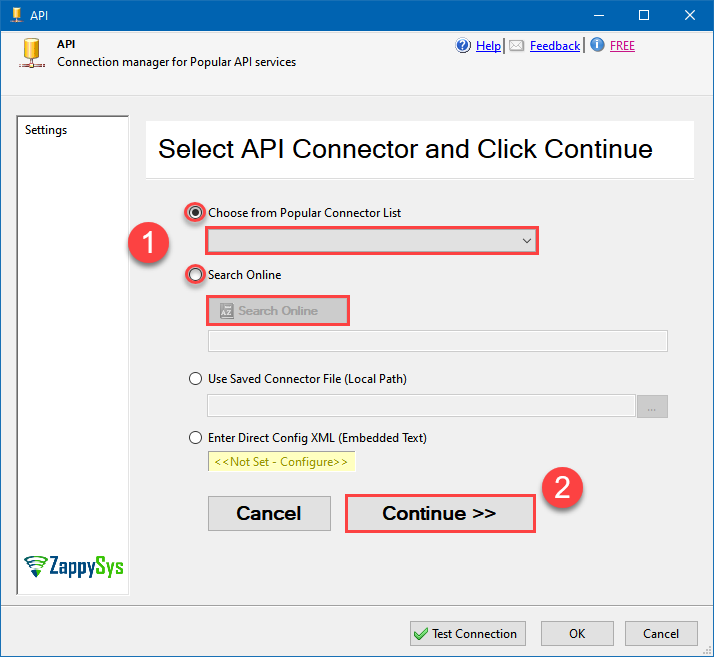
-
Proceed with selecting the desired Authentication Type. Then select API Base URL (in most cases default one is the right one). Finally, fill in all the required parameters and set optional parameters if needed. You may press a link Steps to Configure which will help set certain parameters. More info is available in Authentication section.
OAuth
Zoho CRM authentication
OAuth Connection for Zoho CRM API [API reference]
To register custom App, perform the following steps (Detailed steps found in the help link at the end)- Go to Zoho API Console
- Click Add Client link
- Select Server-based Applications option
- Enter desired client name (Display purpose only)
- Enter some URL for Company homepage
- For Authorized Redirect URI enter https://zappysys.com/oauth (Or enter your own but we recommend using ZappySys one if possible). This URL must match on Zoho Connector UI.
- Click CREATE.
- Copy Client ID and Secret and paste on Zoho Connector UI.
API Connection Manager configuration
Just perform these simple steps to finish authentication configuration:
-
Set Authentication Type to
OAuth [OAuth] - Optional step. Modify API Base URL if needed (in most cases default will work).
- Fill in all the required parameters and set optional parameters if needed.
- Press Generate Token button to generate the tokens.
- Finally, hit OK button:
Zoho CRMOAuth [OAuth]https://www.zohoapis.com/crm/[$Version$]Optional Parameters ClientId ClientSecret Permissions ZohoCRM.settings.all ZohoCRM.modules.all ZohoCRM.coql.READ AccountUrl https://accounts.zoho.com RedirectUrl https://zappysys.com/oauth API Version v2 RetryMode RetryWhenStatusCodeMatch RetryStatusCodeList 429 RetryCountMax 5 RetryMultiplyWaitTime True 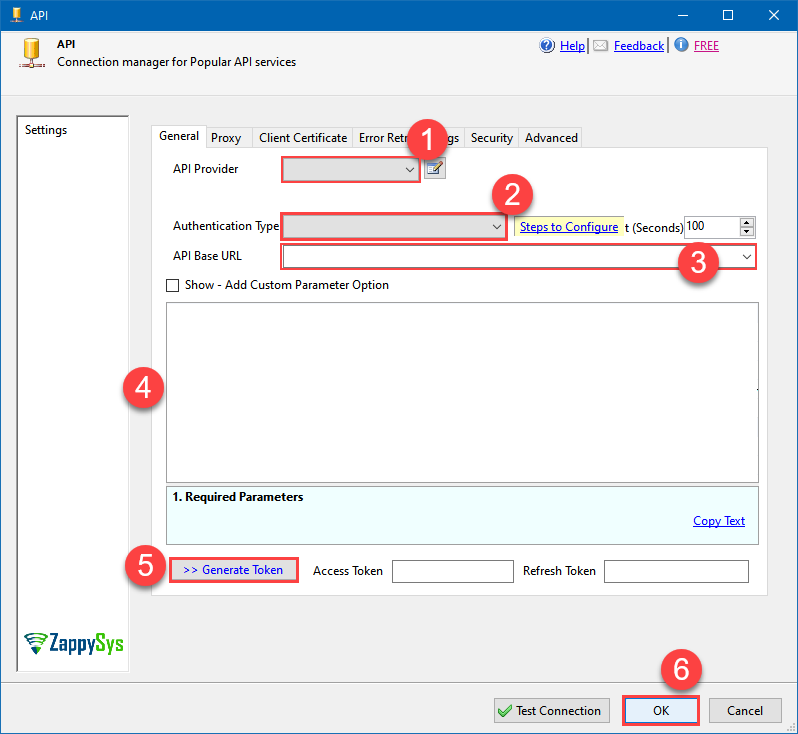 Find full details in the Zoho CRM Connector authentication reference.
 -
Select [Dynamic Table] table from the dropdown, then select Delete as operation, and hit Preview Data:
 API Destination - Zoho CRMRead and write Zoho CRM data effortlessly. Integrate, manage, and automate accounts, leads, contacts, and deals — almost no coding required.Zoho CRM[Dynamic Table]Delete
Required Parameters Record ID(s) - Use Comma for multiple (e.g. 111,222) Fill-in the parameter... Optional Parameters Fire Wordflow Trigger 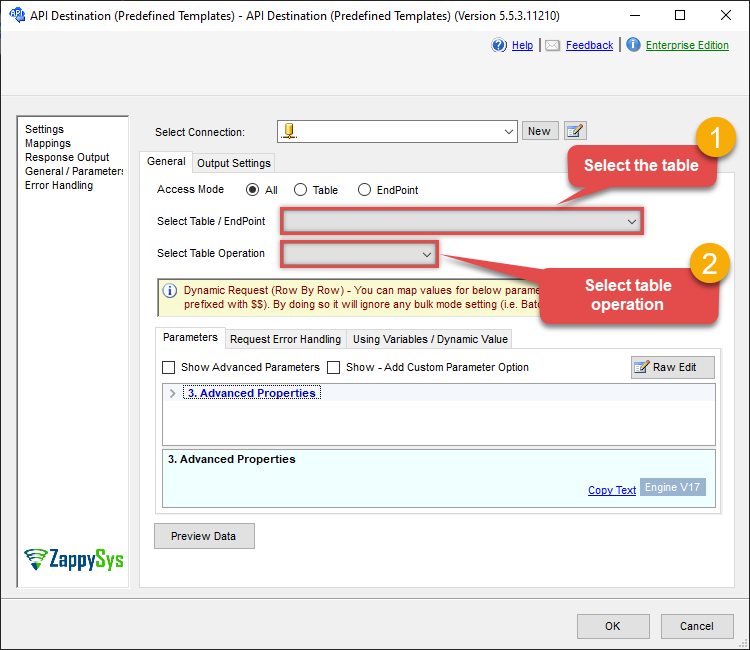
-
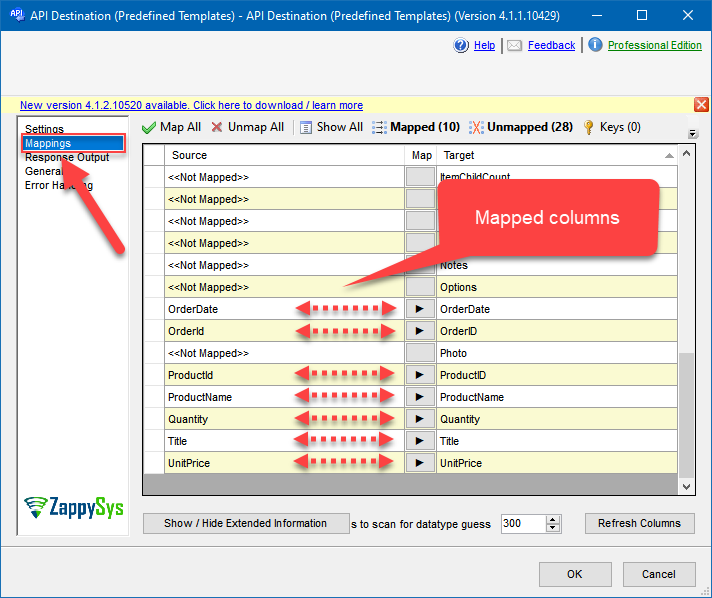
Finally, map the desired columns:
API Destination - Zoho CRMRead and write Zoho CRM data effortlessly. Integrate, manage, and automate accounts, leads, contacts, and deals — almost no coding required.
-
That's it; we successfully configured the POST API Call. In a few clicks we configured the Zoho CRM API call using ZappySys Zoho CRM Connector
Deploy SSIS package to Azure Data Factory (ADF)
Once your SSIS package is complete,
deploy it to the
Azure-SSIS runtime
within Azure Data Factory.
The setup process requires you
to upload the
SSIS PowerPack
installer to Azure Blob Storage
and then customize the runtime configuration using the main.cmd file.
For a complete walkthrough of these steps,
see our detailed guide on the
Azure Data Factory (SSIS) and Zoho CRM integration.
Zoho CRM Connector actions
Need another use case? Pick the next Zoho CRM action in Azure Data Factory (SSIS) below.
- Add / Update Tags for records
- Gets record count for specific tag for module
- Insert [Dynamic Endpoint]
- List Module Fields
- List Module Settings
- List Modules
- List Tags
- List Territories
- List Views
- Read [Dynamic Endpoint]
- Read [Dynamic Endpoint] (Use this for fewer than 50 Fields in v3+)
- Read Data (COQL Query Builder)
- Read Data (Direct COQL Query - Auto Paging)
- Search [Dynamic Endpoint]
- Update [Dynamic Endpoint]
- Upsert [Dynamic Endpoint] (Update or Insert)
- Make Generic REST API Request
- Make Generic REST API Request (Bulk Write)
Conclusion
You now know how to delete [dynamic endpoint] in Azure Data Factory (SSIS) without writing complex code. Zoho CRM SSIS Connector handled pagination and authentication automatically.
Ready to get started? Download the trial or ping us via chat if you need help: