How to integrate JSON File with SSRS

Learn how to quickly and efficiently connect JSON File with SSRS for smooth data access.
Read and write JSON files effortlessly. Extract, filter, and sync JSON from local files and strings for analytics, reporting, and data pipelines — almost no coding required. You can do it all using the high-performance JSON File ODBC Driver for SSRS (often referred to as the JSON File Connector). We'll walk you through the entire setup.
Ready to dive in? Download the product to jump right in, or follow the step-by-step guide below to see how it works.
Video Tutorial
This video covers the following topics and more, so please watch carefully. After watching the video, follow the steps outlined in this article:
- How to download and install the required PowerPack for JSON File integration in SSRS
- How to configure the connection for JSON File
- Features of the ZappySys JSON Driver (Authentication / Query Language / Examples / Driver UI)
- How to use the JSON File in SSRS

Create data source in ZappySys Data Gateway
In this section we will create a data source for JSON File in the Data Gateway. Let's follow these steps to accomplish that:
-
Download and install ODBC PowerPack (if you haven't already).
-
Search for
gatewayin the Windows Start Menu and open ZappySys Data Gateway Configuration: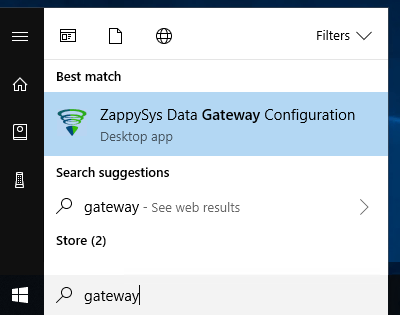
-
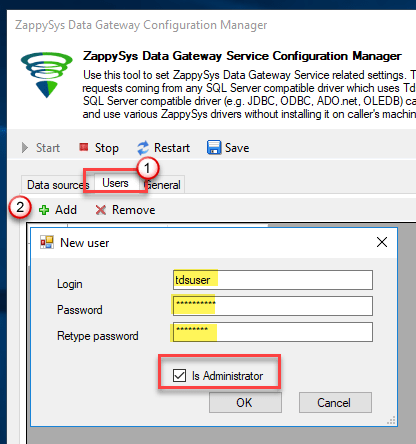
Go to the Users tab and follow these steps to add a Data Gateway user:
- Click the Add button
-
In the Login field enter a username, e.g.,
john - Then enter a Password
- Check the Is Administrator checkbox
- Click OK to save
-
Now we are ready to add a data source:
- Click the Add button
- Give the Data source a name (have it handy for later)
- Then select Native - ZappySys JSON Driver
- Finally, click OK
JsonFileDSNZappySys JSON Driver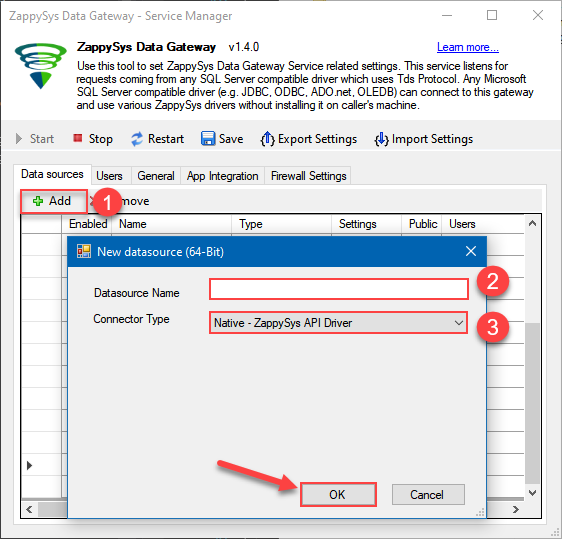
-
You can use pass single file or multiple file path using wildcard pattern in path and you can use select single file by clicking [...] path button or multiple file using wildcard pattern in path.
Note: If you want to operation with multiple files then use wild card pattern as below
(when you use wild card pattern in source path then system will treat target path as folder regardless you end with slash)

C:\SSIS\Test\reponse.json (will read only single reponse.json file)
C:\SSIS\Test\j*.json (all files starting with file name)
C:\SSIS\Test\*.json (all files with .json Extension and located under folder subfolder)
-
Now enter JSONPath expression in Array Filter textbox to extract only specific part of JSON file as below ($.value[*] will get content of value attribute from JSON document. Value attribute is array of JSON documents so we have to use [*] to indicate we want all records of that array)
NOTE: Here, We are using our desired filter, but you need to select your desired filter based on your requirement.
Click on Test Connection button to view whether the Test Connection is SUCCESSFUL or Not.$.value[*]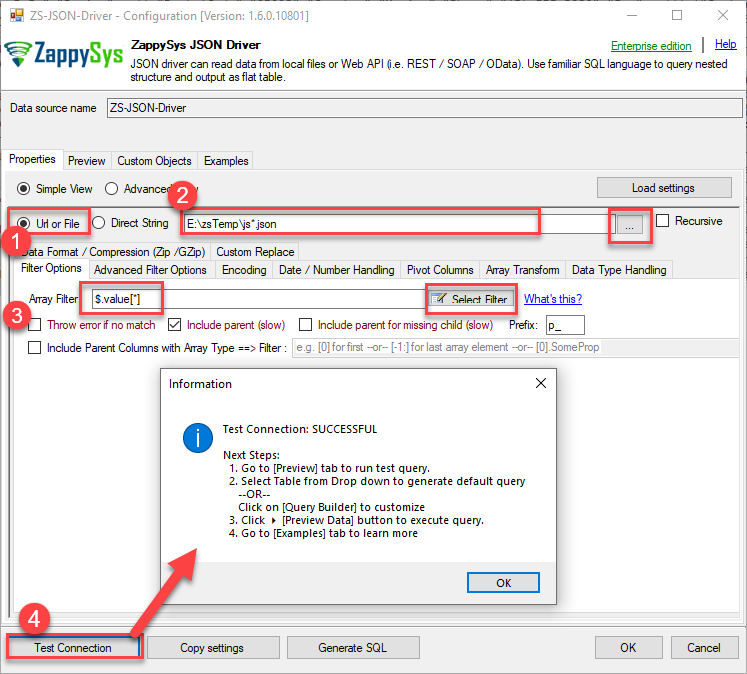
-
Once you configured a data source, you can preview data. Hit Preview tab, and use similar settings to preview data:
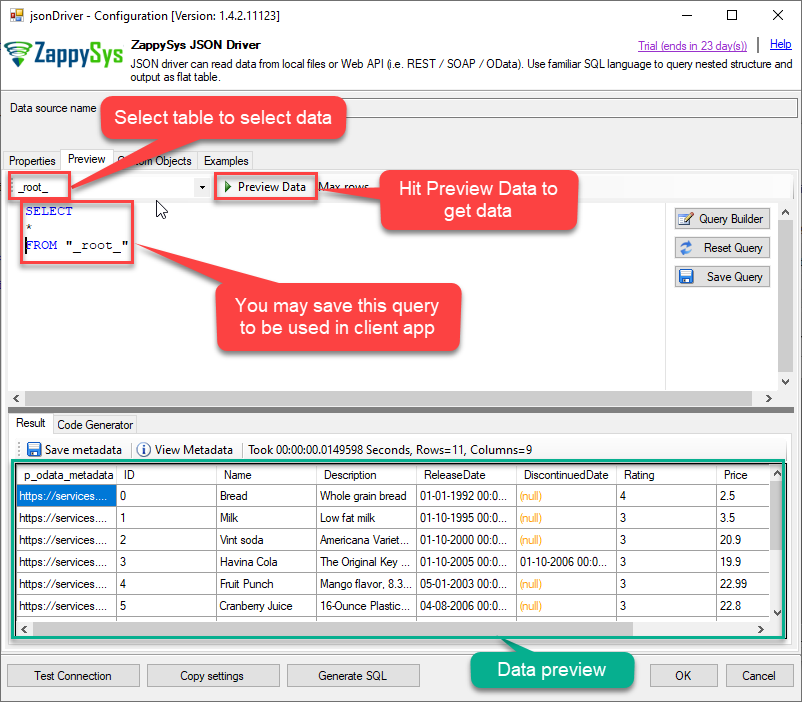
-
Click OK to finish creating the data source
-
That's it; we are done. In a few clicks we configured the call to JSON File using ZappySys JSON File Connector
-
Once done, go to the Network Settings tab and Add a firewall rule for inbound traffic:
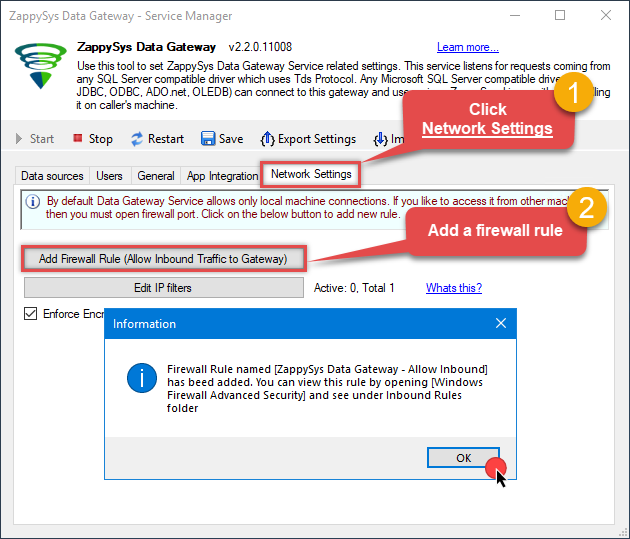
- This will initially allow all inbound traffic.
- Click Edit IP filters to restrict access to specific IP addresses or ranges.
-
Crucial Step: After creating or modifying the data source, you must:
- Click the Save button to persist your changes.
- Hit Yes when prompted to restart the Data Gateway service.
This ensures all changes are properly applied:
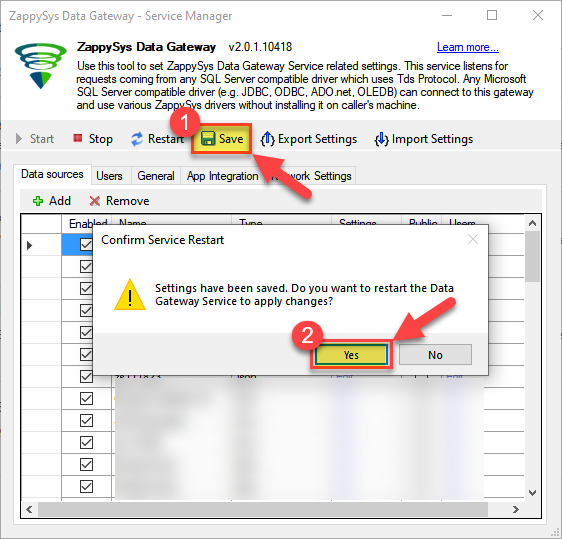 Skipping this step may cause the new settings to fail, preventing you from connecting to the data source.
Read data in SSRS from ZappySys Data Gateway
-
Open Visual Studio and create a new SSRS project.
-
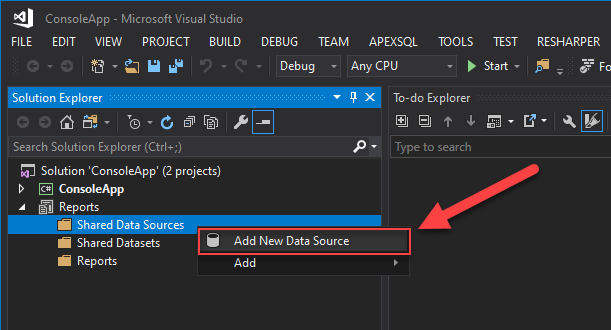
Then add a new Shared Data Source (you can create a non-shared data source inside report too):
-
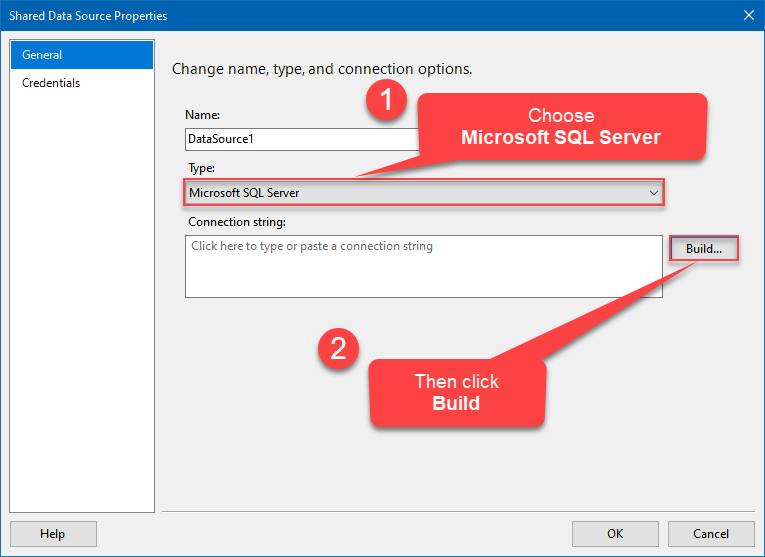
Continue with creating the Shared Data Source. Select Microsoft SQL Server as Type and hit Build button to proceed further:
-
Once a window opens, configure it similarly. Configure "JsonFileDSN" as database name. Finally, hit Test Connection and OK:
JsonFileDSN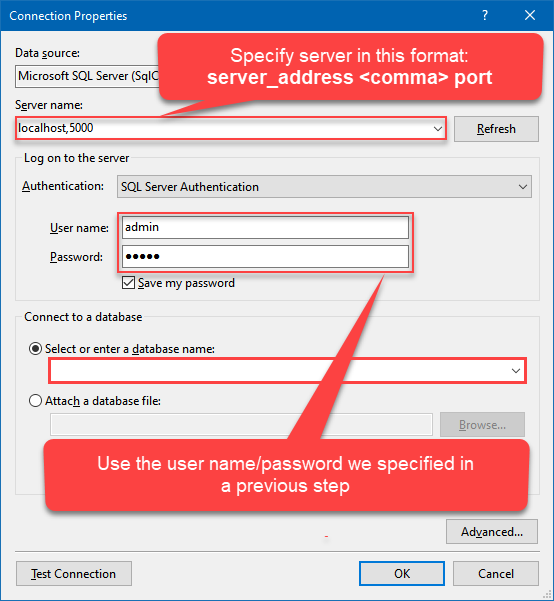
-
Another window opens, and it should look similarly to this one below which ends the creation of a Data Source:
DataSource=localhost,5000;Initial Catalog=JsonFileDSN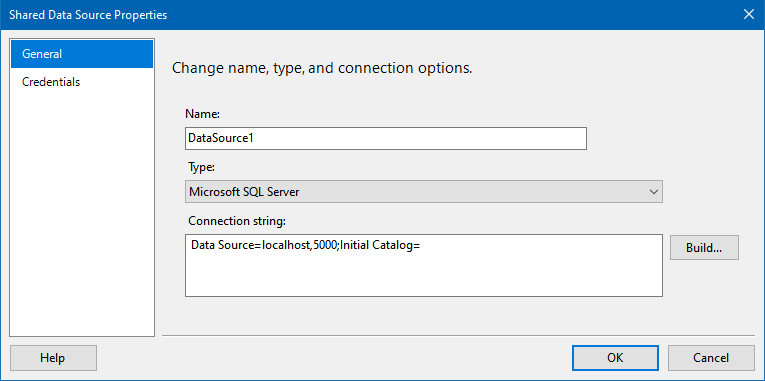
-
Now it's time to create a Dataset. If you don't have a report created, in one of the wizard's steps it will look like this:
SELECT * FROM Orders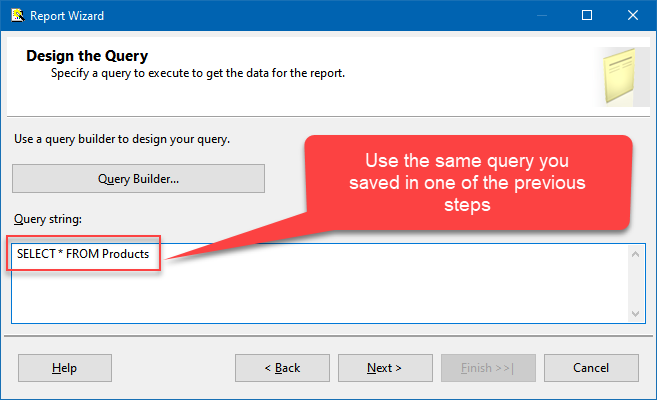
-
Finally, once you complete the report, similar results will show up:
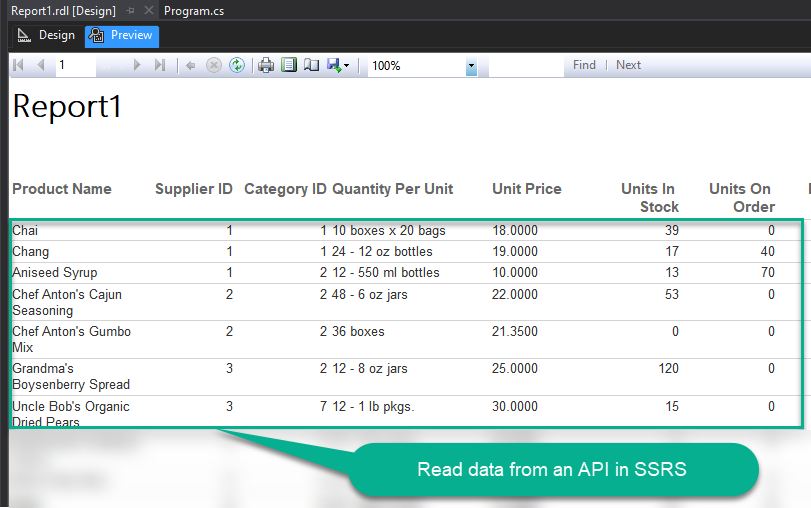
Passing Parameters to SSRS Report / Filter data
If you want to parameterize your report, then refer to this article
Conclusion
In this article we showed you how to connect to JSON File in SSRS and integrate data without writing complex code — all of this was powered by JSON File ODBC Driver.
Download ODBC PowerPack now or ping us via chat if you have any questions or are looking for a specific feature (you can also reach out to us by submitting a ticket):