How to integrate JSON with MS Access


Learn how to quickly and efficiently connect JSON with MS Access for smooth data access.
Read and write JSON data effortlessly. Extract, filter, and sync JSON from URLs, strings, and local files for analytics, reporting, and data pipelines — almost no coding required. You can do it all using the high-performance JSON ODBC Driver for MS Access (often referred to as the JSON Connector). We'll walk you through the entire setup.
Ready to dive in? Download the product to jump right in, or follow the step-by-step guide below to see how it works.
Create data source using JSON ODBC Driver
Step-by-step instructions
To get data from JSON using MS Access, we first need to create an ODBC data source. We will later read this data in MS Access. Perform these steps:
-
Download and install ODBC PowerPack (if you haven't already).
-
Search for
odbcand open the ODBC Data Sources (64-bit):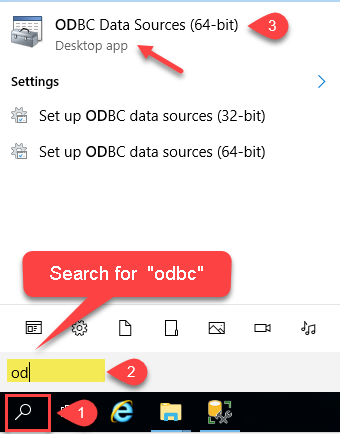
-
Create a User data source (User DSN) based on the ZappySys JSON Driver driver:
ZappySys JSON Driver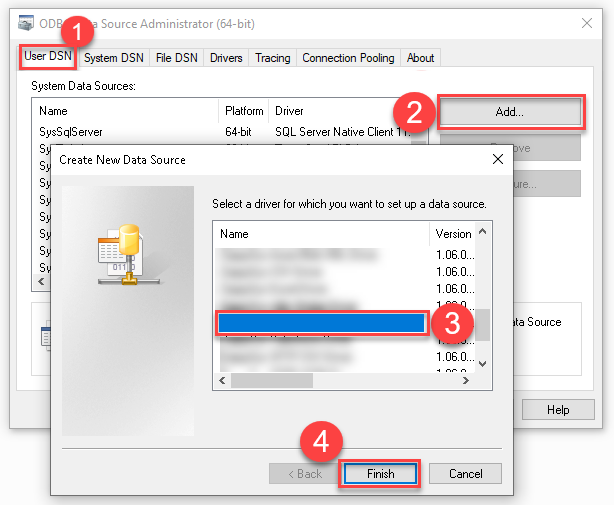
- Create and use a User DSN if the client application runs under a User Account. This is the ideal option at design time (e.g., when developing in Visual Studio). Use it for both types of applications (64-bit and 32-bit).
- Create and use a System DSN if the client application runs under a System Account (e.g., as a Windows Service). This is usually the required option in a production environment. If your Windows Service is a 32-bit application, you must use the 32-bit ODBC Data Source Administrator to configure this
-
Select Url or File and paste the following Url for this example OR you can load existing connection string as per this article.
NOTE: Here for demo, We are using odata API, but you need to refer your own API documentation and based on that you need to use your own API URL and need to configure connection based on API Authentication type
-
Now enter JSONPath expression in Array Filter textbox to extract only specific part of JSON file as below ($.value[*] will get content of value attribute from JSON document. Value attribute is array of JSON documents so we have to use [*] to indicate we want all records of that array)
NOTE: Here, We are using our desired filter, but you need to select your desired filter based on your requirement.
Click on Test Connection button to view whether the Test Connection is SUCCESSFUL or Not.$.value[*]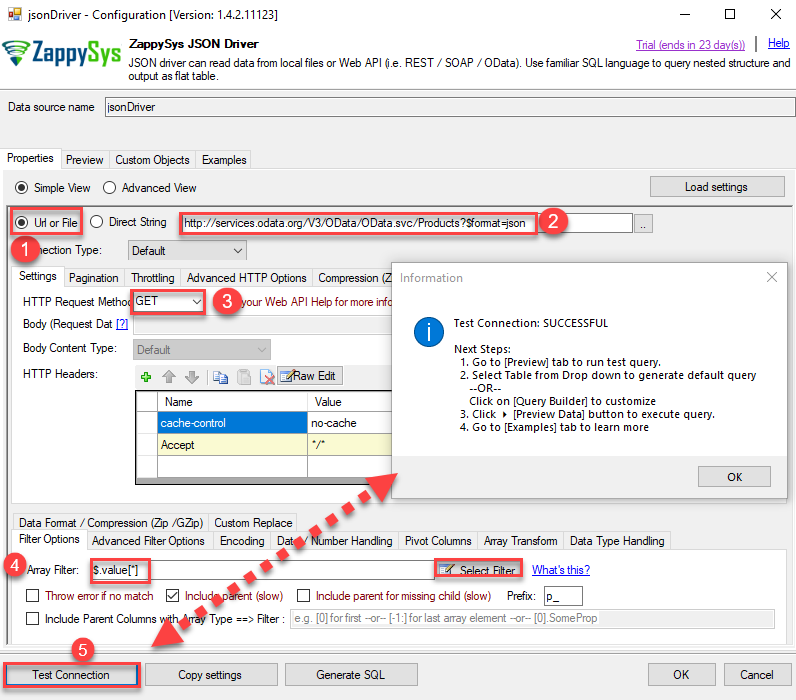
-
Once you configured a data source, you can preview data. Hit Preview tab, and use similar settings to preview data:
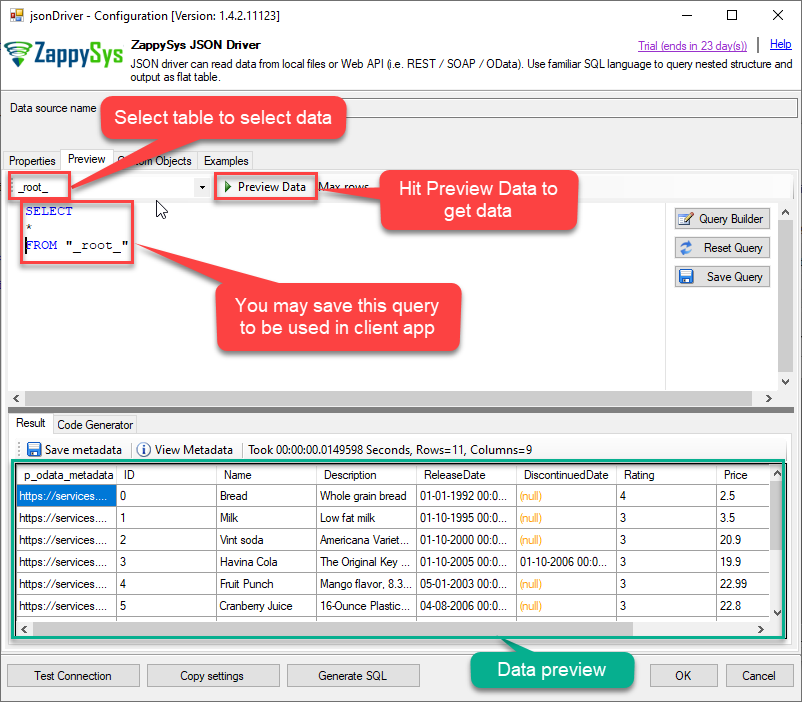
-
Click OK to finish creating the data source
-
That's it; we are done. In a few clicks we configured the call to JSON API using ZappySys JSON Connector.
Video Tutorial

Read data in Microsoft Access from the ODBC data source
-
First of all, open MS Access and create a new MS Access database.
-
In the next step, start loading ODBC data source we created:
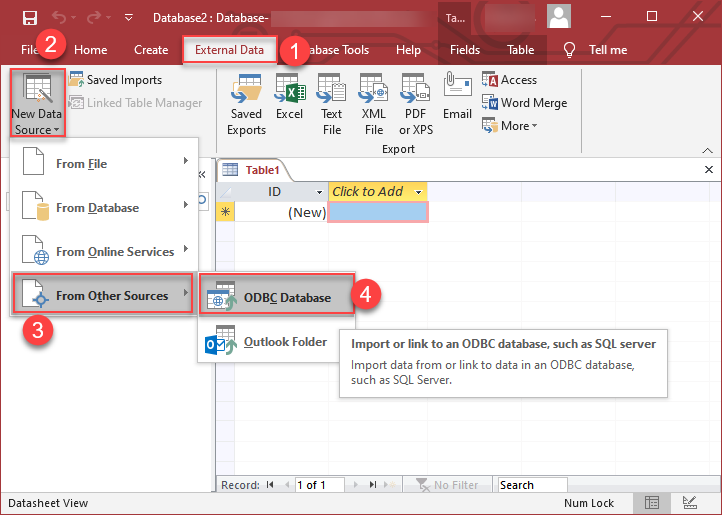
-
Then click next until data source selection window appears. Select the data source we created in one of the previous steps and hit OK:
JsonDSN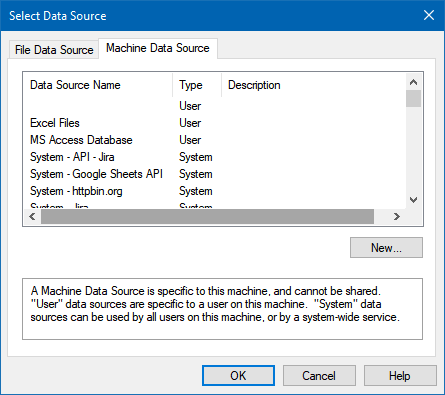
-
Continue with tables and views selection. You can extract multiple tables or views:
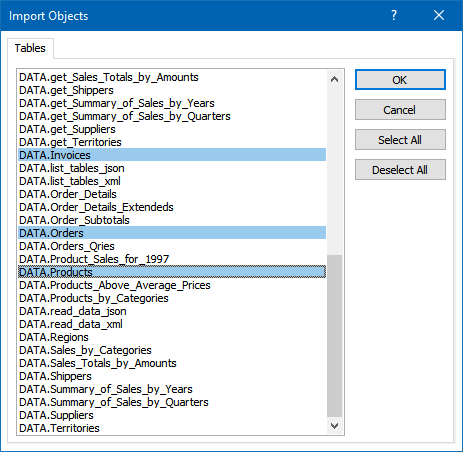
-
Finally, wait while data is being loaded and once done you should see a similar view:
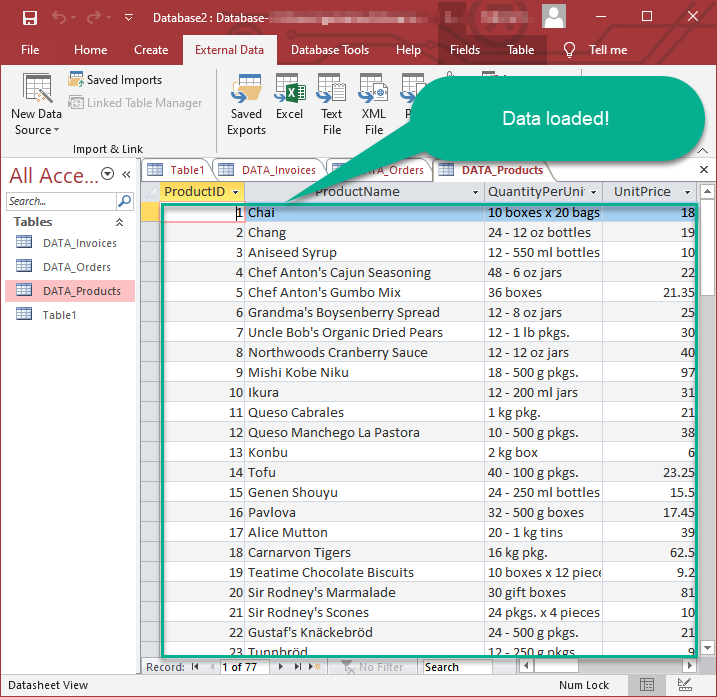
Using Linked Table for Live Data (Slow)
Linked tables in Microsoft Access are crucial for online databases because they enable real-time access to centralized data, support scalability, facilitate collaboration, enhance data security, ease maintenance tasks, and allow integration with external systems. They provide a flexible and efficient way to work with data stored in online databases, promoting cross-platform compatibility and reducing the need for data duplication.
-
Real-Time Data Access:
Access can interact directly with live data in online databases, ensuring that users always work with the most up-to-date information. -
Centralized Data Management:
Online databases serve as a centralized repository, enabling efficient management of data from various locations. -
Ease of Maintenance:
Updates or modifications to the online database structure are automatically reflected in Access, streamlining maintenance tasks. -
Adaptability to Changing Requirements:
Linked tables provide flexibility, allowing easy adaptation to changing data storage needs or migration to different online database systems.
Let's create the linked table.
-
Launch Microsoft Access and open the database where you want to create the linked table.
-
Go to the "External Data" tab on the Ribbon. >> "New Data Source" >> "From Other Sources" >> "ODBC Database"
-
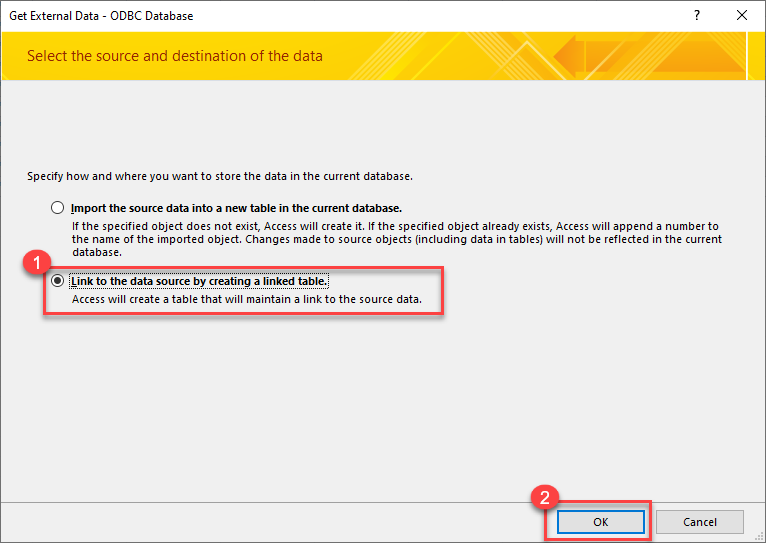
Select the option "Link to Data Source by creating a linked table:
-
Continue by clicking 'Next' until the Data Source Selection window appears. Navigate to the Machine Data Source tab and select the desired data source established in one of the earlier steps. Click 'OK' to confirm your selection.
JsonDSN
-
Proceed to the selection of Tables and Views. You have the option to extract multiple tables or views:
-
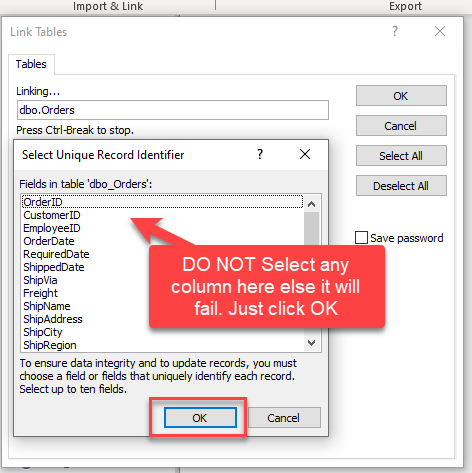
When prompted to select Unique Key column DO NOT select any column(s) and just click OK:
-
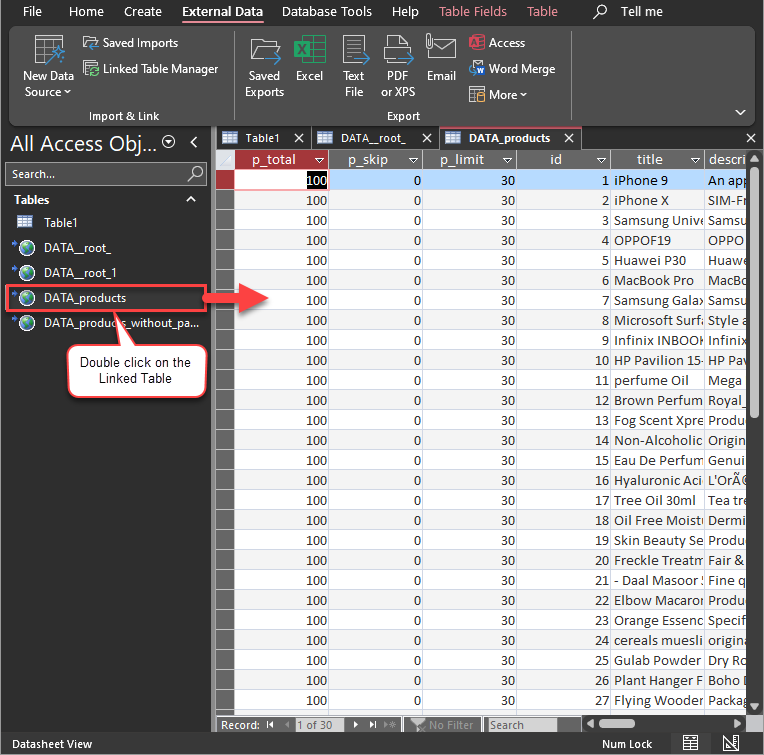
Finally, Simply double-click the newly created Linked Table to load the data:
Guide to Effectively Addressing Known Issues
Discover effective strategies to address known issues efficiently in this guide. Get solutions and practical tips to streamline troubleshooting and enhance system performance, ensuring a smoother user experience.
Fewer Rows Imported
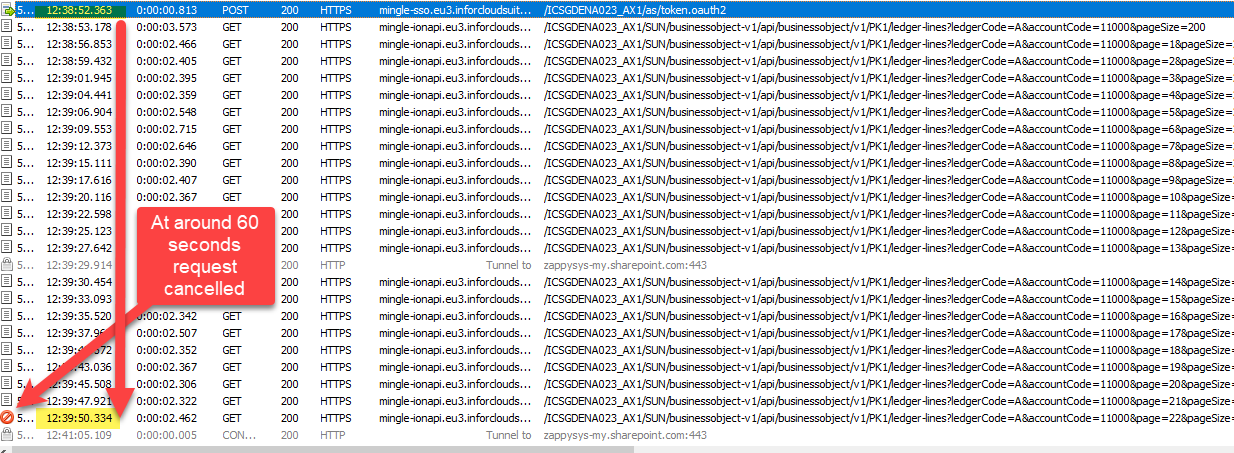
The reason for this is that MS Access has a default query timeout of 60 seconds, which means it stops fetching data if the query takes longer than that. As a result, only a limited number of rows are fetched within this time frame.
To address this, we can adjust the Query Timeout by following the steps below.
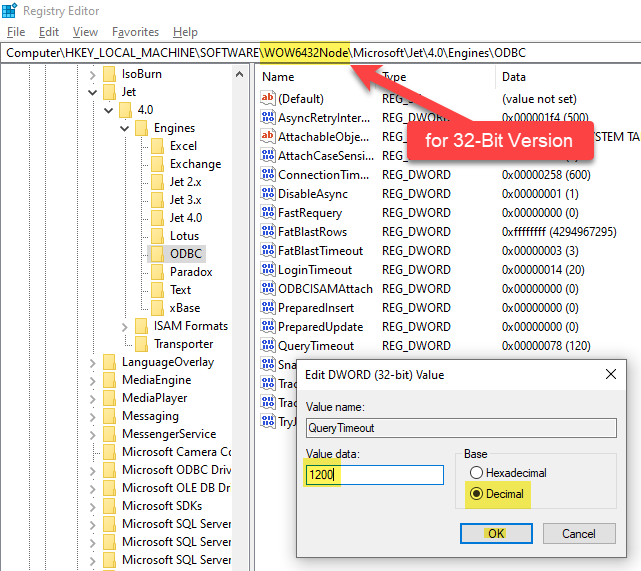
The path may vary depending on the MS Access bitness, such as 32-bit versus 64-bit.
\HKEY_LOCAL_MACHINE\SOFTWARE\Microsoft\Jet\4.0\Engines\ODBC
\HKEY_LOCAL_MACHINE\SOFTWARE\WOW6432Node\Microsoft\Jet\4.0\Engines\ODBC
\HKEY_LOCAL_MACHINE\SOFTWARE\Microsoft\Office\ClickToRun\REGISTRY\MACHINE\Software\Microsoft\Office\16.0\Access Connectivity Engine\Engines\ODBC
We can identify this issue by examining the Fiddler Log, as MS Access doesn't display any error regarding partial import, which is quite unusual
Please refer to this link : How to use Fiddler to analyze HTTP web requests
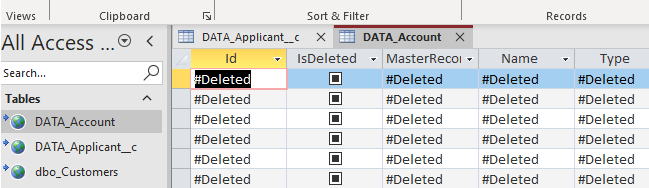
#Deleted word appears for column value in MS Access for Linked Table mode
If you used Linked Table mode to get external data and it shows #deleted word rather than actual value for column after you open then most likely its following issue.
Make sure to re-create Linked Table and DO NOT select any key column when prompted (Just click OK)
How to Fix
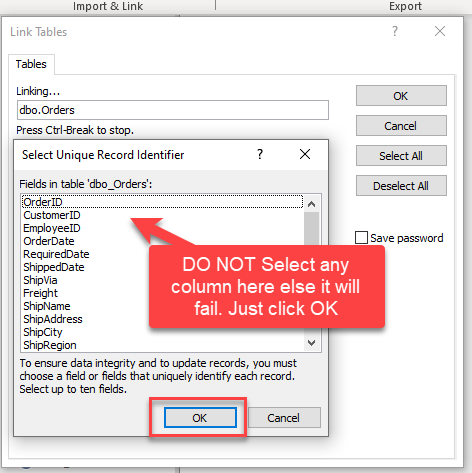
Table Selection UI Opening Delays
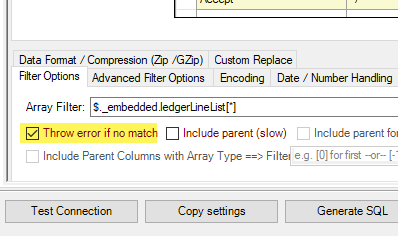
The Table selection UI takes a significant amount of time to open after clicking the 'New Data Source' -> 'Other Data Sources' -> 'ODBC'
The reason for this issue is that MS Access sends a dummy query, leading to several unnecessary pagination cycles before an error is thrown. To mitigate this, we can prevent wasted cycles by configuring the 'Throw error if no match' setting on the Filter Options Tab.
Enhancing Performance through Metadata Addition (Reduces Query Time)
We can optimize query performance by creating Virtual Tables (i.e. views with custom SQL) on Datasource and incorporating META=static columns. Learn how to capture static metadata in this guide.
Performance Options - Generate Metadata Manually
Execute the query initially, save the metadata by selecting 'Save to Meta' (choose Compact Format), and then click 'Save to Clipboard.' Utilize the resulting list by pasting it into the META attribute as follows: 'META=paste here.'
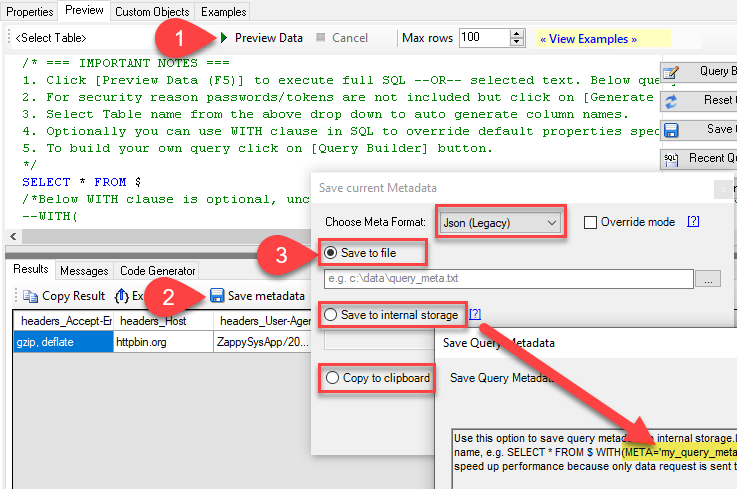
SELECT * FROM products
    WITH(
        META='id:String(20); title:String(100);  description:String(500);'
    )
Optimize Workflow with Automated Import
Employ Automated Import when Linked Tables are not feasible, and we need to depend on Imported Tables with static data.
While using Linked Tables sometime it encounter errors, and we are left with no alternative but to utilize Imported Tables, Automatic Refresh becomes crucial in such scenarios.
Here's a guide on automating refreshes. We can set up automatic refresh on different events, such as when the database opens, a form is opened, or a button is clicked.
To initiate the import process, follow these steps:
- Perform the data import using the standard manual steps.
- In the final step, we'll encounter a checkbox labeled 'Save Import Steps.' Ensure to check this option.
- After saving the steps, we can locate their name in the Save Imports UI. Identify the name associated with the saved steps.
- "Now, we can execute the code as shown below:"
Private Sub cmdYes_Click()
    Label0.Visible = True
    DoCmd.RunSavedImportExport "Import-DATA.products"
    Label0.Visible = False
End Sub
Optional: Centralized data access via ZappySys Data Gateway
In some situations, you may need to provide JSON data access to multiple users or services. Configuring the data source on a Data Gateway creates a single, centralized connection point for this purpose.
This configuration provides two primary advantages:
-
Centralized data access
The data source is configured once on the gateway, eliminating the need to set it up individually on each user's machine or application. This significantly simplifies the management process.
-
Centralized access control
Since all connections route through the gateway, access can be governed or revoked from a single location for all users.
| Data Gateway |
Local ODBC
data source
|
|
|---|---|---|
| Simple configuration | ||
| Installation | Single machine | Per machine |
| Connectivity | Local and remote | Local only |
| Connections limit | Limited by License | Unlimited |
| Central data access | ||
| Central access control | ||
| More flexible cost |
To achieve this, you must first create a data source in the Data Gateway (server-side) and then create an ODBC data source in MS Access (client-side) to connect to it.
Let's not wait and get going!
Create JSON data source in the gateway
In this section we will create a data source for JSON in the Data Gateway. Let's follow these steps to accomplish that:
-
Search for
gatewayin the Windows Start Menu and open ZappySys Data Gateway Configuration: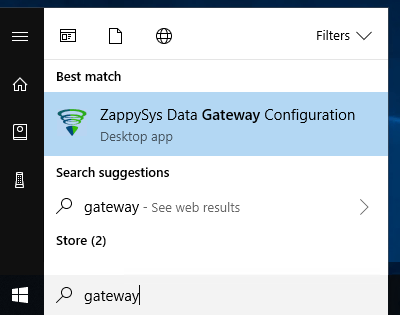
-
Go to the Users tab and follow these steps to add a Data Gateway user:
- Click the Add button
-
In the Login field enter a username, e.g.,
john - Then enter a Password
- Check the Is Administrator checkbox
- Click OK to save
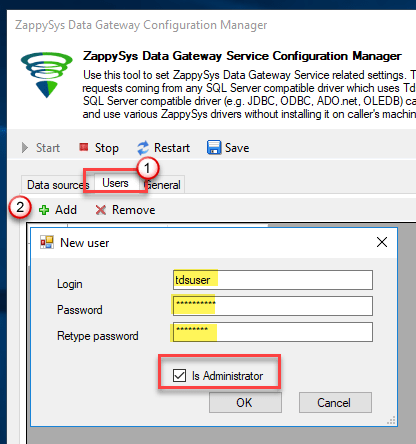
-
Now we are ready to add a data source:
- Click the Add button
- Give the Data source a name (have it handy for later)
- Then select Native - ZappySys JSON Driver
- Finally, click OK
JsonDSNZappySys JSON Driver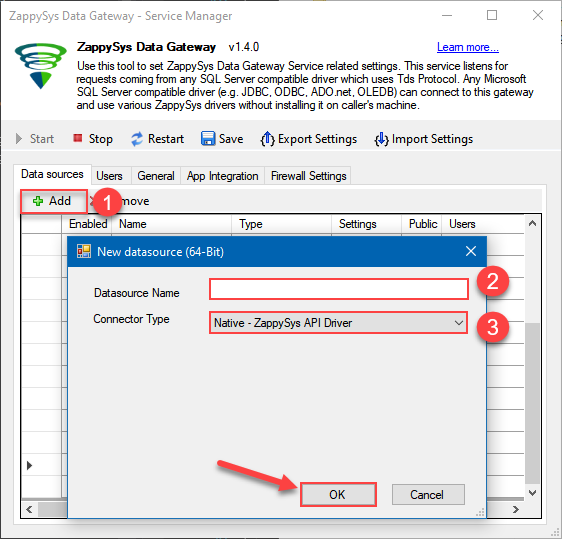
-
When the ZappySys JSON Driver configuration window opens, go back to ODBC Data Source Administrator where you already have the JSON ODBC data source created and configured, and follow these steps on how to Import data source configuration into the Gateway:
-
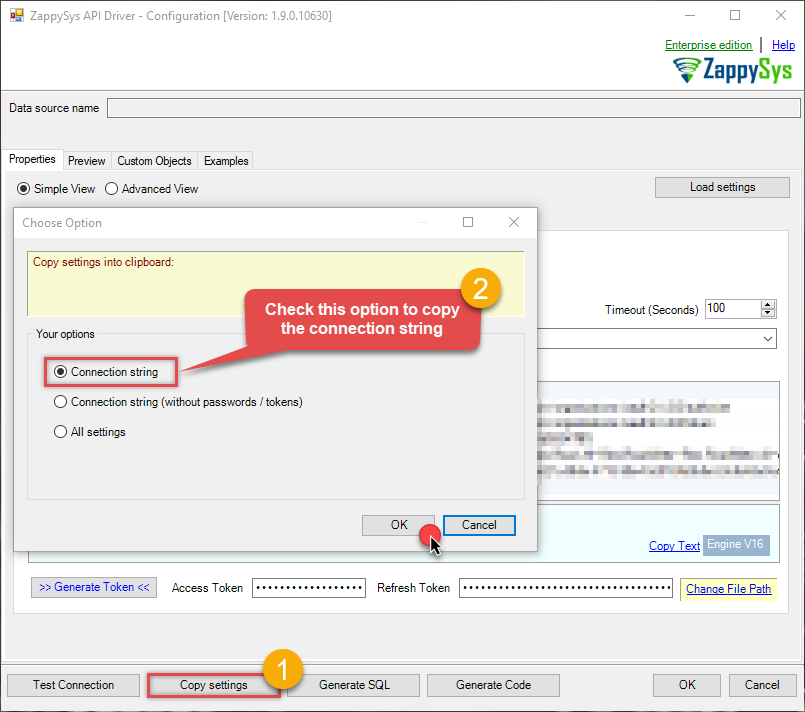
Open ODBC data source configuration and click Copy settings:
ZappySys JSON Driver - JSONRead and write JSON data effortlessly. Extract, filter, and sync JSON from URLs, strings, and local files for analytics, reporting, and data pipelines — almost no coding required.JsonDSN
-
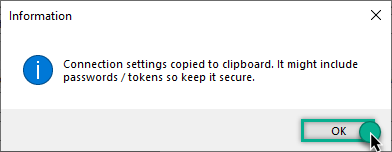
The window opens, telling us the connection string was successfully copied to the clipboard:
-
Then go to Data Gateway configuration and in data source configuration window click Load settings:
JsonDSN
ZappySys JSON Driver - Configuration [Version: 2.0.1.10418]ZappySys JSON Driver - JSONRead and write JSON data effortlessly. Extract, filter, and sync JSON from URLs, strings, and local files for analytics, reporting, and data pipelines — almost no coding required.JsonDSN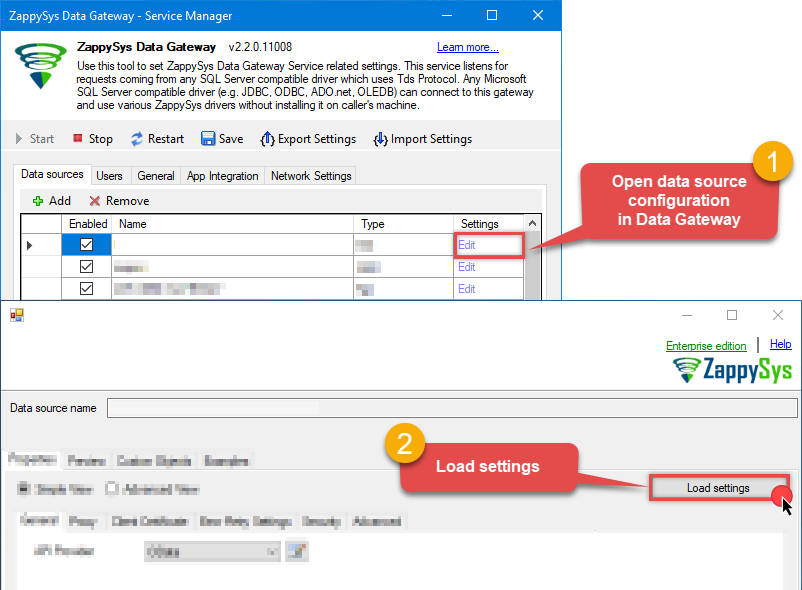
-
Once a window opens, just paste the settings by pressing
CTRL+Vor by clicking right mouse button and then Paste option.
-
Open ODBC data source configuration and click Copy settings:
-
Once done, go to the Network Settings tab and Add a firewall rule for inbound traffic:
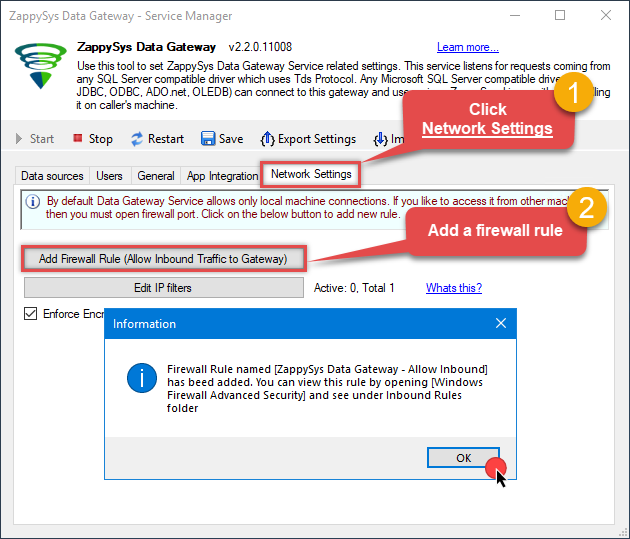
- This will initially allow all inbound traffic.
- Click Edit IP filters to restrict access to specific IP addresses or ranges.
-
Crucial Step: After creating or modifying the data source, you must:
- Click the Save button to persist your changes.
- Hit Yes when prompted to restart the Data Gateway service.
This ensures all changes are properly applied:
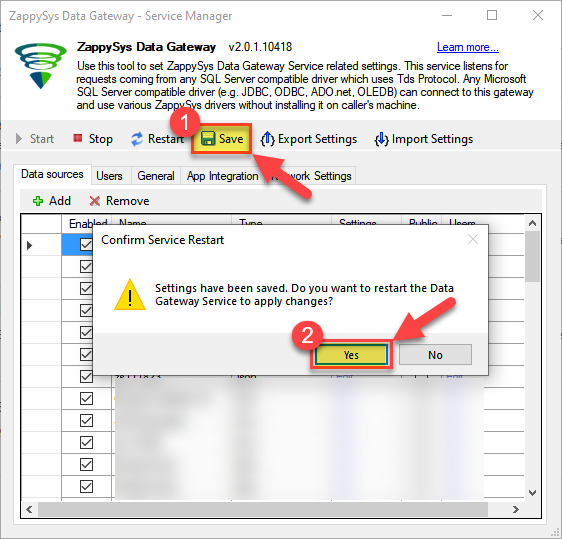 Skipping this step may cause the new settings to fail, preventing you from connecting to the data source.
Create ODBC data source to connect to the gateway
In this part we will create an ODBC data source to connect to the ZappySys Data Gateway from MS Access. To achieve that, let's perform these steps:
-
Search for
odbcand open the ODBC Data Sources (64-bit):
-
Create a User data source (User DSN) based on the ODBC Driver 17 for SQL Server driver:
ODBC Driver 17 for SQL Server
If you don't see the ODBC Driver 17 for SQL Server driver in the list, choose a similar version. -
Then set a Name for the data source (e.g.
Gateway) and the address of the Data Gateway:ZappySysGatewayDSNlocalhost,5000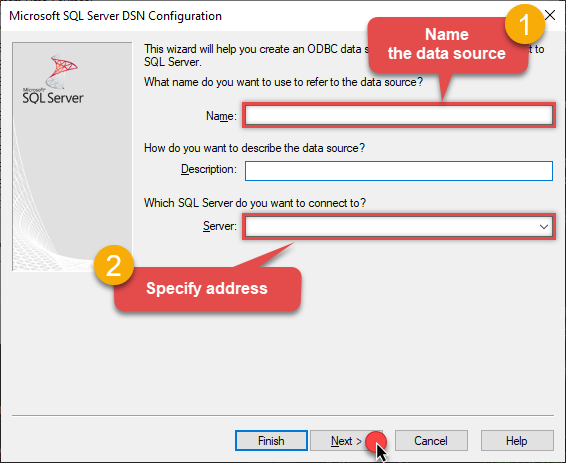 Make sure you separate the hostname and port with a comma, e.g.
localhost,5000. -
Proceed with the authentication part:
- Select SQL Server authentication
-
In the Login ID field enter the user name you created in the Data Gateway, e.g.,
john - Set Password to the one you configured in the Data Gateway
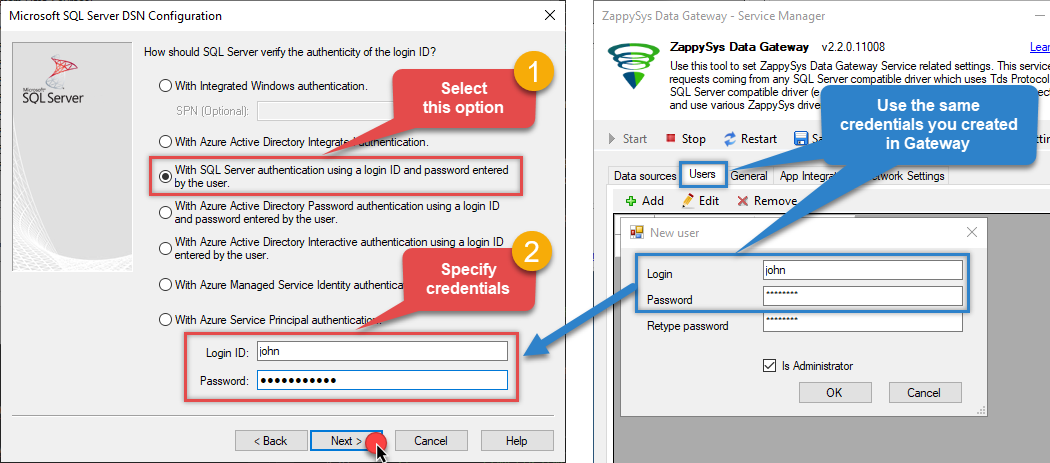
-
Then set the default database property to
JsonDSN(the one we used in the Data Gateway):JsonDSNJsonDSN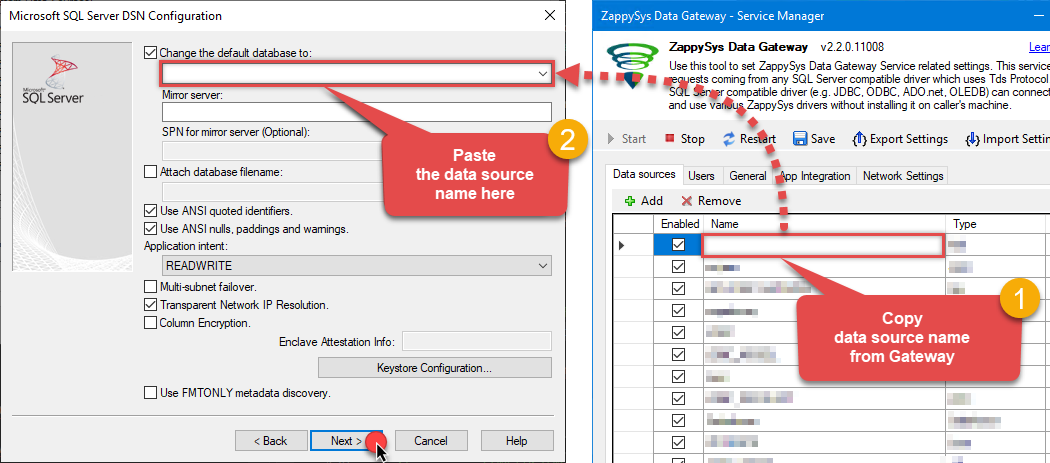 Make sure to type the data source name manually or copy/paste it directly into the field. Using the dropdown might fail because the Trust server certificate option is not enabled yet (next step).
 -
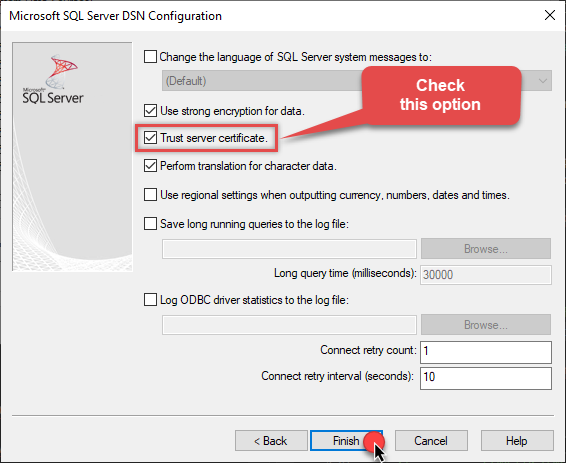
Continue by checking the Trust server certificate option:
-
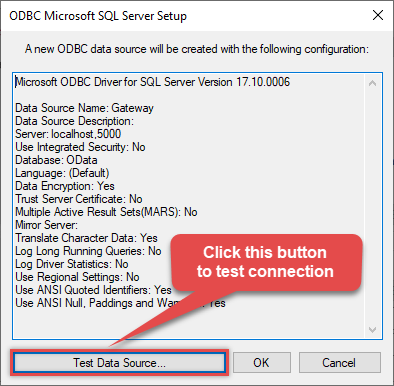
Once you do that, test the connection:
-
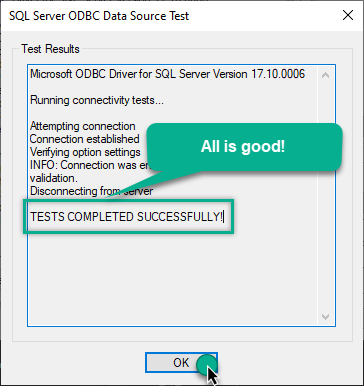
If the connection is successful, everything is good:
-
Done!
We are ready to move to the final step. Let's do it!
Access data in MS Access via the gateway
Finally, we are ready to read data from JSON in MS Access via the Data Gateway. Follow these final steps:
-
Go back to MS Access.
-
First of all, open MS Access and create a new MS Access database.
-
In the next step, start loading ODBC data source we created:
-
Then click next until data source selection window appears. Select the data source we created in one of the previous steps and hit OK:
ZappySysGatewayDSN
-
Read the data the same way we discussed at the beginning of this article.
-
That's it!
Now you can connect to JSON data in MS Access via the Data Gateway.
john and your password.
Configuring pagination in the JSON Driver
ZappySys JSON Driver equips users with powerful tools for seamless data extraction and management from REST APIs, leveraging advanced pagination methods for enhanced efficiency. These options are designed to handle various types of pagination structures commonly used in APIs. Below are the detailed descriptions of these options:
Page-based Pagination: This method works by retrieving data in fixed-size pages from the Rest API. It allows you to specify the page size and navigate through the results by requesting different page numbers, ensuring that you can access all the data in a structured manner.
Offset-based Pagination: With this approach, you can extract data by specifying the starting point or offset from which to begin retrieving data. It allows you to define the number of records to skip and fetch subsequent data accordingly, providing precise control over the data extraction process.
Cursor-based Pagination: This technique involves using a cursor or a marker that points to a specific position in the dataset. It enables you to retrieve data starting from the position indicated by the cursor and proceed to subsequent segments, ensuring that you capture all the relevant information without missing any records.
Token-based Pagination: In this method, a token serves as a unique identifier for a specific data segment. It allows you to access the next set of data by using the token provided in the response from the previous request. This ensures that you can systematically retrieve all the data segments without duplication or omission.
Utilizing these comprehensive pagination features in the ZappySys JSON Driver facilitates efficient data management and extraction from REST APIs, optimizing the integration and analysis of extensive datasets.
For more detailed steps, please refer to this link: How to do REST API Pagination in SSIS / ODBC Drivers
Authentication
ZappySys offers various authentication methods to securely access data from various sources. These authentication methods include OAuth, Basic Authentication, Token-based Authentication, and more, allowing users to connect to a wide range of data sources securely.
ZappySys Authentication is a robust system that facilitates secure access to data from a diverse range of sources. It includes a variety of authentication methods tailored to meet the specific requirements of different data platforms and services. These authentication methods may involve:
OAuth: ZappySys supports OAuth for authentication, which allows users to grant limited access to their data without revealing their credentials. It's commonly used for applications that require access to user account information.
Basic Authentication: This method involves sending a username and password with every request. ZappySys allows users to securely access data using this traditional authentication approach.
Token-based Authentication: ZappySys enables users to utilize tokens for authentication. This method involves exchanging a unique token with each request to authenticate the user's identity without revealing sensitive information.
By implementing these authentication methods, ZappySys ensures the secure and reliable retrieval of data from various sources, providing users with the necessary tools to access and integrate data securely and efficiently. For more comprehensive details on the authentication process, please refer to the official ZappySys documentation or reach out to their support team for further assistance.
For more details, please refer to this link: ZappySys Connections
Conclusion
In this article we showed you how to connect to JSON in MS Access and integrate data without writing complex code — all of this was powered by JSON ODBC Driver.
Download ODBC PowerPack now or ping us via chat if you have any questions or are looking for a specific feature (you can also reach out to us by submitting a ticket):