Infor Data Lake Connector for UiPath
Infor Data Lake Connector lets you connect to the Infor Data Lake within the Infor Data Fabric, allowing you to access and utilize your organization's comprehensive data assets.
In this article you will learn how to quickly and efficiently integrate Infor Data Lake data in UiPath without coding. We will use high-performance Infor Data Lake Connector to easily connect to Infor Data Lake and then access the data inside UiPath.
Let's follow the steps below to see how we can accomplish that!
Infor Data Lake Connector for UiPath is based on ZappySys JDBC Bridge Driver which is part of ODBC PowerPack. It is a collection of high-performance ODBC drivers that enable you to integrate data in SQL Server, SSIS, a programming language, or any other ODBC-compatible application. ODBC PowerPack supports various file formats, sources and destinations, including REST/SOAP API, SFTP/FTP, storage services, and plain files, to mention a few.
Prerequisites
Before we begin, make sure you meet the following prerequisite: Java Runtime Environment (JRE) or Java Development Kit (JDK) must be installed on your system.
-
Minimum required version: Java 8
-
Recommended Java version: Java 21
If your JDBC Driver targets a different Java version (e.g., 11 / 17 / 21), install the corresponding or newer Java version.
Download Infor Data Lake JDBC driver
To connect to Infor Data Lake in , you will have to download JDBC driver for it, which we will use in later steps. Let's perform these little steps right away:
- Visit Infor Data Lake video tutorial or official website.
-
Download the JDBC driver, and save it locally,
e.g. to
D:\Drivers\JDBC\infor-compass-jdbc.jar. -
Then download ION API file from Infor
and place it in the same directory as the JDBC driver, e.g.
D:\Drivers\JDBC\Infor Compass JDBC Driver.ionapi.Do not renameInfor Compass JDBC Driver.ionapifile as it will fail to load the driver. Also, JDBC driver and ION API file have to reside in the same folder for the driver to work. - Done! That was easy, wasn't it? Let's proceed to the next step.
Create ODBC Data Source (DSN) based on ZappySys JDBC Bridge Driver
Step-by-step instructions
To get data from Infor Data Lake using UiPath we first need to create a DSN (Data Source) which will access data from Infor Data Lake. We will later be able to read data using UiPath. Perform these steps:
-
Download and install ODBC PowerPack.
-
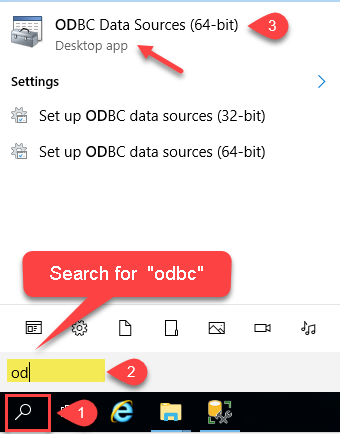
Open ODBC Data Sources (x64):
-
Create a User data source (User DSN) based on ZappySys JDBC Bridge Driver:
ZappySys JDBC Bridge Driver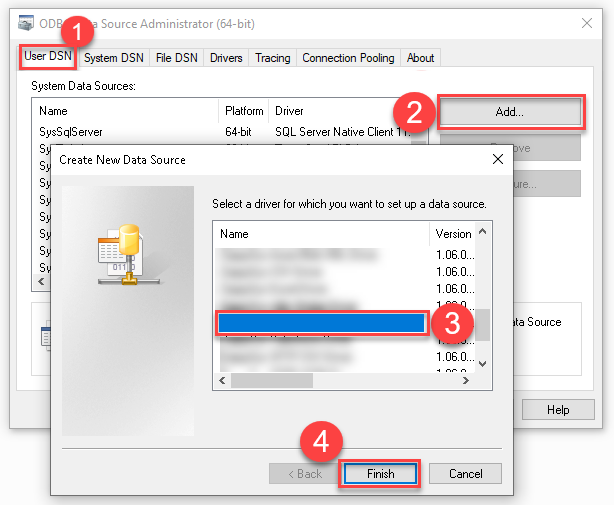
-
Create and use User DSN
if the client application is run under a User Account.
This is an ideal option
in design-time , when developing a solution, e.g. in Visual Studio 2019. Use it for both type of applications - 64-bit and 32-bit. -
Create and use System DSN
if the client application is launched under a System Account, e.g. as a Windows Service.
Usually, this is an ideal option to use
in a production environment . Use ODBC Data Source Administrator (32-bit), instead of 64-bit version, if Windows Service is a 32-bit application.
-
Create and use User DSN
if the client application is run under a User Account.
This is an ideal option
-
Now, we need to configure the JDBC connection in the new ODBC data source. Simply enter the Connection string, credentials, configure other settings, and then click Test Connection button to test the connection:
InforDataLakeDSNjdbc:infordatalake://MY_DATALAKE_IDcom.infor.idl.jdbc.DriverD:\Drivers\JDBC\infor-compass-jdbc.jarjohn.smith@my-company.com*********[]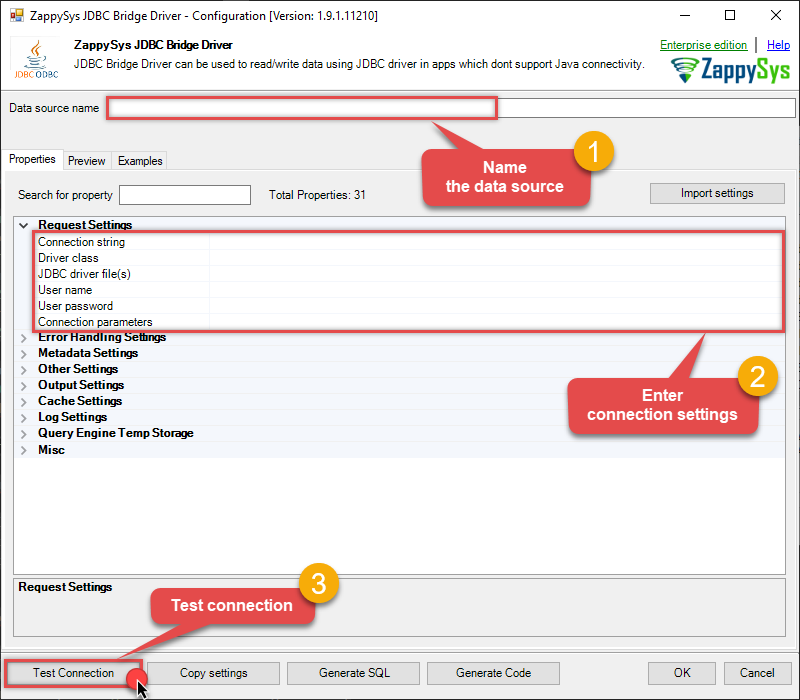
Use these values when setting parameters:
-
Connection string :jdbc:infordatalake://MY_DATALAKE_ID -
Driver class :com.infor.idl.jdbc.Driver -
JDBC driver file(s) :D:\Drivers\JDBC\infor-compass-jdbc.jar -
User name :john.smith@my-company.com -
User password :********* -
Connection parameters :[]
-
-
You should see a message saying that connection test is successful:
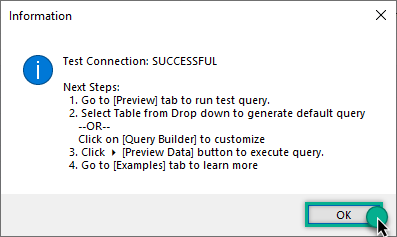
Otherwise, if you are getting an error, check out our Community for troubleshooting tips.
-
We are at the point where we can preview a SQL query. For more SQL query examples visit JDBC Bridge documentation:
InforDataLakeDSNSELECT * FROM "default"."orders"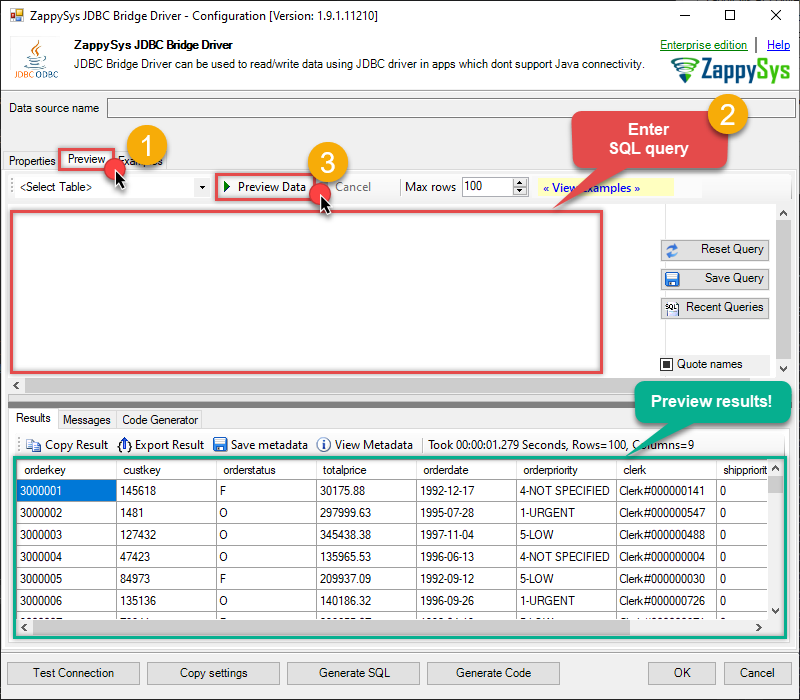
SELECT * FROM "default"."orders"You can also click on the <Select Table> dropdown and select a table from the list.The ZappySys JDBC Bridge Driver acts as a transparent intermediary, passing SQL queries directly to the JDBC driver, which then handles the query execution. This means the Bridge Driver simply relays the SQL query without altering it.
Some JDBC drivers don't support
INSERT/UPDATE/DELETEstatements, so you may get an error saying "action is not supported" or a similar one. Please, be aware, this is not the limitation of ZappySys JDBC Bridge Driver, but is a limitation of the specific JDBC driver you are using. -
Click OK to finish creating the data source.
Video Tutorial

Read Infor Data Lake data in UiPath Studio (workstation)
Here we will be reading Infor Data Lake data on your workstation. To accomplish that we will create and run UiPath process package locally. Later on, we'll explore how to publish the package to Orchestrator and run it remotely. For now, let's focus on working locally and get started!
-
Open UiPath Studio.
-
Before we really begin the work, make sure UiPath Studio is set as your profile (blue application icon).
-
In case, it is set to UiPath StudioX, you can change it in UiPath StudioX Settings:
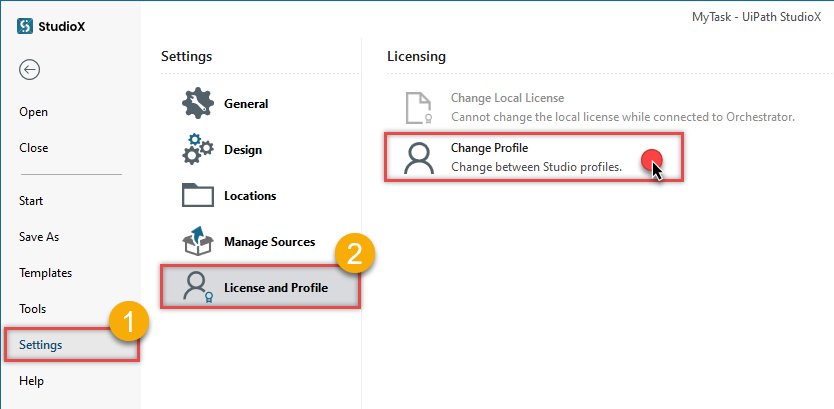
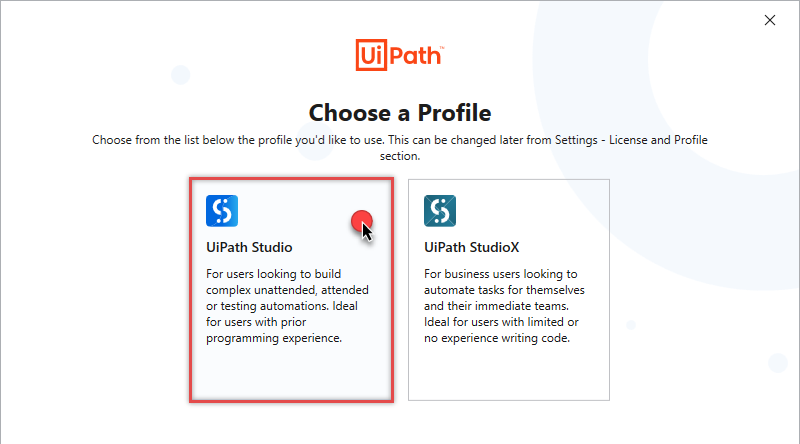
Simply select UiPath Studio option:
-
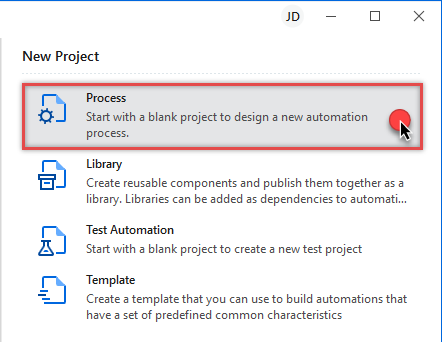
Start by creating a new project based on UiPath Process template:
-
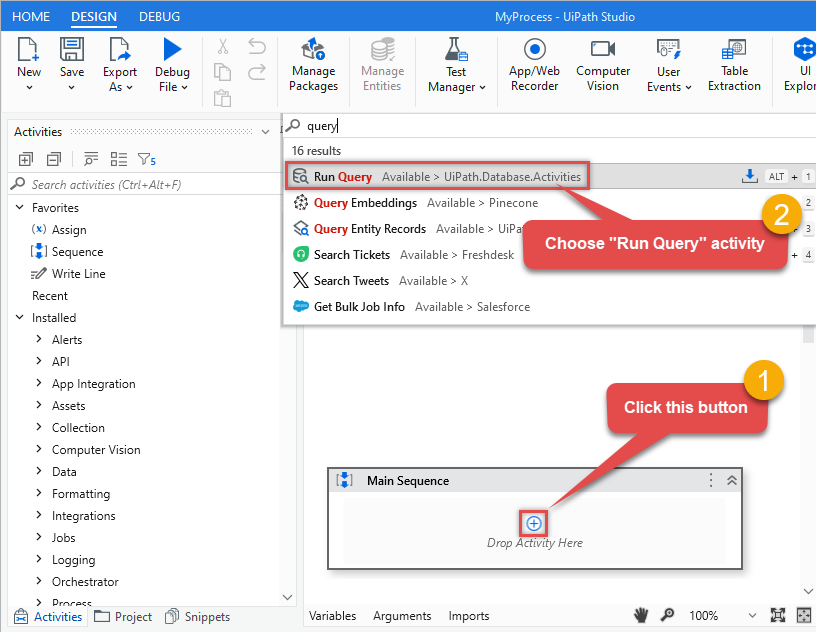
Add Run Query activity in Main Sequence box:
-
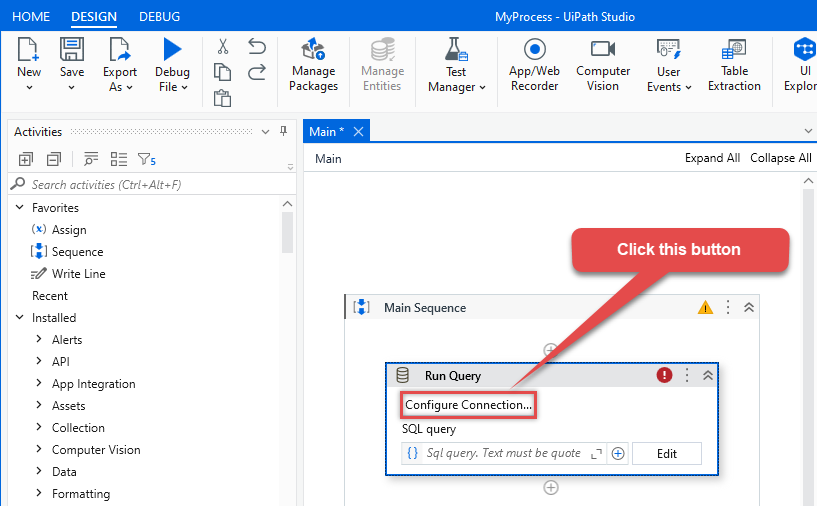
Click Configure Connection... button to create an ODBC connection:
-
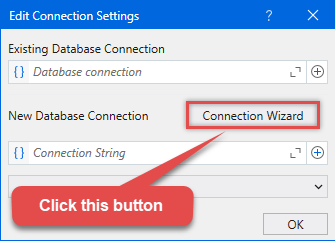
Continue by clicking Connection Wizard:
-
When the window opens, select ODBC-based driver, provider, and then choose ODBC data source:
InforDataLakeDSNInforDataLakeDSN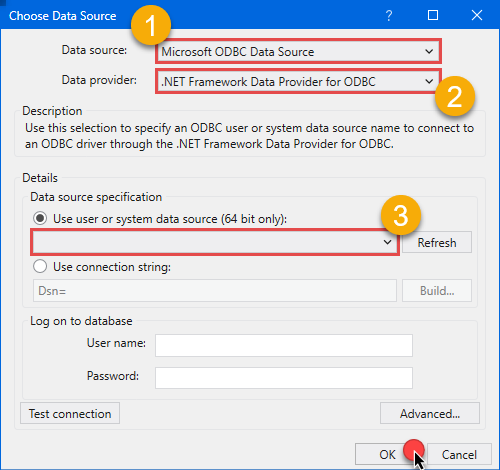 You can also select Use connection string option and use whole ODBC connection string instead. Obtain the connection string by pressing Copy Settings button in your data source configuration.
 -
Once you do that, it's time to configure a SQL query:
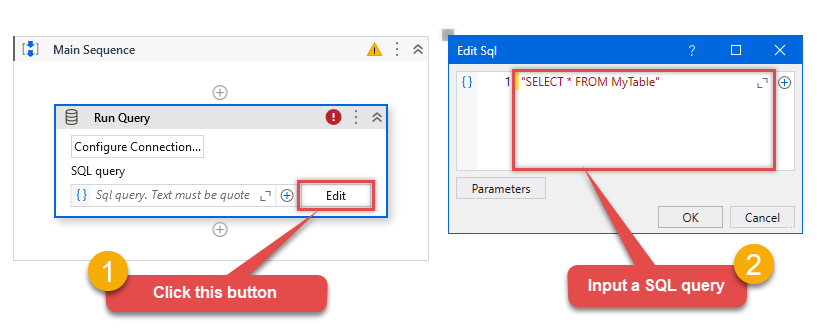 Make sure, you enclose the query in double quotes!
 -
Proceed by adding a Write CSV activity after Run Query:
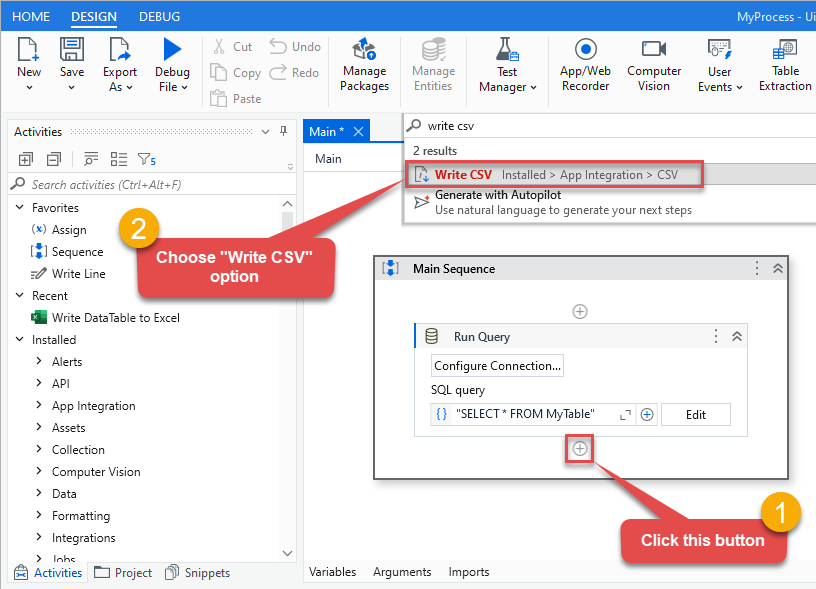 In this article we are using Write CSV, but you can freely add any other destination of your choice, e.g. Write DataTable to Excel.
 -
Once you do that, configure the added Write CSV, this will write Infor Data Lake data to a CSV file:
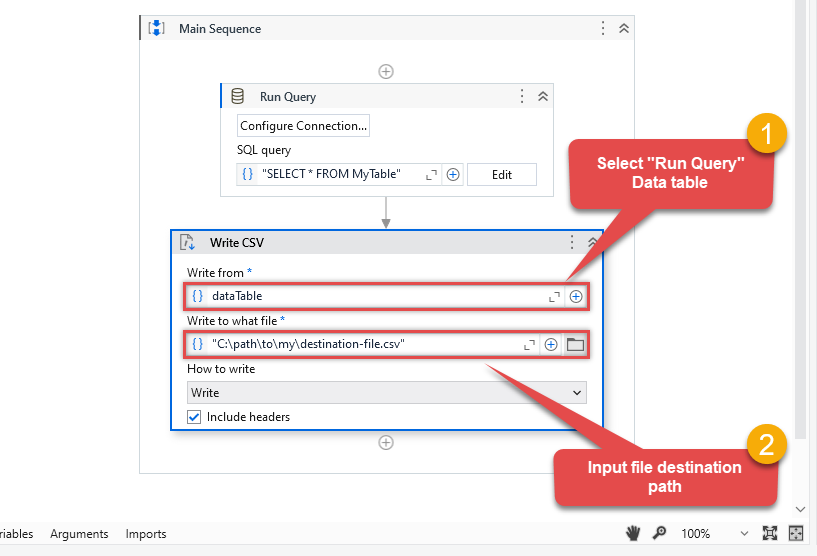
-
It's time for fun! Which means it's time for debugging! Just run the package locally to debug:
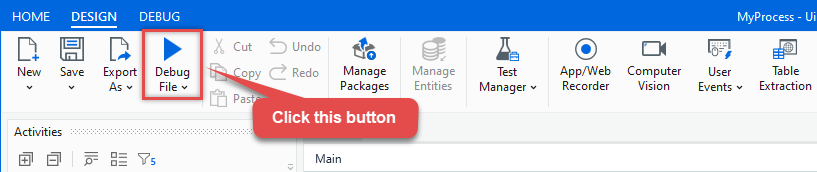
-
Finally, ensure there are no execution errors!
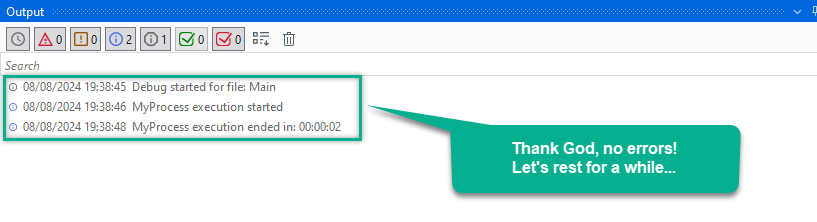
Run UiPath package using Orchestrator (via robot)
UiPath also offers the ability to execute packages remotely using Orchestrator and a robot. This is achieved by publishing the package to UiPath Orchestrator, installing UiPath Assistant on the remote machine, connecting it to Orchestrator, enabling us to run the package remotely. It may sound complicated at first glance, but further steps will clear things out. Let's not waste our precious time and delve into the details!
Publish process package from UiPath Studio
- First of all, open the UiPath process package we created in the previous step
-
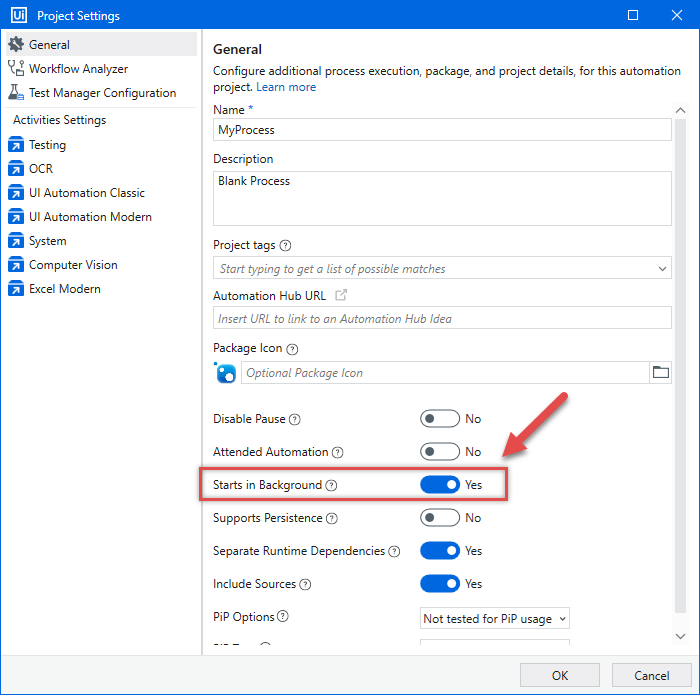
Set the option that our process package Starts in Background:
-
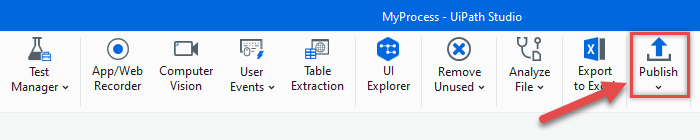
We are ready to Publish it:
-
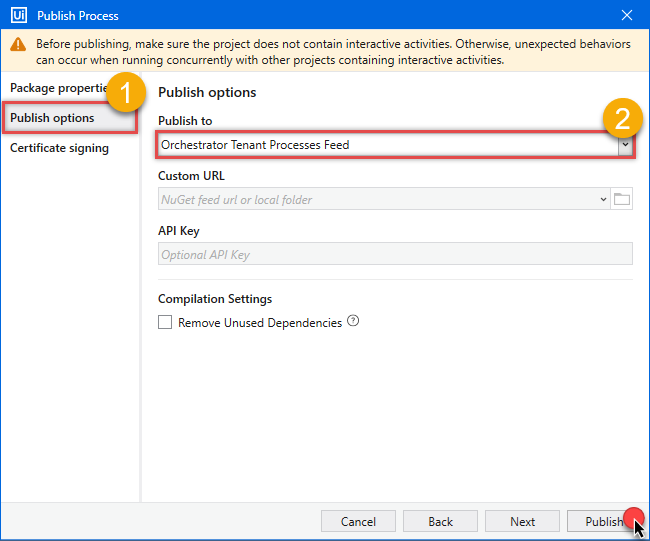
Make sure, you publish it to the Shared folder in UiPath Orchestrator Tenant workspace:
-
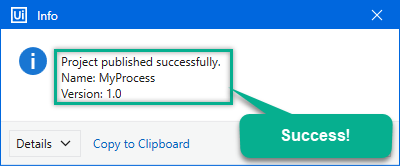
Finally, success! We are ready for the next step - creating UiPath robot - so we can automate the job:
Create robot in UiPath Orchestrator
-
First of all, let's open UiPath Orchestrator from UiPath Automation Cloud console:
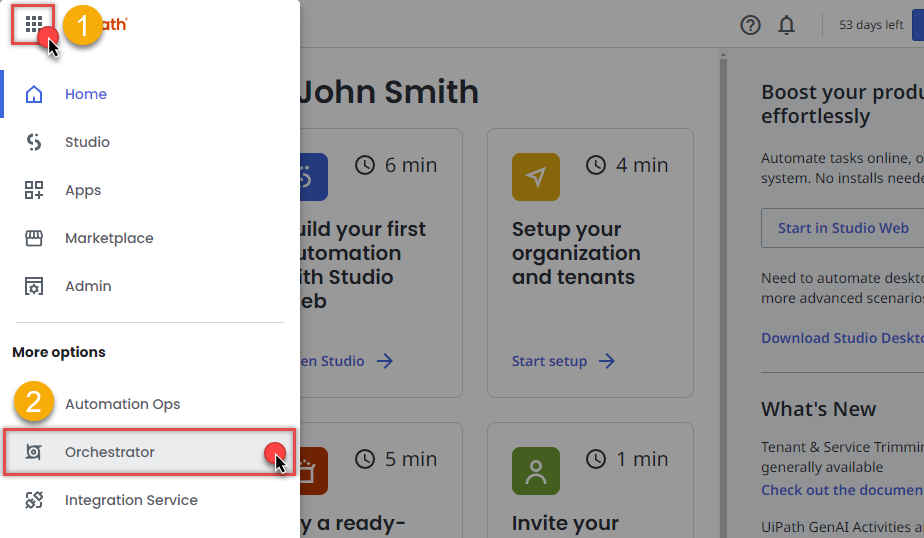
-
It's time to create a robot, which will run unattended packages:
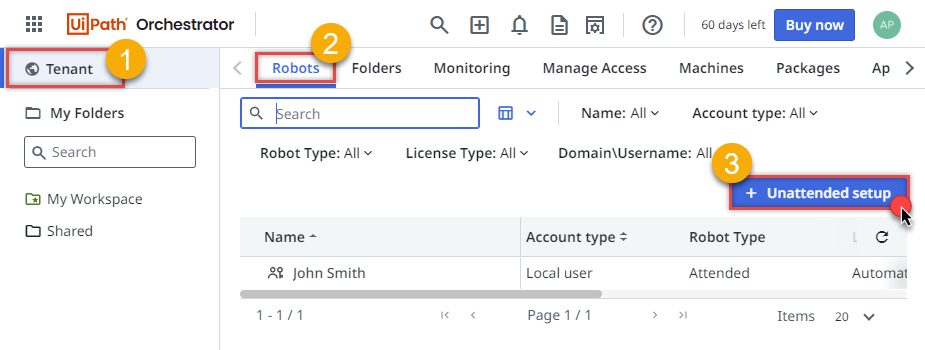
-
But first we have to create a runtime. Choose to host our robot on-premise, not in UiPath infrastructure:
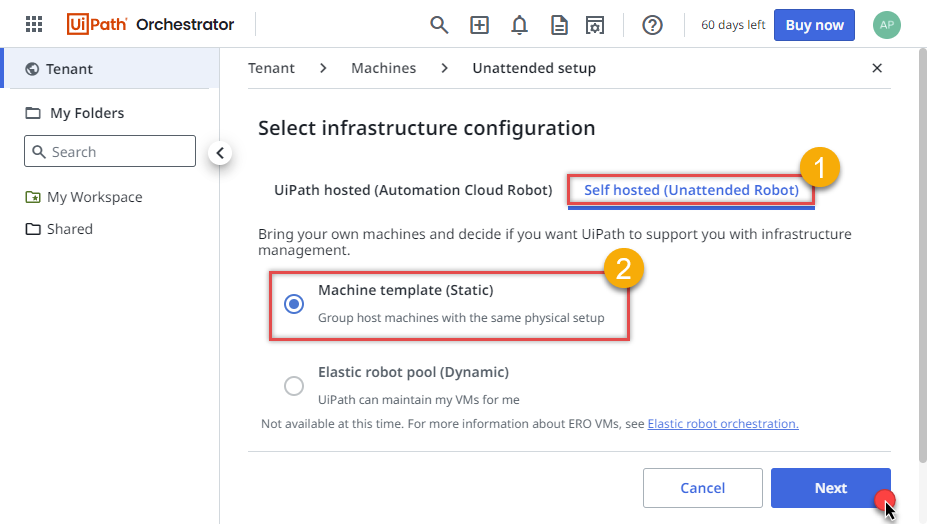
-
Let's move along and Create new machine template, this will create a machine in UiPath Orchestrator:
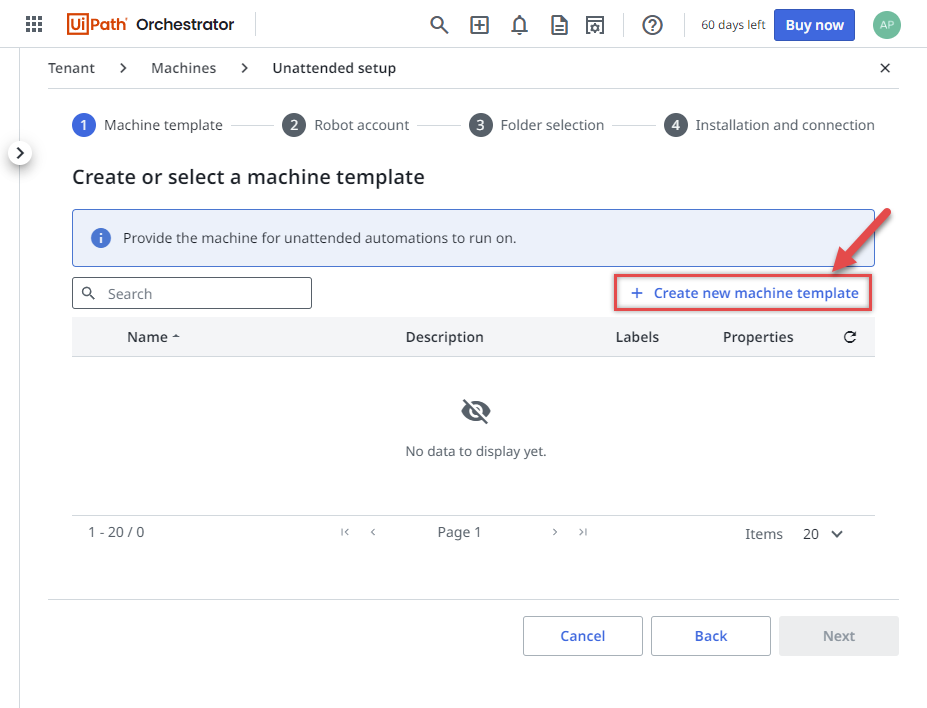
-
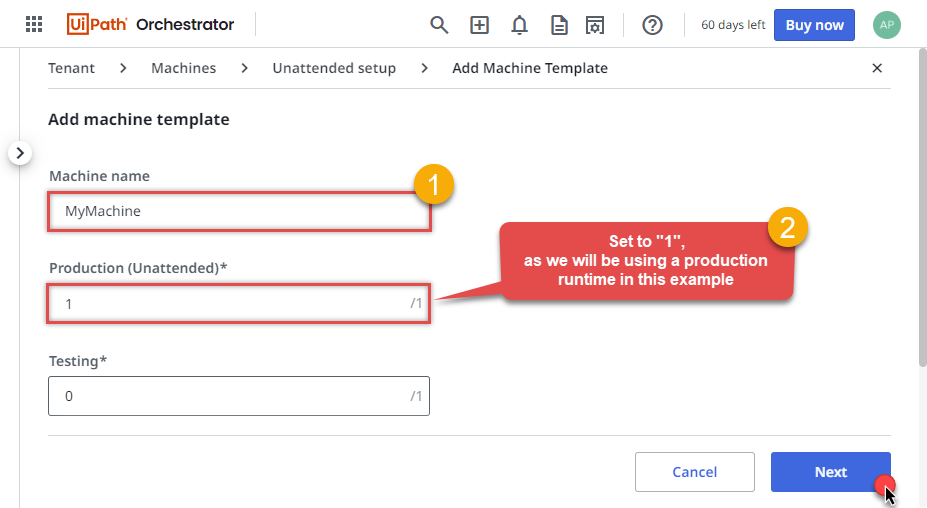
Configure the machine to run in Production environment:
-
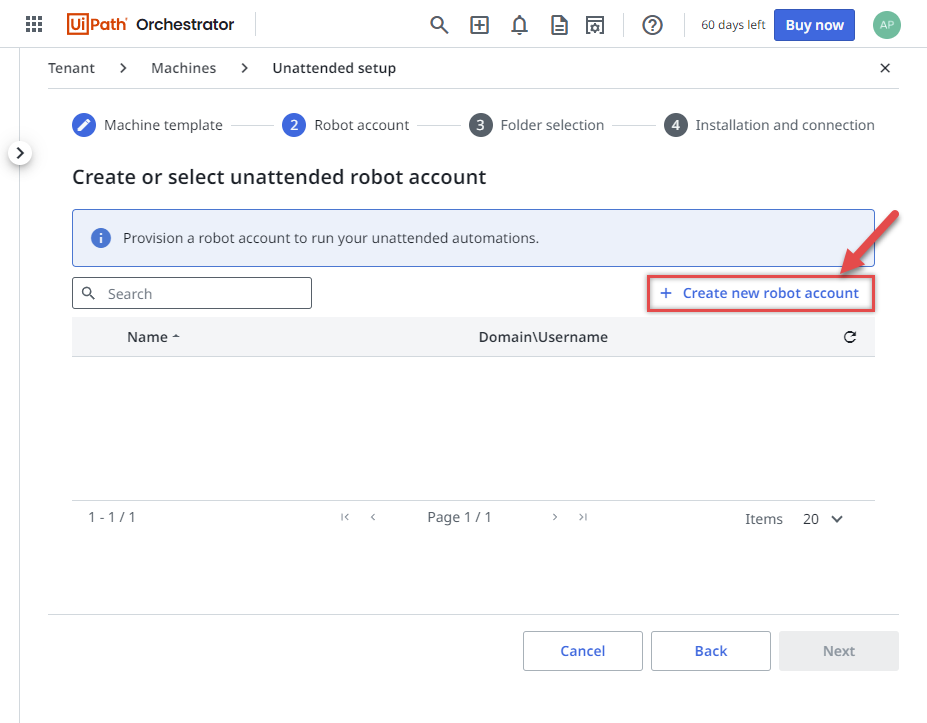
We are ready to Create new robot account in the new machine:
-
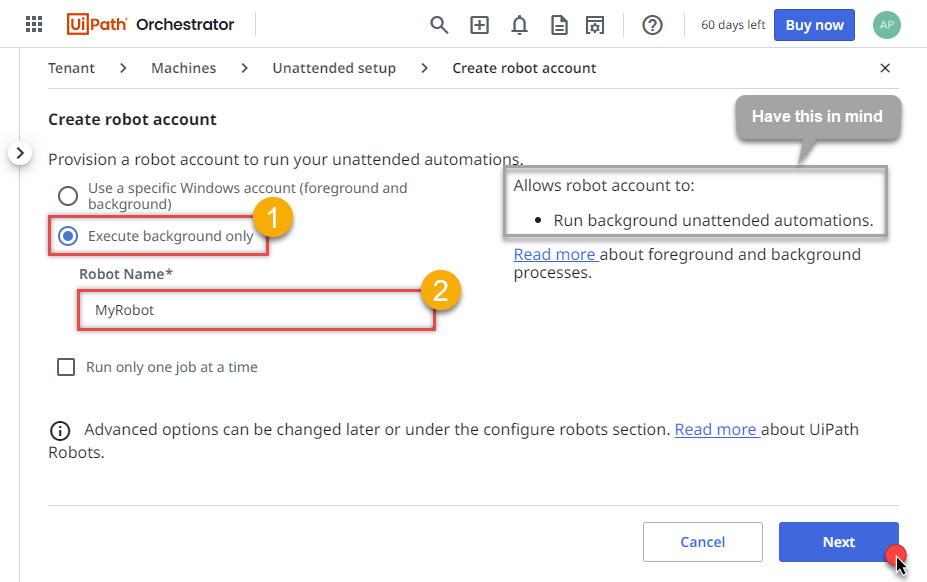
Let's make our robot to work only on background automations:
-
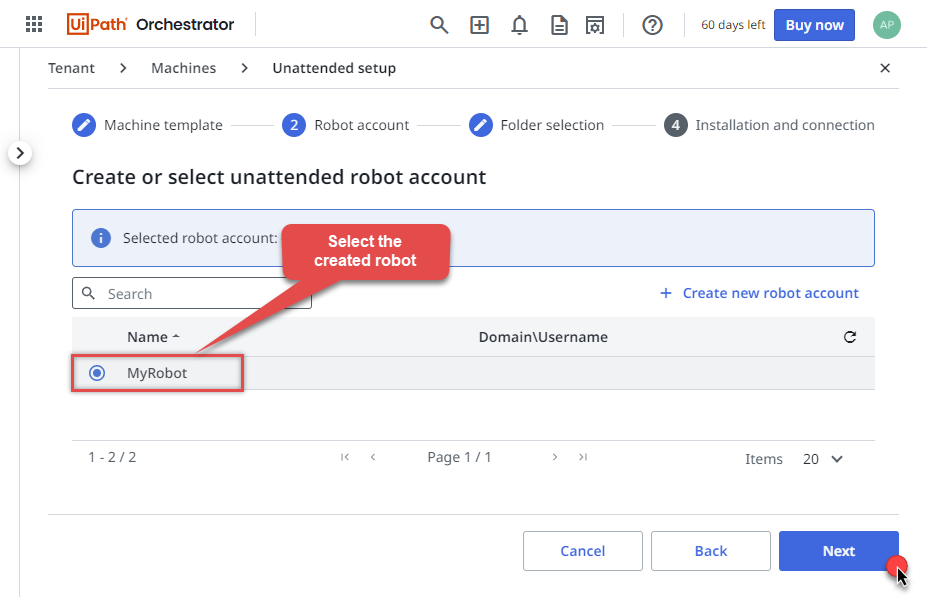
Continue by selecting newly created robot:
-
Select Shared folder, so that everyone in the team can benefit from it:
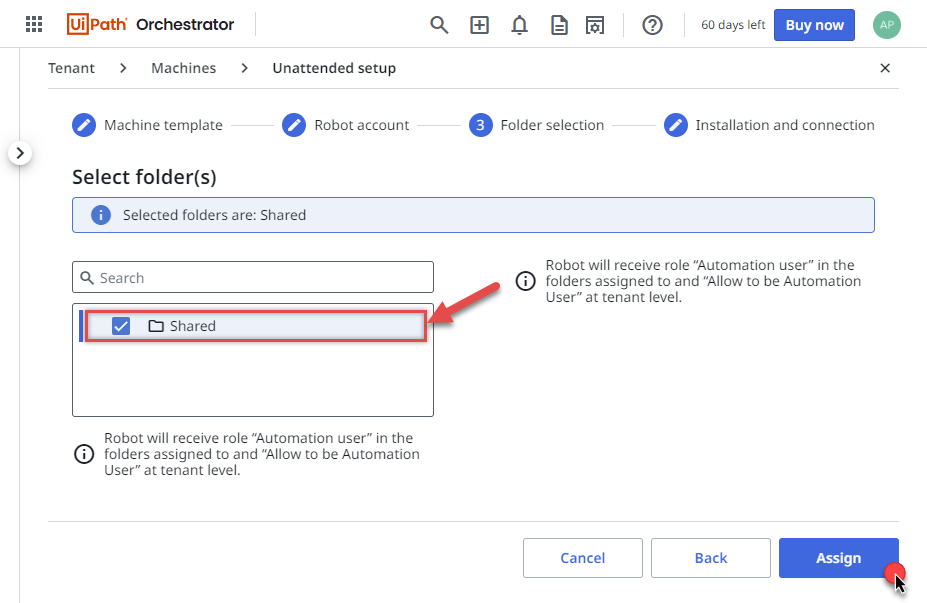 This is the folder where we published our UiPath process package "MyProcess"
 -
We are almost done!
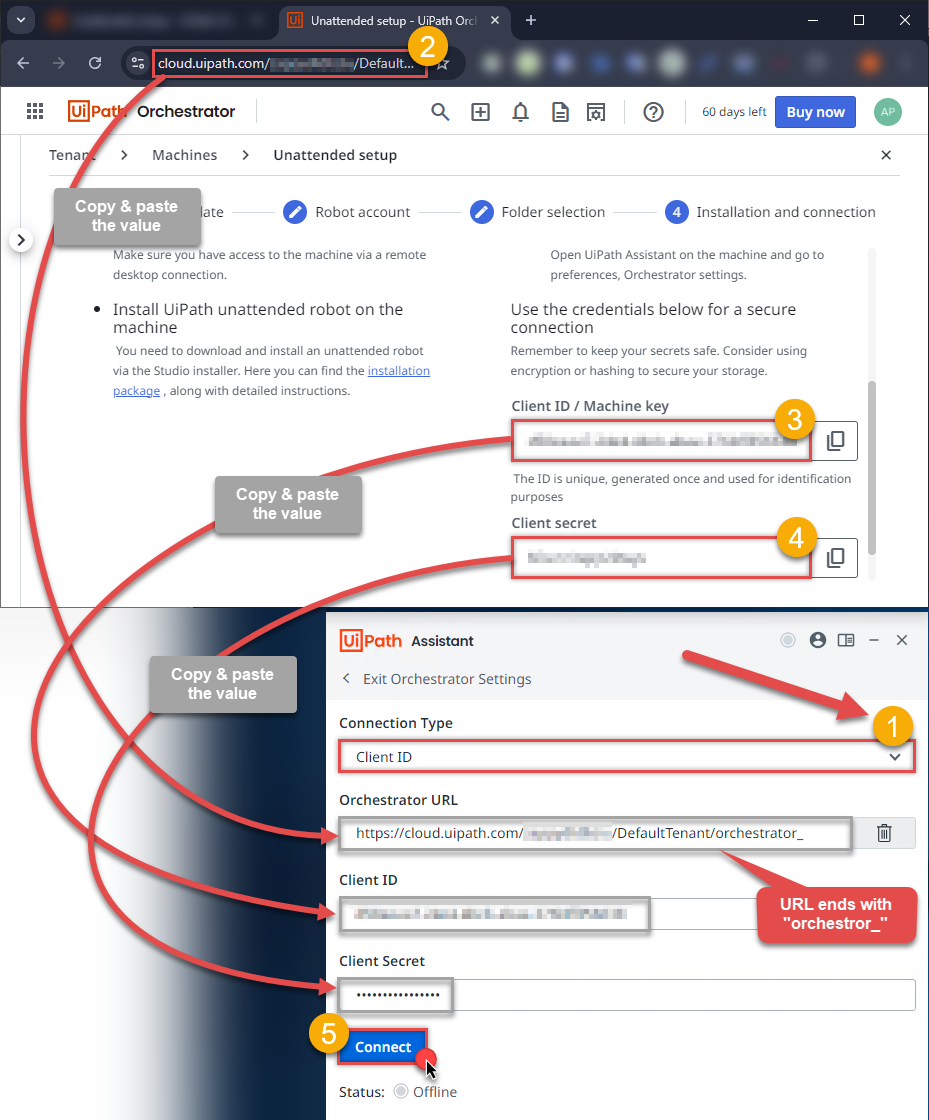
We are given machine Client ID and Client secret which we will use to connect UiPath Assistant to our created machine in Orchestrator.
Let's leave this open for a while and see how we can do it in the next step.
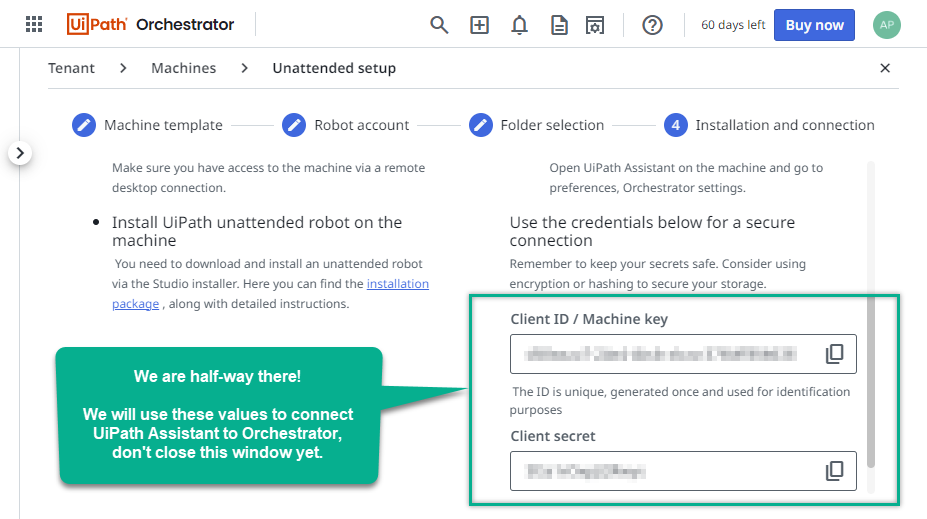
Connect UiPath Assistant to Orchestrator
We are ready to connect UiPath Assistant to the machine we created in Orchestrator. UiPath Assistant will run our package in a remote machine. Let's connect it and give it some work!
- Connect to a remote machine (where your UiPath process package will be running).
- Install UiPath Studio there.
- Then configure ODBC data source:
If you chose Use user or system data source option in connection configuration, when creating UiPath process package, then create an identical ODBC data source on the same remote machine. Use the same configuration as the one created in your workstation in the first step.
Use Copy Settings and Load Settings buttons to make your life easier. They will help you to transfer settings between different ODBC data sources.If you chose Use connection string option, then you don't have to do anything. However, you still have to install ODBC PowerPack on the remote machine.
-
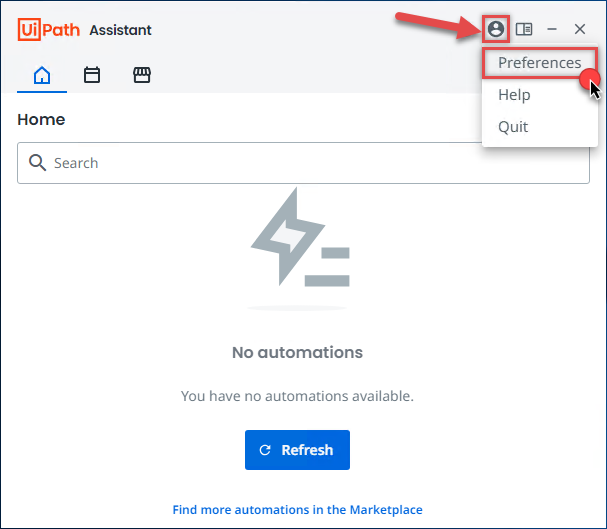
Continue by opening UiPath Assistant and going to Preferences:
-
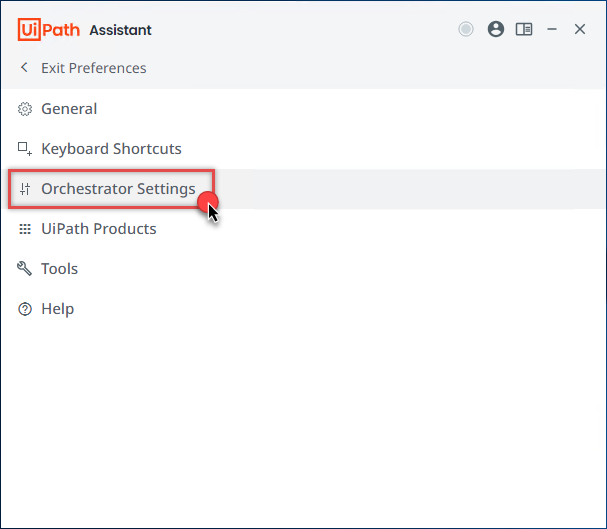
Find Orchestrator Settings menu item and click it:
-
And here even bigger fun begins! But fear not, all you have to do is open your web browser window with Client ID & Client secret we obtained in the previous step and simply copy and paste those values into UiPath Assistant. Also, don't forget to configure Orchestrator URL:
-
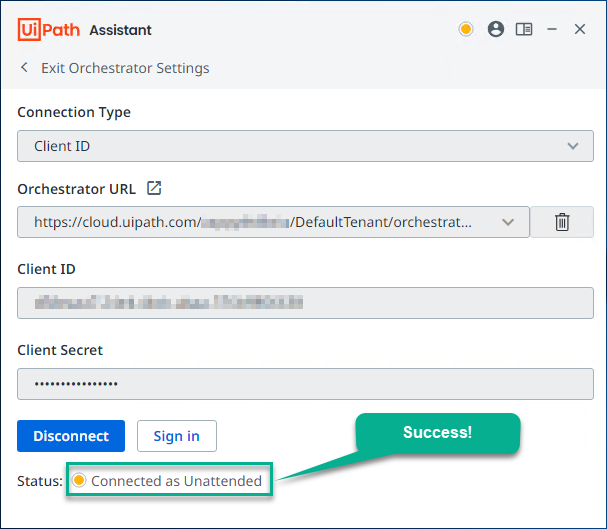
Finally, we get rewarded for the hard work with the Connected as Unattended status:
Create and run UiPath process in Orchestrator
We are at the finish line! Let's create and run UiPath process. This will execute the package on your remote machine using the UiPath Assistant configured earlier.
- First of all, open UiPath Orchestrator from UiPath Automation Cloud console.
-
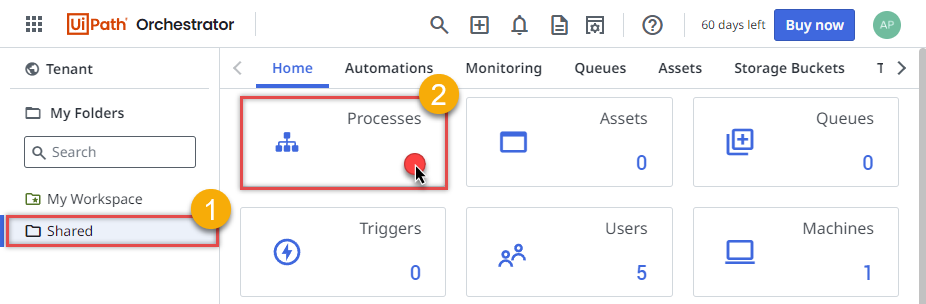
Then proceed by going to Process in Shared folder:
-
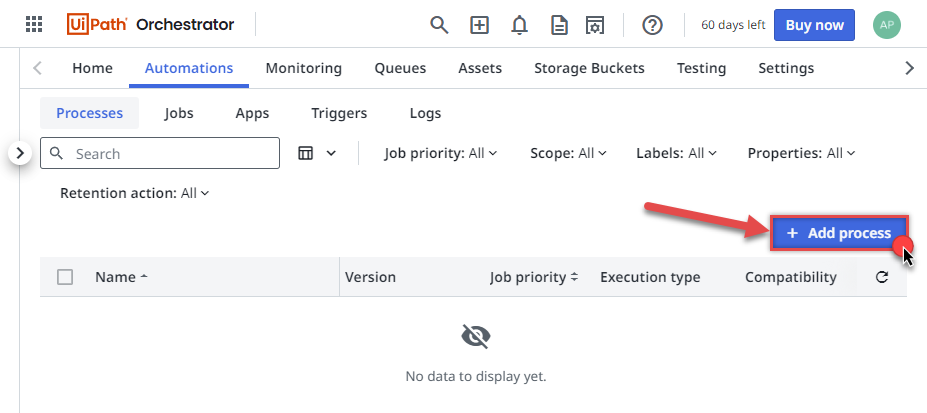
Continue by simply clicking on Add process button:
-
Select the process package we created in UiPath Studio:
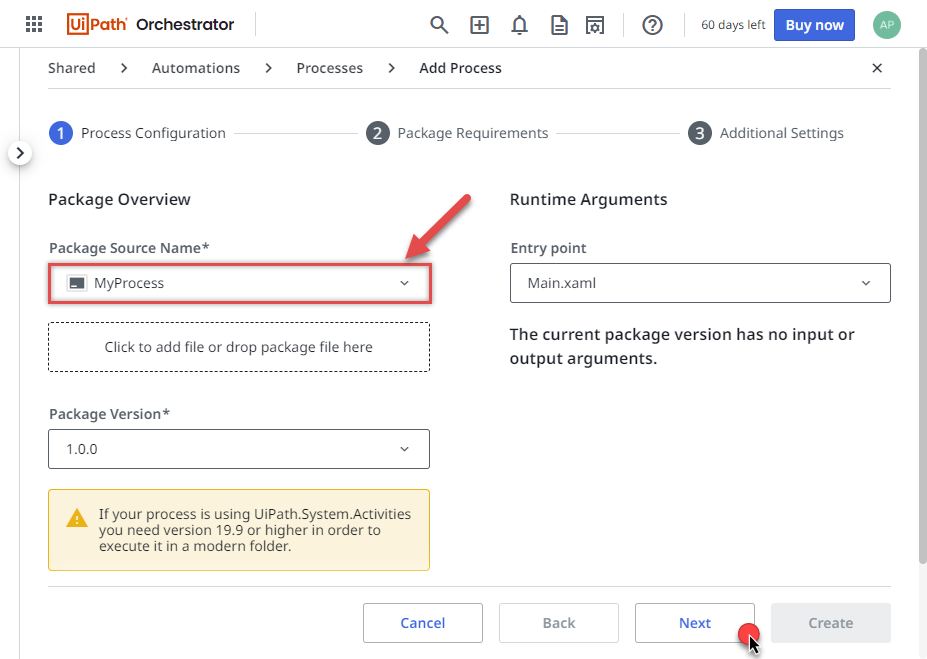
-
Rest a while, and just hit Next, unless your package has requirements:
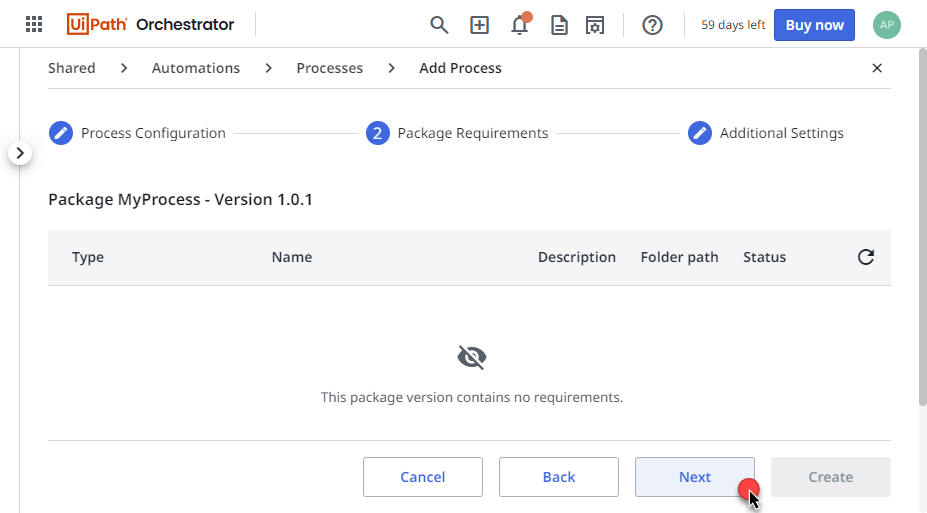
-
Then simply hit Create button:
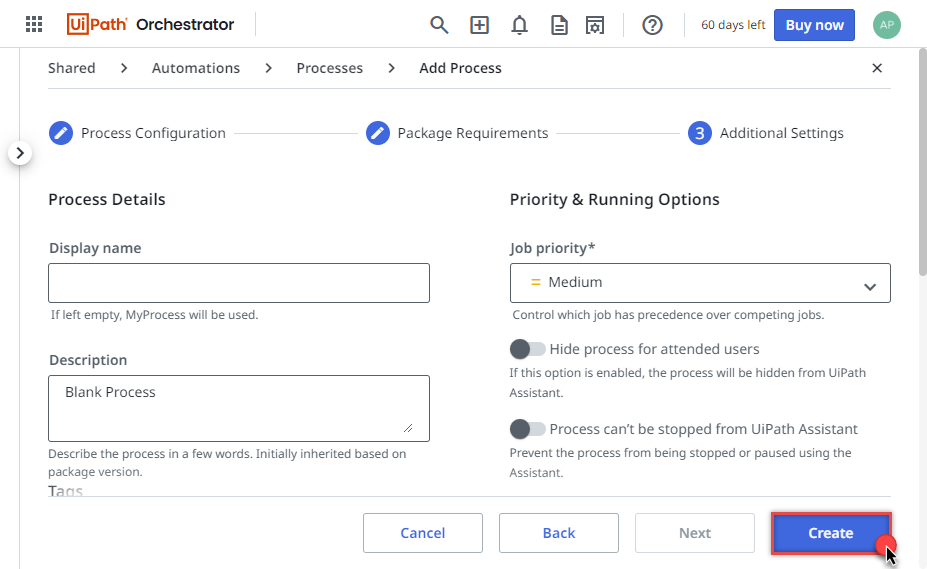
-
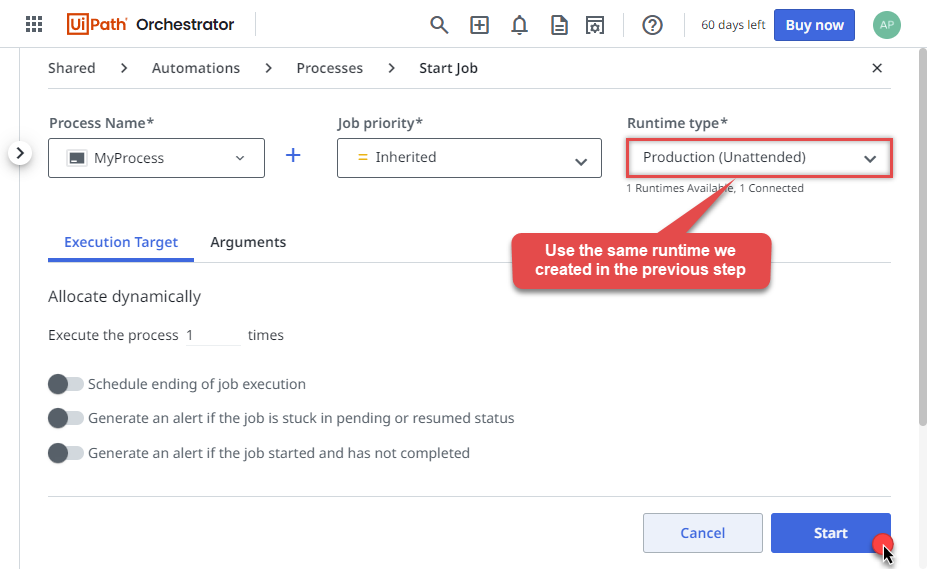
But let's not stop here and Start the process by creating a job right away:
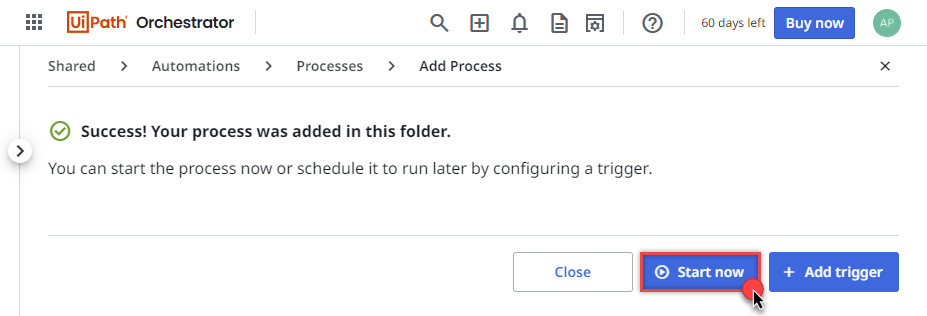
-
Use the same Production runtime we created before and hit Start:
-
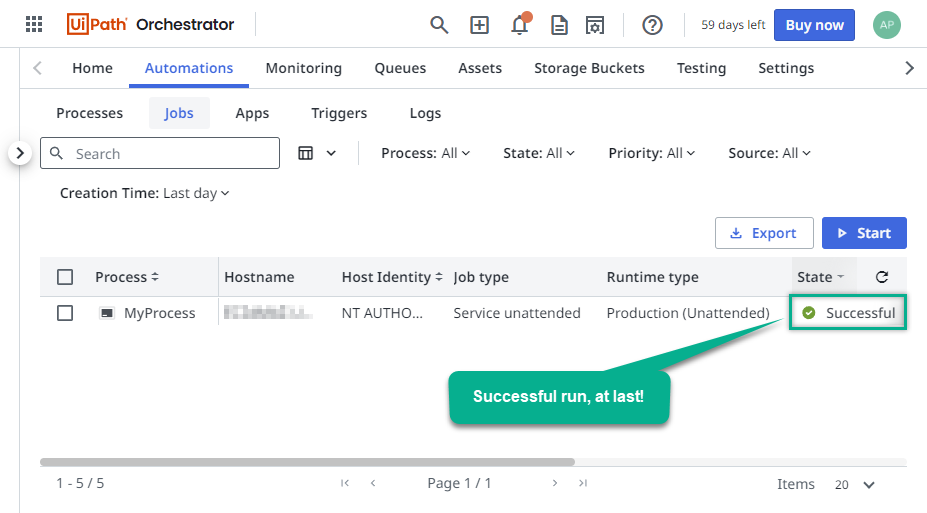
We've reached the final step! In the CSV destination file or destination of your choice you should see Infor Data Lake data:
Centralized data access via Data Gateway
In some situations, you may need to provide Infor Data Lake data access to multiple users or services. Configuring the data source on a Data Gateway creates a single, centralized connection point for this purpose.
This configuration provides two primary advantages:
-
Centralized data access
The data source is configured once on the gateway, eliminating the need to set it up individually on each user's machine or application. This significantly simplifies the management process.
-
Centralized access control
Since all connections route through the gateway, access can be governed or revoked from a single location for all users.
| Data Gateway |
Local ODBC
data source
|
|
|---|---|---|
| Simple configuration | ||
| Installation | Single machine | Per machine |
| Connectivity | Local and remote | Local only |
| Connections limit | Limited by License | Unlimited |
| Central data access | ||
| Central access control | ||
| More flexible cost |
If you need any of these requirements, you will have to create a data source in Data Gateway to connect to Infor Data Lake, and to create an ODBC data source to connect to Data Gateway in UiPath.
Let's not wait and get going!
Creating Infor Data Lake data source in Gateway
In this section we will create a data source for Infor Data Lake in Data Gateway. Let's follow these steps to accomplish that:
-
Search for
gatewayin Windows Start Menu and open ZappySys Data Gateway Configuration: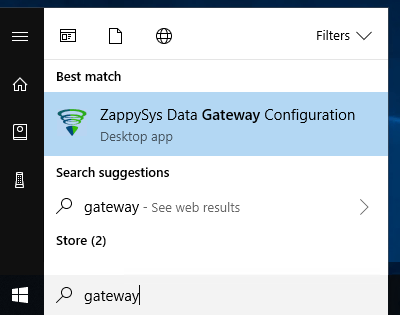
-
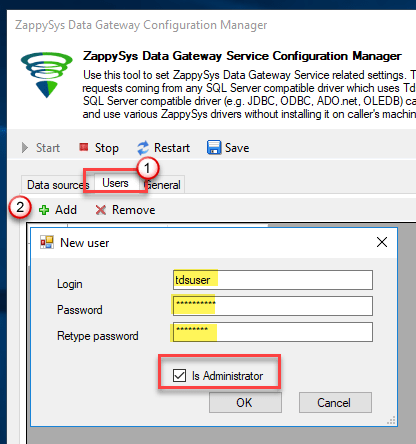
Go to Users tab and follow these steps to add a Data Gateway user:
- Click Add button
-
In Login field enter username, e.g.,
john - Then enter a Password
- Check Is Administrator checkbox
- Click OK to save
-
Now we are ready to add a data source:
- Click Add button
- Give Datasource a name (have it handy for later)
- Then select Native - ZappySys JDBC Bridge Driver
- Finally, click OK
InforDataLakeDSNZappySys JDBC Bridge Driver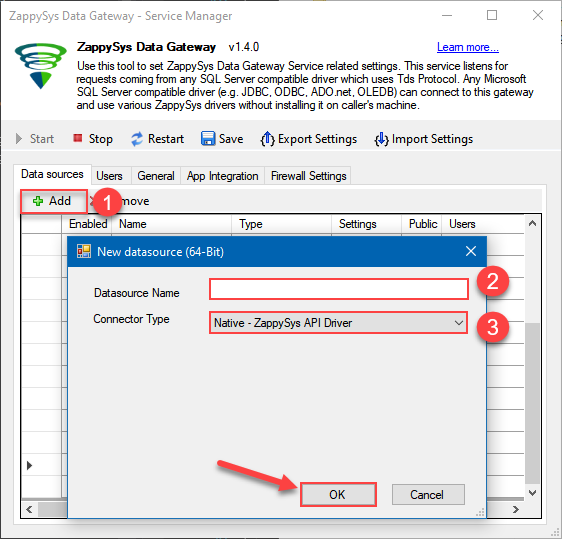
-
When the ZappySys JDBC Bridge Driver configuration window opens, configure the Data Source the same way you configured it in ODBC Data Sources (64-bit), in the beginning of this article.
-
Very important step. Now, after creating or modifying the data source make sure you:
- Click the Save button to persist your changes.
- Hit Yes, once asked if you want to restart the Data Gateway service.
This will ensure all changes are properly applied:
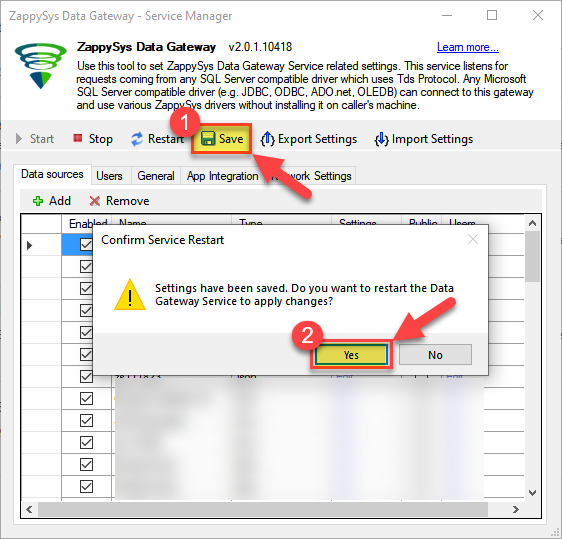 Skipping this step may result in the new settings not taking effect and, therefore you will not be able to connect to the data source.
Creating ODBC data source for Data Gateway
In this part we will create ODBC data source to connect to Data Gateway from UiPath. To achieve that, let's perform these steps:
-
Open ODBC Data Sources (x64):
-
Create a User data source (User DSN) based on ODBC Driver 17 for SQL Server:
ODBC Driver 17 for SQL Server
If you don't see ODBC Driver 17 for SQL Server driver in the list, choose a similar version driver. -
Then set a Name of the data source (e.g.
Gateway) and the address of the Data Gateway:GatewayDSNlocalhost,5000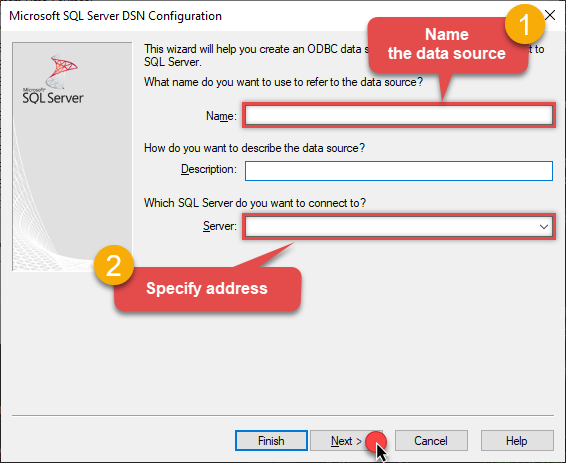 Make sure you separate the hostname and port with a comma, e.g.
localhost,5000. -
Proceed with authentication part:
- Select SQL Server authentication
-
In Login ID field enter the user name you used in Data Gateway, e.g.,
john - Set Password to the one you configured in Data Gateway
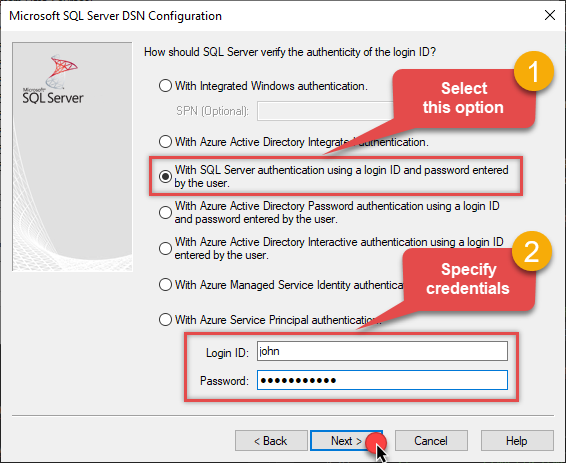
-
Then set the default database property to
InforDataLakeDSN(the one we used in Data Gateway):InforDataLakeDSN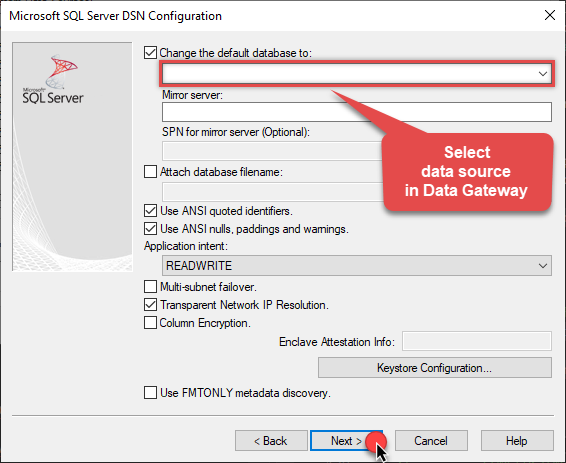
-
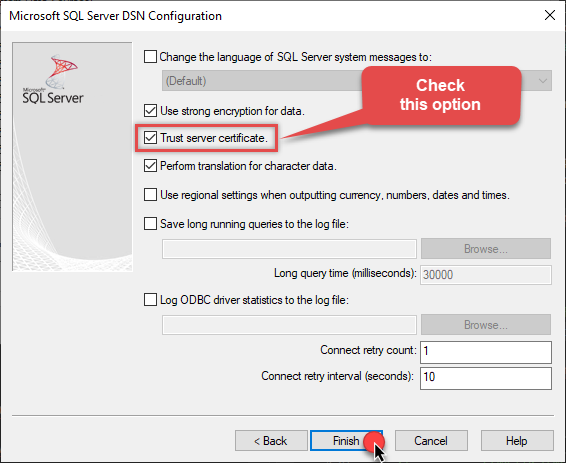
Continue by checking Trust server certificate option:
-
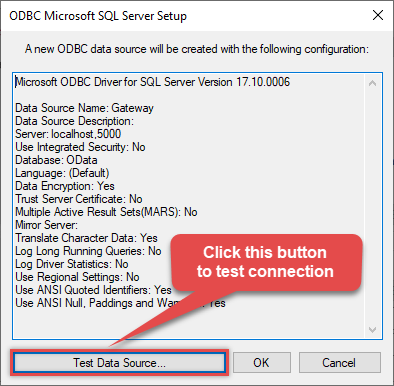
Once you do that, test the connection:
-
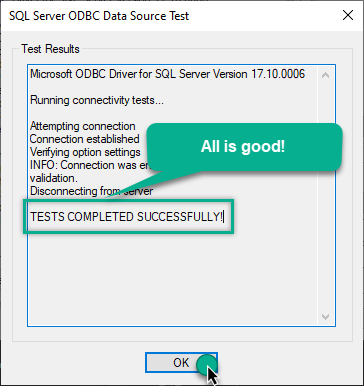
If connection is successful, everything is good:
-
Done!
We are ready to move to the final step. Let's do it!
Accessing data in UiPath via Data Gateway
Finally, we are ready to read data from Infor Data Lake in UiPath via Data Gateway. Follow these final steps:
-
Go back to UiPath.
-
Add Run Query activity in Main Sequence box:
-
Click Configure Connection... button to create an ODBC connection:
-
Continue by clicking Connection Wizard:
-
When the window opens, select ODBC-based driver, provider, and then choose ODBC data source:
GatewayDSNGatewayDSN
You can also select Use connection string option and use whole ODBC connection string instead. Obtain the connection string by pressing Copy Settings button in your data source configuration. -
Read the data the same way we discussed at the beginning of this article.
-
That's it!
Now you can connect to Infor Data Lake data in UiPath via the Data Gateway.
john and your password.
Troubleshooters & resources (JDBC Bridge Driver)
Below are some useful community articles to help you troubleshoot and configure the ZappySys JDBC Bridge Driver:
-
How to combine multiple JAR files
Learn how to merge multiple
.jardependencies when your JDBC driver requires more than one file. -
How to fix JBR error: “Data lake is not available / Unable to verify trust for server certificate chain”
Resolve SSL or certificate validation issues encountered during JDBC connections.
-
System Exception: “Java is not installed or not accessible”
Fix Java path or environment issues that prevent the JDBC Bridge from launching Java.
-
JDBC Bridge Driver disconnect from Java host error
Troubleshoot unexpected disconnection problems between SSIS and the Java process.
-
Error: Could not open jvm.cfg while using JDBC Bridge Driver
Resolve JVM configuration path errors during driver initialization.
-
How to enable JDBC Bridge Driver logging
Enable detailed driver logging for better visibility during troubleshooting.
-
How to pass JDBC connection parameters (not by URL)
Learn how to specify connection properties programmatically instead of embedding them in the JDBC URL.
-
How to fix JDBC Bridge error: “No connection could be made because the target machine actively refused it”
Troubleshoot firewall or local port binding issues preventing communication with the Java host.
-
How to use JDBC Bridge options (System Property for Java command line, e.g., classpath, proxy)
Configure custom Java options like classpath and proxy using JDBC Bridge system properties.
Conclusion
In this article we showed you how to connect to Infor Data Lake in UiPath and integrate data without any coding, saving you time and effort. It's worth noting that ZappySys JDBC Bridge Driver allows you to connect not only to Infor Data Lake, but to any Java application that supports JDBC (just use a different JDBC driver and configure it appropriately).
We encourage you to download Infor Data Lake Connector for UiPath and see how easy it is to use it for yourself or your team.
If you have any questions, feel free to contact ZappySys support team. You can also open a live chat immediately by clicking on the chat icon below.
Download Infor Data Lake Connector for UiPath Documentation