

Introduction
You can connect to your MySQL data from Azure Data Factory (SSIS) via the high-performance MySQL ODBC Driver (powered by ZappySys JDBC-ODBC Bridge Driver). We'll walk you through the entire setup.
Let's not waste time and get started!
Prerequisites
Before we begin, make sure you meet the following prerequisite: Java Runtime Environment (JRE) or Java Development Kit (JDK) must be installed on your system.
-
Minimum required version: Java 8
-
Recommended Java version: Java 21
If your JDBC Driver targets a different Java version (e.g., 11 / 17 / 21), install the corresponding or newer Java version.
Download MySQL JDBC driver
To connect to MySQL, you will have to download JDBC driver for it, which we will use in later steps. Let's perform these little steps right away:
-
Visit MySQL website or MVN Repository.
-
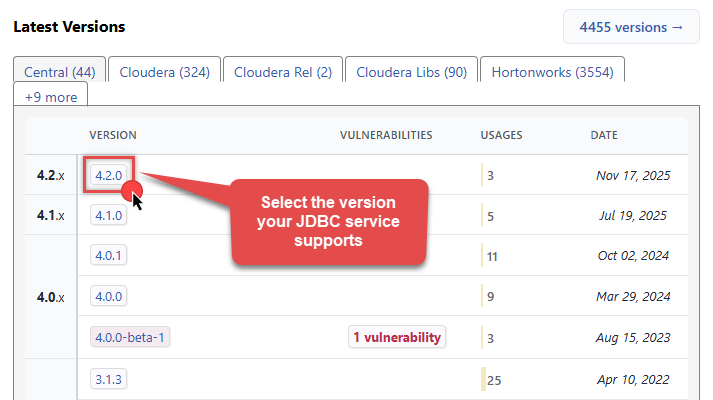
Select the appropriate JDBC driver version in Latest Versions section in MVN Repository:
-
Download the JDBC driver, and save it locally, e.g. to
C:\ZappySys\Jdbc\MySQL\mysql-connector-j-9.3.0.jar.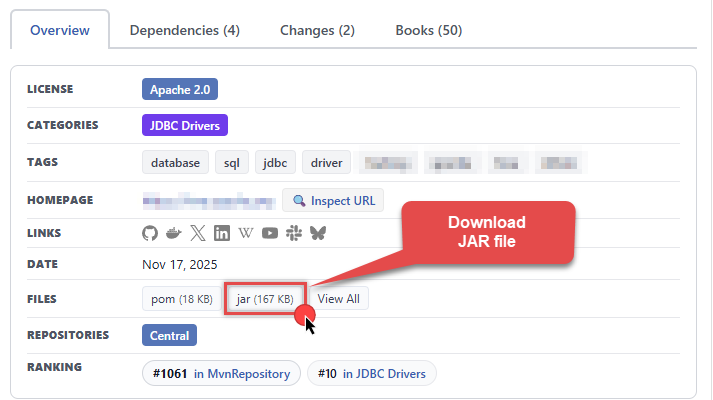
-
Done! That was easy, wasn't it? Let's proceed to the next step.
Create SSIS package
First of all, create an SSIS package, which will connect to MySQL in SSIS. Once you do that, you are one step closer to deploying and running it in Azure-SSIS integration runtime in Azure Data Factory (ADF). Then simply proceed to the next step - creating and configuring Azure Blob Storage Container.
Prepare custom setup files for Azure-SSIS runtime
Now it's time to start preparing custom setup files for Azure-SSIS runtime. During Azure-SSIS runtime creation you can instruct ADF to perform a custom setup on a VM (Azure-SSIS node); i.e. to run the custom installer, copy files, execute PowerShell scripts, etc. In that case, your custom setup files are downloaded and run in the Azure-SSIS node (a VM) when you start the runtime. In this section we will prepare custom setup files so that you can run SSIS packages with SSIS PowerPack connectors inside in Azure-SSIS runtime.
Trial Users
Use the step below if you are a Trial User, when you did not purchase a license key. Proceed with these steps:
-
Download SSIS PowerPack trial installer.
Make sure you don't rename the installer and keep it named as SSISPowerPackSetup_64bit_Trial.msi.
- Create a text file and name it main.cmd (make it all lowercase, very important).
-
Copy and paste this script into it and save it:
set DIR=%CUSTOM_SETUP_SCRIPT_LOG_DIR%

echo Calling Step 1 : %TIME% >> "%DIR%\steps_log.txt"
dir /s /b > "%DIR%\file_list.txt"

echo Calling Step 2 : %TIME% >> "%DIR%\steps_log.txt"

::Install SSIS PowerPack
msiexec /i  "SSISPowerPackSetup_64bit_Trial.msi" ADDLOCAL=ALL /q  /L*V "%DIR%\powerpack_trial_install_log.txt"

echo Calling Step 3 : %TIME% >> "%DIR%\steps_log.txt"
dir "C:\Program Files\Microsoft SQL Server\*Zappy*.*"  /s /b >> "%DIR%\installed_files.txt"
dir "C:\Program Files (x86)\Microsoft SQL Server\*Zappy*.*"  /s /b >> "%DIR%\installed_files.txt"

echo DONE : %TIME% >> "%DIR%\steps_log.txt"

echo complete
This is the entry-point script that is executed when Azure-SSIS runtime is started. - At last! You are ready to upload these two files — main.cmd & SSISPowerPackSetup_64bit_Trial.msi — into your Azure Blob Storage container's folder, which we will do in the Upload custom setup files to Azure Blob Storage container step.
Paid Customers
Use the steps below if you are a Paid Customer, when you purchased a license. Proceed with these steps:
-
Download SSIS PowerPack paid installer.
Make sure you don't rename the installer and keep it named as SSISPowerPackSetup_64bit.msi.
- Have your SSIS PowerPack license key handy, we will need it in the below script.
- Create a text file and name it main.cmd (make it all lowercase, very important).
- Copy and paste the below script into it.
- Paste your license key by replacing parameter's
--registerargument with your real license key. -
Finally, save main.cmd:
set DIR=%CUSTOM_SETUP_SCRIPT_LOG_DIR%

echo Calling Step 1 : %TIME% >> "%DIR%\steps_log.txt"
dir /s /b > "%DIR%\file_list.txt"

echo Calling Step 2 : %TIME% >> "%DIR%\steps_log.txt"

::Install SSIS PowerPack
msiexec /i  "SSISPowerPackSetup_64bit.msi" ADDLOCAL=ALL /q  /L*V "%DIR%\powerpack_install_log.txt"

echo Calling Step 3 : %TIME% >> "%DIR%\steps_log.txt"

::Activate PowerPack license (Optional)
"C:\Program Files (x86)\ZappySys\SSIS PowerPack (64 bit)\LicenseManager.exe" -p SSISPowerPack --register "YOUR_LICENSE_KEY_GOES_HERE" --logfile "%DIR%\powerpack_register_log.txt"

::Show System Info
echo Calling Step 4 : %TIME% >> "%DIR%\steps_log.txt"
"C:\Program Files (x86)\ZappySys\SSIS PowerPack (64 bit)\LicenseManager.exe" -i -l "%DIR%\sysinfo_log.txt"

echo Calling Step 5 : %TIME% >> "%DIR%\steps_log.txt"
dir "C:\Program Files\Microsoft SQL Server\*Zappy*.*"  /s /b >> "%DIR%\installed_files.txt"
dir "C:\Program Files (x86)\Microsoft SQL Server\*Zappy*.*"  /s /b >> "%DIR%\installed_files.txt"

echo DONE : %TIME% >> "%DIR%\steps_log.txt"

echo complete
This is the entry-point script that is executed when Azure-SSIS runtime is started. - At last! You are ready to upload these two files — main.cmd & SSISPowerPackSetup_64bit.msi — into your Azure Blob Storage container's folder, which we will do in the Upload custom setup files to Azure Blob Storage container step.
Upload custom setup files to Azure Blob Storage container
Within Azure Blob Storage container we will store custom setup files we prepared in the previous step so that Azure-SSIS can use them in custom setup process. Just perform these very simple, but very important steps:
-
Create Azure Blob Storage container, if you haven't done it already
Make sure you create and use Azure Blob Storage container instead of Azure Data Lake Storage folder. Azure Data Lake Storage won't allow creating an SAS URI for the container, which is a crucial step in the process.
-
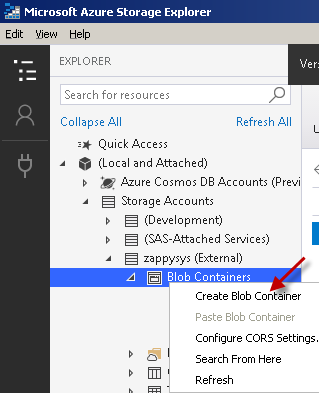
Find Blob Containers node, right-click on it and hit Create Blob Container option:
-
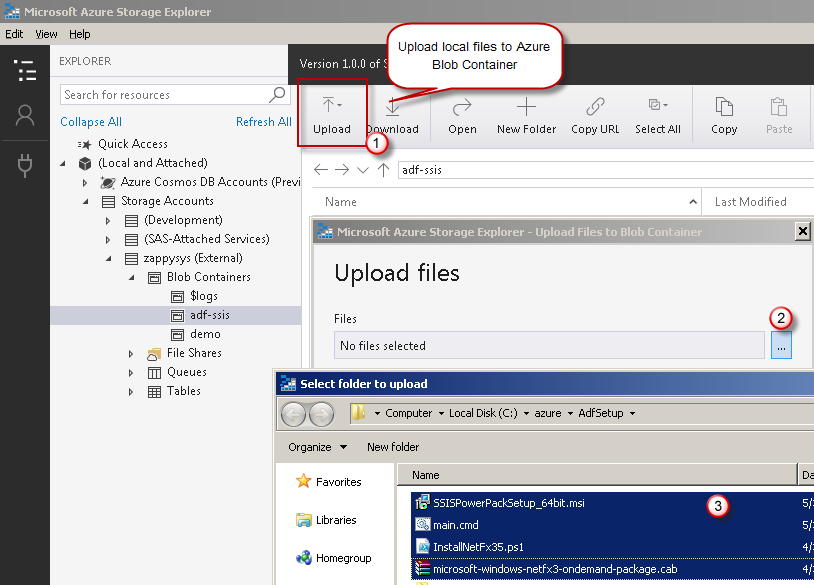
Upload the two custom setup files — main.cmd & the MSI installer — into your Azure Blob Storage container's folder:
- It was easy, wasn't it? It's time we create an SAS URI in the next step.
Create SAS URI for Azure Blob Container
Once you have custom setup files prepared, it's time we generate an SAS URI. This SAS URI will be used by a new Azure-SSIS runtime to install SSIS PowerPack inside the runtime's node, a VM. Let's proceed together by performing the steps below:
- Install and launch Azure Storage Explorer.
-
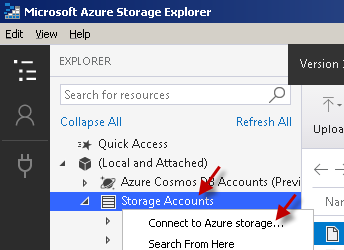
Right-click on the Storage Accounts node and then hit Connect to Azure storage... menu item:
- Proceed by right-clicking on that container node and select Get Shared Access Signature... option.
-
Next, set the Expiry time field to a date far in the future.
If you restart Azure-SSIS runtime and your SAS URI is expired by that time, it will not start.
-
Select Read, Create, Write, and List permissions:
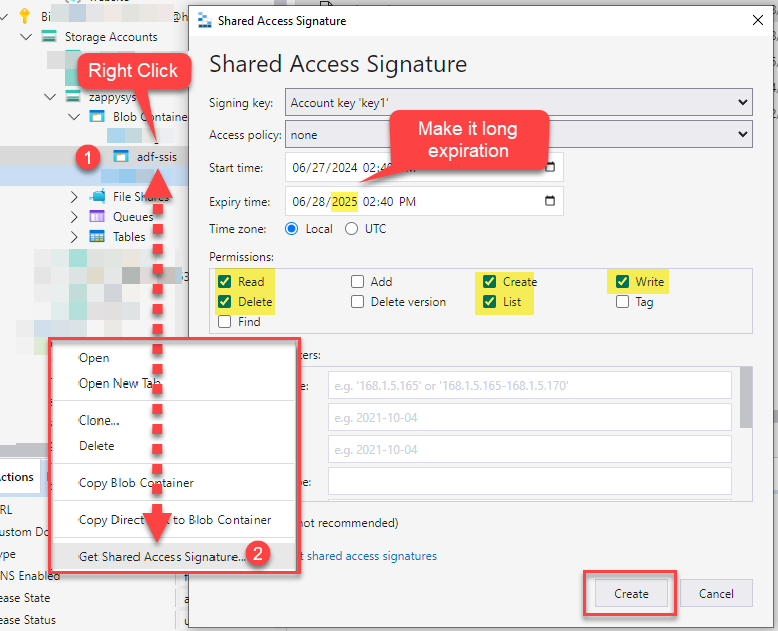 We also recommend to add Delete permission too to support future functionality.
 -
Copy SAS URL to the clipboard and save it for the next step:
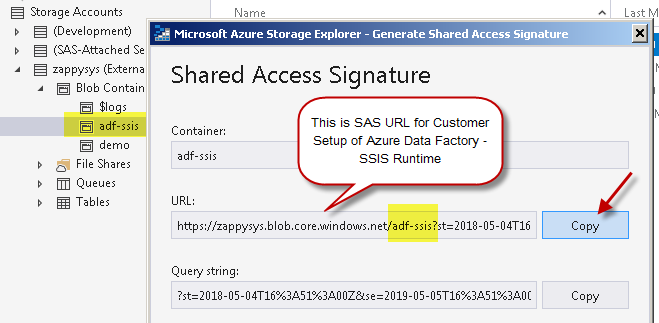 You can also generate and copy SAS URL from within Azure Portal itself:
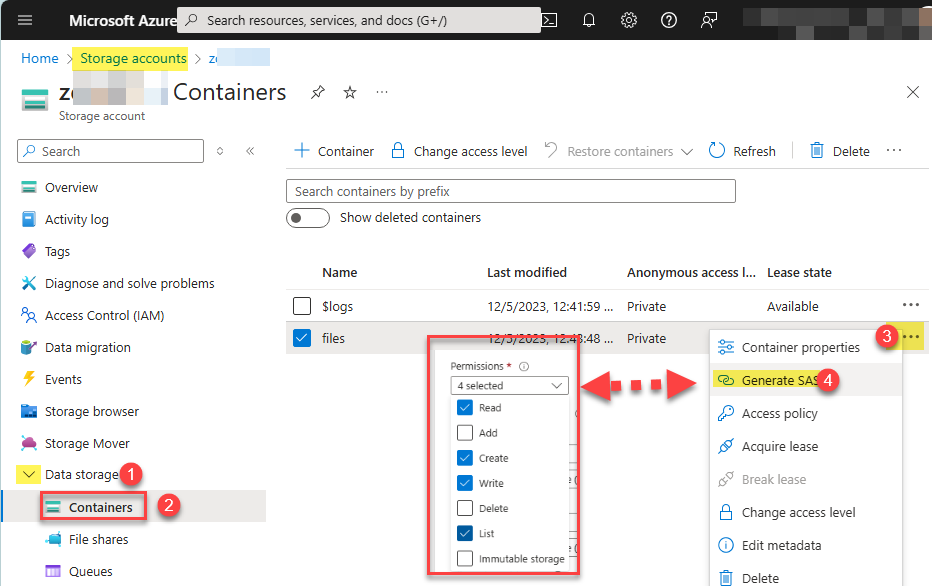
Create Azure-SSIS integration runtime
Once you have the SAS URL we obtained in the previous step, we are ready to move on to create an Azure-SSIS runtime in Azure Data Factory:
- Firstly, perform the steps described in Create an Azure-SSIS integration runtime article in Azure Data Factory reference.
-
In Advanced settings page section, configure Custom setup container SAS URI you obtained in the previous step:
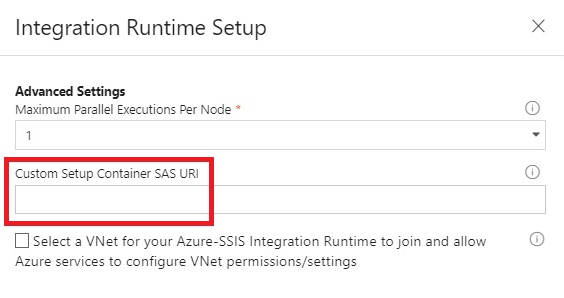
-
And you are done! That was quick! You can see your Azure-SSIS runtime up and running:
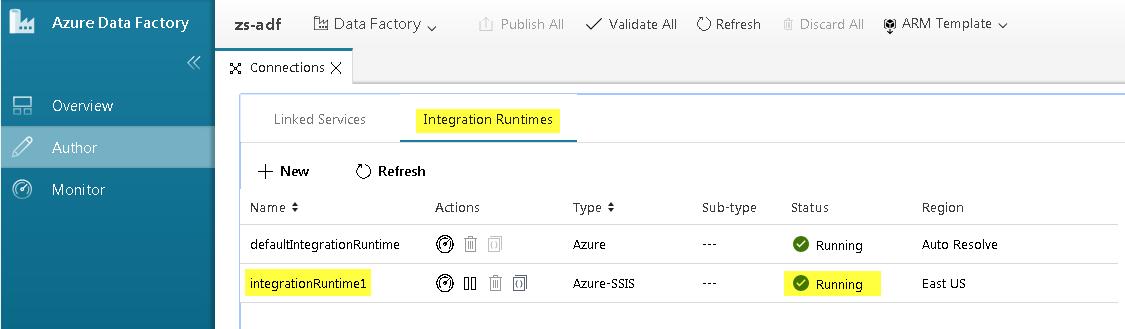
The custom setup script is executed only once — at the time an Azure-SSIS runtime is started.
It is also executed if you stop and start Azure-SSIS runtime again.
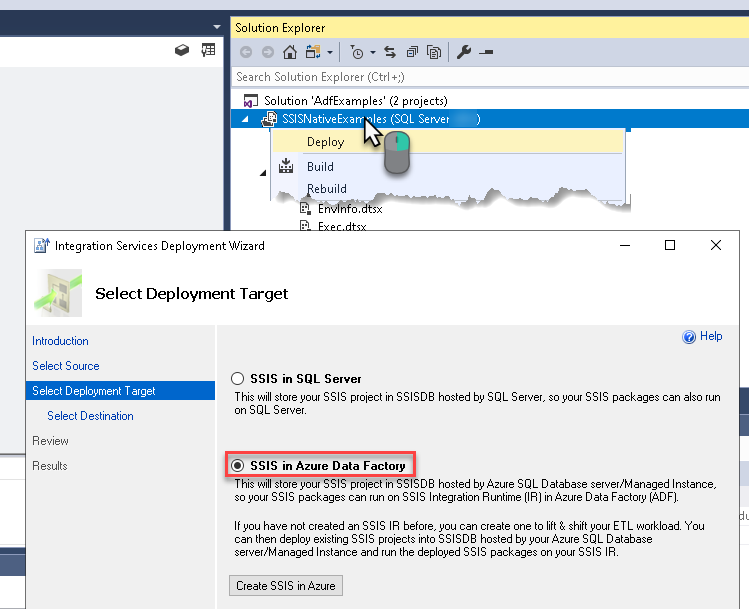
Deploy SSIS package in Visual Studio
We are ready to deploy the SSIS package to Azure-SSIS runtime. Once you do that, proceed to the next step for the grand finale!
Execute SSIS package in SQL Server Management Studio (SSMS)
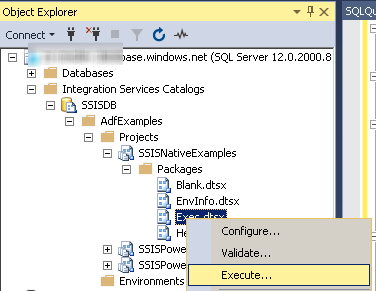
After all hard work, we are ready to execute SSIS package in SQL Server Management Studio (SSMS):
- Connect to the SQL Server which is linked to your Azure-SSIS runtime and contains SSISDB database.
-
Navigate to Integration Services Catalog » Your Folder » Your Project » Your Package, right-click on it, and hit Execute...:
-
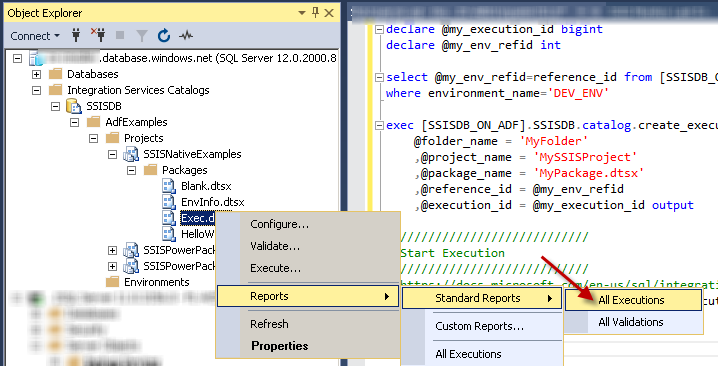
To view the status of the past execution, navigate to
Integration Services Catalog » Your Folder » Your Project » Your Package, right-click on it, and select Reports » Standard Reports » All Executions menu item:
Transferring SSIS PowerPack license to another machine
As an existing ZappySys customer, you might be using your SSIS PowerPack license in an Azure-SSIS Integration Runtime.
If you decide to move your SSIS package execution to a new machine, you will also need to transfer your license.
To accomplish this, perform the following steps:
-
Copy & paste this script into main.cmd we used in the previous step:
set DIR=%CUSTOM_SETUP_SCRIPT_LOG_DIR%

::Listing files
echo Listing files: %TIME% >> "%DIR%\steps_log.txt"
dir /s /b > "%DIR%\file_list.txt"

::Install SSIS PowerPack
echo Installing SSIS PowerPack: %TIME% >> "%DIR%\steps_log.txt"
msiexec /i  "SSISPowerPackSetup_64bit.msi" ADDLOCAL=ALL /q  /L*V "%DIR%\powerpack_install_log.txt"

::Activate license (needed for deactivation)
echo Activating license: %TIME% >> "%DIR%\steps_log.txt"
"C:\Program Files (x86)\ZappySys\SSIS PowerPack (64 bit)\LicenseManager.exe" -p SSISPowerPack --register "YOUR_LICENSE_KEY_GOES_HERE" --logfile "%DIR%\powerpack_register_log.txt"

::Deactivate license
echo Deactivating license: %TIME% >> "%DIR%\steps_log.txt"
"C:\Program Files (x86)\ZappySys\SSIS PowerPack (64 bit)\LicenseManager.exe" -p SSISPowerPack --unregister --logfile "%DIR%\powerpack_un_register_log.txt"

::Show System Info
echo Showing system info: %TIME% >> "%DIR%\steps_log.txt"
"C:\Program Files (x86)\ZappySys\SSIS PowerPack (64 bit)\LicenseManager.exe" -i -l "%DIR%\sysinfo_log.txt"

::Listing files
echo Listing files: %TIME% >> "%DIR%\steps_log.txt"
dir "C:\Program Files\Microsoft SQL Server\*Zappy*.*"  /s /b >> "%DIR%\installed_files.txt"
dir "C:\Program Files (x86)\Microsoft SQL Server\*Zappy*.*"  /s /b >> "%DIR%\installed_files.txt"

::Done!
echo DONE: %TIME% >> "%DIR%\steps_log.txt"
Make sure to replaceYOUR_LICENSE_KEY_GOES_HEREwith your real license key and save the file. -
Start the Azure-SSIS runtime.
This will deactivate your license on the original Azure-SSIS runtime. -
Check the
powerpack_un_register_log.txtlog file in Azure Blob Storage folder to make sure the license was deactivated successfully. -
Stop the Azure-SSIS runtime to deallocate resources in Azure.
-
You can now activate the license on another machine or Azure-SSIS runtime.
Troubleshooting
Validating JDBC connection in DBeaver
If you are experiencing JDBC connection issues, start by testing your JDBC driver in a JDBC client tool like DBeaver. If the JDBC connection fails in DBeaver, it naturally will not work in your ODBC data source either.
Create generic JDBC driver
-
Download and install DBeaver Community Edition.
-
Open DBeaver.
-
Click Database in the top menu and select Driver Manager:
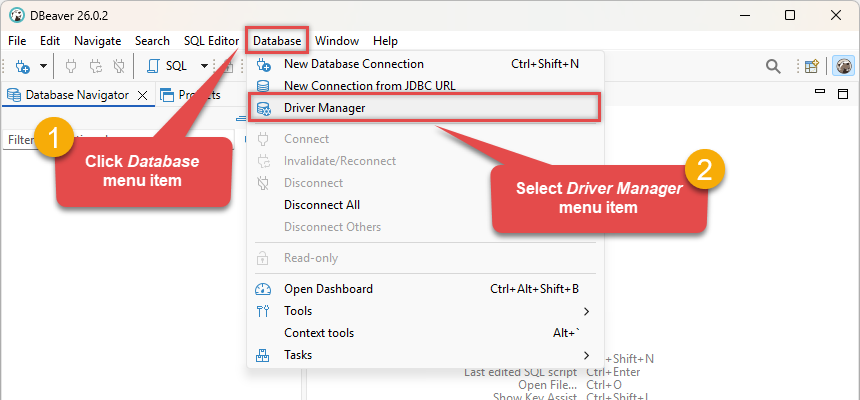
-
Click the New button to start adding a custom JDBC driver:
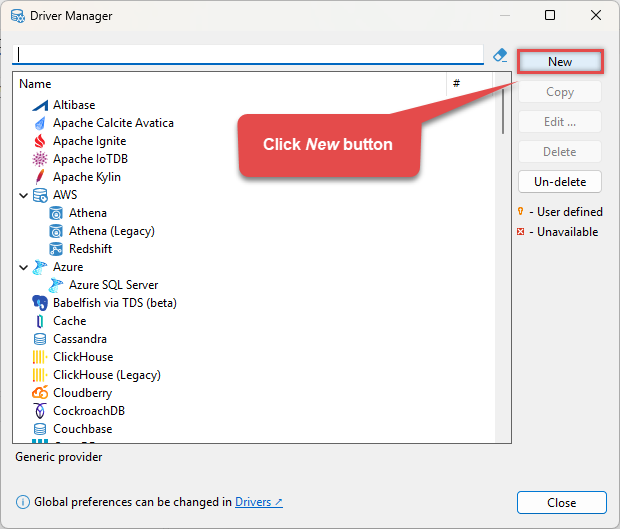
-
Configure the connection settings by entering the Driver Name and Class Name (
com.mysql.cj.jdbc.Driver):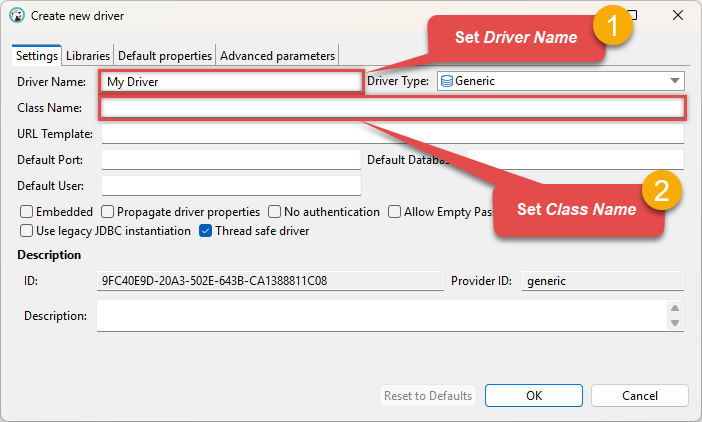 com.mysql.cj.jdbc.Driver
 -
Go to the Libraries tab, click Add File, and select your MySQL driver library file(s), e.g.
C:\ZappySys\Jdbc\MySQL\mysql-connector-j-9.3.0.jar: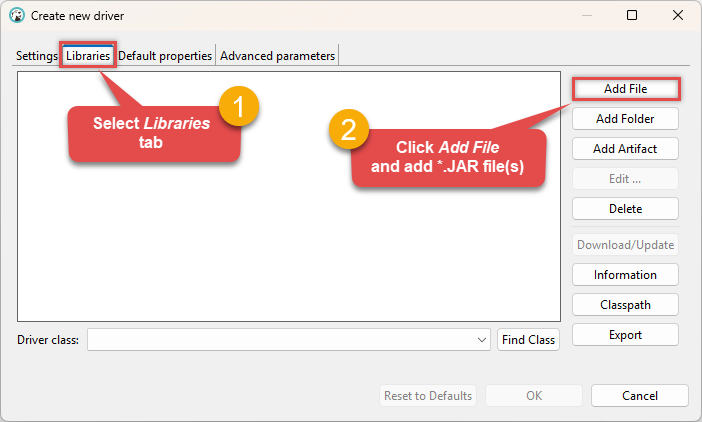 Make sure to add all the required library dependencies.
 -
Your JDBC driver
jarlibrary is now added: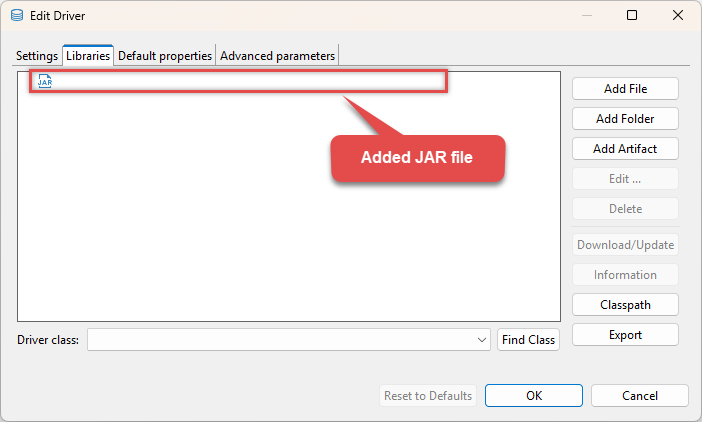 C:\ZappySys\Jdbc\MySQL\mysql-connector-j-9.3.0.jar
 -
(Optional). If required by your JDBC driver, add additional properties by going to the Default properties tab, Right-clicking on the background, and selecting Add new property:
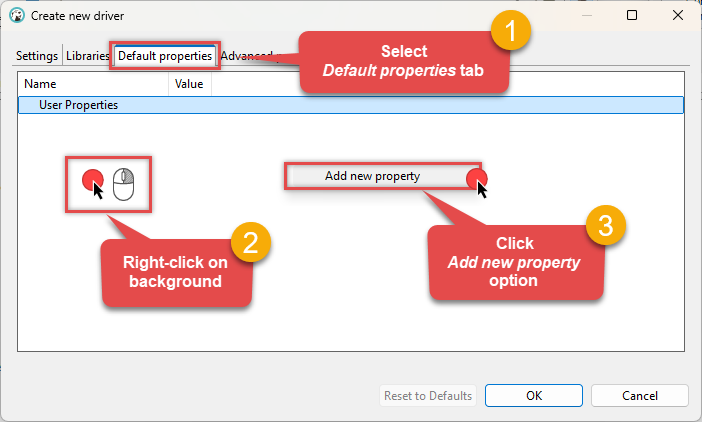
-
Click on a value to modify it, then click OK to finish:
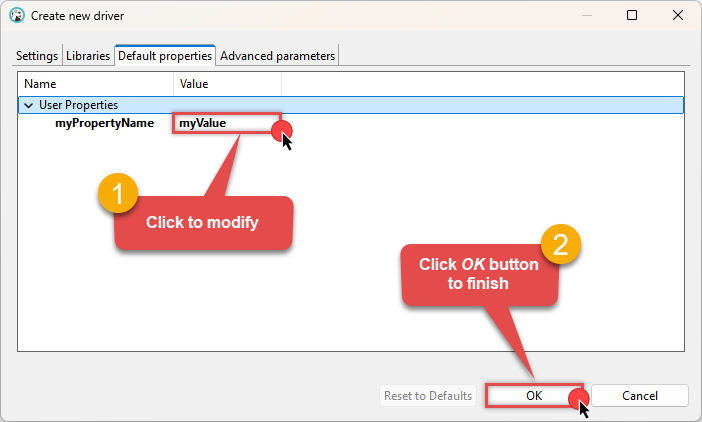
We are now ready to test the connection. Let's proceed!
Test connection
-
Click the New Database Connection icon in the toolbar:
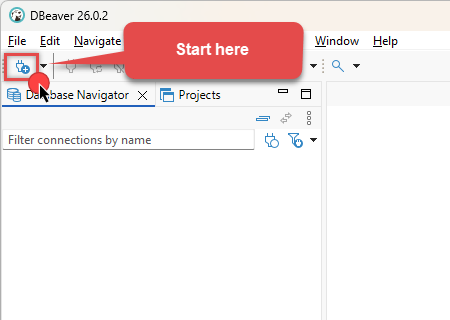
-
Select your newly created JDBC driver from the list and click Next:
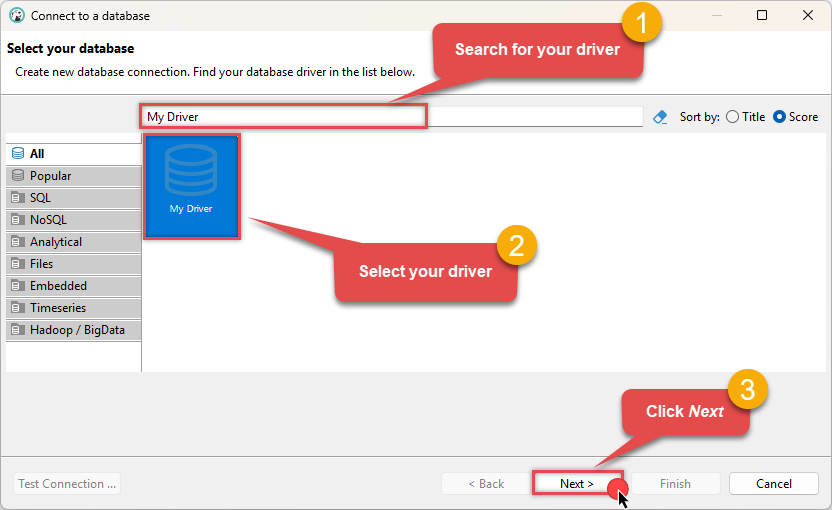
-
Enter your JDBC URL (e.g.
jdbc:mysql://[$HostName$]:[$Port$]/[$Database$]), click Test Connection to verify it works, and then click Finish: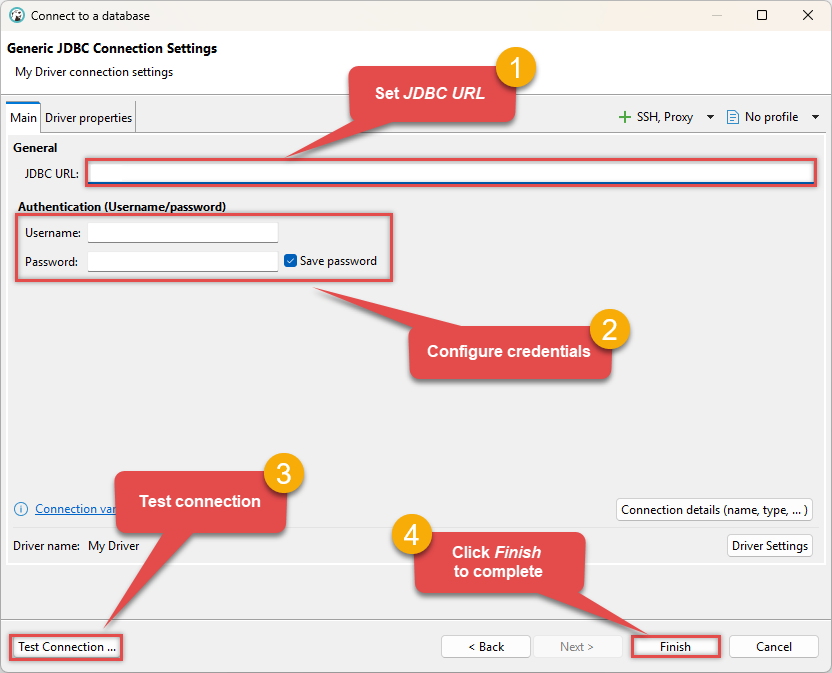 jdbc:mysql://[$HostName$]:[$Port$]/[$Database$]
 -
Finally, expand the database and table list to check the connection status:
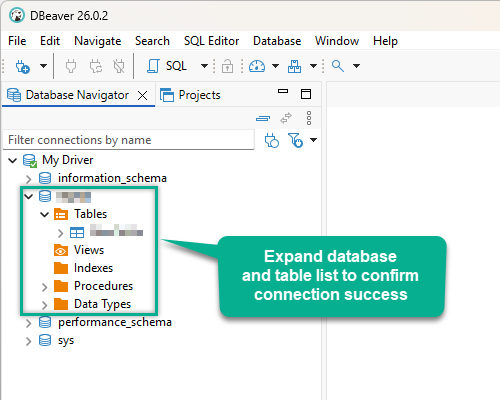
There are two possible outcomes from the connection test:
- Reason:The JDBC driver works perfectly, meaning the issue lies within your ODBC data source configuration.
- Action:Double-check your ODBC data source configuration and ensure it matches the settings that successfully connected in DBeaver.
-
Reason:There is likely an issue with the JDBC driver configuration or the connection details provided.
-
Action:Contact the ZappySys Support Team for assistance.
If you are still experiencing issues or need further help, please contact us:
Chat with an ExpertFrequent issues and solutions
Below are some useful community articles to help you troubleshoot and configure the ZappySys JDBC Bridge Driver:
-
How to combine multiple JAR files
Learn how to merge multiple
.jardependencies when your JDBC driver requires more than one file. -
How to fix JBR error: “Data lake is not available / Unable to verify trust for server certificate chain”
Resolve SSL or certificate validation issues encountered during JDBC connections.
-
System Exception: “Java is not installed or not accessible”
Fix Java path or environment issues that prevent the JDBC Bridge from launching Java.
-
JDBC Bridge Driver disconnect from Java host error
Troubleshoot unexpected disconnection problems between your client application and the Java process.
-
Error: Could not open jvm.cfg while using JDBC Bridge Driver
Resolve JVM configuration path errors during driver initialization.
-
How to enable JDBC Bridge Driver logging
Enable detailed driver logging for better visibility during troubleshooting.
-
How to pass JDBC connection parameters (not by URL)
Learn how to specify connection properties programmatically instead of embedding them in the JDBC URL.
-
How to fix JDBC Bridge error: “No connection could be made because the target machine actively refused it”
Troubleshoot firewall or local port binding issues preventing communication with the Java host.
-
How to use JDBC Bridge options (System Property for Java command line, e.g., classpath, proxy)
Configure custom Java options like classpath and proxy using JDBC Bridge system properties.
Conclusion
In this guide, we demonstrated how to connect to MySQL in Azure Data Factory (SSIS) and integrate your data — all without writing complex code. It's worth noting that ZappySys JDBC Bridge Driver allows you to connect not only to MySQL, but to any Java application that supports JDBC (just use a different JDBC driver and configure it appropriately).
Ready to get started? Download ODBC PowerPack now or ping us via chat if you still need help: