SSIS Export CSV File Task
Export one or many tables, views or SQL queries to CSV files, with no Data Flow metadata to maintain.
Export CSV File Task generates one or many CSV (flat) files from tables, views, SQL queries or stored procedures in a single Control Flow step. Its fully dynamic approach avoids Data Flow metadata issues when columns change, and it can split and GZip-compress output and write it directly to Azure Blob Storage, Amazon S3 or SFTP.
The trial includes Export CSV File Task and every other PowerPack component
- Control Flow Task in SSIS
- Runs in your environment
- Also runs in Azure Data Factory
- Fully functional 30-day trial


At a glance
What Export CSV File Task can do
Export CSV File Task generates CSV (flat) files from one or many tables, views or queries with a fully dynamic approach, so Data Flow metadata issues disappear. It can also export directly to cloud storage such as Azure Blob Storage, Amazon S3 and SFTP.
Export tables, views & queries
Export one or many tables, views, a SQL query or a stored procedure to CSV files from any ADO.NET or OLE DB connection.
- List several objects in
Sourcewith a vertical bar (e.g.table1|table2|view1) or use patterns (e.g.cust%|prod%) - Narrow patterns with
Schema,ExcludeViewsandExcludeTables - Multi-character
SourceSplitChar(e.g.||) to list multiple SQL statements
Fully dynamic metadata
A completely dynamic approach without the strict metadata limits of the Data Flow, so column changes in a source table do not break the export.
Split into multiple files
Split exported CSV data into multiple files by size, by number of records or by the value of a column.
SplitFileswithMaxSizePerFile(e.g. 10mb, 1gb) orMaxRowsPerFileGroupByColumncreates one file per value (e.g. one file per Country), used as the file name suffix
Export to cloud storage
Export directly to Azure Blob Storage, Amazon S3 or FTP/SFTP, and browse the cloud export location from the task UI.
- Export multiple SQL tables dynamically to cloud storage (Pro Edition)
GZip compression & append
Compress output files in GZip format and append to or overwrite existing files.
Compressto *.gz, withKeepRawto keep the uncompressed fileAppendandOverwriteoptions for the target file
CSV format options
Control delimiters, quoting, the header row, date format and encoding of the generated CSV.
DelimiterForColumnandRowDelimiter(e.g.\tfor tab)QuotesAroundValueandNoHeaderRowDateFormat(e.g.yyyy-MM-dd HH:mm:ss.fff) andEncoding(ASCII, UTF-8, UTF-16, UTF-32, with or without BOM)
Row limits, timeout & logging
Limit how much data is exported and control what is logged during execution.
MaxRowsToExportcaps the number of exported rowsTimeoutfor the source query (0 means no timeout)LoggingMode: set to Debugging for maximum log
SQL Server 2012–2025 & ADF
Runs in your environment on SQL Server 2012–2025 and Azure-SSIS.
- SQL Server 2025, 2022, 2019, 2017, 2016, 2014, 2012 (32/64-bit)
- Azure Data Factory (SSIS IR)
- Design packages in Visual Studio 2017, 2019, 2022, or 2026
- Windows only (64-bit OS): Windows 7–11 or Windows Server 2012–2025
See all features
- Export multiple tables/views to CSV files (e.g.
Sales%orSalesJan|SalesFeb) - Export SQL query or stored procedure output to CSV files
- Completely dynamic approach without the limitation of Data Flow strict metadata
- Split exported CSV data into multiple files by size or number of records
- Split data into one file per value of a column (e.g.
GroupByColumn= Country) - Export to cloud storage: Azure Blob, Amazon S3, FTP/SFTP (multiple tables dynamically in Pro Edition)
- GZip compression, append and overwrite options
- Multiple characters allowed in
SourceSplitCharto list multiple SQL statements (e.g.||) - Custom column and row delimiters, quoted values and optional header row
- Date format and encoding options (ASCII, UTF-8, UTF-16 LE/BE, UTF-32, UTF-7, with or without BOM)
- Optional mapping file (
UseMappingFile) for a custom layout and per-column processing instructions, read from a file, a variable or a direct XML value - Limit exported rows with
MaxRowsToExportand set a queryTimeout - Logging modes up to Debugging, with an execution log
Support for SQL Server 2025, 2022, 2019, 2017, 2016, 2014, 2012 (32/64-bit) and Azure Data Factory
SQL Server 2012–2025
How it works
From the toolbox to your first run.
Configure the whole export in one task editor: source objects, target, split rules and CSV format.
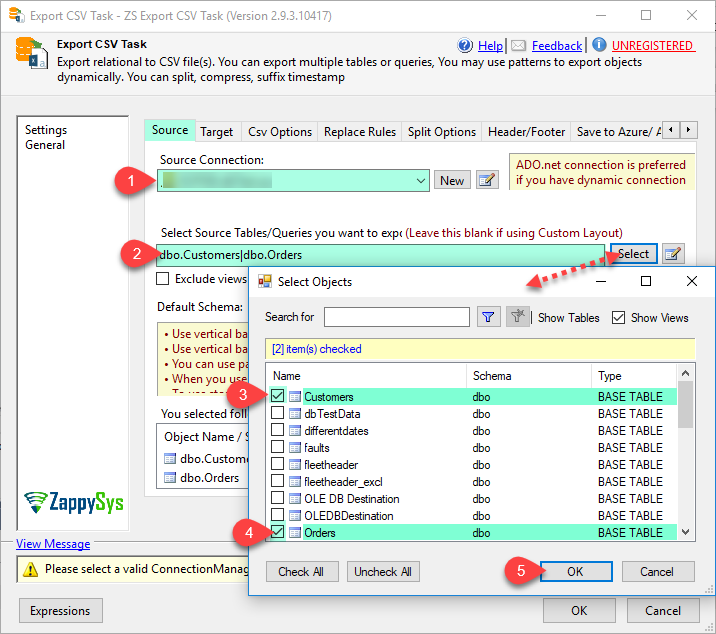
Choose the tables, views or queries to export.
Set the source connection (any ADO.NET or OLE DB connection), then click Select/Edit to choose the tables, views or queries. List several objects with a vertical bar, or match them with a pattern such as cust%|prod%.
- Tables, views, SQL queries or stored procedures
- Narrow patterns with
Schema,ExcludeViewsandExcludeTables - No column metadata to maintain when a table changes
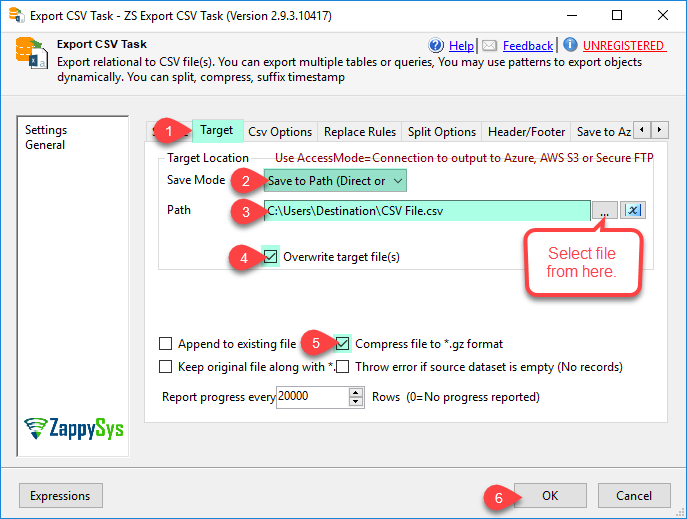
Set the target path, overwrite and GZip options.
Select the target location with the Browse button, then choose whether to overwrite existing files, append to them, or compress output to *.gz. The target can be a local folder or cloud storage.
OverwriteorAppendto existing filesCompressto GZip, withKeepRawto keep the uncompressed file- Azure Blob Storage, Amazon S3 or SFTP targets
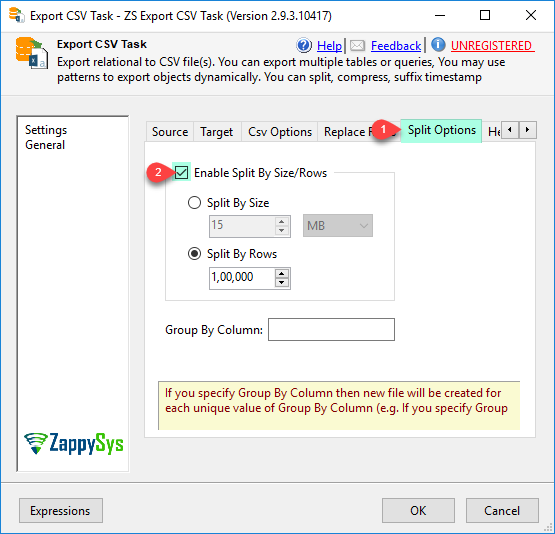
Split output by size, rows or a column value.
On the Split Options tab, enable Split By Size/Rows and optionally set a Group By Column. A new file is created for each unique value of that column, for example one file per Country.
MaxSizePerFilein bytes, kb, mb or gb (e.g.10mb)MaxRowsPerFilefor a fixed row count per file- The group-by value becomes the file name suffix
Control delimiters, dates and encoding.
On the CSV Options tab, set the column delimiter, change the date/time output format and choose the file encoding.
- Column and row delimiters (
\tfor tab) - Quotes around values and an optional header row
- ASCII, UTF-8, UTF-16 or UTF-32, with or without BOM

Inside the UI
Key settings, as they appear in SSDT.
Real screens from the Export CSV File Task product page. Step through them, or open any shot at full size.
Drag ZS Export CSV Task onto the Control Flow
After installing PowerPack, drag ZS Export CSV Task from the SSIS toolbox onto the Control Flow design panel.
Articles
Worked examples that use Export CSV File Task.
Compatibility and requirements
Designed to stay inside your SSIS runtime.
- SQL Server 2012 through 2025, 32-bit and 64-bit
- Windows only, 64-bit OS required. SQL Server Express and Web editions do not include SSIS
- Azure Data Factory SSIS Integration Runtime
- Self-hosted: credentials and data stay in your environment (external API calls still reach that service)
- Fully functional 30-day trial of SSIS PowerPack
FAQ
Questions teams ask before they drop Export CSV File Task on the canvas.
What is Export CSV File Task?
A Control Flow task in SSIS PowerPack that generates CSV (flat) files from one or many tables, views, SQL queries or stored procedures. It uses a fully dynamic approach, so there is no Data Flow column metadata to maintain, and it can write directly to Azure Blob Storage, Amazon S3 or SFTP.
Can I export several tables in one task?
Yes. In Source, list objects separated by a vertical bar (e.g. table1|table2|view1) or use a pattern such as cust%|prod%, and narrow it with Schema, ExcludeViews and ExcludeTables. For several SQL statements, set SourceSplitChar to a multi-character separator such as ||.
How do I split output into multiple files?
Enable SplitFiles and set MaxSizePerFile (e.g. 10mb, 1gb) or MaxRowsPerFile. Set GroupByColumn to create one file per column value, with the value used as the file name suffix; combined with splitting, a value can produce more than one file.
Can it export to Azure Blob, Amazon S3 or SFTP?
Yes, and output can be split and GZip-compressed on the way. Exporting multiple SQL tables dynamically to cloud storage is a Pro Edition feature. See the Amazon S3, Azure Blob and FTP/SFTP walkthroughs.
Which SQL Server versions can I run it on?
SQL Server 2025, 2022, 2019, 2017, 2016, 2014, and 2012 (32- and 64-bit), plus Azure Data Factory with an SSIS Integration Runtime (packages must target SQL Server 2017). See Compatibility and requirements.




What customers say
Start your free trial today
Install SSIS PowerPack and drag Export CSV File Task onto the Control Flow.
Export tables, views or queries to CSV, split and compress the files, and write them locally or to cloud storage.
- Control Flow Task in SSISExport CSV File Task appears in the toolbox after you install PowerPack.
- Fully functional 30-day trialSSIS PowerPack, running in your environment.
- Live supportHelp during your trial and after purchase.
Open Help FileBrowse all SSIS PowerPack tasks
New purchases may be eligible for refund review within 30 days. See the refund policy.
Talk to an engineer before or during your trial.