SharePoint Online Connector for SSIS : Download file


Learn how to download file using the SharePoint Online Connector for SSIS. This connector enables you to read and write SharePoint Online data effortlessly. Integrate, manage, and automate sites, lists, document libraries, and files — almost no coding required. We'll walk you through the exact setup.
Let's dive in!
Video tutorial
Watch this quick video to see the integration in action. It walks you through the end-to-end setup, including:
- Installing the SSIS PowerPack
- Configuring a secure connection to SharePoint Online
- Working with SharePoint Online data directly inside SSIS
- Exploring advanced API Source features

Once you are done watching, simply follow the step-by-step written guide below to configure your data source.
Prerequisites
Before we begin, make sure the following prerequisites are met:
- SSIS designer installed. Sometimes it is referred as BIDS or SSDT (download it from Microsoft).
- Basic knowledge of SSIS package development using Microsoft SQL Server Integration Services.
- SSIS PowerPack is installed (if you are new to SSIS PowerPack, then get started!).
Download file in SSIS
-
Open Visual Studio and click Create a new project.
-
Select Integration Services Project. Enter a name and location for your project, then click OK.
-
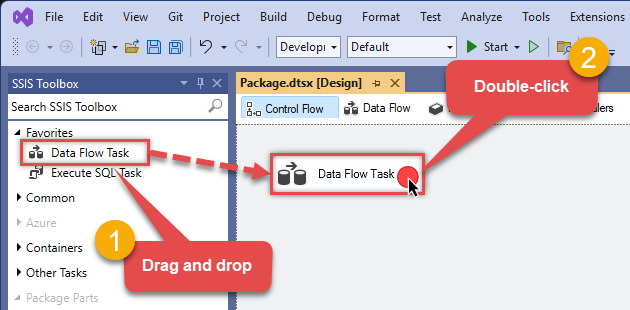
From the SSIS Toolbox, drag and drop a Data Flow Task onto the Control Flow surface, and double-click it:
-
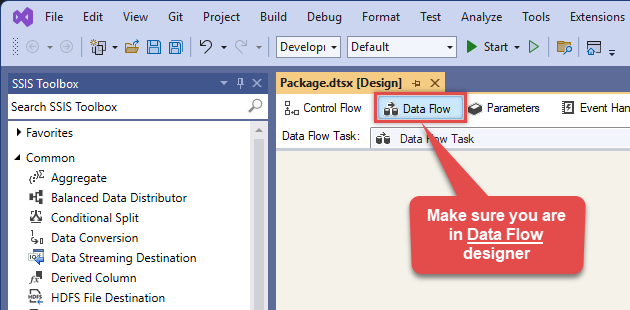
Make sure you are in the Data Flow Task designer:
-
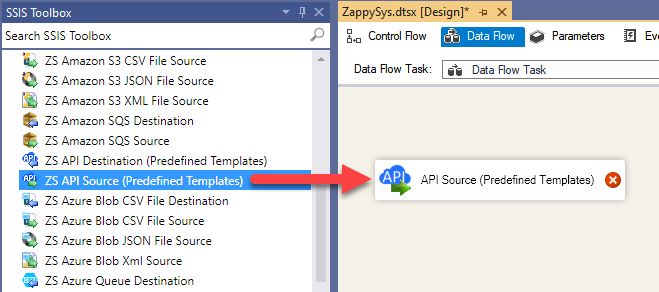
From the SSIS toolbox drag and API Source (Predefined Templates) on the data flow designer surface, and double click on it to edit it:
-
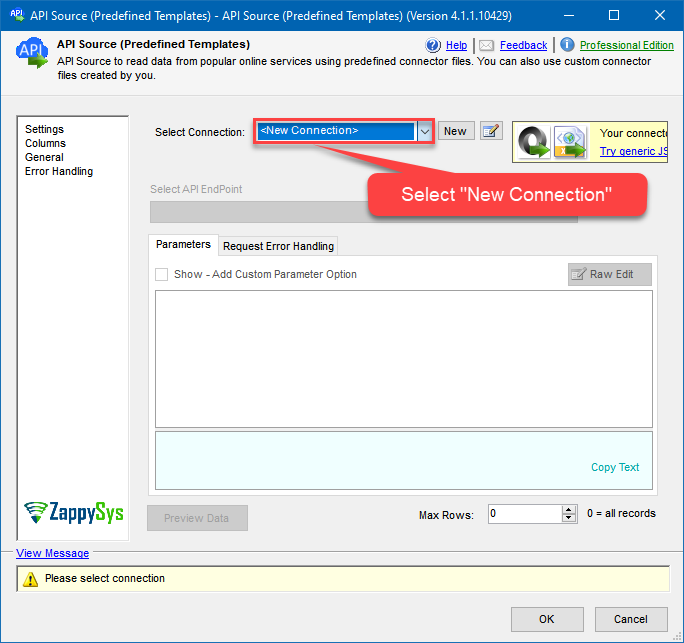
Select New Connection to create a new connection:
-
Use a preinstalled SharePoint Online Connector from Popular Connector List or press Search Online radio button to download SharePoint Online Connector. Once downloaded simply use it in the configuration:
SharePoint Online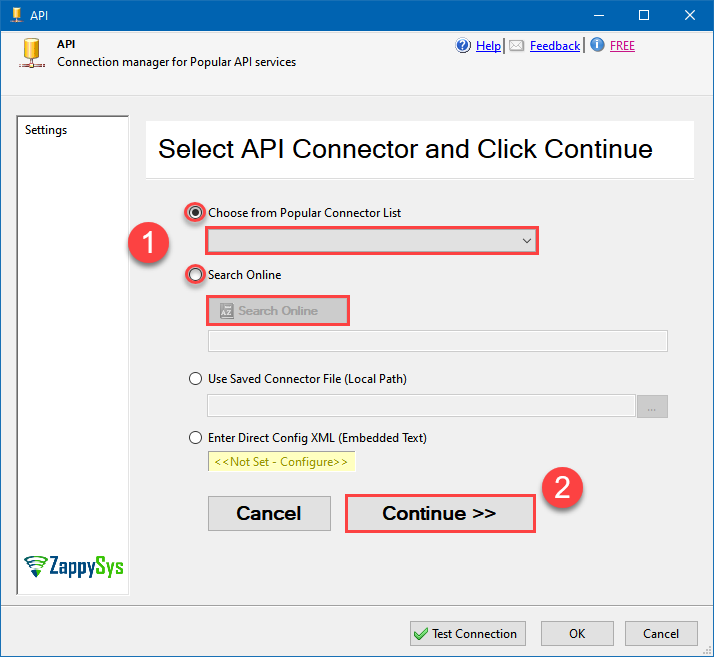
-
Select your authentication scenario below to expand connection configuration steps to:
- Configure the authentication in SharePoint Online.
- Enter those details into the API Connection Manager configuration.
SharePoint Online authentication
Use delegated access (User Credentials) whenever you want to let a signed-in user work with their own resources or resources they can access. Whether it's an admin setting up policies for their entire organization or a user deleting an email in their inbox, all scenarios involving user actions should use delegated access. [API reference]
Follow these simple steps below to create Microsoft Entra ID application with delegated access:
WARNING: If you are planning to automate processes, we recommend that you use a Application Credentials authentication method. In case, you still need to use User Credentials, then make sure you use a system/generic account (e.g.automation@my-company.com). When you use a personal account which is tied to a specific employee profile and that employee leaves the company, the token may become invalid and any automated processes using that token will start to fail.- Navigate to the Azure Portal and log in using your credentials.
- Access Microsoft Entra ID.
-
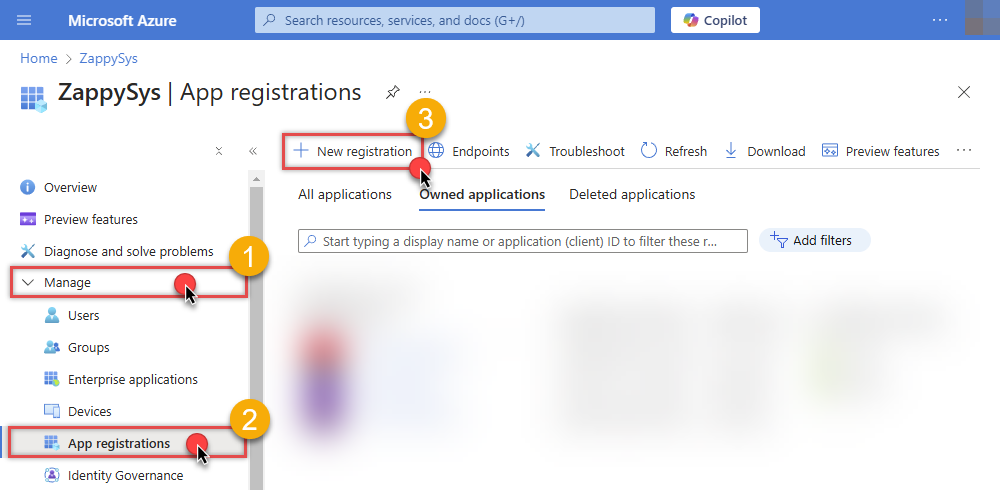
Register a new application by going to App registrations and clicking on New registration button:
 INFO: Find more information on how to register an application in Graph API reference.
 -
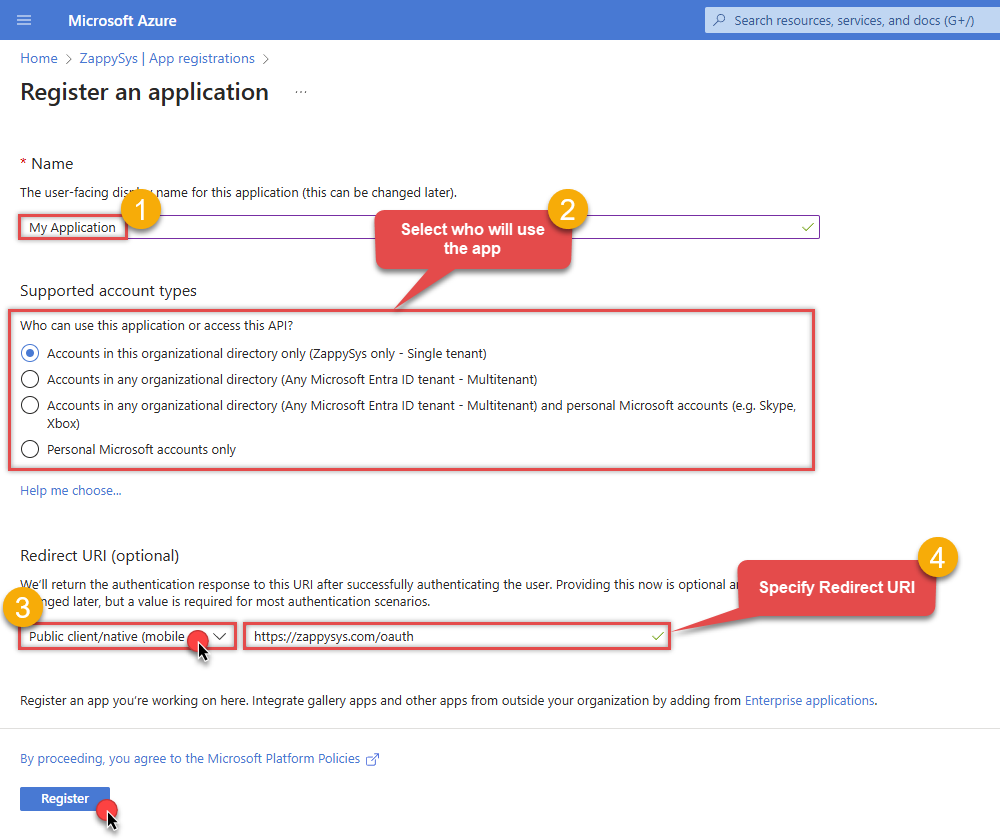
When configuration window opens, configure these fields:
-
Supported account type
- Use
Accounts in this organizational directory only, if you need access to data in your organization only.
- Use
-
Supported account type
-
Redirect URI:
- Set the type to
Public client/native (mobile & desktop). - Use
https://zappysys.com/oauthas the URL.
- Set the type to
-
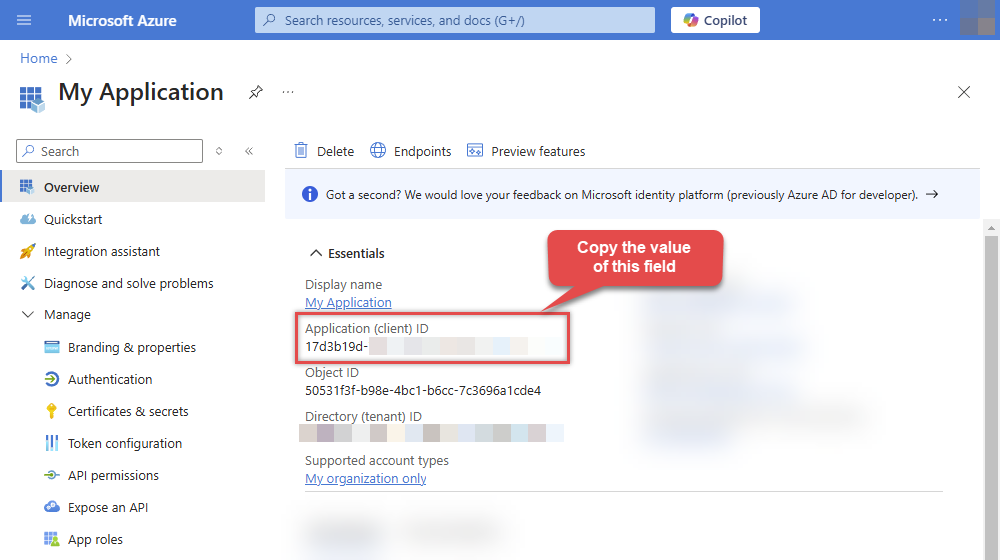
After registering the app, copy the Application (client) ID for later:
-
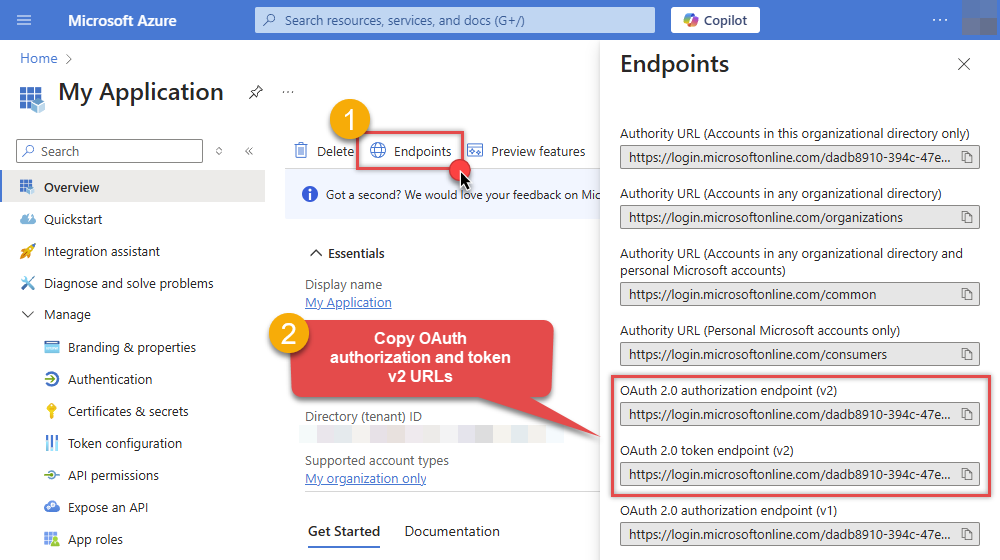
Copy OAuth authorization endpoint (v2) & OAuth token endpoint (v2) URLs to use later in the configuration:
-
Now go to SSIS package or ODBC data source and use the copied values in User Credentials authentication configuration:
- In the Authorization URL field paste the OAuth authorization endpoint (v2) URL value you copied in the previous step.
- In the Token URL field paste the OAuth token endpoint (v2) URL value you copied in the previous step.
- In the Client ID field paste the Application (client) ID value you copied in the previous step.
-
In the Scope field use the default value or select individual scopes, e.g.:
-
email -
offline_access -
openid -
profile -
User.Read -
Sites.Read.All -
Sites.ReadWrite.All -
Files.Read.All -
Files.ReadWrite.All
-
- Press Generate Token button to generate Access and Refresh Tokens.
- Optional step. Choose Default Site Id from the drop down menu.
- Click Test Connection to confirm the connection is working.
- Done! Now you are ready to use the API Connector!
API Connection Manager configuration
Just perform these simple steps to finish authentication configuration:
-
Set Authentication Type to
User Credentials [OAuth] - Optional step. Modify API Base URL if needed (in most cases default will work).
- Fill in all the required parameters and set optional parameters if needed.
- Press Generate Token button to generate the tokens.
- Finally, hit OK button:
SharePoint OnlineUser Credentials [OAuth]https://graph.microsoft.com/v1.0Required Parameters Authorization URL Fill-in the parameter... Token URL Fill-in the parameter... Client ID Fill-in the parameter... Scope Fill-in the parameter... Return URL Fill-in the parameter... Default Site Id (select after pressing 'Generate Token') Fill-in the parameter... Optional Parameters Client Secret Default Drive Id (select after pressing 'Generate Token') Login Prompt Option RetryMode RetryWhenStatusCodeMatch RetryStatusCodeList 429|503|423 RetryCountMax 5 RetryMultiplyWaitTime True Search Option For Non-Indexed Fields (Default=Blank - Search Only Indexed) Extra Headers (e.g. Header1:AAA||Header2:BBB) IsAppCred 0 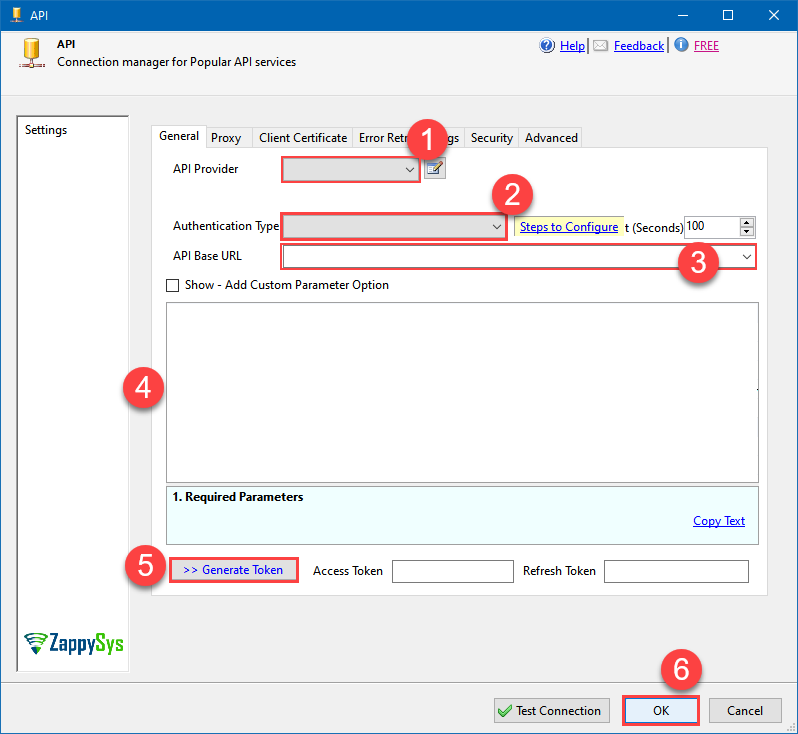 Find full details in the SharePoint Online Connector authentication reference.
SharePoint Online authentication
Application-only access is broader and more powerful than delegated access (User Credentials), so you should only use app-only access where needed. Use it when: 1. The application needs to run in an automated way, without user input (for example, a daily script that checks emails from certain contacts and sends automated responses). 2. The application needs to access resources belonging to multiple different users (for example, a backup or data loss prevention app might need to retrieve messages from many different chat channels, each with different participants). 3. You find yourself tempted to store credentials locally and allow the app to sign in 'as' the user or admin. [API reference]
Follow these simple steps to create Microsoft Entra ID application with application access permissions:
- Create an OAuth app
- Configure App Permissions
-
Grant granular permissions to the OAuth application (optional)
This step allows to grant OAuth application granular permissions, i.e. access configured specificSites,Lists, andList Items.Step-1: Create OAuth app
- Navigate to the Azure Portal and log in using your credentials.
- Access Microsoft Entra ID.
-
Register a new application by going to
App registrations
and clicking on New registration button:
INFO: Find more information on how to register an application in Graph API reference.
-
When configuration window opens, configure these fields:
-
Supported account type
- e.g. select
Accounts in this organizational directory onlyif you need access to data in your organization only.
- e.g. select
-
Supported account type
-
Redirect URI:
- Set the type to
Public client/native (mobile & desktop). - Leave the URL field empty.
- Set the type to
-
After registering the app, copy the Application (client) ID for later:
-
Then copy OAuth authorization endpoint (v2) & OAuth token endpoint (v2) URLs:
-
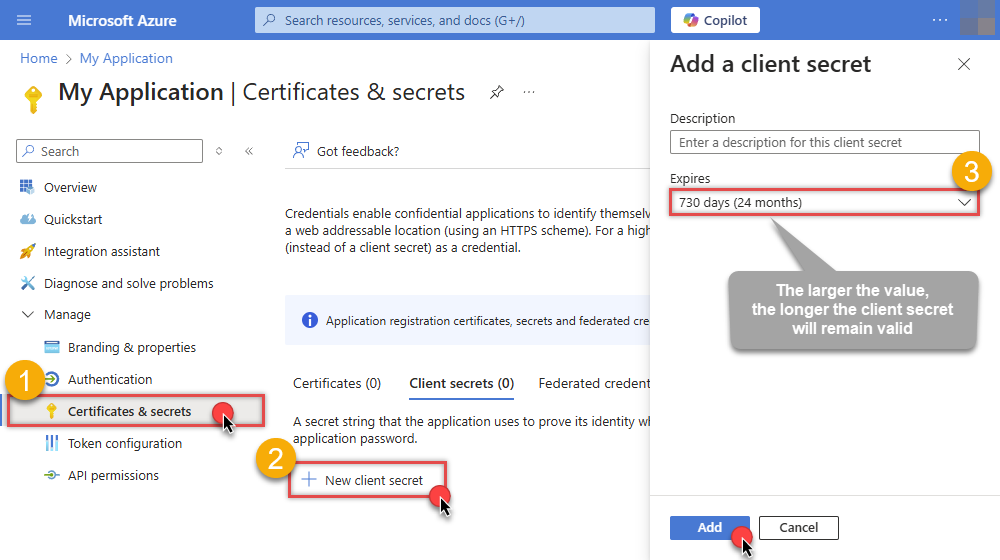
Continue and create Client secret:
-
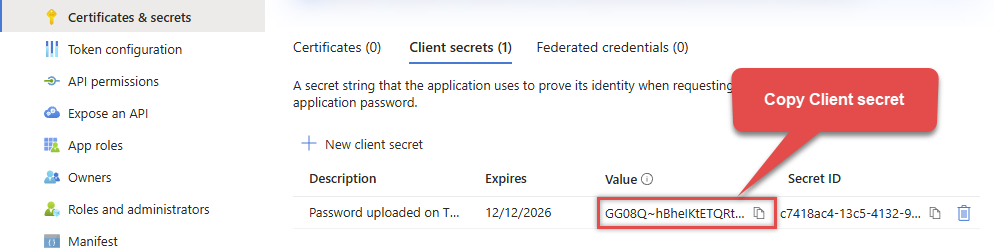
Then copy the Client secret for later steps:
Step-2: Configure App Permissions
-
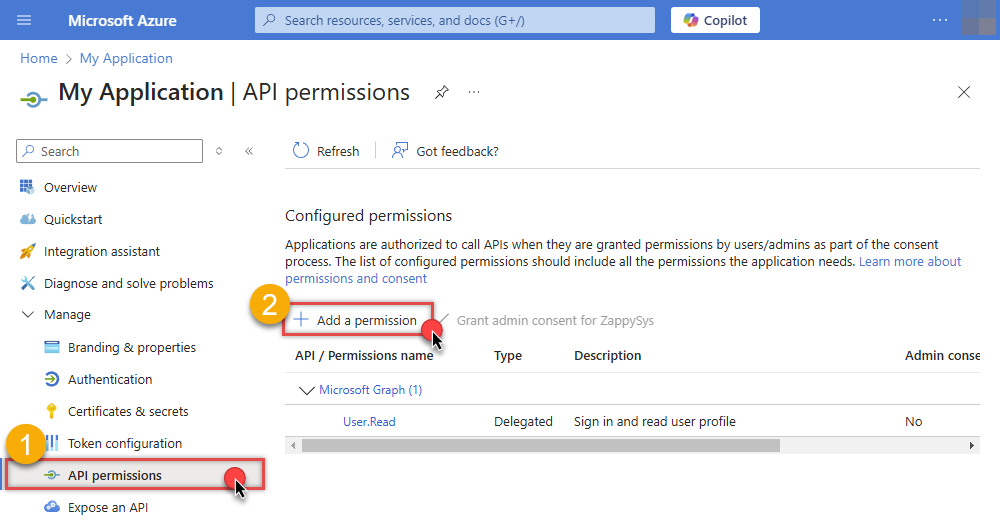
Continue by adding permissions for the app by going to the API permissions section, and clicking on Add a permission:
-
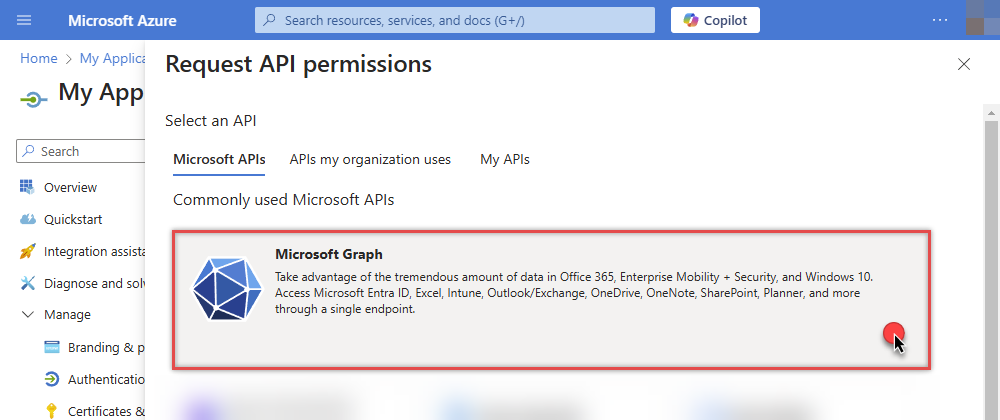
Select Microsoft Graph:
-
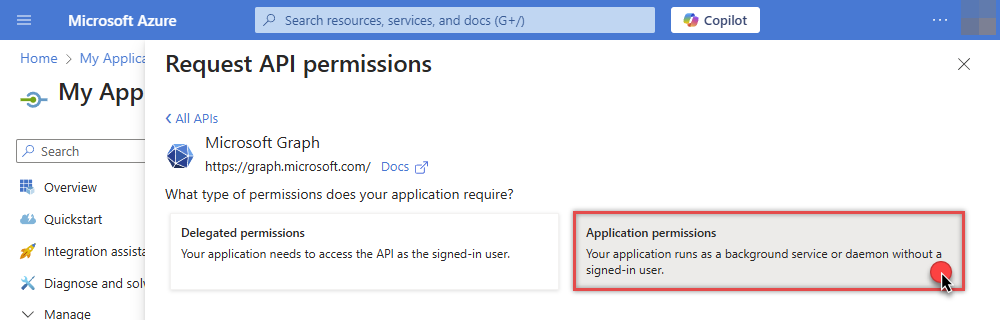
Then choose Application permissions option:
-
Continue by adding these Sites permissions (search for
site):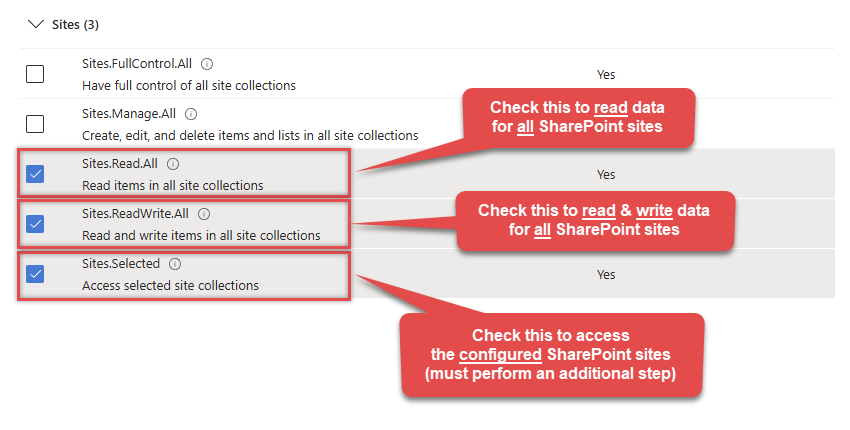 INFO: If you want to access specific lists or list items (table-level vs row-level security) rather than the full site, then add
Lists.SelectedOperations.SelectedorListItems.SelectedOperations.Selectedpermissions , just like in the previous step (search forlist).WARNING: If you add any of these permissions -Sites.Selected,Lists.SelectedOperations.Selected, orListItems.SelectedOperations.Selected- you must grant the app the SharePoint permissions for the specific resource (e.g. aSite, aList, or aListItem). Follow instructions in Grant SharePoint permissions to the OAuth app (optional) section on how to accomplish that. -
Finish by clicking Add permissions button:

-
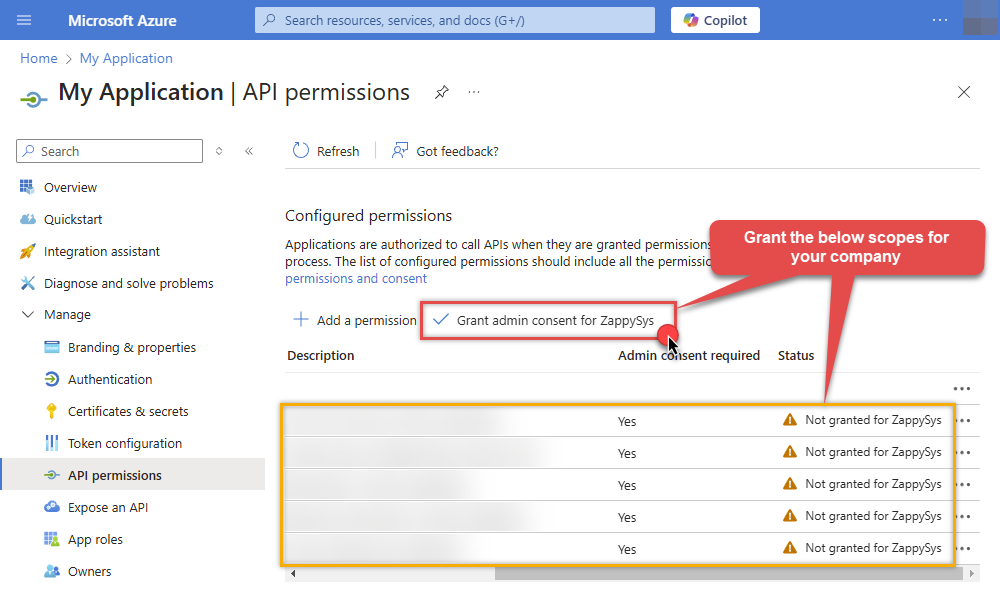
Now it's time to Grant admin consent for your application:
-
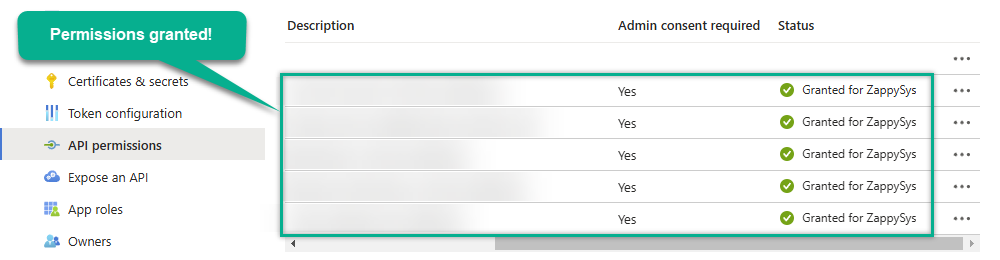
Confirm all the permissions are granted:
-
Now go to SSIS package or ODBC data source and use the copied values in Application Credentials authentication configuration:
- In the Token URL field paste the OAuth token endpoint (v2) URL value you copied in the previous step.
- In the Client ID field paste the Application (client) ID value you copied in the previous step.
- In the Client Secret field paste the Client secret value you copied in the previous step.
- Optional step. Choose Default Site Id from the drop down menu.
- Click Test Connection to confirm the connection is working.
- Done!
Step-3 (optional): Grant SharePoint permissions to the OAuth app
If you used
Sites.Selected,Lists.SelectedOperations.SelectedorListItems.SelectedOperations.Selectedpermission in the previous section, you must grant the app the SharePoint permissions for the specific resource (e.g. aSite, aList, or aListItem). You can do it using PowerShell or SharePoint admin center (obsolete method).Granting SharePoint permissions using PowerShell
Unfortunately, there is no user interface available to control these permissions yet. For now, granting permissions has to be accomplished via Microsoft Graph API [Microsoft reference]:
You must be the owner of the resource to grant permissions (i.e. belong to SharePoint owners group or be the owner of theSiteorList).- Open PowerShell (run as admin).
-
Call the following PowerShell code to grant
readandwritepermission for the app we created earlier (assuming Application (client) ID is89ea5c94-aaaa-bbbb-cccc-3fa95f62b66e):##### CONFIGURATION ############################################################################################ # More info at: # - https://learn.microsoft.com/en-us/graph/permissions-selected-overview?tabs=powershell # - https://learn.microsoft.com/en-us/powershell/module/microsoft.graph.sites/?view=graph-powershell-1.0 # Find SharePoint Site Id by following these steps: # - Login into SharePoint Online # - Open this URL https://{your-company}.sharepoint.com/_api/site in the browser # NOTE: For a subsite use https://{your-company}.sharepoint.com/sites/{your-subsite}/_api/site # - Find 'Id' element in the response (e.g. <d:Id m:type="Edm.Guid">efcdd21a-aaaa-bbbb-cccc-5d8104d8b5e3</d:Id>) # - Copy the Site Id, i.e.: efcdd21a-aaaa-bbbb-cccc-5d8104d8b5e3 # Set $siteId variable to the retrieved Site Id: $siteId="efcdd21a-aaaa-bbbb-cccc-5d8104d8b5e3" # Find your Application Id (i.e. Client Id) in the Azure Portal, in App Registrations page: # https://portal.azure.com/#view/Microsoft_AAD_RegisteredApps/ApplicationsListBlade $applicationId="89ea5c94-aaaa-bbbb-cccc-3fa95f62b66e" # Set one of app permissions: read, write, fullcontrol, owner ('write' includes 'read' permission) $appPermission="write" ##### SCRIPT ################################################################################################### # Step-1: Install 'Microsoft.Graph.Sites' module if it's not installed if (-not (Get-Module Microsoft.Graph.Sites -ListAvailable)) { Install-Module Microsoft.Graph.Sites } # Step-2: Load module Import-Module Microsoft.Graph.Sites # Step-3: Login (use Azure admin or SharePoint owner account) DisConnect-MgGraph Connect-MgGraph # Step-4: Set parameters for API call (set permissions, Site ID and Application ID) $params = @{ roles = @($appPermission) grantedTo = @{ application = @{id = $applicationId} } } # Step-5: Grant permissions New-MgSitePermission -SiteId $siteId -BodyParameter $params # Done! Write-Host "Granted SharePoint permissions to application '$applicationId' for site '$siteId'." - That's it! Now you can use the connector.
Granting SharePoint permissions using SharePoint admin center (obsolete method)
If you used
Site.Selectedpermission you can link it SharePoint site in SharePoint admin center [SharePoint reference]. Follow these simple steps to accomplish that:-
Log in to SharePoint admin center using this URL:
(replace
YOURCOMPANYwith your company name):https://YOURCOMPANY-admin.sharepoint.com/_layouts/15/appinv.aspx
INFO: To view all the registered apps in SharePoint, visit this page:https://YOURCOMPANY-admin.sharepoint.com/_layouts/15/appprincipals.aspx?Scope=Web. - In the App Id field enter Application (client) ID you copied in the previous step.
-
In the Permission Request XML field enter XML snippet which describes which SharePoint permissions you want to grant to the OAuth app, e.g.:
<AppPermissionRequests AllowAppOnlyPolicy="true">
  <AppPermissionRequest Scope="http://sharepoint/content/tenant" Right="FullControl" />
</AppPermissionRequests>
INFO: This example gives appFullControl, but you can also grant itReadorWritepermissions. - Click Create to grant the permission to your OAuth app.
- That's it! Now you can use the connector.
API Connection Manager configuration
Just perform these simple steps to finish authentication configuration:
-
Set Authentication Type to
Application Credentials [OAuth] - Optional step. Modify API Base URL if needed (in most cases default will work).
- Fill in all the required parameters and set optional parameters if needed.
- Finally, hit OK button:
SharePoint OnlineApplication Credentials [OAuth]https://graph.microsoft.com/v1.0Required Parameters Token URL Fill-in the parameter... Client ID Fill-in the parameter... Client Secret Fill-in the parameter... Default Site Id Fill-in the parameter... Optional Parameters Scope https://graph.microsoft.com/.default Default Drive Id RetryMode RetryWhenStatusCodeMatch RetryStatusCodeList 429|503|423 RetryCountMax 5 RetryMultiplyWaitTime True Search Option For Non-Indexed Fields (Default=Blank - Search Only Indexed) Extra Headers (e.g. Header1:AAA||Header2:BBB) IsAppCred 1 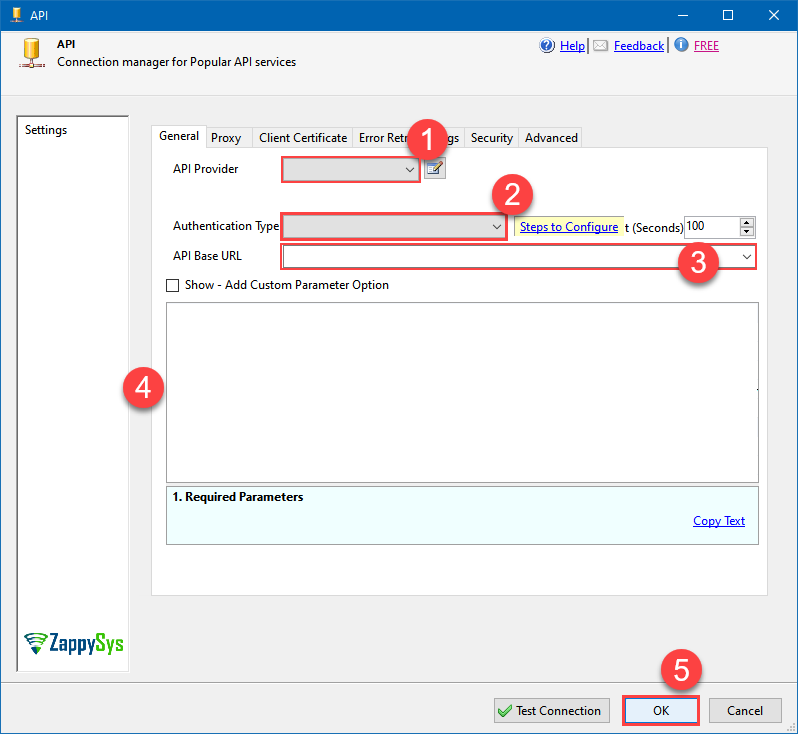 Find full details in the SharePoint Online Connector authentication reference.
SharePoint Online authentication
Follow these simple steps to create Microsoft Entra ID application with application access permissions:
- Create an OAuth app
- Configure App Permissions
- Create Public/Private Key Pair
- Upload Public Key
- Configure ZappySys Connection for Private Key use
-
Grant granular permissions (optional)
This step allows to grant OAuth application granular permissions, i.e. access configured specificSites,Lists, andList Items.Step-1: Create OAuth app
- Navigate to the Azure Portal and log in using your credentials.
- Access Microsoft Entra ID.
-
Register a new application by going to
App registrations
and clicking on New registration button:
INFO: Find more information on how to register an application in Graph API reference.
-
When configuration window opens, configure these fields:
-
Supported account type
- e.g. select
Accounts in this organizational directory onlyif you need access to data in your organization only.
- e.g. select
-
Supported account type
-
After registering the app, copy the Application (client) ID for later:
-
Then copy OAuth authorization endpoint (v2) & OAuth token endpoint (v2) URLs:
Step-2: Configure App Permissions
-
Continue by adding permissions for the app by going to the API permissions section, and clicking on Add a permission:
-
Select Microsoft Graph:
-
Then choose Application permissions option:
-
Continue by adding these Sites permissions (search for
site):
INFO: If you want to access specific lists or list items (table-level vs row-level security) rather than the full site, then addLists.SelectedOperations.SelectedorListItems.SelectedOperations.Selectedpermissions , just like in the previous step (search forlist).WARNING: If you add any of these permissions -Sites.Selected,Lists.SelectedOperations.Selected, orListItems.SelectedOperations.Selected- you must grant the app the SharePoint permissions for the specific resource (e.g. aSite, aList, or aListItem). Follow instructions in Grant SharePoint permissions to the OAuth app (optional) section on how to accomplish that. -
Finish by clicking Add permissions button:
-
Now it's time to Grant admin consent for your application:
-
Confirm all the permissions are granted:
Step-3: Generate a Self-Signed Certificate
Now let's go through setting up a certificate-based authentication flow for Microsoft Graph or other Azure AD protected APIs using client credentials and a JWT.
You can use OpenSSL or any other way to generate Certificate file but to make it simple we will use below example PowerShell script.
Open PowerShell and execute code listed in below steps.
# Run this in PowerShell
#Change .AddYears(1) to desired number. By default it expires certificate in one year as per below code.

$cert = New-SelfSignedCertificate `
  -Subject "CN=MyClientAppCert" `
  -KeySpec Signature `
  -KeyExportPolicy Exportable `
  -KeyLength 2048 `
  -CertStoreLocation "Cert:\CurrentUser\My" `
  -KeyAlgorithm RSA `
  -HashAlgorithm SHA256 `
  -NotAfter (Get-Date).AddYears(1) `
  -Provider "Microsoft Enhanced RSA and AES Cryptographic Provider"

# Export private key (.pfx)  - Keep this with you to make API calls (SECRET KEY - DONOT SHARE)
$pfxPath = "$env:USERPROFILE\Desktop\private_key.pfx"
$pwd = ConvertTo-SecureString -String "yourStrongPassword123" -Force -AsPlainText
Export-PfxCertificate -Cert $cert -FilePath $pfxPath -Password $pwd

# Export public certificate (.cer) - UPLOAD this to Azure Portal
$cerPath = "$env:USERPROFILE\Desktop\public_key.cer"
Export-Certificate -Cert $cert -FilePath $cerPath
Step-4: Upload the Certificate (i.e. Public Key *.cer)
Once we have certificate file generated.- In your App Registration, go to Certificates & secrets
- Under Certificates, click Upload certificate
- Select the
.cerfile (public certificate)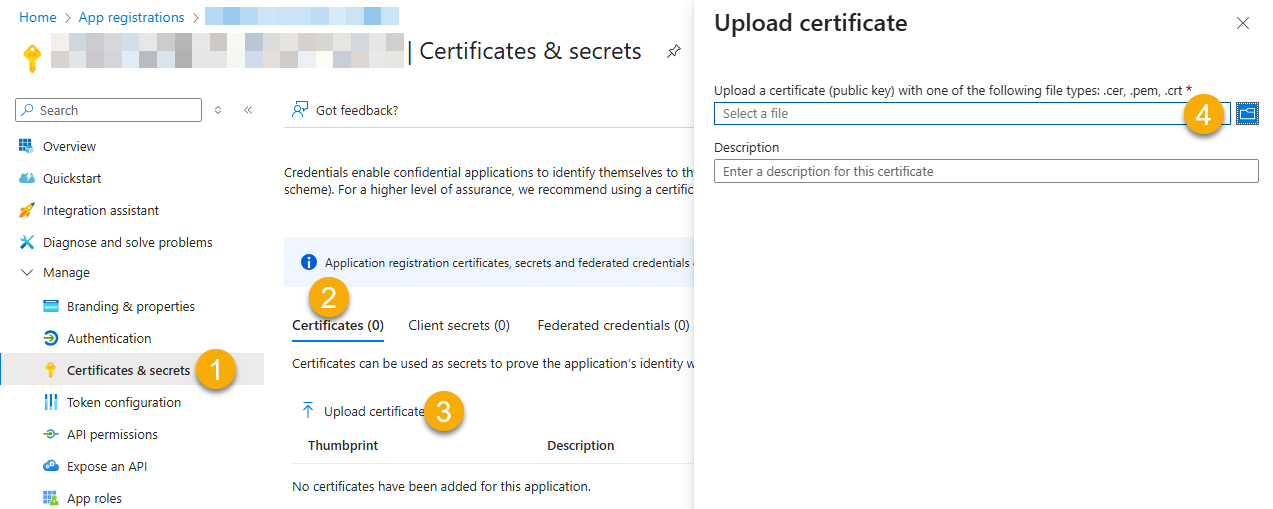
- Click Select a file (Browse button)
- Select public key file (*.cer) from local machine and click OK to upload
Step-5: Configure ZappySys Connection - Use private key (i.e. *.pfx or *.pem)
Now its time to use certificate pfx file (private key) generated in the previous step (NOTE: PFX file contains both private key and public key).-
Go to SSIS package or ODBC data source and use the copied values in Application Credentials authentication configuration:
- In the Token URL field paste the OAuth token endpoint (v2) URL value you copied in the previous step.
- In the Client ID field paste the Application (client) ID value you copied in the previous step.
- Configure private key
- go to
Certificate Tab - Change Storage Mode to
Disk File: *.pfx format (PKCS#12).NOTE: You can also useStored In LocalMachinemode if PFX file already imported in the Local Certificate Storage Area - User Store OR Machine Store. If you used OpenSSL to generate key pair then useDisk File: *.pem format (PKCS#8 or PKCS#1)Mode for Cert Store Location. - Supply the key file path
- Supply the certificate password (same password used in earlier PowerShell script)
- go to
- Now go back to General Tab, choose Default Site Id and Default Drive Id from the drop down menu.
- Click Test connection see everything is good
Step-6 (optional): Grant granular permissions to the OAuth app
If you used
Sites.Selected,Lists.SelectedOperations.SelectedorListItems.SelectedOperations.Selectedpermission in the previous section, you must grant the app the SharePoint permissions for the specific resource (e.g. aSite, aList, or aListItem). You can do it using PowerShell or SharePoint admin center (obsolete method).Granting SharePoint permissions using PowerShell
Unfortunately, there is no user interface available to control these permissions yet. For now, granting permissions has to be accomplished via Microsoft Graph API [Microsoft reference]:
You must be the owner of the resource to grant permissions (i.e. belong to SharePoint owners group or be the owner of theSiteorList).- Open PowerShell (run as admin).
-
Call the following PowerShell code to grant
readandwritepermission for the app we created earlier (assuming Application (client) ID is89ea5c94-aaaa-bbbb-cccc-3fa95f62b66e):##### CONFIGURATION ############################################################################################ # More info at: # - https://learn.microsoft.com/en-us/graph/permissions-selected-overview?tabs=powershell # - https://learn.microsoft.com/en-us/powershell/module/microsoft.graph.sites/?view=graph-powershell-1.0 # Find SharePoint Site Id by following these steps: # - Login into SharePoint Online # - Open this URL https://{your-company}.sharepoint.com/_api/site in the browser # NOTE: For a subsite use https://{your-company}.sharepoint.com/sites/{your-subsite}/_api/site # - Find 'Id' element in the response (e.g. <d:Id m:type="Edm.Guid">efcdd21a-aaaa-bbbb-cccc-5d8104d8b5e3</d:Id>) # - Copy the Site Id, i.e.: efcdd21a-aaaa-bbbb-cccc-5d8104d8b5e3 # Set $siteId variable to the retrieved Site Id: $siteId="efcdd21a-aaaa-bbbb-cccc-5d8104d8b5e3" # Find your Application Id (i.e. Client Id) in the Azure Portal, in App Registrations page: # https://portal.azure.com/#view/Microsoft_AAD_RegisteredApps/ApplicationsListBlade $applicationId="89ea5c94-aaaa-bbbb-cccc-3fa95f62b66e" # Set one of app permissions: read, write, fullcontrol, owner ('write' includes 'read' permission) $appPermission="write" ##### SCRIPT ################################################################################################### # Step-1: Install 'Microsoft.Graph.Sites' module if it's not installed if (-not (Get-Module Microsoft.Graph.Sites -ListAvailable)) { Install-Module Microsoft.Graph.Sites } # Step-2: Load module Import-Module Microsoft.Graph.Sites # Step-3: Login (use Azure admin or SharePoint owner account) DisConnect-MgGraph Connect-MgGraph # Step-4: Set parameters for API call (set permissions, Site ID and Application ID) $params = @{ roles = @($appPermission) grantedTo = @{ application = @{id = $applicationId} } } # Step-5: Grant permissions New-MgSitePermission -SiteId $siteId -BodyParameter $params # Done! Write-Host "Granted SharePoint permissions to application '$applicationId' for site '$siteId'." - That's it! Now you can use the connector.
API Connection Manager configuration
Just perform these simple steps to finish authentication configuration:
-
Set Authentication Type to
Application Credentials with Certificate (Sign JWT with Private Key) [OAuth] - Optional step. Modify API Base URL if needed (in most cases default will work).
- Fill in all the required parameters and set optional parameters if needed.
- Finally, hit OK button:
SharePoint OnlineApplication Credentials with Certificate (Sign JWT with Private Key) [OAuth]https://graph.microsoft.com/v1.0Required Parameters Token URL Fill-in the parameter... Client ID Fill-in the parameter... Certificate: *** Configure [Client Certificate] Tab *** Fill-in the parameter... Default Site Id Fill-in the parameter... Optional Parameters Default Drive Id RetryMode RetryWhenStatusCodeMatch RetryStatusCodeList 429|503|423 RetryCountMax 5 RetryMultiplyWaitTime True Search Option For Non-Indexed Fields (Default=Blank - Search Only Indexed) Extra Headers (e.g. Header1:AAA||Header2:BBB) IsAppCred 1
Find full details in the SharePoint Online Connector authentication reference.
Select Download File endpoint from the dropdown and hit Preview Data:
 API Source - SharePoint OnlineRead and write SharePoint Online data effortlessly. Integrate, manage, and automate sites, lists, document libraries, and files — almost no coding required.SharePoint OnlineDownload File
Required Parameters Drive Id Fill-in the parameter... File Id or Path (e.g. root:/somefolder/myfile.xyz: ) - Max 1000 Listed Fill-in the parameter... SaveContentAsBinary Fill-in the parameter... FileOverwriteMode Fill-in the parameter... Target File Path (e.g. c:\somefolder\file.xlsx) Fill-in the parameter... Optional Parameters Site Id (Re-Select Drive Id after you change this) Search Type - For UI Only (i.e. Recursive -OR- Non-Recursive) - Default=Recursive) Search Folder (For UI Only - Helps to narrow down File Selection DropDown) - Max 200 Listed RequestTimeoutMs 7200000 RawOutputDataRowTemplate {Status:'Downloaded'} EnableRawOutputModeSingleRow True 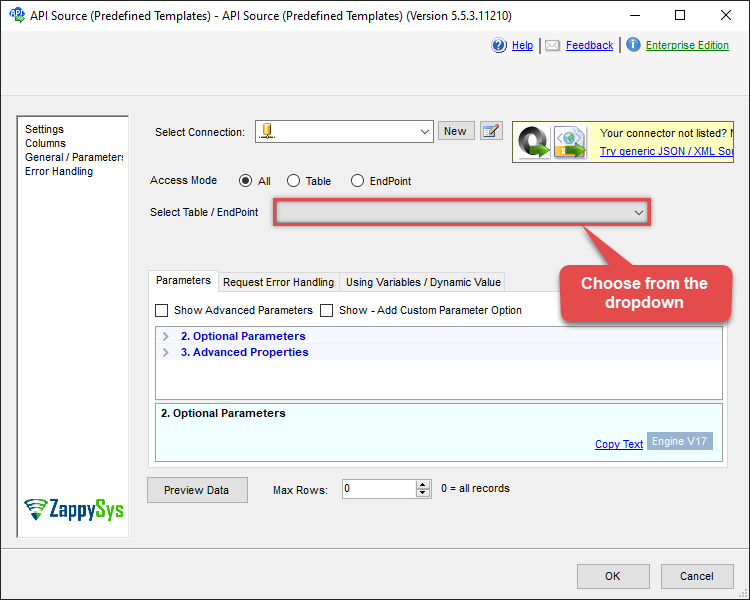
That's it! We are done! Just in a few clicks we configured the call to SharePoint Online using SharePoint Online Connector.
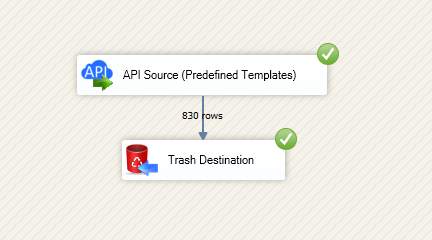
You can load the source data into your desired destination using the Upsert Destination , which supports SQL Server, PostgreSQL, and Amazon Redshift. We also offer other destinations such as CSV , Excel , Azure Table , Salesforce , and more . You can check out our SSIS PowerPack Tasks and components for more options. (*loaded in Trash Destination)
Conclusion
And there you have it — a complete guide on how to download file in SSIS without writing complex code. All of this was powered by SharePoint Online Connector, which handled the REST API pagination and authentication for us automatically.
Download the trial now or ping us via chat if you have any questions or are looking for a specific feature (you can also reach out to us by submitting a ticket):
More actions supported by SharePoint Online Connector
Got another use case in mind? We've documented the exact setups for a variety of essential SharePoint Online operations directly in SSIS, so you can skip the trial and error. Find your next step-by-step guide below:
- Copy item (File or Folder)
- Create / Update CSV File (Generic)
- Create / Update JSON File (Generic)
- Create List Item
- Delete Item (File or Folder)
- Delete List Item
- Get Item (File or Folder)
- List Drives
- List Excel Files
- List Excel Worksheets of a File (i.e. List Tabs)
- List Files
- List Folders
- List SharePoint Lists
- List SharePoint System Lists
- List Sites
- Move or rename item (File or Folder)
- Read CSV File (Generic)
- Read Drive
- Read Excel Worksheet (Auto Detect Range)
- Read Excel Worksheet (From Exact Range)
- Read File Data (As Byte Array)
- Read JSON File (Generic)
- Read List
- Read List Fields
- Read List Item (By ID)
- Read List Items
- Read List Items (Dynamic Columns)
- Read Main Site
- Update List Item
- Upload File
- Make Generic REST API Request
- Make Generic REST API Request (Bulk Write)
More SharePoint Online integrations
AllData IntegrationDatabaseBI & ReportingProductivityProgramming LanguagesAutomation & ScriptingODBC applications