Amazon Selling Partner (SP-API) Connector for SSIS : Get report data - comma separated file (CSV)

Learn how to get report data - comma separated file (CSV) using the Amazon Selling Partner (SP-API) Connector for SSIS. This connector enables you to read and write Amazon Selling Partner (SP-API) data effortlessly. Integrate, manage, and automate listings, orders, payments, and reports — almost no coding required. We'll walk you through the exact setup.
Let's dive in!
Video tutorial
Watch this quick video to see the integration in action. It walks you through the end-to-end setup, including:
- Installing the SSIS PowerPack
- Configuring a secure connection to Amazon Selling Partner (SP-API)
- Working with Amazon Selling Partner (SP-API) data directly inside SSIS
- Exploring advanced API Source features

Once you are done watching, simply follow the step-by-step written guide below to configure your data source.
Prerequisites
Before we begin, make sure the following prerequisites are met:
- SSIS designer installed. Sometimes it is referred as BIDS or SSDT (download it from Microsoft).
- Basic knowledge of SSIS package development using Microsoft SQL Server Integration Services.
- SSIS PowerPack is installed (if you are new to SSIS PowerPack, then get started!).
Get report data - comma separated file in SSIS
-
Open Visual Studio and click Create a new project.
-
Select Integration Services Project. Enter a name and location for your project, then click OK.
-
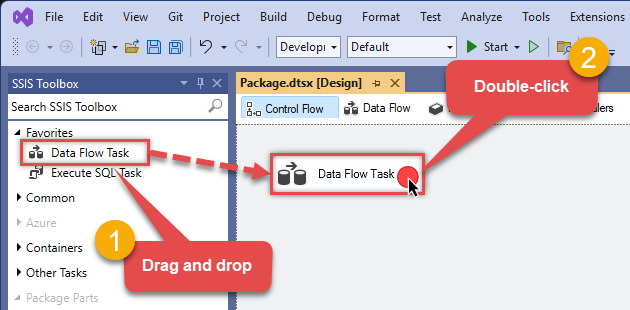
From the SSIS Toolbox, drag and drop a Data Flow Task onto the Control Flow surface, and double-click it:
-
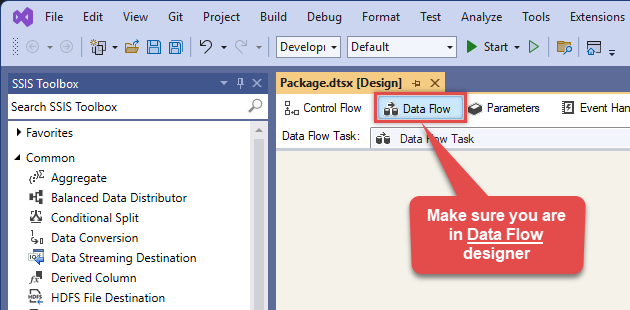
Make sure you are in the Data Flow Task designer:
-
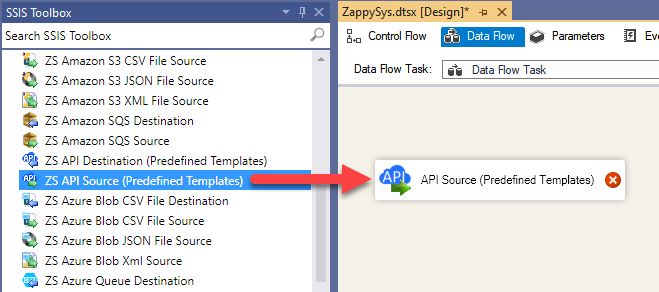
From the SSIS toolbox drag and API Source (Predefined Templates) on the data flow designer surface, and double click on it to edit it:
-
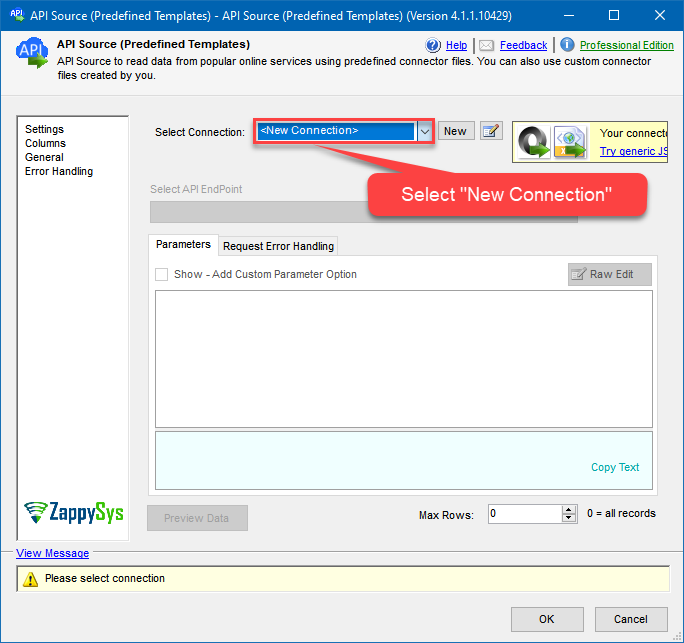
Select New Connection to create a new connection:
-
Use a preinstalled Amazon Selling Partner (SP-API) Connector from Popular Connector List or press Search Online radio button to download Amazon Selling Partner (SP-API) Connector. Once downloaded simply use it in the configuration:
Amazon Selling Partner (SP-API)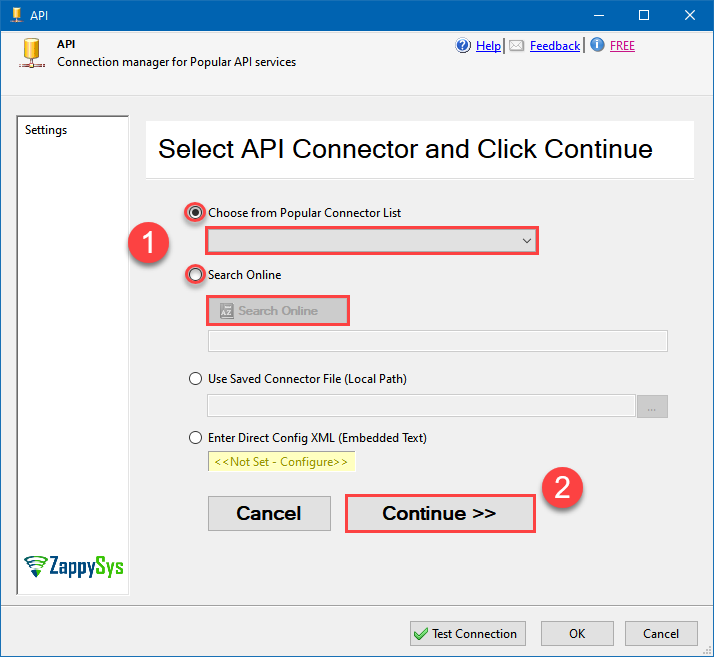
-
Select your authentication scenario below to expand connection configuration steps to:
- Configure the authentication in Amazon Selling Partner (SP-API).
- Enter those details into the API Connection Manager configuration.
Amazon Selling Partner (SP-API) authentication
Amazon Sellers can use SP-API to set up private integrations and build solutions exclusively for their Amazon store. Private app is available only to your organization and is self-authorized. A private developer builds application(s) that integrate their own company with Amazon APIs. [API reference]
Perform the following steps to authenticate calls using Amazon SP-API Private app:
- Register as an Amazon Private SP-API Developer. You may need to wait for a day or two to get approved (check approval status).
-
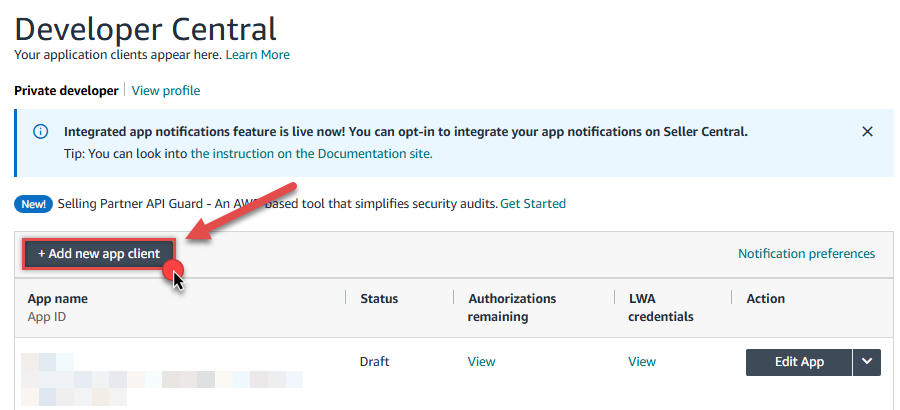
Once your developer account is approved,
login to your account, visit developer console
and click Add new app client button to create a Private app:
-
Continue by naming your application in the App name field,
choose
SP APIas API Type, and select the Roles for your app (i.e. permissions):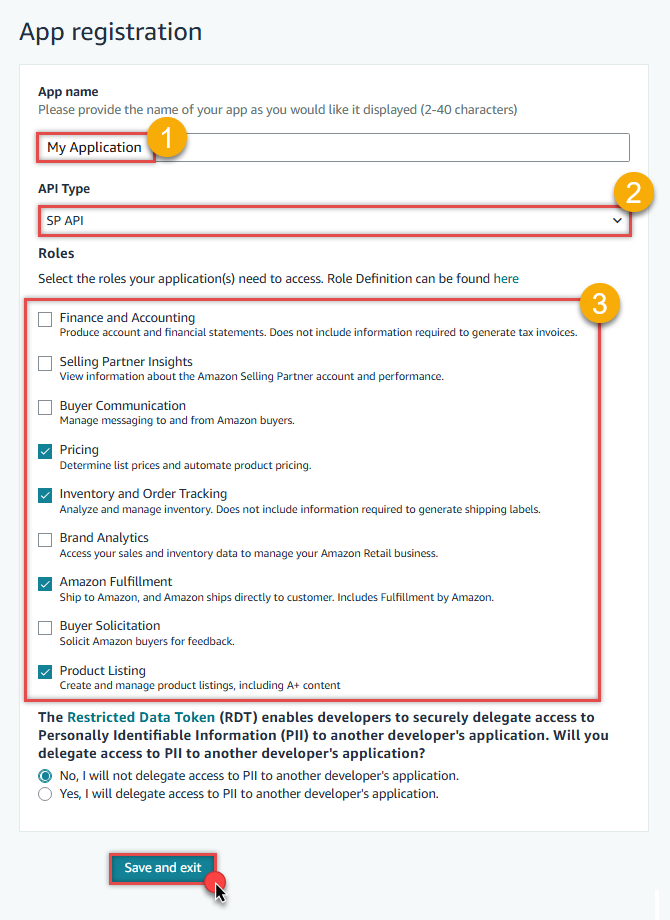
-
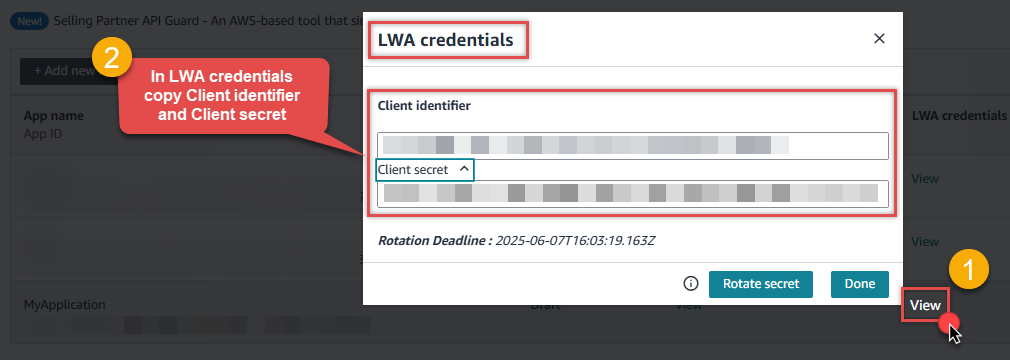
Once you do that, click View link in LWA credentials column to
copy Client identifier and Client secret (we will use them later):
-
Now it's time to Authorize your app:
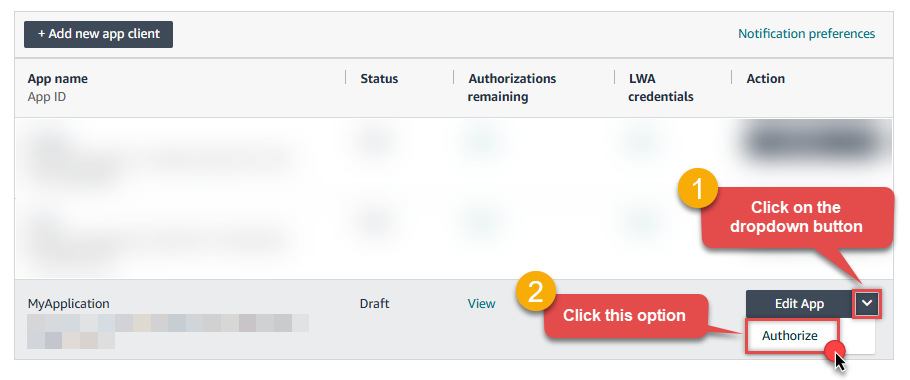
-
Finish authorizing it by presing Authorize app button:
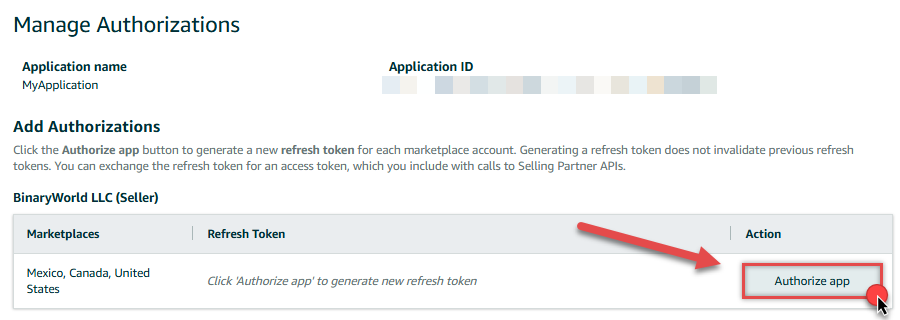
-
Finally, copy the Refresh Token (we will use it in the next step):

-
Now go to SSIS package or ODBC data source and use Private app authentication configuration:
- In the ClientId field paste the Client identifier value you copied in the previous step.
- In the ClientSecret field paste the Client secret value you copied in the previous step.
- Leave the default value in the TokenUrl field.
- In the Refresh Token field paste the Refresh Token value you copied in the previous step.
- Click Test Connection to confirm the connection is working.
- Done! Now you are ready to use Amazon Selling Partner (SP-API) Connector!
API Connection Manager configuration
Just perform these simple steps to finish authentication configuration:
-
Set Authentication Type to
Private app [OAuth] - Optional step. Modify API Base URL if needed (in most cases default will work).
- Fill in all the required parameters and set optional parameters if needed.
- Press Generate Token button to generate the tokens.
- Finally, hit OK button:
Amazon Selling Partner (SP-API)Private app [OAuth]https://sellingpartnerapi-na.amazon.comRequired Parameters ClientId Fill-in the parameter... ClientSecret Fill-in the parameter... TokenUrl Fill-in the parameter... Optional Parameters TokenUIMode OnlyRefreshToken AuthUrl (Do not Use for Private app - Self Authorization) https://sellercentral.amazon.com/apps/authorize/consent?application_id=[YOUR-APPLICATION-ID]&version=beta OrdersApiVersion v0 SellerApiVersion v1 ShippingApiVersion v1 ServicesApiVersion v1 FbaApiVersion v1 SalesApiVersion v1 ReportsApiVersion 2021-06-30 ProductsFeesApiVersion v0 ProductPricingApiVersion v0 CatalogItemsApiVersion 2022-04-01 VendorOrdersApiVersion v1 RetryMode RetryWhenStatusCodeMatch RetryStatusCodeList 429 RetryCountMax 5 RetryMultiplyWaitTime True 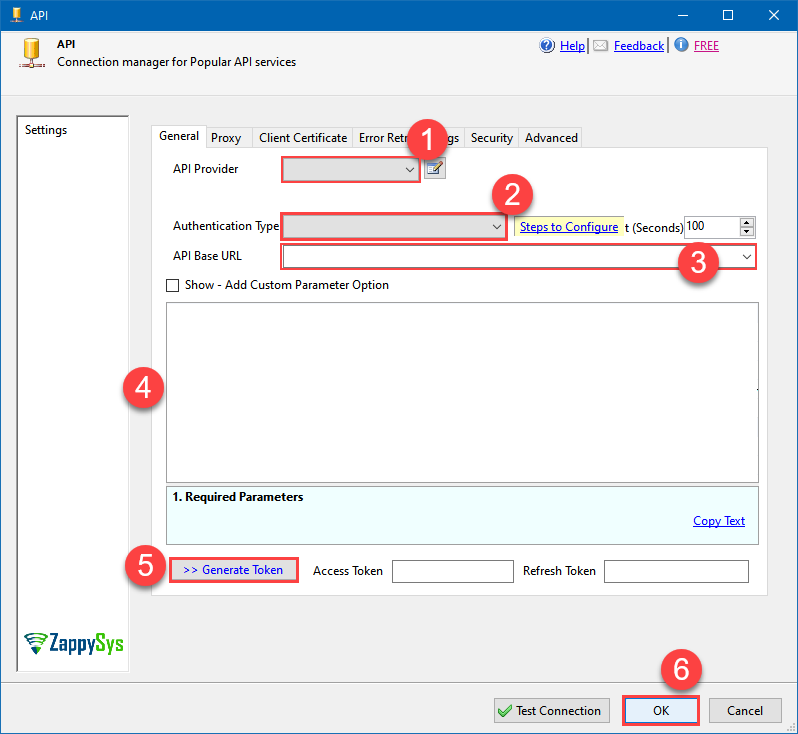 Find full details in the Amazon Selling Partner (SP-API) Connector authentication reference.
 -
Select Get Report Data - Comma Separated File (CSV) endpoint from the dropdown and hit Preview Data:
 API Source - Amazon Selling Partner (SP-API)Read and write Amazon Selling Partner (SP-API) data effortlessly. Integrate, manage, and automate listings, orders, payments, and reports — almost no coding required.Amazon Selling Partner (SP-API)Get Report Data - Comma Separated File (CSV)
Required Parameters ReportType Fill-in the parameter... 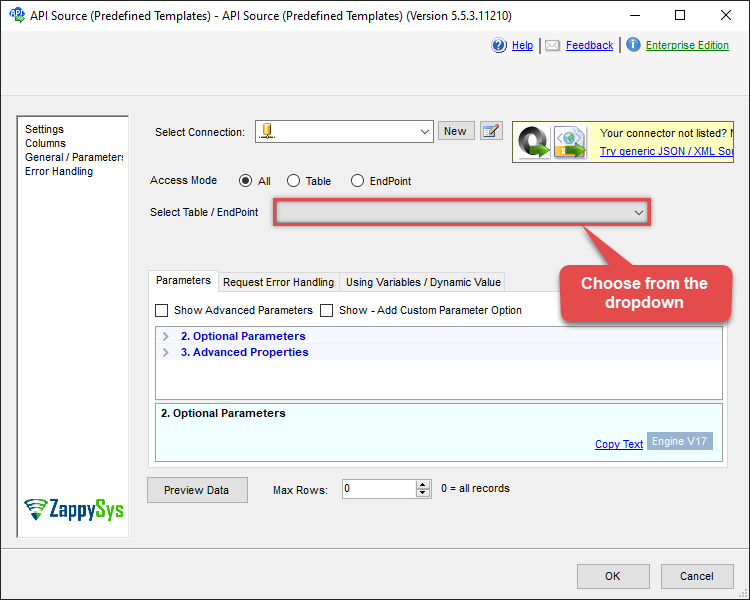
-
That's it! We are done! Just in a few clicks we configured the call to Amazon Selling Partner (SP-API) using Amazon Selling Partner (SP-API) Connector.
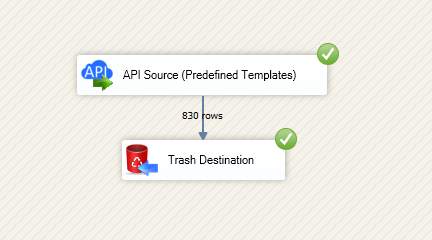
You can load the source data into your desired destination using the Upsert Destination , which supports SQL Server, PostgreSQL, and Amazon Redshift. We also offer other destinations such as CSV , Excel , Azure Table , Salesforce , and more . You can check out our SSIS PowerPack Tasks and components for more options. (*loaded in Trash Destination)
Conclusion
And there you have it — a complete guide on how to get report data - comma separated file (CSV) in SSIS without writing complex code. All of this was powered by Amazon Selling Partner (SP-API) Connector, which handled the REST API pagination and authentication for us automatically.
Download the trial now or ping us via chat if you have any questions or are looking for a specific feature (you can also reach out to us by submitting a ticket):
More actions supported by Amazon Selling Partner (SP-API) Connector
Got another use case in mind? We've documented the exact setups for a variety of essential Amazon Selling Partner (SP-API) operations directly in SSIS, so you can skip the trial and error. Find your next step-by-step guide below:
- Download Report File to Local Disk
- Get FBA Inventory Summaries (Fulfilled By Amazon)
- Get Market Place Participations
- Get Order (Single)
- Get Order Items (For Single Order)
- Get Orders
- Get Orders Items (For All Orders **Slow**)
- Get Report Data - JSON File
- Get Report Data - Tab Separated File (TSV)
- Get Report Data - XML File
- Get Report Filters
- Get Report Options
- Get Report Types
- Get Vendor PurchaseOrder Items
- Get Vendor PurchaseOrders
- Search Catalog Items
- Make Generic REST API Request
- Make Generic REST API Request (Bulk Write)