Introduction
You can connect to your Neo4j data from PowerShell via the high-performance Neo4j ODBC Driver (powered by ZappySys JDBC-ODBC Bridge Driver). We'll walk you through the entire setup.
Let's not waste time and get started!
Prerequisites
Before we begin, make sure you meet the following prerequisite: Java Runtime Environment (JRE) or Java Development Kit (JDK) must be installed on your system.
-
Minimum required version: Java 17
-
Recommended Java version: Java 21
If your JDBC Driver targets a different Java version (e.g., 11 / 17 / 21), install the corresponding or newer Java version.
Download Neo4j JDBC driver
To connect to Neo4j, you will have to download JDBC driver for it, which we will use in later steps. Let's perform these little steps right away:
-
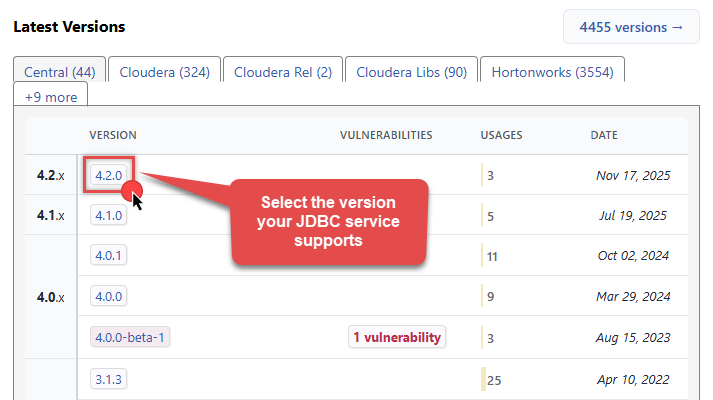
Visit Neo4j website or MVN Repository.
-
Select the appropriate JDBC driver version in Latest Versions section in MVN Repository:
-
Download the JDBC driver, and save it locally, e.g. to
C:\ZappySys\Jdbc\Neo4j\neo4j-jdbc-full-bundle-6.3.1.jar.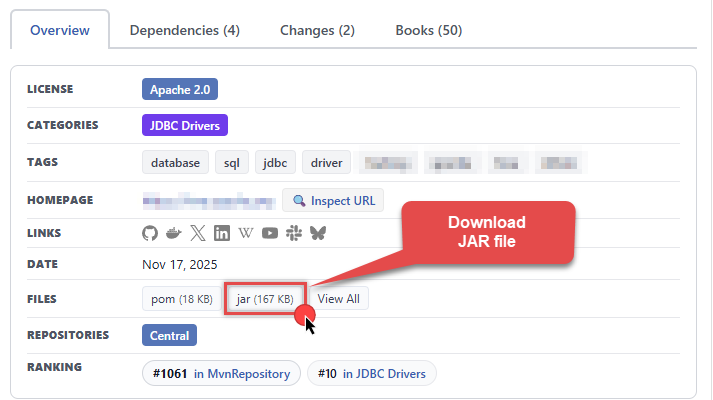
-
Done! That was easy, wasn't it? Let's proceed to the next step.
Create data source using Neo4j ODBC Driver
Video instructions
Watch this quick walkthrough to see how to configure your Neo4j ODBC data source, or scroll down for the step-by-step written guide.
Step-by-step instructions
To get data from Neo4j using PowerShell, we first need to create an ODBC data source. We will later read this data in PowerShell. Perform these steps:
-
Download and install ODBC PowerPack (if you haven't already).
-
Search for
odbcand open the ODBC Data Sources (64-bit):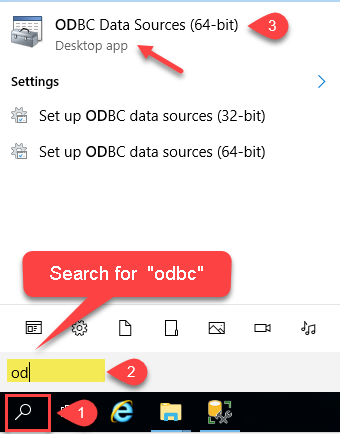
-
Create a User data source (User DSN) based on the ZappySys JDBC Bridge Driver driver:
ZappySys JDBC Bridge Driver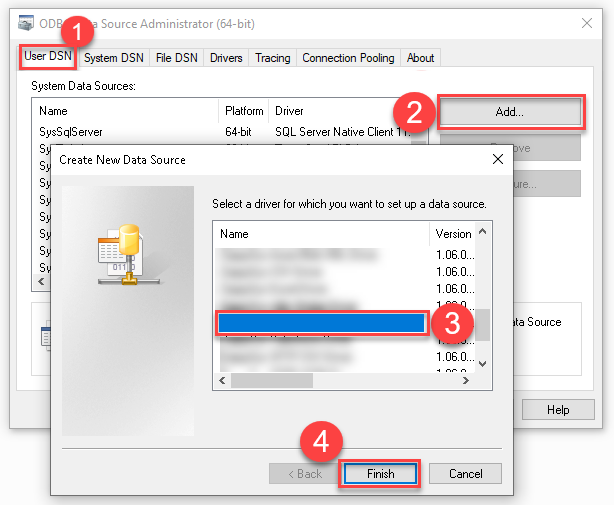
- Create and use a User DSN if the client application runs under a User Account. This is the ideal option at design time (e.g., when developing in Visual Studio). Use it for both types of applications (64-bit and 32-bit).
- Create and use a System DSN if the client application runs under a System Account (e.g., as a Windows Service). This is usually the required option in a production environment. If your Windows Service is a 32-bit application, you must use the 32-bit ODBC Data Source Administrator to configure this
-
Now, we need to configure the JDBC connection in the new ODBC data source. Simply enter the Connection string, credentials, configure other settings, and then click Test Connection button to test the connection:
Select your authentication scenario below to expand connection configuration steps to:
- Configure the authentication in Neo4j.
- Enter those details into the ZappySys JDBC Bridge Driver data source configuration.
Non-SSL Connection (SQL queries)
Neo4j authentication
Neo4j JDBC (full bundle) from Power BI, SQL Server Linked Server via ZappySys Data Gateway, Crystal Reports, SSRS, Azure Data Factory, and other ODBC tools.
- This Auth sets
enableSQLTranslation=trueso you can run SQL such asSELECT * FROM Moviefrom Power BI. - Create a database user in Neo4j Desktop, Aura console, or
CREATE USER. Paste user and password. - After Finish, replace the host (e.g. MyHostName) on the DSN Main UI. Aura always uses TLS (
neo4j+s). - Do not use a personal employee login for unattended Linked Server or Power BI refresh.
- Finish the wizard. Then click Test Connection on the DSN Main UI (the wizard does not run Test Connection).
- Done. You can query from C#, Python, PowerShell, and ODBC apps.
JDBC Bridge Driver configuration
Just perform these simple steps to finish authentication configuration:
- Fill in the Connection string and required parameters using the values below.
- Click Test Connection to verify the JDBC connection.
- Finally, hit OK button:
Use these values when setting parameters:
-
Connection string :jdbc:neo4j://[$HostName$]:[$Port$]?enableSQLTranslation=true -
Driver class :org.neo4j.jdbc.Neo4jDriver -
JDBC driver file(s) :C:\ZappySys\Jdbc\Neo4j\neo4j-jdbc-full-bundle-6.3.1.jar -
Host :MyHostName -
TCP port :7687 -
User name : -
Password :
Neo4jDSNjdbc:neo4j://[$HostName$]:[$Port$]?enableSQLTranslation=trueorg.neo4j.jdbc.Neo4jDriverC:\ZappySys\Jdbc\Neo4j\neo4j-jdbc-full-bundle-6.3.1.jaroptional for Neo4joptional for Neo4joptional for Neo4j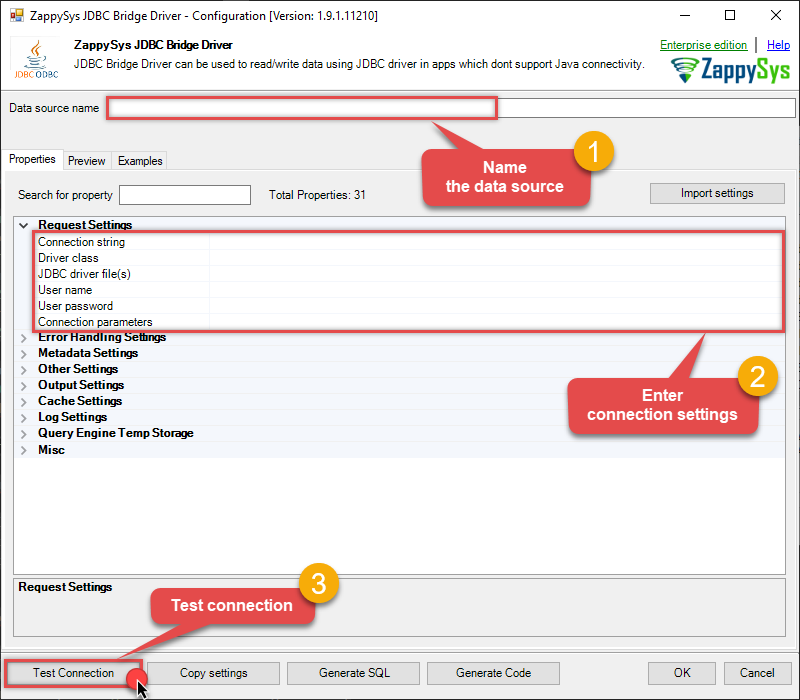 Find full details in the Neo4j Connector authentication reference.
Non-SSL Connection (Cypher queries)
Neo4j authentication
Neo4j JDBC (full bundle) from Power BI, SQL Server Linked Server via ZappySys Data Gateway, Crystal Reports, SSRS, Azure Data Factory, and other ODBC tools.
- This Auth omits SQL translation. Use Cypher (
MATCH ... RETURN) from the DSN query window. - Create a database user in Neo4j Desktop, Aura console, or
CREATE USER. Paste user and password. - After Finish, replace the host (e.g. MyHostName) on the DSN Main UI. Aura always uses TLS (
neo4j+s). - Do not use a personal employee login for unattended Linked Server or Power BI refresh.
- Finish the wizard. Then click Test Connection on the DSN Main UI (the wizard does not run Test Connection).
- Done. You can query from C#, Python, PowerShell, and ODBC apps.
JDBC Bridge Driver configuration
Just perform these simple steps to finish authentication configuration:
- Fill in the Connection string and required parameters using the values below.
- Click Test Connection to verify the JDBC connection.
- Finally, hit OK button:
Use these values when setting parameters:
-
Connection string :jdbc:neo4j://[$HostName$]:[$Port$] -
Driver class :org.neo4j.jdbc.Neo4jDriver -
JDBC driver file(s) :C:\ZappySys\Jdbc\Neo4j\neo4j-jdbc-full-bundle-6.3.1.jar -
Host :MyHostName -
TCP port :7687 -
User name : -
Password :
Neo4jDSNjdbc:neo4j://[$HostName$]:[$Port$]org.neo4j.jdbc.Neo4jDriverC:\ZappySys\Jdbc\Neo4j\neo4j-jdbc-full-bundle-6.3.1.jaroptional for Neo4joptional for Neo4joptional for Neo4j
Find full details in the Neo4j Connector authentication reference.SSL Connection (SQL queries)
Neo4j authentication
Neo4j JDBC (full bundle) from Power BI, SQL Server Linked Server via ZappySys Data Gateway, Crystal Reports, SSRS, Azure Data Factory, and other ODBC tools.
- This Auth sets
enableSQLTranslation=trueso you can run SQL such asSELECT * FROM Moviefrom Power BI. - Create a database user in Neo4j Desktop, Aura console, or
CREATE USER. Paste user and password. - After Finish, replace the host (e.g. MyHostName) on the DSN Main UI. Aura always uses TLS (
neo4j+s). - Do not use a personal employee login for unattended Linked Server or Power BI refresh.
- Finish the wizard. Then click Test Connection on the DSN Main UI (the wizard does not run Test Connection).
- Done. You can query from C#, Python, PowerShell, and ODBC apps.
JDBC Bridge Driver configuration
Just perform these simple steps to finish authentication configuration:
- Fill in the Connection string and required parameters using the values below.
- Click Test Connection to verify the JDBC connection.
- Finally, hit OK button:
Use these values when setting parameters:
-
Connection string :jdbc:neo4j+s://[$HostName$]:[$Port$]?enableSQLTranslation=true -
Driver class :org.neo4j.jdbc.Neo4jDriver -
JDBC driver file(s) :C:\ZappySys\Jdbc\Neo4j\neo4j-jdbc-full-bundle-6.3.1.jar -
Host :MyHostName -
TCP port :7687 -
User name : -
Password :
Neo4jDSNjdbc:neo4j+s://[$HostName$]:[$Port$]?enableSQLTranslation=trueorg.neo4j.jdbc.Neo4jDriverC:\ZappySys\Jdbc\Neo4j\neo4j-jdbc-full-bundle-6.3.1.jaroptional for Neo4joptional for Neo4joptional for Neo4j
Find full details in the Neo4j Connector authentication reference.SSL Connection (Cypher queries)
Neo4j authentication
Neo4j JDBC (full bundle) from Power BI, SQL Server Linked Server via ZappySys Data Gateway, Crystal Reports, SSRS, Azure Data Factory, and other ODBC tools.
- This Auth omits SQL translation. Use Cypher (
MATCH ... RETURN) from the DSN query window. - Create a database user in Neo4j Desktop, Aura console, or
CREATE USER. Paste user and password. - After Finish, replace the host (e.g. MyHostName) on the DSN Main UI. Aura always uses TLS (
neo4j+s). - Do not use a personal employee login for unattended Linked Server or Power BI refresh.
- Finish the wizard. Then click Test Connection on the DSN Main UI (the wizard does not run Test Connection).
- Done. You can query from C#, Python, PowerShell, and ODBC apps.
JDBC Bridge Driver configuration
Just perform these simple steps to finish authentication configuration:
- Fill in the Connection string and required parameters using the values below.
- Click Test Connection to verify the JDBC connection.
- Finally, hit OK button:
Use these values when setting parameters:
-
Connection string :jdbc:neo4j+s://[$HostName$]:[$Port$] -
Driver class :org.neo4j.jdbc.Neo4jDriver -
JDBC driver file(s) :C:\ZappySys\Jdbc\Neo4j\neo4j-jdbc-full-bundle-6.3.1.jar -
Host :MyHostName -
TCP port :7687 -
User name : -
Password :
Neo4jDSNjdbc:neo4j+s://[$HostName$]:[$Port$]org.neo4j.jdbc.Neo4jDriverC:\ZappySys\Jdbc\Neo4j\neo4j-jdbc-full-bundle-6.3.1.jaroptional for Neo4joptional for Neo4joptional for Neo4j
Find full details in the Neo4j Connector authentication reference.Neo4j AuraDB Connection (SQL queries)
Neo4j authentication
Neo4j JDBC (full bundle) from Power BI, SQL Server Linked Server via ZappySys Data Gateway, Crystal Reports, SSRS, Azure Data Factory, and other ODBC tools.
- Copy the Aura connection URI host (something like
1234abcd.databases.neo4j.io). This Auth usesneo4j+splus SQL translation. - Create a database user in Neo4j Desktop, Aura console, or
CREATE USER. Paste user and password. - After Finish, replace the host (e.g. MyHostName) on the DSN Main UI. Aura always uses TLS (
neo4j+s). - Do not use a personal employee login for unattended Linked Server or Power BI refresh.
- Finish the wizard. Then click Test Connection on the DSN Main UI (the wizard does not run Test Connection).
- Done. You can query from C#, Python, PowerShell, and ODBC apps.
JDBC Bridge Driver configuration
Just perform these simple steps to finish authentication configuration:
- Fill in the Connection string and required parameters using the values below.
- Click Test Connection to verify the JDBC connection.
- Finally, hit OK button:
Use these values when setting parameters:
-
Connection string :jdbc:neo4j+s://[$HostName$]?enableSQLTranslation=true -
Driver class :org.neo4j.jdbc.Neo4jDriver -
JDBC driver file(s) :C:\ZappySys\Jdbc\Neo4j\neo4j-jdbc-full-bundle-6.3.1.jar -
Host :MyHostName -
User name : -
Password :
Neo4jDSNjdbc:neo4j+s://[$HostName$]?enableSQLTranslation=trueorg.neo4j.jdbc.Neo4jDriverC:\ZappySys\Jdbc\Neo4j\neo4j-jdbc-full-bundle-6.3.1.jaroptional for Neo4joptional for Neo4joptional for Neo4j
Find full details in the Neo4j Connector authentication reference.Neo4j Aura Connection (Cypher queries)
Neo4j authentication
Neo4j JDBC (full bundle) from Power BI, SQL Server Linked Server via ZappySys Data Gateway, Crystal Reports, SSRS, Azure Data Factory, and other ODBC tools.
- Same Aura host as SQL Auth, but Cypher only (no SQL translation).
- Create a database user in Neo4j Desktop, Aura console, or
CREATE USER. Paste user and password. - After Finish, replace the host (e.g. MyHostName) on the DSN Main UI. Aura always uses TLS (
neo4j+s). - Do not use a personal employee login for unattended Linked Server or Power BI refresh.
- Finish the wizard. Then click Test Connection on the DSN Main UI (the wizard does not run Test Connection).
- Done. You can query from C#, Python, PowerShell, and ODBC apps.
JDBC Bridge Driver configuration
Just perform these simple steps to finish authentication configuration:
- Fill in the Connection string and required parameters using the values below.
- Click Test Connection to verify the JDBC connection.
- Finally, hit OK button:
Use these values when setting parameters:
-
Connection string :jdbc:neo4j+s://[$HostName$] -
Driver class :org.neo4j.jdbc.Neo4jDriver -
JDBC driver file(s) :C:\ZappySys\Jdbc\Neo4j\neo4j-jdbc-full-bundle-6.3.1.jar -
Host :MyHostName -
User name : -
Password :
Neo4jDSNjdbc:neo4j+s://[$HostName$]org.neo4j.jdbc.Neo4jDriverC:\ZappySys\Jdbc\Neo4j\neo4j-jdbc-full-bundle-6.3.1.jaroptional for Neo4joptional for Neo4joptional for Neo4j
Find full details in the Neo4j Connector authentication reference. -
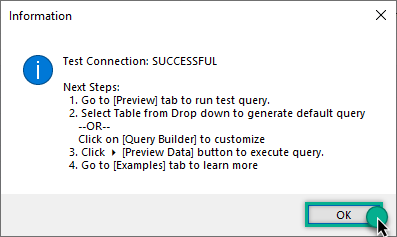
You should see a message saying that connection test is successful:
-
Otherwise, if you are getting an error, start by troubleshooting the JDBC connection with DBeaver in the section below:
-
We are at the point where we can preview a SQL query. For more SQL query examples visit JDBC Bridge documentation:
Neo4jDSNSELECT * FROM Movie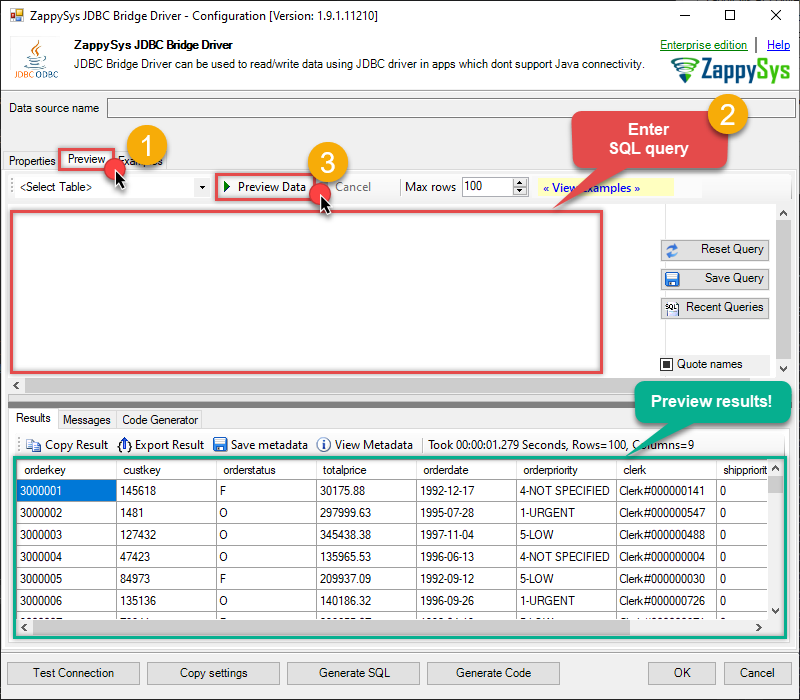
SELECT * FROM MovieYou can also click on the <Select Table> dropdown and select a table from the list.The ZappySys JDBC Bridge Driver acts as a transparent intermediary, passing SQL queries directly to the JDBC driver, which then handles the query execution. This means the JDBC-ODBC Bridge Driver simply relays the SQL query without altering it.
Some JDBC drivers don't support
INSERT/UPDATE/DELETEstatements, so you may get an error saying "action is not supported" or a similar one. Please, be aware, this is not the limitation of ZappySys JDBC Bridge Driver, but is a limitation of the specific JDBC driver you are using. -
Click OK to finish creating the data source.
Read Neo4j data in PowerShell
Sometimes, you need to quickly access and work with your Neo4j data in PowerShell. Whether you need a quick data overview or the complete dataset, this article will guide you through the process. Here are some common scenarios:
Viewing data in a terminal- Quickly peek at Neo4j data
- Monitor data constantly in your console
- Export data to a CSV file so that it can be sliced and diced in Excel
- Export data to a JSON file so that it can ingested by other processes
- Export data to an HTML file for user-friendly view and easy sharing
- Create a schedule to make it an automatic process
- Store data internally for analysis or for further ETL processes
- Create a schedule to make it an automatic process
- Integrate data with other systems via external APIs
In this article, we will delve deeper into how to quickly view the data in PowerShell terminal and how to save it to a file. But let's stop talking and get started!
Reading individual fields
-
Open your favorite PowerShell IDE (we are using Visual Studio Code).
-
Use this code snippet to read the data using
Neo4jDSNdata source:"DSN=Neo4jDSN"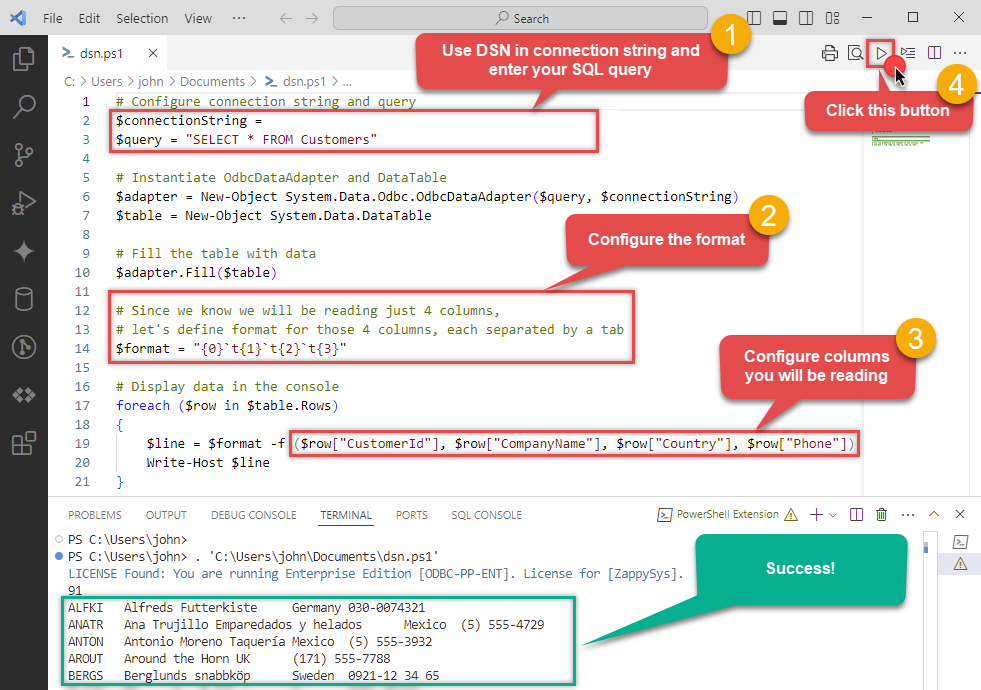
For your convenience, here is the whole PowerShell script:
# Configure connection string and query
$connectionString = "DSN=Neo4jDSN"
$query = "SELECT * FROM Customers"

# Instantiate OdbcDataAdapter and DataTable
$adapter = New-Object System.Data.Odbc.OdbcDataAdapter($query, $connectionString)
$table = New-Object System.Data.DataTable

# Fill the table with data
$adapter.Fill($table)

# Since we know we will be reading just 4 columns, let's define format for those 4 columns, each separated by a tab
$format = "{0}`t{1}`t{2}`t{3}"

# Display data in the console
foreach ($row in $table.Rows)
{
    # Construct line based on the format and individual Neo4j fields
    $line = $format -f ($row["CustomerId"], $row["CompanyName"], $row["Country"], $row["Phone"])
    Write-Host $line
}
Access specific Neo4j table field using this code snippet:
You will find more info on how to manipulate$field = $row["ColumnName"]DataTable.Rowsproperty in Microsoft .NET reference.For demonstration purposes we are using sample tables which may not be available in Neo4j. -
To read values in a console, save the script to a file and then execute this command inside PowerShell terminal:
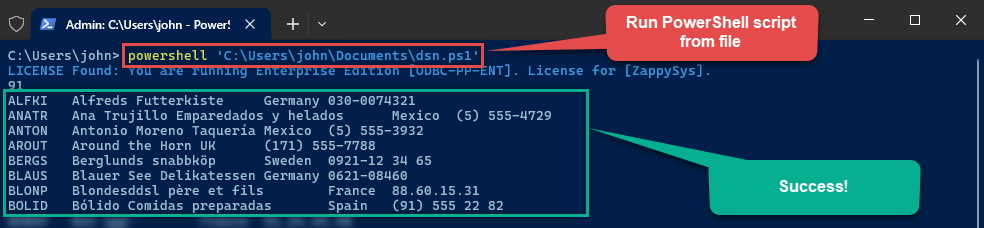 You can also use even a simpler command inside the terminal, e.g.:
. 'C:\Users\john\Documents\dsn.ps1'
Retrieving all fields
However, there might be case, when you want to retrieve all columns of a query. Here is how you do it:
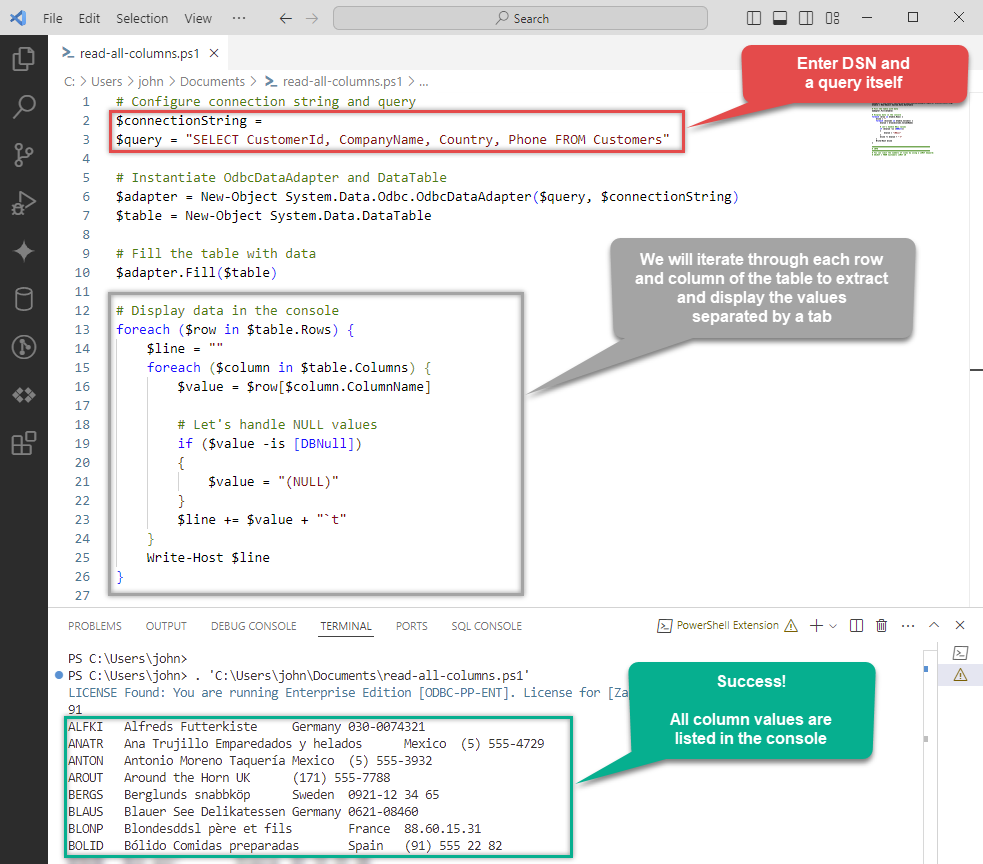
Again, for your convenience, here is the whole PowerShell script:
# Configure connection string and query
$connectionString = "DSN=Neo4jDSN"
$query = "SELECT CustomerId, CompanyName, Country, Phone FROM Customers"

# Instantiate OdbcDataAdapter and DataTable
$adapter = New-Object System.Data.Odbc.OdbcDataAdapter($query, $connectionString)
$table = New-Object System.Data.DataTable

# Fill the table with data
$adapter.Fill($table)

# Display data in the console
foreach ($row in $table.Rows) {
    $line = ""
    foreach ($column in $table.Columns) {
        $value = $row[$column.ColumnName]

        # Let's handle NULL values
        if ($value -is [DBNull])
        {
            $value = "(NULL)"
        }
        $line += $value + "`t"
    }
    Write-Host $line
}
LIMIT keyword in the query, e.g.:
SELECT * FROM Customers LIMIT 10Using a full ODBC connection string
In the previous steps we used a very short format of ODBC connection string - a DSN. Yet sometimes you don't want a dependency on an ODBC data source (and an extra step). In those times, you can define a full connection string and skip creating an ODBC data source entirely. Let's see below how to accomplish that in the below steps:
-
Open ODBC data source configuration and click Copy settings:
 ZappySys JDBC Bridge Driver - Neo4jQuery Neo4j graphs with SQL or Cypher from Power BI, SQL Server Linked Server via ZappySys Data Gateway, Crystal Reports, SSRS, Azure Data Factory, and other ODBC tools -- almost no coding required.Neo4jDSN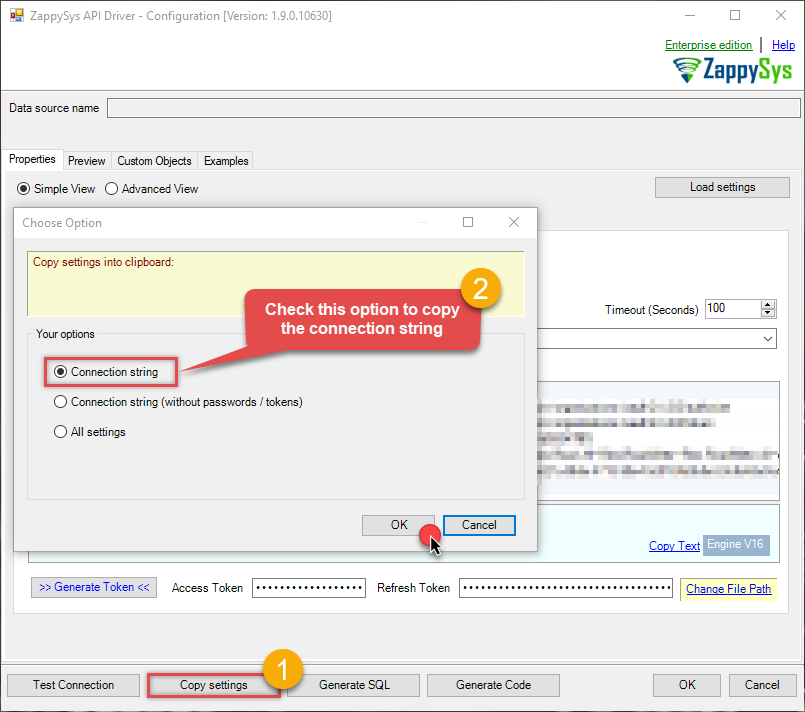
-
The window opens, telling us the connection string was successfully copied to the clipboard:
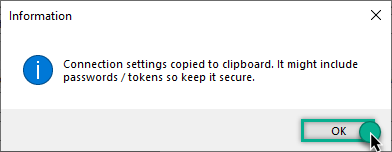
-
Then just paste the connection string into your script:
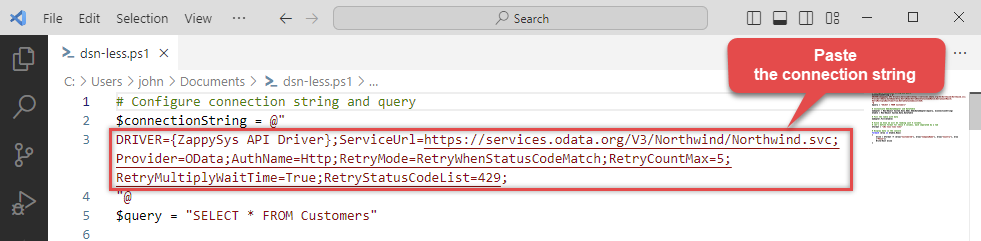
- You are good to go! The script will execute the same way as using a DSN.
Have in mind that a full connection string has length limitations.
Proceed to the next step to find out the details.
Handling limitations of using a full connection string
Despite using a full ODBC connection string may be very convenient it comes with a limitation: it's length is limited to 1024 symbols (or sometimes more). It usually happens when API provider generates a very long Refresh Token when OAuth is at play. If you are using such a long ODBC connection string, you may get this error:
"Connection string exceeds maximum allowed length of 1024"But there is a solution to this by storing the full connection string in a file. Follow the steps below to achieve this:
- Open your ODBC data source.
- Click Copy settings button to copy a full connection string (see the previous section on how to accomplish that).
- Then create a new file, let's say, in C:\temp\odbc-connection-string.txt.
- Continue by pasting the copied connection string into a newly created file and save it.
-
Finally, the last step! Just construct a shorter ODBC connection string using this format:
DRIVER={ZappySys JDBC Bridge Driver};SettingsFile=C:\temp\odbc-connection-string.txt - Our troubles are over! Now you should be able to use this connection string in PowerShell with no problems.
Write Neo4j data to a file in PowerShell
Save data to a CSV file
Export data to a CSV file so that it can be sliced and diced in Excel:
# Configure connection string and query
$connectionString = "DSN=Neo4jDSN"
$query = "SELECT * FROM Customers"

# Instantiate OdbcDataAdapter and DataTable
$adapter = New-Object System.Data.Odbc.OdbcDataAdapter($query, $connectionString)
$table = New-Object System.Data.DataTable

# Fill the table with data
$adapter.Fill($table)

# Export table data to a file
$table | ConvertTo-Csv -NoTypeInformation -Delimiter "`t" | Out-File "C:\Users\john\saved-data.csv" -Force
Save data to a JSON file
Export data to a JSON file so that it can ingested by other processes (use the above script, but change this part):
# Export table data to a file
$table | ConvertTo-Json | Out-File "C:\Users\john\saved-data.json" -Force
Save data to an HTML file
Export data to an HTML file for user-friendly view and easy sharing (use the above script, but change this part):
# Export table data to a file
$table | ConvertTo-Html | Out-File "C:\Users\john\saved-data.html" -ForceConvertTo-Csv, ConvertTo-Json, and ConvertTo-Html for other data manipulation scenarios.
Troubleshooting
Validating JDBC connection in DBeaver
If you are experiencing JDBC connection issues, start by testing your JDBC driver in a JDBC client tool like DBeaver. If the JDBC connection fails in DBeaver, it naturally will not work in your ODBC data source either.
Create generic JDBC driver
-
Download and install DBeaver Community Edition.
-
Open DBeaver.
-
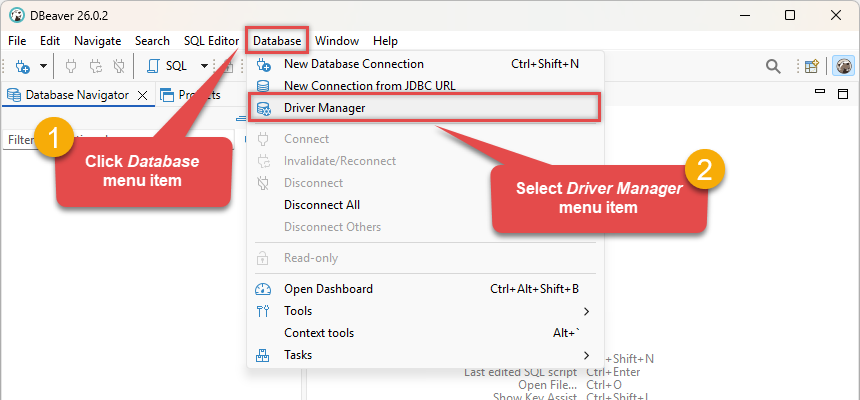
Click Database in the top menu and select Driver Manager:
-
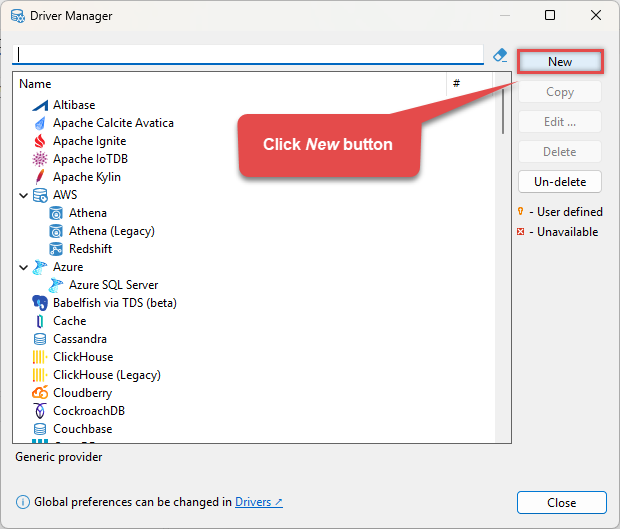
Click the New button to start adding a custom JDBC driver:
-
Configure the connection settings by entering the Driver Name and Class Name (
org.neo4j.jdbc.Neo4jDriver):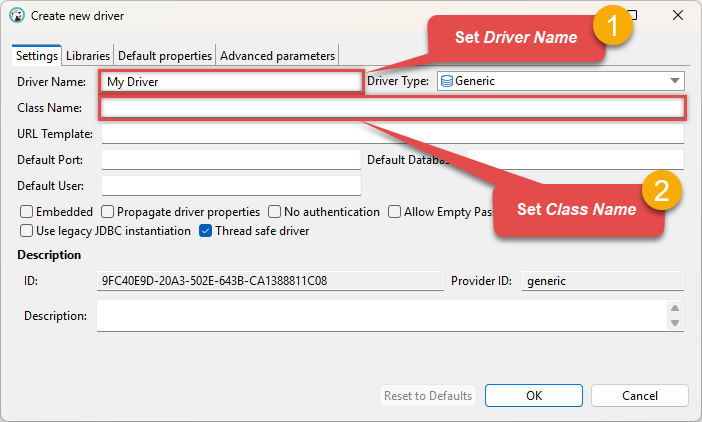 org.neo4j.jdbc.Neo4jDriver
 -
Go to the Libraries tab, click Add File, and select your Neo4j driver library file(s), e.g.
C:\ZappySys\Jdbc\Neo4j\neo4j-jdbc-full-bundle-6.3.1.jar: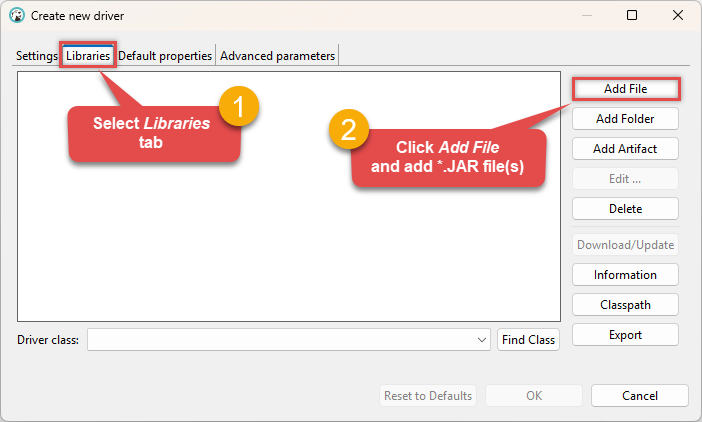 Make sure to add all the required library dependencies.
 -
Your JDBC driver
jarlibrary is now added: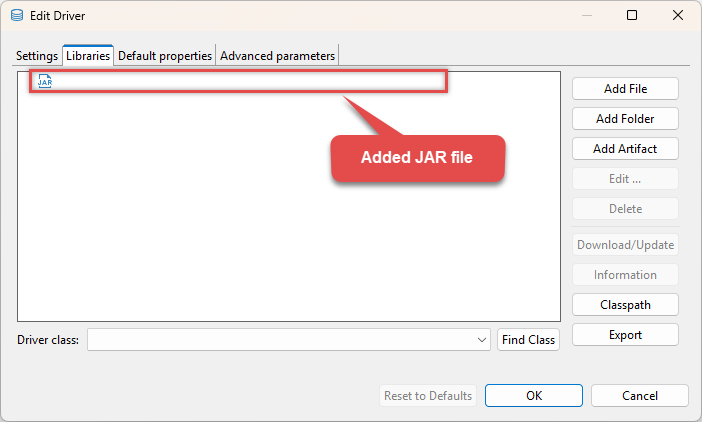 C:\ZappySys\Jdbc\Neo4j\neo4j-jdbc-full-bundle-6.3.1.jar
 -
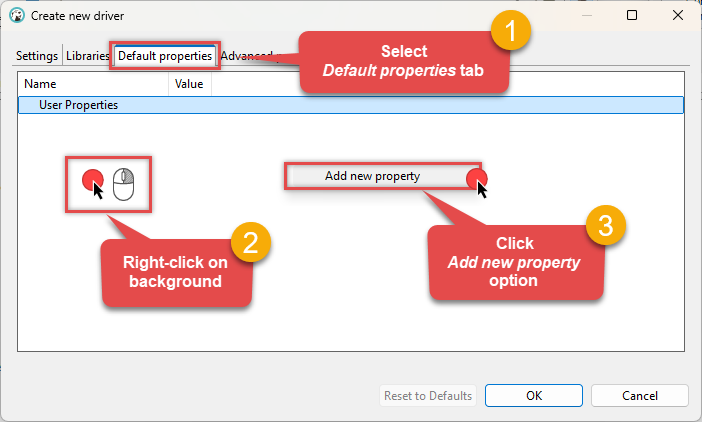
(Optional). If required by your JDBC driver, add additional properties by going to the Default properties tab, Right-clicking on the background, and selecting Add new property:
-
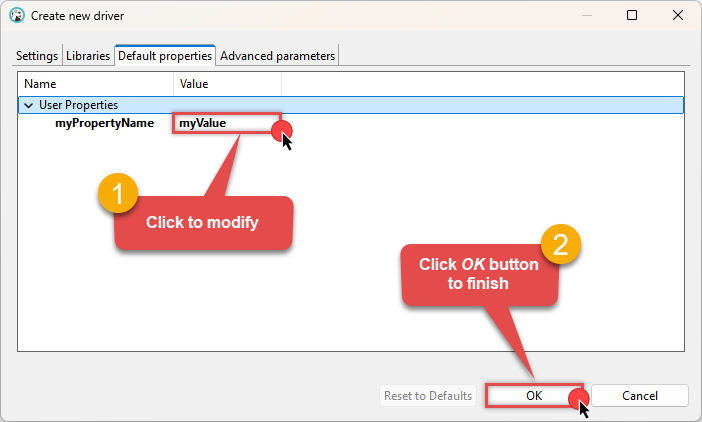
Click on a value to modify it, then click OK to finish:
We are now ready to test the connection. Let's proceed!
Test connection
-
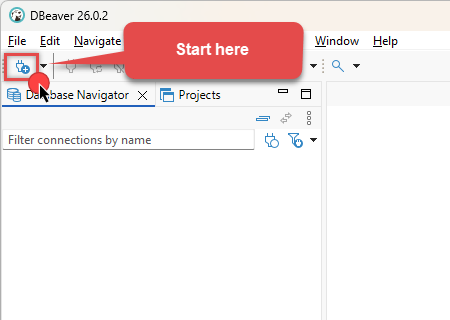
Click the New Database Connection icon in the toolbar:
-
Select your newly created JDBC driver from the list and click Next:
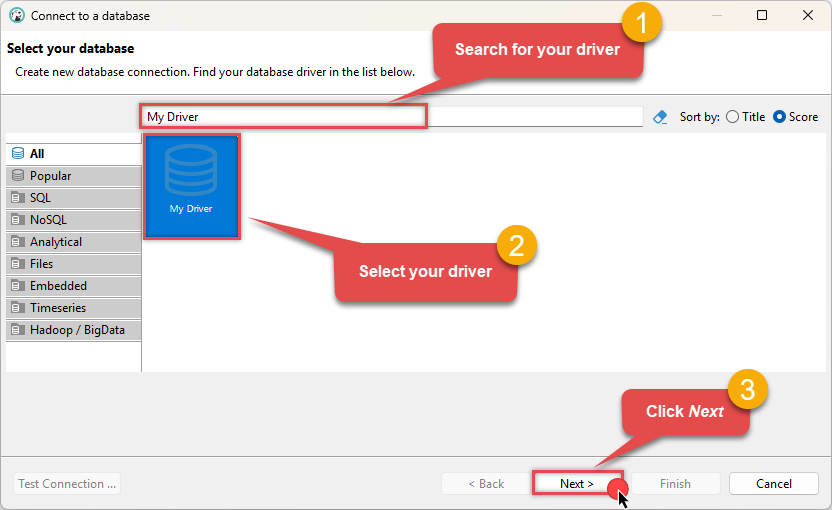
-
Enter your JDBC URL (e.g.
jdbc:neo4j://[$HostName$]:[$Port$]?enableSQLTranslation=true), click Test Connection to verify it works, and then click Finish: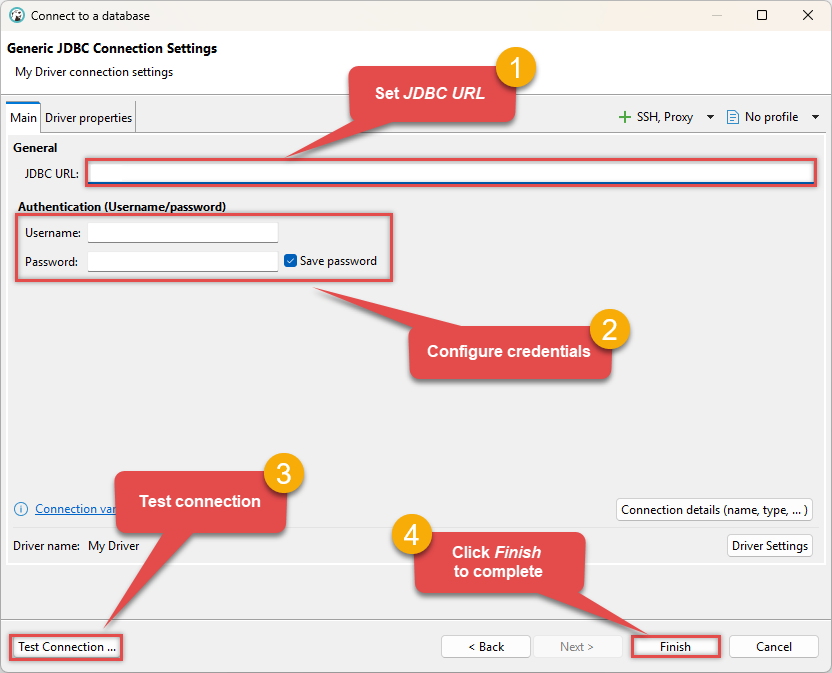 jdbc:neo4j://[$HostName$]:[$Port$]?enableSQLTranslation=true
 -
Finally, expand the database and table list to check the connection status:
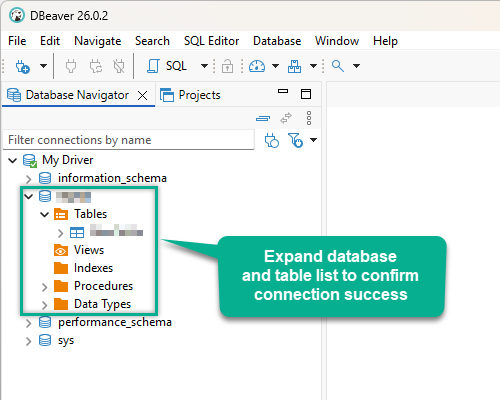
There are two possible outcomes from the connection test:
- Reason:The JDBC driver works perfectly, meaning the issue lies within your ODBC data source configuration.
- Action:Double-check your ODBC data source configuration and ensure it matches the settings that successfully connected in DBeaver.
-
Reason:There is likely an issue with the JDBC driver configuration or the connection details provided.
-
Action:Contact the ZappySys Support Team for assistance.
If you are still experiencing issues or need further help, please contact us:
Chat with an ExpertFrequent issues and solutions
Below are some useful community articles to help you troubleshoot and configure the ZappySys JDBC Bridge Driver:
-
How to combine multiple JAR files
Learn how to merge multiple
.jardependencies when your JDBC driver requires more than one file. -
How to fix JBR error: “Data lake is not available / Unable to verify trust for server certificate chain”
Resolve SSL or certificate validation issues encountered during JDBC connections.
-
System Exception: “Java is not installed or not accessible”
Fix Java path or environment issues that prevent the JDBC Bridge from launching Java.
-
JDBC Bridge Driver disconnect from Java host error
Troubleshoot unexpected disconnection problems between your client application and the Java process.
-
Error: Could not open jvm.cfg while using JDBC Bridge Driver
Resolve JVM configuration path errors during driver initialization.
-
How to enable JDBC Bridge Driver logging
Enable detailed driver logging for better visibility during troubleshooting.
-
How to pass JDBC connection parameters (not by URL)
Learn how to specify connection properties programmatically instead of embedding them in the JDBC URL.
-
How to fix JDBC Bridge error: “No connection could be made because the target machine actively refused it”
Troubleshoot firewall or local port binding issues preventing communication with the Java host.
-
How to use JDBC Bridge options (System Property for Java command line, e.g., classpath, proxy)
Configure custom Java options like classpath and proxy using JDBC Bridge system properties.
Optional: Centralized data access via ZappySys Data Gateway
In some situations, you may need to provide Neo4j data access to multiple users or services. Configuring the data source on a Data Gateway creates a single, centralized connection point for this purpose.
This configuration provides two primary advantages:
-
Centralized data access
The data source is configured once on the gateway, eliminating the need to set it up individually on each user's machine or application. This significantly simplifies the management process.
-
Centralized access control
Since all connections route through the gateway, access can be governed or revoked from a single location for all users.
| Data Gateway |
Local ODBC
data source
|
|
|---|---|---|
| Simple configuration | ||
| Installation | Single machine | Per machine |
| Connectivity | Local and remote | Local only |
| Connections limit | Limited by License | Unlimited |
| Central data access | ||
| Central access control | ||
| More flexible cost |
To achieve this, you must first create a data source in the Data Gateway (server-side) and then create an ODBC data source in PowerShell (client-side) to connect to it.
Let's not wait and get going!
Create Neo4j data source in the gateway
In this section we will create a data source for Neo4j in the Data Gateway. Let's follow these steps to accomplish that:
-
Search for
gatewayin the Windows Start Menu and open ZappySys Data Gateway Configuration: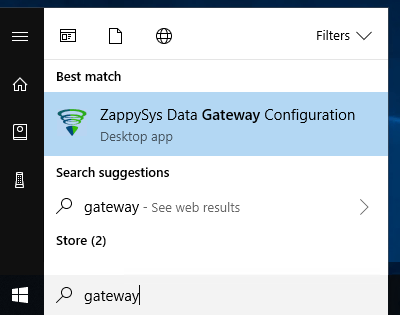
-
Go to the Users tab and follow these steps to add a Data Gateway user:
- Click the Add button
-
In the Login field enter a username, e.g.,
john - Then enter a Password
- Check the Is Administrator checkbox
- Click OK to save
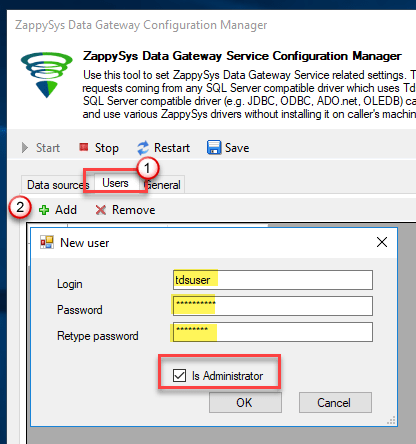
-
Now we are ready to add a data source:
- Click the Add button
- Give the Data source a name (have it handy for later)
- Then select Native - ZappySys JDBC Bridge Driver
- Finally, click OK
Neo4jDSNZappySys JDBC Bridge Driver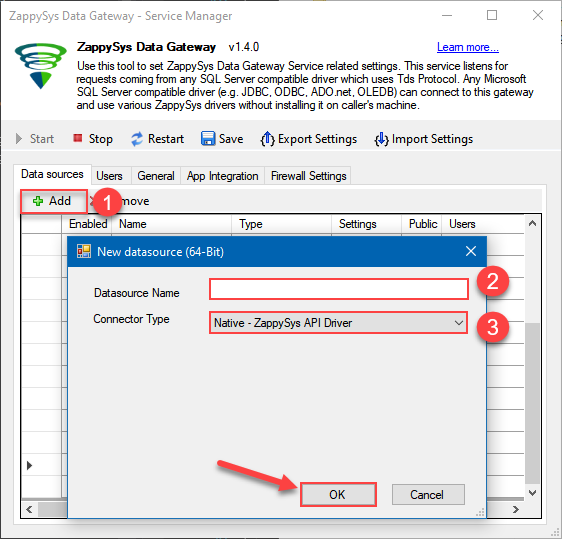
-
When the ZappySys JDBC Bridge Driver configuration window opens, go back to ODBC Data Source Administrator where you already have the Neo4j ODBC data source created and configured, and follow these steps on how to Import data source configuration into the Gateway:
-
Open ODBC data source configuration and click Copy settings:
ZappySys JDBC Bridge Driver - Neo4jQuery Neo4j graphs with SQL or Cypher from Power BI, SQL Server Linked Server via ZappySys Data Gateway, Crystal Reports, SSRS, Azure Data Factory, and other ODBC tools -- almost no coding required.Neo4jDSN
-
The window opens, telling us the connection string was successfully copied to the clipboard:
-
Then go to Data Gateway configuration and in data source configuration window click Load settings:
Neo4jDSN
ZappySys JDBC Bridge Driver - Configuration [Version: 2.0.1.10418]ZappySys JDBC Bridge Driver - Neo4jQuery Neo4j graphs with SQL or Cypher from Power BI, SQL Server Linked Server via ZappySys Data Gateway, Crystal Reports, SSRS, Azure Data Factory, and other ODBC tools -- almost no coding required.Neo4jDSN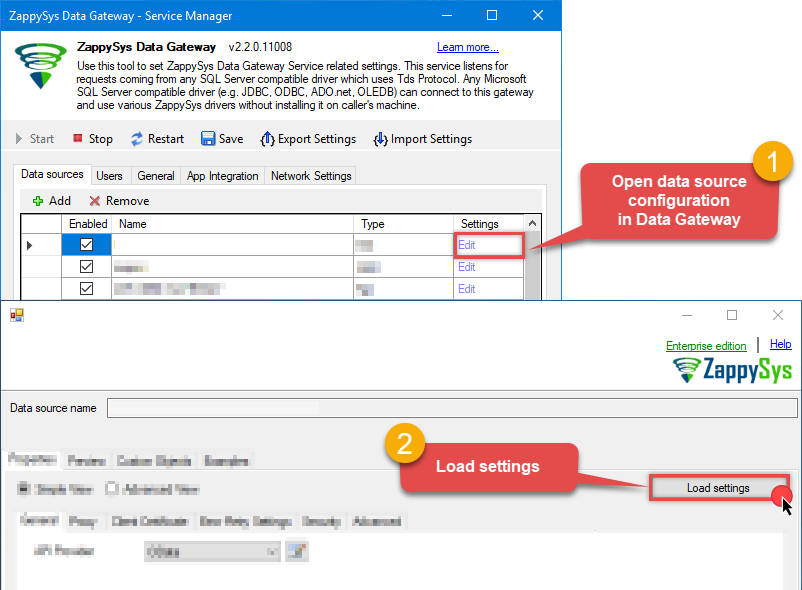
-
Once a window opens, just paste the settings by pressing
CTRL+Vor by clicking right mouse button and then Paste option.
-
Open ODBC data source configuration and click Copy settings:
-
Once done, go to the Network Settings tab and Add a firewall rule for inbound traffic:
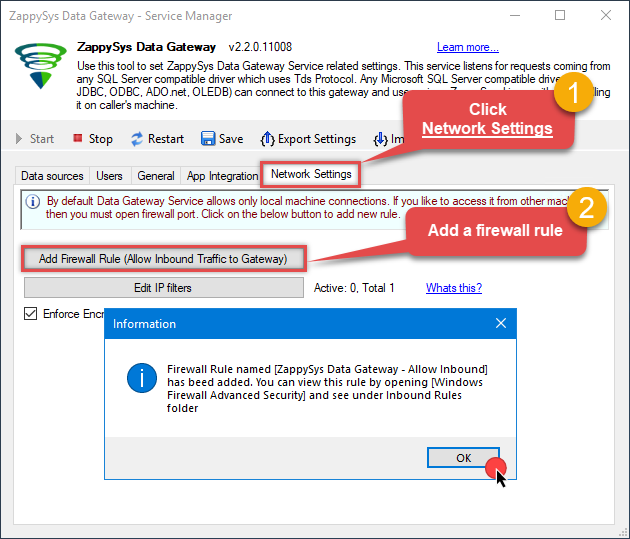
- This will initially allow all inbound traffic.
- Click Edit IP filters to restrict access to specific IP addresses or ranges.
-
Crucial Step: After creating or modifying the data source, you must:
- Click the Save button to persist your changes.
- Hit Yes when prompted to restart the Data Gateway service.
This ensures all changes are properly applied:
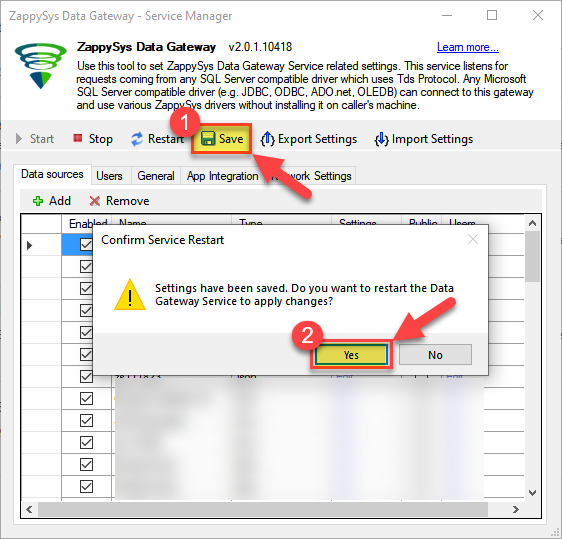 Skipping this step may cause the new settings to fail, preventing you from connecting to the data source.
Create ODBC data source to connect to the gateway
In this part we will create an ODBC data source to connect to the ZappySys Data Gateway from PowerShell. To achieve that, let's perform these steps:
-
Search for
odbcand open the ODBC Data Sources (64-bit):
-
Create a User data source (User DSN) based on the ODBC Driver 17 for SQL Server driver:
ODBC Driver 17 for SQL Server
If you don't see the ODBC Driver 17 for SQL Server driver in the list, choose a similar version. -
Then set a Name for the data source (e.g.
Gateway) and the address of the Data Gateway:ZappySysGatewayDSNlocalhost,5000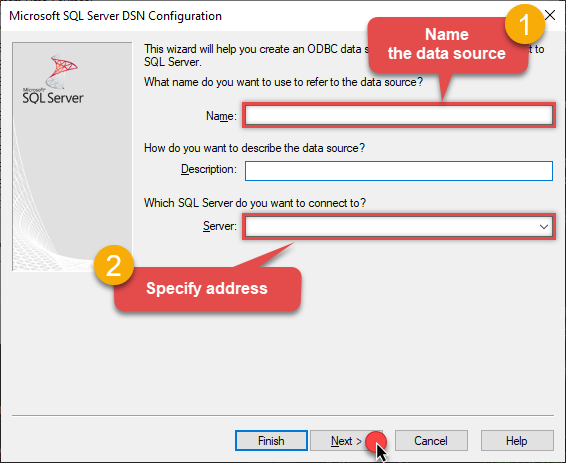 Make sure you separate the hostname and port with a comma, e.g.
localhost,5000. -
Proceed with the authentication part:
- Select SQL Server authentication
-
In the Login ID field enter the user name you created in the Data Gateway, e.g.,
john - Set Password to the one you configured in the Data Gateway
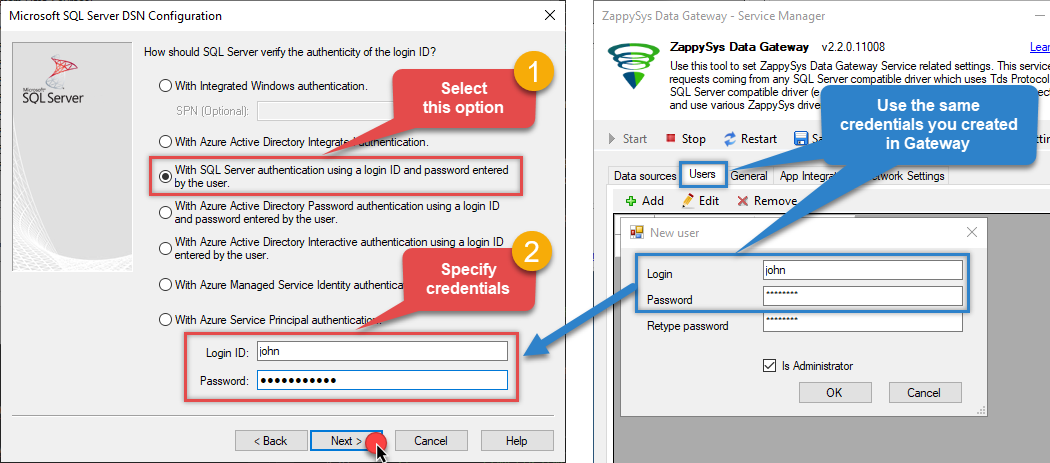
-
Then set the default database property to
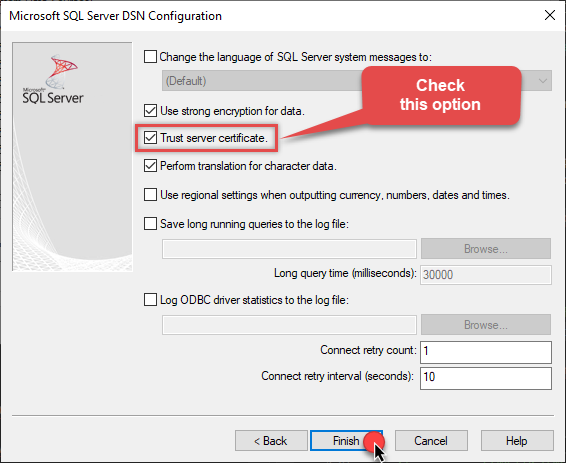
Neo4jDSN(the one we used in the Data Gateway):Neo4jDSNNeo4jDSN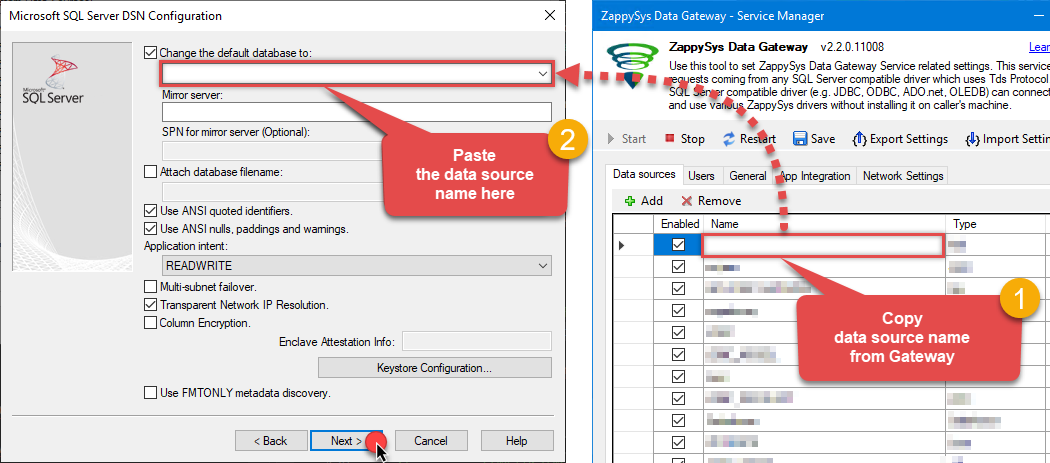 Make sure to type the data source name manually or copy/paste it directly into the field. Using the dropdown might fail because the Trust server certificate option is not enabled yet (next step).
 -
Continue by checking the Trust server certificate option:
-
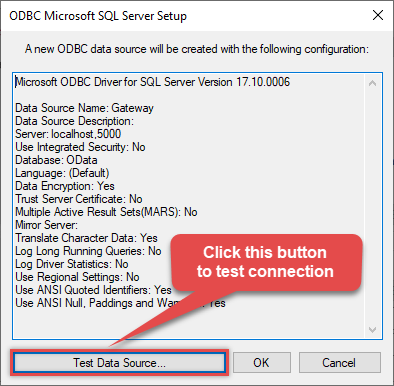
Once you do that, test the connection:
-
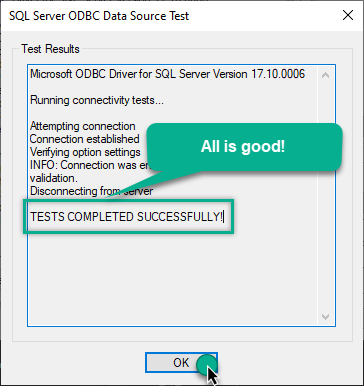
If the connection is successful, everything is good:
-
Done!
We are ready to move to the final step. Let's do it!
Access data in PowerShell via the gateway
Finally, we are ready to read data from Neo4j in PowerShell via the Data Gateway. Follow these final steps:
-
Go back to PowerShell.
-
Use this code snippet to read the data using
ZappySysGatewayDSNdata source:"DSN=ZappySysGatewayDSN"
For your convenience, here is the whole PowerShell script:
# Configure connection string and query
$connectionString = "DSN=ZappySysGatewayDSN"
$query = "SELECT * FROM Customers"

# Instantiate OdbcDataAdapter and DataTable
$adapter = New-Object System.Data.Odbc.OdbcDataAdapter($query, $connectionString)
$table = New-Object System.Data.DataTable

# Fill the table with data
$adapter.Fill($table)

# Since we know we will be reading just 4 columns, let's define format for those 4 columns, each separated by a tab
$format = "{0}`t{1}`t{2}`t{3}"

# Display data in the console
foreach ($row in $table.Rows)
{
    # Construct line based on the format and individual Neo4j fields
    $line = $format -f ($row["CustomerId"], $row["CompanyName"], $row["Country"], $row["Phone"])
    Write-Host $line
}
Access specific Neo4j table field using this code snippet:
You will find more info on how to manipulate$field = $row["ColumnName"]DataTable.Rowsproperty in Microsoft .NET reference.For demonstration purposes we are using sample tables which may not be available in Neo4j. -
Read the data the same way we discussed at the beginning of this article.
-
That's it!
Now you can connect to Neo4j data in PowerShell via the ZappySys Data Gateway.
john and your password.
Conclusion
In this guide, we demonstrated how to connect to Neo4j using PowerShell and integrate your data — all without writing complex code. It's worth noting that ZappySys JDBC Bridge Driver allows you to connect not only to Neo4j, but to any Java application that supports JDBC (just use a different JDBC driver and configure it appropriately).
Ready to get started? Download ODBC PowerPack now or ping us via chat if you still need help: