

Introduction
You can connect to your HTML Table data in SSRS using the high-performance HTML Table ODBC Driver. We'll walk you through the entire setup.
Let's not waste time and get started!
Create data source in ZappySys Data Gateway
In this section we will create a data source for HTML Table in the Data Gateway. Let's follow these steps to accomplish that:
-
Download and install ODBC PowerPack (if you haven't already).
-
Search for
gatewayin the Windows Start Menu and open ZappySys Data Gateway Configuration: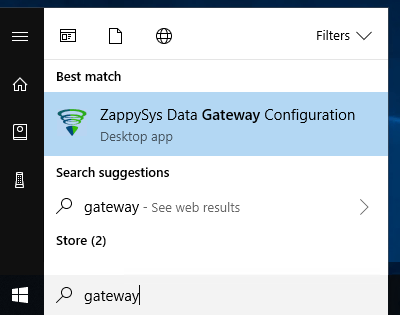
-
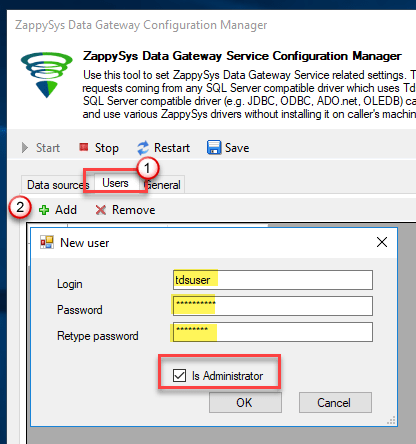
Go to the Users tab and follow these steps to add a Data Gateway user:
- Click the Add button
-
In the Login field enter a username, e.g.,
john - Then enter a Password
- Check the Is Administrator checkbox
- Click OK to save
-
Now we are ready to add a data source:
- Click the Add button
- Give the Data source a name (have it handy for later)
- Then select Native -
- Finally, click OK
HtmlTableDSN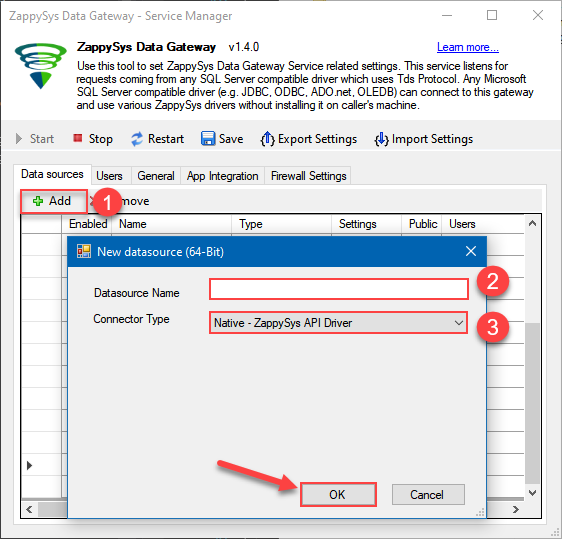
-
When the Configuration window appears give your data source a name if you haven't done that already, then select "HTML Table" from the list of Popular Connectors. If "HTML Table" is not present in the list, then click "Search Online" and download it. Then set the path to the location where you downloaded it. Finally, click Continue >> to proceed with configuring the DSN:
HtmlTableDSNHTML Table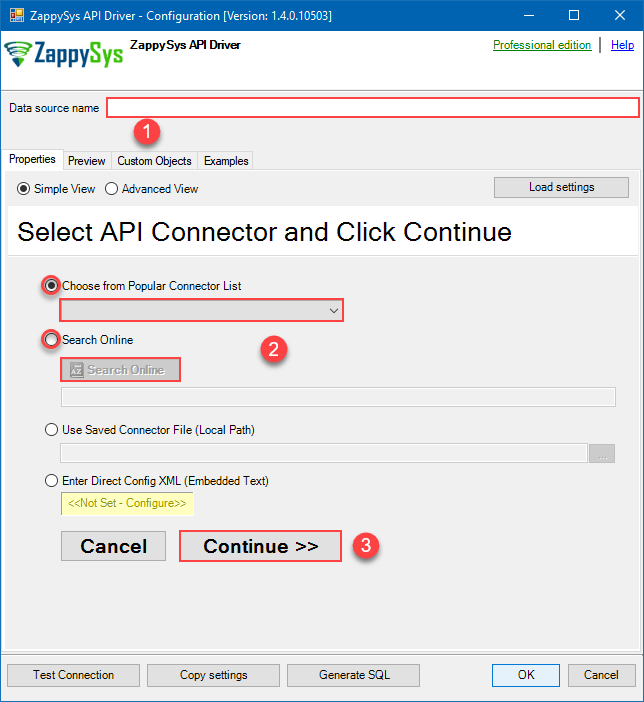
-
Select your authentication scenario below to expand connection configuration steps to:
- Configure the authentication in HTML Table.
- Enter those details into the ZappySys API Driver data source configuration.
-
Once the data source connection has been configured, it's time to configure the SQL query. Select the Preview tab and then click Query Builder button to configure the SQL query:
 - HTML TableRead HTML table data effortlessly. Extract, sync, and manage web table content for analytics, reporting, and data pipelines — almost no coding required.HtmlTableDSN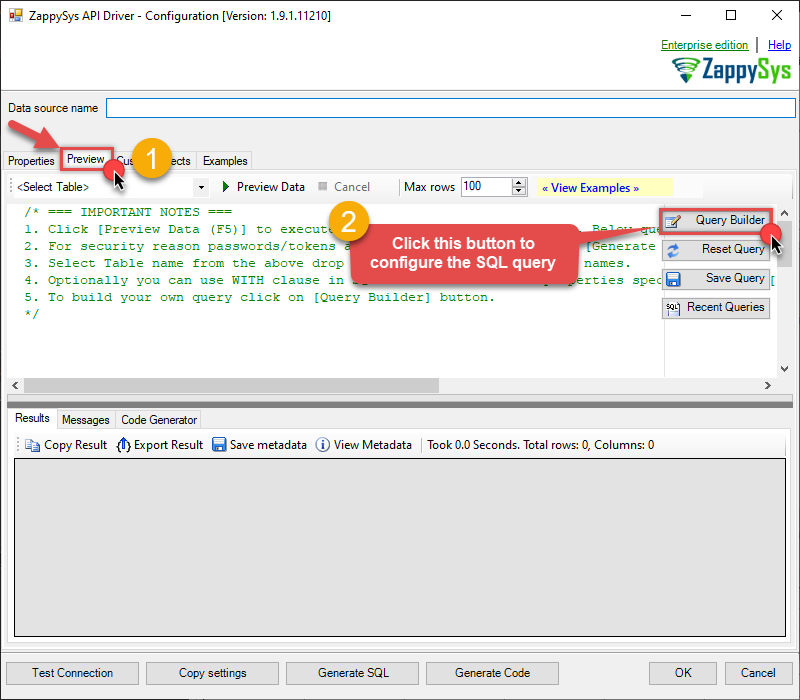
-
Start by selecting the Table or Endpoint you are interested in and then configure the parameters. This will generate a query that we will use in SSRS to retrieve data from HTML Table. Hit OK button to use this query in the next step.
SELECT * FROM Orders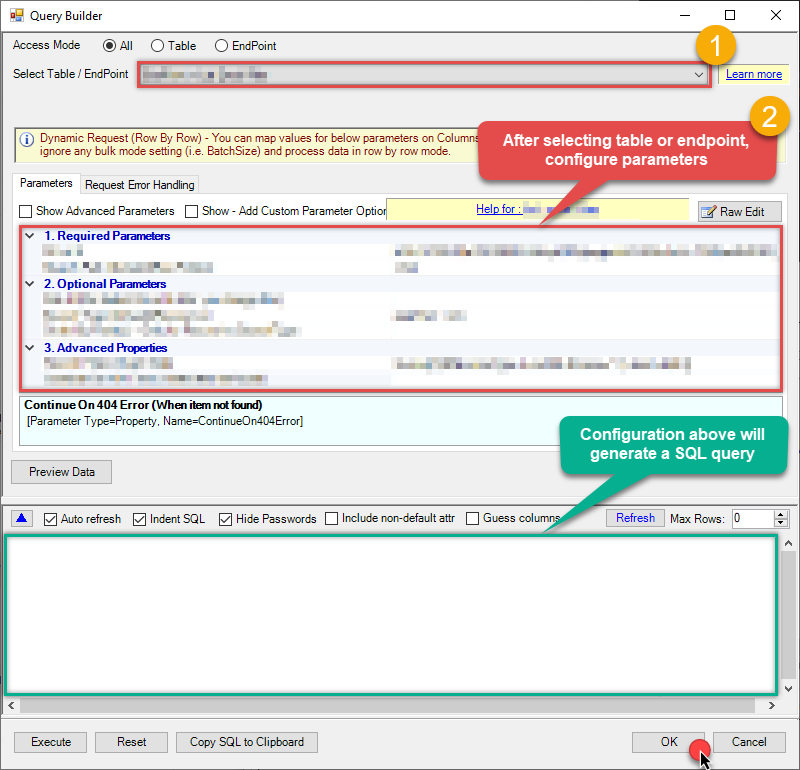 Some parameters configured in this window will be passed to the HTML Table API, e.g. filtering parameters. It means that filtering will be done on the server side (instead of the client side), enabling you to get only the meaningful data
much faster . -
Now hit Preview Data button to preview the data using the generated SQL query. If you are satisfied with the result, use this query in SSRS:
- HTML TableRead HTML table data effortlessly. Extract, sync, and manage web table content for analytics, reporting, and data pipelines — almost no coding required.HtmlTableDSNSELECT * FROM Orders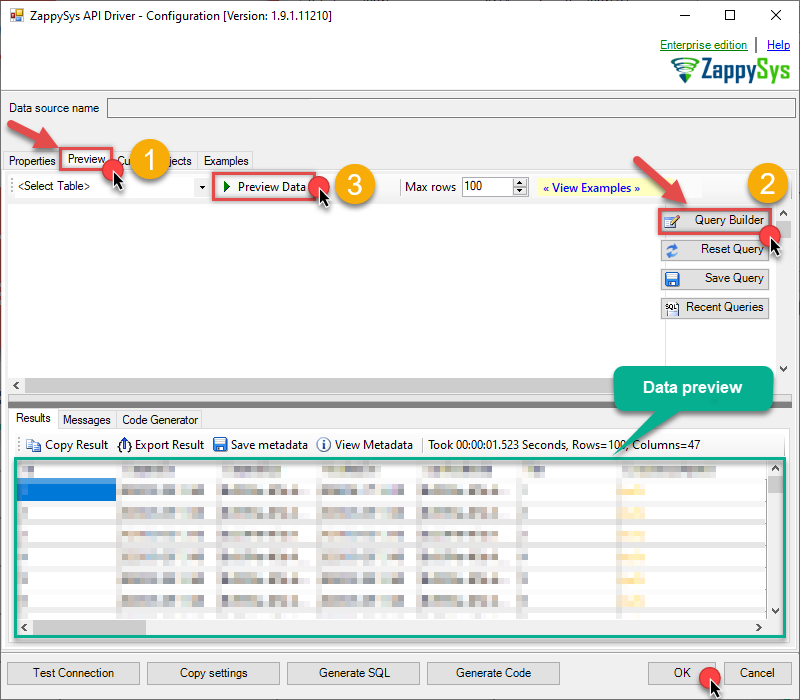 You can also access data quickly from the tables dropdown by selecting <Select table>.A
WHEREclause,LIMITkeyword will be performed on the client side, meaning that thewhole result set will be retrieved from the HTML Table API first, and only then the filtering will be applied to the data. If possible, it is recommended to use parameters in Query Builder to filter the data on the server side (in HTML Table servers). -
Click OK to finish creating the data source.
-
Once done, go to the Network Settings tab and Add a firewall rule for inbound traffic:
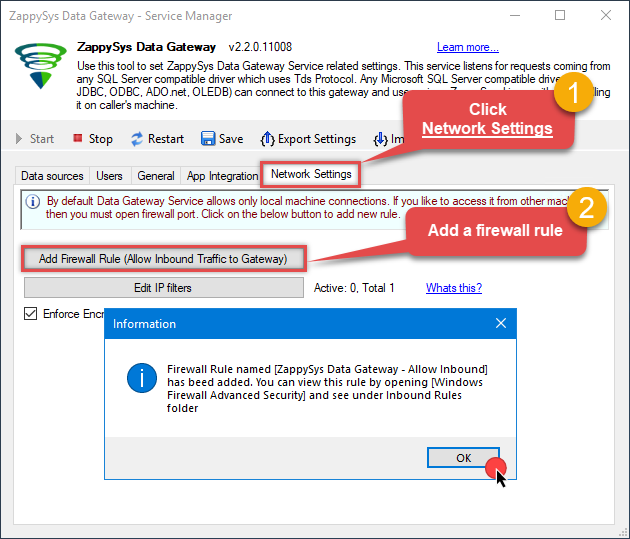
- This will initially allow all inbound traffic.
- Click Edit IP filters to restrict access to specific IP addresses or ranges.
-
Crucial Step: After creating or modifying the data source, you must:
- Click the Save button to persist your changes.
- Hit Yes when prompted to restart the Data Gateway service.
This ensures all changes are properly applied:
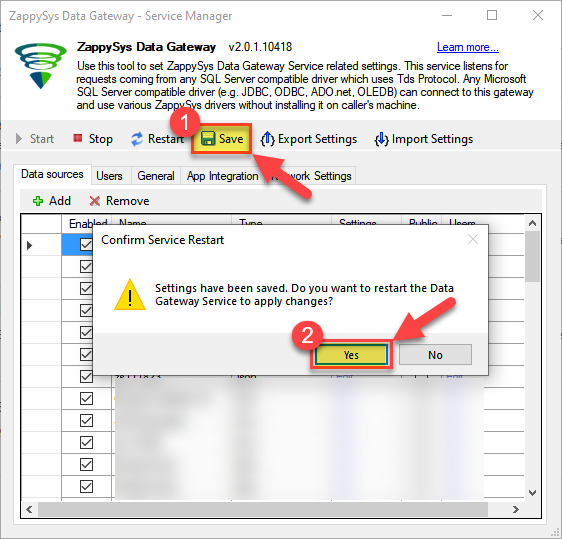 Skipping this step may cause the new settings to fail, preventing you from connecting to the data source.
Read data in SSRS from ZappySys Data Gateway
-
Open Visual Studio and create a new SSRS project.
-
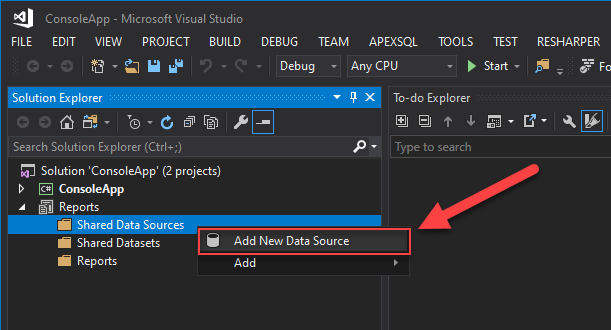
Then add a new Shared Data Source (you can create a non-shared data source inside report too):
-
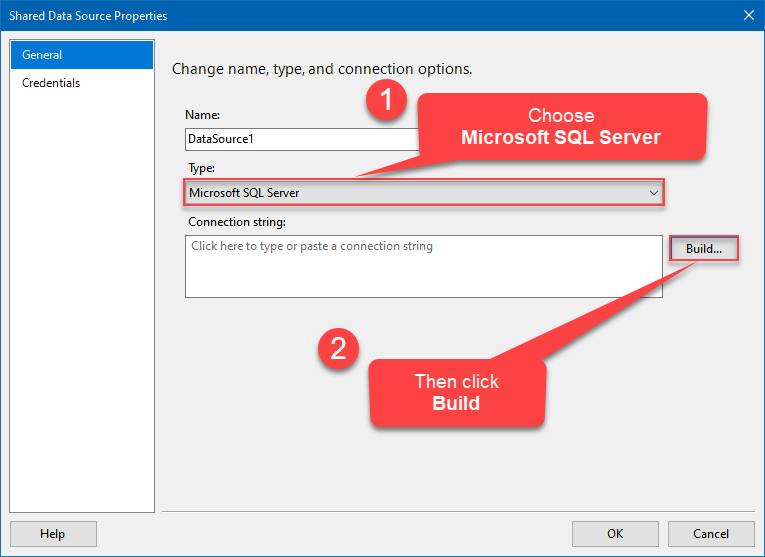
Continue with creating the Shared Data Source. Select Microsoft SQL Server as Type and hit Build button to proceed further:
-
Once a window opens, configure it similarly. Configure "HtmlTableDSN" as database name. Finally, hit Test Connection and OK:
HtmlTableDSN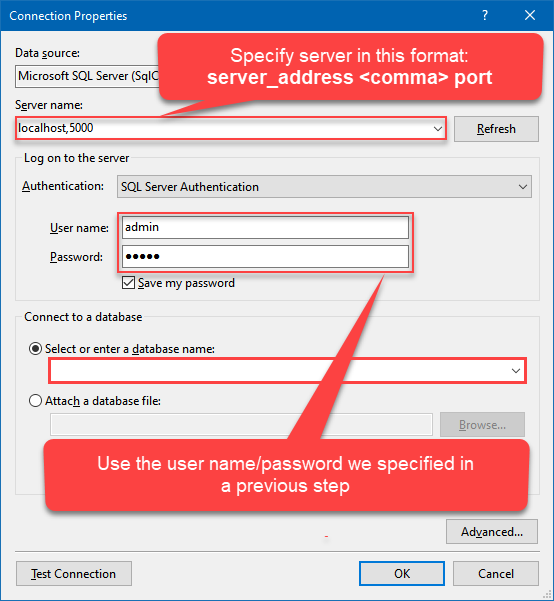
-
Another window opens, and it should look similarly to this one below which ends the creation of a Data Source:
DataSource=localhost,5000;Initial Catalog=HtmlTableDSN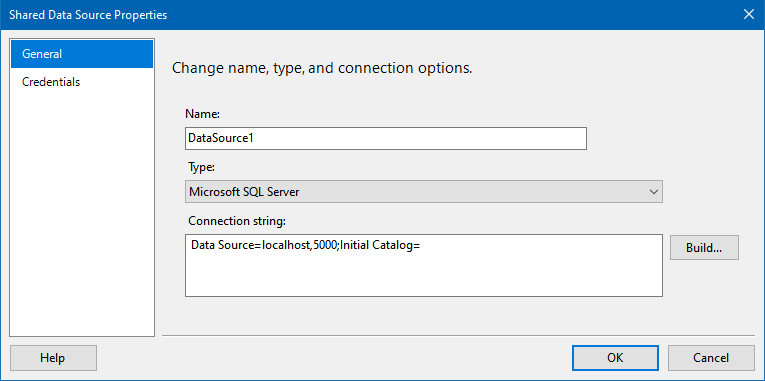
-
Now it's time to create a Dataset. If you don't have a report created, in one of the wizard's steps it will look like this:
SELECT * FROM Orders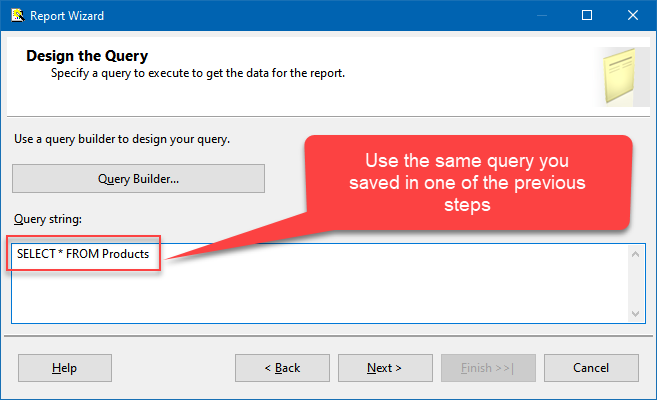
-
Finally, once you complete the report, similar results will show up:
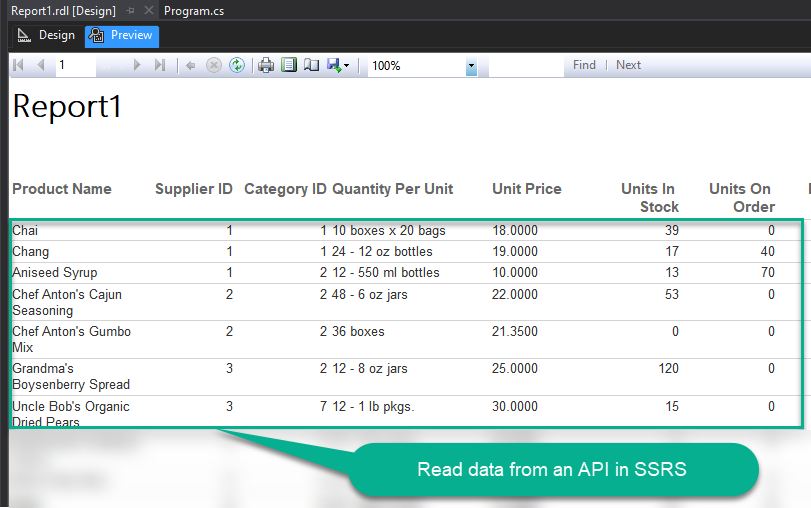
Passing Parameters to SSRS Report / Filter data
If you want to parameterize your report, then refer to this article
Conclusion
In this guide, we demonstrated how to connect to HTML Table in SSRS and integrate your data — all without writing complex code.
Ready to get started? Download ODBC PowerPack now or ping us via chat if you still need help: